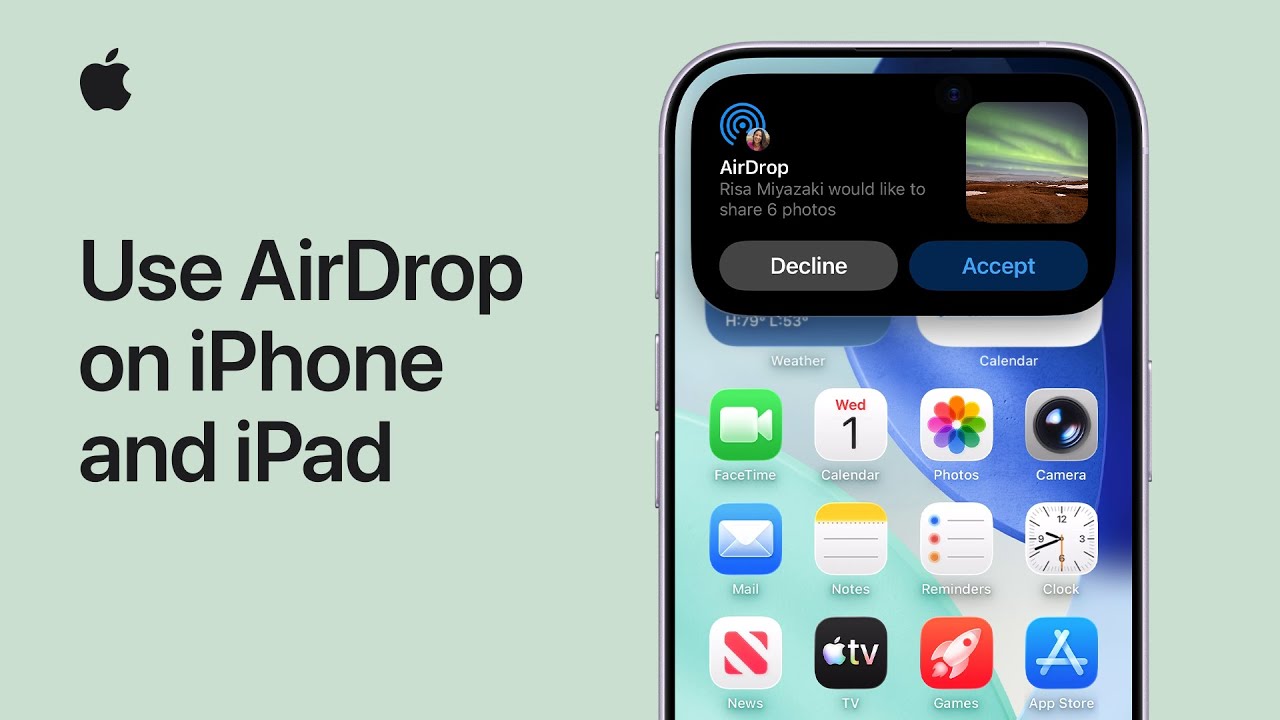
I use AirDrop to quickly send photos, long videos, or large files by first making sure the person is nearby and that we both have Wi‑Fi and Bluetooth on, turning off Personal Hotspot if needed.
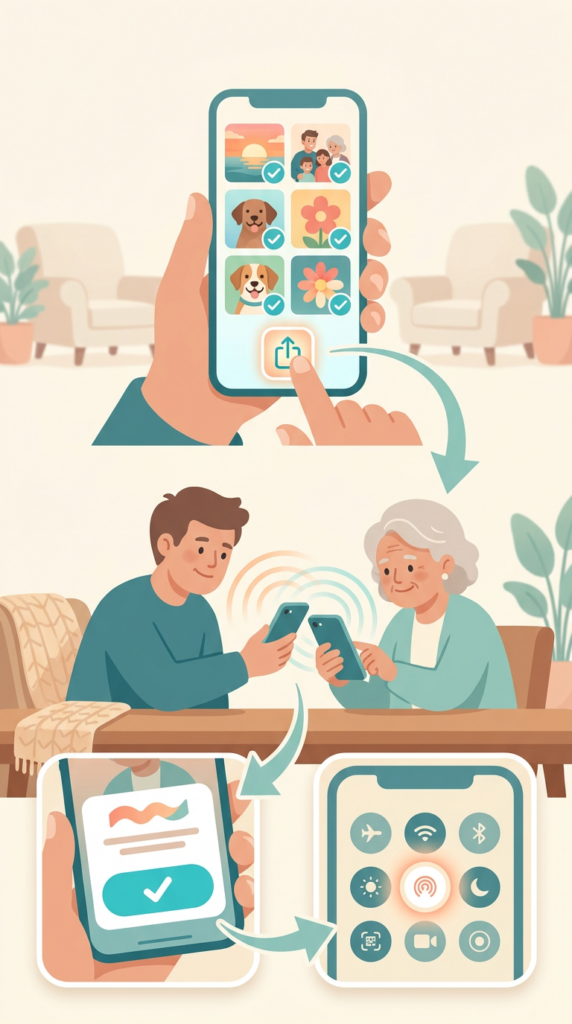
If we both have iOS 17 or later, I open the file I want to share, tap the Share button, choose AirDrop, and move my iPhone close to the other device.
I tap the contact’s name and wait for the devices to connect; the recipient taps Accept, and the item opens automatically in a supported app.
To share with someone not in my contacts, I ask them to open Control Center, touch the Connectivity controls, tap AirDrop, and choose a receiving option.
Make sure you’re nearby and both devices have Wi‑Fi and Bluetooth on; turn off Personal Hotspot if needed.
Open the file, tap Share, choose AirDrop, and bring your iPhone close to the other device.
Tap the recipient’s name under People and wait for the devices to connect.
Recipient taps Accept; the shared item opens automatically in a supported app.
For people not in Contacts, have them open Control Center → touch Connectivity controls → AirDrop and select an option.
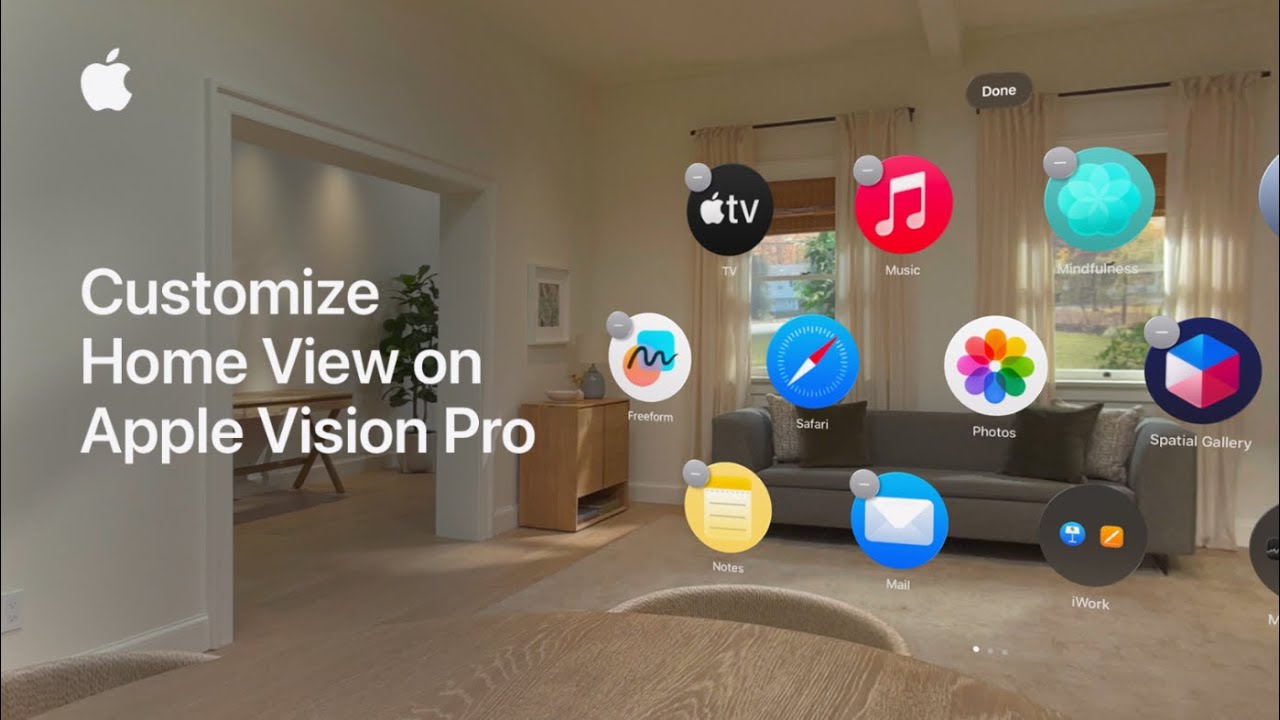
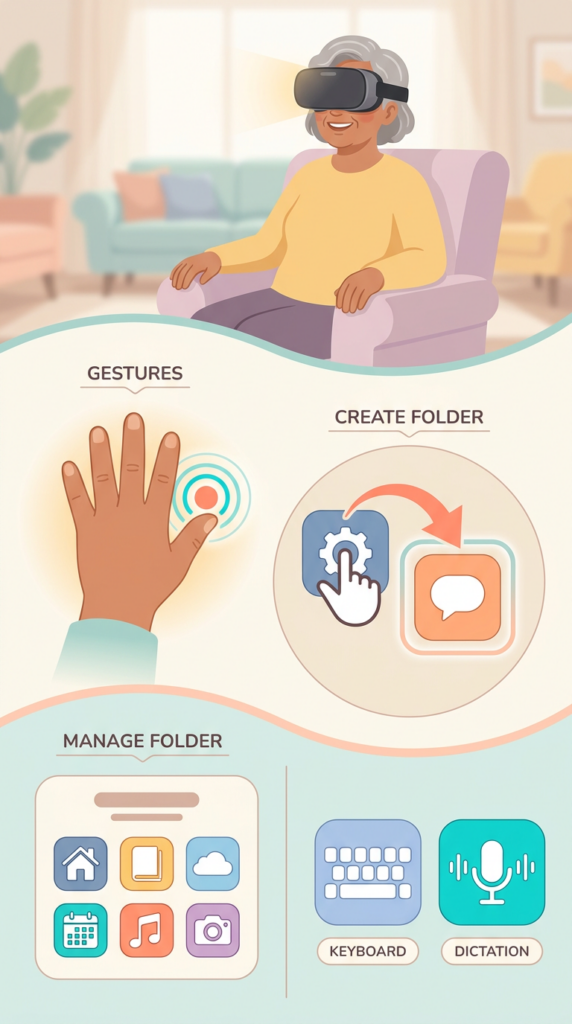
I customize Home View on my Apple Vision Pro (visionOS 26) by opening Home View — press the Digital Crown or use the gesture: look at my hand with the palm facing me and tap my fingers together.
To rearrange, I look at an app, pinch and hold my thumb and finger until the icons jiggle, then drag an app onto another to create a folder.
I can mix visionOS and compatible iPhone/iPad apps in the same folder.
The folder is named automatically; I open it, tap the name to edit, and rename using the virtual keyboard, Magic Keyboard, or dictation.
Open Home View: press the Digital Crown or use the hand gesture (palm facing you, tap fingers together).
Enter edit mode: look at an app, pinch and hold until icons jiggle.
Create a folder: pinch and drag one app onto another.
Mix apps: include visionOS apps and compatible iPhone/iPad apps together.
Rename folder: open it, tap the name, and use the virtual keyboard, Magic Keyboard, or dictation.
Finding the perfect gift for a child can be a daunting task, but emerging AI technologies are making it easier than ever. Using simple AI prompts tailored to a child’s current interests, like dinosaurs or space, can generate age-appropriate gift ideas that captivate their imagination. AI tools can take basic details such as age and interests to suggest gifts that not only delight but also foster learning and creativity.
Given the specificity of AI’s recommendations, gift-givers are no longer limited to just toys. These prompts often lead to unique gifts that encourage development and exploration, offering more meaningful engagement beyond fleeting entertainment. Whether it’s a dinosaur excavation kit for the budding paleontologist or a space-themed book set for the young astronaut, these thoughtful selections can create lasting memories and spark new interests.
The integration of AI in gift-giving streamlines the process from idea to purchase, allowing givers to find culturally relevant and inspiring presents while saving time and effort. This modern approach shifts the focus from merely selecting a gift to personalizing an experience, enhancing the joy of giving and receiving.
Modern tech personalizes the gift-giving experience.
Matching Gifts to Children’s Interests With Simple AI Prompts
Using AI-powered tools simplifies the process of finding gifts tailored to a child’s specific interests, ensuring they align with their age and passions. By employing well-crafted prompts, gift givers can retrieve personalized suggestions that resonate with children’s current fascinations like dinosaurs or space.
How Prompts Work for Interest-Based Suggestions
Artificial intelligence leverages data and algorithms to process information from user inputs, such as interests highlighted in prompts. When a user inputs a specific interest—for example, “space”—AI systems cross-reference this with datasets of popular toys, books, and educational materials related to space exploration and astronomy. The output is a curated list of gift ideas that not only reflect the child’s interests but also foster further curiosity and learning.
Additionally, these suggestions adapt based on the child’s age, considering cognitive development stages. This ensures age-appropriate recommendations, enhancing the child’s learning experience and engagement with the world around them. The AI’s prompt-driven mechanism is thus fundamental in bridging the gap between simple user queries and complex, tailored gift suggestions.
Best Practices for Getting Age-Appropriate Recommendations
To optimize the effectiveness of AI gift recommendations, users should be precise with their prompts. It is advisable to include specific details like the child’s age, preferences, and any relevant themes when crafting these prompts. For example, specifying “dinosaurs” for a five-year-old versus a ten-year-old can drastically alter the resulting suggestions, as younger children might benefit from simple toys, whereas older ones could appreciate more detailed educational kits.
Engagement with AI tools should also be consistent; repeated use can refine the quality of the output as the system learns from previous interactions. Subtle nuances, such as updates on the child’s evolving interests like a newfound love for astronomy, can significantly enhance the relevance of recommendations generated by the AI.
Examples: Dinosaurs, Space, and Other Popular Themes
When exploring popular themes like dinosaurs, AI prompts can recommend diverse gift ideas, from plush toys to interactive dinosaur-themed educational games. These suggestions cater to different age groups, ensuring that younger children receive more play-oriented gifts, while older children might get enriching model kits or books on paleontology.
For space enthusiasts, AI utilizes interest-based prompts to suggest items such as detailed star maps or kid-friendly telescopes, which foster imaginative play and scientific curiosity. Other popular themes, including botany or subjects inspired by school projects, can similarly be catered to through personalized gifting, again highlighting the adaptability and intelligence inherent in AI-supported gift-giving tools.
Beyond Toys: Gifts That Inspire Learning and Longevity
Selecting non-toy gifts can significantly enrich a child’s learning experience by fostering curiosity and creativity. Educational experiences, especially those centered around conservation or heritage, offer invaluable insights into the world, while books and kits encourage active exploration.
Educational and Experiential Gifts
Experiential gifts, such as classes or memberships, present opportunities for children to learn outside traditional environments. A subscription to a science museum or botanical garden not only fuels interest in botany and ecology but also fosters a deeper appreciation for the natural world. Classes in arts, crafts, or music can help cultivate a child’s skills and passions, offering lifelong benefits. By engaging in hands-on activities, children can discover new interests, leading to long-lasting hobbies. Additionally, workshops that focus on local heritage or conservation topics teach children the importance of preserving their environment, encouraging responsible and knowledgeable future citizens.
Conservation and Heritage-Inspired Gift Ideas
Gifts that relate to conservation and heritage offer children the chance to connect with their environment in meaningful ways. Adopting a species at risk or supporting local conservation projects can educate children about wildlife preservation. Heritage experiences, like visiting historical sites or participating in cultural festivals, help instill a sense of identity and community. These gifts offer valuable lessons in responsibility and cultural awareness, encouraging children to explore history and their role within it. Engaging with initiatives that focus on environmental and cultural conservation can inspire children to take part in the stewardship of the world around them for future generations.
Encouraging Curiosity Through Books, Kits, and Archives
Books and educational kits serve as gateways to vast worlds of discovery. A well-chosen book not only entertains but also broadens horizons, offering insights into diverse topics from science to world cultures. Hands-on kits, such as archaeological dig sets or science experiments, engage children in active learning, sparking curiosity about the natural world and scientific principles. Archives, including digital collections or local library archives, provide a treasure trove of historical documents and records that offer personal connections to the past. Introducing children to archival research can develop critical thinking skills while nurturing a love for history and storytelling. These resources collectively empower children to pursue knowledge independently, fostering a lifelong passion for learning.
Culturally Meaningful Gift Ideas and the Role of Modern Technology
Modern technology, including artificial intelligence, plays an increasingly important role in creating culturally meaningful gift experiences. Understanding cultural contexts can enhance the significance of gift-giving, making it more personal and respectful. Incorporating digital tools can aid in selecting appropriate gifts that honor cultural traditions.
Indigenous Studies and Respectful Giving
Gift-giving practices in Indigenous cultures are rich with meaning, often reflecting reciprocity and community values. Recognizing and respecting these traditions is vital when selecting gifts. Digital tools can help by offering insights into Indigenous histories and customs. Archives and digital repositories provide valuable information about traditional practices that can guide respectful gift choices. Artificial intelligence can also assist here, suggesting gifts deeply connected to Indigenous cultural practices, helping users to appreciate the significance embedded within these traditions while ensuring meaningful and appropriate selections.
Blending Tradition and Technology
The blend of tradition and technology offers a unique way to honor cultural practices while embracing the convenience and originality modern tools provide. AI can facilitate this by recommending gifts that combine traditional elements with modern interpretations. For example, AI can suggest a gift that integrates classic art forms with contemporary designs, such as a digital artwork inspired by traditional patterns. This approach respects cultural heritage while showcasing innovation, appealing to those who value both history and modernity. The synergy between tradition and technology enriches the gifting experience, adding layers of cultural appreciation to the convenience of the digital world.
Staying Informed: Using News and Digital Resources
Current events and local news can influence cultural dynamics and preferences. Staying informed helps in selecting gifts that are both relevant and sensitive to these changes. Online resources and AI-driven platforms can provide updated insights, making it easier to choose gifts aligned with contemporary cultural contexts. AI can analyze trends in real-time, offering suggestions based on current affairs that might influence cultural sentiments. Utilizing digital archives and news outlets allows gift-givers to remain aware of evolving cultural landscapes, ensuring that their gifts are thoughtful and timely.
From Prompt to Purchase: Practical Steps for Gift Givers
Navigating the journey from idea to acquisition involves practical strategies that ensure the chosen gift is both thoughtful and relevant. Harnessing digital tools like email and reflecting on past experiences can streamline this process.
Using Email for Personalized Gifting
Email can be a powerful tool for refining gift ideas and sharing them with others. By creating wish lists or idea boards, parents and children can collaborate to identify current interests. This may involve emailing a list of top choices to trusted family members who might be interested in contributing. Various online platforms allow users to email curated collections of gifts tailored to a child’s hobbies or educational needs. Email digests from retailers can also alert users to sales and new products. Ensuring communication is clear and specific helps maintain excitement and coherence in the gifting process, all while involving multiple stakeholders.
Archived Inspiration: Leveraging Past Experiences
Past experiences serve as essential archives that can guide gift selection. Parents often keep records or notes from previous birthdays or holidays to remember which gifts were successful. These archives can be physical, like a folder containing children’s artwork that hints at their interests, or digital archives, such as photos or journal entries. Reflecting on past activities or trips the child enjoyed can remind gift givers of themes or concepts that could be revisited through new gifts. This strategy not only makes the process more personal but also increases the likelihood of the gift being well-received.
Final Thoughts
After gathering insights through email and reflecting on archived experiences, making a meaningful choice becomes clearer. Gift givers should steer decisions by considering the child’s current developmental stage and emotional needs. Each gift should aim to enrich the child’s life, whether by bolstering their curiosity or aiding their skill development. Evaluate options against these criteria to determine value and purpose. Engaging children in conversations about their interests can also ensure that selections align with their latest passions. This intentional approach fosters deeper connections and creates memorable experiences.
I clean the meshes on my AirPods Pro 2 (top and sides) or Pro 3 (top, sides, bottom) using micellar water and a soft-bristled children’s toothbrush.
First, I remove the ear tip and rinse it under running water (no soap). I pour micellar water into a cup, dip the brush, and brush each mesh in circles for 15 seconds, blotting on a paper towel, then repeat that cleaning three times.
Next I rinse the brush in distilled water, brush each mesh once with distilled water and blot, then let the AirPods air-dry for at least two hours before reattaching tips or using them.
Remove ear tip; rinse tip under running water (no soap).
Dip soft-bristled brush in micellar water and brush each mesh 15 seconds.
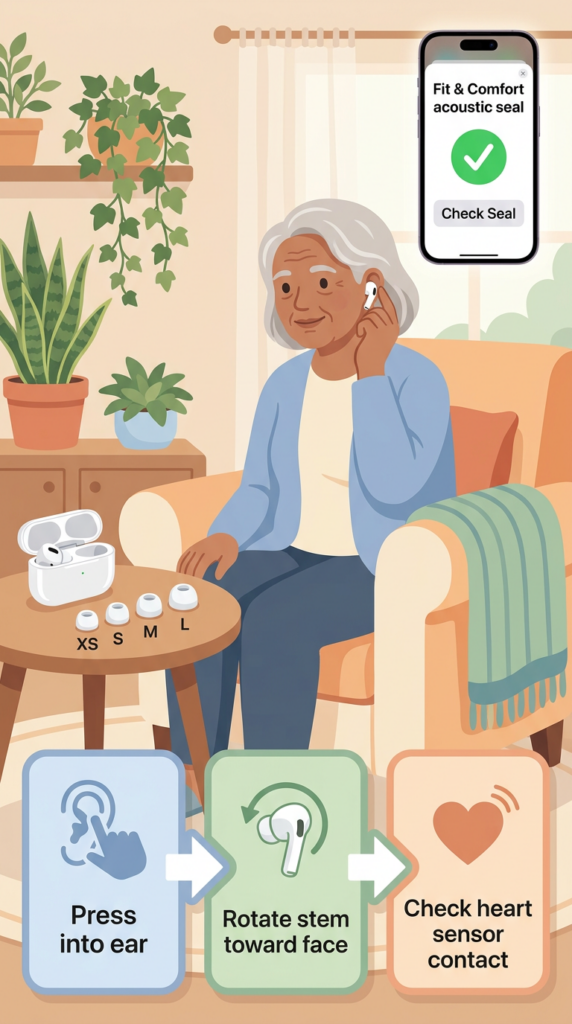
I fit my AirPods Pro 3 with the medium tips and point the heart sensors forward.
I press them into my ears and rotate the stems toward my face until the fit feels snug and sensors contact my skin.
If they’re loose or cause pressure, I try a different tip—grip the base to pull off (use a clean cloth or roll the edge inside-out for better grip) and attach the new tip until it clicks.
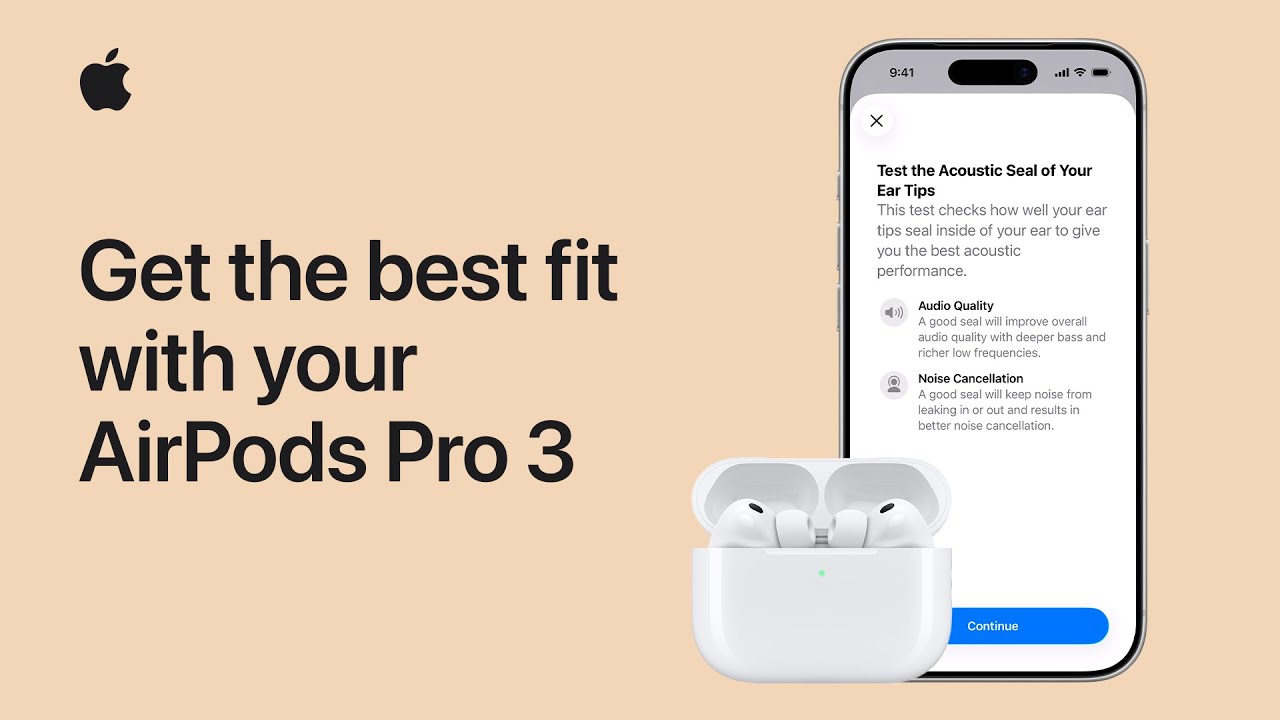
Then I run the Fit & Comfort acoustic seal test on my iPhone to confirm optimal sound and noise cancellation for best overall everyday performance.
Start with medium tips, sensors facing forward; insert and rotate stems for a snug fit.
If fit is loose or uncomfortable, try a different tip size.
Remove a tip by gripping the base (use cloth or roll edge inside-out if needed).
Attach a tip by aligning and pushing until it clicks.
Run the Fit & Comfort acoustic seal test on your iPhone to verify sound and noise cancellation.
I slide the band over my head so the lower strap rests on the back of my head, then turn the Fit Dial clockwise to tighten until it feels snug. Next, I pull the Fit Dial out and tighten the upper strap, adjusting the band’s position up or down on my head as needed.
I fine-tune with the Fit Dial until I feel balanced support between my forehead and cheeks, ensuring a comfortable fit.
Always hold Apple Vision Pro by the frame, not the Light Seal, Audio Straps, or power cable
Slide the band over your head with the lower strap resting on the back of your head
Turn the Fit Dial clockwise to tighten and counterclockwise to loosen the straps
Adjust the band position up or down on your head for balanced support between forehead and cheeks
Fine-tune the fit using the Fit Dial until the device feels snug and comfortable
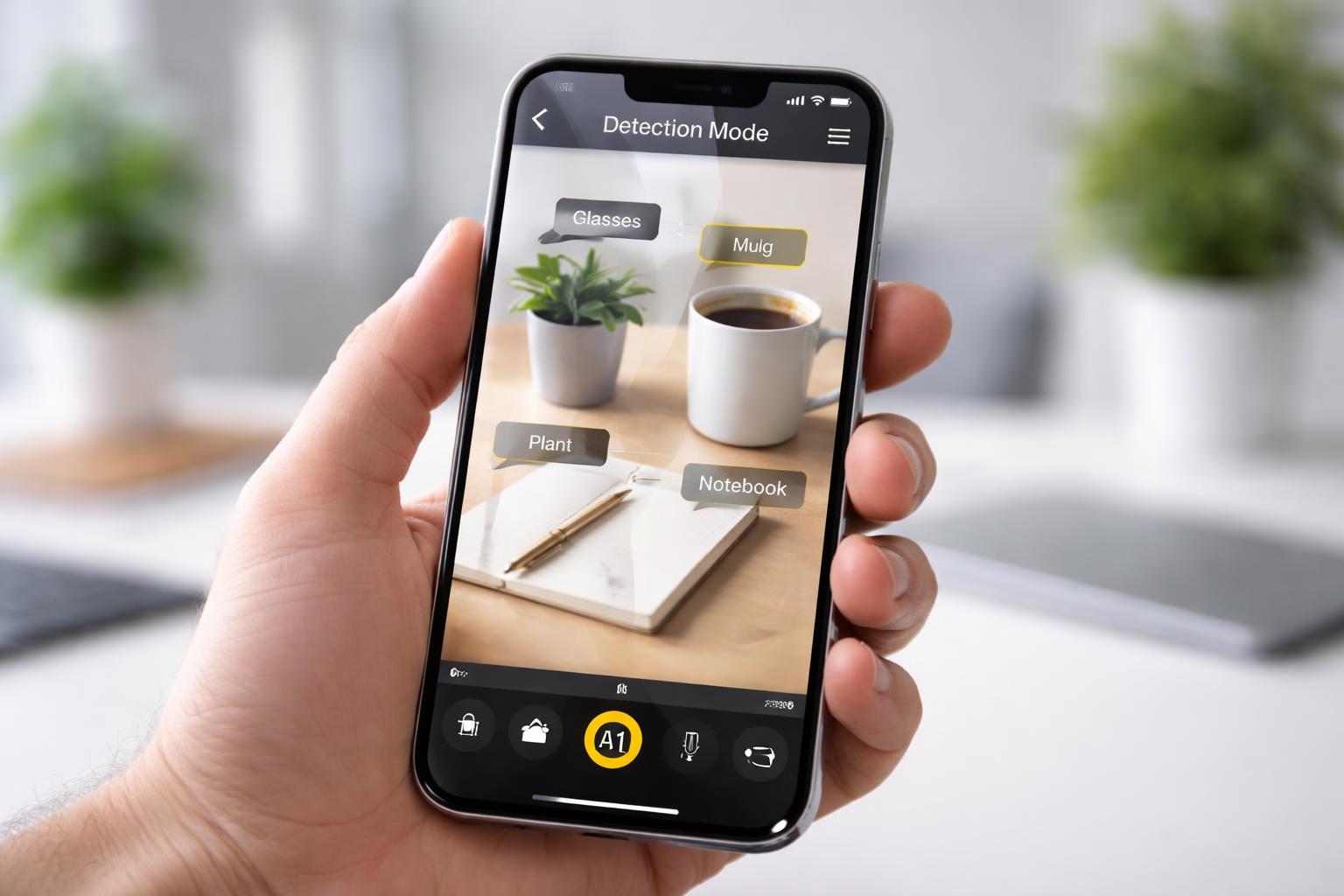
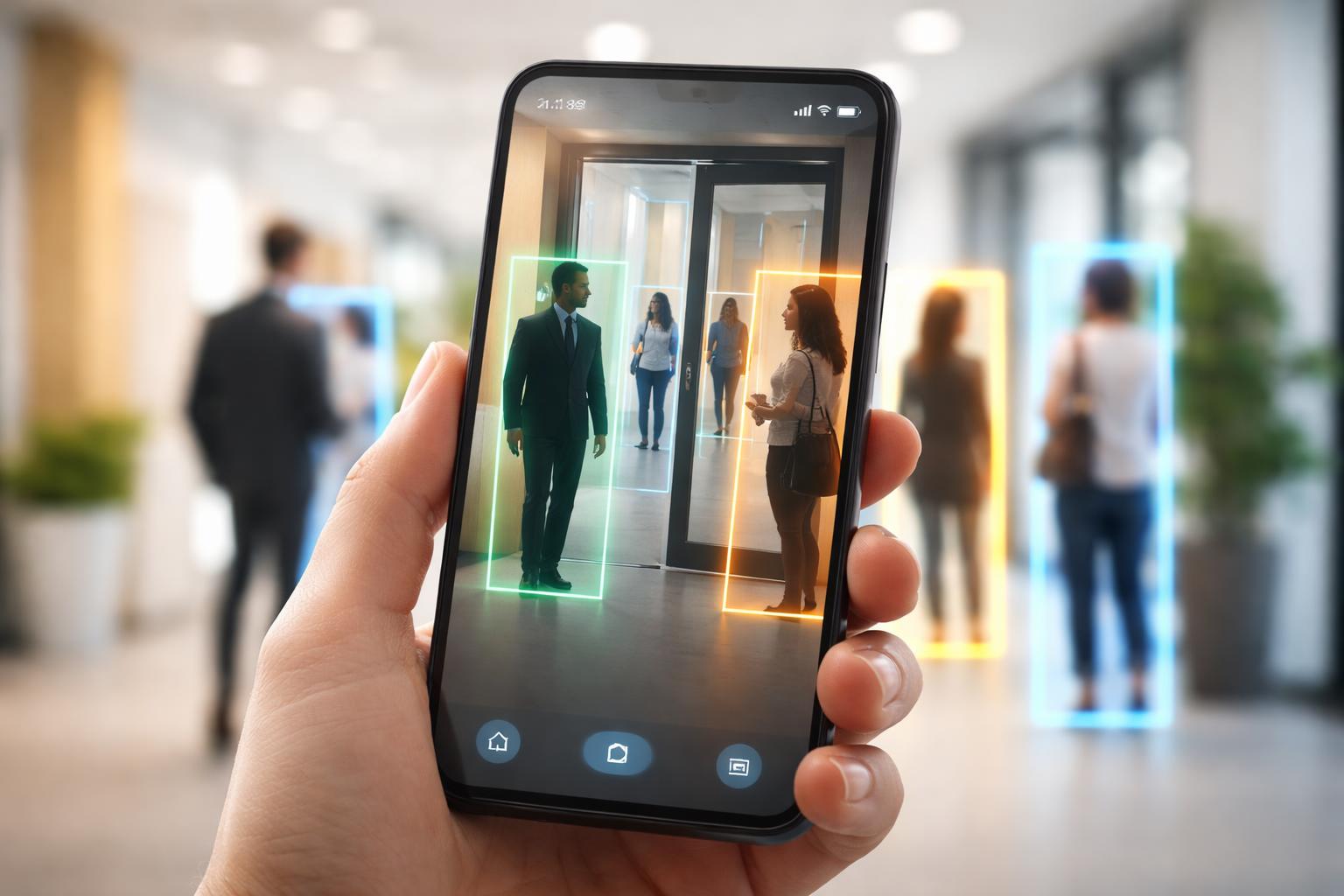
The iPhone’s Magnifier app goes far beyond simply zooming in on small text. Detection Mode uses on-device AI to provide real-time descriptions of people, doors, and objects, helping users with low vision navigate their surroundings independently. This accessibility feature transforms the iPhone’s camera into an intelligent assistant that can measure distances to nearby individuals, identify whether doors are open or closed, and even read signs and symbols.
Available on iPhone 12 Pro and later Pro models, Detection Mode operates through specialized tools including People Detection, Door Detection, and Image Descriptions. The system delivers information through multiple feedback methods: voice readouts, visual displays, haptic vibrations, and audio tones. Users can customize these settings to match their preferences and needs.
This technology demonstrates how AI-powered accessibility features can provide practical assistance in everyday situations. From maintaining social distance to locating exits in unfamiliar buildings, Detection Mode offers users with visual impairments greater confidence and autonomy in their daily activities.
Detection Mode in the Magnifier app uses AI to identify and describe people, doors, and objects for users with low vision
The feature provides distance measurements and environmental information through voice, visual, haptic, and audio feedback
Detection Mode is available on iPhone 12 Pro and newer Pro models and can be customized to individual user preferences
Understanding How Detection Mode Works
Detection Mode leverages the iPhone’s LiDAR scanner and neural engine to process visual information in real-time, providing spoken feedback about surroundings. The feature runs entirely on-device to protect user privacy while delivering immediate descriptions of people, doors, and objects.
AI and Machine Learning Capabilities in Magnifier
The Magnifier app uses the iPhone’s built-in neural engine to power Detection Mode’s AI capabilities. This specialized processor analyzes camera input combined with depth data from the LiDAR scanner to identify and describe objects in the environment.
The machine learning models recognize specific features like door handles, hinges, and frames to provide detailed door descriptions. For people detection, the AI calculates distance measurements and announces when someone enters or moves within the camera’s field of view. Image descriptions draw on trained models that identify text, symbols, and common objects.
These AI capabilities work together to deliver contextual information through audio feedback. The system processes visual data at high speed, allowing users to receive near-instantaneous updates as they navigate their surroundings.
Enabling Detection Mode on Compatible iPhones
Detection Mode requires specific iPhone models equipped with LiDAR technology. Compatible devices include the iPhone 12 Pro, iPhone 12 Pro Max, iPhone 13 Pro, iPhone 13 Pro Max, and newer Pro models released after these versions.
Users must first enable the Magnifier app in Settings > Accessibility > Magnifier. Once Magnifier is activated, opening the app reveals a Detection Mode button at the bottom of the screen. Tapping this button presents three options: People Detection, Door Detection, and Image Descriptions.
Each detection feature can be selected individually based on the user’s immediate needs. The interface provides simple controls to switch between modes or return to standard magnification functions.
Privacy and On-Device Processing
All Detection Mode processing occurs directly on the iPhone without sending data to external servers. The neural engine and LiDAR scanner work together locally, ensuring that visual information never leaves the device.
This on-device approach means detection features function without requiring an internet connection. Personal data remains private since no images or environmental details are transmitted, stored in the cloud, or shared with third parties. The AI models run independently on the phone’s hardware, maintaining both functionality and confidentiality for users with low vision who depend on these assistive features.
People and Door Detection Features
Detection Mode uses the iPhone’s LiDAR scanner to identify people and doors in real-time, providing spatial information and detailed descriptions through audio, haptic, and visual feedback. These features work exclusively on iPhone 12 Pro and later Pro models that include the necessary hardware.
How People Detection Assists in Navigation
People Detection measures the distance between the iPhone user and nearby individuals within the camera’s field of view. The feature announces the distance in feet or meters as the user moves through a space, helping them maintain appropriate spacing and avoid collisions.
The system provides continuous updates as distances change, making it practical for navigating crowded environments. Users receive alerts when someone enters their proximity, with the iPhone calling out measurements like “person six feet away” or “person three feet to the left.”
This functionality operates entirely on-device, processing the spatial data locally without sending images to external servers. The real-time feedback helps users build mental maps of their surroundings and move through public spaces with greater confidence.
Door Detection and Environmental Awareness
Door Detection identifies doors within the camera frame and provides comprehensive information about their characteristics. The feature describes door type (single, double, automatic), position (open, closed, partially open), and location relative to the user’s position.
Beyond basic identification, the system reads visible text near doors, including room numbers, directional signs, and accessibility symbols. It analyzes door hardware and provides guidance on opening mechanisms, such as identifying handles, knobs, or push bars.
The feature announces the distance to detected doors and guides users toward them through directional audio cues. This allows users to locate building entrances, navigate office corridors, and identify exits without requiring visual confirmation of door locations.
Customizing Feedback: Sounds, Speech, and Haptics
Detection Mode offers three feedback types that users can enable individually or in combination. Speech announcements provide verbal descriptions of detected objects and distances. Haptic feedback delivers tactile pulses that vary in intensity based on proximity to detected objects.
Sound effects supplement the other feedback methods with audible tones. Users access these settings within the Magnifier app’s Detection Mode interface, toggling each option based on their preferences and environment.
The customization allows users to adapt the feature to different situations—using only haptics in quiet spaces, relying on speech when wearing headphones, or combining all three for maximum awareness in complex environments.
Describing Objects and Enhancing Daily Life
Detection Mode in the Magnifier app transforms the iPhone into an intelligent visual assistant that identifies and describes physical objects, signs, and environmental features in real-time. This functionality helps users with low vision navigate spaces independently and interact with their surroundings more confidently.
Identifying Objects and Reading Signs
Detection Mode uses artificial intelligence to analyze the iPhone’s camera feed and generate descriptions of items within view. Users point their device at an object, and the app processes visual information to identify what it’s detecting.
The feature recognizes common household items, consumer products, and personal belongings. When aimed at signs, Detection Mode reads text aloud and describes the sign’s appearance, including color and placement. This capability extends to labels on packages, buttons on appliances, and informational plaques in public spaces.
The technology works in various lighting conditions and at different distances. Users receive audio feedback through VoiceOver or visual descriptions on screen, depending on their preferences and settings.
Examples of Object and Environmental Descriptions
Detection Mode provides detailed information about doors, including whether they’re open or closed, their color, and the presence of handles or push plates. The app describes the type of door—such as glass, wood, or metal—and notes any visible signage.
For furniture and room layouts, the system identifies chairs, tables, and other common items. It notes their approximate position relative to the user. Street signs receive particular attention, with the app reading street names and describing directional indicators.
Product packaging descriptions include brand names, product types, and notable visual features. The Magnifier app can distinguish between similar items on a shelf by describing packaging colors and logos.
Practical Uses for Users With Low Vision
The Detection Mode feature assists with daily tasks like locating specific doors in office buildings or medical facilities. Users navigate unfamiliar environments by receiving descriptions of their surroundings, helping them avoid obstacles and find destinations.
Shopping becomes more manageable as the app identifies products and reads labels. Users can distinguish between similar-looking containers in their pantry or select the correct item from a store shelf. The technology also helps with mail sorting by describing envelopes and package labels.
In professional settings, Detection Mode supports workplace navigation and document identification. Users can locate conference rooms, read door plaques, and identify office supplies. The feature operates hands-free when needed, allowing users to maintain mobility while receiving environmental information.
Final Thoughts
The Magnifier app is a perfect example of how AI can move beyond being a “tech novelty” and become a life-changing tool for independence. By turning your iPhone into a set of digital eyes, Detection Mode offers a level of confidence and safety that was once impossible without dedicated, expensive equipment. Whether it’s finding a doorway in a busy hallway or simply knowing how far away a person is standing, these AI-driven insights provide a much-needed layer of clarity to the world.
What makes this tool even more impressive is how it respects your privacy by keeping all the processing right on your device. It’s a powerful, secure, and user-friendly way to stay connected to your surroundings. As you become more familiar with customizing the sounds and vibrations that work for you, you’ll find that the Magnifier app isn’t just a magnifying glass—it’s a gateway to navigating your daily life with greater ease and self-reliance.
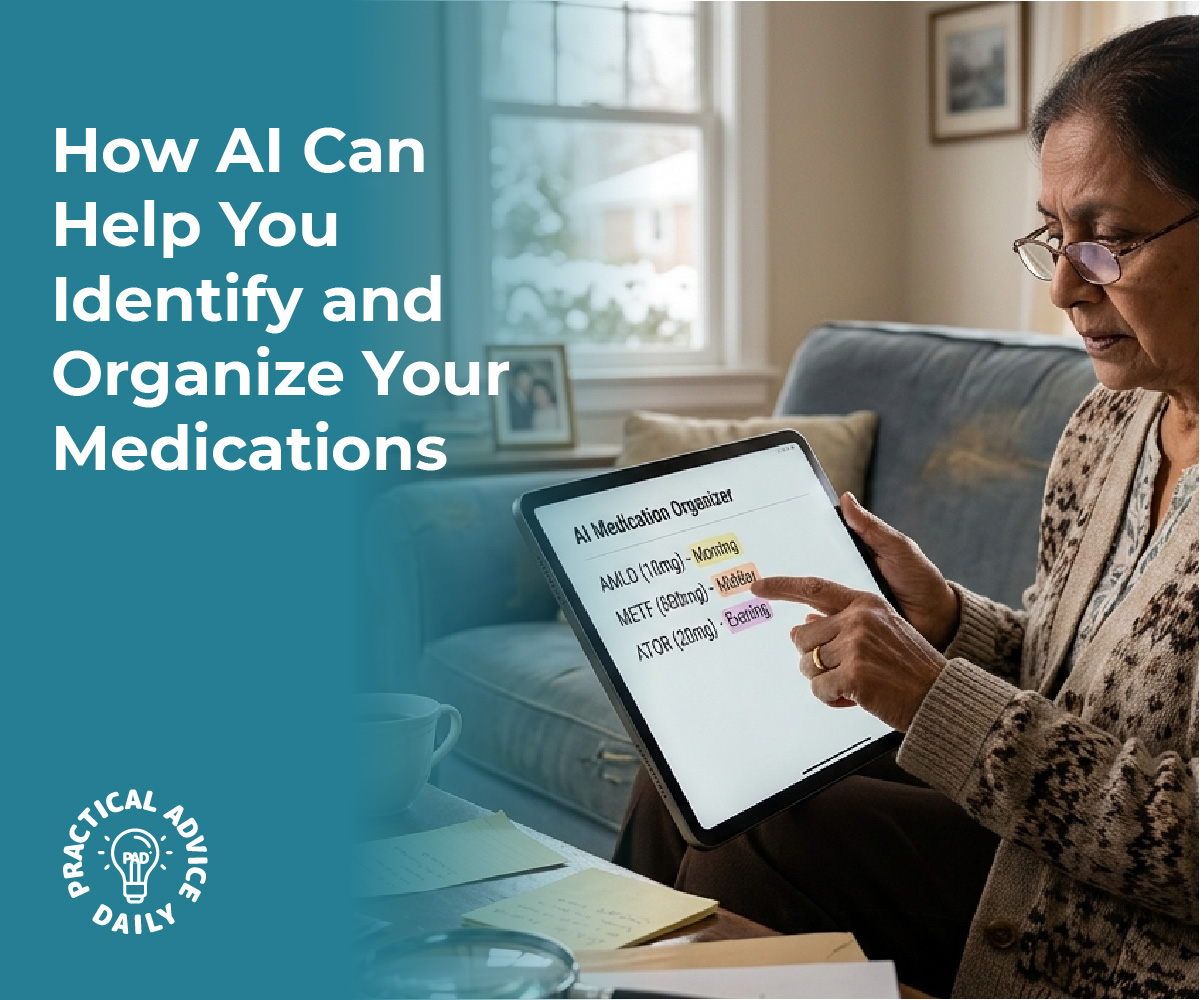
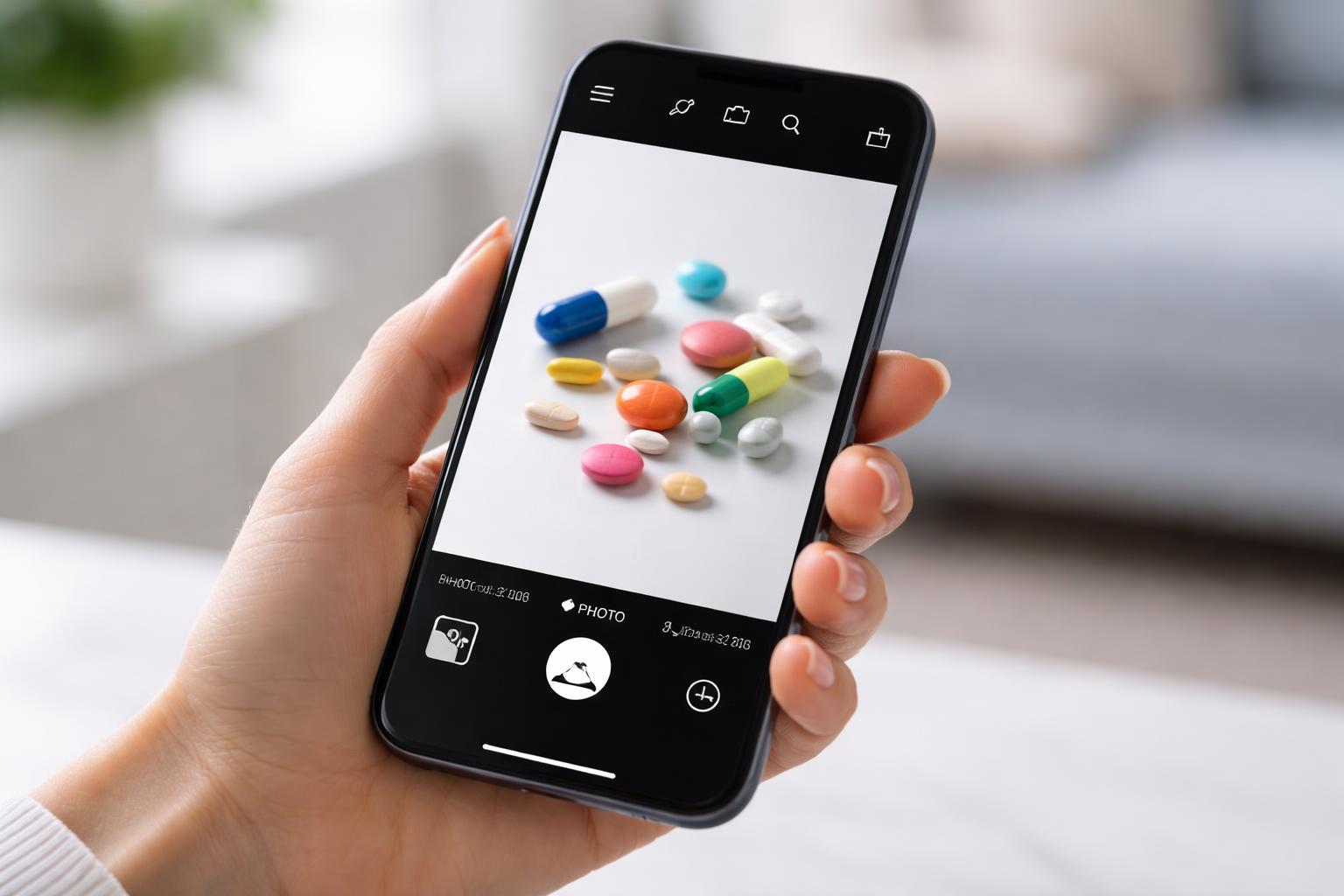
Managing multiple medications can be challenging, especially when trying to keep track of different pills, dosages, and schedules. The iPhone’s camera combined with AI capabilities can now identify pills by their physical characteristics and scan prescription labels to automatically create medication reminders in the Health app. This technology removes much of the manual work involved in medication management.
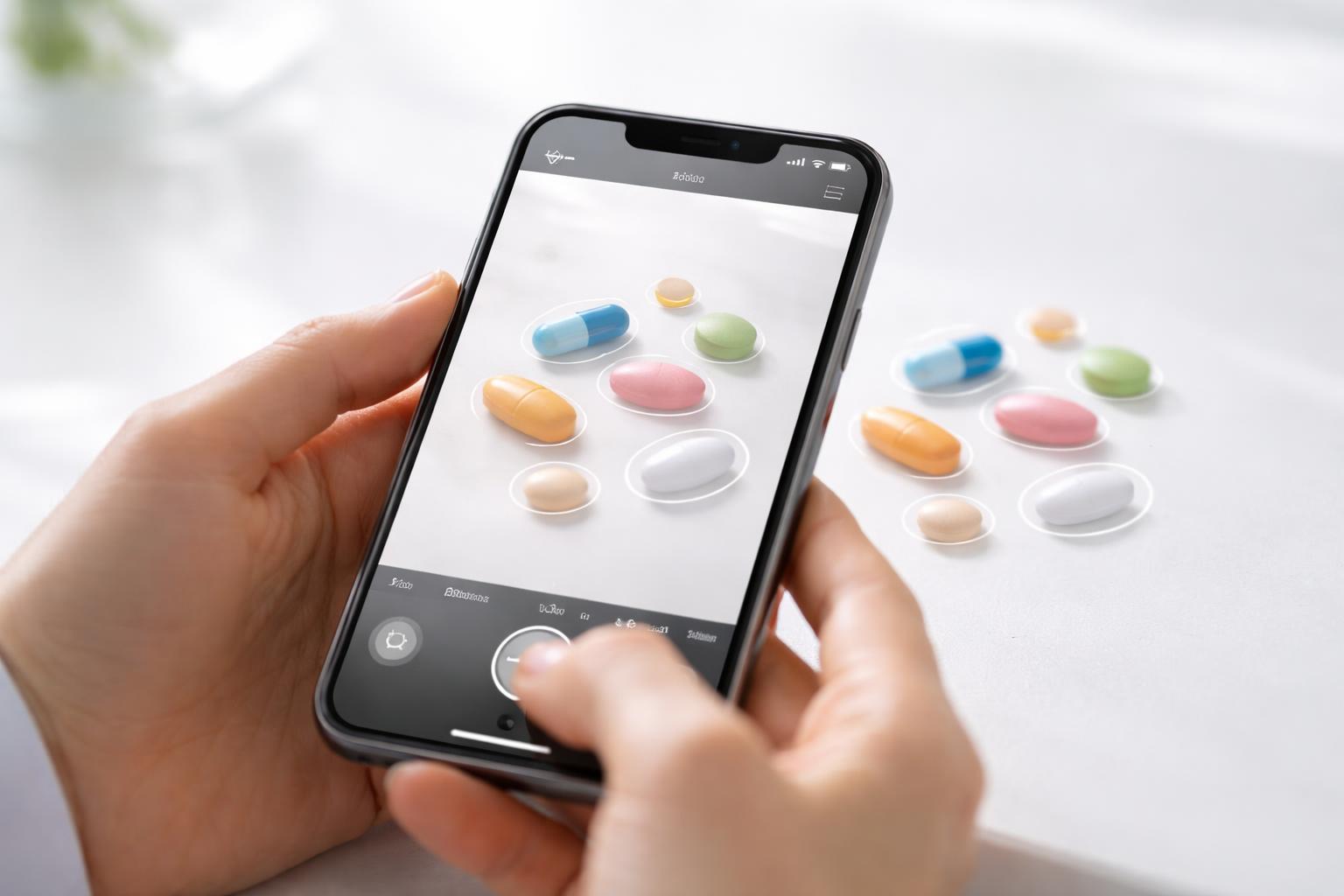
The process uses the iPhone’s camera to capture images of pills or prescription bottle labels. The AI analyzes visual features like shape, color, and imprints on pills, or reads text and barcodes on labels to identify medications. Once identified, the system can pull up drug information and create structured reminder schedules.
This functionality connects with Apple’s Health app to centralize medication tracking alongside other health data. Users can receive notifications for each dose, log when they take medications, and maintain a comprehensive record of their prescriptions.
The iPhone camera uses AI to identify pills through visual recognition and scan prescription labels for automatic setup
Medication reminders are created directly in the Health app after scanning, eliminating manual entry
The system integrates with broader health data to provide a unified view of medication adherence and health metrics
Camera-Based Pill Identification
The iPhone camera can analyze physical characteristics of medications to identify them, while image processing raises questions about data handling and recognition accuracy. These visual identification methods work alongside label scanning to create a comprehensive medication management system.
Detecting Pill Shape and Color with AI
The iPhone’s camera system captures images of pills and uses machine learning algorithms to analyze distinctive features. The AI examines shape characteristics including round, oval, capsule, or scored tablets. Color detection identifies single-color medications as well as pills with multiple colors or color bands.
The system compares captured images against extensive pill databases that contain thousands of medication entries. Each database entry includes shape profiles, color specifications, and dimensional data. The AI assigns confidence scores to potential matches based on how closely the photographed pill aligns with database entries.
Users photograph pills against contrasting backgrounds to improve recognition accuracy. The camera app may request multiple angles to capture imprints, scores, or other identifying marks. Processing occurs either on-device or through cloud-based services depending on the implementation.
Accuracy and Limitations of Visual Recognition
Visual pill identification achieves varying accuracy rates depending on medication characteristics. Pills with distinctive shapes, unusual colors, or clear imprints produce more reliable matches than generic white round tablets.
Several factors reduce recognition accuracy:
Lighting conditions affect color perception and image quality
Generic medications often share identical appearances across manufacturers
Damaged or aged pills may have faded colors or worn imprints
Similar-looking medications can create false positive matches
The technology works best as a verification tool rather than a sole identification method. Users should confirm results by checking imprinted codes against official pill identifier databases. Pharmacist consultation remains necessary when visual identification produces uncertain results.
The system may struggle with unmarked supplements, compounded medications, or pills from international markets not included in U.S. databases.
Privacy Considerations in Image Processing
Pill images can reveal sensitive health information about specific medical conditions or treatments. Apps that process images locally on the iPhone keep data within the device, reducing privacy risks. Cloud-based processing transmits images to external servers where they undergo analysis.
Users should review app privacy policies to understand data retention practices. Some services delete images immediately after processing while others store them for quality improvement or regulatory compliance. Apps may anonymize image data by removing metadata before storage.
HIPAA regulations do not typically cover consumer health apps unless they connect directly to healthcare providers. Users bear responsibility for understanding how their medication images are handled, stored, and potentially shared with third parties.
Scanning Prescription Labels with the iPhone
The iPhone camera can capture prescription label information and automatically extract medication names, dosages, and refill schedules. This technology relies on optical character recognition to convert label text into structured data that integrates with the Health app.
Extracting Medication Details from Labels
When a user points their iPhone camera at a prescription bottle label, the system identifies key fields including medication name, strength, dosage instructions, prescribing doctor, and pharmacy information. The Health app organizes this data into individual medication entries with dedicated fields for each component.
The extraction process recognizes common label formats used by major pharmacy chains like CVS, Walgreens, and Rite Aid. Standard elements such as NDC codes, prescription numbers, and refill dates are automatically parsed and stored.
Users can review extracted information before saving it to confirm accuracy. The system highlights detected fields on screen, allowing quick verification of drug names and dosages.
OCR Technology and Its Role in Automation
Optical character recognition converts printed text on prescription labels into machine-readable data. The iPhone’s Neural Engine processes images in real-time to identify text regions and interpret characters with high accuracy.
Apple’s Vision framework handles text detection and recognition tasks. This built-in capability works offline, processing label data directly on the device without sending images to external servers.
The technology compensates for common challenges like curved bottle surfaces, reflective label materials, and varying lighting conditions.
Handling Multi-Medication Prescriptions
Users managing multiple medications can scan several prescription labels in succession. The Health app creates separate entries for each medication while maintaining linked records for the same prescription across refills.
The system detects when a newly scanned label matches an existing medication entry. It prompts users to update the current record or create a new entry for different strengths or formulations.
Medication interactions and scheduling conflicts are flagged when multiple prescriptions are active simultaneously. The app cross-references drug databases to identify potential issues between medications taken by the same individual.
Setting Up Automated Reminders in the Health App
Once the iPhone identifies a medication through camera scanning, the Health app transforms that information into actionable reminders with specific dosages and schedules. The process involves syncing the scanned data, configuring notification timing, and maintaining accurate records as prescriptions change.
Syncing Identified Medications to the Health App
After the camera identifies a pill or scans a medication label, the user taps the “Add to Health” button to transfer the data. The app automatically populates fields including medication name, strength, form (tablet, capsule, liquid), and any recognized dosing instructions from the label.
The system cross-references the scanned information with its medication database to verify accuracy. Users review the pre-filled details on a confirmation screen before finalizing the entry. The app requests permission to access the Health app if not previously granted.
Key data transferred includes:
Medication name and active ingredients
Dosage strength and form
Prescribing information (if visible on label)
Visual reference photo of the pill
Customizing Dose and Schedule Notifications
The Health app presents scheduling options immediately after syncing a medication. Users select frequency patterns such as once daily, twice daily, three times daily, or custom intervals. Specific times are set by tapping time slots and adjusting with the scroll wheel interface.
The app allows dose-specific notifications that display the exact amount to take. Users input whether to take the medication with food, water, or other special instructions. These details appear in the notification banner when the reminder triggers.
Notification customization options:
Sound selection (tone, vibration, or silent)
Reminder advance time (5, 10, 15, or 30 minutes)
Snooze duration settings
Lock screen display preferences
Managing Updates and Modifications
Users access their medication list through the Health app’s Browse tab under Medications. Tapping any entry opens the detail view where schedule adjustments, dosage changes, or deletions occur. The edit function allows modification of all parameters without rescanning.
When a prescription changes, users can rescan the new label to update information automatically. The app maintains a history log showing when medications were added, modified, or discontinued. Pausing reminders temporarily is possible without deleting the medication entry, useful for PRN (as-needed) medications or travel situations.
Integration with Broader Digital Health Ecosystems
Pill identification and reminder features become more valuable when they connect with existing health platforms and allow controlled data exchange between medical providers, pharmacies, and personal wellness tools.
Cross-App Data Sharing and Permissions
The Health app stores medication data in a standardized format that can sync with electronic health records (EHR) systems used by hospitals and clinics. Patients can grant permission for their healthcare providers to view their medication adherence patterns and prescription schedules directly from the Health app.
Apple’s HealthKit framework enables secure data transfer between authorized applications while maintaining user control over what information gets shared. Users select specific data categories to share with each app or provider. The system requires explicit consent before any medication information leaves the device.
Pharmacies that integrate with the Health app can automatically update prescription refill dates and send notifications when medications are ready for pickup. Some insurance providers access this data with user permission to monitor adherence for chronic condition management programs.
Potential for Integration with Third-Party Wellness Apps
Medication tracking data can feed into fitness and nutrition applications to provide a complete health picture. Apps focused on chronic disease management for conditions like diabetes or hypertension can incorporate pill identification data to cross-reference medications with blood glucose readings or blood pressure measurements.
Mental health applications benefit from accessing medication schedules to correlate mood patterns with prescription adherence. Telehealth platforms can retrieve this information during virtual consultations, allowing doctors to review what medications patients are actually taking versus what was prescribed.
The data becomes particularly useful for apps that track drug interactions or side effects. When users scan a new prescription, these integrated tools can automatically flag potential conflicts with current medications or supplements already logged in the Health app.
Final Thoughts
Managing medications becomes much simpler when technology works for you instead of adding more steps. With the iPhone’s camera and AI working together, identifying pills and setting up reminders can be done quickly and with less confusion. Instead of manually typing in medication details or trying to remember schedules, you can rely on visual scanning and smart automation to handle the process.
This not only saves time but also helps reduce mistakes, especially when dealing with multiple prescriptions. By connecting everything to the Health app, your medication schedule becomes part of a bigger, organized view of your health. As these tools continue to improve, they offer a safer, more reliable way to stay consistent with your daily medications and overall wellness.
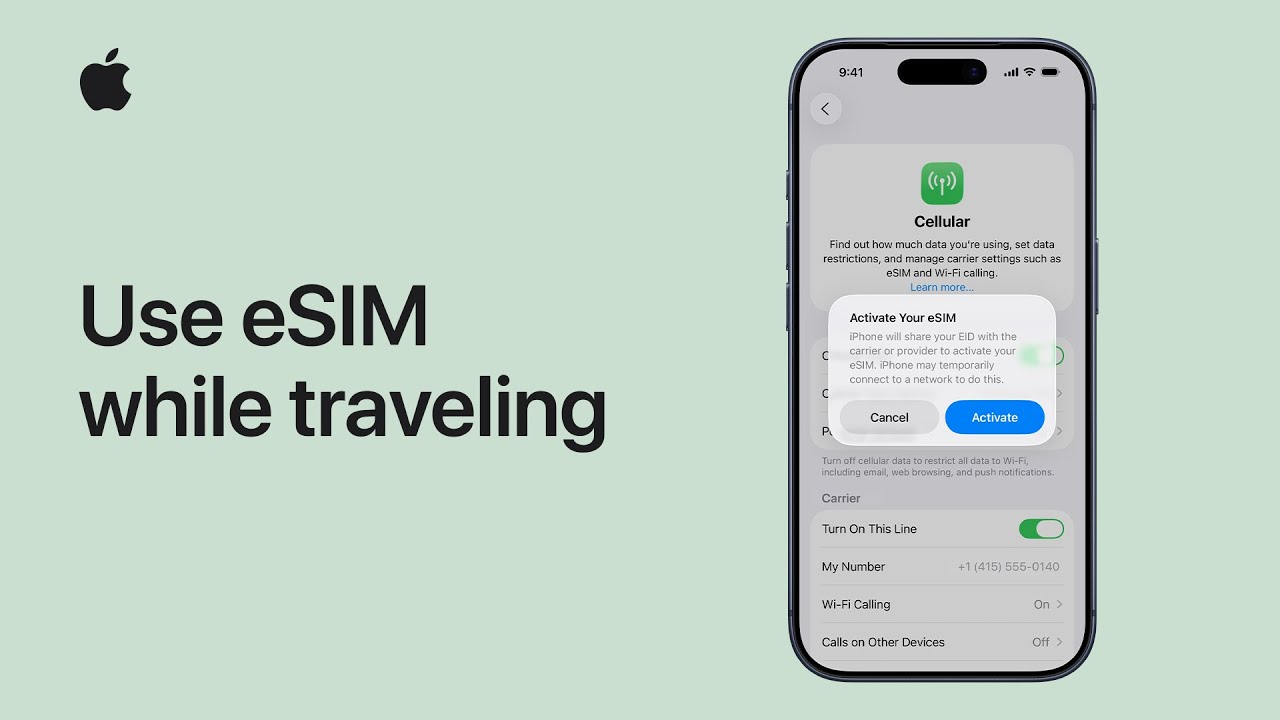
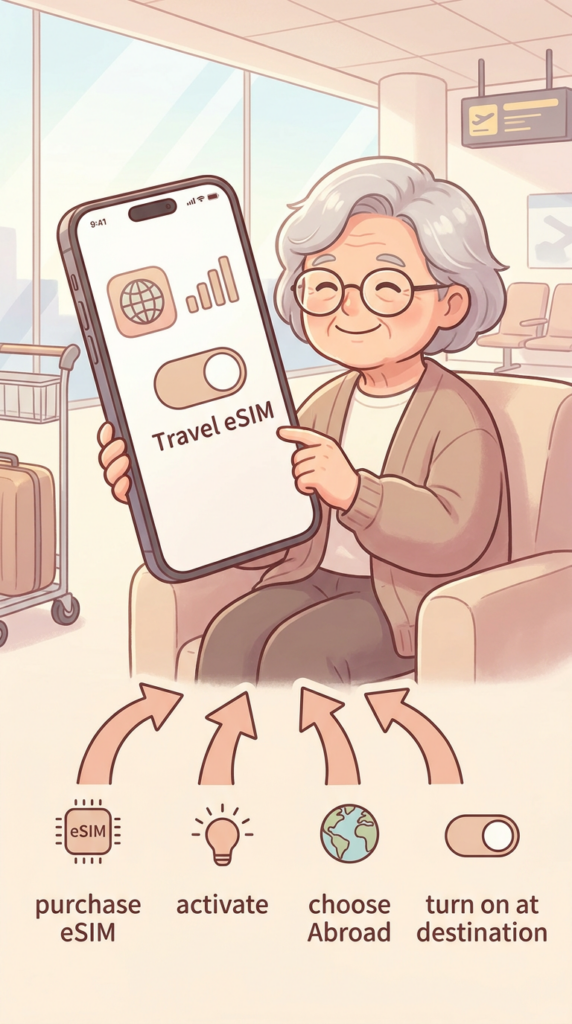
Your new eSIM will remain off until you arrive at your destination, at which point you can turn it on via your Lock Screen notification or Cellular Settings, choosing to either toggle off your home line to avoid roaming charges or keep both active.
Finally, I suggest enabling Low Data Mode to save on usage and simply switching the eSIM off in your settings once you return home.
You can stay connected abroad by choosing between international roaming from your carrier, a local eSIM, or a worldwide prepaid data eSIM.
The setup process involves activating the eSIM in your Cellular Settings and selecting “Abroad” as your location to ensure it is ready for international use.
Once you arrive at your destination, you have the flexibility to use the travel eSIM exclusively to save money or keep your home line active for iMessage and FaceTime.
Practical features like “Low Data Mode” help you manage your data consumption effectively while you are away from home.
Returning to your home network is simple, as you can manually turn off the travel line in your settings or let your iPhone automatically switch back to your primary SIM.