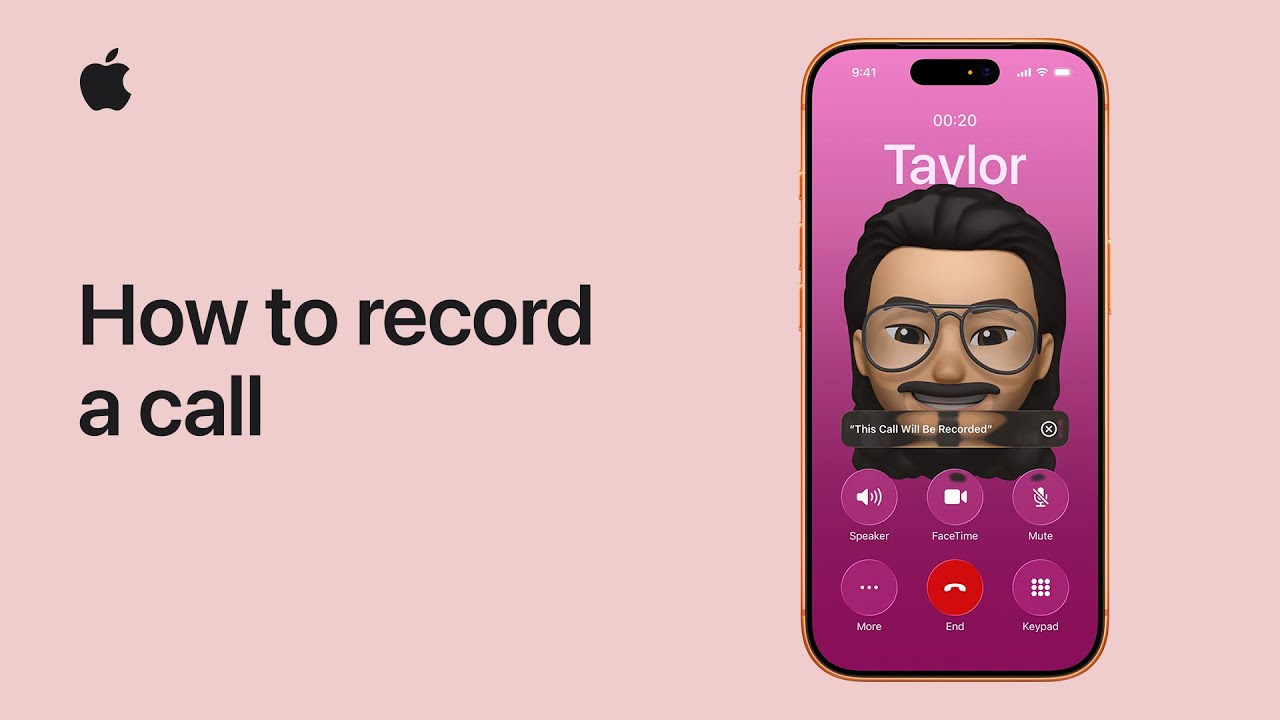
I can record a phone or FaceTime audio call on my iPhone (iOS 18+) and get a searchable transcript in Notes: while on the call I tap More, choose Call Recording, and everyone is notified that recording has started; Notes immediately creates a new note for the transcript.
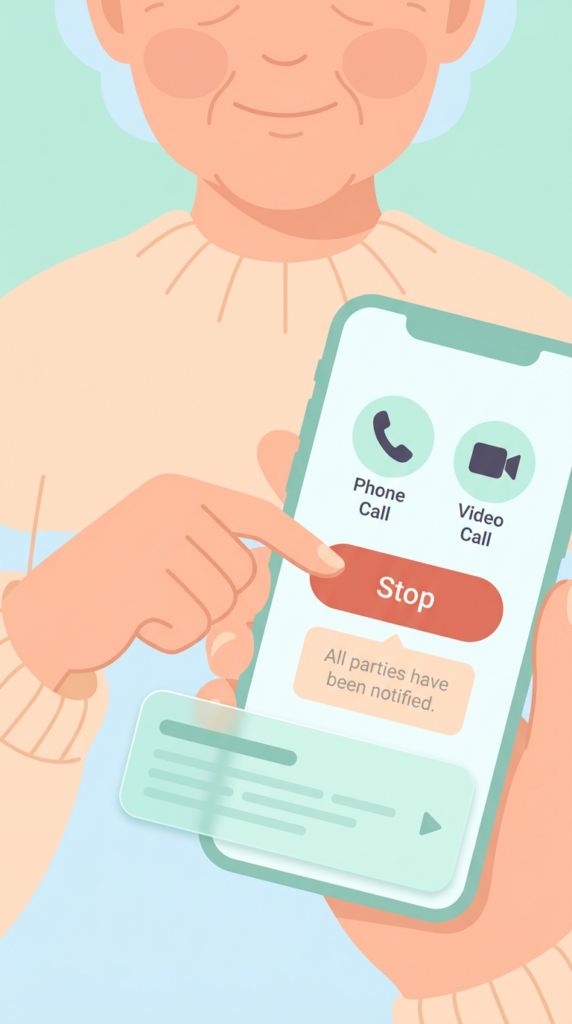
I can stop recording anytime with the Stop button or end the call to stop; when the recording finishes I tap the notification to open it.
Call recordings appear in Notes where I can play audio, view, search, edit, or share the transcript, and on supported devices Apple Intelligence also shows a helpful summary.
While on a call, tap More → Call Recording (all parties alerted).
Notes creates a new note with the recording and transcript.
Stop recording early with Stop, or end the call to stop.
Tap the notification to open the saved call in Notes.
In Notes you can search, edit, share, and view an AI-generated summary (if available).
Your life stories deserve to be preserved, but the process of documenting personal history has traditionally been time-consuming and overwhelming. AI interview tools now enable people to record their memories through natural conversation, then automatically transform those spoken narratives into organized written documents that can be shared with future generations. This technology combines conversational AI that asks thoughtful questions about your past with powerful transcription and editing capabilities that structure your responses into coherent written form.
The process works by having an AI interviewer guide you through different periods and themes of your life, asking follow-up questions that help you remember details you might otherwise forget. As you speak naturally about your experiences, the system captures everything and begins organizing your memories into chapters, timelines, or thematic sections. The result is a written legacy that maintains your authentic voice while presenting your story in a polished, readable format.
This approach removes many traditional barriers to memoir writing. You don’t need to be a skilled writer or have the patience to type out decades of memories. Instead, you can share your stories as if talking to a trusted friend, while the AI handles the heavy lifting of transcription, organization, and initial editing.
AI interview tools guide users through conversational prompts about their life experiences and automatically transcribe responses into organized written documents
This technology allows people to preserve personal histories without traditional writing skills by speaking naturally about their memories
The process combines conversational AI questioning with transcription and editing capabilities to create polished legacy documents that maintain the speaker’s authentic voice
Transforming Memories Through AI-Powered Interviewing
AI interviewing systems now enable individuals to preserve personal histories through natural conversation, then automatically organize those spoken narratives into structured written documents. This technology adapts questioning techniques based on responses and converts oral storytelling into coherent legacy materials.
Capturing Personal Histories With AI
AI-powered interview systems preserve memories by guiding users through conversational exchanges about their life experiences. The technology prompts individuals with questions about significant events, relationships, and personal milestones while recording their responses.
These systems eliminate common barriers to legacy documentation. Many people struggle to write their memories but speak them naturally. AI interviewers address this by creating a low-pressure environment where users simply talk about their past.
The recorded sessions capture authentic voice and emotion that written accounts often miss. Speech patterns, pauses, and emphases reveal nuances that enhance the final narrative. Studies indicate AI conversational interviewing produces quality data comparable to traditional human-conducted interviews while offering greater accessibility.
How AI Conducts Tailored, Conversational Interviews
Large language models power these interviewing systems by generating follow-up questions based on previous answers. The AI analyzes responses in real-time and adjusts its questioning approach to explore topics more deeply.
Key capabilities include:
Detecting topics that warrant additional exploration
Asking clarifying questions when responses lack detail
Maintaining conversational flow without rigid script adherence
Adapting question difficulty and complexity to user communication styles
The technology employs natural language processing to understand context and emotional content. When a user mentions a significant relationship or event, the AI recognizes the importance and probes further. This dynamic questioning mirrors skilled human interviewers who know when to diverge from prepared questions.
Research on AI conversational interviewing demonstrates adherence to interview guidelines while maintaining participant engagement. The systems balance structure with flexibility, ensuring comprehensive coverage while respecting natural conversation rhythms.
Ensuring Depth and Authenticity in Recorded Stories
AI systems preserve story authenticity by encouraging users to speak in their own words rather than conforming to predetermined formats. The technology focuses on eliciting detailed narratives rather than brief, surface-level responses.
Depth-enhancing techniques include:
Open-ended questions that invite storytelling
Prompts for sensory details and specific examples
Gentle encouragement to expand on emotional experiences
Patience with longer response times
The AI distinguishes between complete and incomplete narratives. When responses lack sufficient detail, it requests elaboration through natural follow-up questions. This ensures the final written legacy contains rich, meaningful content rather than sparse recollections.
Voice analysis capabilities detect engagement levels and emotional states during interviews. The system adjusts pacing when users show fatigue or become overwhelmed by difficult memories. This sensitivity maintains interview quality while respecting the storyteller’s comfort.
Organizing Spoken Narratives Into Compelling Written Legacies
Transforming raw audio recordings into polished written documents requires systematic processing that preserves authenticity while enhancing clarity. The process involves converting voice to text, arranging memories logically, and identifying recurring themes that define a life story.
Structuring Memories for Readability
Chronological organization provides the clearest framework for most life stories. Starting with early childhood and progressing through major life phases helps readers follow the narrative flow naturally.
Breaking the story into distinct chapters based on life stages creates digestible sections. Common divisions include childhood, education years, early career, family formation, career advancement, and retirement. Each chapter should contain 3-5 subsections that explore specific events or periods.
Thematic organization works better when specific topics dominate someone’s life. A career military officer might organize memories by deployments rather than strict chronology. A musician could structure their story around major performances or album releases.
Key organizational elements:
Opening with birth details and family background
Grouping related memories together even if they occurred years apart
Placing transitional sentences between major life shifts
Including timestamps or age markers to maintain temporal clarity
Converting Voice Recordings to Written Text
AI transcription services transform audio into text with accuracy rates exceeding 90% for clear recordings. These tools handle multiple accents and speaking styles while requiring minimal manual correction.
The transcription process produces raw text that needs editing. Spoken language contains false starts, repetitions, and tangential thoughts that read poorly on paper. Editors must remove verbal fillers like “um” and “you know” while preserving the speaker’s authentic voice and personality.
Direct quotations maintain emotional impact better than paraphrased summaries. When someone describes a pivotal moment, their exact words carry weight that third-person narration cannot replicate. The editor should retain these verbatim passages while smoothing connecting text.
Transcription refinement tasks:
Correcting homophone errors (their/there, to/too)
Adding punctuation that reflects natural speech patterns
Breaking run-on sentences into readable lengths
Standardizing name spellings and place names
Curating Themes and Key Life Moments
Identifying recurring themes reveals what shaped someone’s worldview and decisions. Common themes include resilience through adversity, family loyalty, professional dedication, or community service. These patterns emerge when reviewing the full transcript for repeated concepts and values.
Major life moments deserve expanded treatment with contextual details. A wedding, career change, or cross-country move merits more space than routine daily activities. AI tools can flag these significant events by analyzing emotional language and time spent discussing specific topics.
Supporting stories illustrate broader themes without overwhelming the narrative. If perseverance emerges as a central theme, select three or four specific examples rather than documenting every challenge faced. This selective approach maintains reader engagement while proving the theme’s validity.
Effective curation strategies:
Creating a theme inventory by highlighting repeated phrases across transcripts
Rating stories by significance on a 1-5 scale to prioritize content
Balancing positive and difficult memories for authentic representation
Linking individual anecdotes to larger historical or cultural contexts
Benefits and Challenges of Using AI for Personal Legacy Projects
AI interviewing systems offer distinct advantages in capturing personal histories while presenting specific concerns around privacy and accuracy. These tools balance efficiency gains against the need for human judgment in preserving authentic life stories.
Time Efficiency and Accessibility
AI interviewers operate on the user’s schedule without requiring coordination with human biographers or genealogists. The technology processes spoken responses immediately and can conduct multiple sessions across weeks or months without fatigue.
These systems reduce barriers for people with limited mobility or those in remote locations. An AI interviewer asks follow-up questions based on previous responses, creating a structured conversation that guides users through their memories systematically.
The technology handles transcription automatically, eliminating manual typing or hiring transcription services. AI tools can organize responses by theme, chronology, or relationship, transforming hours of recordings into searchable, categorized content. This automation compresses what might take months of traditional interviewing and editing into a significantly shorter timeframe.
Reducing Human Bias and Enhancing Consistency
AI maintains uniform questioning protocols across all interview subjects. The system asks comparable questions to different family members, enabling consistent documentation of shared events from multiple perspectives.
Key consistency advantages:
Same depth of inquiry for all topics
No interviewer fatigue affecting question quality
Standardized follow-up prompts
Elimination of selective memory reinforcement by interviewers
The technology doesn’t impose narrative preferences or steer stories toward particular interpretations. It records responses without emotional reactions that might influence how a person shapes their account. However, AI lacks the intuition to recognize when a subject needs emotional support or when to pause sensitive discussions.
Privacy, Data Control, and Human Oversight
Personal memories contain sensitive information about health conditions, family conflicts, financial situations, and private relationships. AI systems encrypt interactions and allow users to control access permissions, but the data still exists on servers owned by technology companies.
Users should verify how companies handle recorded content, whether they use it for training AI models, and how long they retain deleted information. The European Union requires disclosure for synthetic media under the EU AI Act, though regulations vary by jurisdiction.
Human review remains necessary because AI cannot verify factual accuracy or recognize when memories conflict with documented records. The technology preserves what people say but cannot evaluate whether those recollections align with historical facts or other family members’ accounts. Designating a trusted person to review AI-organized content before finalizing the legacy ensures accuracy and appropriateness.
AI records statements without checking dates, names, or events
Emotional sensitivity
Technology cannot judge if certain stories should remain private
Context preservation
Human editors ensure proper framing of complex or nuanced memories
Best Practices for Meaningful Collaboration With AI in Memoir Writing
Successful AI-assisted memoir writing requires treating the technology as a collaborative partner rather than a replacement for human input. The writer’s role in guiding the AI, reviewing its output, and maintaining ethical standards determines whether the final memoir feels authentic or artificial.
Providing Context and Guidance to AI
The quality of AI-generated questions and transcriptions depends heavily on the context writers provide. Writers should begin by establishing their memoir’s scope, themes, and intended audience. For example, someone writing about their military service needs to tell the AI about their branch, era, and significant deployments to receive relevant questions.
Specific details produce better results than vague instructions. Instead of asking the AI to “help write about childhood,” writers should specify: “I grew up in rural Montana during the 1970s on a cattle ranch. I want to explore how isolation shaped my independence.” This specificity helps the AI generate targeted questions like “What did you do for entertainment without nearby neighbors?” rather than generic prompts.
Writers should also establish their preferred tone and style from the start. Some may want conversational, humor-filled prose while others prefer reflective and serious narratives. Sharing sample paragraphs in the desired style gives the AI a clear model to follow.
Regular feedback improves AI performance over time. When the AI generates a question that sparks meaningful memories, writers should note this success. When questions feel irrelevant or too surface-level, they should redirect the AI toward more productive lines of inquiry.
Reviewing and Refining AI-Assisted Content
AI transcriptions and drafts require careful human review to ensure accuracy and authenticity. Writers must read every AI-generated sentence critically, checking for factual errors, misinterpreted speech, and tone inconsistencies.
Common issues to watch for include:
Incorrect names, dates, or locations from transcription errors
Overly formal language that doesn’t match the writer’s natural voice
Loss of dialect, regional expressions, or family-specific phrases
Smoothing out of intentional repetition or emphasis
Removal of emotional pauses or conversational rhythm
The review process works best in multiple passes. First, check for factual accuracy and major tone problems. Second, focus on voice consistency and emotional authenticity. Third, read the text aloud to catch awkward phrasing that looks fine on paper but sounds unnatural when spoken.
Writers should preserve their unique expressions even when AI suggests “improvements.” If a grandmother always said “might could” instead of “might be able to,” that phrase belongs in the memoir despite being grammatically unconventional. These personal touches create authenticity that polished prose cannot replicate.
Promoting Ethical Use and Human Authorship
Transparency about AI involvement maintains the memoir’s integrity and manages reader expectations. Writers should acknowledge AI tools in their author’s notes or acknowledgments sections, explaining how they used the technology without diminishing their own creative contribution.
The writer remains the author when AI serves as a tool rather than a ghostwriter. Using AI to transcribe spoken memories, fix grammar, or suggest organizational structures differs fundamentally from having AI generate entire chapters from brief prompts. The distinction lies in who provides the actual content and creative decisions.
Ethical AI use in memoir writing means:
All memories, stories, and experiences come from the writer’s life
Major narrative decisions reflect the writer’s judgment
The final voice sounds authentic to the writer
AI handles technical tasks rather than creative invention
Family members quoted or mentioned give their consent
Writers should avoid presenting AI-generated speculation or embellishment as actual memory. If details are fuzzy, the memoir should acknowledge this uncertainty rather than having AI fill gaps with plausible fiction. Readers trust memoirs to represent genuine experiences, and AI use should never compromise this fundamental expectation.
Final Thoughts
AI technology has made memoir writing accessible to people who previously found the process too daunting or technically challenging. Voice-to-text transcription, guided prompts, and organizational tools remove many barriers that kept valuable life stories from being preserved. Platforms like Meminto Stories demonstrate how AI can handle technical aspects while writers maintain creative control.
The most successful AI-assisted memoirs emerge from active collaboration between human experience and technological capability. Writers who provide clear context, review AI output critically, and maintain ethical standards produce memoirs that feel authentic and personal. The technology works best when it supports rather than replaces human creativity and judgment.
The key advantage of AI memoir tools is efficiency without sacrificing authenticity. Writers can speak their memories naturally, receive targeted questions that unlock forgotten details, and organize scattered recollections into coherent narratives. This efficiency means more people can complete memoirs they might otherwise abandon due to time constraints or writing difficulties.
Writers should remember that AI cannot replicate the emotional depth, personal insights, and unique perspective that make memoirs meaningful. The technology excels at transcription, organization, and grammar correction. The human writer provides the memories, context, emotional truth, and creative decisions that transform raw material into compelling narrative.
For those considering AI-assisted memoir writing, the approach offers practical benefits without requiring writers to compromise their authentic voice. The process respects both the efficiency of modern technology and the irreplaceable value of human experience and storytelling.
I want to share Apple Vision Pro experiences with others using visionOS 26; first I update my headset and confirm any Apple Vision Pro I’ll share with is on the latest OS.
Next I make sure nearby devices are on the same Wi‑Fi network and have Bluetooth enabled.
To watch movies together everyone needs a subscription to the same content, and to play spatial games each person must install the same SharePlay‑enabled game.
Then I open the app or 3D object, look to the bottom of the window for sharing controls, and choose to invite people nearby or connect remotely over FaceTime.
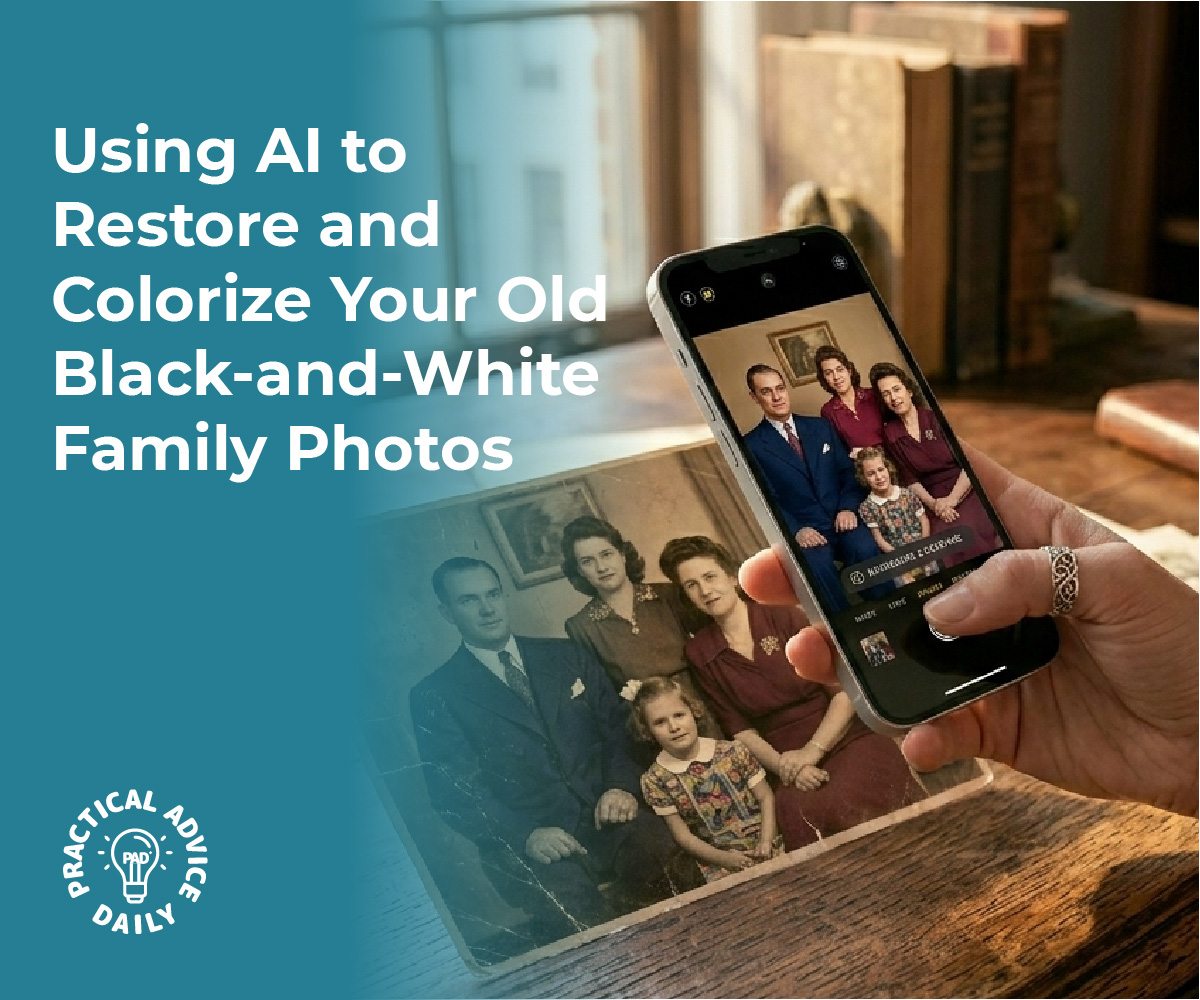
Old family photos often sit forgotten in albums and boxes, fading with time and losing their connection to younger generations. AI-powered tools now make it possible to transform these historical images into vibrant, engaging content that everyone can appreciate. These simple applications can restore damaged photos, add color to black-and-white images, and even animate still portraits to create moving memories that capture attention in ways static images cannot.
The process requires no technical expertise or expensive software. Most AI photo restoration and animation apps work through straightforward interfaces where users simply upload an image and select their desired enhancement. Within minutes, scratched and worn photographs become clear, colorful versions of their former selves.
Turning family history into a collaborative project creates opportunities for multiple generations to connect over shared heritage. Children and teens often become enthusiastic participants when they see great-grandparents’ portraits come to life through animation, while older family members contribute stories and context that give the images deeper meaning.
AI apps can restore, colorize, and animate old family photos without requiring technical skills
Simple upload-and-process interfaces make photo enhancement accessible to all family members
Working together on digital photo projects helps families connect across generations through shared history
Choosing Simple AI Tools for Family Photo Projects
The right AI tools can transform damaged or faded family photos into clear, vibrant images without requiring technical expertise. Understanding the types of apps available and their key features helps families select options that match their skill level and project goals.
Types of AI Apps for Photo Restoration
AI photo restoration tools fall into three main categories. Enhancement apps improve image quality by increasing resolution, sharpening details, and reducing noise in scanned photos. Colorization tools add realistic colors to black-and-white images using machine learning trained on millions of photos. Animation apps create subtle movements like blinking eyes or gentle smiles from still portraits.
Some platforms combine multiple functions in one interface. These all-in-one solutions let users restore damage, enhance clarity, and add color without switching between different programs. Other apps specialize in a single task but deliver superior results in that specific area.
Web-based tools require no installation and work directly in browsers. Mobile apps offer convenience for quick edits on phones or tablets. Desktop software typically provides more advanced controls for users who want precise adjustments.
Key Features to Look For
Ease of use stands as the most critical factor for family projects. The interface should guide users through each step with clear buttons and minimal technical jargon. One-click processing options work well for beginners who want fast results.
Preview capabilities let families see changes before applying them permanently. This feature prevents unwanted alterations and helps users compare different settings. Batch processing saves time when restoring multiple photos from the same era or collection.
Privacy and security matter when uploading precious family images. Tools that process photos locally on devices provide better protection than those requiring cloud uploads. Clear data policies explain how companies handle and store uploaded images.
File format support determines which photos can be restored. Quality tools accept JPEG, PNG, and TIFF files while preserving original resolution.
Popular Options: Google Gemini, Nano Banana, and FlexClip
Google Gemini offers AI-powered photo analysis and basic enhancement through its multimodal capabilities. Users can upload images and ask specific questions about restoration needs. The platform works well for identifying damage types and suggesting appropriate fixes.
Nano Banana provides specialized colorization features that analyze photo context to apply historically accurate colors. The app includes presets for different time periods and geographic regions. Its mobile-first design makes it accessible for families working on tablets or phones.
FlexClip combines photo restoration with video creation tools. Families can enhance multiple images and arrange them into narrated slideshows. The platform includes templates designed specifically for family history presentations and memorial projects.
Each tool serves different needs based on project scope and desired output format.
Step-By-Step Process for Reviving Family Photos
Transforming old family photos into vibrant, restored images requires three main stages: proper digitization of physical materials, AI-powered colorization of monochrome images, and quality enhancement to repair damage. Each step builds on the previous one to achieve professional results.
Scanning and Preparing Old Images
The foundation of photo restoration starts with creating high-quality digital copies. A flatbed scanner produces the cleanest results, capturing fine details and textures that phone cameras often miss.
For families without a scanner, photographing prints works as an alternative. Place photos on a flat, non-reflective surface under even lighting to avoid shadows and glare. Natural daylight near a window works well, or position lamps at 45-degree angles on both sides of the photo.
**Preparation chec
Engaging the Whole Family in Digital Storytelling
Transforming old family photos into dynamic digital content works best as a collaborative activity where each family member contributes unique skills and perspectives. The process creates opportunities for sharing stories across generations while learning AI tools together.
Creating Family Albums and Slideshows
Digital albums organize family history in accessible formats that preserve both images and context. AI tools like Google Gemini can help generate captions and descriptions for photos by analyzing their content and suggesting relevant details. Family members can work together to sort photos chronologically or thematically, with older relatives providing historical context while younger members handle the technical aspects.
Most slideshow applications offer templates that automatically arrange photos with transitions and music. Apps like Google Photos allow multiple users to contribute images to shared albums, making it easy for distant relatives to participate. The key is assigning specific roles—one person might scan physical photos, another writes captions, while someone else selects background music that matches the era.
Children often enjoy adding creative elements like text overlays or stickers to photos. This involvement keeps them engaged while they learn about their family heritage. The collaborative nature turns what could be a solitary archiving task into an interactive family project.
Animating and Bringing Old Photos to Life
Photo animation technology transforms static images into short videos where subjects appear to smile, blink, or move. Tools like Animate Old Photos use AI to analyze facial features and generate realistic motion within 5- or 10-second clips. The process requires uploading a clear, front-facing photo with a resolution of at least 300×300 pixels.
For best results, photos should feature no more than four people and have simple backgrounds. Users can add text prompts to control movements—for example, “gentle smile, looking towards the camera” or “head turning slightly, eyes blinking.” The formula follows a simple pattern: subject plus motion descriptions.
Families can make this a group activity by having different members select which photos to animate and what movements to suggest. Grandchildren might choose photos of grandparents at their current age, while parents select wedding photos or childhood images. Processing takes 2-5 minutes per photo, giving families time to discuss the memories associated with each image.
The Standard mode works well for high-quality photos, while Advanced mode provides better results for older, lower-quality images. Some tools now include audio generation features that add ambient sounds or music to animated videos, creating more immersive experiences.
Collaborating and Sharing Results
Once digital projects are complete, sharing them strengthens family connections and preserves work for future generations. Cloud-based platforms allow real-time collaboration where multiple family members can view, comment on, and contribute to ongoing projects. Setting up a shared folder structure helps organize materials by family branch, time period, or event type.
Video files and animated photos can be compiled into presentations for family gatherings or holidays. These become conversation starters that prompt older relatives to share additional stories and details that might otherwise be forgotten. Recording these oral histories alongside the visual materials creates comprehensive family archives.
Social media groups or private family websites serve as distribution channels for finished projects. Platforms like Facebook allow restricted sharing where only family members access the content. Some families create dedicated YouTube channels set to private or unlisted status for hosting longer video compilations.
Physical outputs still matter—printed photo books or USB drives containing digital files make thoughtful gifts for relatives who prefer tangible formats. This dual approach ensures both tech-savvy and traditional family members can enjoy and preserve the results.
Exploring AI Innovations in Family History Projects
AI research has advanced photo restoration capabilities significantly, while new tools enable families to animate and enhance historical images with unprecedented ease. These developments require thoughtful consideration of both creative possibilities and ethical boundaries when working with ancestral materials.
Latest Trends in AI Research for Photo Restoration
AI tools now automatically repair damaged photographs, colorize black-and-white images, and enhance low-resolution scans without requiring technical expertise. Deep learning algorithms trained on millions of images can reconstruct missing portions of photos and remove scratches, stains, and other deterioration marks.
Recent innovations include features that animate still photographs, creating short video clips where subjects appear to blink, smile, or turn their heads. These tools use facial recognition and motion synthesis to generate lifelike movements from static images. Google Gemini and similar AI platforms can also analyze historical photographs to provide context about clothing styles, architectural details, and time periods visible in the background.
The latest AI research focuses on handwriting recognition for old documents and letters, making previously unreadable family records accessible. Some applications can now transcribe cursive writing, translate foreign languages, and identify individuals across multiple photographs based on facial features.
Ethical and Creative Considerations
Families should preserve original photographs and documents before applying any AI modifications. The technology adds interpretive elements rather than revealing actual historical details, particularly when colorizing images or animating faces.
Key ethical guidelines include:
Clearly labeling AI-enhanced images as modified versions
Storing original files separately from altered copies
Avoiding misrepresentation of ancestors’ actual appearances
Respecting cultural and religious sensitivities around image manipulation
Creative applications work best when balanced with historical accuracy. AI tools offer engaging ways to spark interest among younger family members, but users should explain the difference between enhancement and invention. Documentary photographs deserve different treatment than creative projects designed purely for entertainment value.
Some families establish guidelines about which images can be animated or significantly altered versus those preserved in their original state.
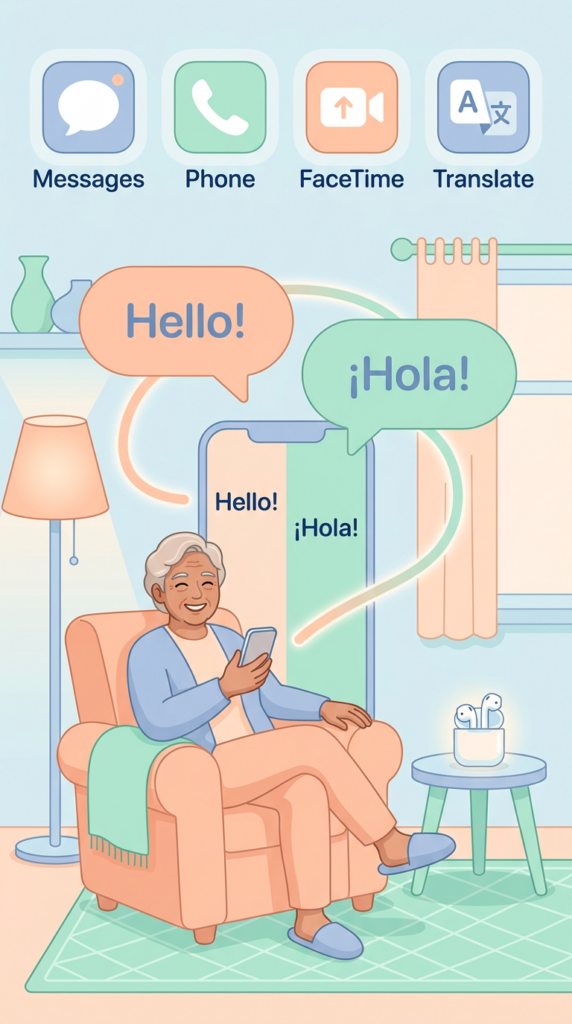
I want to translate messages, calls, FaceTime, or in-person conversations; here’s how I do it.
First I ensure my iPhone runs iOS 26 and Apple Intelligence is on. In Messages I tap the contact, enable Automatically Translate, pick the source language, then type and send — translations appear as I write and my contact gets them.
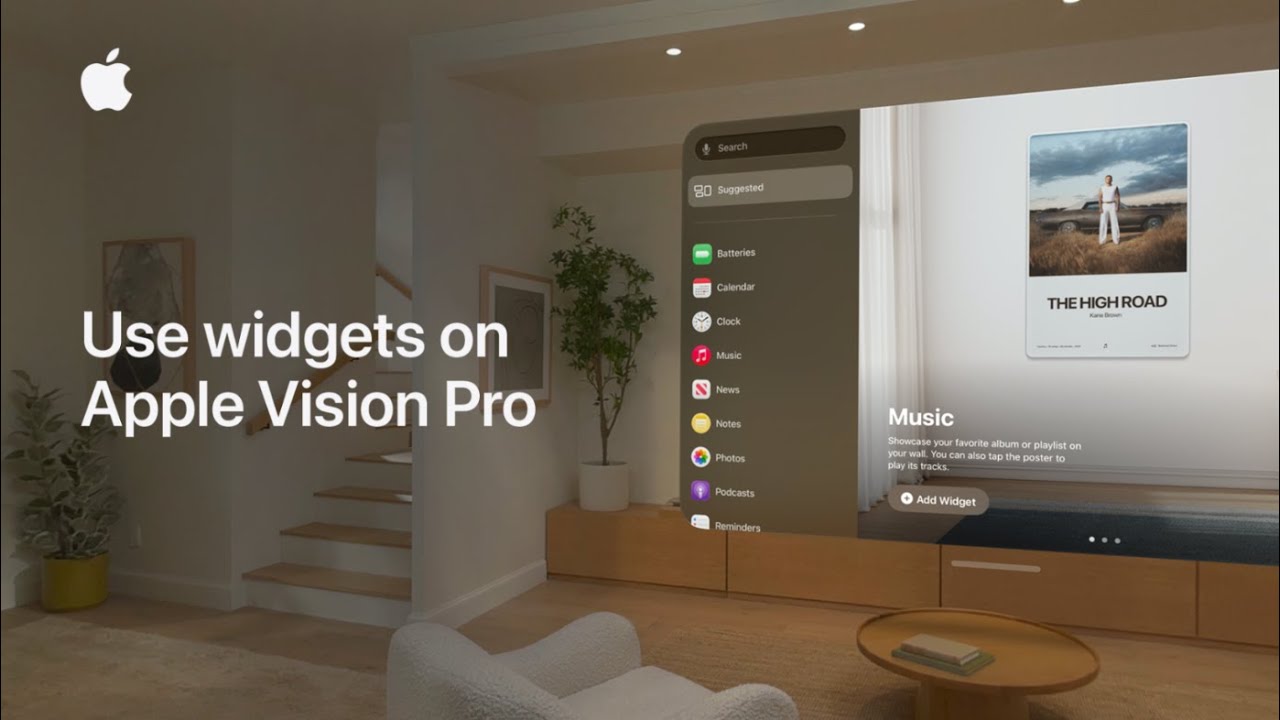
I show you how I add and customize widgets in visionOS 26: first I tap Widgets app in Home View to see suggested widgets or pick an app from the list on the left.
Next I choose Photos and swipe through options like panoramas, spatial photos, or posters until I find one I like. I tap the widget to add it to my space, anchor it to the wall where I want it, and use customization controls to adjust size and appearance.
Once set, the widget integrates into my space and reappears again every time I put on Apple Vision Pro.
Tap the Widgets app in Home View to begin.
Browse suggested widgets or select an app from the left-hand list.
For Photos, swipe through panoramas, spatial photos, or posters to choose a style.
Tap the chosen widget to add it, then anchor it to the wall and adjust size/appearance.
The widget stays integrated in your space and reappears every time you wear Apple Vision Pro.
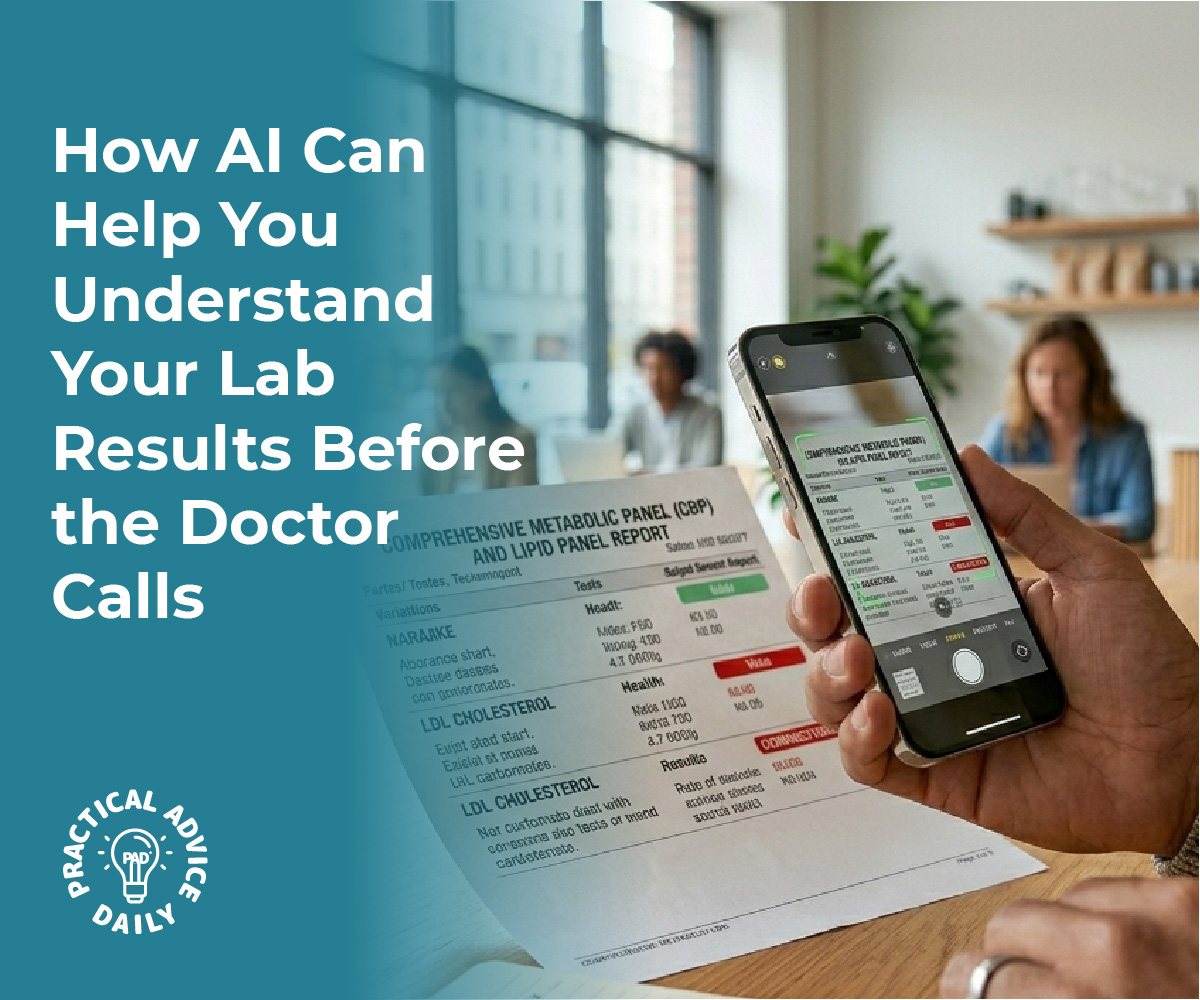
You receive your blood test results and encounter terms like “serum creatinine,” “hemoglobin A1c,” or “lipid panel.” The numbers and medical terminology can feel overwhelming, leaving many patients confused about what their results actually mean for their health. Recent research shows that 88% of U.S. adults struggle with health literacy, making it difficult to understand basic medical information without professional guidance.
AI-powered tools now offer a solution by translating complex medical jargon from blood tests into simple, everyday language, helping patients better understand their lab results while they wait for their doctor’s appointment. These platforms use advanced algorithms trained on clinical guidelines and medical research to break down technical terms into plain English. Patients can upload their lab reports and receive instant explanations of what their CBC, metabolic panel, or thyroid tests indicate.
These AI translators serve as educational resources to help patients prepare questions for their healthcare providers and reduce anxiety about unfamiliar medical terms. However, they are not replacements for professional medical advice. Any concerns about test results, abnormal values, or health conditions require consultation with a qualified healthcare provider who can interpret results within the full context of your medical history and current health status.
AI translation tools convert complex blood test terminology into understandable language for patients struggling with medical jargon
These platforms provide educational insights to help patients have more informed conversations with their doctors
AI interpreters are supplementary resources only and cannot replace professional medical consultation or diagnosis
Clarifying Blood Test Terms With AI
AI-powered tools process medical terminology by matching complex terms with simpler equivalents, identifying abnormal ranges, and providing context for specific biomarkers. These systems reference clinical databases but require human medical judgment for proper diagnosis and treatment decisions.
How AI Converts Medical Jargon to Plain English
AI blood test interpreters use natural language processing to break down technical medical terminology into accessible language. The systems scan uploaded lab reports and identify specific biomarkers like “leukocytes” or “creatinine,” then replace these terms with everyday equivalents such as “white blood cells” or “kidney waste product.”
The conversion process works through pattern recognition trained on thousands of medical documents. When the AI encounters “elevated ALT” in a liver panel, it explains this as “higher than normal levels of an enzyme that might indicate liver stress.” The technology identifies reference ranges and flags values that fall outside normal parameters with clear visual indicators.
Advanced platforms like RosettaMD process multiple data points simultaneously. They cross-reference individual test results with related biomarkers to provide comprehensive explanations. A hemoglobin reading doesn’t appear in isolation—the AI connects it to related values like red blood cell count and hematocrit to paint a complete picture for the patient.
Features of Leading AI Blood Test Interpreters
Most AI analyzers accept multiple file formats including PDF, JPG, and PNG uploads. They process reports in real-time, typically delivering explanations within seconds of submission.
Common features include:
Visual highlighting of abnormal values with color coding
Comparison tools showing patient results against normal reference ranges
Trend analysis tracking changes across multiple test dates
Multi-test support covering CBC, CMP, thyroid panels, lipid profiles, and 50+ other common tests
Privacy protections with immediate file deletion after processing
Priority processing options reduce wait times during peak usage. Detailed interpretation modes provide expanded explanations beyond basic definitions, helping patients understand potential health implications. Some platforms support multiple languages, improving health literacy for non-English speakers.
Limits of AI Medical Translation Tools
AI interpreters explain what test results show but cannot diagnose medical conditions. The technology lacks the clinical experience and contextual understanding that physicians bring to patient care. A doctor considers symptoms, medical history, physical examination findings, and multiple test results together—factors AI cannot fully assess.
Reference ranges vary between laboratories and patient demographics. AI tools may use standardized ranges that don’t account for age, sex, pregnancy status, or individual health conditions affecting normal values. Sites like rosettamd.com and similar platforms include disclaimers emphasizing these limitations.
The systems struggle with unusual test configurations or handwritten reports with poor image quality. They cannot answer follow-up questions about treatment options or explain how medications might affect future test results. Patient understanding improves with AI assistance, but these tools serve as educational supplements rather than medical advisors.
Spotlight on RosettaMD and Its Innovations
RosettaMD emerged in June 2025 as a free digital platform specifically designed to convert medical terminology into plain English, addressing the critical issue that 88% of U.S. adults struggle with health literacy. The platform combines medical expertise with artificial intelligence to tackle semantic interoperability challenges while maintaining user privacy and broad accessibility.
Founding Story and Dr. Chris Wixon’s Vision
Dr. Chris Wixon, a Hilton Head surgeon, created RosettaMD after recognizing the persistent communication gap between healthcare providers and patients. His medical practice exposed him to countless instances where patients left appointments confused about their test results and diagnoses.
The platform launched officially on June 21, 2025, with a clear mission to democratize medical information. Dr. Wixon designed the tool to be completely free to use, removing financial barriers that often prevent patients from accessing health literacy resources.
His vision extends beyond simple word-for-word translation. The platform aims to improve overall patient understanding of medical reports, enabling individuals to have more informed conversations with their healthcare providers while maintaining the critical reminder that AI translations complement rather than replace professional medical advice.
Role of Archimedes Medical and Technology Behind the Platform
Archimedes Medical, LLC serves as the parent company behind RosettaMD, providing the organizational infrastructure and technical development for the platform. The company focuses on healthcare communication solutions, with RosettaMD representing its flagship patient-facing tool.
The technology processes complex medical terminology and transforms it into accessible language that patients can understand. The platform specifically addresses semantic interoperability, which refers to the ability of different systems and stakeholders to exchange and interpret medical information accurately.
RosettaMD.com operates as a web-based interface where users can input medical reports, lab results, or clinical documentation. The AI engine then analyzes the content and generates simplified explanations while preserving medical accuracy.
User Privacy and Accessibility Features
RosettaMD operates on a free-to-use model, eliminating cost as a barrier to accessing health literacy tools. Users can access the platform at rosettamd.com without subscription fees or premium tiers.
The platform prioritizes accessibility for diverse populations. It presents information at appropriate reading levels, recognizing that health literacy challenges affect people across education and income levels.
Privacy considerations remain central to the platform’s design, though specific technical implementations reflect the broader need for patients to understand how their medical information is handled when using digital health tools. Users should verify the platform’s current privacy practices directly through the official website before uploading sensitive medical documents.
Semantic Interoperability and the Future of Patient Health Literacy
Semantic interoperability addresses the challenge of translating medical terminology across different healthcare systems and stakeholders, while AI-powered tools are reshaping how patients access and understand their health information. These technologies create pathways for improved patient engagement and decision-making, though they require careful ethical frameworks.
Bridging the Gap Between Doctor and Patient Language
Semantic interoperability enables different healthcare systems, providers, and patients to understand medical information consistently. The challenge extends beyond technical data exchange—it encompasses the fundamental communication barrier between clinical language and patient comprehension.
AI translation tools now convert complex medical terminology from lab results and imaging reports into accessible language. RosettaMD, launched in 2025, provides free translation of medical jargon into plain English through both a digital platform and Chrome extension. Patients can hover over unfamiliar terms in their test results to receive clear definitions without navigating away from their documents.
Research demonstrates that generative AI successfully removes technical language from discharge notes and clinical documentation. The technology identifies medical terms and replaces them with patient-friendly alternatives while preserving clinical accuracy. This capability addresses a persistent healthcare problem where patients receive important health information they cannot properly interpret.
Impact of AI Tools on Patient Empowerment
AI-powered portals transform raw health data into understandable insights that support active patient participation in care decisions. Studies show that LLM-generated responses to patient questions about cancer care contain more educational content than clinician-written responses alone, indicating potential improvements in health literacy.
Patients gain several advantages from AI translation:
Immediate access to explanations without waiting for provider callbacks
Reduced anxiety from misinterpreting unfamiliar medical terms
Better preparation for appointments with informed questions
Increased transparency in understanding their health conditions
The technology facilitates meaningful communication between patients and care teams by removing language barriers that previously required medical training to overcome. Patients can review their blood test results and comprehend what elevated liver enzymes or abnormal blood counts mean for their health status.
Ethical Considerations and Medical Disclaimers
AI translation tools require explicit boundaries regarding their role in patient care. These systems provide information but cannot replace professional medical judgment or account for individual patient contexts.
Critical limitations include:
AI may miss nuanced clinical significance that doctors recognize
Translation accuracy varies depending on medical complexity
Models sometimes generate inappropriate recommendations
Automation bias leads users to accept AI output without sufficient scrutiny
Studies reveal that LLM responses to patient questions occasionally include severe errors, particularly in communicating urgency. One-third of cancer treatment responses included inappropriate treatment modalities despite correct general recommendations.
Strong medical disclaimers must accompany all AI health translation tools. These disclaimers should explicitly state that AI-generated explanations serve educational purposes only and cannot substitute for consultation with healthcare providers. Patients need clear guidance on when to seek immediate medical attention rather than relying on AI interpretations.
The technology works best as a supplementary resource that prepares patients for productive conversations with their doctors, not as a replacement for professional medical advice.
Final Thoughts
Receiving a lab report shouldn’t feel like trying to read a foreign language. By using AI as a bridge, you can transform intimidating terms into clear, actionable information that helps you understand your body better. While these tools shouldn’t replace a conversation with your physician, they are incredibly powerful for calming nerves and helping you walk into your next appointment with a list of informed questions.
The future of healthcare is one where patients are active participants, and technology like RosettaMD is making that possible for everyone—not just medical professionals. As long as we remember that AI provides education while doctors provide diagnosis, we can use these tools to take greater control of our health journey.
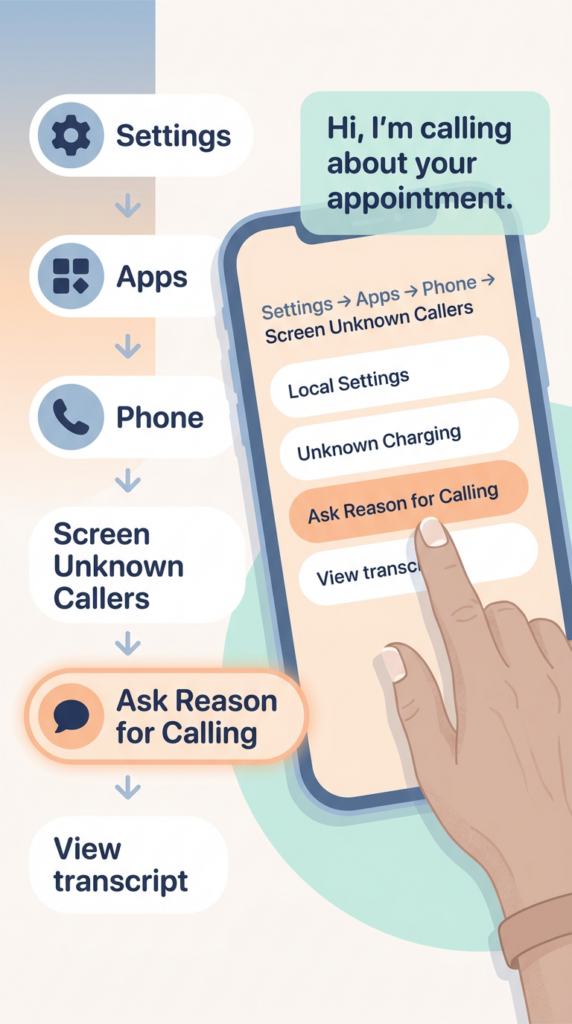
Starting in iOS 16, I can show you how to find out exactly who is calling before you ever pick up the phone. First, open your Settings, tap Apps, and use the search bar to find the Phone app.
Once there, scroll down to the Screen Unknown Callers section and select Ask Reason for Calling. Now, when an unknown number calls, your iPhone will ask for their name and purpose. Simply tap View to read a live transcript of their response.
Finally, you can type a reply, use a suggested message, or slide to answer whenever you’re ready.
Open Settings, navigate to Apps, search for the Phone app, and select the Screen Unknown Callers section.
Enable the “Ask Reason for Calling” feature to have your iPhone automatically prompt unknown callers for their information.
Once a call is being screened, tap the View button to read a live, real-time transcript of what the caller is saying.
Interact with the caller without picking up by typing a custom reply or choosing from a list of suggested quick messages.
Stay in control of the conversation by sliding to answer the call at any moment once you’ve confirmed who is on the line.
Planning an outing shouldn’t mean worrying about whether you’ll find accessible parking close to the entrance, clean facilities, or routes that minimize physical strain. Traditional mapping tools often require multiple searches and guesswork to piece together this information. AI-powered location tools now streamline this process by answering natural language questions about specific accessibility needs all at once.
Modern AI features in mapping applications like Google Maps’ Ask Maps allow users to ask detailed questions such as “Find a restaurant with accessible parking, clean restrooms, and a short walk from the entrance,” receiving personalized recommendations that consider multiple factors simultaneously. These tools analyze millions of locations, user reviews, and real-time data to identify venues that meet specific accessibility requirements. Specialized apps like RestMap and Toiletrix further enhance this capability by focusing specifically on restroom quality and accessibility features.
Understanding how to phrase requests effectively and which AI tools to use makes the difference between spending hours researching or finding the perfect location in minutes. The right approach combines conversational queries with knowledge of available accessibility filters and rating systems.
AI mapping tools now answer complex location queries that combine parking accessibility, restroom quality, and walking distance in a single search
Specialized restroom finder apps provide detailed cleanliness ratings and accessibility features that complement general mapping services
Effective AI queries use natural language to specify exact needs like wheelchair access, proximity requirements, and facility conditions
Leveraging AI to Identify Stress-Free Outing Locations
AI transforms the search for accessible venues by processing specific criteria like parking proximity, restroom quality, and walking distances simultaneously. Users can obtain tailored recommendations by asking precise questions that account for mobility needs and comfort requirements.
Understanding AI-Powered Search for Accessibility Needs
AI-powered search engines excel at interpreting multi-faceted accessibility queries that traditional searches struggle to handle. When a user asks about locations with accessible parking and minimal walking, AI systems analyze structured data from multiple sources including Google Maps, municipal databases, and venue-specific information. These systems understand context beyond simple keyword matching.
The technology examines facility layouts, parking lot configurations, and distance measurements between parking areas and building entrances. AI can filter venues based on ADA compliance records, entrance width specifications, and ground-level access points. It cross-references this data with real-time availability information and seasonal accessibility changes.
User reviews provide critical validation of official accessibility claims. AI analyzes review sentiment and extracts mentions of parking ease, restroom cleanliness, and actual walking distances encountered. This crowdsourced data often reveals practical accessibility challenges not visible in official listings.
Advanced AI models identify patterns in successful accessibility matches based on previous user interactions. They learn which combinations of features matter most for stress-free visits, such as covered walkways during inclement weather or handicapped parking spot availability during peak hours.
Key Questions to Ask AI for Optimal Results
Effective AI queries require specific details rather than vague requests. Users should ask “Find restaurants within 10 miles with handicapped parking spots within 50 feet of the entrance and wheelchair-accessible restrooms” instead of “accessible restaurants nearby.”
Questions should include exact distance parameters for walking tolerance. For example: “Show me parks where parking is within 100 yards of picnic areas with paved pathways.” Specifying mobility aids helps AI filter appropriately—mentioning wheelchairs, walkers, or canes triggers different facility requirements.
Restroom specifications matter significantly. Users can ask about accessibility features like “locations with ground-floor single-stall restrooms” or “venues with family restrooms that accommodate mobility devices.” Including time-sensitive needs yields better results: “museums with accessible parking available on weekday mornings.”
AI responds well to combined criteria queries such as “shopping centers with covered parking, elevator access to all floors, and accessible restrooms on each level.” Users should specify surface preferences like “paved surfaces only” or “no gravel paths” to eliminate unsuitable options immediately.
Evaluating Suggested Locations for Suitability
AI-generated suggestions require verification through multiple information sources. Users should examine satellite imagery on Google Maps to visually confirm parking proximity and assess terrain between parking areas and entrances. Street view features reveal curb cuts, ramp presence, and entrance configurations.
Recent user reviews deserve careful attention for current accessibility conditions. Reviews from the past three months provide the most accurate picture of maintained facilities. Comments mentioning “easy parking” or “clean restrooms” indicate consistent standards, while negative patterns suggest unreliable accessibility.
Cross-referencing AI suggestions with official venue websites confirms advertised accessibility features remain current. Many facilities update their accessibility information irregularly, so direct contact via phone validates critical details like temporary construction barriers or parking lot resurfacing.
Users should prioritize venues with consistent positive feedback across multiple accessibility dimensions rather than locations excelling in only one area.
Discovering Accessible Parking and Facilities
AI tools can locate parking spaces with proper dimensions and markings, identify facilities with accessible restrooms and changing tables, and calculate walking distances from parking to entrances. These capabilities help users plan outings with accurate, verified information about physical accessibility features.
How to Use Google Maps and Accessibility Tools
Google Maps provides accessibility information when users search for specific locations. To access these details, a person should search for a destination and scroll down to the “Accessibility” section in the location details. This section displays wheelchair-accessible parking, entrances, restrooms, and seating when available.
Users can ask AI assistants to filter search results based on accessibility criteria. A prompt like “Find coffee shops near me with wheelchair-accessible parking and entrances” instructs the AI to prioritize locations with these verified features.
The Google Places API powers many specialized accessibility applications that offer more detailed information than standard maps. Apps like iAccess Life use this technology to provide comprehensive accessibility data, including specific details about parking bay widths, surface conditions, and proximity to building entrances.
Finding Verified Accessible Restrooms and Changing Tables
AI can search databases that document restroom accessibility features beyond basic compliance. When querying for locations, users should specify requirements such as “accessible restroom with grab bars and adult changing table” to receive relevant results.
Specialized accessibility mapping platforms maintain crowdsourced data verified by people with lived experience. These databases include measurements, photos, and condition reports for accessible restrooms. Users can ask AI to search these resources for locations with specific amenities like roll-under sinks, adequate turning radius, or family restrooms with changing tables.
The level of detail varies between sources. Some platforms document only basic accessibility, while others provide measurements, surface types, and equipment specifications that help users determine if facilities meet their specific needs.
Ensuring Short Walking Distances and Step-Free Entry
AI mapping tools can calculate the actual walking distance from accessible parking spaces to building entrances. Users should request this information explicitly, as standard distance measurements often show distances from general parking areas rather than designated accessible spots.
To find step-free access, users can ask AI to identify locations with level entrances, ramps, or automatic doors. Phrasing requests as “restaurants with accessible parking within 50 feet of a ramped entrance” provides more useful results than general accessibility queries.
Some platforms document surface conditions along pathways, including curb cuts, sidewalk quality, and obstacles. This information helps users assess whether the route from parking to entrance presents barriers beyond distance or steps.
Enhancing Comfort with Specialized Amenities
AI tools can filter locations based on specific comfort features that matter most for accessibility needs. Users can request venues with particular restroom facilities, charging infrastructure, and verified quality standards through detailed prompts.
Filtering for Clean and Family-Friendly Restrooms
AI assistants can search for venues with accessible restrooms that meet ADA standards when users specify requirements like grab bars, wide stalls, and automatic doors. Users should ask AI to identify locations with changing tables for adults or children, particularly important for caregivers managing mobility challenges or families with young children.
The most effective prompts include phrases like “find restaurants with accessible restrooms and adult changing tables within 2 miles” or “show me shopping centers with family restrooms and baby changing stations.” AI can pull from venue databases and accessibility apps that categorize restroom features.
Some AI platforms access real-time cleanliness reports when users ask about hygiene standards. Requests for “recently renovated restrooms” or “venues with high cleanliness scores” help narrow options to well-maintained facilities.
Locating EV Charging and Mobility Support Services
Users can ask AI to identify locations with Level 2 or DC fast charging stations, including specific connector types like CHAdeMO or CCS for electric mobility devices and vehicles. This becomes particularly relevant for visitors using electric wheelchairs or scooters who need reliable charging access during outings.
AI can map multiple amenities simultaneously when prompted with requests such as “find parks with accessible parking, EV charging, and covered seating within walking distance.” The technology cross-references charging network databases with accessibility features to provide comprehensive results.
Mobility support services like wheelchair rentals, accessible shuttle stops, or medical equipment charging stations appear in AI searches when users specify these needs. Clear prompts that mention “power wheelchair charging stations” or “mobility device rental locations” yield targeted results.
Interpreting Community Ratings to Ensure Quality
User reviews contain detailed accessibility information that AI can analyze and summarize when prompted correctly. Asking AI to “summarize accessibility feedback from user reviews for this venue” extracts relevant comments about parking conditions, restroom cleanliness, and actual walking distances versus advertised claims.
AI can identify patterns across multiple user reviews to flag recurring issues or consistent praise. A prompt like “show me locations with consistently positive reviews about accessible parking and restroom maintenance” filters venues based on community verification rather than official descriptions alone.
The technology can weight recent reviews more heavily when users specify “current accessibility conditions based on reviews from the last 3 months.” This temporal filtering ensures the information reflects present circumstances rather than outdated assessments.
Final Thoughts
Planning an outing should be about the joy of the destination, not the stress of the logistics. By using AI to do the “heavy lifting,” you can quickly identify the spots that truly cater to your comfort and mobility needs. Whether it’s finding a restaurant where the parking is genuinely close to the door or a park with well-maintained, accessible restrooms, these smart tools replace uncertainty with confidence.
The more specific you are with your AI requests, the better the results will be. Taking a few extra seconds to ask about step-free entries or paved paths can turn a potentially difficult day into a smooth, enjoyable experience. Technology is at its best when it helps us stay active and connected to the world around us with ease.