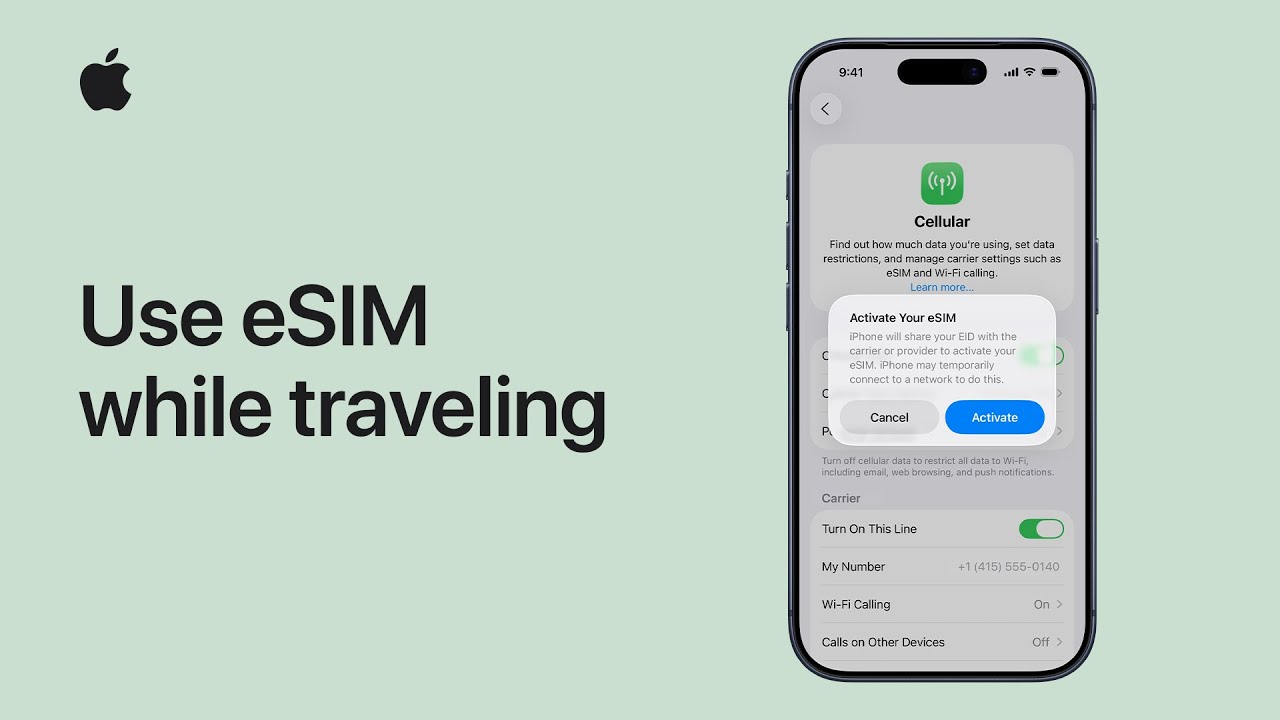
To stay connected while traveling internationally, I recommend using an international eSIM on your iPhone XS or later by first purchasing a plan from a local or global carrier.
Once purchased, you simply navigate to your Cellular Settings, tap Activate, and follow the prompts to select your usage location as “Abroad” and your plan type as “Voice and Data.”
Your new eSIM will remain off until you arrive at your destination, at which point you can turn it on via your Lock Screen notification or Cellular Settings, choosing to either toggle off your home line to avoid roaming charges or keep both active.
Finally, I suggest enabling Low Data Mode to save on usage and simply switching the eSIM off in your settings once you return home.
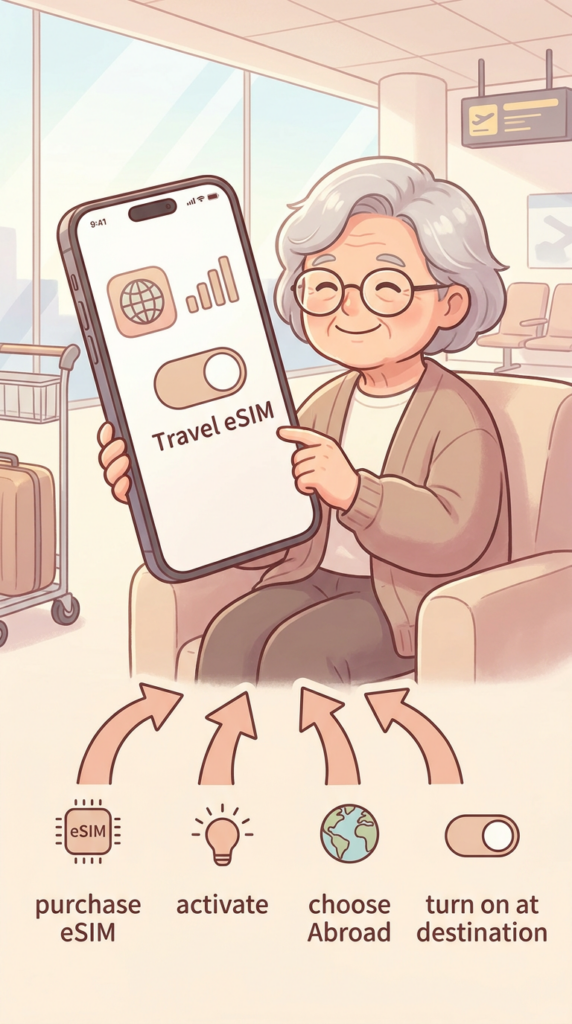
- You can stay connected abroad by choosing between international roaming from your carrier, a local eSIM, or a worldwide prepaid data eSIM.
- The setup process involves activating the eSIM in your Cellular Settings and selecting “Abroad” as your location to ensure it is ready for international use.
- Once you arrive at your destination, you have the flexibility to use the travel eSIM exclusively to save money or keep your home line active for iMessage and FaceTime.
- Practical features like “Low Data Mode” help you manage your data consumption effectively while you are away from home.
- Returning to your home network is simple, as you can manually turn off the travel line in your settings or let your iPhone automatically switch back to your primary SIM.