Next, open Settings, go to Face ID and Passcode, enter your passcode, and turn on Stolen Device Protection. This adds extra security, such as requiring biometric authentication and delaying changes to sensitive settings when away from familiar locations.
You can also lock apps by pressing and holding an app, selecting Require Face ID or passcode, and authenticating. To unlock, repeat the process and disable the requirement when needed.
Make sure your iPhone uses iOS 18+ and has Face ID/Touch ID, Find My, and 2FA enabled.
Turn on Stolen Device Protection in Settings under Face ID & Passcode.
This adds extra security like biometric checks and delays for sensitive changes.
Lock apps by holding an app and selecting Require Face ID/Passcode.
Unlock apps anytime by repeating the steps and removing the requirement.
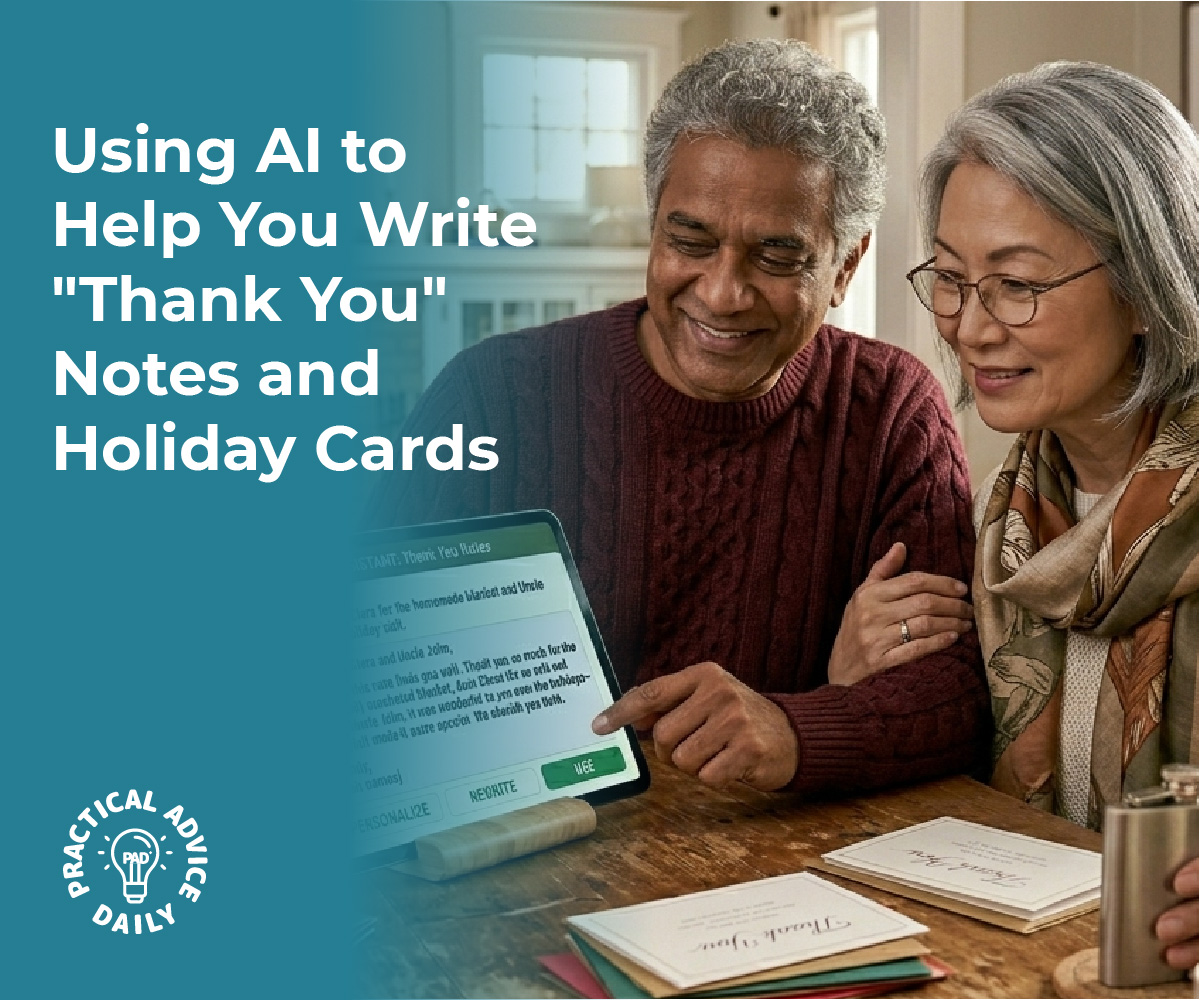
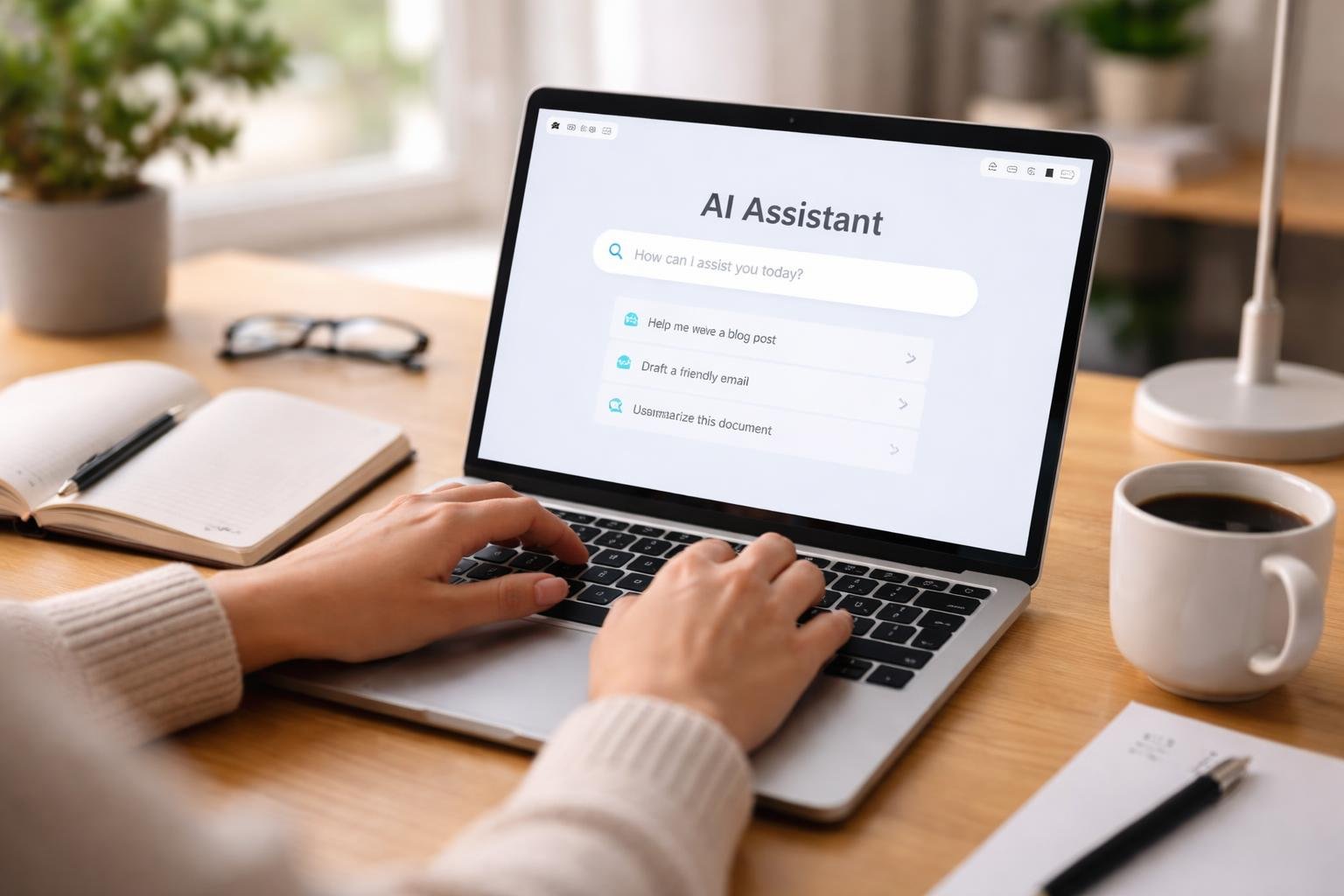
In today’s fast-paced world, maintaining social connections can be challenging, especially when faced with the daunting task of finding the right words to express oneself. Simple AI prompts have emerged as a powerful tool to tackle “blank page” anxiety, providing users with prompts that guide them in crafting thoughtful and sincere messages. These prompts can help compose everything from a casual text to a heartfelt apology, ensuring that the essence of the message is not lost.
AI-powered tools aid individuals in composing messages that feel personal and genuine, while still benefiting from the guidance of structured suggestions. This blend of personal touch and technological assistance allows people to focus on the content and emotions they wish to convey, rather than getting stuck in the intricacies of sentence construction. The ability to quickly generate ideas and phrases fosters an environment where people feel more confident about reaching out and connecting with others.
Simple AI prompts not only help with wording but also encourage meaningful outreach without compromising on personalization. They provide strategies that align with personal communication styles and maintain the user’s voice. By integrating these tools responsibly, users can enhance their social interactions and maintain deeper connections effortlessly.
AI prompts simplify communication and reduce anxiety.
Personalized prompts help craft genuine messages.
AI tools enhance meaningful social outreach.
Breaking the Blank Page: How AI Prompts Remove Communication Anxiety
AI prompts can assist in overcoming the stress of finding the right words when facing a blank page. They guide users in maintaining meaningful social connections by providing tailored suggestions for communication across various situations. Incorporating tools like ChatGPT prompts ensures that writing becomes a more accessible and effective process rather than a barrier.
Understanding the Root of Blank Page Anxiety
The anxiety associated with a blank page often stems from the pressure to communicate perfectly. This can paralyze users, causing delays in responses or interactions. Blank page anxiety arises from fear of judgment, uncertainty about what to write, and the desire to meet personal or cultural expectations. By dissecting the internal and external pressures that contribute to this anxiety, individuals can begin to address and mitigate these factors.
Recognizing these stressors is a crucial first step in using tools effectively to alleviate them. AI prompts serve as catalysts, offering starting points that reduce initial doubts and encourage fluid thought processes.
The Benefits of AI-Guided Writing for Social Obligations
AI-guided writing provides clear, concise language tailored to the needs of social interactions. By generating personalized suggestions, AI simplifies the process of drafting messages, ensuring they convey the intended tone and message. Tools like ChatGPT prompts are designed to assist with various scenarios—from birthday wishes to thank you notes—thus removing the guesswork from the equation.
This specificity is particularly beneficial for individuals who struggle with articulating their thoughts under pressure. Furthermore, the continuous learning aspect of AI enables it to adapt to user preferences, making the guidance increasingly relevant and improved over time. This tailored approach helps foster genuine, warm interactions.
How AI Transforms Staying Connected Into a Simple Habit
Establishing routine communication with the help of AI transforms the task into an approachable habit rather than an obligation. AI prompts streamline the process of reaching out, allowing users to focus on the connection rather than the crafting of each message. This efficiency encourages regular interaction by simplifying the steps needed to maintain contact.
Through the integration of reminders and easy-to-use templates, AI ensures that staying in touch becomes as automatic as checking notifications on a smartphone. The result is a reliable support system that nurtures relationships, helps maintain social ties, and alleviates the anxiety of broken communication.
Crafting the Right Message: Using Simple AI Prompts for Social Connections
Using AI prompts effectively in social interactions can transform how people stay connected. Emphasizing thoughtfulness, personalization, and relevance is crucial for overcoming communication uncertainties. These prompts harness AI’s capabilities to foster meaningful engagement in social obligations.
Designing Prompts for Thoughtful Thank You Notes
Crafting genuine thank you notes using AI can streamline the expression of gratitude. To create prompts for thank you messages, include specifics such as the occasion and recipient’s impact. For example, asking a generative AI to help phrase appreciation for a gesture or gift can yield unique and heartfelt results.
ChatGPT prompts can also assist in finding the right balance between sincerity and brevity. Including personal anecdotes or specific incidents enhances the authenticity of the message, ensuring it resonates with the recipient. In this way, AI becomes a tool that assists rather than replaces the human element in communication.
Tailoring Holiday Cards and Friendly Check-Ins
Holiday cards and regular check-ins are traditional ways to maintain social ties. AI can simplify this process by generating personalized prompts that reflect the sender’s relationship with the recipient. By inputting keywords related to holidays, specific memories shared, or mutual interests, users can create messages that feel warm and tailored.
This eliminates the monotonous task of drafting generic messages and instead allows individuals to focus on strengthening bonds through timed and thoughtful notes. Thus, leveraging AI for these tasks enriches the quality of connection, offering warmth and personality in each exchange.
Customizing Tone and Personal Details with Generative AI
Generative AI is adept at adapting its outputs to match the desired tone and personal details of the user. By supplying the AI with context about the nature of the relationship and the emotional tone desired—be it formal, casual, or affectionate—it can adjust its suggestions accordingly. This flexibility ensures that the message appropriately reflects the user’s intentions.
An example prompt could include phrases like “Make it lighthearted and include a personal anecdote about our last meeting.” Users can then refine the AI-generated suggestions to ensure the final output aligns with personal preferences and social norms.
Avoiding Generic Messages: Getting Personal with Prompts
To avoid the pitfall of sounding generic, AI prompts should incorporate unique elements relevant to the recipient. It’s essential to use prompts that include shared experiences, specific compliments, or references to recent conversations.
AI can be guided to craft messages that contain these personalized touches by including information like past interactions, interests, and notable achievements of the recipient. By doing so, the prompt generates a draft that feels custom-made and thoughtful. Such messages resonate more deeply, fostering better social connections and ensuring that communications do not come off as impersonal or automated.
Prompt Strategies and Best Practices for Meaningful Outreach
Crafting effective AI prompts can transform communication in social settings by providing clarity and relevance. The strategies that follow offer guidance on how to tailor these prompts for impactful interactions and help dispel the anxiety of starting from a blank page.
Essential Elements of Effective Prompts
Effective prompts focus on being specific, context-aware, and user-centric. By clearly defining the purpose, mood, and desired outcome of a message, a prompt can be customized to suit the audience’s needs. Integrating elements such as tone, audience preferences, and the context of interactions can significantly enhance the relevance of AI-generated content.
Tools that incorporate chat history or preferences can provide an added layer of personalization, ensuring messages align with the receiver’s expectations. Including questions or call-to-actions encourage engagement, making it easier for the recipient to respond.
5 Journaling Prompts to Overcome Hesitation
Overcoming writer’s block and hesitation is often a matter of getting started. Journaling prompts can serve as powerful tools for unlocking creativity and expression. Consider these five prompts to stimulate writing:
Reflect on a recent interaction and what you learned from it.
List three topics you are passionate about and elaborate on why they matter to you.
Describe a challenge you are currently facing and how you plan to overcome it.
Imagine a conversation with someone you admire and jot down key points.
Write about a future goal and the steps needed to achieve it.
Prompt Examples to Start Different Conversations
Starting diverse conversations can be achieved by using targeted prompts tailored for various social situations. When planning for a casual catch-up, an example could be: “What’s the most exciting thing that happened to you recently?” For a professional setting, try: “How do you see the current trends affecting our industry?”
AI prompts can also initiate debates or discussions by posing thought-provoking questions, such as: “What are your thoughts on the latest environmental policies?” These prompts can be adjusted to the context of the conversation, ensuring they align with the interests of the participants.
Reviewing and Editing AI-Generated Messages
Reviewing and editing AI-generated messages is crucial for maintaining tone and avoiding miscommunication. It’s advisable to scrutinize messages for clarity, appropriateness, and alignment with the sender’s intent. Ensuring that the message accurately reflects the desired outcome involves considering factors such as audience sensibilities and cultural nuances.
Additionally, revisiting the prompt setup can refine the output, offering options that better match the user’s preferences. In essence, reviewing and adjusting the initial AI output helps in crafting messages that are both meaningful and impactful in social interactions.
Privacy, Technology, and Personalization: Responsible Use of AI Messaging Tools
In the growing landscape of AI messaging tools, individuals must navigate the balance between technology-driven personalization and the responsible use of personal data. This section addresses issues such as privacy, data usage, and the incorporation of third-party features, aiming to provide insight into managing AI tools effectively and responsibly.
Understanding Cookies and Personal Data Use
Cookies play a crucial role in personalization by storing small pieces of data on a user’s device during web browsing. These tiny data points help websites remember the user’s interactions, facilitating a smoother and more individualized experience. With AI messaging tools, cookies enable seamless functionality, allowing users to remain connected effortlessly. It’s important to distinguish between essential cookies, which are necessary for basic operations like maintaining account security, and optional cookies that enhance user experience by tailoring content and features.
Many platforms rely on cookies from other companies or similar technologies to achieve a tailored user experience. Individuals should be aware of how these third-party cookies might track their activity. By understanding these elements, users can make informed choices regarding their privacy preferences while leveraging personalization benefits.
Customizing Preferences: Cookies Policy, Essential and Optional Cookies
Users can often customize their cookie preferences to balance personalization with privacy. Many services offer the ability to adjust cookies policy settings, allowing individuals to accept only those cookies that align with their comfort levels. Essential cookies are often mandatory for functionalities like secure login sessions on meta products such as Facebook. These cookies ensure the platform can provide a safer experience without compromising security.
In contrast, optional cookies enhance user experience through features like tailored content suggestions. By managing these settings, users can tailor their browsing experience, ensuring that excessive data collection is minimized while still enjoying the personalized benefits that optional cookies provide. Engaging with these settings empowers users to maintain control over the data shared with various services.
Secure Account Management and Using Meta Products
Managing an account securely is vital when using AI messaging tools integrated with meta products. Platforms like Facebook enable users to manage their accounts effectively while utilizing various AI-driven features. Implementing secure practices such as two-factor authentication can help protect user data, providing a safer experience. Additionally, being aware of cookies policy and how these data points work can help in using features without compromises in security.
Understanding the integration of AI tools within these platforms facilitates the responsible use of technology. By regularly reviewing privacy settings and staying informed about changes in data policies, users can navigate AI-enhanced environments more securely.
Third-Party Features: Maps, Videos, and Other Enhancements
AI messaging tools often incorporate third-party features that enhance the user experience, such as maps, videos, and interactive content. These elements, while providing valuable services, may also involve third-party cookies and data exchanges. Users should be cautious of how these features track or share information. It’s advisable to check if these third-party enhancements align with the platform’s cookies policy and whether users can opt out if preferred.
Ensuring that such features are used responsibly means evaluating privacy policies associated with these third-party tools. Users should regularly audit these elements and update their settings to reflect any changes in personal privacy preferences. By managing these aspects effectively, individuals can maximize the benefits of AI-driven features without compromising personal data security.
Final Thoughts
Staying connected with the people we care about is one of life’s greatest joys, yet the pressure to find the “perfect” words can often hold us back. AI writing prompts are not about replacing your heart or your voice; they are about giving you a gentle nudge to get started. By removing the “blank page anxiety,” these tools allow you to focus on what truly matters: the person you are reaching out to and the warmth of the connection you share.
As you explore using simple prompts for your next thank-you note or holiday card, remember that your personal touch—an old memory or a shared joke—is what makes the message special. Use AI as a helpful assistant to handle the structure, so you can spend your time enjoying the deeper conversations and stronger relationships that follow. Whether it’s a quick text or a long-distance letter, the most important thing is simply reaching out.
Tap the status bar to open Control Center. On the left, you’ll find controls like Wi-Fi, volume, and Now Playing, while the right side includes features like Mac Virtual Display, Guest User, and Travel Mode.
To customize, go to Settings, add controls, or enable alternative access like “Look Upwards.” When finished, tap the Close button to exit Control Center.
Look at your hand and turn it outward to reveal the status bar, then tap it to open Control Center.
In a world where technology increasingly bridges gaps between needs and solutions, finding routes that cater to specific preferences or requirements is becoming more accessible thanks to AI-enhanced mapping tools. These intelligent systems are not just improving conventional navigation but are paving the way for a more tailored travel experience.
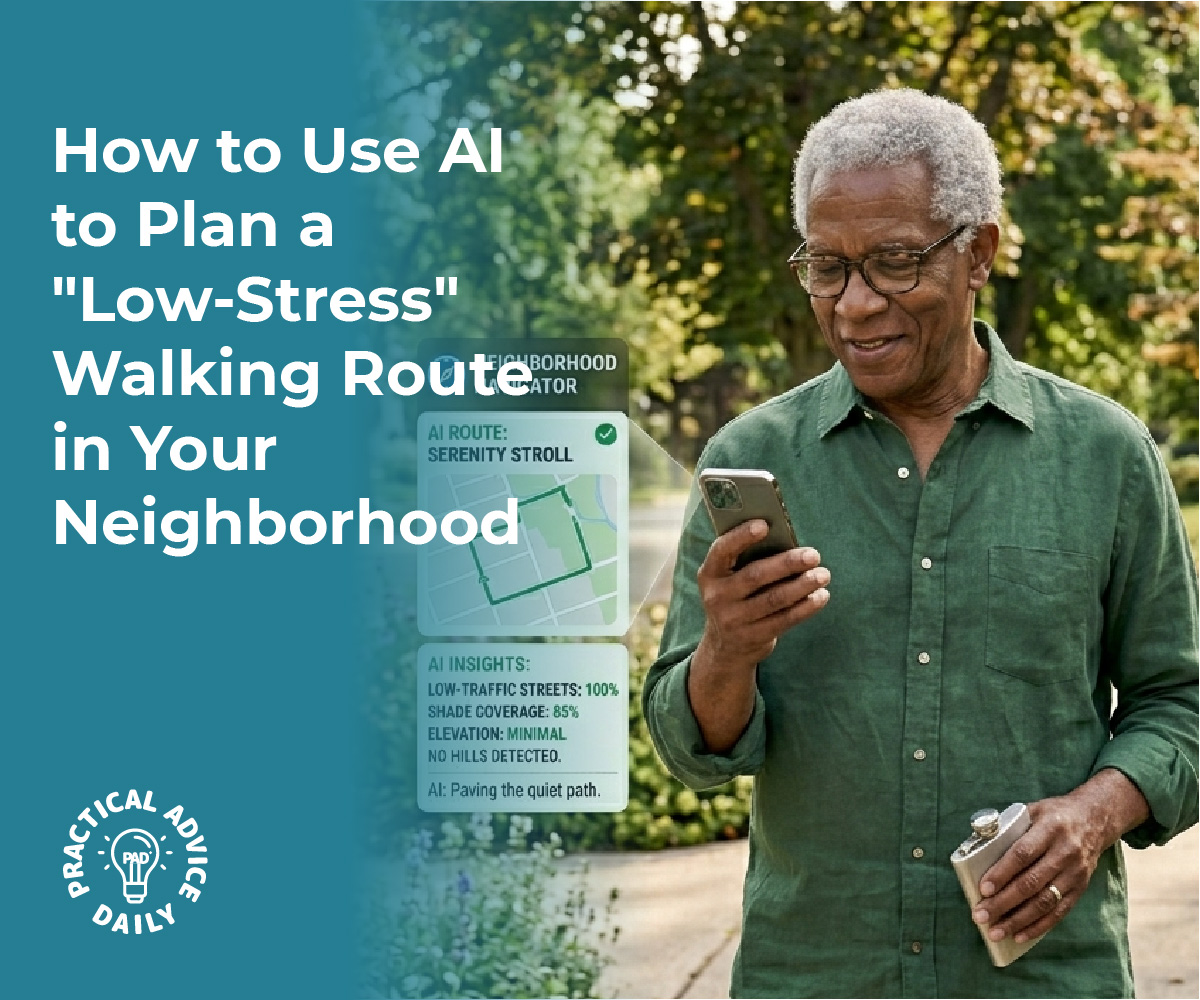
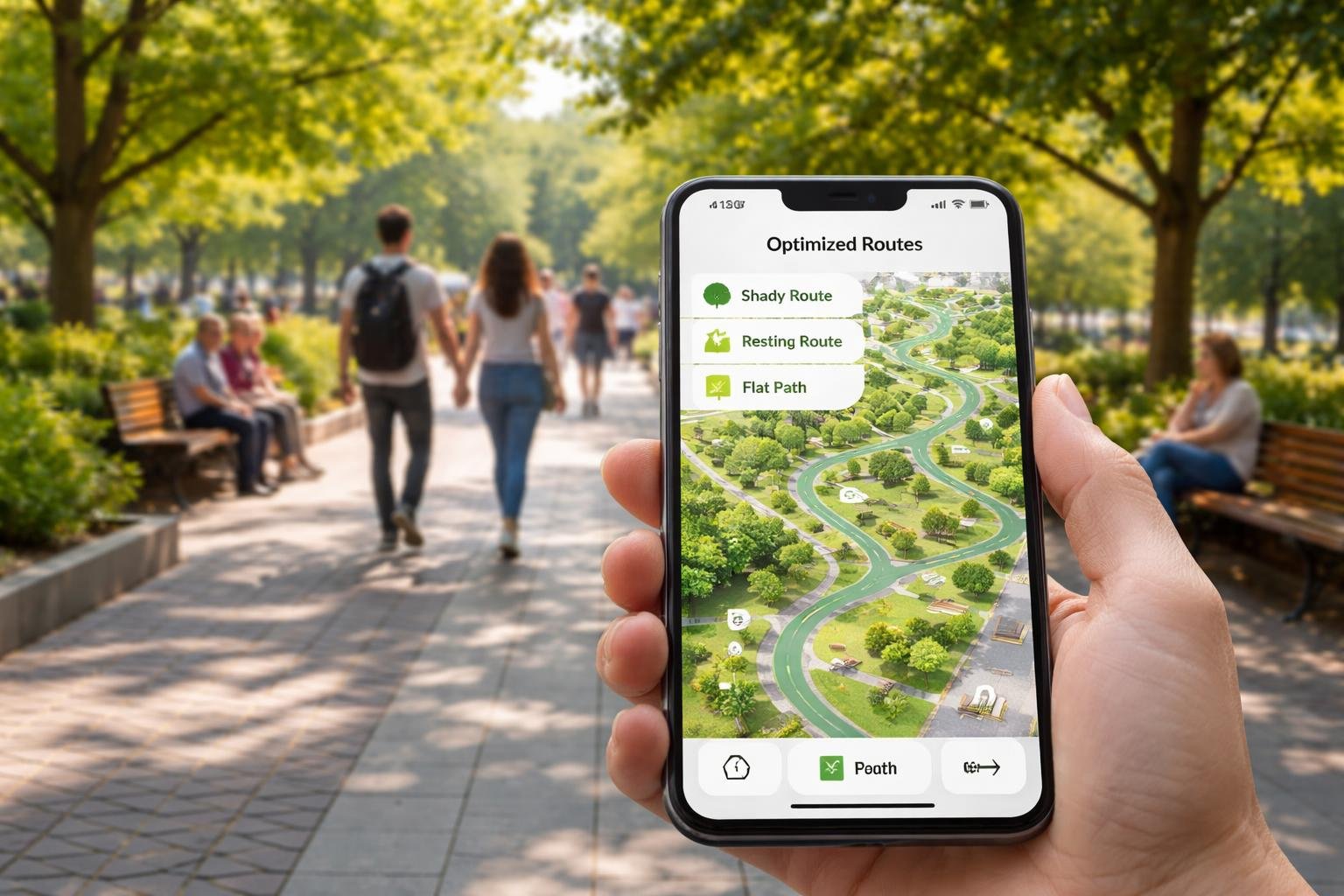
AI-powered maps can now identify routes with optimal shade, frequent benches for resting, or paths with minimal elevation changes, offering invaluable support for those with mobility concerns.
By analyzing real-time data and user preferences, AI is transforming how people plan their journeys. These advanced algorithms consider various factors, such as tree coverage for shade, landmarks for resting points, and terrain elevation, to suggest the most suitable paths. This level of personalization in route planning addresses diverse needs, helping individuals navigate urban landscapes with ease and confidence.
Whether it’s ensuring a comfortable walk for the elderly or providing a suitable path for wheelchair users, AI is revolutionizing route selection. As the technology continues to mature, it promises even more convenient and efficient ways to explore cities or nature, particularly for those looking for safer, more accessible travel options.
AI advancements offer enhanced navigation solutions.
How AI-Enhanced Maps Identify Shade, Benches, and Flat Paths
AI-enhanced maps leverage advanced technologies to provide users with optimal routes. These maps help individuals find shaded pathways, locate benches for resting, and choose paths with minimal elevation changes, enhancing comfort and accessibility.
Mapping Shade and Sun Exposure on Routes
AI-powered route planning tools use real-time data integration and satellite imagery to identify shaded paths accurately. Technologies like CityShadeMapper utilize LiDAR data to create high-resolution maps that depict sun exposure and shade variations across urban landscapes. This allows users to select routes that offer more shade, reducing heat exposure during their journeys.
Tools like ShadeMap enable users to simulate sun and shadow movements, helping them plan walks that minimize sun exposure. These maps capture data at specific times, providing dynamic shade maps relevant to different times of the day and year, thus ensuring that users can adapt their routes according to changing environmental conditions.
Locating Benches and Resting Spots on Walking Paths
The integration of AI into digital mapping services like Google Maps allows for the identification of public amenities along walking routes. By analyzing satellite imagery and data crowdsourced from users, AI can mark the locations of benches and other resting spots.
This capability assists individuals who need frequent breaks, such as the elderly or those with medical conditions. Users benefit from knowing where they can rest, adding a practical layer to their journey planning. Such features encourage more people to walk by providing assurance that they will have places to rest along their way, thus making walking a more appealing and feasible option for diverse groups.
AI Detection of Path Elevation and Slope for Accessibility
For those with mobility concerns, the elevation and slope of a path are critical. AI technologies analyze topographic data and street-level images to determine path gradients. Services like Google Maps incorporate such technologies to highlight routes that are more accessible for wheelchairs and strollers, marking flat routes as favorable.
By using machine learning algorithms, maps can update in real time, providing information on construction or route changes that might affect path accessibility. This integration of AI ensures that users have reliable information, contributing to a more inclusive experience for individuals with varied mobility needs.
Core Technologies Driving AI Route Optimization
AI route optimization leverages several advanced technologies to efficiently plan paths, addressing unique considerations such as providing shaded routes, finding benches for resting, and selecting the flattest paths for those with mobility challenges. This involves combining real-time data analysis, machine learning, and sophisticated optimization algorithms.
Machine Learning and Predictive Analytics for Route Planning
Machine learning plays a crucial role in AI route optimization. These systems learn from historical data, enabling them to predict future traffic patterns and user needs. By applying predictive analytics, the technology anticipates various factors affecting travel routes, such as potential delays, estimated travel times, and the likelihood of encountering obstacles like steep inclines or unshaded areas.
This predictive capability is essential for crafting efficient and user-friendly routes, especially for users with specific mobility requirements. Using advanced models, AI can adjust and recommend optimal paths that consider environmental factors, ensuring accessible and pleasant navigation for all users.
Real-Time Data Analysis and Real-Time Traffic Updates
Real-time data analysis allows AI systems to respond to current conditions swiftly. This includes processing real-time traffic updates, weather conditions, and road closures to adjust routes on the fly. The integration of real-time data ensures that AI-generated routes are both safe and efficient.
By continually ingesting data from numerous sources, such as GPS signals and traffic cameras, these systems can dynamically reroute users to avoid congested or less desirable paths, providing alternate options that may have more shade or rest stops. This adaptability ensures that route suggestions remain relevant and effective at any given moment.
Optimization Algorithms and Multi-Objective Balancing
Optimization algorithms form the core of AI route planning by balancing multiple objectives to create the best possible route. Factors like minimizing travel time, reducing the difficulty of the path, and maximizing convenience are prioritized and balanced through complex computational methods. Multi-objective optimization is particularly beneficial for accommodating various user needs, such as finding routes with more shade or smoother terrains.
These algorithms evaluate each potential route against numerous criteria, ensuring that the selected path meets the specific preferences and conditions set by users. This nuanced, algorithm-driven approach guarantees that AI-enhanced maps deliver tailored routing solutions.
Personalizing Routes for Mobility, Comfort, and Accessibility
Incorporating AI-enhanced maps to navigate urban environments can significantly improve mobility for individuals with specific needs. These tools offer more than just basic navigation by optimizing routes for terrain flatness, available resting points, and environmental comfort.
Selecting the Flattest Paths for Mobility Concerns
AI route planners can be tailored to prioritize flatness in routes, which is crucial for those with mobility challenges. By leveraging topographic data and advanced mapping techniques, these systems can identify paths with minimal elevation changes. This approach minimizes physical strain, allowing users to traverse cities more comfortably.
The integration of multi-objective optimization allows an algorithm to consider factors like pedestrian safety and shortest distance while ensuring the path remains accessible. This adaptability is especially beneficial in urban areas with varied terrain, ensuring that the needs of the mobility-impaired are always a consideration in route planning. The end result is not only increased accessibility but also enhanced independence for many users.
Customizing Rest Opportunities Along Your Walk
Access to regular resting spots can transform a long journey into a much more manageable one. AI-powered navigation systems analyze urban landscapes to identify locations such as parks, benches, and shaded areas. These areas allow individuals to rest and recuperate during walks, essential for those who require frequent breaks.
Dynamic adaptability in these systems can also suggest alternative stopping points if regular ones are unavailable. This flexibility ensures the journey remains comfortable and safe under various conditions. By embedding rest stop data into the route planning process, users can better manage their energy and enjoy their surroundings at a more leisurely pace.
Dynamic Rerouting for Environmental Comfort
Navigating with a focus on environmental comfort involves more than a simple route adjustment—it’s about a holistic approach to journey enhancement. Dynamic rerouting enables users to avoid areas with high heat exposure, poor air quality, or extreme noise levels. With AI route planners, these environmental factors are taken into account to suggest more pleasant and safer pathways.
For instance, algorithms might prioritize tree-lined streets or routes through green spaces during high temperatures. This shift not only enhances physical comfort but also promotes sustainable urban living. Through continuous updates and real-time adaptability, routes can be adjusted dynamically to provide the most comfortable and efficient travel experience available.
Practical Tips and Emerging Trends in AI-Driven Route Selection
AI-enhanced maps offer valuable features for tailored route optimization, incorporating elements like shade, benches, and even terrain considerations for individuals with specific mobility requirements. These advancements ensure a more personalized and effective approach to navigating urban landscapes, highlighting user preferences in route planning.
Choosing the Right AI Route Planning Tools
Selecting the most suitable AI route planning tools requires an understanding of not only the software’s features but also its compatibility with user needs. Route planners should include options for personalized route suggestions based on various parameters, such as level paths or shaded areas. Integrating robust AI-powered optimization features ensures that these tools constantly learn from user feedback and real-time data.
Users should also consider the tool’s ability to provide ETA accuracy to ensure timely arrival. Comparing features and user reviews can assist in making informed choices for optimal experience and reliability. Essential functionalities to look for include real-time updates, route optimization abilities, and comprehensive mapping data.
Balancing Efficiency With User Preferences and Health Needs
While achieving routing efficiency is crucial, it’s equally important to accommodate user preferences and health considerations. AI-driven systems can now incorporate user-defined criteria, such as flat paths for wheelchair users or routes with frequent resting spots, without compromising speed. Additionally, factoring in environmental conditions or surrounding infrastructure can play a key role in making routes safer and more comfortable.
AI algorithms should be designed to handle complex user-specific requirements, such as shade or curb ramp availability, enhancing the route optimization process. By aligning route optimization software with individual preferences, these systems can serve diverse communities better while maintaining efficiency.
Future Trends: Green Routing and Community Mapping
Emerging trends in AI-driven routing emphasize eco-friendly choices and community-based mapping enhancements. Green routing aims to minimize environmental impact by selecting paths that reduce carbon emissions, supporting sustainability. This trend involves incorporating green zones and low-traffic areas into route planning decisions.
Simultaneously, using community feedback and local insights enables route planners to map routes that reflect real-world accessibility and usability. Technologies such as AI-powered route optimization and participatory mapping stand at the forefront, enabling more inclusive and environmentally conscious navigation solutions. These trends not only adapt to current transportation needs but also anticipate future shifts towards greener, more community-focused routing options.
Final Thoughts
Navigating the world should be an experience of joy and discovery, not a source of stress or physical strain. Thanks to AI-enhanced maps, the freedom to explore is being redefined for everyone, regardless of mobility needs. By turning complex data into simple, personalized routes, these tools act as a thoughtful guide—pointing out the quietest shaded paths, the most convenient resting spots, and the flattest ways to get from point A to point B.
As this technology continues to grow, it brings us closer to a future where our cities and parks are truly accessible to all. Whether you are planning a gentle afternoon stroll or navigating a busy urban center, these smart mapping features empower you to move with confidence and comfort. We encourage you to explore these tools today and see how a little extra help from AI can make your next journey your most pleasant one yet.
Next, identify which of the four models you have, as each only works with specific iPads. To pair the Apple Pencil Pro or the second-generation model, simply attach it to the magnetic connector on the long side of your compatible iPad.
For the USB-C model, connect it via a cable, and for the first-generation version, plug it directly into the Lightning port or use the required adapter to finish pairing.
Ensure your iPad is updated to the latest iPadOS and that Bluetooth is turned on.
Identify your specific Apple Pencil model to ensure it is compatible with your iPad.
For Apple Pencil Pro or second-generation, attach it to the magnetic connector on the side of your iPad to pair.
For the USB-C model, connect it to your iPad using a compatible charging cable.
For the first-generation pencil, plug it into the iPad’s lightning port or use the required adapter to complete pairing.
In apps like Notes, squeeze again to access tools, swipe to expand options, and select what you need. You can hover the pencil to preview strokes before drawing.
To customize, open Settings or tap Pencil Settings from the palette, then adjust actions like squeeze and double-tap, change sensitivity, and control features like haptic feedback for a more personalized experience.
Make sure your iPad supports Apple Pencil Pro, then start using basic gestures.
Squeeze to open the tool palette, roll to adjust line thickness, and double-tap to switch tools.
Use apps like Notes to access tools, swipe to expand options, and preview with hover.
Tap Pencil Settings or go to Settings to customize gestures and actions.
Adjust sensitivity, effects, and feedback to personalize your Apple Pencil experience.
In recent years, birdwatching has gained a modern twist with the advent of AI-powered apps like Merlin Bird ID. These apps listen to bird calls and provide instant identification, adding a new layer of tech engagement to this popular pastime, especially for seniors. Merlin Bird ID stands out as a remarkable tool, transforming birdwatching into an interactive experience by accurately recognizing thousands of bird species globally.
AI birdwatching apps not only enhance the joy of observing birds but also empower users to participate in citizen science projects. Through these applications, birdwatchers contribute valuable data to global biodiversity databases, aiding conservation efforts. This blend of technology and nature fosters a deeper connection with the environment, while also providing educational benefits.
These tools leverage sophisticated AI technologies, such as machine learning and bioacoustics, to differentiate and accurately identify bird songs and calls. With growing user engagement, these apps continuously improve, offering even more precise identifications over time. The result is a rich, immersive experience that invites users to explore the natural world with greater depth and understanding.
They support conservation efforts and engage users in citizen science.
Advanced technologies drive accurate and enriching user experiences.
How AI Birdwatching Apps Bring Joy to Senior Hobbies
AI birdwatching apps, such as Merlin Bird ID, provide an innovative way to connect with nature. By identifying bird calls and species, these tools make this hobby more accessible and enjoyable for seniors, promoting engagement and wellbeing.
A New Layer of Engagement With Merlin Bird ID
Merlin Bird ID introduces an interactive element to birdwatching by using AI to identify birds through their songs and sightings. This technology allows users to capture bird sounds and receive immediate feedback on the species. Seniors who may not have the sharpest eyesight or field skills can still actively participate in birdwatching. This real-time bird identification makes the experience exciting and gratifying, as users can instantly confirm their observations. The app’s ability to distinguish between various bird species adds a level of detail that deepens the user’s connection to their surroundings. Moreover, it supports lifelong learning as users familiarize themselves with new bird species and their unique sounds.
Making Birdwatching More Accessible for All Ages
Birdwatching apps like Merlin Bird ID democratize the hobby by making it accessible to people of various ages and abilities. Traditionally, birdwatching required a significant amount of expertise and patience, but AI tools simplify the identification process. By just recording bird songs or capturing photos, users receive accurate information, eliminating barriers such as physical mobility challenges or gaps in ornithological knowledge. Seniors, who may face limitations in hearing or vision, find these apps particularly beneficial. They no longer need to carry bulky field guides or rely solely on their senses, making outdoor excursions more enjoyable and rewarding. Additionally, the user-friendly design of these apps ensures that even those not well-versed in modern technology can comfortably use them.
Benefits for Mindfulness and Wellbeing
Engaging in birdwatching with the help of AI apps can significantly enhance mental wellbeing and mindfulness. Being out in nature, with a focused activity like identifying birds, helps reduce stress and promote relaxation. For seniors, this mindful attention to the natural world can offer numerous cognitive benefits. It encourages them to stay active, both physically and mentally, which can improve mood and overall health. Birdwatching can also serve as a social avenue, connecting individuals with like-minded peers through shared interests and online communities. By enhancing these experiences, apps like Merlin Bird ID contribute to a sense of purpose and fulfillment in the lives of seniors, fostering an ongoing appreciation for the natural world.
Core Technologies Powering Bird Song Identification
Technologies such as sound recognition and machine learning instruments are key in identifying bird songs, transforming the way bird enthusiasts interact with nature. Meanwhile, advancements in computer vision and the creation of extensive bird databases support these features by providing visual data and essential references.
Sound Recognition and Machine Learning
Sound recognition systems use algorithms to process bird calls and sounds. By analyzing sound waves and patterns, these systems can suggest the identity of a bird based on its vocalizations. Machine learning enhances this process by allowing the application to learn and improve its accuracy over time. The app uses various samples of bird sounds to train models, helping them identify even the most subtle nuances in bird songs, including those of multiple species vocalizing simultaneously. This is a critical aspect as it ensures reliability, even in noisy environments. The integration of artificial intelligence through machine learning enables these apps to offer real-time identification, enriching the user experience immensely.
Advancements in Computer Vision
While primarily focused on sound, computer vision also plays a significant role by leveraging image recognition for bird identification. Algorithms detect patterns, colors, and shapes in photographs, comparing them to extensive image libraries stored within the app. These advancements allow users to capture images of birds and receive instant analysis and identification. Such technologies are particularly useful in situations where audio identification might be challenging, such as when birds are silent or far away. The combination of visual and audio data triangulates identification, making the process more robust and accessible for users at all expertise levels.
Creating and Maintaining Bird Databases
Comprehensive databases are the backbone of bird identification tools. These databases compile a vast collection of bird sounds, photos, and metadata from numerous sources such as field recordings and contributions from amateurs and professionals. Regular updates ensure that the database remains current, reflecting the latest findings in ornithology. Digital storage and cloud technologies help manage and maintain these large datasets, providing seamless accessibility for users. The data also helps enhance machine learning models, promoting continuous improvement in accuracy and coverage. By maintaining such rich repositories of information, these apps not only facilitate bird identification but also contribute to broader conservation and research efforts.
Comparing the Best AI-Powered Bird Identification Apps
AI-powered bird identification apps revolutionize birdwatching by allowing users to identify birds through sound analysis and photo recognition. This section focuses on several top-rated apps that utilize AI, highlighting their unique features and advantages in bird identification.
Merlin Bird ID: The Cornell Lab Advantage
Merlin Bird ID, developed by the Cornell Lab of Ornithology, stands out for its comprehensive approach to bird identification. It offers features that cater to both novice and experienced birders. Users can identify birds by photo or sound recordings, leveraging a vast dataset trained on millions of entries. The app is available for free on both iOS and Android devices, making it easily accessible. Its AI-powered system provides highly accurate identification and allows users to explore an extensive bird call library. Expertly designed, it also includes range maps and supports offline use, enhancing usability during outdoor excursions. The app’s connection to the renowned Cornell Lab provides users with reliable, research-backed data.
BirdNET and Its Unique Features
BirdNET, a collaborative creation of the K. Lisa Yang Center for Conservation Bioacoustics at the Cornell Lab of Ornithology and Chemnitz University of Technology, emphasizes audio identification. It is renowned for its proficiency in recognizing bird calls recorded by users. With nearly 3,000 species in its library, BirdNET excels at analyzing songs and calls, offering near-instant results. The tool is effective even in challenging environments, evaluating recordings with impressive accuracy, thus aiding both expert and amateur birders. By allowing users to submit recordings for future reference, the app fosters an interactive identification experience. Designed for iOS and Android, BirdNET stands out as a dynamic research platform that integrates robust AI technology.
Other Innovative Apps: Song Sleuth, ChirpOMatic, and More
Beyond Merlin and BirdNET, several other apps bring unique features to AI-driven bird identification. Song Sleuth is designed for users in North America and excels in identifying local bird songs using AI. Its user-friendly interface complements its powerful recognition capabilities. ChirpOMatic, available in select regions, offers a minimalist approach, focusing purely on sound identification. It includes a “bird-safe” mode to ensure minimal disturbance during nesting. Additionally, apps like Chirp! Bird Songs & Calls USA offer curated bird call libraries, adding depth to the identification process. These apps provide diverse tools for birders looking to explore their local habitats with enhanced capabilities.
Photo Identification Versus Sound ID
The debate between photo and sound identification is central to the choice of bird identification apps. Photo identification, as exemplified by apps like Merlin Bird ID and iNaturalist, is beneficial for users who prefer visual confirmation and can capture clear images. This method is particularly helpful for distinguishing birds based on plumage details. In contrast, sound identification apps like BirdNET and ChirpOMatic excel in dense vegetation or low-light conditions where photos are challenging. These apps utilize AI to decode complex bird songs, offering a complementary perspective. Both methods have their strengths, and the choice often depends on the user’s environment and personal preference in birdwatching activities.
Community, Conservation, and Data Privacy in the Digital Age
Technology has transformed birdwatching by offering platforms that connect communities, enhance conservation efforts, and ensure data privacy. Birding apps bridge nature enthusiasts and researchers, leveraging community contributions to gather data, enhancing knowledge about bird behaviors and conservation needs.
Citizen Science Opportunities With Apps
Apps like Merlin Bird ID and eBird provide numerous opportunities for citizen scientists to contribute meaningful data to bird conservation efforts. These platforms enable users to submit observations, which are then used to enrich a global understanding of bird populations and behaviors. By documenting bird sightings, users help build comprehensive species databases that are instrumental in tracking trends and changes over time. Such initiatives empower birdwatchers of all skill levels to contribute to science, fostering a sense of community and shared purpose. This collective data collection supports both local and international conservation strategies by expanding the reach and depth of data available to researchers and policymakers.
Bird Sightings, Migration Patterns, and Hotspots
The data collected through these apps offers invaluable insights into bird sightings, migration patterns, and birding hotspots. By mapping sightings, users and researchers can identify key habitats and regions that serve as critical migratory paths. This geographical information aids in pinpointing areas under potential threat and can guide conservation priorities and resource allocation. Regular updates and observations from citizen scientists enable the creation of dynamic maps that reflect real-time changes. This makes it easier for conservationists to respond to environmental changes and implement protective measures that are informed by empirical data, ensuring timely conservation actions.
Conservation Research and Impact
The impact of birdwatching apps extends to conservation research, providing researchers with substantial volumes of data essential for studying avian ecology and behaviors. The ongoing data flow helps scientists to identify trends and anomalies in bird populations, such as declines in specific species or unusual migration patterns. This data helps shape conservation policies and supports initiatives aimed at preserving biodiversity. By aligning with conservation organizations, these apps facilitate cooperative efforts that aim to mitigate human impact on natural habitats. The insights generated help in developing targeted conservation strategies that address specific regional and species-specific challenges.
Ensuring Data Security and Privacy
Maintaining the privacy and security of user data is a significant concern in the digital age. Birdwatching apps recognize the importance of safeguarding personal information while enabling community science. Adherence to robust privacy policies ensures that data on bird sightings and user contributions is protected from unauthorized access or misuse. These policies typically involve anonymizing sensitive data and securing databases against breaches. Users are often granted control over their data sharing preferences, balancing the benefits of community contributions with individual privacy concerns. Ensuring the integrity and confidentiality of data not only protects users but also builds trust, encouraging wider participation in citizen science endeavors.
Final Thoughts
AI-powered birdwatching apps beautifully blend the calm of nature with the convenience of modern technology. What once required years of experience and sharp observation can now be enjoyed by anyone with a smartphone, making birdwatching more accessible, engaging, and rewarding—especially for seniors. With just a simple tap or recording, you can uncover the names and sounds of birds around you, turning every walk into a small adventure.
Beyond personal enjoyment, these tools also give your hobby a meaningful purpose. Each bird you identify can contribute to larger conservation efforts, helping scientists better understand and protect wildlife. As you continue exploring, you may find that birdwatching becomes not only a relaxing pastime but also a way to stay curious, connected, and actively involved in the natural world.
Next, turn on Camera Adjustments if you want quick access to settings like Zoom and Depth. Then tap Customize to decide how you want to open the settings overlay, using a light press, a swipe, or both.
You can also rearrange or hide menu items in the overlay to suit your needs. Once finished, press the Camera Control button on your iPhone and try out your personalized camera setup.
Open Settings, go to Camera, then tap Camera Control.
Choose whether the Camera app opens with a single click or double click.
Turn on Camera Adjustments to access settings like Zoom and Depth quickly.
Tap Customize to change gestures, rearrange options, or hide menu items.
Press the Camera Control button to open the Camera app and try your new setup.
If that doesn’t work, turn off your iPad and connect it to your computer. For newer models, press the volume buttons and hold the top button; for older ones, hold the Home and top buttons to enter recovery mode.
Once the recovery screen appears, open Finder, iTunes, or the Apple Devices app and choose Restore.
After installation completes, set up your iPad again or restore from a backup.
Prepare a computer, cable, and your Apple Account details before starting.
Try tapping “Forgot Passcode?” on the iPad to reset it quickly using the internet.
If needed, turn off the iPad and enter recovery mode using button combinations.
Connect to a computer, open Finder, iTunes, or Apple Devices, then select Restore.
After the process finishes, set up your iPad again or restore from a backup.
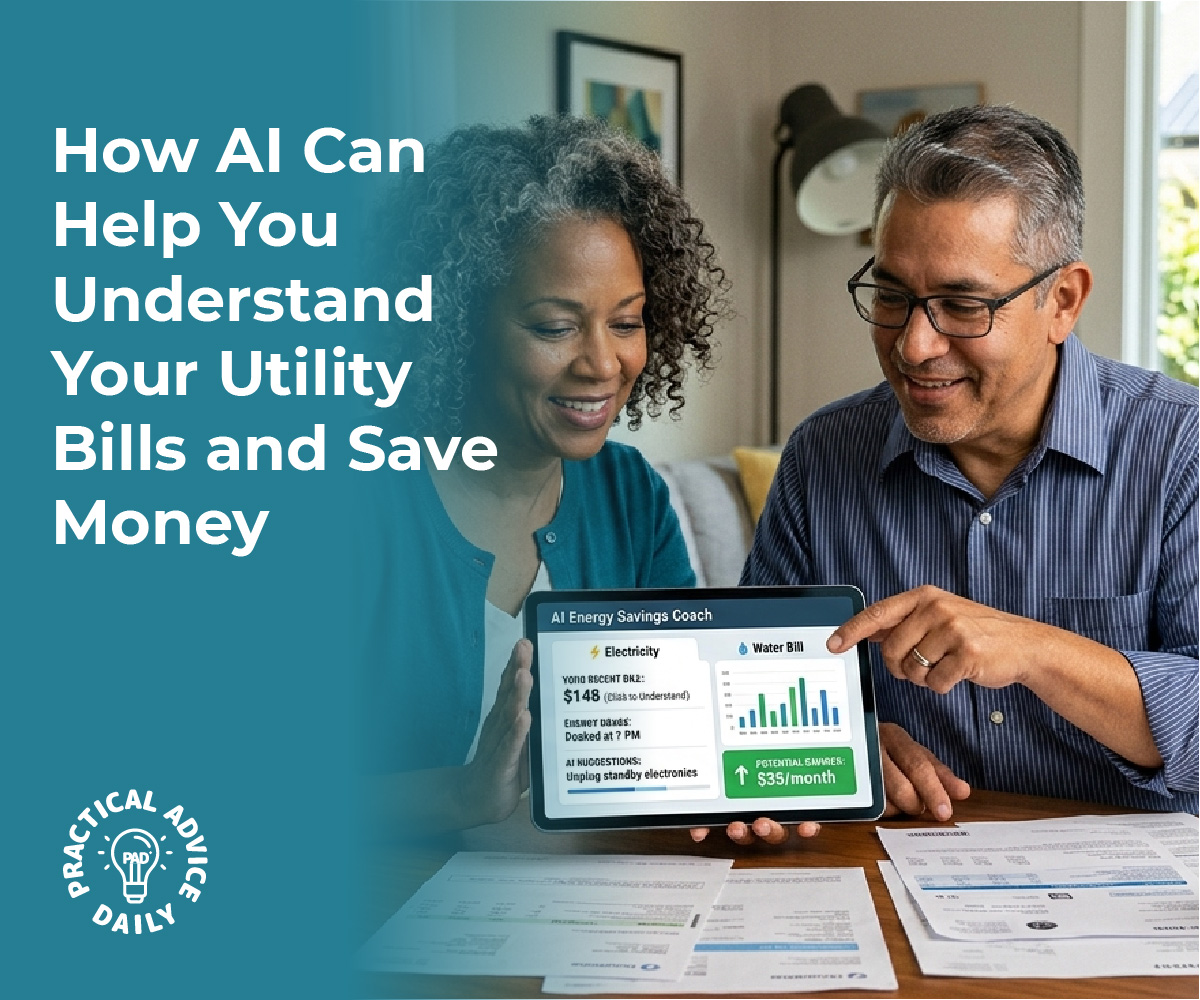
In a world where paper bills often elicit confusion and anxiety, artificial intelligence emerges as a beacon of clarity and efficiency. With the advent of AI-driven tools, the daunting task of deciphering intricate billing statements becomes remarkably straightforward. These technologies not only streamline the process of scanning and interpreting complex bills but also offer significant insights into usage patterns, guiding users on potential cost-saving opportunities, such as senior discounts.
AI tools are designed to ingest the complicated layout of paper bills, translating them into clean, concise summaries. This innovation allows individuals to effortlessly identify critical information, like usage spikes or erroneous charges. Moreover, these tools can suggest actionable steps, such as contacting providers for potential discounts, further enhancing their utility for users.
Such advancements make choosing the right AI tool essential for maximizing benefits. Integrating these solutions can lead to overwhelming advantages, transforming bill management into a hassle-free experience. Reliable AI platforms not only enhance efficiency but also empower users to make informed financial decisions with ease.
AI simplifies the task of scanning and summarizing complex paper bills.
Users gain insights into usage and potential cost-saving measures.
Selecting the right AI tool is crucial for effective bill management integration.
How AI Tools Scan and Understand Complex Paper Bills
AI tools transform complex paper bills into structured data through several advanced techniques. This enables efficient extraction of information from multifaceted formats, facilitating insights into usage patterns and identifying opportunities for senior discounts.
Optical Character Recognition for Bill Digitization
Optical Character Recognition (OCR) is the first step in digitizing paper bills. This technology converts printed text into machine-readable data, allowing systems to interpret information from scanned documents as digital input. OCR software can handle various fonts, layouts, and even handwritten elements, providing the flexibility needed for diverse bill formats. Accuracy in OCR is crucial as errors in digitization can lead to incorrect data extraction, which might affect subsequent analyses and recommendations. Enhanced OCR techniques use machine learning to improve recognition rates, adapting to new layouts over time without needing preset templates.
Automated Data Extraction from Unstructured Documents
Automated data extraction focuses on capturing specific details from unstructured or semi-structured documents. By employing AI algorithms, these tools identify and extract vital bill data such as billing numbers, usage metrics, and payment deadlines. The process involves parsing the digitized text and mapping it to predefined or customizable fields.
Through this method, users efficiently obtain valuable insights without manual intervention. Importantly, automated data extraction supports high-volume processing, making it feasible for organizations to handle large quantities of bills. Such systems are capable of learning from corrections, gradually improving their extraction accuracy with each iteration.
Intelligent Document Processing Solutions
Intelligent Document Processing (IDP) is an advanced approach that combines OCR, machine learning, and natural language processing to manage complex billing documents. IDP systems analyze the document’s entire structure and context, allowing for nuanced understanding beyond simple text recognition.
These platforms can discern context-specific fields, adapt to varied document types without rigid layouts, and extract sophisticated data points like detailed billing line items. Enhanced by continuous learning capabilities, IDP solutions refine their processing mechanisms based on user feedback, ensuring high levels of accuracy and adaptability. By integrating with accounting systems, they seamlessly deliver structured data for further financial analysis and workflow automation.
Transforming Bill Data Into Simple Usage Summaries
AI technology enables businesses and individuals to decode complex paper bills and produce user-friendly summaries. These tools employ Natural Language Processing (NLP) for interpretation, AI for generating concise summaries and insights, and advanced techniques for knowledge extraction and data structuring.
Natural Language Processing for Bill Interpretation
Natural Language Processing plays a pivotal role in understanding and translating the complex language often found in bills. NLP algorithms can analyze text to identify key information such as vendor names, costs, and service details. By breaking down technical jargon into more accessible language, these tools help users easily comprehend their bills.
This interpretation is vital for detecting unusual charges or understanding usage patterns over time. NLP systems are trained to recognize patterns in billing language, making them effective in categorizing and retrieving data across various bill formats. This ensures that the extracted information maintains accuracy and relevance for the end user.
AI-Generated Summaries and Usage Pattern Insights
AI-powered tools excel at summarizing bill data by extracting pertinent details and presenting them in a simplified format. Through efficient data processing, AI can highlight usage trends and uncover hidden insights, assisting users in managing their expenses more effectively. These summaries can point out high usage periods or suggest adjustments to reduce costs. For seniors, AI can intelligently suggest potential discounts based on usage patterns and service providers.
The ability to deliver insights in near real-time allows individuals and businesses to make informed decisions promptly. With continuous improvement in AI algorithms, the precision and readability of these summaries are set to enhance further.
Knowledge Extraction and Data Structuring
Knowledge extraction focuses on transforming unstructured bill information into structured, actionable data. AI systems can organize data into categories such as service type or billing period, offering a comprehensive overview at a glance. Structuring data facilitates easy integration into financial tracking systems and aids in historical analysis of usage patterns.
Advanced extraction methods ensure the information is not just collected but also organized in a way that supports decision-making processes. By turning raw data into structured formats like CSV or JSON, these tools empower users to manage their finances with confidence, reducing the time spent on manual data entry and analysis.
Practical Applications: Detecting Savings and Senior Discounts
AI tools are transforming the way seniors manage expenses by scanning complex bills to provide clear summaries and identify opportunities for savings. These tools can highlight eligible senior benefits and suggest cost-effective strategies.
Identifying Eligible Senior Benefits from Bills
AI-driven solutions can extract information from paper bills to identify potential discounts and benefits applicable to seniors. These systems use advanced algorithms to detect and highlight eligibility for various rebates or discounted rates.
By scanning utility bills, service subscriptions, and medical invoices, AI can cross-reference available discounts for seniors with the data extracted, such as age, service type, or membership status. It can even remind users of recurring savings like reduced rates on specific days, ensuring that seniors maximize available benefits without needing to manually sift through billing documents.
Expense Management and Reducing Utility Costs
AI technologies in expense management are particularly adept at analyzing usage patterns from past paper bills. They can automatically notify seniors of irregular spending spikes and suggest ways to optimize utility configurations for better savings. For instance, if an energy bill indicates excessive nighttime usage, AI might recommend switching to an alternative plan that offers lower night rates.
These tools ensure seniors can manage monthly expenses more efficiently, suggesting cost-saving strategies tailored to their unique consumption habits. AI helps maintain an organized overview of finances, especially by integrating multiple billing sources into a single comprehensive report.
Calls to Action: Where and How to Claim Discounts
AI not only highlights available senior discounts but also guides users on how to claim them effectively. Upon detecting eligible offers, the system can provide step-by-step instructions or direct links to claim benefits online. It might prompt users to contact specific service providers with pre-filled contact details and scripts, ensuring seniors can claim discounts seamlessly.
By providing reminders for annual renewals and showcasing new opportunities, AI ensures seniors never miss out on potential savings. Users can rely on structured, personalized prompts to initiate conversations with customer service teams, maximizing their savings and reducing unnecessary expenditures.
Choosing and Integrating the Right AI Utility Bill Tools
Selecting the appropriate AI tools for utility bill management involves understanding the functionality of different solutions, such as browser extensions and APIs, and recognizing how they can be seamlessly integrated. These tools facilitate tasks such as scanning paper bills, extracting data, and offering insights into usage patterns.
Browser Extensions and APIs for Bill Scanning
Browser extensions provide a user-friendly way to decode complex data from digital platforms with minimal setup required. When integrated with utility bill management systems, they allow users to quickly extract and process essential information from scanned documents.
Using APIs complements this approach by enabling automated data extraction from structured and semi-structured documents. This technical interface helps create a more seamless workflow by connecting various software components and automating repetitive tasks, ensuring the scanned data is both accurate and organized for further analysis.
Popular AI Solutions: elicit, semantic scholar, semantic reader, chatgpt
Popular AI tools like elicit, semantic scholar, semantic reader, and chatgpt offer substantial benefits in the realm of utility bill management. Elicit aids in hypothesis formulation through quick data retrieval, which can expedite identifying trends in energy consumption. Semantic Scholar and Semantic Reader assist in literature discovery and synthesizing relevant research, which can be applied to understand energy usage patterns better.
Meanwhile, ChatGPT excels in generating human-like explanations, which can be tailored to simplify complex billing data into digestible insights or to guide users in locating potential senior discounts.
API Access and Advanced Integrations
API access is vital for advanced integrations, allowing utility bill tools to expand their functionalities and enhance overall performance. By providing a flexible connectivity option, APIs facilitate the integration of disparate systems and the automation of data extraction processes. This advanced integration supports the efficient handling of large data volumes, enabling businesses to scale operations without compromising accuracy.
Moreover, APIs allow for compatibility with other software solutions, providing a more comprehensive toolset that can adapt to evolving user needs and technological advancements. These integrations lead to more coordinated and intelligent bill management strategies, providing both immediate and long-term benefits.
Final Thoughts
Managing bills doesn’t have to feel overwhelming or confusing. With the help of AI-powered tools, what once seemed like complicated paperwork can now become clear, simple, and even helpful in guiding better financial decisions. By automatically scanning, organizing, and summarizing your bills, these tools give you a better understanding of where your money is going—without the stress of reading through every detail.
For seniors especially, this means more confidence and independence when handling everyday expenses. From spotting unusual charges to discovering possible discounts, AI acts like a helpful assistant that keeps things organized and easy to follow. As you begin using these tools, you may find that managing your bills becomes not just easier, but also more empowering.