How to use Apple Music Sing on Apple TV 4K | Apple Support

With Apple Music Sing, you can adjust vocals in supported songs, letting you take the lead. To use it, you’ll need a third-generation Apple TV 4K with the latest tvOS and an Apple Music subscription. While a song from the Apple Music catalog is playing, press the menu button on your Apple TV remote.

Select the Lyrics button at the bottom of the screen to watch the lyrics appear line by line, synced to the beat, making it easy for you to sing along.

Summary:
– Adjust vocals in supported songs with Apple Music Sing.
– Requires a third-generation Apple TV 4K, latest tvOS, and Apple Music subscription.
– Play a song from the Apple Music catalog.
– Press the menu button on the Apple TV remote.
– Select the Lyrics button to display synced lyrics line by line.

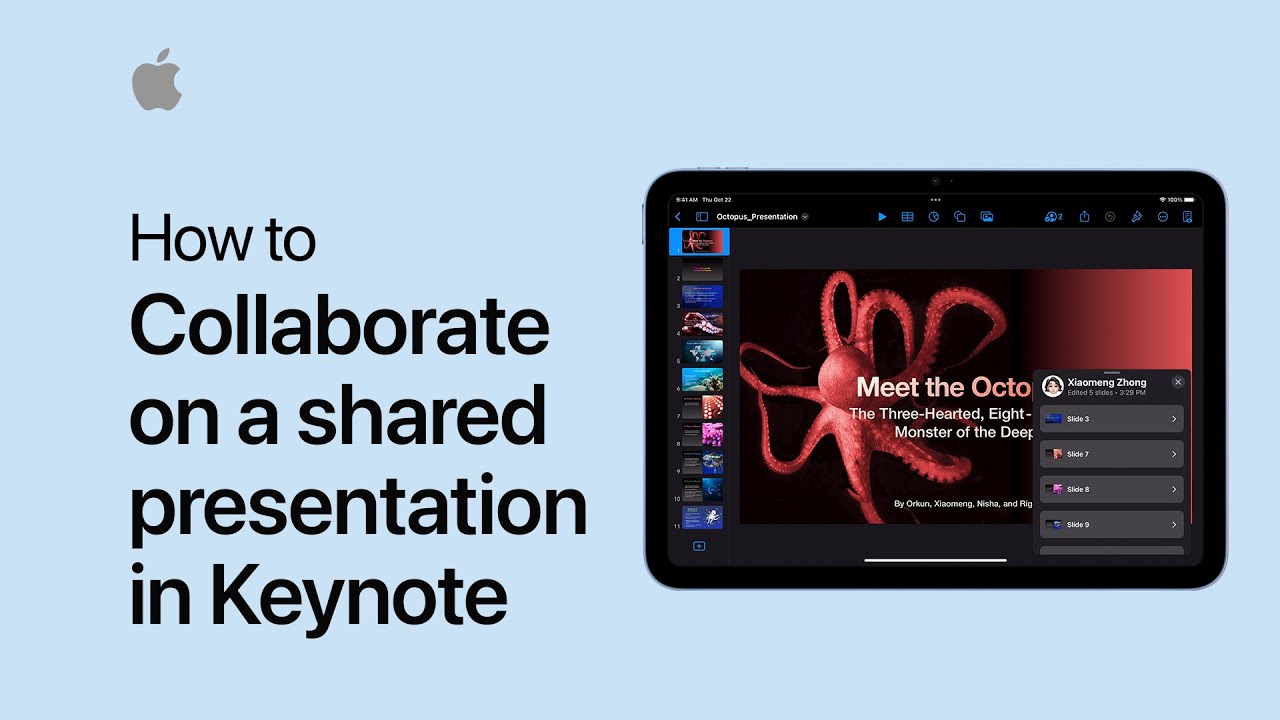
How to track edits in a shared Keynote | Apple Support

When collaborating on a Keynote presentation, you can easily track edits made by others and customize your notification preferences.

To view edits, tap the Collaborate button in the shared Keynote presentation, select Show All Activity, choose a collaborator’s name, and tap a slide number to see their edits. To adjust notification settings, tap the Collaborate button, select Activity Settings, and choose your desired preferences for receiving updates.

This makes managing collaboration and staying informed seamless.

Summary:
– Easily track edits made by collaborators in a shared Keynote presentation.
– Tap the Collaborate button, then Show All Activity to view edits.
– Select a collaborator’s name and slide number to see their changes.
– Customize notifications by tapping the Collaborate button and adjusting Activity Settings.
– Stay informed and manage collaboration effectively.

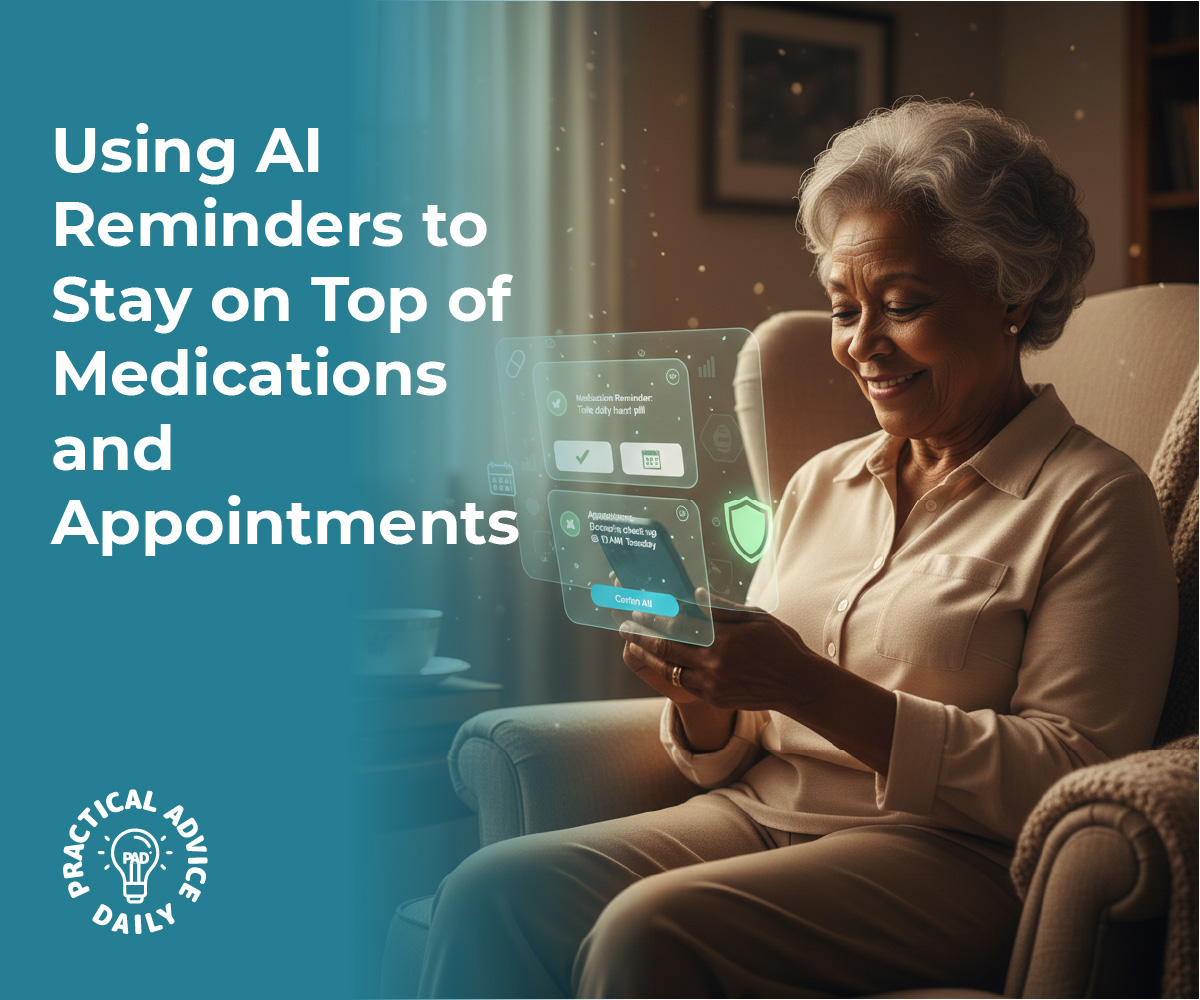
Using AI Reminders to Stay on Top of Medications and Appointments

We all have those days where our schedules feel a bit crowded. Between managing different medications, keeping track of doctor appointments, and remembering daily chores, it’s easy to feel a little overwhelmed. The good news is that your smartphone or tablet has built-in “AI” (Artificial Intelligence) that can act like a gentle personal assistant.

These tools aren’t just for tech experts; they are designed to help you stay independent and in control. In this guide, we’ll show you how to set up simple reminders that “nudge” you at the right time, so you can spend less time worrying about the clock and more time enjoying your day.

Table of Contents

Key Takeaways

  • Voice Commands — Use your voice to set reminders instantly without typing.
  • Medication Tracking — Built-in health apps can give you specific alerts for pills.
  • Recurring Reminders — Set it once for daily tasks and let the phone do the rest.
  • Location Alerts — Get a reminder when you arrive at or leave a specific place.
  • Calendar Sync — Keep all your appointments in one easy-to-see digital book.

Using Your Voice: The Easiest Way to Set a Reminder

You don’t need to navigate through confusing menus to set a reminder. You can simply talk to your phone. Whether you use Siri (Apple) or Google Assistant (Android), it’s as easy as having a conversation.

What to do:

  • Hold the side button on your phone or say, “Hey Siri” or “Hey Google.”
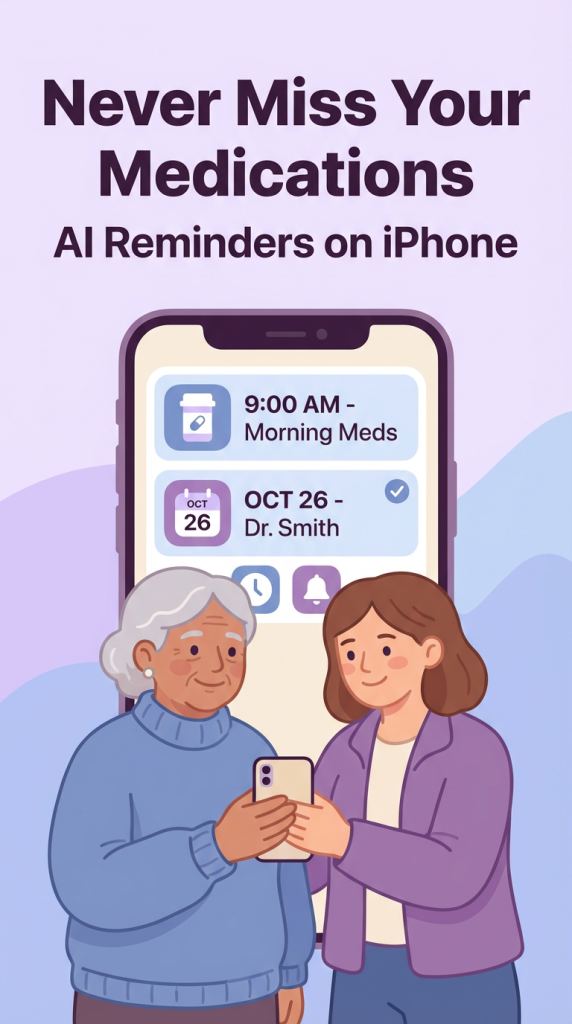
  • Say clearly: “Remind me to take my heart medication at 9:00 AM every day.”
  • The phone will confirm the time and add it to your list automatically.

Why it matters: It removes the need for typing or looking for small icons, making it perfect for a quick thought.

Setting Up a “Digital Pillbox”

Both iPhones and Android phones now have dedicated sections for health. Instead of a simple alarm, these features allow you to log exactly what you took and when.

What to do:

  • On iPhone: Open the Health App, tap Browse, and select Medications. Follow the prompts to add your pills and schedules.
  • On Android: Use the Google Tasks app or a dedicated app like Medisafe.
  • You can even take a photo of the pill bottle so the reminder shows you exactly what the pill looks like.

Why it matters: It provides a visual record, helping you avoid the “Did I already take that?” second-guessing.

Managing Appointments with the Calendar

Paper calendars are great, but they don’t “beep” when it’s time to leave! Using your digital calendar ensures you get a notification before your appointment starts.

What to do:

  • Open your Calendar App.
  • Tap the “+” symbol to add a new event (e.g., “Dr. Smith Appointment”).
  • Look for the “Alert” or “Reminder” section. Set it for “1 hour before” or even “1 day before.”
  • You can also add the office address so your phone can tell you exactly when you need to leave based on traffic.

Why it matters: It gives you plenty of time to get ready and travel without feeling rushed.

Location-Based Reminders: Smart Help on the Go

This is one of the most “magical” parts of AI. Your phone can remind you to do something based on where you are, rather than just the time.

What to do:

  • Tell your voice assistant: “Remind me to buy milk when I get to the grocery store.”
  • Or: “Remind me to check the mail when I get home.”
  • Your phone uses its GPS to sense when you’ve arrived and will pop up the reminder right then.

Why it matters: It helps you remember those “while I’m out” tasks that often slip our minds.

Daily “Check-In” Reminders for Peace of Mind

AI can also help with the small things that keep a home running smoothly—like watering plants, locking the front door at night, or charging your hearing aids.

What to do:

  • Create a “Daily Routine” in your Reminders App.
  • Set tasks like “Lock the back door” for 9:00 PM every night.
  • These will appear on your screen every single day until you check them off.

Why it matters: It creates a digital safety net for your daily habits, reducing mental clutter.

Final Thoughts

Technology is at its best when it makes our lives quieter and more organized. By letting your phone handle the “remembering,” you free up your mind for the things that truly matter—like a phone call with a grandchild or a quiet afternoon in the garden.

Don’t feel like you have to set up everything at once. Start with your most important medication or your next doctor’s visit. Once you see how helpful that one little “beep” can be, you’ll feel much more confident adding more. You are in control, and your phone is simply there to support you.

Categories AI

How to add Low Power Mode to Control Center on your iPhone – Apple Support

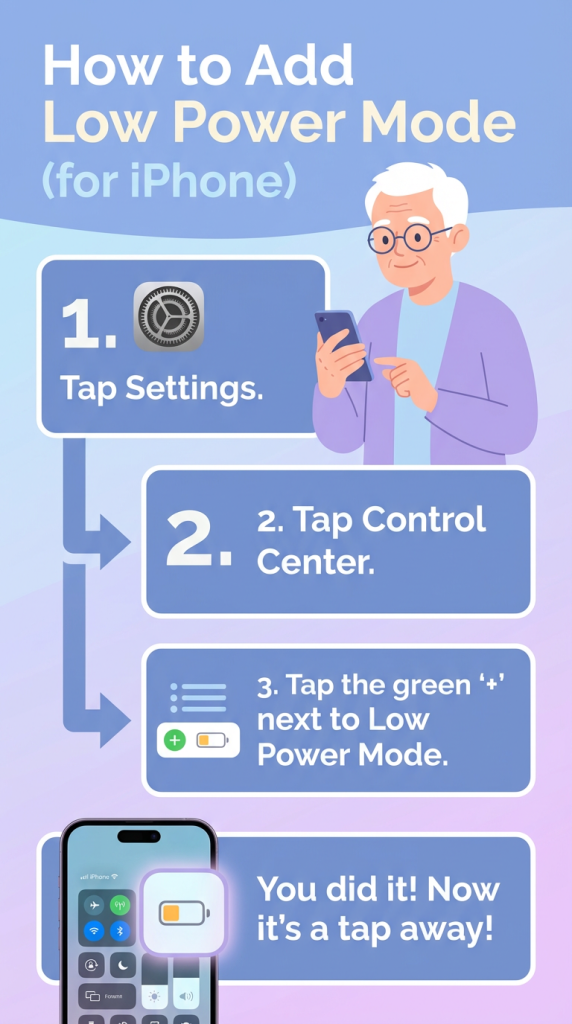
To quickly save battery life, add Low Power Mode to Control Center. In Settings, tap Control Center, then Customize Controls, and select Low Power Mode to add it.

Now, whenever you want to save battery, just swipe down from the top-right corner of your screen and tap Low Power Mode to turn it on.

It’s a simple way to extend your battery life whenever you need it.

Summary:
Add Low Power Mode to Control Center in Settings.
– Go to Control Center, tap Customize Controls.
– Select Low Power Mode to add it.
– Swipe down from the top-right corner to access Control Center.
– Tap Low Power Mode to activate it and save battery life.

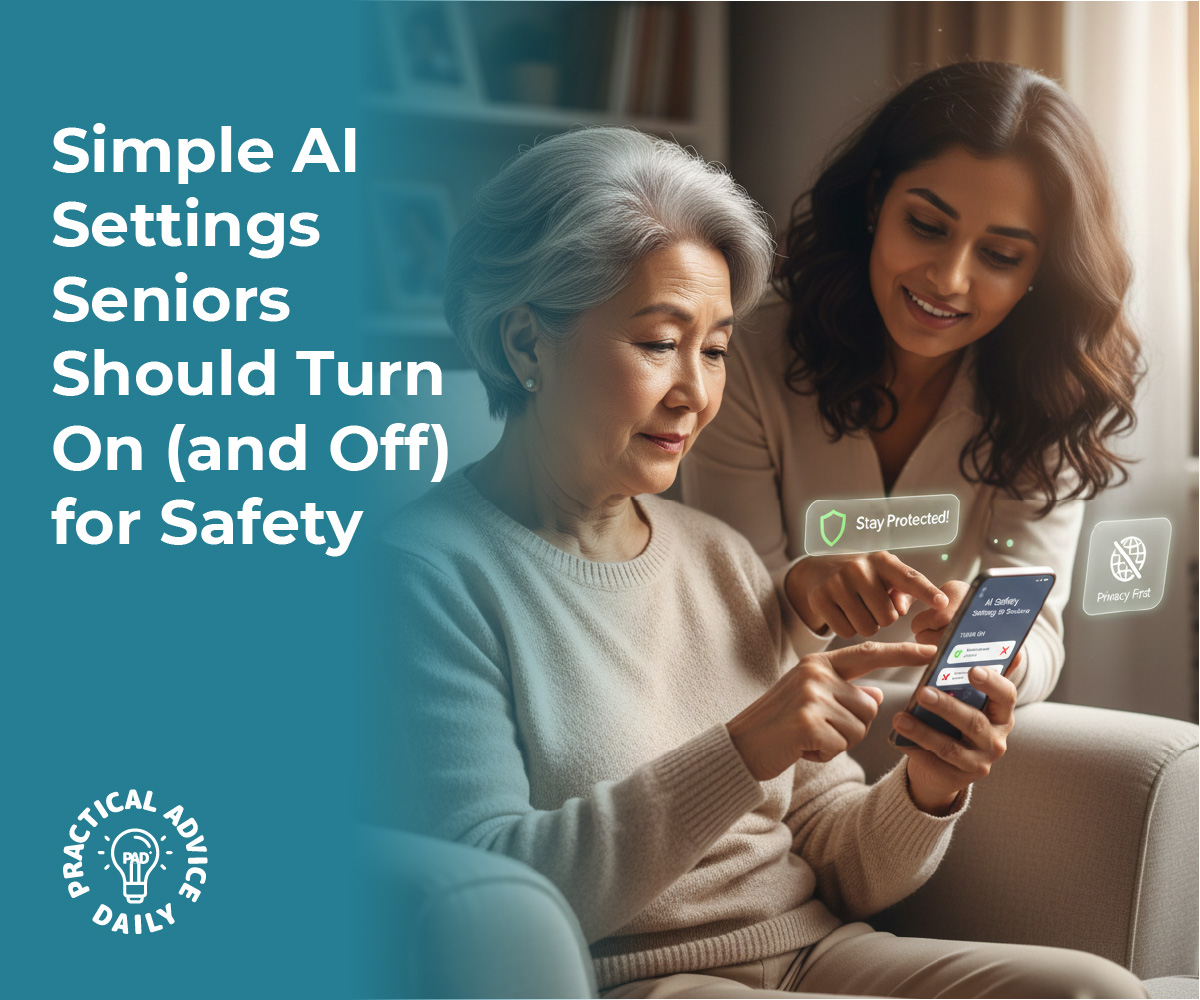
Simple AI Settings Seniors Should Turn On (and Off) for Safety

Your smartphone or tablet is smarter than you might think. It has features powered by artificial intelligence that can help keep you safe, protect your privacy, and make everyday tasks simpler. But not all of these features need to be on—and some you might want to adjust based on what feels right for you.

The good news? You don’t need to understand how AI works to use these settings. This guide walks you through the most important ones, step by step, in plain language. We’ll show you what each setting does, why it matters, and whether you should turn it on or off.

Table of Contents

Key Takeaways

  • Location Services — Turn on for maps and emergencies, but limit which apps can access your location
  • Face ID or Fingerprint — A safe way to unlock your device without remembering passwords
  • App Permissions — Control what information apps can see (camera, microphone, contacts)
  • Automatic Updates — Keep your device secure by allowing software updates
  • Two-Factor Authentication — Adds an extra layer of protection to important accounts
  • Privacy Settings — Review what data is being collected and shared
  • Voice Assistant — Helpful for hands-free control, but you can limit what it listens to

Location Services — Know When to Share Your Location

Location Services uses GPS and other technology to pinpoint where you are. This is incredibly helpful for maps, finding nearby restaurants, or emergency services knowing where to find you.

What to do:

  • Go to Settings > Privacy > Location Services
  • Turn Location Services ON — this is generally safe and helpful
  • Scroll down to see which apps can access your location
  • For apps you don’t use often, change the setting to “Never” or “Only While Using”
  • Keep it “Always” only for apps like maps or emergency services

Why it matters: This prevents apps from tracking you when you’re not using them.

Face ID or Fingerprint — Your Safest Lock

Instead of remembering a password, you can unlock your phone with your face or fingerprint. This is actually one of the safest ways to protect your device.

What to do:

  • Go to Settings > Face ID & Passcode (or Fingerprint & Security)
  • Follow the on-screen steps to set up your face or fingerprint
  • Make sure a strong passcode is also set as a backup

Why it matters: It’s harder for someone else to unlock your phone, and you don’t have to remember complicated passwords.

App Permissions — Control What Apps Can See

Apps often ask permission to access your camera, microphone, contacts, or photos. You don’t have to say yes to all of them.

What to do:

  • Go to Settings > Privacy
  • Look at each category: Camera, Microphone, Contacts, Photos, etc.
  • For each app listed, ask yourself: “Does this app really need access to this?”
  • Change permissions to “Never” or “Only While Using” for apps that don’t need constant access

Example: A weather app doesn’t need access to your contacts or camera. A video calling app does need your camera and microphone.

Why it matters: This prevents apps from collecting information about you without your knowledge.

Automatic Updates — Keep Your Device Protected

Software updates fix security problems and add new safety features. Turning on automatic updates means your device stays protected without you having to remember to update it.

What to do:

  • Go to Settings > General > Software Update
  • Turn on “Automatic Updates” or “Install System Data and Security”
  • You can also set it to update at night when you’re not using your device

Why it matters: Hackers find new ways to attack devices every day. Updates patch these holes and keep you safe.

Two-Factor Authentication — Extra Protection for Important Accounts

Two-factor authentication (or “2FA”) adds a second step when you log into important accounts like email or banking. Even if someone gets your password, they can’t access your account without this second step.

What to do:

  • Go to your email, bank, or social media account settings
  • Look for “Security” or “Two-Factor Authentication”
  • Choose a method: text message, app notification, or security key
  • Follow the steps to set it up

Why it matters: This is one of the best ways to protect accounts that contain sensitive information.

Privacy Settings — See What’s Being Collected

Your device collects information about how you use it—what apps you open, where you go, what you search for. You can see this and limit it.

What to do:

  • Go to Settings > Privacy
  • Look at “Analytics” or “Diagnostics”
  • Turn off “Share iPhone Analytics” or similar options if you’re uncomfortable with data collection
  • Review “Advertising” settings and turn on “Limit Ad Tracking”

Why it matters: This reduces the amount of personal information being collected about you.

Voice Assistant — Helpful, But You Control It

Siri (on Apple devices) or Google Assistant (on Android) can help you make calls, send messages, or search the web—just by speaking. But you can control when it listens.

What to do:

  • Go to Settings > Siri & Search (or Google Assistant)
  • Turn on “Listen for ‘Hey Siri'” only if you want hands-free activation
  • Turn off “Siri on Lock Screen” if you prefer not to use it when your device is locked
  • Review which apps can use the voice assistant

Why it matters: This prevents accidental activation and keeps your voice commands private.

Password Manager — Store Passwords Safely

Your device can remember passwords for you in a secure vault. This is safer than writing them down or using the same password everywhere.

What to do:

  • Go to Settings > Passwords (or Autofill)
  • Turn on “AutoFill Passwords”
  • When you create a new account, let your device save the password
  • Your passwords are encrypted and protected by your Face ID or fingerprint

Why it matters: Strong, unique passwords are harder to hack, and you don’t have to remember them all.

Find My Device — Locate Your Phone If It’s Lost

If your phone goes missing, this feature helps you find it, lock it remotely, or erase it to protect your information.

What to do:

  • Go to Settings > [Your Name] > Find My
  • Turn on “Find My iPhone” (or “Find My Mobile” on Android)
  • Make sure “Find My Network” is enabled

Why it matters: If your device is lost or stolen, you can protect your personal information.

Final Thoughts

AI settings might sound complicated, but they’re really just tools to help you stay safe and in control. You don’t need to turn everything on—just the features that make sense for your life.

Start with the basics: turn on Face ID or fingerprint, set up two-factor authentication for important accounts, and review your app permissions. These three steps alone will make a big difference in keeping your device and information secure.

Remember, your phone should work for you, not the other way around. If a setting feels confusing or unnecessary, you can always turn it off. The goal is to feel confident and safe using your device—and that starts with understanding what these settings do.

Categories AI

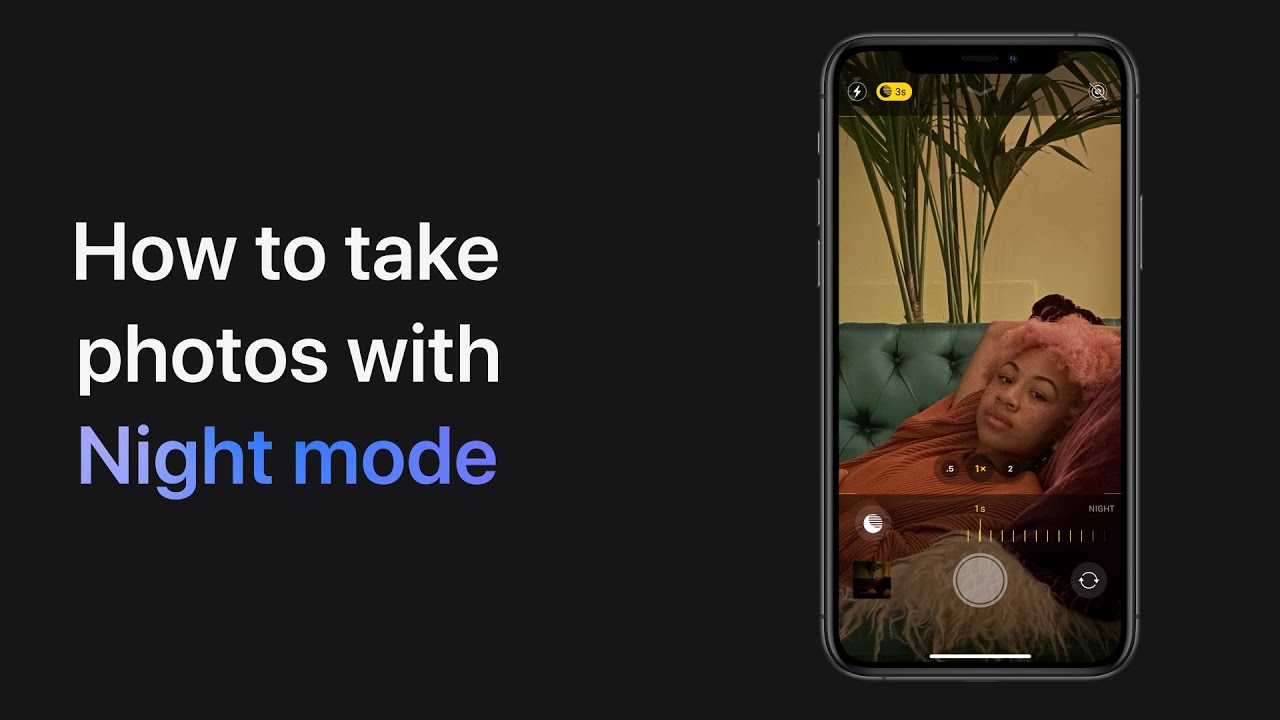
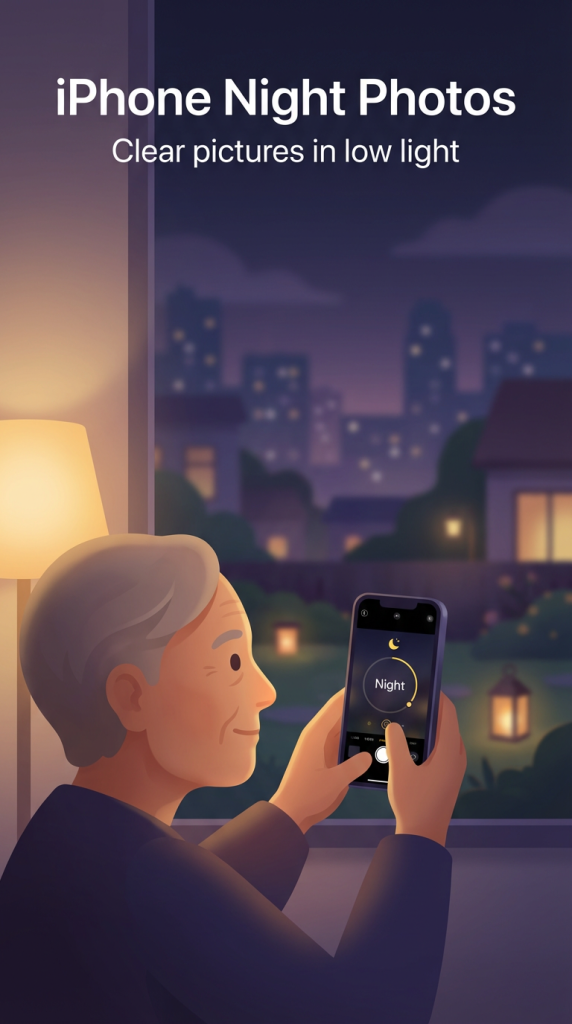
How to take photos in Night mode on iPhone 11 and iPhone 11 Pro — Apple Support

To take better low-light photos with Night mode, start by letting Night mode activate automatically in low light conditions. If you want to adjust the exposure time, tap the Night mode icon on your screen.

Once you’re ready, take the photo, but hold your phone still until the capture is complete. This will ensure a clearer image in low light settings.

Night mode helps to brighten your photos and improve their quality, making your night shots look much better.

Summary:
– Night mode activates automatically in low light.
– Tap the Night mode icon to adjust the exposure time.
Take the photo while holding the phone still.
– Wait for the capture to complete.
– Night mode improves photo quality in low light.

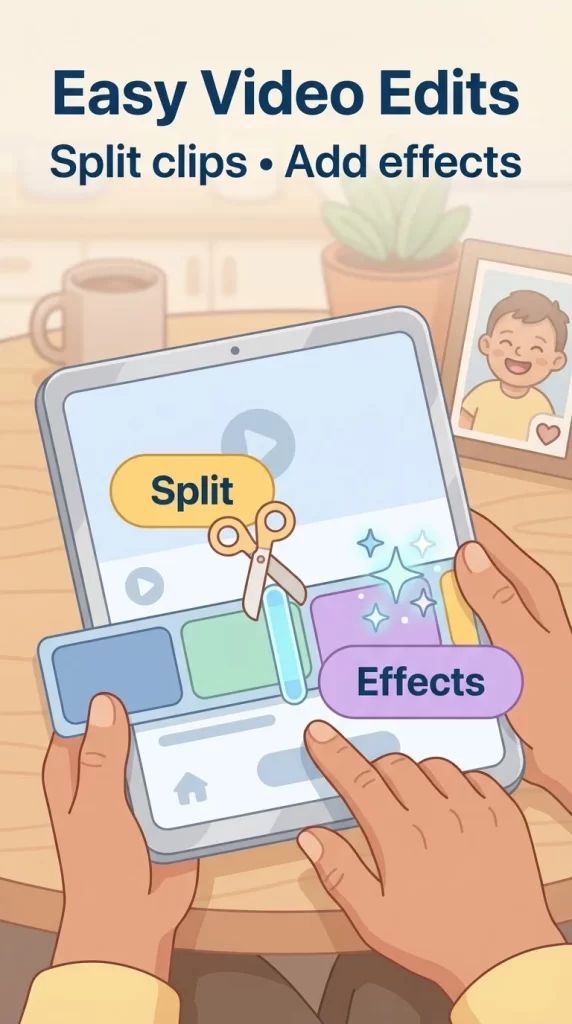
How to split a clip and add an effect in Clips on iPhone, iPad, and iPod touch — Apple Support

To split a clip and add an effect in the Clips app, start by opening your project and tapping on the clip you want to edit.

Tap the Split option, then drag the playhead to the desired split point and tap Split again. Select the newly created clip, tap on Effects, and choose the effect you want to apply.

This process allows you to customize different sections of your video with various effects.

Summary:
– Open your project in the Clips app and select the clip you want to edit.
– Tap “Split” and drag the playhead to where you want to split the clip, then tap “Split” again.
– Select the newly created clip.
– Tap “Effects” and choose the effect you want to apply.
– Apply effects to different sections of your video as needed.

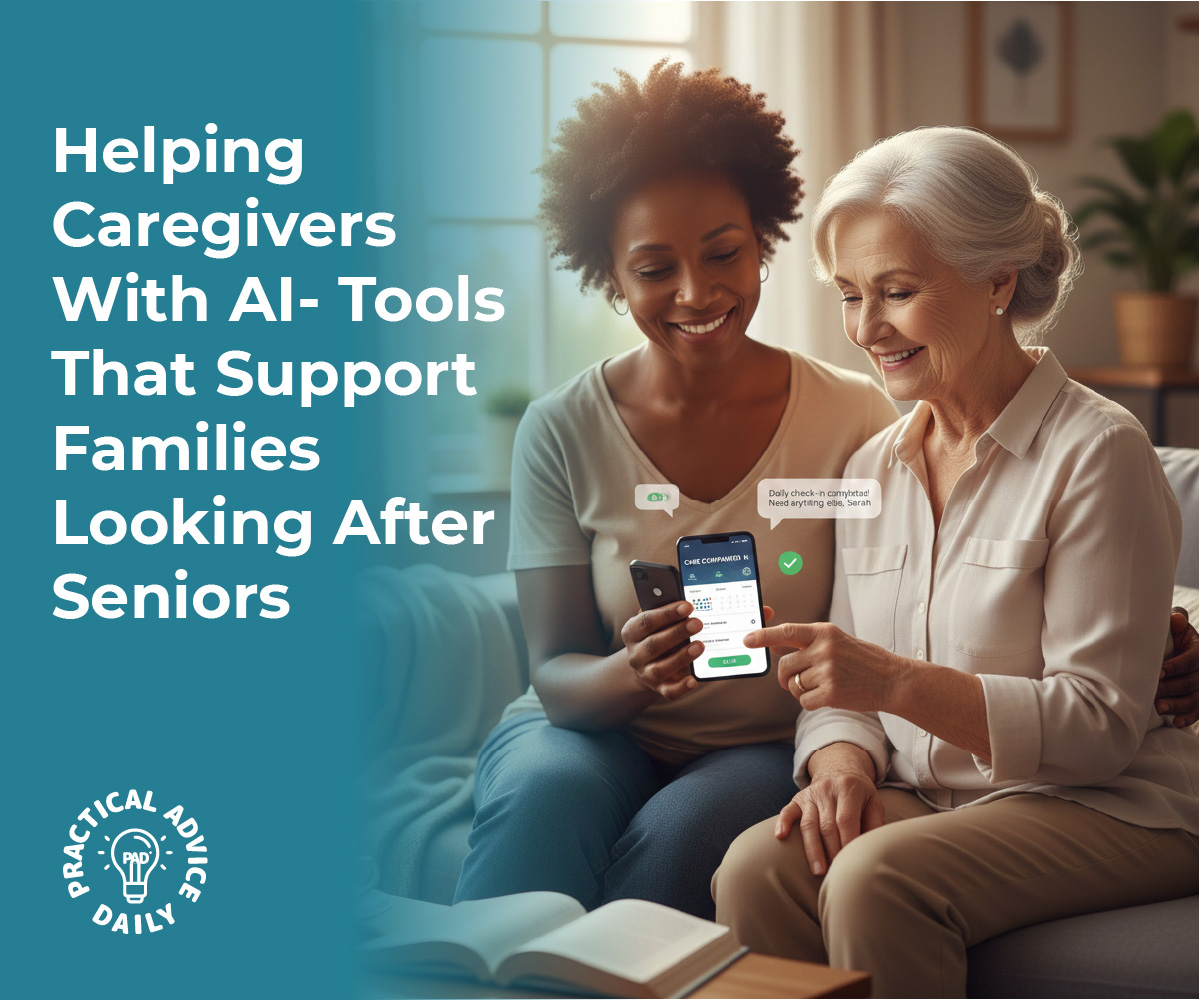
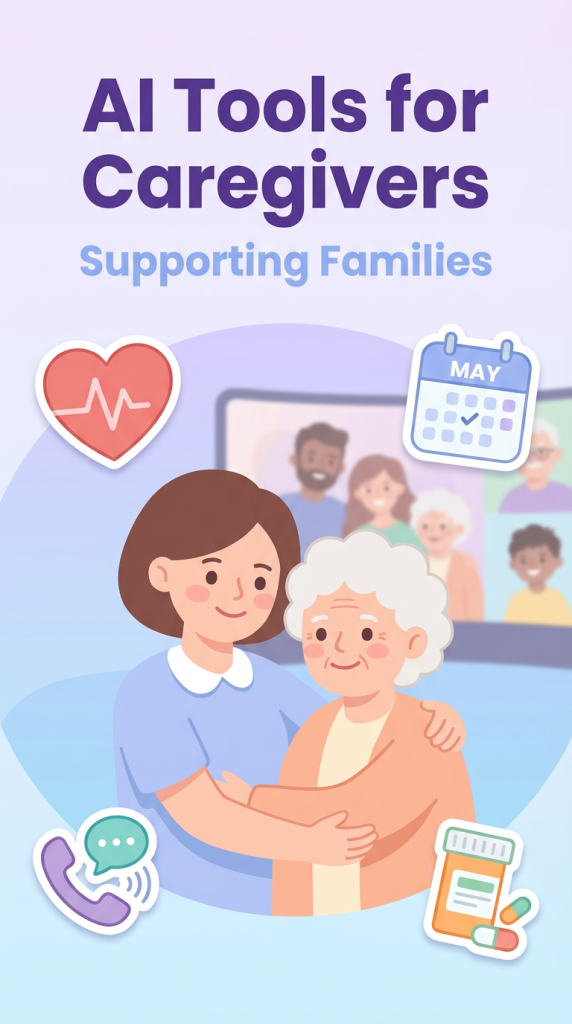
Helping Caregivers With AI: Tools That Support Families Looking After Seniors

Caring for an aging parent or spouse is one of the most meaningful roles we can take on, but it can also feel overwhelming. Between managing doctor’s appointments, tracking medications, and staying on top of daily safety, there is a lot to juggle.

The good news is that new technology—specifically Artificial Intelligence (AI)—is making these tasks much easier. You don’t need to be a computer expert to use these tools. This guide will show you how AI can act like a helpful assistant, giving you peace of mind while helping your loved one stay independent and safe at home.

Table of Contents

Key Takeaways

  • Coordination Made Easy: AI apps can sync family schedules so everyone knows who is visiting and when.
  • Medication Safety: Smart tools can remind seniors to take their pills and alert caregivers if a dose is missed.
  • Privacy First: Modern safety tools can monitor for falls or emergencies without using invasive cameras.
  • Better Communication: AI helps families share health updates instantly, keeping everyone in the loop.

1. Coordinating the “Care Team”

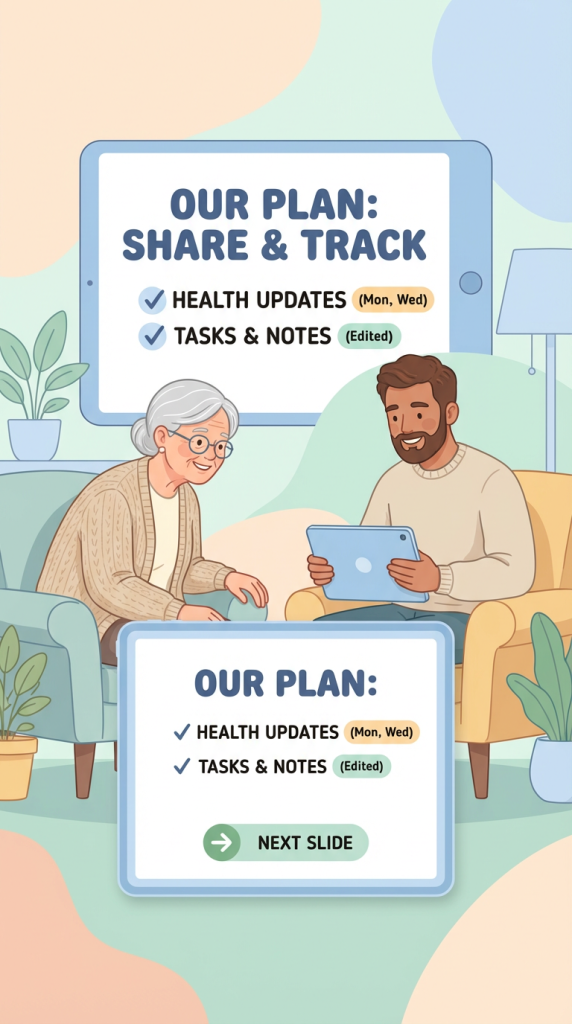
When multiple family members or professional helpers are involved, communication can get messy. AI-powered coordination apps act as a central hub for the family.

  • Shared Calendars: Instead of endless phone calls, these tools use AI to suggest the best times for appointments and automatically update everyone’s digital calendar.
  • Task Lists: You can assign specific chores—like grocery shopping or picking up a prescription—to different family members. The AI sends gentle reminders so nothing falls through the cracks.
  • Daily Logs: Caregivers can leave quick notes about how the senior is feeling or what they ate, which the AI can summarize into a weekly report for the doctor.

2. Managing Medications Without the Stress

One of the biggest worries for caregivers is medication. AI has turned the old plastic pillbox into a high-tech safety net.

  • Smart Reminders: AI assistants (like Siri or Alexa) can be programmed to give voice reminders: “It’s 10:00 AM, time to take your blue heart pill.”
  • Alert Systems: Some AI pill dispensers can sense if a drawer wasn’t opened. If a dose is missed, the AI automatically sends a text message to the primary caregiver.
  • Interaction Checks: You can ask AI tools to double-check if a new supplement might interfere with a current medication, providing a quick “first look” before you call the pharmacist.

3. Safety Monitoring That Respects Privacy

Many seniors worry that “safety” means “losing privacy.” AI is changing this by moving away from cameras and toward “smart sensing.”

  • Fall Detection: Wearable devices and even some wall-mounted sensors use AI to recognize the specific movement of a fall. They can call for help automatically without the senior needing to press a button.
  • Routine Monitoring: AI can learn a senior’s “normal” routine—like what time they usually get out of bed or use the kitchen. If the AI notices a major change (like the fridge hasn’t been opened all day), it can send a “just checking in” alert to the family.
  • Voice Assistants: Having an AI speaker in the room allows a senior to call for help using just their voice if they are unable to reach a phone.

4. Keeping the Family Connected

AI helps bridge the gap for family members who live far away.

  • Photo Sharing: AI can automatically organize photos sent by grandkids and display them on a digital frame in the senior’s living room, making them feel part of the daily action.
  • Video Call Help: Some AI tools can automatically answer video calls from “approved” family members, so a senior with arthritis or vision issues doesn’t have to struggle with small buttons to see their loved ones.

Final Thoughts

Using AI in caregiving isn’t about replacing the human touch; it’s about removing the “busy work” and the constant worry. These tools handle the schedules and the reminders so that when you spend time with your loved one, you can focus on the relationship rather than the to-do list.

Start small—perhaps with a simple shared calendar or a voice reminder—and see how much lighter the load feels. You are doing a wonderful thing by caring for your family, and it’s okay to let a little bit of technology help you along the way.

Categories AI

How to use the Camera app on iPhone — Apple Support

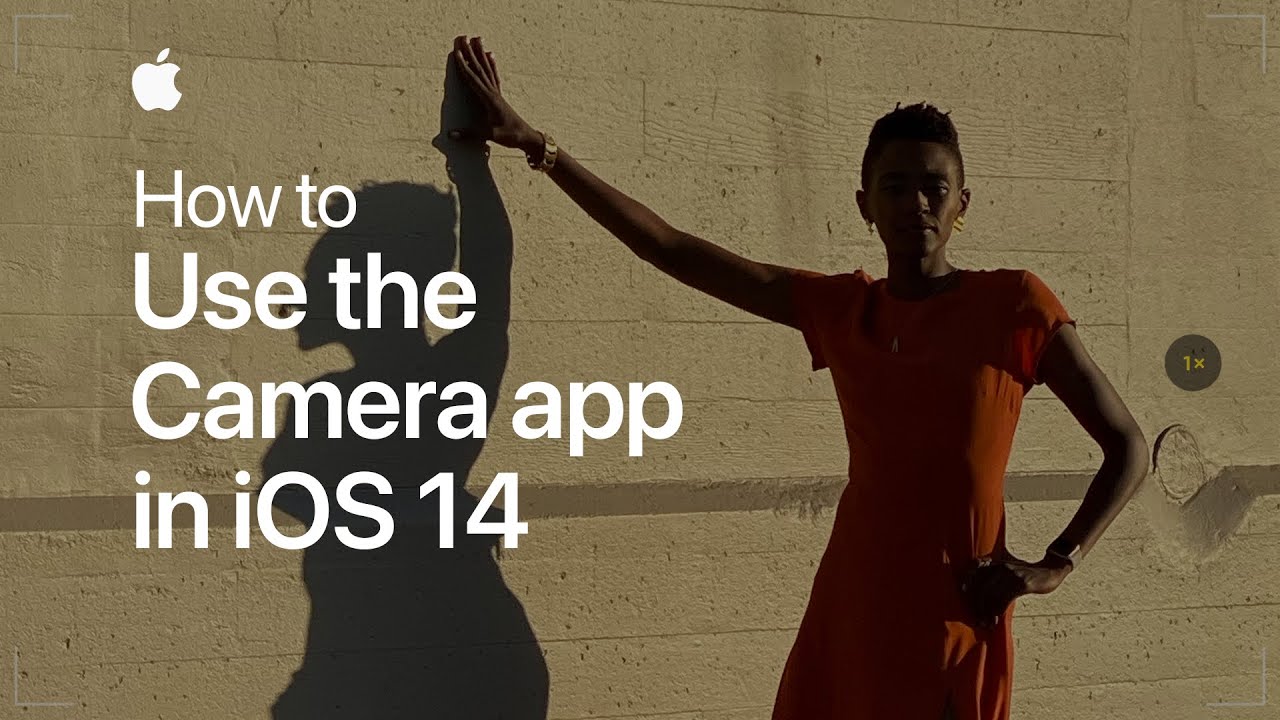
To use the Camera app one-handed on iPhone XS and later with iOS 14, start by swiping the shutter button left to take burst photos.

For QuickTake video, simply touch and hold the shutter button to record, and lift your finger to stop. If you prefer to shoot video without holding down the shutter, swipe the button right.

This way, you can easily capture both photos and videos without missing any moments.

Summary:
– Swipe the shutter button left to take burst photos.
– Touch and hold the shutter button to record QuickTake video.
– Lift your finger to stop recording QuickTake video.
– Swipe the shutter button right to shoot video without holding it down.
– This allows for easy one-handed use of the Camera app.

How to add Music Recognition to Control Center

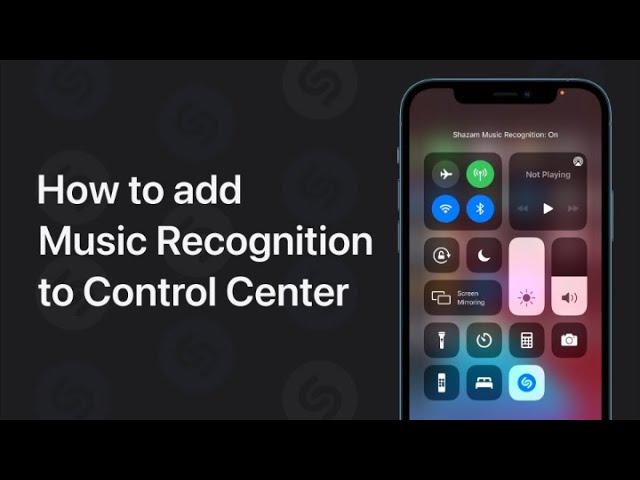
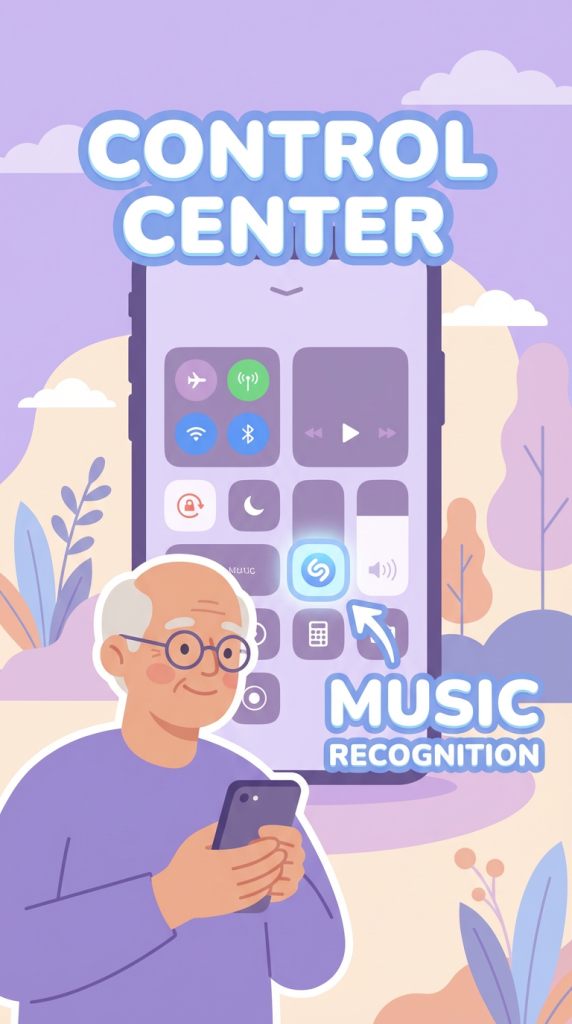
To add Music Recognition to Control Center for quick song identification, start by opening Settings and tapping Control Center. Then, tap Music Recognition to add it to your Control Center. When you want to identify a song, simply open Control Center and tap the Music Recognition button. This will help you quickly find out what song is playing.

Summary:
– Open Settings and tap Control Center.
– Add Music Recognition to Control Center.
– Open Control Center when you want to identify a song.
– Tap the Music Recognition button.
– Quickly find out what song is playing.