
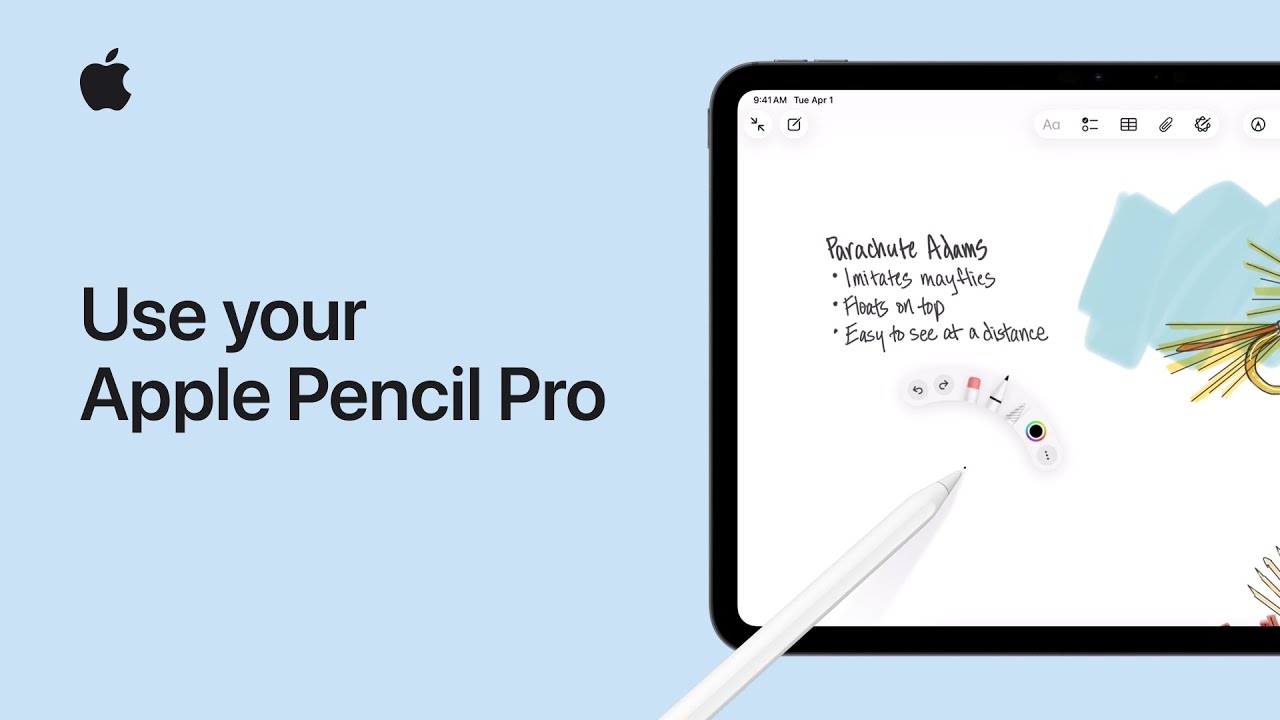
To use your Apple Pencil Pro, start by making sure it’s compatible with your iPad. Begin with basic gestures: squeeze the barrel to open the tool palette, roll the pencil to adjust line thickness, and double-tap to switch tools like the eraser.
In apps like Notes, squeeze again to access tools, swipe to expand options, and select what you need. You can hover the pencil to preview strokes before drawing.
To customize, open Settings or tap Pencil Settings from the palette, then adjust actions like squeeze and double-tap, change sensitivity, and control features like haptic feedback for a more personalized experience.

- Make sure your iPad supports Apple Pencil Pro, then start using basic gestures.
- Squeeze to open the tool palette, roll to adjust line thickness, and double-tap to switch tools.
- Use apps like Notes to access tools, swipe to expand options, and preview with hover.
- Tap Pencil Settings or go to Settings to customize gestures and actions.
- Adjust sensitivity, effects, and feedback to personalize your Apple Pencil experience.