How to use locked apps with Stolen Device Protection on iPhone | Apple Support

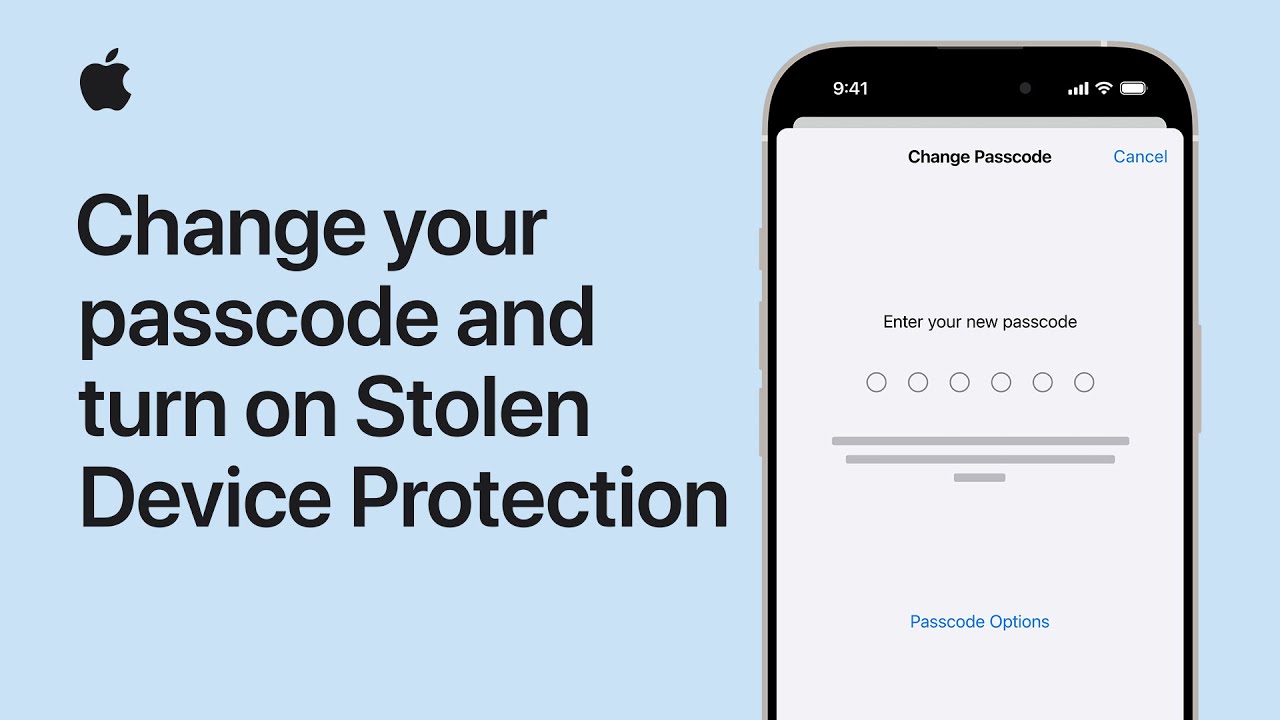
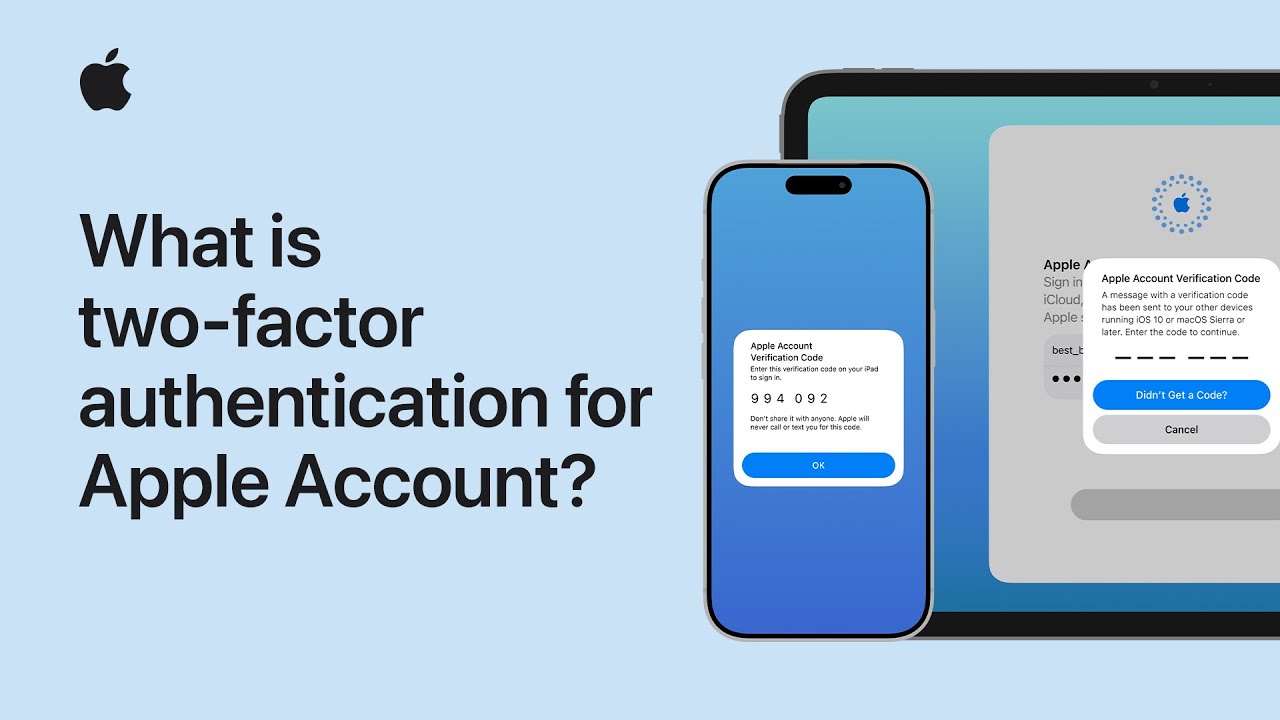
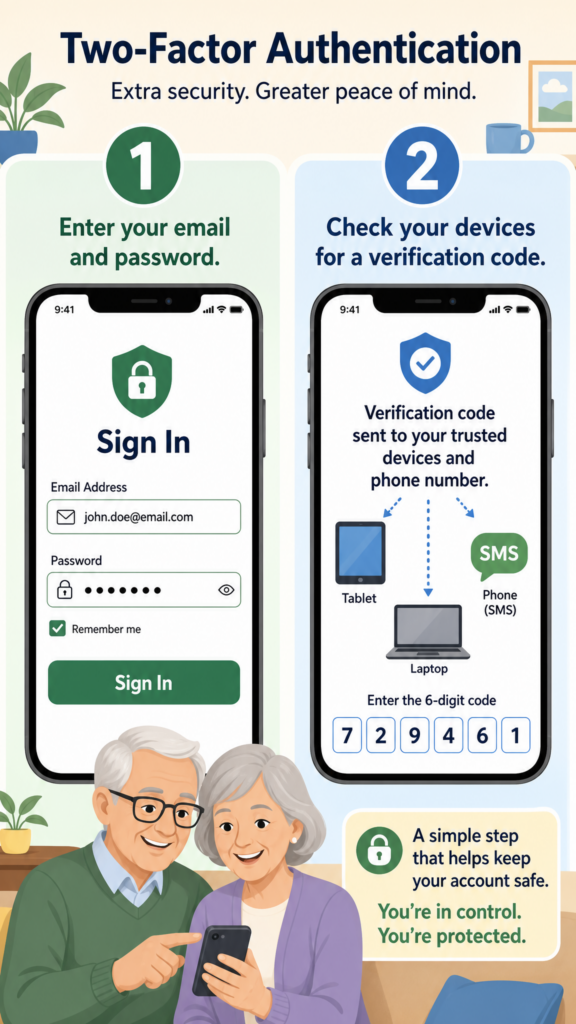
To protect your iPhone if it’s ever stolen, start by ensuring your device runs iOS 18 or later and has Face ID or Touch ID, two-factor authentication, Location Services, and Find My enabled.

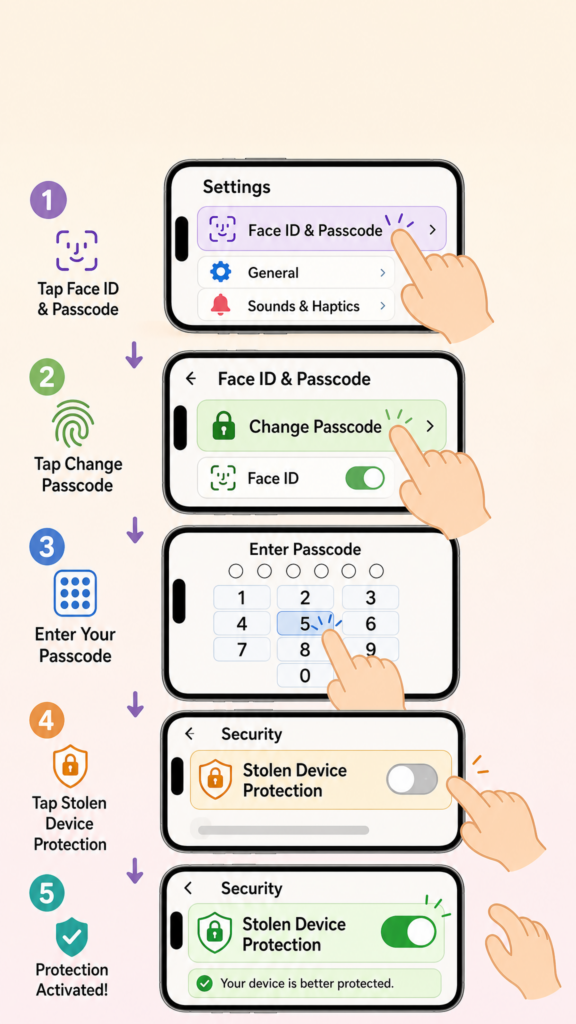
Next, open Settings, go to Face ID and Passcode, enter your passcode, and turn on Stolen Device Protection. This adds extra security, such as requiring biometric authentication and delaying changes to sensitive settings when away from familiar locations.

You can also lock apps by pressing and holding an app, selecting Require Face ID or passcode, and authenticating. To unlock, repeat the process and disable the requirement when needed.

  • Make sure your iPhone uses iOS 18+ and has Face ID/Touch ID, Find My, and 2FA enabled.
  • Turn on Stolen Device Protection in Settings under Face ID & Passcode.
  • This adds extra security like biometric checks and delays for sensitive changes.
  • Lock apps by holding an app and selecting Require Face ID/Passcode.
  • Unlock apps anytime by repeating the steps and removing the requirement.

Get to know Control Center on Apple Vision Pro | Apple Support

To access Control Center on Apple Vision Pro, start by looking at your hand with your palm facing you, then turn it outward to reveal the status bar showing battery and time.

Tap the status bar to open Control Center. On the left, you’ll find controls like Wi-Fi, volume, and Now Playing, while the right side includes features like Mac Virtual Display, Guest User, and Travel Mode.

You can also open Notification Center or Spotlight from the top.

To customize, go to Settings, add controls, or enable alternative access like “Look Upwards.” When finished, tap the Close button to exit Control Center.

  • Look at your hand and turn it outward to reveal the status bar, then tap it to open Control Center.
  • Access controls like Wi-Fi, volume, and media on the left side.
  • Use features like Mac Virtual Display, Guest User, and Travel Mode on the right.
  • Customize Control Center in Settings or enable “Look Upwards” for easier access.
  • Tap the Close button to exit Control Center when done.

How to connect and pair your Apple Pencil with your iPad | Apple Support

To pair your Apple Pencil with your iPad, start by updating your iPad to the latest version of iPadOS and ensuring Bluetooth is turned on in your settings.

Next, identify which of the four models you have, as each only works with specific iPads. To pair the Apple Pencil Pro or the second-generation model, simply attach it to the magnetic connector on the long side of your compatible iPad.

For the USB-C model, connect it via a cable, and for the first-generation version, plug it directly into the Lightning port or use the required adapter to finish pairing.

  • Ensure your iPad is updated to the latest iPadOS and that Bluetooth is turned on.
  • Identify your specific Apple Pencil model to ensure it is compatible with your iPad.
  • For Apple Pencil Pro or second-generation, attach it to the magnetic connector on the side of your iPad to pair.
  • For the USB-C model, connect it to your iPad using a compatible charging cable.
  • For the first-generation pencil, plug it into the iPad’s lightning port or use the required adapter to complete pairing.

How to use your Apple Pencil Pro | Apple Support

To use your Apple Pencil Pro, start by making sure it’s compatible with your iPad. Begin with basic gestures: squeeze the barrel to open the tool palette, roll the pencil to adjust line thickness, and double-tap to switch tools like the eraser.

In apps like Notes, squeeze again to access tools, swipe to expand options, and select what you need. You can hover the pencil to preview strokes before drawing.

To customize, open Settings or tap Pencil Settings from the palette, then adjust actions like squeeze and double-tap, change sensitivity, and control features like haptic feedback for a more personalized experience.

  • Make sure your iPad supports Apple Pencil Pro, then start using basic gestures.
  • Squeeze to open the tool palette, roll to adjust line thickness, and double-tap to switch tools.
  • Use apps like Notes to access tools, swipe to expand options, and preview with hover.
  • Tap Pencil Settings or go to Settings to customize gestures and actions.
  • Adjust sensitivity, effects, and feedback to personalize your Apple Pencil experience.

How to customize Camera Control on iPhone | Apple Support

To customize Camera Control on your iPhone, start by opening Settings, scrolling down to Camera, and tapping Camera Control. Choose whether you want the Camera app to open with a single click or a double click.

Next, turn on Camera Adjustments if you want quick access to settings like Zoom and Depth. Then tap Customize to decide how you want to open the settings overlay, using a light press, a swipe, or both.

You can also rearrange or hide menu items in the overlay to suit your needs. Once finished, press the Camera Control button on your iPhone and try out your personalized camera setup.

  • Open Settings, go to Camera, then tap Camera Control.
  • Choose whether the Camera app opens with a single click or double click.
  • Turn on Camera Adjustments to access settings like Zoom and Depth quickly.
  • Tap Customize to change gestures, rearrange options, or hide menu items.
  • Press the Camera Control button to open the Camera app and try your new setup.

How to reset your iPad if you forgot your passcode | Apple Support

If you forgot your iPad passcode, start by preparing a computer, cable, and your Apple Account details. First, try tapping “Forgot Passcode?” on the screen to reset it quickly using the internet.

If that doesn’t work, turn off your iPad and connect it to your computer. For newer models, press the volume buttons and hold the top button; for older ones, hold the Home and top buttons to enter recovery mode.

Once the recovery screen appears, open Finder, iTunes, or the Apple Devices app and choose Restore.

After installation completes, set up your iPad again or restore from a backup.

  • Prepare a computer, cable, and your Apple Account details before starting.
  • Try tapping “Forgot Passcode?” on the iPad to reset it quickly using the internet.
  • If needed, turn off the iPad and enter recovery mode using button combinations.
  • Connect to a computer, open Finder, iTunes, or Apple Devices, then select Restore.
  • After the process finishes, set up your iPad again or restore from a backup.

How to update macOS on your Mac | Apple Support

To update macOS on your Mac, start by plugging your device into power and ensuring a stable internet connection. It is highly recommended to back up your data using Time Machine before proceeding.

Next, click the Apple menu and navigate to System Settings, then select Software Update from the General category. When you are ready, click Update Now, accept the terms and conditions, and enter your administrator password.

Allow the installation to run uninterrupted, even if the screen dims or the computer restarts. Once the progress bar finished, simply log back in to enjoy the latest features and security improvements.

  • Prepare for the update by plugging your Mac into a power source and connecting to the internet, and perform a backup using Time Machine to keep your files safe.
  • Navigate to the Apple menu, select System Settings, and go to the General section to find and click on Software Update to see available versions.
  • Click Update Now, accept the required terms, and enter your administrator password to begin the installation process on your device.
  • Leave your Mac alone during the update, even if it restarts or the screen goes black, until the process completes and you can log back in.

How to use windowing on iPad | Apple Support

To use windowing on your iPad, start by enabling Windowed Apps in Control Center or Settings. Open your first app, then swipe up slightly to reveal the Dock and drag a second app to the side to view both side by side.

Adjust their size by dragging the divider, and easily move content between them. You can replace apps by dragging new ones from the Dock or return to previous ones with a tap.

To organize your workspace, resize and move windows freely, or minimize them using window controls.

For quick access, use Slide Over by dragging an app over the edge, letting it float above others.

  • Use Slide Over by dragging an app to the edge so it stays on top and can be accessed anytime.
  • Turn on Windowed Apps in Control Center or Settings to enable multitasking on your iPad.
  • Open one app, then drag another from the Dock to the side to use both apps side by side.
  • Adjust window sizes by dragging the divider and move content between apps easily.
  • Resize, move, or minimize windows to organize your workspace the way you prefer.

How to transfer to a new Mac with Migration Assistant | Apple Support

To transfer your data with Migration Assistant, start by connecting both Macs to power and the same Wi-Fi network while disabling any VPNs or firewalls. On your new Mac, begin the setup process and select the option to transfer from another Mac.

Meanwhile, open Migration Assistant on your old device via Spotlight and select the option to transfer information to another Mac.

Enter your administrator password when prompted, then select your old Mac’s icon on the new screen. Ensure the six-digit codes match, choose the files you wish to move, and set your new password to begin the transition safely.

  • Ensure both Macs are plugged into power, positioned near each other, and connected to the same Wi-Fi network while temporarily disabling any antivirus or VPN software.
  • Open Migration Assistant on the new Mac during its initial setup and choose the option to transfer data from another Mac, Time Machine, or startup disk.
  • Launch Migration Assistant on your old Mac using Spotlight or the Utilities folder, enter your administrator password, and select the option to transfer data to another Mac.
  • Verify that the six-digit codes match on both screens, select the specific files and settings you want to move, and set a login password to complete the process.

How to locate items with AirTag and Find My | Apple Support

To find your important items using AirTag, start by opening the Find My app and tapping the Items tab to select your connected device. If your item is nearby, tap Play Sound to hear a chime or use Find Nearby for precise distance and directional guidance.

For items further away, tap Directions to see the last known location in Maps. You can also share the item with up to five people or enable Notify When Found to receive updates.

If truly lost, mark it as such to share your contact info via NFC, helping others safely return your belongings to you.

  • Open the Find My app and navigate to the Items tab to select your AirTag, then use Play Sound or Find Nearby for precise directional guidance if it is within Bluetooth range.
  • If your item is beyond Bluetooth range, tap the Directions button to view its last known location on a map or enable Notify When Found to get an alert when its position updates.
  • You can share an AirTag with up to five trusted people, allowing them to help you locate shared items like keys or luggage through their own Find My app.
  • Mark an item as lost to display your contact information to anyone who finds it using an NFC-capable device, or share its temporary location link with an airline or friend.