
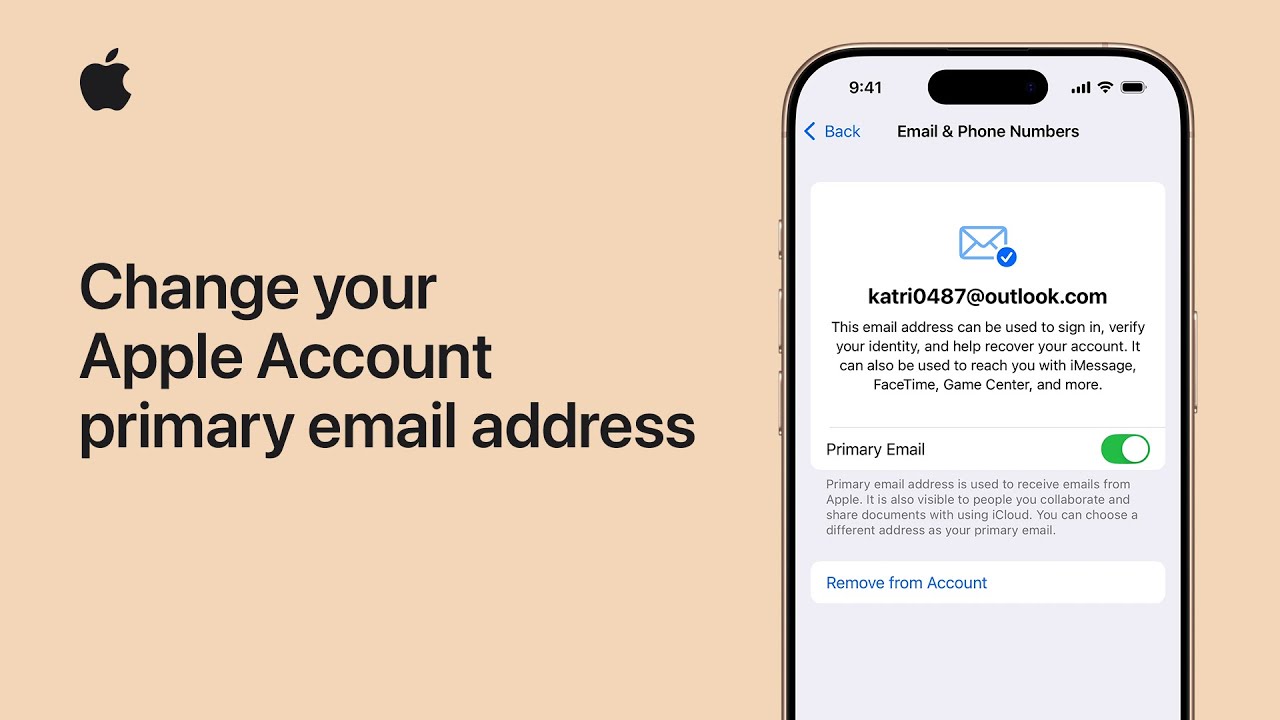
I’ll walk you through changing your Apple Account primary email on your iPhone or iPad. Open Settings and tap your name, then choose Sign In & Security.
Tap the current primary email, then turn off Primary Email to keep it associated while choosing a different primary address, or tap Remove from Account to delete it.
If only an iCloud email is linked, choose Change Email Address instead. Confirm by tapping Remove from Account, enter your iPhone passcode, and follow prompts to add a new primary email.
Finish by verifying the new address — that’s all, and you’re done. Expect confirmation email.
- Open Settings > tap your name > Sign In & Security.
- Tap the primary email and choose Remove from Account or turn off Primary Email.
- If only an iCloud email is present, use Change Email Address.
- Confirm removal, enter your iPhone passcode, then follow prompts to add a new primary email.
- Verify the new address to finish.