
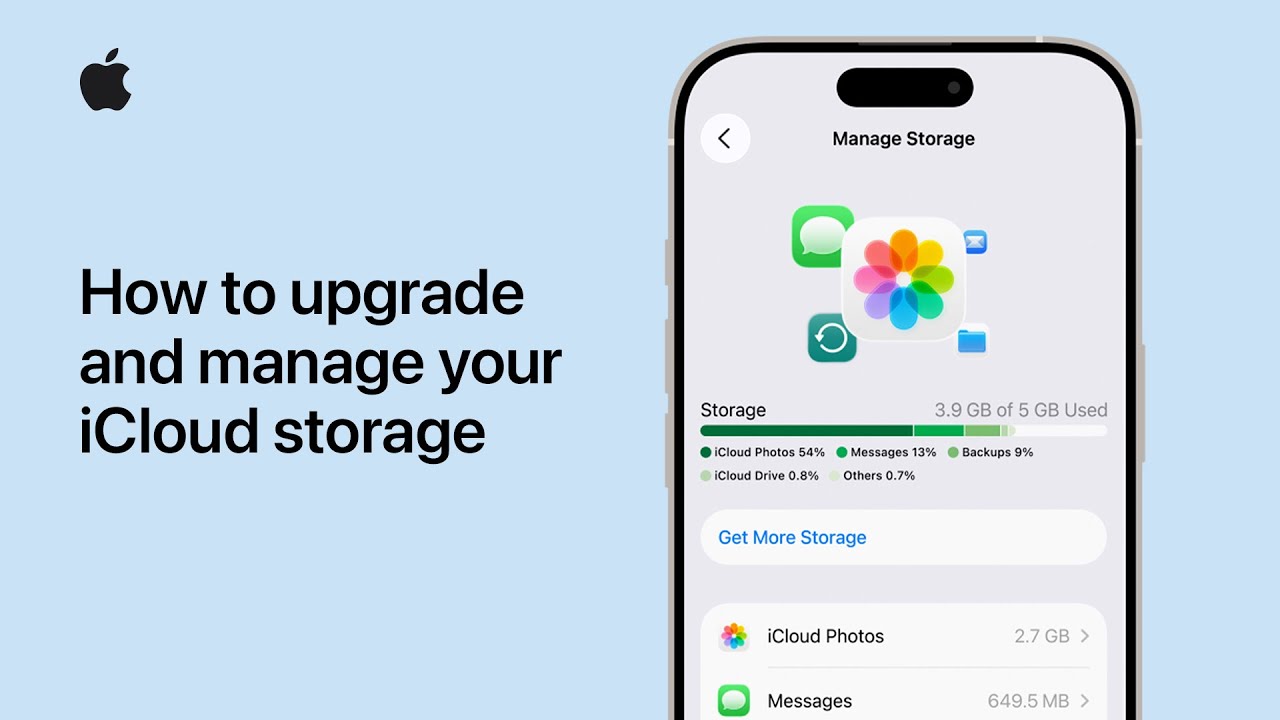
Start by checking if your iCloud storage is full, then open Settings and tap your name at the top.
Next, select iCloud and tap Manage Storage to view what’s using space. To get more storage, tap Change Storage Plan and choose a larger option, then confirm your upgrade.
After upgrading, return to storage settings to review personalized recommendations. Follow prompts to remove unnecessary files, delete old backups, or optimize photos.
You can also manage apps using iCloud storage individually.
Repeat these steps regularly to keep your storage organized and ensure your iPhone continues running smoothly without interruptions.
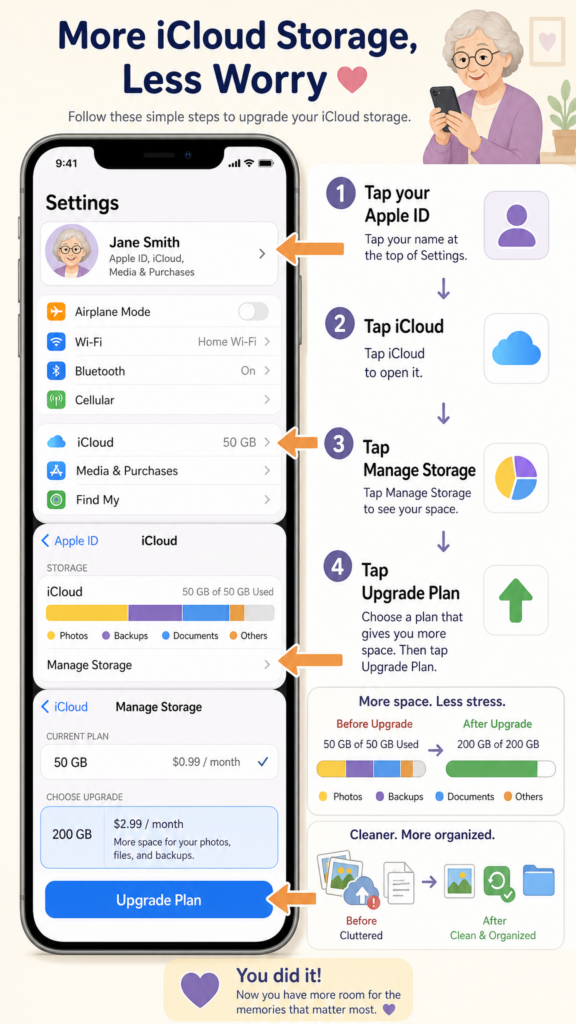
- Open Settings → Tap your name → iCloud → Manage Storage
- Tap Change Storage Plan to upgrade storage
- Choose a plan and confirm purchase
- Review storage recommendations to free space
- Delete unused files, backups, or optimize photos