
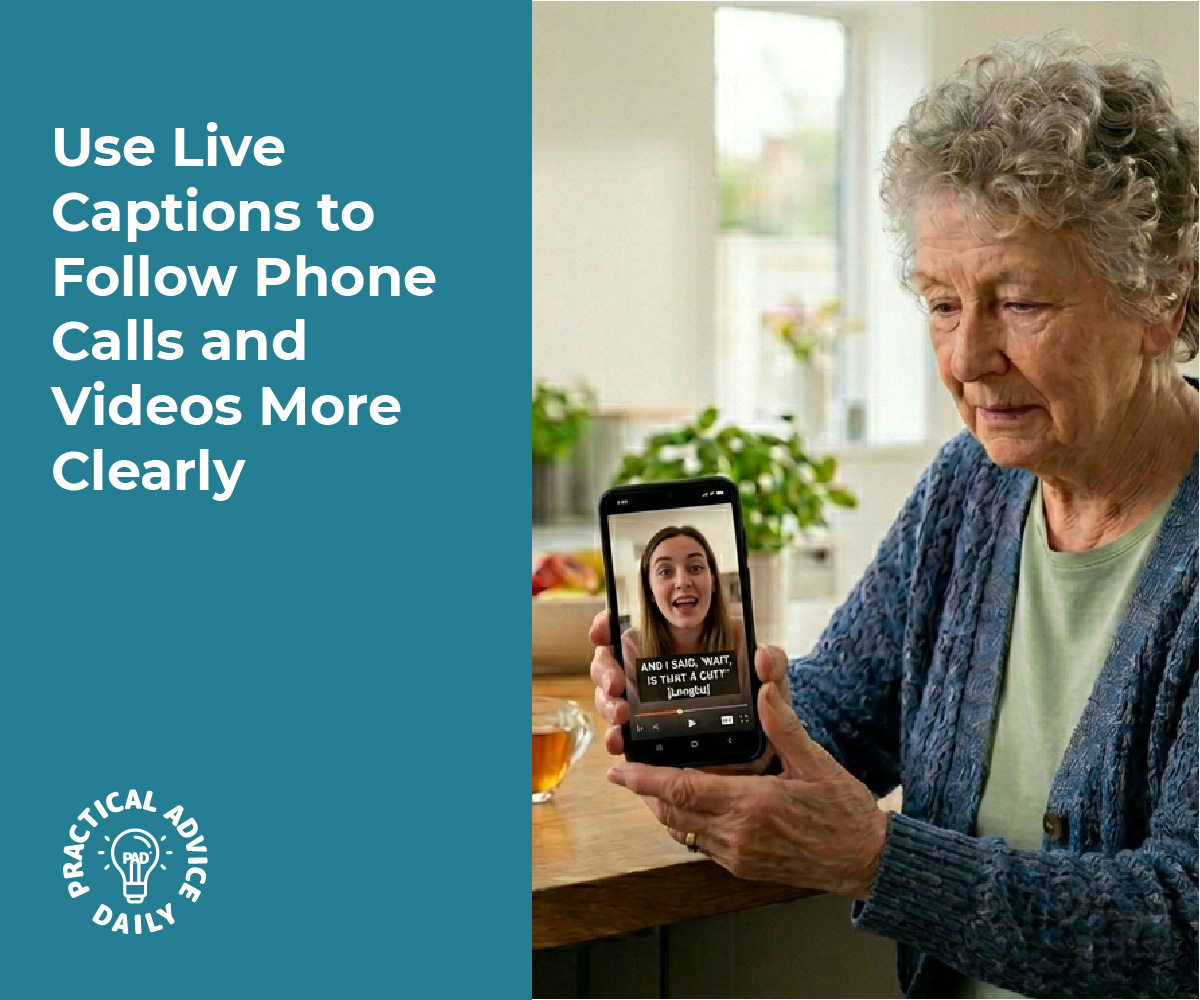
Keeping up with rapid-fire dialogue in meetings, crowded restaurants, or family gatherings can be exhausting for anyone with hearing challenges. Even well-fitted hearing aids may struggle when multiple voices overlap, accents vary, or background noise spikes. Real-time transcription technology transforms speech into on-screen text within seconds, offering a visual safety net that reduces mental fatigue and fills in the gaps when audio alone isn’t enough.
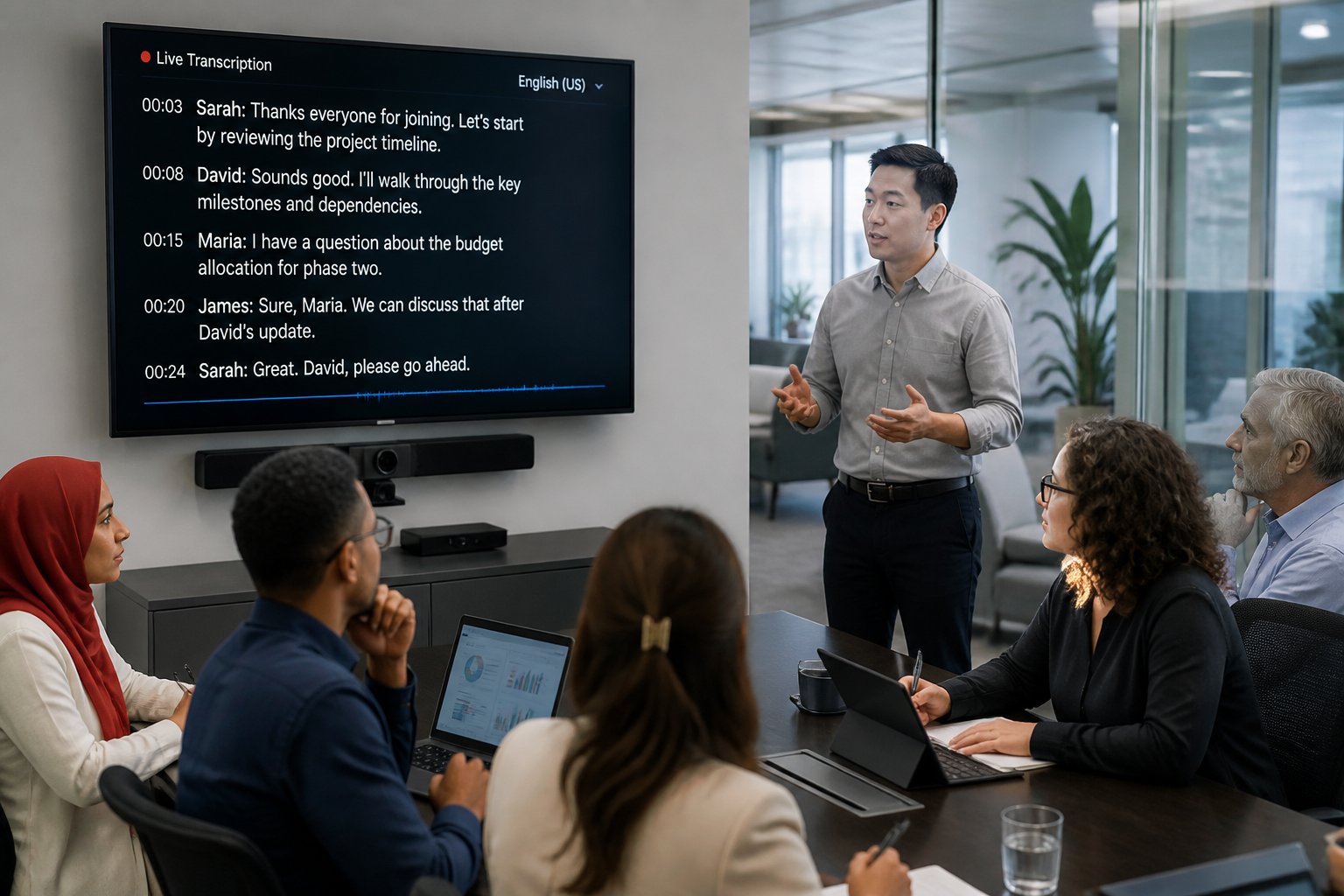
Most smartphones, laptops, and video platforms now include built-in captioning tools that require no extra hardware or subscription. Android Live Transcribe, iOS Live Captions, and meeting software like Zoom or Teams deliver surprisingly accurate transcripts on demand. Positioning a phone microphone closer to the speaker, adding a simple lapel mic, or choosing a quieter seat can push accuracy well above 90 percent in typical conditions.
Captions don’t replace hearing care, but they complement it. When combined with Bluetooth-streaming hearing aids or remote microphones, on-screen text becomes a strategic tool rather than a constant crutch. The right setup lets users glance at captions only when needed, staying present in the conversation without the stress of guessing every other word.
Table of Contents
Key Takeaways
- Real-time transcription apps on phones and laptops provide visual text backup that lowers listening effort in challenging acoustic environments.
- Positioning microphones within three to five feet of the speaker and using external mics dramatically improves caption accuracy.
- Pairing captions with Bluetooth-streaming hearing aids or remote microphones delivers clearer audio and a text safety net for missed words.
How Live Captioning Works for Fast-Paced Conversations

Live captioning relies on speech recognition technology to convert spoken words into written text at speeds that match natural conversation. The system handles multiple components simultaneously, including word detection, punctuation placement, and text formatting, to create readable captions that appear within seconds of the original speech.
Key Principles of Real-Time Transcription
Real-time transcription converts audio to text with minimal delay between speech and displayed captions. The system processes spoken words continuously rather than waiting for pauses, which allows captions to keep pace with speakers who talk rapidly.
Professional captioners and automated systems both work to maintain accuracy while prioritizing speed. Human captioners use specialized stenography equipment to type phonetically at speeds exceeding 200 words per minute. They listen, process, and deliver text while capturing context and meaning that might be lost in direct word-for-word transcription.
Automated systems analyze incoming audio streams in fragments, typically processing speech in segments of a few hundred milliseconds. This chunked approach allows the technology to begin displaying text before a speaker completes a full sentence. The balance between speed and accuracy remains critical—captions that appear too slowly lose their value in fast-paced conversations.
The Role of Speech Recognition Technology
Speech recognition technology forms the foundation of automated live captioning systems. These systems use automatic speech recognition (ASR) algorithms that analyze audio patterns, identify individual words, and convert them to text in real time.
ASR systems employ advanced algorithms trained on vast datasets of human speech. The technology recognizes different speech patterns, accents, and pronunciations by comparing incoming audio against learned models. Background noise filtering helps the system focus on the primary speaker’s voice even in dynamic environments with multiple sound sources.
Machine learning enables continuous improvement in recognition accuracy. The system adapts to variations in speaking speed, which proves particularly valuable during rapid exchanges or heated discussions where speakers may accelerate their pace. Modern ASR technology can distinguish between similar-sounding words using contextual clues from surrounding phrases.
Automatic Punctuation and Text Formatting
Automatic punctuation transforms raw speech-to-text output into readable, properly formatted captions. The system inserts periods, commas, question marks, and other punctuation marks based on speech patterns like pauses, intonation changes, and sentence structure.
Capitalization rules apply automatically to proper nouns and sentence beginnings. The technology identifies speaker changes in multi-person conversations and can format the text accordingly with speaker labels or line breaks. This formatting happens in real time, requiring the system to make decisions about punctuation placement before subsequent words arrive.
Advanced systems also handle special formatting for numbers, dates, and technical terms. They convert spoken numbers like “twenty twenty-six” into the appropriate format based on context—either “2026” or “twenty-twenty-six” depending on usage.
Popular Apps and Platforms for On-Screen Transcripts

Several specialized apps deliver real-time transcription directly on mobile devices and computers, with features tailored for different scenarios. Google Live Transcribe excels at individual conversations, Ava focuses on group settings, and Otter.ai emphasizes recording and searching past transcripts.
Google Live Transcribe and Live Caption
Google Live Transcribe converts speech to text in real time on Android devices. The app uses the device’s microphone to capture spoken words and displays them on screen as they occur.
Live Transcribe supports over 70 languages and allows users to switch between them during a conversation. The app works offline for certain languages once the language pack is downloaded. Users can adjust text size and enable sound events that identify noises like doorbells or alarms.
Google Live Caption operates across the Android system and select apps. Live Caption generates captions for any audio playing on the device, including videos, podcasts, and phone calls. The feature works without an internet connection and processes audio directly on the device for privacy.
Both tools integrate into Android accessibility settings. Live Transcribe functions as a standalone app, while Live Caption activates through volume controls or quick settings.
Ava for Group Dialogue and Meetings
Ava specializes in transcribing multi-person conversations. The platform uses multiple devices to capture different speakers, with each participant’s phone or computer contributing to a shared transcript.
Each speaker’s words appear color-coded on screen, making it easier to follow who said what during group discussions. Ava works for in-person meetings, virtual calls, and hybrid settings. The service supports integration with video conferencing platforms.
Ava offers both AI-generated transcripts and the option to upgrade to human captioners for higher accuracy during critical meetings. The app includes features for saving conversation history and highlighting important moments. Users can invite others to join a conversation through a simple link or QR code.
Otter.ai for Saved and Searchable Transcripts
Otter.ai provides real-time transcription with automatic saving and organization. The platform joins Zoom, Google Meet, and Microsoft Teams meetings when configured through calendar sync, or users can record conversations directly through the mobile app.
Otter generates live transcripts with speaker identification and creates automated summaries after each conversation. Users can search across their full meeting history using keywords or ask questions through Otter AI Chat to locate specific information discussed in past conversations.
The platform stores transcripts in a searchable library. Users can highlight text, add photos, and insert comments during or after a conversation. Otter supports shared access so team members can review the same transcript.
The free plan includes 300 monthly transcription minutes. Paid tiers add longer conversation limits, additional language support beyond English, and expanded storage for transcript archives.
Accessibility Features and Inclusive Communication in Captioning
Real-time captioning tools now offer extensive customization options and language support that address diverse accessibility needs. These features enable users to adjust visual presentation, communicate across language barriers, and participate fully in conversations regardless of hearing ability or environmental conditions.
Adjustable Text Size and Customization
Modern captioning platforms allow users to modify how captions appear on their screens to match individual preferences and needs. Users can typically adjust font size, text color, background color, opacity levels, and on-screen positioning. These customization options ensure that people with varying visual abilities or specific reading preferences can access captions comfortably.
The ability to change caption appearance supports different use cases beyond hearing assistance. Someone working in a bright environment might need higher contrast settings, while another person may prefer larger text for easier reading at a distance. Users can also reposition captions to avoid blocking important visual content during video calls or presentations.
These personalization features transform captions from a one-size-fits-all solution into an adaptable tool. The flexibility helps meeting hosts create more inclusive experiences while giving individual participants autonomy over their accessibility settings.
Supporting Multiple Languages and Environments
Speech-to-text systems now support translation into dozens of languages, enabling real-time transcription for multilingual participants. Advanced platforms can detect when speakers switch between languages mid-conversation and adjust captions accordingly. This capability supports international teams, educational settings with diverse student populations, and global events.
On-device processing technology addresses connectivity challenges that previously disrupted caption availability. When audio processing occurs locally on a user’s device rather than relying on cloud servers, captions remain functional during network instability or low-bandwidth situations. This approach proves particularly valuable for remote workers, travelers, or anyone in areas with unreliable internet access.
The combination of language detection and local processing creates more reliable inclusive communication tools. Participants can follow conversations in their preferred language without worrying about technical interruptions.
Empowering Inclusive Communication in Daily Life
Real-time transcription extends beyond formal meetings into everyday communication scenarios. People use these tools during doctor appointments, social gatherings, phone calls, and casual conversations where understanding every word matters. The technology removes barriers that previously required human interpreters or caused communication gaps.
Captions benefit a broader audience than initially intended. Background noise, accents, complex terminology, or simply processing information better through text rather than audio all represent valid reasons for caption use. When groups adopt captions as a standard practice rather than an accommodation request, accessibility becomes a shared responsibility.
Professional captioning services combine AI automation with human oversight for situations requiring maximum accuracy, such as legal proceedings or medical consultations. These hybrid approaches balance the speed of automated speech-to-text with the precision of human captioners.
Best Practices for Using Real-Time Transcription Tools
Effective real-time transcription depends on optimizing the audio capture environment and configuring device settings properly. Small adjustments to microphone placement, room acoustics, and software parameters can significantly improve speech recognition technology performance.
Optimizing Sound Environments and Device Settings
Background noise degrades transcription accuracy more than any other factor. Users should position themselves in quiet spaces away from HVAC systems, traffic, and ambient chatter whenever possible.
Microphone placement matters considerably. The device running live transcribe or similar applications should be 6-12 inches from the speaker’s mouth for optimal capture. Closer distances may cause distortion, while greater distances allow environmental noise to interfere.
Key environmental controls:
- Close windows and doors to reduce external noise
- Turn off fans, televisions, and other sound-producing devices
- Use carpets or soft furnishings to minimize echo in rooms with hard surfaces
- Request that participants speak one at a time rather than talking over each other
Device settings require attention as well. Users should enable any noise suppression features available in their transcription application. Bluetooth microphones often introduce latency and connection issues, so wired or built-in device microphones typically perform better for real-time captioning.
Practical Tips for Maximum Accuracy
Training speech recognition technology on specific voices improves results. Many applications offer voice profile features that learn individual speech patterns, accents, and pronunciation quirks over time.
Users should speak clearly without exaggerating pronunciation. Natural speech patterns work better than artificially slow or overly-enunciated delivery. However, reducing filler words like “um” and “uh” helps the system distinguish actual content.
Accuracy improvement techniques:
- Update vocabulary lists with specialized terms, names, or jargon relevant to the conversation topic
- Check audio levels before important conversations to ensure the system detects speech without clipping
- Position the screen where it can be viewed easily without disrupting conversation flow
- Keep applications updated to benefit from improved algorithms and expanded language models
Battery consumption increases during continuous transcription. Users should connect to power sources for extended sessions or carry backup power for mobile devices.
Final Thoughts
Live Captions can make everyday communication feel far less stressful when speech is fast, voices overlap, or background noise gets in the way. By turning spoken words into on-screen text in real time, this feature gives users a reliable visual backup during phone calls, videos, meetings, and conversations. It works even better when paired with smart habits like sitting closer to the speaker, improving microphone placement, and adjusting caption settings for comfort. While it does not replace hearing care, it can make understanding conversations easier, reduce listening fatigue, and help users stay more confident, focused, and included throughout the day.