
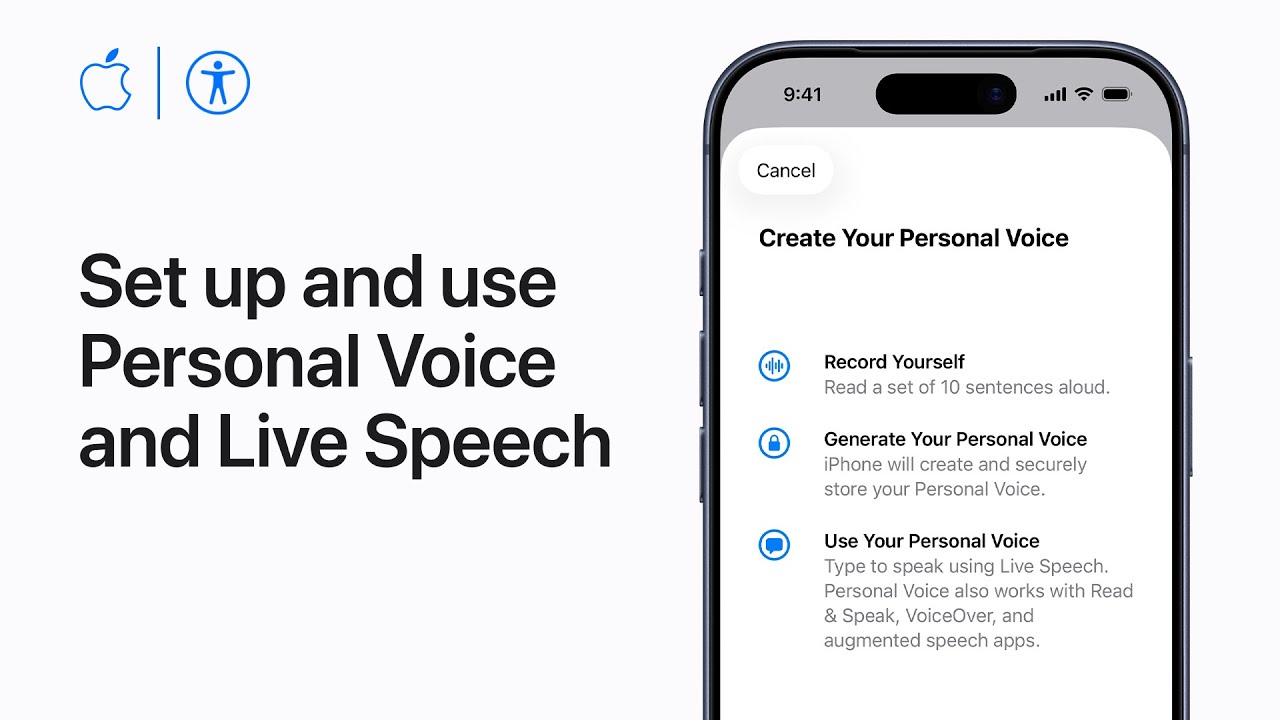
I’ll show you how to create a Personal Voice and use Live Speech on iPhone. First, update iOS and find Personal Voice in Settings → Accessibility, then tap Create a Personal Voice and authenticate.
Record prompted phrases in a quiet room, use Recording or Stop at Each Phrase if needed, and preview recordings. After processing, add your Personal Voice to Live Speech under Accessibility → Live Speech.
Turn on Live Speech, add it to Control Center or Accessibility Shortcut, and save common phrases.
During conversations triple‑click the side/top button, type or pick a phrase, then tap Speak to speak aloud.
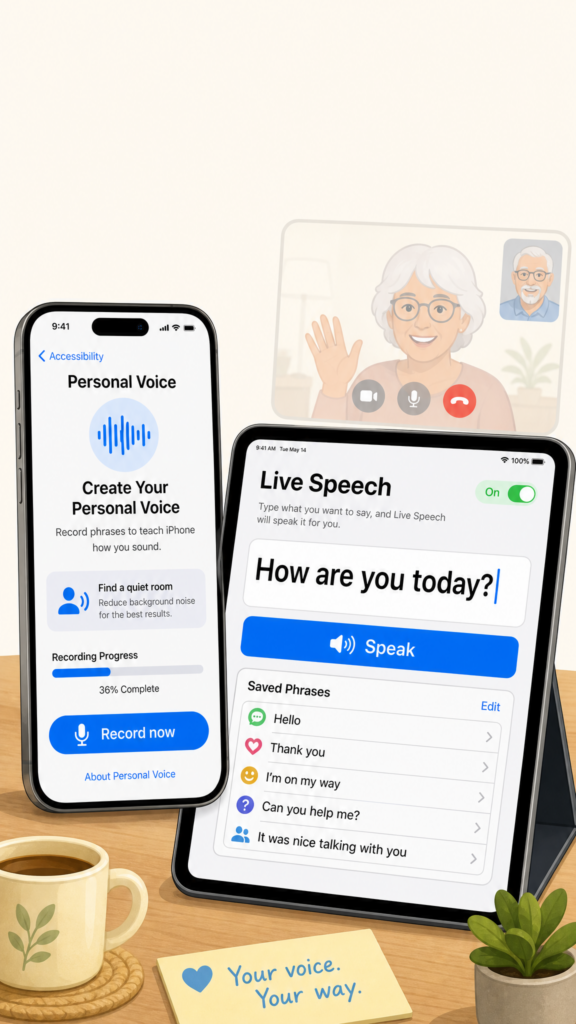
- Update iOS, open Settings → Accessibility → Personal Voice, and authenticate to begin.
- Record prompted phrases in a quiet room; preview and resume later if needed.
- Let the device process recordings, then add that Personal Voice to Live Speech.
- Enable Live Speech, add it to Control Center or Accessibility Shortcut, and store common phrases.
- During conversations triple‑click the side/top button, type or select a saved phrase, and tap Speak.