
Paper documents create clutter and risk getting lost, damaged, or misplaced at the worst possible times. Users can scan documents directly to iCloud or Google Drive using their smartphone’s built-in capabilities, establish consistent naming conventions, and set up automatic backups to ensure critical paperwork remains accessible and secure. This approach eliminates the need for physical filing cabinets while providing instant access to important records from any device.
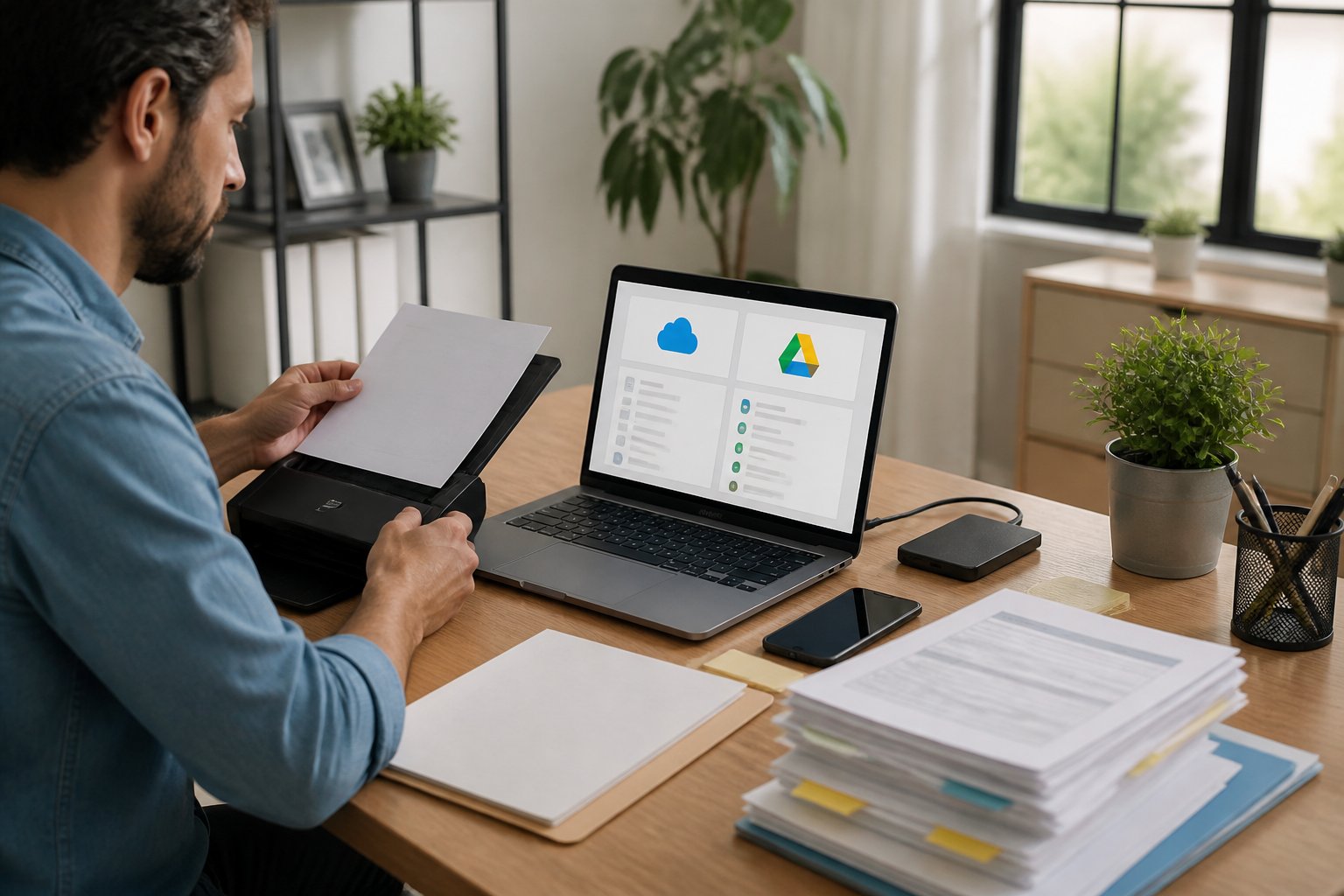
Modern smartphones have transformed document scanning from a tedious office task into a quick mobile action. Both iPhone and Android devices offer native scanning features that capture clear images, automatically detect edges, and convert multi-page documents into searchable PDFs. The integration with cloud storage platforms means documents get backed up immediately without manual uploading steps.
Setting up a proper document management system requires understanding the right scanning tools, naming strategies, and backup configurations. This guide walks through selecting appropriate scanning methods, creating an organized file structure, and implementing automatic backup processes that work reliably in the background.
Table of Contents
Key Takeaways
- Smartphones can scan documents directly to cloud storage using built-in features in iCloud and Google Drive
- Consistent file naming conventions and folder structures make documents easy to find and retrieve later
- Automatic backup schedules with encryption protect important paperwork from loss while maintaining accessibility
Choosing the Right Tools for Scanning and Uploading
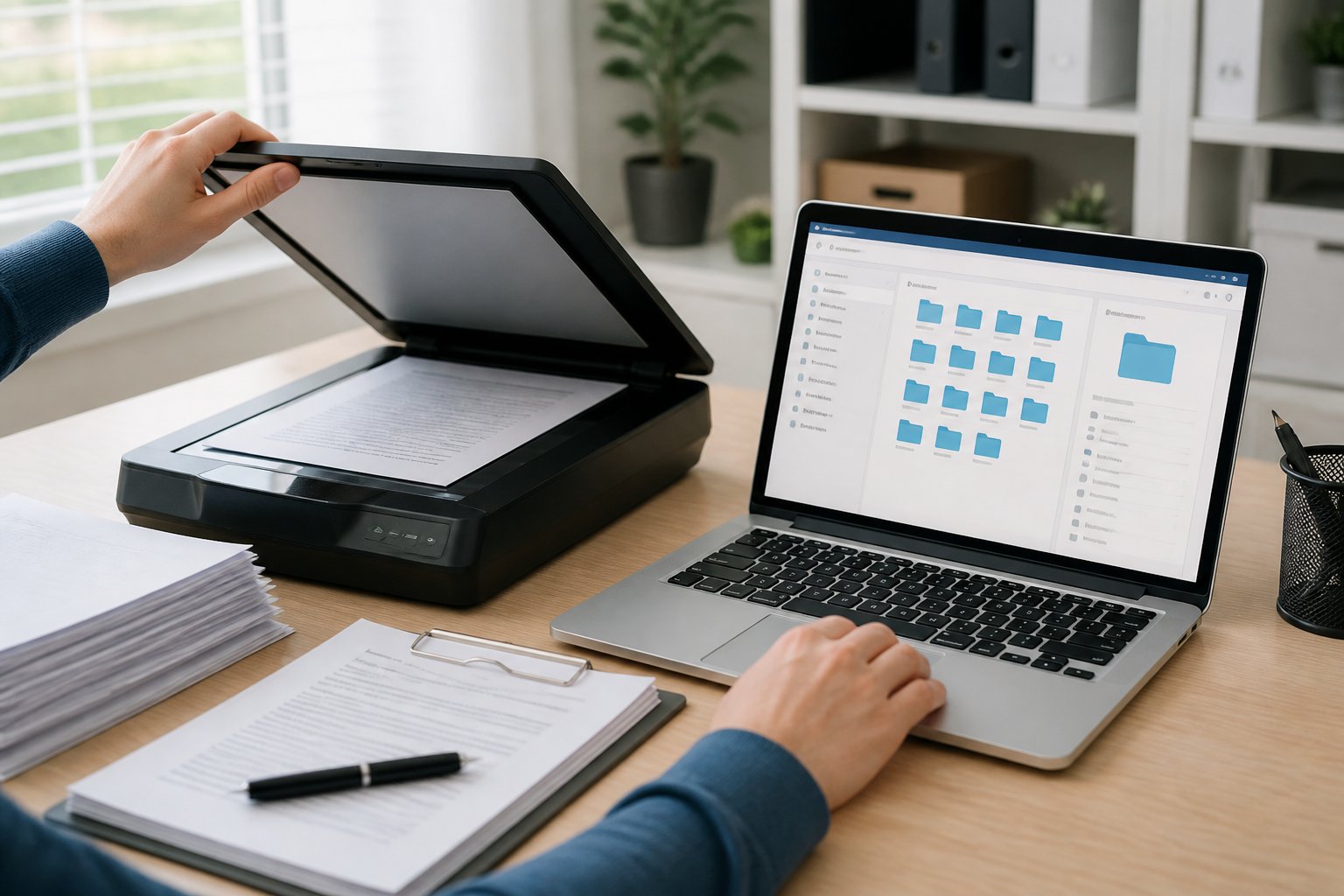
The right combination of scanning hardware and cloud-connected software determines how efficiently documents move from paper to secure digital storage. Security features and automatic backup capabilities separate basic tools from professional-grade solutions.
Selecting the Optimal Device: Scanner Types and Mobile Apps
Traditional Scanner Options
A flatbed scanner delivers high-resolution scans for fragile or bound documents that cannot be fed through automatic mechanisms. These devices typically connect via USB and work well for occasional scanning needs at a dedicated workstation.
A sheet-fed scanner processes multiple pages automatically, making it ideal for high-volume document digitization. Business environments often use a multifunction printer (MFP) that combines printing, copying, and scanning capabilities in one device.
Mobile Scanning Solutions
Modern smartphones eliminate the need for dedicated hardware in most scenarios. The native iOS Notes app includes built-in document scanning that captures pages and saves directly to iCloud. Android devices offer similar functionality through Google Drive app’s integrated scanner.
Third-party applications provide advanced features beyond basic capture. Adobe Scan includes optical character recognition (OCR) that makes scanned text searchable and editable. CamScanner offers batch processing and multiple export formats, though users should review its privacy policies before uploading sensitive documents.
Essential Features for Effective Scanning
Image Quality and Processing
Automatic edge detection identifies document boundaries and crops unnecessary background. Color correction adjusts lighting variations and removes shadows that obscure text. Resolution settings should default to 300 DPI for standard documents, with higher settings reserved for images or detailed diagrams.
OCR and Text Recognition
OCR technology converts scanned images into searchable, editable text. This feature proves essential when users need to locate specific information within large document archives. Premium scanning apps recognize both printed and handwritten text with varying accuracy levels.
Format and Compression Options
PDF format remains the standard for document archival due to universal compatibility and compression efficiency. JPEG works better for photographs or image-heavy pages. Multi-page documents should combine into single PDF files rather than separate image files to maintain organization.
Recommended Scanning Apps and Cloud Software
Mobile Applications
Adobe Scan integrates seamlessly with Adobe Document Cloud and offers professional-grade features without requiring dedicated scanner hardware. The application performs well on both iOS and Android platforms.
Evernote includes document scanning with automatic synchronization across devices. Its tagging system and notebook organization help categorize scans by project or type.
Cloud Storage Platforms
Google Drive app provides 15GB of free storage and allows direct scanning from mobile devices. Its sharing capabilities and collaboration tools suit both personal and business use.
Dropbox offers robust cloud integration with automatic camera upload features that can be configured to back up scanned documents immediately. The platform maintains version history for recovering previous document versions.
iCloud integrates natively with iOS devices and automatically syncs documents across Apple products. Storage plans start at 50GB for a monthly fee.
Ensuring Security and Access Control
Authentication and Encryption
Two-factor authentication adds a critical security layer by requiring both a password and a verification code for account access. All major cloud platforms support this feature and should have it enabled for accounts containing sensitive documents.
End-to-end encryption protects documents during transmission and storage. Google Drive, Dropbox, and iCloud all encrypt data in transit, though encryption at rest varies by service tier.
Permission Management
Cloud platforms allow users to set specific access controls for shared documents. Read-only permissions prevent unauthorized modifications while maintaining collaboration capabilities. Expiring share links automatically revoke access after a specified timeframe.
Regular security audits should review which devices have account access and revoke permissions for unused or lost devices. Most cloud services provide activity logs showing when and where documents were accessed.
Step-by-Step Process for Scanning and Backing Up Documents
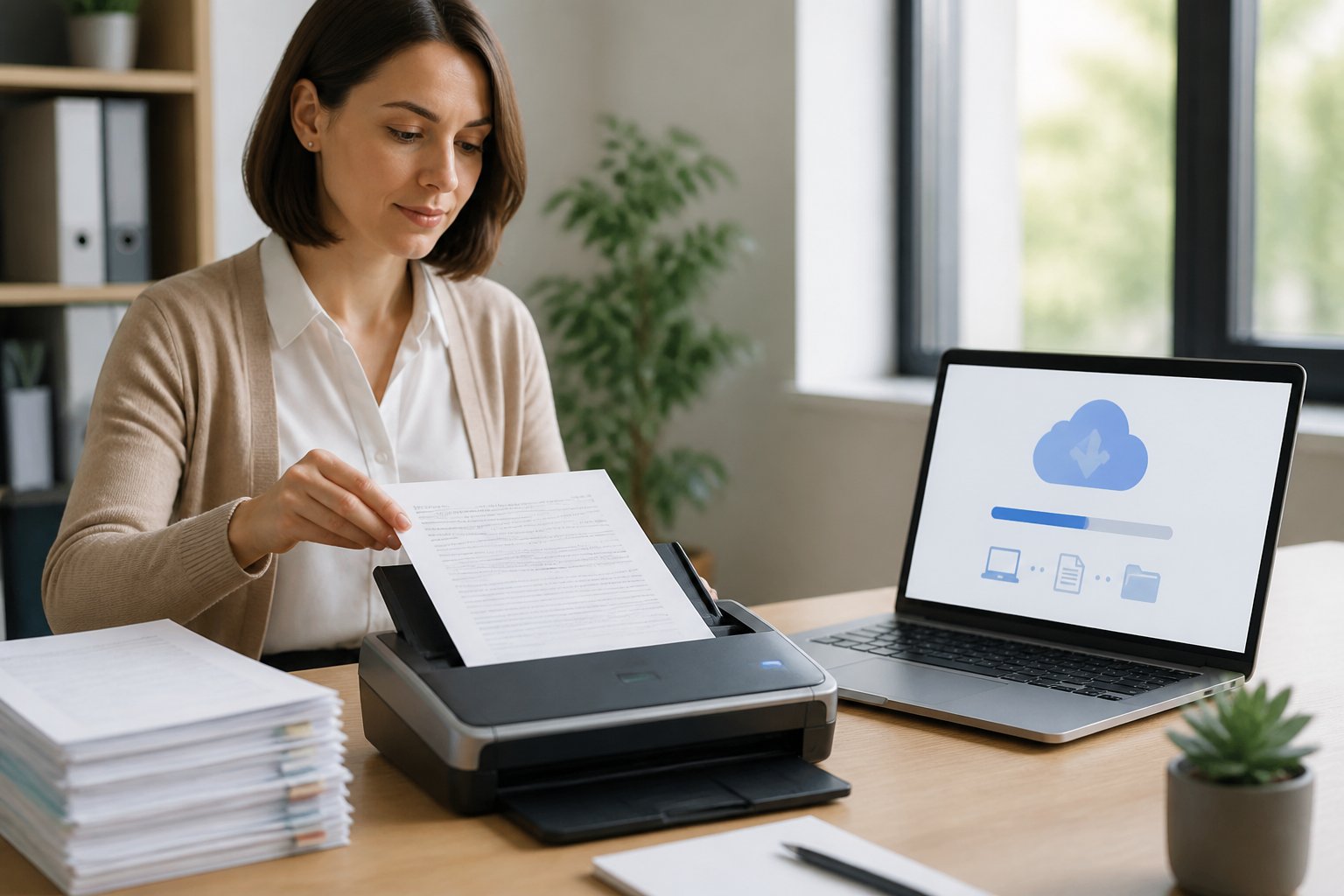
Setting up automatic document backup requires proper preparation, using the right scanning tools, and configuring cloud storage to receive files seamlessly. Mobile devices now include powerful optical character recognition (OCR) features that turn paper into searchable PDFs within seconds.
Preparing Documents for High-Quality Scans
Remove all staples, paperclips, and bindings before scanning to prevent damage and ensure flat, even scans. Straighten wrinkled pages and wipe away any dust or debris that could create shadows or marks in the digital version.
Group documents by category or project to maintain organization during the scanning process. This preparation step saves time later when naming and filing scans in cloud storage.
Choose a well-lit, flat surface with neutral background colors. Dark backgrounds can create unwanted contrast, while cluttered surfaces may interfere with edge detection features built into scanning apps.
For documents with text, ensure the paper lies completely flat. Even slight curves can reduce OCR accuracy and make text harder to search later.
Using Built-In Scanning Features on iOS and Android
iPhone users can access the document scanner directly through the Notes app by tapping the camera icon and selecting “Scan Documents.” The scanner automatically detects page edges, corrects perspective distortion, and applies filters to enhance readability.
Android devices offer scanning through the Google Drive app. Users tap the plus icon, select “Scan,” and point the camera at their document. The app captures the image and applies automatic color correction and edge detection.
Both platforms support manual adjustments after the initial scan. Users can drag corner handles to refine edges, change color modes between color, grayscale, or black-and-white, and add multiple pages to a single PDF file.
The scanning interface shows a preview immediately after capture. If the scan quality appears poor, users can retake it before proceeding to the next page.
Uploading and Saving Scans Directly to Cloud Accounts
iPhone’s Notes app allows direct saving to iCloud by ensuring iCloud Drive is enabled in Settings. All scanned documents automatically sync across devices linked to the same Apple ID.
For Google Drive integration on iOS, users must download the Google Drive app and sign in with their Google account. After scanning, they tap “Save” and select the destination folder within their Drive storage.
Android users benefit from native Google Drive integration. Scanned documents save directly to Drive with automatic backup enabled by default. Users can select specific folders during the save process to maintain organization.
File naming happens during the save step. Both platforms suggest default names based on the current date, but users should rename files immediately using descriptive labels like “2026-Tax-Return” or “Warranty-Refrigerator” for easier retrieval.
Scanning and Uploading Multiple Pages Efficiently
Both iOS and Android scanners support continuous page capture. After scanning the first page, users tap “Keep Scan” or the plus icon to add subsequent pages to the same PDF document.
This feature works best when documents are pre-sorted and positioned in the same location for each capture. Consistent positioning speeds up the scanning process and maintains uniform quality across all pages.
The apps automatically compile all pages into a single PDF file with optical character recognition applied. This makes the entire document searchable by text content, not just the filename.
For large batches of documents, users should scan related items together into one PDF, then repeat the process for the next batch. This approach balances file size with organizational clarity and prevents overwhelming single files that become difficult to navigate.
Properly Naming and Organizing Digital Files
A consistent naming structure eliminates the frustration of searching through hundreds of scanned documents, while proper organization ensures quick retrieval whether files are stored in iCloud, Google Drive, or Evernote. The right approach combines descriptive file names with automated sorting rules and standardized conventions that work across all cloud platforms.
Best Practices for Naming Files and Folders
File names should begin with the broadest category and progress to specific details. The most effective format starts with the date in YYYY-MM-DD format, followed by the document type, and then specific identifiers. For example: 2026-05-31_TaxReceipt_OfficeSupplies.pdf immediately conveys when the document was created, what it is, and what it relates to.
The structure should avoid special characters that cause problems across different systems. Stick to letters, numbers, hyphens, and underscores. Spaces often create issues with cloud integration and collaboration tools, so hyphens or underscores provide better compatibility.
Essential naming elements include:
- Date prefix (YYYY-MM-DD format for proper sorting)
- Document category (invoice, receipt, contract, statement)
- Specific identifier (vendor name, project name, account number)
- Version indicator (if applicable: v1, v2, final)
Folder hierarchies should mirror the naming convention. Create main folders by year, then subfolders by category (Financial, Medical, Legal, Property), then further subdivisions as needed. This structure works consistently whether uploading to Google Drive or iCloud.
Automating File Naming and Sorting
Modern document management apps can apply naming rules automatically during the scan process. Scanner Pro and Adobe Scan allow users to create templates that add prefixes, append dates, and route files to specific cloud folders based on detected text or document type.
Google Drive and iCloud both support automation through third-party tools. Hazel for Mac can monitor specific folders and rename files based on custom rules, moving PDFs to designated locations automatically. On iOS, Shortcuts can trigger when new scans appear, applying naming conventions and filing documents without manual intervention.
Cloud integration platforms like Zapier connect scanning apps directly to storage services. A scanned receipt can automatically receive a standardized name, extract the date and vendor through OCR, and land in the correct Google Drive folder within seconds. These workflows eliminate the tedious manual renaming that typically follows bulk scanning sessions.
Ensuring Consistency and Compliance
Document management requires everyone with access to follow the same conventions. Organizations should maintain a written guide that specifies exactly how to name different document types, where to store them, and how to handle versions. Even individual users benefit from documenting their own system for future reference.
Compliance considerations for important documents:
| Document Type | Retention Period | Naming Format |
|---|---|---|
| Tax Returns | 7 years | YYYY_TaxReturn_Federal |
| Medical Records | Permanent | YYYY-MM-DD_Medical_Provider |
| Property Documents | Permanent | YYYY-MM-DD_Property_Address |
| Financial Statements | 3-7 years | YYYY-MM_Statement_Institution |
Regular audits ensure files remain properly organized as collections grow. Monthly checks can identify misnamed documents or files saved in incorrect locations. Cloud services make this easier through search functions that locate files not matching established patterns. Evernote’s tagging system provides an additional layer of organization beyond folder structure, allowing multiple categorization methods to coexist.
PDF format ensures documents maintain their appearance across all platforms and devices, making it the standard for scanned paperwork. Most cloud services preview PDFs natively, supporting collaboration without requiring specialized software.
Advanced Tips for Efficient and Secure Document Management
Moving beyond basic scanning and storage requires attention to document quality, searchability, and team access. Optical character recognition, proper scan settings, and cloud integration features transform static scans into dynamic, usable assets.
Leveraging OCR for Searchable and Editable Documents
Optical character recognition (OCR) converts scanned images into machine-readable text, making documents fully searchable and editable. Both iCloud and Google Drive offer built-in OCR capabilities that automatically process uploaded documents.
Google Drive applies OCR to PDFs and images when users open them with Google Docs, extracting text for editing and searching. iCloud performs OCR through the Notes app and third-party scanning applications integrated with iOS.
The accuracy of OCR depends heavily on scan quality and document clarity. Clean, high-contrast scans with minimal skewing produce the best results. Users should verify OCR output on critical documents, as recognition errors can occur with handwritten text, unusual fonts, or poor-quality originals.
Key OCR Benefits:
- Full-text search across entire document libraries
- Copy and paste text from scanned documents
- Edit scanned content without retyping
- Extract data for automated workflows
Optimizing Scan Quality: DPI and File Formats
Resolution settings directly impact file size, clarity, and processing speed. 300 DPI works well for standard text documents, providing clear readability while maintaining reasonable file sizes. 600 DPI suits documents with fine print, detailed graphics, or materials requiring archival-quality preservation.
PDF remains the preferred format for document management due to universal compatibility and support for OCR layers. PDFs maintain consistent formatting across devices and platforms, unlike image formats that may display differently.
Color settings affect both quality and storage requirements. Black and white scanning reduces file sizes by 60-80% compared to color scans. Grayscale serves as a middle ground for documents containing shading or light text annotations.
Recommended Settings by Document Type:
| Document Type | DPI | Color Mode | Format |
|---|---|---|---|
| Standard text | 300 | Black & white | |
| Forms with fine print | 600 | Grayscale | |
| Photos or diagrams | 300-600 | Color | |
| Receipts | 300 | Grayscale |
Enhancing Collaboration and Access with Cloud Services
Cloud integration enables real-time collaboration and controlled document access across teams. Google Drive allows multiple users to view and comment on documents simultaneously, with granular permission settings for viewing, commenting, or editing.
Document management becomes more efficient when cloud services connect with other business tools. Google Drive integrates with Gmail, Calendar, and third-party applications, while iCloud syncs across Apple devices and select third-party platforms. Dropbox offers extensive third-party integrations for users requiring broader compatibility.
Shared folders with specific access permissions keep sensitive documents secure while enabling team collaboration. Users can set expiration dates on shared links, require passwords for access, and track document viewing history.
Version control prevents confusion when multiple people work with the same files. Both Google Drive and Dropbox maintain revision histories, allowing users to restore previous versions and see who made specific changes.
Final Thoughts
Scanning and backing up paperwork to iCloud or Google Drive is one of the simplest ways to reduce paper clutter while keeping important records safe and easy to find. With a phone, a clear naming system, and automatic cloud backup, documents like receipts, medical records, warranties, and tax files become far more manageable. The biggest long-term benefit comes from consistency: scan clearly, name files in a predictable format, and store them in organized folders. When combined with OCR, secure sharing settings, and regular backups, this process turns paper piles into a reliable digital filing system you can access whenever you need it.