
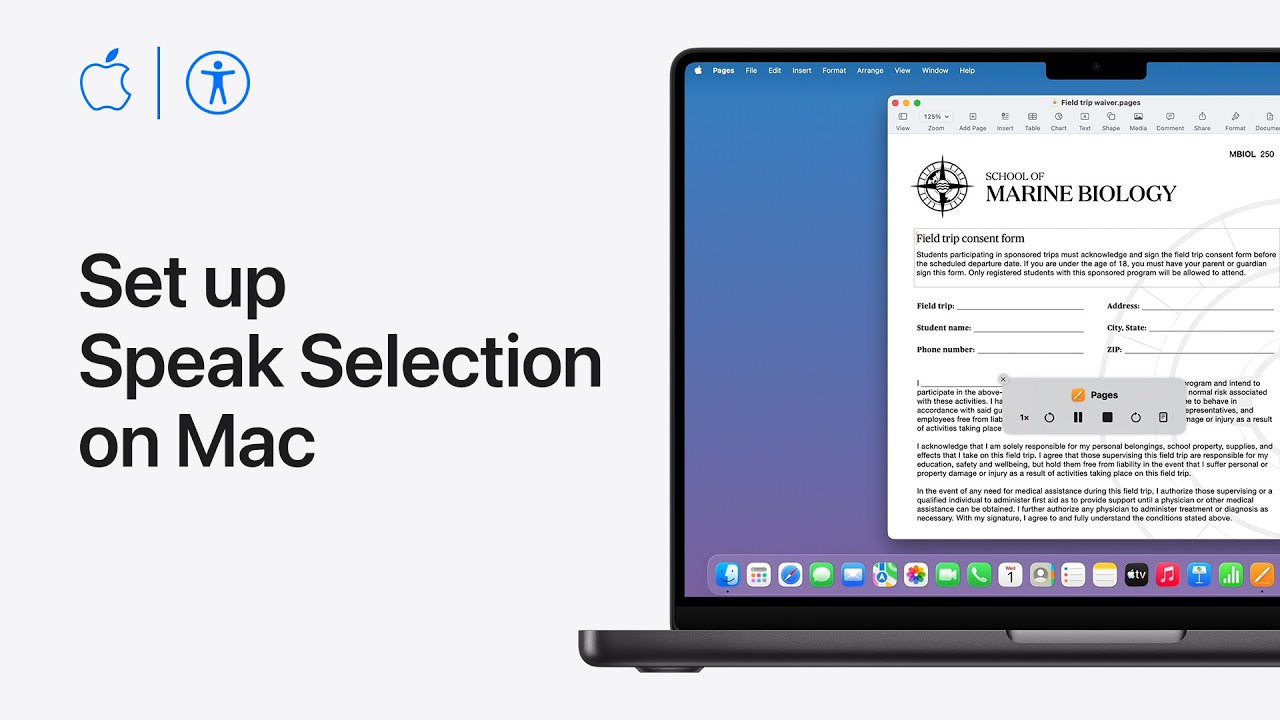
I’ll show you how to set up Speak Selection on your Mac. Open System Settings, choose Accessibility, select Read and Speak, and turn on Speak Selection.
Click the Info button to customize the keyboard shortcut (default Option+Esc) and choose whether to highlight content—select Words and Sentences for word-by-word highlighting.
Choose word and sentence colors and switch Underline to Background Color to enable highlighting.
Set the Speak Selection controller to appear automatically or when you press the shortcut, click OK, open Pages, select text, and press the shortcut to have your Mac read it aloud and adjust settings as needed later.

- Enable Speak Selection in System Settings → Accessibility → Read and Speak.
- Open Info to set the keyboard shortcut (default Option+Esc).
- Choose highlighting behavior: Words and Sentences for word-level highlighting.
- Pick word and sentence colors and switch underline to Background Color to highlight as it reads.
- Use the Speak Selection controller option, open a compatible app (Pages), select text, and press the shortcut to hear it.