
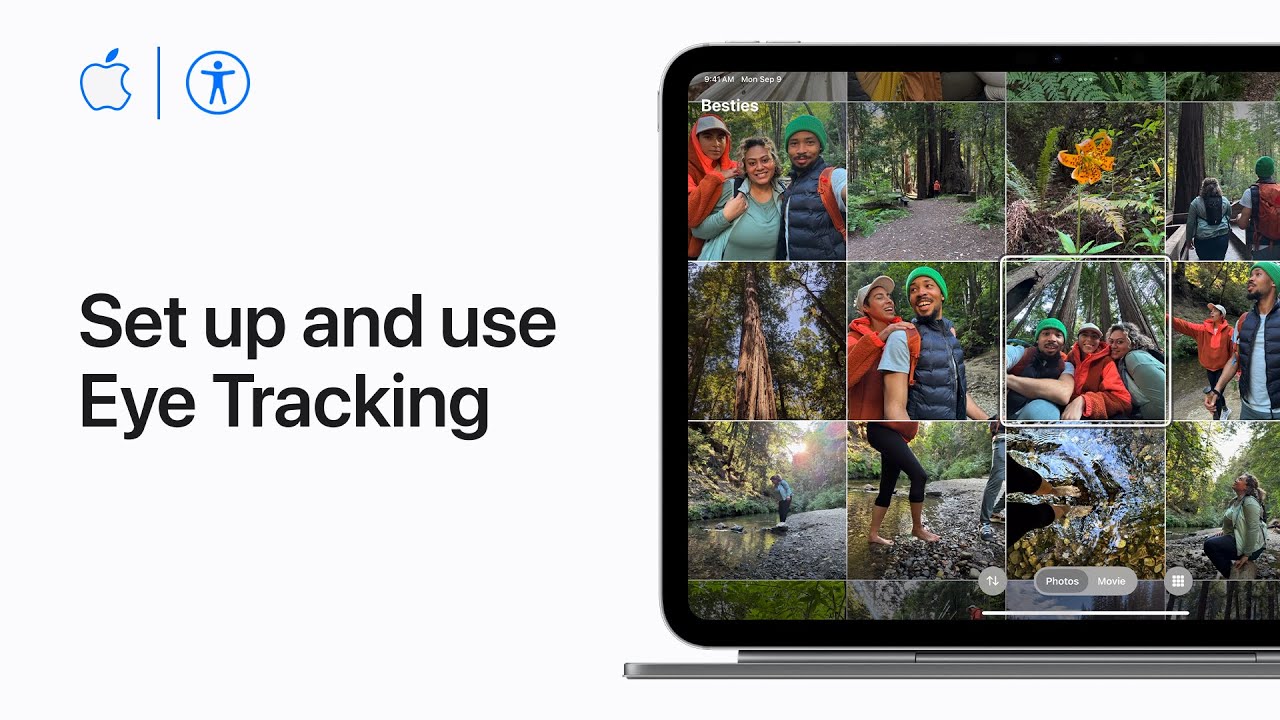
I am going to help you control your device using just your eyes. First, ensure your device is on a stable surface and clearly sees your face. On your iPhone or iPad, open Settings and select Accessibility.
Tap Eye Tracking and toggle the switch to turn it on. Follow the moving dot across your screen to complete the calibration.
Once finished, a pointer will follow your gaze. To select an item, simply look at it until the circle fills.
You can adjust settings like smoothing for comfort. It is truly a wonderful way to navigate your screen hands-free.
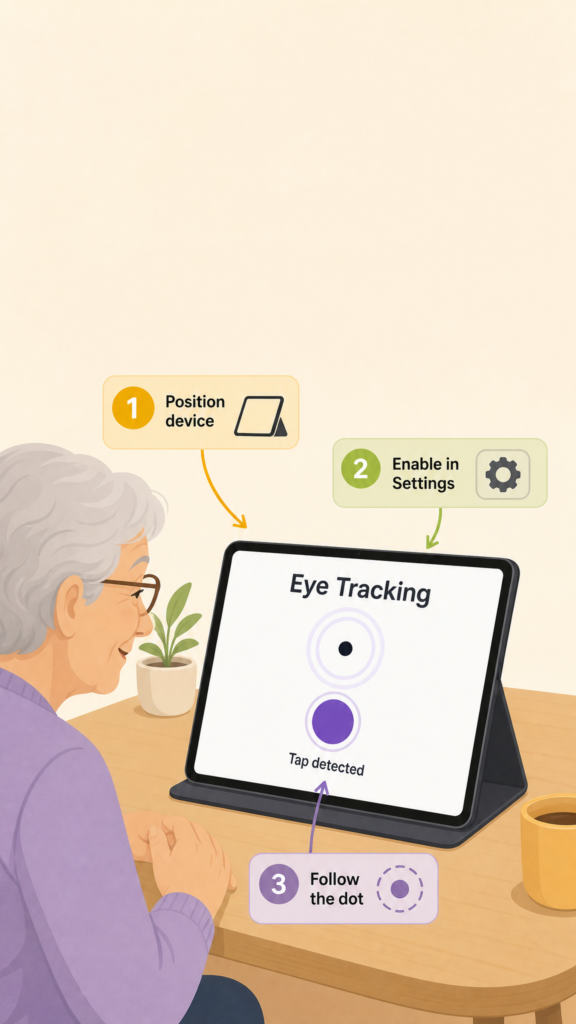
- Position your device on a stable surface about one to one and a half feet from your face.
- Go to Settings, tap Accessibility, and turn on the Eye Tracking toggle.
- Complete the calibration by following the moving dot around the screen with your eyes.
- Focus your gaze on an item to let the dwell timer perform a tap automatically.
- Use the AssistiveTouch menu for extra gestures like scrolling or pressing buttons.