
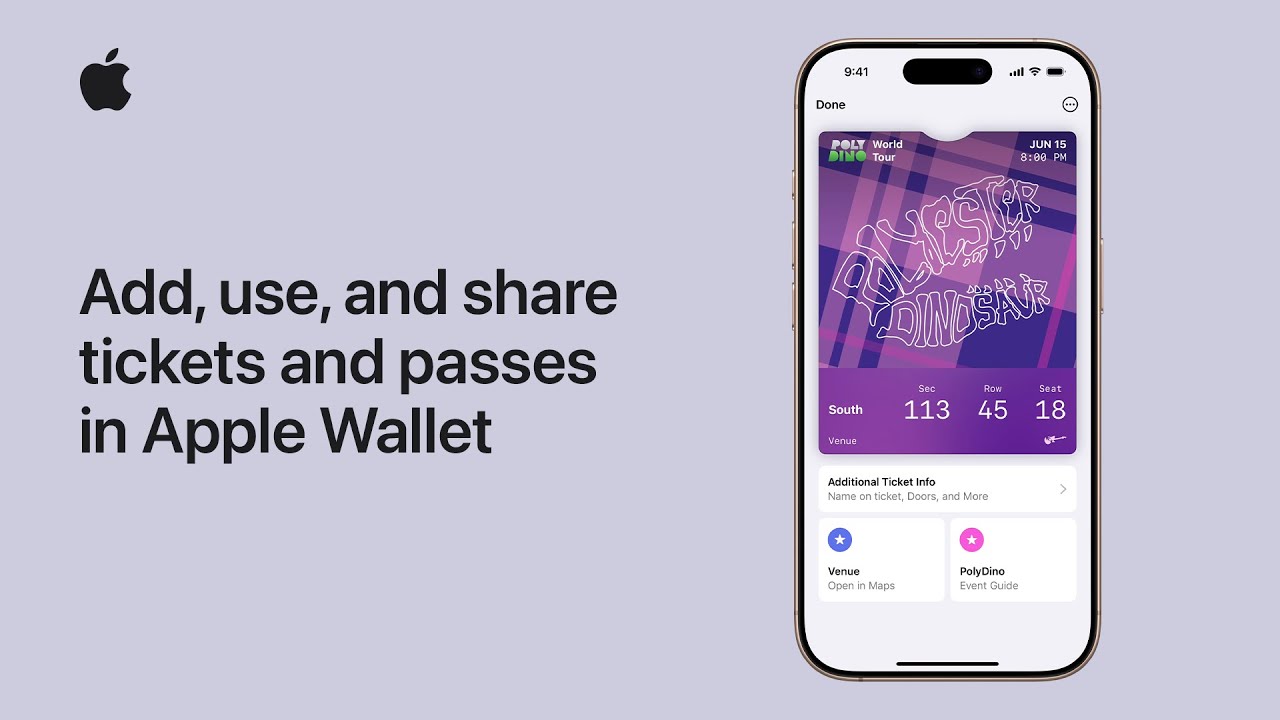
I’ll show you how to add, use, and share tickets and passes in Apple Wallet on your iPhone.
First, open the email, app, or notification containing your ticket and tap Add to Apple Wallet, then confirm by tapping Add. The pass will also appear on your paired Apple Watch.
When you’re ready to use it, open Wallet, authenticate if needed, select the correct ticket, and scan or tap your iPhone at the reader.
If supported, you can also transfer or share tickets by opening the pass, tapping the More or Share button, and following the onscreen instructions to complete everything easily.
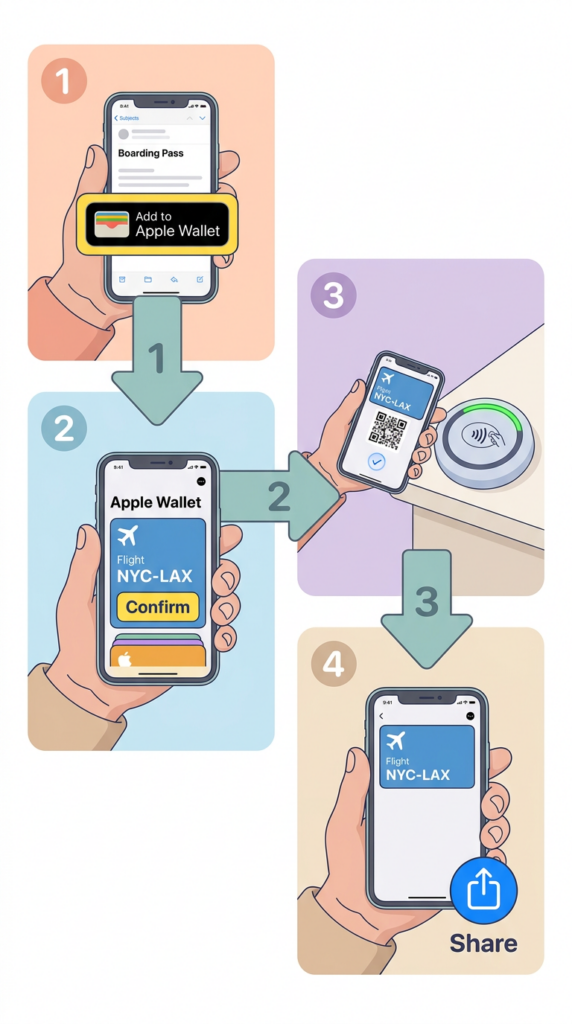
- Tap Add to Apple Wallet from a supported app, email, or notification.
- Confirm the ticket or pass, which also syncs to a paired Apple Watch.
- Open Wallet and authenticate to access your ticket or pass.
- Scan, tap, or present your iPhone at the venue when prompted.
- Transfer or share supported tickets using the More or Share option.