Playing With AI Just for Fun: Jokes, Stories, and Brain Teasers for Seniors

You don’t need to be “good with technology” to have fun with AI. Think of it like a very patient, very clever helper that you can talk to in plain English.

In this guide, you’ll see easy ways to use AI for lighthearted fun: asking for jokes, riddles, bedtime stories, trivia, and simple brain games. Everything is explained step by step, with examples you can copy. If you can type a sentence, you can do this.

Table of Contents

Key Takeaways

  • You can talk to AI the same way you’d talk to a friend: just type what you want.
  • AI can tell age-appropriate jokes, limericks, and funny stories tailored to your sense of humor.
  • You can request custom bedtime or “comfort” stories about places, people, or times you love.
  • AI can run gentle trivia games on topics you choose: history, music, movies, sports, and more.
  • Brain teasers, riddles, word games, and memory challenges can help keep your mind active.
  • You are always in control: you can say “make it easier,” “shorter,” “clean humor only,” or “stop now.”
  • You don’t need to learn special commands—simple, everyday language works best.

1. Getting Comfortable: Talking to AI in Plain English

You don’t have to sound “technical” to use AI. In fact, it usually works better if you speak naturally.

You can simply type:

  • “Tell me a clean joke.”
  • “Let’s play an easy trivia game about movies from the 1960s.”
  • “Please make up a cozy bedtime story to help me relax.”

A few helpful tips:

  • Be specific: Instead of “Tell me a story,” try “Tell me a short, happy story about two sisters who open a small bakery by the beach.”
  • Set limits: You can say “3–4 sentences,” “keep it simple,” or “nothing scary.”
  • Change your mind: If you don’t like something, just type, “Let’s try a different one,” or “Make it sillier.”

Think of AI as a friendly assistant who is always ready to adjust to your mood.

2. Asking AI for Jokes and Lighthearted Humor

Laughter is one of the easiest ways to enjoy AI. You can ask for jokes that fit your taste and comfort level.

Examples of what you can type

  • “Tell me 3 clean, gentle jokes suitable for grandparents and young kids.”
  • “Give me one clever joke about gardening.”
  • “Tell me a silly pun about dogs.”
  • “Tell me a short, wholesome limerick about retirement.”

If a joke feels too childish or too complicated, just say:

  • “Make the jokes a bit more grown-up but still clean.”
  • “Use simple language, please.”

You can even shape the humor:

  • “No jokes about illness or aging, please. Keep it light and kind.”
  • “Nothing political. Just friendly, everyday humor.”

Fun idea:
Ask the AI, “Help me collect 10 clean jokes I can read at our next family dinner,” and save or print the ones you like.

3. Custom Stories and Bedtime Tales Just for You

AI can create personal, comforting stories in seconds. This can be especially nice in the evening when you want something calm and pleasant.

Types of stories you can request

  1. Nostalgic stories
    • “Write a gentle story about a woman who returns to her childhood town and finds her old favorite café still there.”
    • “Tell me a story set in a small village in the 1950s, with neighbors who all know each other.”
  2. Family-style stories
    • “Make up a story about a grandpa teaching his grandchildren to fish at a lake.”
    • “Tell a story about a big family Sunday dinner where something funny happens.”
  3. Bedtime or relaxation stories
    • “Tell me a 5-paragraph, calming bedtime story to help me relax before sleep. No danger, no stress.”
    • “Describe a peaceful walk through a garden with birds, flowers, and a gentle breeze.”
  4. Stories starring you (or people you care about)
    • “Write a lighthearted story where I, [your name], travel by train and meet interesting people, but everything turns out safely and happily.”
    • “Create a sweet story about two lifelong friends who take a slow road trip along the coast.”

If the story is too long, too short, or not quite right, you can say:

  • “Make it shorter.”
  • “Add more dialogue.”
  • “Make it happier and less serious.”

You’re the director; the AI is your storyteller.

4. Trivia Games You Can Play at Your Own Pace

Trivia with AI is like having a game show host who goes exactly at your speed, never gets impatient, and doesn’t keep score unless you ask.

How to start a trivia game

You can type:

  • “Let’s play an easy trivia game. Ask me one question at a time about classic movies from the 1940s and 1950s.”
  • “Ask me 10 simple questions about world geography, one by one. Wait for my answer each time.”
  • “Give me multiple-choice questions about U.S. history. Make them not too hard.”

To keep it comfortable:

  • Say “easy,” “beginner,” or “gentle.”
  • Ask for one question at a time so you’re not rushed.
  • If you wear hearing aids or get tired, you can simply type, “Let’s stop for now,” or “That’s all for today.”

Helpful phrases

  • “If I get a question wrong, explain the answer in simple terms.”
  • “Make questions about music from the 1960s and 1970s only.”
  • “Mix topics: a little history, a little sports, a little art.”

Fun idea:
Play trivia with a friend or family member. Put the AI in the middle and say, “We’re two players. Ask us questions and keep score.”

5. Riddles, Puzzles, and Brain Teasers

Gentle brain challenges can be enjoyable and may help keep your mind engaged. AI can create puzzles that match your comfort level.

Types of brain games you can try

  1. Riddles
    • “Ask me simple riddles, one at a time. Wait for my answer before giving me the solution.”
    • “Give me 5 easy riddles suitable for older adults, nothing scary or dark.”
  2. Word games
    • “Give me a word and ask me to think of as many related words as I can.”
    • “Let’s play a word-association game. You say a word, and I’ll respond with the first word that comes to mind.”
  3. Memory games
    • “List 5 simple items, like ‘apple, chair, train, flower, book.’ Then later, ask me to remember them.”
    • “Give me a short story and then ask me 3 questions about it to test my memory.”
  4. Number or pattern puzzles (very gentle)
    • “Give me very simple number puzzles, suitable for someone who doesn’t like math much.”
    • “Ask me to spot the pattern in this list of numbers, but keep it easy.”

You can always say:

  • “Make the puzzles easier.”
  • “That is too hard for me; can we simplify it?”
  • “Use fewer numbers and more words, please.”

The goal isn’t to prove anything—it’s just to enjoy a bit of mental exercise.

6. Making It Personal: Tailoring AI to Your Interests

The more personal details (that you’re comfortable sharing) you give, the more enjoyable the results.

You might tell the AI things like:

  • “I love gardening, especially roses.”
  • “I grew up by the sea and miss it.”
  • “I enjoy classic Western films.”
  • “I don’t like violent or scary stories.”

Then ask:

  • “Tell me a short, funny story about a gardener who enters a rose competition.”
  • “Describe a peaceful afternoon at the seaside town where I grew up, with imaginary details.”
  • “Create a gentle adventure story inspired by classic Westerns, but keep it light and not violent.”

You can also tell the AI your preferred length:

  • “Keep everything to 3–5 sentences.”
  • “Give me a page or so to read.”

And your mood:

  • “I’m feeling a bit down. Share something uplifting and hopeful.”
  • “I just want to relax. Give me something peaceful and quiet.”

7. Safety, Comfort, and Setting Boundaries

Even when you’re using AI for fun, it’s okay—and important—to protect your comfort.

You can say:

  • “Please avoid topics about illness, loss, or anything upsetting.”
  • “No dark humor. Only kind, gentle jokes.”
  • “If something might be scary or intense, give me a warning first.”

If the AI ever gives you something you don’t like:

  • Type, “Let’s change the subject.”
  • Or, “That’s not what I wanted. Please keep it lighter and friendlier.”

You are always allowed to stop anytime. You can just close the window, or write, “We’re done for now.”

8. Simple Prompts You Can Copy and Use

Here are ready-made phrases you can copy, paste, and try:

  • “Tell me 5 clean, lighthearted jokes that would make a grandparent smile.”
  • “Let’s play an easy trivia game about old Hollywood movies. Ask me one question at a time.”
  • “Create a short, cozy bedtime story about a couple enjoying their retirement in a small cottage.”
  • “Ask me some simple riddles, one at a time. If I’m wrong, explain the answer gently.”
  • “Describe a peaceful walk through a garden in spring to help me relax.”
  • “Make a word game where you give me a word and I list related words. Keep it fun and simple.”
  • “Write a cheerful story about friends who meet every week for coffee and conversation.”

You can change the details—topic, mood, length—to match what you feel like today.

Final Thoughts

AI doesn’t have to be mysterious or intimidating. It can simply be a friendly companion for a few laughs, a relaxing story, or a quick brain teaser whenever you feel like it. You’re not being tested, and there’s no “right” way to use it—just your way.

As you get more comfortable, you can explore more games, deeper stories, or new topics. For now, even one joke, one short story, or one trivia question is enough to start.


Categories AI

Add complications to your Apple Watch — Apple Support

To customize your Apple Watch face, touch and hold the current face and tap Edit. You can adjust the colors or swipe left to modify the complications.

Tap any complication to change it and select a new option. Once you’ve finished customizing, press the Digital Crown once to save the changes, and press it again to set the watch face.

This allows you to see important information at a glance with ease.

Summary:
– Touch and hold the watch face, then tap Edit.
– Adjust colors or swipe to choose complications.
– Tap a complication to change and select an option.
– Press the Digital Crown to save changes.
– Press the Crown again to use the customized watch face.

Calming Anxiety About Technology: Letting AI Walk You Through Each Step

If using computers, phones, or new apps makes your heart race a little, you’re in the right place.

You might worry about “breaking something,” pressing the wrong button, or asking a question that seems “too basic.” That kind of tech anxiety is extremely common, especially if you didn’t grow up with this technology.

The good news: you don’t have to figure it out alone or all at once. AI tools—like this one you’re using now—can act like a calm, patient helper. They can explain things in simple language, repeat answers as often as you need, and guide you step by step.

This article will show you how to use AI as a friendly, non‑judgmental guide so technology feels less scary and more manageable.

Table of Contents

Key Takeaways

  • Tech anxiety is normal. Many adults feel embarrassed or overwhelmed by new technology—you are not alone, and there is nothing “wrong” with you.
  • AI can be your patient helper. It can explain things slowly, one step at a time, without getting annoyed or tired.
  • No question is “too basic” for AI. You can ask the same thing three times in a row, and it will calmly answer each time.
  • You stay in control. You decide what to ask, what to try, and when to stop. AI is there to support you, not rush you.
  • You can practice safely. Use AI to “rehearse” a task (like sending an email) before you actually do it, so you feel prepared.
  • Over time, confidence grows. Small wins—like learning one new button or setting—slowly reduce fear and build trust in yourself.

Understanding Tech Anxiety (And Why It Makes Sense)

You might feel:

  • Afraid of breaking something
    “If I click the wrong thing, will I delete everything?”
  • Embarrassed to ask for help
    “Everyone else seems to know this already. I don’t want to bother my family again.”
  • Overwhelmed by too many choices
    “There are so many buttons and menus—I don’t even know where to start.”
  • Rushed when others explain
    “People go too fast, and I feel silly saying, ‘Can you repeat that again?’”

All of this is understandable.

Think of it this way: if someone handed you the keys to a strange car with a lot of new buttons, you’d be cautious. Technology is the same. You simply haven’t had years of practice with it—yet.

The important part: you are capable of learning. You just need explanations that are:

  • Slow
  • Clear
  • Repeated when needed
  • Given without judgment

That’s exactly where AI can help.

How AI Can Calm Your Tech Anxiety

AI (artificial intelligence) may sound complicated, but you don’t have to understand how it works to use it—just like you can drive a car without knowing how the engine works.

You can think of AI as:

A very patient, 24/7 helper who never gets annoyed, never rolls its eyes, and will happily explain the same thing as many times as you want.

Here’s how it can make a difference.

1. AI Gives Step‑by‑Step Instructions

Instead of saying “just open your settings”—which may feel vague—AI can break it down into tiny, clear steps.

For example, you can ask:

Explain how to turn up the font size on my Android phone, step by step, like I’m a complete beginner.”

AI can answer with something like:

  1. Unlock your phone so you see your main home screen.
  2. Look for the Settings app. It often looks like a small gear or cogwheel.
  3. Tap Settings once.
  4. Scroll slowly until you see Display and tap it.
  5. Look for Font size or Text size and tap it.
  6. Move the slider to the right to make the text bigger.
  7. When it looks comfortable, stop. The phone will remember this setting.

If this feels too fast, you can simply say:

“Please slow down and only give me one step at a time.”

AI can then say:

  • Step 1. Tell me when you’re ready for Step 2.

You set the pace.

2. You Can Ask “Basic” Questions Without Judgment

With AI, there is no such thing as a stupid question. You can type exactly what you’re thinking:

  • What is a browser?
  • “What does ‘copy and paste’ mean? Explain it like I’m new to computers.”
  • “What’s the difference between Wi‑Fi and mobile data?”
  • “What does it mean when it says ‘Are you sure you want to leave this page?’”

AI will respond calmly, no sighs, no impatience.

If you don’t understand the first answer, you can reply:

  • “I still don’t get it. Can you explain it another way?”
  • “Use simpler words.”
  • “Give me an example from everyday life.”

And it will try again.

3. AI Can Repeat Instructions—As Many Times As You Need

Humans sometimes get tired of repeating themselves. AI does not.

You can say:

  • “Explain that again.”
  • “Repeat step 3, please.”
  • “Show me all the steps again from the beginning.”

You can even copy the instructions into a separate note or print them so you can follow along slowly.

Repeating information is not a failure—it’s how learning works.

4. AI Can Help You Practice Before You Try Something

Maybe you’re afraid to:

  • Send an important email
  • Change a setting on your phone
  • Download an app

You can “rehearse” safely with AI.

For example:

“Pretend I’m about to send my first email. Walk me through what I will see on the screen, from opening my email app to pressing Send.”

AI can describe each screen and button in order, so when you do it for real, nothing feels like a surprise.

You can also ask:

  • “Tell me what can go wrong, and how to fix it, in simple terms.”

Knowing that you have a backup plan can reduce fear.

5. AI Lets You Learn at Your Own Pace

You can use AI:

  • Early in the morning
  • Late at night
  • For 2 minutes or 20 minutes

You don’t have to wait for a family member to be free or feel guilty for “bothering” anyone.

You’re in control:

  • You choose the topic.
  • You decide when to stop.
  • You can always come back later and pick up where you left off.

Real‑Life Examples: How AI Can Help in Everyday Tech Situations

Here are some simple, real situations where AI can gently walk you through.

Example 1: “I Want to Join a Video Call With My Family”

You might say to AI:

My family uses Zoom to video chat. I get nervous about joining. Explain how to join a Zoom call from the link they send me, step by step.”

AI can answer with:

  1. Open the email or message where they sent you the Zoom link.
  2. Find the line that begins with “https://…” and includes the word “zoom”.
  3. Tap or click that link once.
  4. If a box pops up saying “Open Zoom?”, choose Open.
  5. If asked for your name, type the name you want others to see.
  6. Tap Join.
  7. If it asks “Join with video?”, tap Yes if you want them to see you.
  8. If it asks about audio, tap Join with computer audio or Call using Internet audio.

If any part is confusing, you can ask:

  • “What does ‘Internet audio’ mean?”
  • “What if I tap the wrong thing?”
  • “Can you list only steps 1–3 again more slowly?”

AI will adjust.

Example 2: “I Keep Forgetting My Passwords”

You might say:

“I’m overwhelmed by passwords. Explain in simple terms what a password manager is and whether someone like me should use one.”

AI can:

  • Explain what a password manager does
  • List pros and cons
  • Suggest what kind of app might be easier for beginners
  • Remind you about safety basics, like not sharing your master password

Then you can follow up:

“If I decide to try one, guide me through the first setup step by step, and don’t go to the next step until I say I’m ready.”

Example 3: “I Don’t Understand the Icons on My Phone”

You might ask:

“On my Android home screen, I see small symbols at the top—Wi‑Fi, battery, and others. Explain what the most common ones mean in simple language.”

AI can describe each symbol and what it tells you, like:

  • Wi‑Fi icon: shows if you’re connected to the internet through your home router.
  • Battery icon: shows how much power you have left.
  • Airplane icon: means airplane mode is on—calls and data are turned off.

You can then say:

  • “Remind me: which icon tells me if I’m on Wi‑Fi again?”

And it will repeat.

Tips for Talking to AI When You Feel Anxious

You don’t have to know the “right” words to use. Plain, everyday language is perfect.

Here are some phrases you can copy and use:

  • “Explain this like I’m completely new to technology.”
  • “Go very slowly and use simple words.”
  • “Give me the steps one at a time. Wait for me to say ‘next’.”
  • “I’m feeling anxious. Please reassure me and tell me what’s safe to click.”
  • “I didn’t understand that. Try a different explanation.”
  • “Summarize everything we just did in a short checklist I can save.”

You can also set boundaries:

  • “Don’t give me more than 5 steps at once.”
  • “Avoid technical words unless you also explain them.”
  • “If there are different options, tell me the easiest one for beginners.”

Remember: you are allowed to ask for what you need.

Staying Safe While You Learn

AI can be a wonderful helper, but it’s still important to stay safe online. Here are a few simple guidelines:

  1. Never share sensitive details.
    Avoid typing things like:
    • Full social security numbers
    • Full credit card numbers
    • Online banking passwords
  2. Be cautious with links.
    If you get an email or text that worries you, you can show the text (without clicking links) to AI and ask:
    • “Does this sound like it might be a scam?”
    • “What should I look for to know if this email is real?”
  3. Ask before you change important settings.
    If you’re unsure, say:
    • “Is it safe for a beginner like me to change this setting?”
    • “What could go wrong if I press this button?”
  4. Check big decisions with a trusted person.
    For things involving money or personal information, it’s often wise to:
    • Ask AI for an explanation
    • Also check with a family member or trusted friend

AI is a helper, not a replacement for your own judgment or that of people you trust.

How to Use AI Right Now to Reduce Your Tech Stress

If you’d like to start gently, here are a few easy “first questions” you can ask an AI assistant like this one:

  • “Help me understand the main parts of my smartphone, in simple language.”
  • “Teach me how to adjust the text size on my phone so it’s easier to read.”
  • “Walk me through how to search for something safely on the internet.”
  • “Explain how to take and send a photo to a friend, step by step.”
  • “Create a short checklist for things I should do to keep my phone safe.”

Pick just one small topic. Once you feel comfortable with that, move on to the next. Little by little, your confidence will grow.

Final Thoughts

Feeling anxious about technology does not mean you’re “bad with computers.” It means you haven’t had patient, understandable guidance—yet.

AI can be that calm guide:

  • It explains in plain language
  • It repeats without frustration
  • It moves at your pace
  • It lets you practice safely before you act

Every time you learn one new small thing—how to tap the right icon, how to join a call, how to change a setting—you prove to yourself that you can handle this.

Categories AI

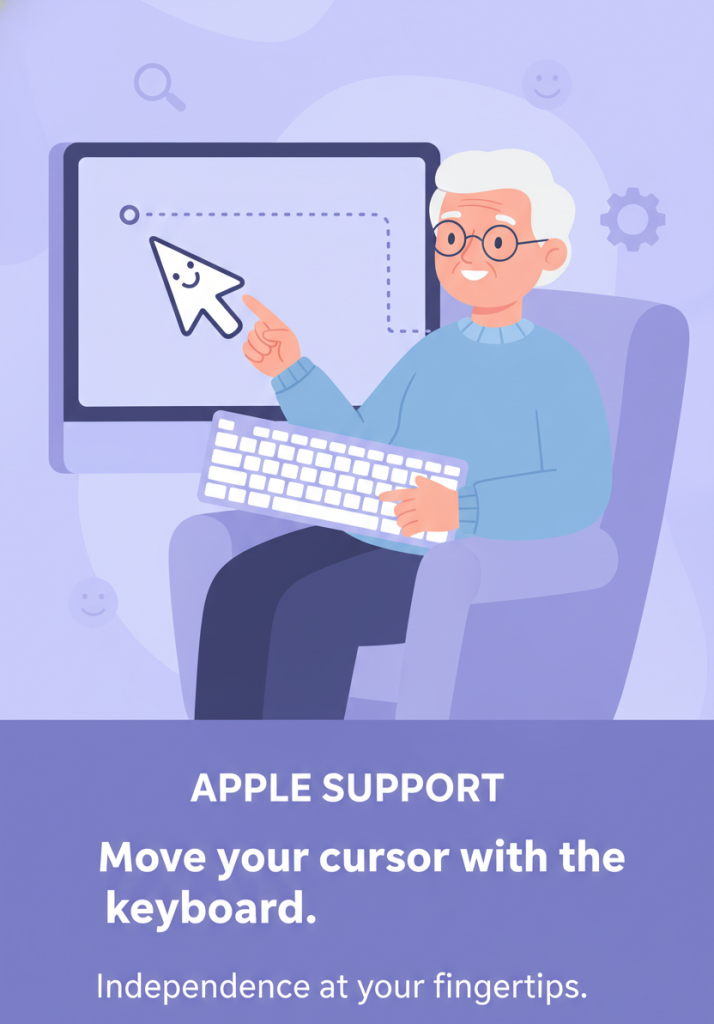
Move your cursor with the keyboard — Apple Support

To move the cursor on your iPhone keyboard, simply touch and hold the Space bar. While holding, drag your finger around the keyboard to move the cursor to the desired position.

Once it’s where you want it, release your finger and continue typing. This makes precise text editing quick and easy.

Summary:
– Touch and hold the Space bar on your iPhone keyboard.
– Drag your finger to move the cursor.
– Position the cursor where needed.
– Release your finger to set the cursor.
– Continue typing with the cursor in place.

Adjust flashlight brightness on iPhone — Apple Support

To adjust the flashlight brightness on your iPhone, start by opening Control Center. Then, touch and hold the Flashlight icon. From there, slide up or down to adjust the brightness to your preferred level.

This simple process lets you quickly control the amount of light when needed.

Summary:
– Open Control Center on your iPhone.
– Touch and hold the Flashlight icon.
Slide up or down to adjust the brightness.
– Release to set the desired brightness level.
– Easily control the flashlight’s intensity as needed.

AI for Faith and Spiritual Life: Guided Prayers, Meditations, and Reflections

Technology can sometimes feel cold or confusing, especially when it comes to something as personal as faith. But used gently and wisely, it can also become a quiet helper—like a small lamp lighting the way, not replacing the journey.

In this article, you’ll see how AI can support your spiritual life with daily reflections, guided meditations, and prayer reminders that respect your beliefs and traditions. Everything is explained in simple, clear language, with older adults in mind.

Table of Contents

Key Takeaways

  • AI can support—not replace—your faith. Think of it as a tool to help you remember, reflect, and stay focused, not a substitute for God, your spiritual community, or your own heart.
  • You can receive tailored content. AI can offer reflections, meditations, or reminders that match your religion, denomination, or spiritual style.
  • Simple tools are often best. Even basic apps or assistants can send gentle reminders, share short prayers, or suggest a verse or quote each day.
  • You stay in control. You choose how often you receive reminders, what kind of content you see, and what personal information you share.
  • Privacy and discernment matter. It’s wise to be careful with what you tell any app, and to check AI-generated content against your own beliefs and trusted leaders.
  • You don’t need to be “tech‑savvy.” Small steps—such as asking an assistant for a short reflection—can be enough to get started.

How AI Can Gently Support Your Spiritual Life

Understanding What AI Is (In Simple Terms)

You don’t need to be a computer expert to use AI.

  • AI (artificial intelligence) is a type of computer program that can:
    • Understand questions written in everyday language
    • Generate text, like short prayers or reflections
    • Notice your patterns and gently adjust to your preferences

A helpful way to picture it:

Imagine a very fast, well-read assistant who’s always available, night or day, with ideas, reminders, and suggested words when you need them.

It does not:

  • Replace God
  • Replace your sacred texts
  • Replace your priest, pastor, rabbi, imam, spiritual director, or community

Instead, it can sit quietly in the background, helping you keep your heart turned toward what matters most.

Ways AI Can Help With Daily Reflections

Daily Spiritual Reflections Tailored to Your Beliefs

AI can help you receive short, meaningful reflections that fit your own faith or tradition.

You might say or type something like:

  • “Give me a short Christian reflection for today about hope, in simple language.”
  • “Share a brief reflection from a Buddhist perspective about compassion.”
  • “Offer a reflection on gratitude that doesn’t mention any specific religion.”
  • “Give me a daily reflection from a Jewish perspective about trust in God.”

What AI can do:

  • Suggest a key verse, quote, or phrase to hold in your heart
  • Offer a short reflection (a few paragraphs) you can read slowly
  • Add gentle questions, such as:
    • “What is one thing you are grateful for today?”
    • “Is there someone you feel called to pray for or bless today?”

Real‑life example

Mary, age 76, lives alone and sometimes feels scattered in the mornings. She uses an AI chat on her tablet and types:

“I’m a Catholic in my 70s. Please give me a simple morning reflection about trusting God when I feel anxious.”

Every morning she asks a similar question, and the AI responds with a brief thought and a line of prayer she can say out loud. It doesn’t replace her rosary or Mass—but it helps her get started.

Gentle Meditations and Quiet Time With AI

Guided Meditations in Everyday Language

AI can create simple, spoken‑style meditations you read slowly to yourself—or have read aloud by your device.

You might ask:

  • “Create a 5‑minute Christian meditation about God’s peace, in very simple words.”
  • “Give me a gentle breathing meditation based on gratitude to God.”
  • “Write a short, calming meditation from a mindfulness perspective without religious language.”
  • “Offer a Muslim‑friendly reflection I can read after my evening prayer, focused on mercy.”

What it can include:

  • Breathing cues
    “Breathe in slowly… hold… breathe out gently…”
  • Simple images
    “Imagine a soft light of peace surrounding you,” or similar calming pictures
  • Short phrases you can repeat
    • “I am not alone.”
    • “God is with me.”
    • “Today I choose peace.”

Tip for seniors:

  • Keep meditations short at first—3 to 5 minutes.
  • If reading on a screen is hard, ask a family member to:
    • Print the meditation
    • Enlarge the text
    • Or set up text‑to‑speech so your device reads it aloud

Prayer Reminders That Fit Your Rhythm

Using AI for Prayer and Reflection Reminders

Many phones and tablets already have a simple reminder or calendar app. When combined with AI, this can become a gentle spiritual routine.

Here’s how this might work:

  1. Decide on your moments
    For example:
    • Morning (after breakfast)
    • Midday
    • Evening (before bed)
  2. Ask an AI assistant to help you plan
    You can type:
    • “Help me plan three short prayer times for each day, with simple themes.”
      It might suggest:
    • Morning – Gratitude
    • Afternoon – Strength
    • Evening – Peace and rest
  3. Set your reminders
    Use your phone/tablet’s reminder app, or ask a voice assistant:
    • “Remind me every day at 9 AM to say a short prayer of thanks.”
    • “Remind me at 3 PM to pause for a 2‑minute reflection.”
    • “Remind me at 9 PM to review my day and say a prayer for others.”
  4. Ask AI what to pray when the reminder appears
    When your reminder pops up, you can open your AI assistant and say:
    • “Give me a 2‑sentence prayer for my evening reflection, focused on forgiveness.”
    • “Share a short prayer for my grandchildren’s safety and joy.”

Real‑life example

George, 82, sometimes forgets his intention to pray for his family during the day. He sets:

  • 10 AM – “Pray for family”
  • 8 PM – “Evening thanksgiving”

At those times, he asks his AI app:
“Please give me a short, warm prayer for my children and grandchildren, in simple language.”
It offers words he can read slowly and make his own.

Respecting Your Beliefs and Traditions

Making AI Align With Your Faith, Not the Other Way Around

Because AI is general‑purpose, you need to guide it clearly. The more specific you are, the better it can respect your beliefs.

You can mention:

  • Your religion (for example: Christian, Jewish, Muslim, Hindu, Buddhist, Sikh, spiritual but not religious, etc.)
  • Your branch or denomination, if helpful (for example: Catholic, Baptist, Orthodox, Sunni, Shia, Reform, Conservative, etc.)
  • Your preferences, such as:
    • “Use very simple language.”
    • “Please include a Bible verse, but not too long.”
    • “Avoid any images or wording that don’t fit Islamic teachings.”
    • “Keep it interfaith and gentle, not tied to one religion.”

Sample ways to ask:

  • “I’m an older Christian. Please write a gentle, non‑judgmental reflection on forgiveness based on the teachings of Jesus.”
  • “I’m a Muslim senior. Give me a short reflection for after prayer that is respectful of Islamic belief and mentions Allah.”
  • “I’m spiritual but not religious. Share a calming daily reflection about kindness and inner peace.”

Always remember: you are the one in charge. If something doesn’t feel right, you can ignore it, change it, or ask for a new, more accurate version.

Staying Safe: Privacy and Discernment

What You Should and Shouldn’t Share

AI tools work by processing the information you give them. It’s important to protect your privacy.

Be cautious about sharing:

  • Full names, addresses, phone numbers
  • Sensitive health details (unless you’re using a secure medical app approved by your doctor)
  • Financial information (bank accounts, passwords, social security numbers)

For spiritual use, you can keep it simple:

  • “A friend who is ill”
  • “A family member struggling with addiction”
  • “Someone I find hard to forgive”

You don’t need to name them. God knows who they are, even if the AI does not.

Discernment: Checking if content fits your faith

AI can make mistakes, especially with religious details. To stay grounded:

  • Compare any advice or reflection with:
    • Your sacred texts
    • Your trusted religious leaders
    • Your faith community’s teachings
  • If a suggestion feels off, confusing, or uncomfortable:
    • Set it aside
    • Ask your priest, pastor, rabbi, imam, or another trusted guide
    • Or ask the AI to correct itself:
      • “This doesn’t match Catholic teaching on suffering. Please try again and be more accurate.”

You are always free to say no to any suggestion.

Simple Ways to Get Started (Step‑by‑Step)

If You’re New to Technology

You do not have to explore every feature. One or two small habits can already be a blessing.

Option A: One daily reflection

  1. Open your AI chat app (or ask a family member to place it on your home screen).
  2. Type or say:
    • “Every morning, I’d like a short reflection as a Christian senior about hope. Please write one now.”
  3. Read it slowly.
  4. Underline or note one sentence or phrase that touched you.

Option B: A short nightly review

  1. In the evening, open the AI chat.
  2. Ask:
    • “Give me a gentle nightly reflection as a person of faith. Include three questions I can think about quietly.”
  3. Answer the questions silently, or write them in a small notebook.
  4. End with a simple prayer of thanks, from your heart or with AI’s help.

Option C: Help finding words when you’re struggling

If you are sad, worried, or at a loss for words, you might type:

  • “I feel lonely tonight. Please help me with a short prayer asking God for comfort, in kind, simple words.”
  • “I’m grieving someone I loved. Please write a brief prayer I can say each morning.”

You can then change the words so they sound more like you. AI gives you a starting point; your heart completes it.

Practical Tips for Comfort and Ease

Making AI Use More Senior‑Friendly

To keep things comfortable:

  • Increase text size on your device for easier reading.
  • Use voice features if typing is difficult:
    • Tap the microphone icon (if available) and speak your request.
  • Save helpful prayers or reflections:
    • Mark them as favorites
    • Print them
    • Copy them into a small journal or notebook
  • Ask someone you trust:
    • A family member, friend, or caregiver can help you set up:
      • Bookmarks
      • Daily reminders
      • A simple “spiritual folder” on your device

You don’t have to do all the technical steps alone.

Healthy Boundaries With Technology

Letting AI Be a Tool, Not the Center

It’s easy for screens to take over our attention. To keep your spiritual life healthy:

  • Use AI to point you back to:
    • Scripture or sacred texts
    • Real‑life prayer
    • Silence and stillness
    • Your faith community
  • Set clear limits:
    • “Just 10 minutes in the morning”
    • “Only for my reflections, not endless browsing”
  • If you feel more distracted than peaceful:
    • Close the app
    • Sit quietly for a moment
    • Say your own simple prayer

AI should make your faith life richer and calmer, not more restless.

Final Thoughts

You don’t need to be “good with technology” to let AI gently support your spiritual life. With a few simple habits, it can help you:

  • Remember to pause and pray
  • Find words when your own feel stuck
  • Reflect more deeply on your day
  • Stay connected to your beliefs and traditions

Most importantly, you stay in charge. You decide what to use, what to keep, and what to ignore. Your relationship with God—or with the sacred, however you understand it—remains at the center. AI is just a small, helpful tool along the way.

Categories AI

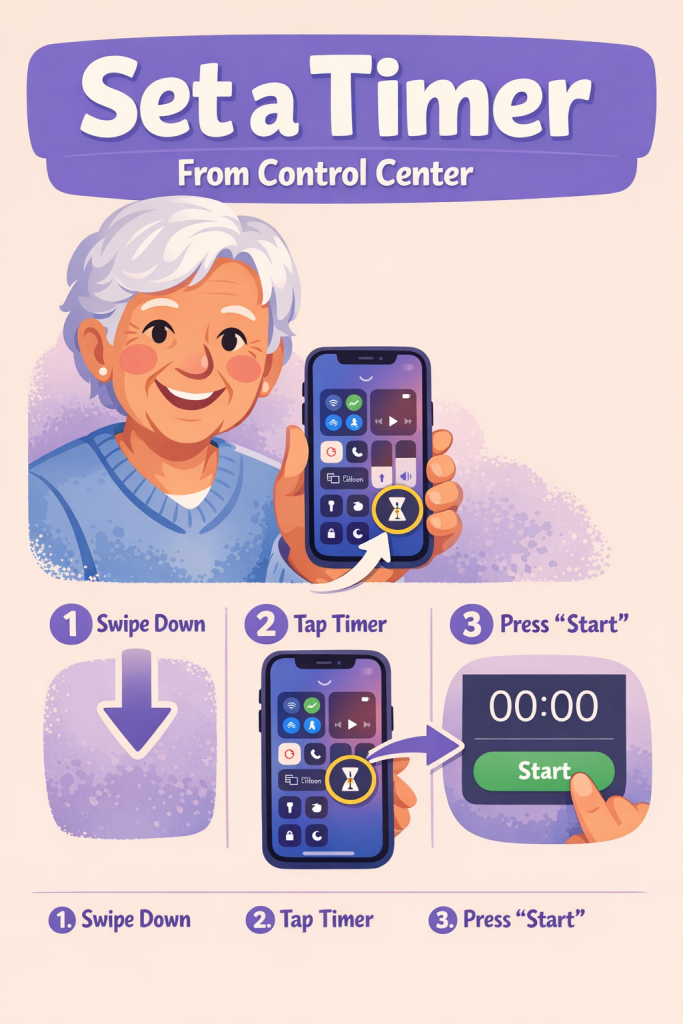
Set a timer from Control Center — Apple Support

To quickly set a timer from Control Center, first touch and hold the timer icon. Then, slide to select your desired duration. After setting the time, tap Start to begin the countdown.

This simple process allows you to set and manage timers swiftly and efficiently directly from Control Center.

Summary:
– Open Control Center and touch and hold the timer icon.
– Slide to choose the timer duration.
– Tap Start to begin the countdown.
– This allows quick and easy timer management.
– The entire process is handled directly from Control Center.

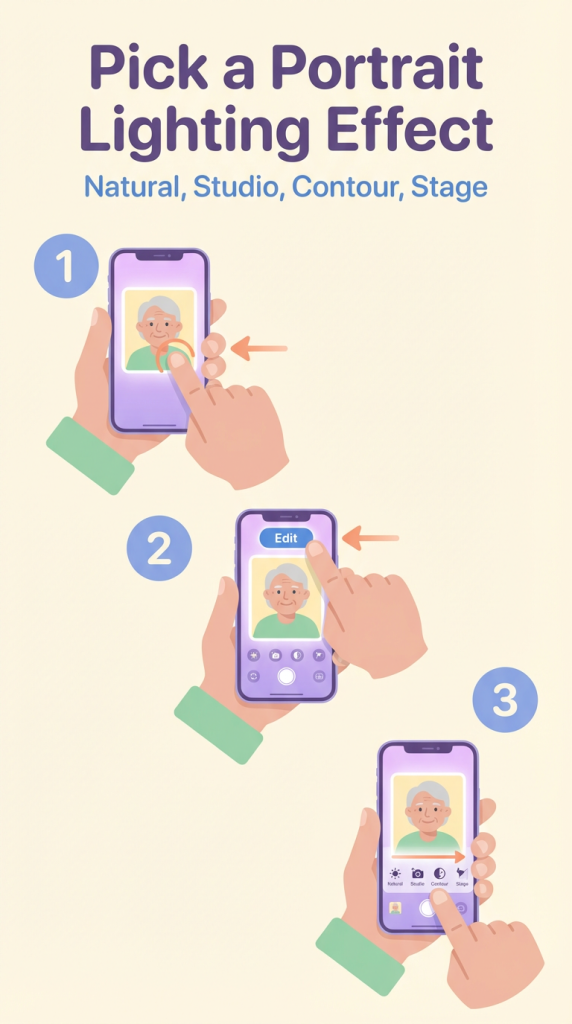
Choose Portrait mode lighting effects — Apple Support

When using Portrait mode to take photos, you can change the Portrait Lighting effect at any time. Start by opening the photo you want to edit and tap Edit.

Next, touch and hold the Portrait Lighting button, then drag to select the desired lighting effect. After choosing your preferred effect, tap Done to save the changes.

This allows you to easily adjust the lighting to enhance your photo even after it’s been taken.

Summary:
Open the photo taken in Portrait mode and tap Edit.
– Touch and hold the Portrait Lighting button.
– Drag to choose a different lighting effect.
– Tap Done to save the changes.
– Adjust the lighting effect anytime after taking the photo.

Finding Reliable Health Information With AI (Without Falling for Scare Stories)

Many older adults are starting to use AI tools—like online chatbots—to look up health information. These tools can explain medical terms in simple language and help you feel more prepared for doctor’s visits.

But there’s a problem: AI can sometimes sound too certain, too dramatic, or give misleading advice. That can be frightening, especially if you’re already worried.

You don’t need to be “good with technology” to follow this. Think of this as learning how to talk to a new kind of librarian.

Table of Contents

Key Takeaways

  • AI can be a helpful first step, but it should never replace your doctor or nurse.
  • How you ask the question matters. Calm, specific questions usually lead to calmer, clearer answers.
  • Always ask for sources (websites, organizations, or articles) and check where the information comes from.
  • Be careful with dramatic or frightening language like “deadly,” “miracle cure,” or “shocking.” These are warning signs.
  • Compare AI’s answer with at least one trusted health website and, when it really matters, with your own doctor.
  • Never change medication, dosage, or treatment based only on AI. Use AI to understand, not to decide.
  • If an answer makes you anxious or confused, ask the AI to explain more gently, or write down your questions for your next medical appointment.

1. What AI Can (and Cannot) Do for Your Health

What AI is good at

AI tools can be useful for:

  • Explaining medical words in simpler terms
    • Example: “What does atrial fibrillation mean in simple language?”
  • Giving general information about common conditions
    • Example: “What usually helps people with mild arthritis in their knees?”
  • Helping you prepare questions for your doctor or specialist
    • Example: “What questions should I ask my doctor before starting a new blood pressure medicine?”
  • Summarizing long or confusing information
    • Example: “Summarize this article for me in plain English.”

What AI is NOT good at

AI is not:

  • Your doctor or nurse
  • Able to see your test results, unless you type them in (and even then, it can’t replace a medical professional)
  • Perfect or always correct

Never rely on AI to:

  • Diagnose you (“Do I have cancer?”)
  • Tell you to start, stop, or change medications
  • Make emergency decisions (“Should I go to the hospital or stay home?”)

For anything serious, urgent, or confusing, call your doctor, clinic, or local emergency number. Use AI only to help you understand, not to decide.

2. How to Ask AI for Calm, Balanced Explanations

The way you ask a question strongly affects the kind of answer you get. Here are some simple “better question” patterns you can copy.

A. Ask for plain language

Instead of:
“Explain congestive heart failure.”

Try:
“Explain congestive heart failure in simple, calm language for someone my age. Avoid scary or dramatic wording.”

Or:
“Explain what congestive heart failure is, using everyday words. Focus on typical treatments and what people can often do to manage it.”

B. Ask for balanced, not extreme, answers

Include phrases like:

  • “Give a calm, balanced explanation.”
  • “Include both common and rare risks, but make clear which is which.”
  • “Avoid alarmist or frightening language.”

Example:

“Give me a calm, balanced explanation of side effects for the blood thinner apixaban. Clearly separate common, mild side effects from rare, serious ones, and avoid alarmist language.”

C. Ask for context, not just worst-case scenarios

Instead of:
“How likely is it that I will die from high blood pressure?”

Try:
“Explain how high blood pressure usually affects people over 70, and how doctors typically manage it. Focus on what most patients can do to reduce risk.”

You can also say:

“Please do not focus only on the worst-case scenario. Include what happens in typical, everyday cases.”

D. Ask it to check itself

You can gently “nudge” the AI to be more careful:

  • “Please double-check your answer for balance and avoid exaggeration.”
  • “If you are unsure about something, say that you are unsure.”

Example:

“Explain the risks and benefits of knee replacement surgery for older adults. Be honest if something is uncertain, and avoid dramatic language.”

3. How to Ask AI to Show Sources You Can Check

AI can sometimes “sound” confident even when it’s partly wrong. One way to protect yourself is to always ask for sources.

Simple ways to ask for sources

Try adding one of these sentences to your question:

  • “List your sources at the end.”
  • “Only use trustworthy health sources like major hospitals or government health agencies.”
  • “Give me links to reliable health websites I can click on to read more.”

Example question:

“Explain what prediabetes means in simple language. At the end, list a few reliable sources (such as government health sites or major hospitals) where I can read more.”

What a trustworthy source usually looks like

More trustworthy:

  • Government health sites
    • Often end in .gov (for example: cdc.gov)
  • Large, well-known hospitals and clinics
  • Major non-profit health organizations
    • Example: national heart, diabetes, or cancer organizations

Less trustworthy (be careful):

  • Websites covered in ads, pop-ups, “miracle cures”
  • Sites that try to scare you into buying something
  • Random blogs or social media posts with no clear medical credentials

If the AI gives you a source that feels “salesy,” you can reply:

“This source looks like it’s trying to sell me something. Please give me information only from non-profit health organizations, government health sites, or well-known hospitals.”

4. How to Spot Alarmist or Misleading Health Content

Scare stories are common online. AI can sometimes repeat or exaggerate them if you’re not careful.

Warning signs in the language

Be cautious if the answer is full of words like:

  • “Shocking truth”
  • “Deadly secret”
  • “Miracle cure”
  • “Doctors don’t want you to know this”
  • “Guaranteed cure”
  • “Instant results”

These phrases are often used to grab attention, not to give balanced information.

If you see this, you can say:

“Your answer sounds dramatic. Please rewrite it in calm, neutral language, and remove any sensational or marketing-style wording.”

One-sided answers

Be careful if the AI:

  • Only mentions risks, with nothing about benefits
  • Only mentions benefits, with no mention of risks or side effects
  • Makes something sound either harmless or hopeless, with no middle ground

You can respond:

“Your answer seems one-sided. Please give me a more balanced view, including both benefits and risks, and make clear what is common versus rare.”

Big promises or absolute statements

Watch for:

  • “This will cure your diabetes.”
  • “You will never have pain again.”
  • “This treatment is 100% safe.”

In real medicine, almost nothing is 100% safe or 100% effective.

You can reply:

“Please avoid absolute statements like ‘100% safe’ or ‘will cure you.’ Instead, tell me what usually happens for most people, and what exceptions there can be.”

5. A Simple Routine to Cross-Check Health Information

Here’s an easy step-by-step routine you can follow almost every time you use AI for health questions.

Step 1: Ask AI a calm, specific question

Example:

“Explain what a TSH blood test is for, in simple, calm language for an older adult. Then list a few trustworthy sources where I can read more.”

Step 2: Skim the answer for tone

Ask yourself:

  • Does the answer sound calm and neutral, or dramatic and frightening?
  • Does it clearly separate common issues from rare ones?
  • Does it mention that only a doctor can diagnose or treat you personally?

If not, ask the AI:

“Please rewrite that answer in a calmer, more neutral tone and clearly mark what is rare versus common.”

Step 3: Open at least one trusted source

Click on one or two of the links the AI suggests (ideally to:

  • A government health site, or
  • A well-known hospital or major health organization

Ask AI:

“From the most trustworthy sources, quote or summarize what they say about this topic, and give me the links.”

Then compare:

  • Does the AI’s summary match what the trusted site says?
  • If something seems very different, trust the official site first.

Step 4: Bring the info to your doctor

For important or confusing issues:

  1. Print the AI answer or write down:
    • The main points
    • The questions you still have
  2. Take them to your next appointment and say:
    • “I read this online and with an AI tool. Can you tell me what applies to me and what doesn’t?”

Your doctor can confirm what fits your body and situation.

6. Using AI Without Panicking: What to Do When an Answer Scares You

Sometimes you’ll get an answer that makes your heart sink. It might talk about death, disability, or worst-case scenarios.

Here’s what to do instead of panicking.

A. Ask it to focus on typical cases

Type something like:

“That answer felt scary. Please explain what usually happens in typical, everyday cases for people my age, and clearly mark what is rare.”

B. Ask it to speak gently

It’s okay to ask for kindness:

“Please rewrite your answer in a reassuring tone. Do not ignore risks, but explain them calmly and clearly.”

C. Remind yourself of what AI can’t see

The AI:

  • Doesn’t know your full medical history
  • Hasn’t examined you
  • Hasn’t seen all your test results and scans

So it is guessing based on general information, not your personal situation.

If the issue feels serious or urgent:

  • Call your doctor or clinic
  • Use your nurse advice line, if you have one
  • In an emergency, call your local emergency number or go to the nearest emergency room

Use AI only to help you understand what the medical team later explains, not to decide what to do right now.

7. What You Should Never Do Based Only on AI Advice

To stay safe, here are some clear “never do this” rules:

  • Never start or stop a prescription medication based only on AI.
  • Never change your dosage of any medicine because of an AI answer.
  • Never ignore new or worsening symptoms because AI suggests it’s “probably nothing.”
  • Never delay emergency care because AI told you to “wait and see.”

If you’re not sure whether something is urgent, it’s better to:

  • Call your doctor’s office
  • Use a nurse advice line
  • Follow the instructions from your real health providers

You can show them any AI advice you received and ask:

“Is this accurate for someone like me?”

8. Examples You Can Reuse (Copy-and-Paste Prompts)

Here are some ready-made questions you can copy, paste, and adjust:

  1. For understanding a diagnosis
    “Explain [your condition] in simple, everyday language for someone over 70. Give a calm, balanced overview, including typical treatments and lifestyle changes. Clearly mark what is common versus rare, and avoid dramatic or frightening language.”
  2. For test results (general explanation)
    “Explain what the [test name] test is and what high or low results usually mean. Do not try to diagnose me personally. Just give general, calm information for older adults and list a few trustworthy sources at the end.”
  3. For medication side effects
    “Give a balanced, calm overview of common and rare side effects of [medication name] for older adults. Separate common, mild side effects from rare, serious ones. Make it clear that I must talk to my doctor before making any changes to my medication.”
  4. To compare information
    “Compare what you just told me about [topic] with what major health organizations and government health sites say. Point out any differences and give links to those sources.”
  5. When an answer sounded scary
    “Your last answer felt frightening. Please rewrite it using a gentle, reassuring tone. Don’t hide the risks, but explain what usually happens in typical cases, and clearly mark which situations are rare.”

Final Thoughts

AI can be a useful helper when you’re trying to understand a health issue, a new diagnosis, or a confusing test result. Used wisely, it can:

  • Translate medical language into plain English
  • Help you feel more prepared for appointments
  • Give you questions to ask your doctor

But it is not a doctor, and it sometimes sounds more confident—or more dramatic—than it should. By:

  • Asking calm, specific questions
  • Always checking the sources
  • Watching for scary or salesy wording
  • And confirming important information with your real health team

you can make AI work for you, not against you.

Categories AI

Hide Home Screen pages on your iPhone

To keep your most used apps accessible and hide others, start by touching and holding an empty area of your Home Screen until the apps begin to jiggle. Tap the dots at the bottom of the screen to view thumbnails of your Home Screen pages.

If a page is visible, it will have a checkmark below its thumbnail. To hide a page, tap its checkmark to remove it. To bring a hidden page back, tap the empty circle where the checkmark was.

Once you’ve selected the pages you want visible, tap Done, then tap Done again to finalize your choices. This will keep your Home Screen organized and tidy.

Summary:
– Touch and hold an empty area of the Home Screen until apps jiggle.
– Tap the dots at the bottom to view page thumbnails.
– Tap a checkmark to hide a visible page, or tap an empty circle to show a hidden page.
– Select the pages you want visible.
– Tap Done twice to finalize and organize your Home Screen.