How to use Emergency SOS via satellite on iPhone 14 | Apple Support

practhumb45.2

In emergencies without cellular or Wi-Fi, iPhone 14 and iPhone 14 Pro, with iOS 16.1, offer satellite connectivity to contact emergency services. Users provide details abou1t their situation, guiding the iPhone to establish a satellite link. Clear sky visibility is crucial, and users may need to adjust positioning. Messages relayed via satellite might take longer, so keeping them concise is advised. Emergency services receive location updates and medical ID info if enabled. While coverage gaps exist, users are informed of satellite availability. This feature, available for two years post-device activation, enhances accessibility to emergency services.

Summary:
– iPhone 14 and iPhone 14 Pro, with iOS 16.1, offer satellite connectivity for emergencies.
– Users provide details and guide the iPhone to establish a satellite link.
– Clear sky visibility is crucial for successful satellite communication.
– Messages relayed via satellite may experience delays, so concise communication is advised.
– Emergency services receive location updates and medical ID info if enabled, enhancing accessibility to assistance.

AI vs. Robots: What’s the Difference?

Technology can sometimes feel like it’s moving too fast—but don’t worry, this guide is here to make things easier. If you’ve ever wondered whether AI (artificial intelligence) and robots are the same thing, you’re not alone. Many people mix them up! In this article, we’ll explain the difference in a friendly, easy-to-understand way—no tech jargon, no confusion.

Table of Contents

Key Takeaways

📌 AI (Artificial Intelligence) is software that thinks and learns, like the brain behind the scenes.
🤖 Robots are physical machines that move and act—sometimes using AI, sometimes not.
💡 Not all AI is in robots (think: voice assistants), and not all robots have AI (think: basic vacuum cleaners).
👵 Real-life examples and plain language make this guide easy to follow, no tech background needed.

What Is Artificial Intelligence (AI)?

Let’s start with AI.
Artificial Intelligence is the name for programs or software that can think, learn, or make decisions—kind of like a digital brain.

Simple example:

  • When you ask your phone’s voice assistant (like Siri or Alexa) for the weather, that’s AI in action.
  • When Netflix suggests a show you might like, that’s also AI doing the thinking behind the scenes.

So remember: AI is not a machine. It’s the smart part that helps machines (or apps) make decisions.

What Is a Robot?

Now, let’s talk about robots.
A robot is a physical device—something you can see and touch—that can move, pick things up, or do tasks on its own.

Simple example:

  • A robot vacuum cleaner that moves around your living room and cleans the floor.
  • A robot arm in a factory that lifts boxes or builds cars.

But here’s the important part:
Not all robots are smart.
Some follow simple instructions without thinking. They just do what they’re told, over and over.

So, What’s the Difference?

AI (Artificial Intelligence)Robots
Software that “thinks” or “learns”Physical machines that move or act
Works in phones, apps, websitesExists in the real world (factories, homes)
Can exist without a bodyCan exist without AI
Example: ChatGPT, Siri, Google MapsExample: Robot vacuum, factory robot arm

Sometimes, they do work together. A robot vacuum with smart navigation? That’s a robot with AI.

Real-Life Examples You Might Know

1. AI without a robot:

2. Robots without AI:

  • A toy robot dog that walks in circles
  • A vending machine with a robotic arm
  • A basic vacuum cleaner that moves randomly

3. AI + Robot combo:

  • A smart vacuum that remembers your room layout
  • A robot in a hospital that helps deliver medicine and avoids people in the hallway

Final Thoughts

You don’t need to be a tech expert to understand today’s technology. The key thing to remember is this:

AI is the brain, and robots are the body. Sometimes they work together, but they’re not the same thing.

Next time someone mentions AI or robots, you’ll know exactly what they mean. And if you’re curious to learn more, we’ve got other easy guides to help you explore the tech world, one step at a time.

Categories AI

How to create pivot tables in Numbers for iPhone, iPad, and iPod touch | Apple Support

practhumb44.2

In Numbers on Mac and iOS, pivot tables help analyze data. On iPhone or iPad, select the source data table, tap the table actions button, then “Create Pivot Table.” Choose fields like date, category, and revenue. Drag fields to rearrange columns and rows. Customize calculations by tapping the info button. Pivot tables offer versatile data analysis, facilitating trend identification and pattern recognition.

Summary:
– Pivot tables in Numbers aid data analysis.
– Accessible on Mac and iOS devices.
– Select source data table, tap table actions.
– Choose fields like date, category, revenue.
– Customize calculations and view data in various ways.

How Does AI Work in Everyday Life?

You may think of AI as something fancy or futuristic. But did you know that it’s already helping you every day—in ways you may not even notice? From spotting spelling mistakes to organizing your photos or alerting loved ones in emergencies, AI is working quietly in the background to make life smoother and safer. Let’s explore these subtle, but helpful, examples.

Table of Contents

Key Takeaways

  • AI often works quietly in features you already use
  • It powers tools that help with spelling, safety, and organization
  • You don’t need special skills to benefit from it—it’s already built in

1. Spellcheck and Grammar Suggestion

When you type an email or message and it corrects your spelling—or gently suggests a clearer way to say something—that’s AI helping out. It learns common phrases and improves over time.

Helpful for: Writing clearer messages, avoiding typos, and sounding more confident.

2. Captions on TV or Video Calls

Live subtitles or closed captions on programs or video calls often use AI to quickly turn speech into text—even with different accents or background noise.

Helpful for: People with hearing challenges or anyone who wants to follow along clearly.

3. Fall Detection and Health Alerts

Devices like smartwatches or medical alert systems use AI to detect if someone has fallen or if their heartbeat seems unusual. It can then send an alert to family or emergency services.

Helpful for: Staying safe at home or on the go—especially if you live alone.

4. Smart Home Features

A thermostat that learns your preferred room temperature? A washing machine that senses load size? These appliances use AI to learn patterns and adjust automatically—saving energy and time.

Helpful for: Comfortable living without needing to constantly adjust settings.

5. Photo Sorting and Face Recognition

Your phone’s gallery often groups photos by location or people’s faces. That’s AI recognizing patterns so you can find what you’re looking for faster.

Helpful for: Organizing memories and sharing them easily.

6. Personalized News or Weather Alerts

Apps and devices often tailor alerts based on your usual habits. For example, showing weather updates for where you live or news that matches your interests.

Helpful for: Staying informed without having to search.

Final Thoughts

AI isn’t just about robots or complicated computers—it’s about small tools that quietly make daily life easier, safer, and more convenient. Even if you’re not a tech expert, these smart features are already working for you. Next time your TV adds captions on its own, or your watch reminds you to move, you’ll know—that’s AI lending a hand. Curious about other helpful tech tools? Check out our beginner-friendly guides made just for you.

Categories AI

Is AI Safe to Use? Understanding the Risks and Benefits

You’ve probably heard a lot about Artificial Intelligence, or “AI” for short. Some people say it’s changing the world. Others worry it’s taking over. If you’re feeling unsure, you’re not alone. This article is here to help clear things up. We’ll explain what AI is, talk about common concerns like job loss and privacy, and help you understand how it can actually make life easier—not harder. No tech knowledge needed—we’ll keep things simple and friendly.

Table of Contents

Key Takeaways

  • AI isn’t out to take over the world—it’s just a tool.
  • Some jobs may change, but AI also creates new opportunities.
  • Your personal information can stay safe if you know the basics of privacy.
  • Most AI tools are designed to help, not harm.
  • You don’t need to fear AI—you just need to understand it.

What is AI, Really?

AI stands for Artificial Intelligence. That might sound fancy, but think of it like a super-smart assistant that helps people get things done. It can sort photos, answer questions, suggest songs you might like, or even help doctors detect health problems.

You’re probably using AI already—like when your phone corrects your spelling or your TV suggests a new show.

Common Worries About AI—And the Truth Behind Them

1. “Will AI take away all our jobs?”

This is a big one, and it’s understandable. Some jobs are changing because of AI, especially repetitive ones like data entry or manufacturing. But AI also helps people work smarter, not just harder.

Example:
Doctors use AI to read X-rays faster. But the AI doesn’t replace the doctor—it just helps them spot problems more accurately.

And yes, new jobs are popping up, too—people who teach AI, manage it, or build tools around it. Just like computers created jobs in the ’90s, AI is doing something similar today.

2. “Is AI watching everything I do?”

AI can process a lot of information, but it’s not spying on you. Most AI doesn’t want or need your personal details. That said, it’s still smart to:

Think of AI like a helpful assistant—it’s there to support, not snoop.

3. “Can AI be dangerous?”

Any tool, from a hammer to a car, can be misused. But that doesn’t mean we stop using them. The key is to understand the risks and use AI wisely.

Companies and governments are also creating rules and guidelines to make sure AI is safe and fair. Just like food or medicine, AI tools are starting to be watched closely to keep people protected.

Real-Life Ways AI Helps

AI isn’t just about robots or high-tech labs. It’s already making everyday life easier:

You don’t need to be tech-savvy to use these—you just need to know what they do.

Final Thoughts

AI might seem like a big, scary word—but at the end of the day, it’s just a tool. Like any new invention, it takes a little time to get used to. But once you do, you’ll find it can be incredibly helpful in your everyday life.

Don’t be afraid to explore more—check out our other beginner-friendly guides to learn how AI tools work and how to use them safely. You’ve got this!

Categories AI

How to add image descriptions for screen readers on iPhone, iPad, and iPod touch | Apple Support

practhumb43.2

You can enhance photo accessibility by adding image descriptions, aiding screen readers like VoiceOver. Open the photo in Photos, tap Edit, then the markup button. Next, select Description and input a descriptive text for the photo. Afterward, tap Done twice to save changes. For instance, a description might detail a scene, like a “very happy white dog with big pink ears and a curly tail standing on a riverbank after going for a swim.”

Summary:
– Enhance photo accessibility by adding image descriptions.
Open the photo in Photos and tap Edit.
– Select the markup button and then Description.
– Input a descriptive text for the photo.
– Tap Done twice to save changes.

What Is AI?

You’ve probably heard people talking about AI a lot lately. But what does it really mean—and do you really need to understand it?

The answer is yes—but don’t worry! This guide breaks down what AI is in plain English. We’ll use examples from everyday life, so it feels familiar and easy. Whether you’re curious, confused, or just want to keep up with the grandkids, you’re in the right place.

Table of Contents

Key Takeaways

  • AI stands for artificial intelligence—when computers can “think” or make decisions like humans.
  • It’s already part of your everyday life, even if you don’t realize it.
  • Think of it like a smart helper that learns from experience, like a child learning to recognize faces or voices.
  • You don’t need to be tech-savvy to understand AI—it’s simpler than it sounds.
  • Real-life examples include voice assistants, online recommendations, and even smart thermostats.

What Exactly Is AI?

Let’s start simple.

AI, or artificial intelligence, is when a machine (like a computer or smartphone) is designed to learn, think, and make decisions—similar to how humans do.

But don’t imagine a robot taking over the world. Most AI is invisible and quietly helping you with small tasks every day.

Think of it like this:

Imagine teaching a child how to recognize a cat. You show them a few pictures, and soon, they learn what a cat looks like. AI learns in a similar way—by looking at lots of examples until it gets good at spotting patterns.

Real-Life Examples of AI You Already Use

Here are a few ways you may already be using AI—without even realizing it:

1. Voice Assistants (like Siri or Alexa)

You say, “What’s the weather today?” and they answer. That’s AI understanding your voice and finding the answer for you.

2. Netflix or YouTube Suggestions

Ever noticed how the shows or videos you might like magically appear? That’s AI learning your preferences and recommending similar content.

3. Spam Filters in Email

You don’t see a flood of unwanted emails because AI is sorting out junk mail for you.

4. Maps and GPS Apps

When Google Maps suggests a faster route, it’s using AI to analyze traffic in real-time and help you avoid delays.

5. Smart Home Devices (like thermostats or lights)

Some smart thermostats learn your habits—like when you wake up or leave the house—and adjust automatically. That’s AI at work.

Why AI Matters to You

Even if you don’t use gadgets much, AI is all around—making life a little easier, faster, or safer. It can:

  • Help doctors find diseases earlier
  • Make shopping more convenient
  • Keep cars safer on the road
  • Even assist people with disabilities

AI isn’t something to be afraid of—it’s a tool, and like all tools, it depends on how we use it.

Final Thoughts

Artificial intelligence might sound complicated, but at its core, it’s just technology designed to learn and help. Whether it’s your smart speaker answering questions or your phone predicting the next word you’ll type, AI is already part of your world.

And now, you understand how it works! 👏

Curious to dive a little deeper? Check out our other guides on smart devices, helpful apps, or how to stay safe online—explained the same simple way.

Categories AI

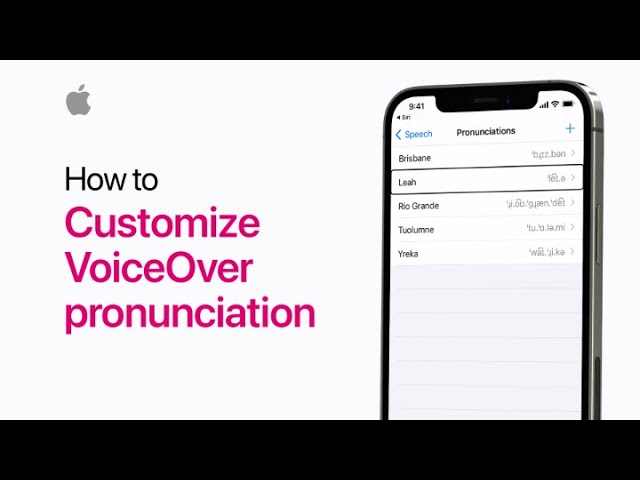
How to customize VoiceOver pronunciation on your iPhone — Apple Support

practhumb42.2

VoiceOver on iPhone allows users to customize how it pronounces specific words. Users can access VoiceOver settings through Siri or manually navigate to settings. They can adjust speech rate and customize pronunciations by adding new words or phrases. Adding a new word involves typing or dictating its pronunciation and selecting the preferred pronunciation from the list. Users can review and edit their customized word list as needed. This feature enhances accessibility, ensuring VoiceOver accurately pronounces names, landmarks, or other words according to user preferences. Subscribe to the Apple Support channel for more accessibility features tutorials.

Summary:
Customize VoiceOver pronunciation on iPhone.
– Access settings via Siri or manually.
– Adjust speech rate and add new words.
– Review and edit customized word list.
– Enhances accessibility for accurate pronunciation.

Best iPhone Features for Keeping Track of Medication Reminders

Keeping track of medication schedules can be tricky, especially when you’re juggling multiple pills or doses throughout the day. The good news? Your iPhone can help. Whether it’s reminding you when to take your meds or making sure you don’t miss a dose, your iPhone has built-in features—and there are also apps—that make the process much easier.

This guide walks you through everything you need to know, in simple steps, to use your iPhone as your personal medication assistant.

Table of Contents

Key Takeaways

  • iPhones come with built-in tools like the Health app and Reminders app that can help you track and manage your medications easily.
  • Third-party apps like Medisafe and MyTherapy offer extra features like refill reminders and caregiver alerts.
  • Setting up reminders is quick and doesn’t require tech expertise—this guide provides easy steps for each method.
  • Taking advantage of these tools can reduce missed doses and improve your overall health and well-being.

iPhone’s Built-In Features for Medication Reminders

1. Health App (iOS 16 and up)

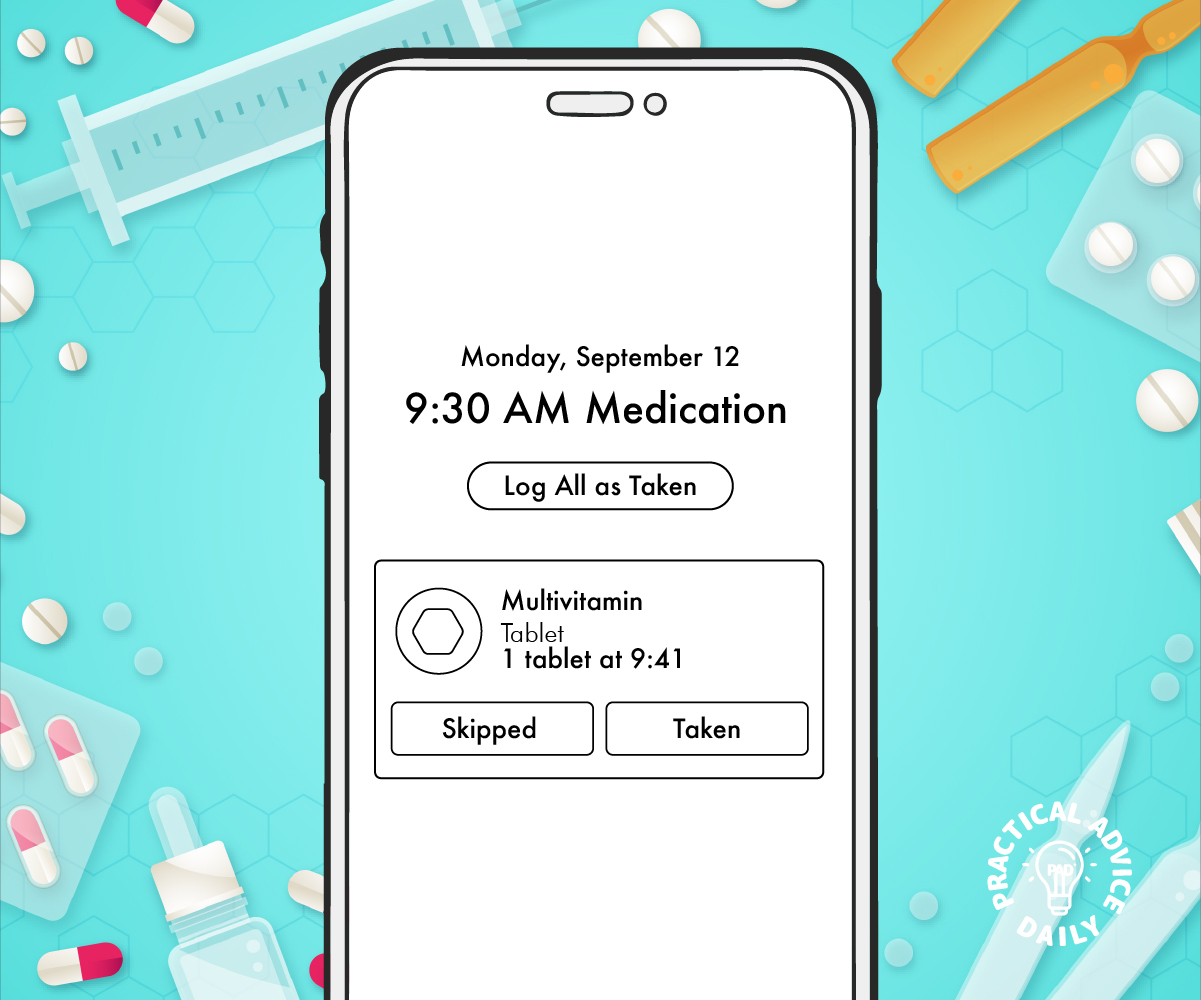
Apple’s Health app now includes a Medications feature that’s perfect for keeping track of your prescriptions.

How to Set It Up:

  1. Open the Health app.
  2. Tap Browse at the bottom, then choose Medications.
  3. Tap Add a Medication.
  4. Enter the medication name, type (pill, injection, etc.), and dosage.
  5. Set a schedule (how often and what time you need to take it).
  6. Choose if you want reminders turned on.
  7. Tap Done.

📌 Why it’s great:

  • Sends a reminder at the exact time you need to take your meds
  • Lets you track if you missed or took your dose
  • Stores your medication list for easy reference at doctor visits

2. Reminders App

If your iPhone doesn’t support the Health app’s medication feature or you prefer a simpler setup, the Reminders app works great too.

How to Use It:

  1. Open the Reminders app.
  2. Tap New Reminder.
  3. Enter something like “Take blood pressure pill.”
  4. Tap the calendar/clock icon to set date and time.
  5. Tap Add to save.

📌 Tip: You can set this reminder to repeat daily, weekly, or on specific days.

Helpful Third-Party Apps for Medication Management

If you want more detailed features or have multiple medications, these apps are easy to use and offer added support.

1. Medisafe Pill Reminder

  • Sends reminders with sound and visuals
  • Lets you mark meds as “taken” or “missed”
  • Allows a family member to be notified if you miss a dose
  • Free with optional paid features

How to Get Started:

  1. Download Medisafe from the App Store.
  2. Open the app and follow the setup guide.
  3. Add your medications, schedule, and dose.

2. MyTherapy: Medication Reminder

  • Combines medication tracking with health logs (like blood pressure)
  • Tracks your progress with a health journal
  • Simple interface that’s easy to navigate

To Use:

  1. Search for MyTherapy in the App Store and download it.
  2. Tap through the instructions to add medications and schedules.
  3. Set up daily reminders.

Tips for Making Medication Tracking Easier

  • Use alarm sounds you can hear clearly. You can adjust this in Settings.
  • Put a label on your phone case: “Check medication reminder!” for added help.
  • Involve a loved one who can help you set things up if it feels confusing.
  • Keep your iPhone charged so you don’t miss reminders.

Why This Matters

Taking medications on time is a big part of staying healthy, especially for chronic conditions. But life gets busy, and it’s easy to forget a dose. With your iPhone’s tools and a few helpful apps, you can take back control—without needing to be a tech expert.

These reminders give peace of mind, not just for you but also for family members who care about your well-being. Whether you use the built-in features or a third-party app, the key is consistency—and now you’ve got the tools to make that possible.

How to create a playlist on iPhone, iPad, and iPod touch — Apple Support

practhumb41.2

Create a festive playlist in Apple Music by tapping “Playlists” in the library tab, then “New Playlist” to name it and add a description or photo. Search for songs, artists, or albums to add to your playlist, tapping the plus sign to include them. Once done, save the playlist and tap “Share” to spread the holiday cheer.

Summary:
– Access Apple Music and navigate to the “Library” tab.
– Tap “Playlists” and then “New Playlist” to create a new playlist.
– Give the playlist a name and description, and optionally add a photo.
Search for songs, artists, or albums to add to the playlist.
– Once finished, save the playlist and share it with others to spread the holiday spirit.