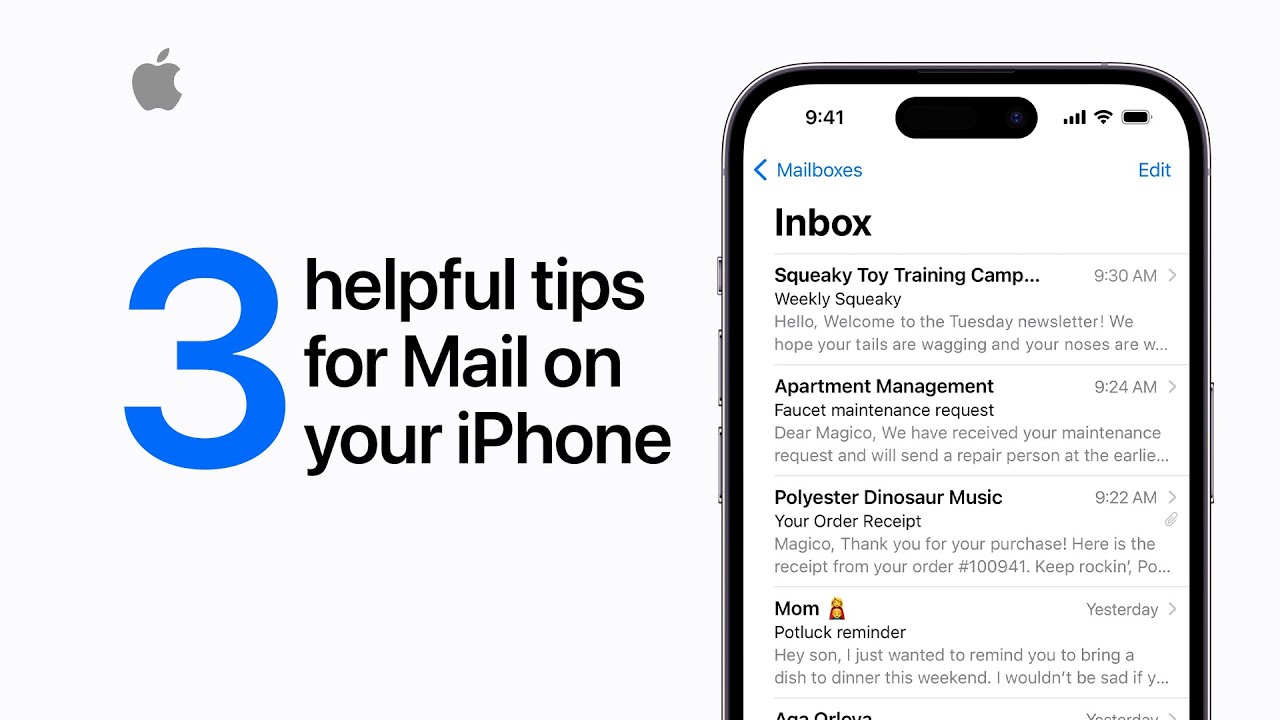
Three helpful tips for Mail on your iPhone | Apple Support

practhumb54.2

You can save time in Mail on your iPhone by selecting multiple emails with two fingers, enabling actions like deletion or moving. To quickly access email drafts, long-press the compose button. With iOS 16, schedule email reminders by swiping right on an email and selecting “Remind Me.” Choose a default or specific time, and the reminder will prompt you accordingly. These tips optimize email management on your iPhone, enhancing efficiency.

Summary:
– Select multiple emails by dragging with two fingers.
– Long-press the compose button to access email drafts quickly.
– In iOS 16, schedule email reminders by swiping and tapping “Remind Me.”
– Choose default or specific reminder times.
– Enhance email management efficiency on your iPhone.

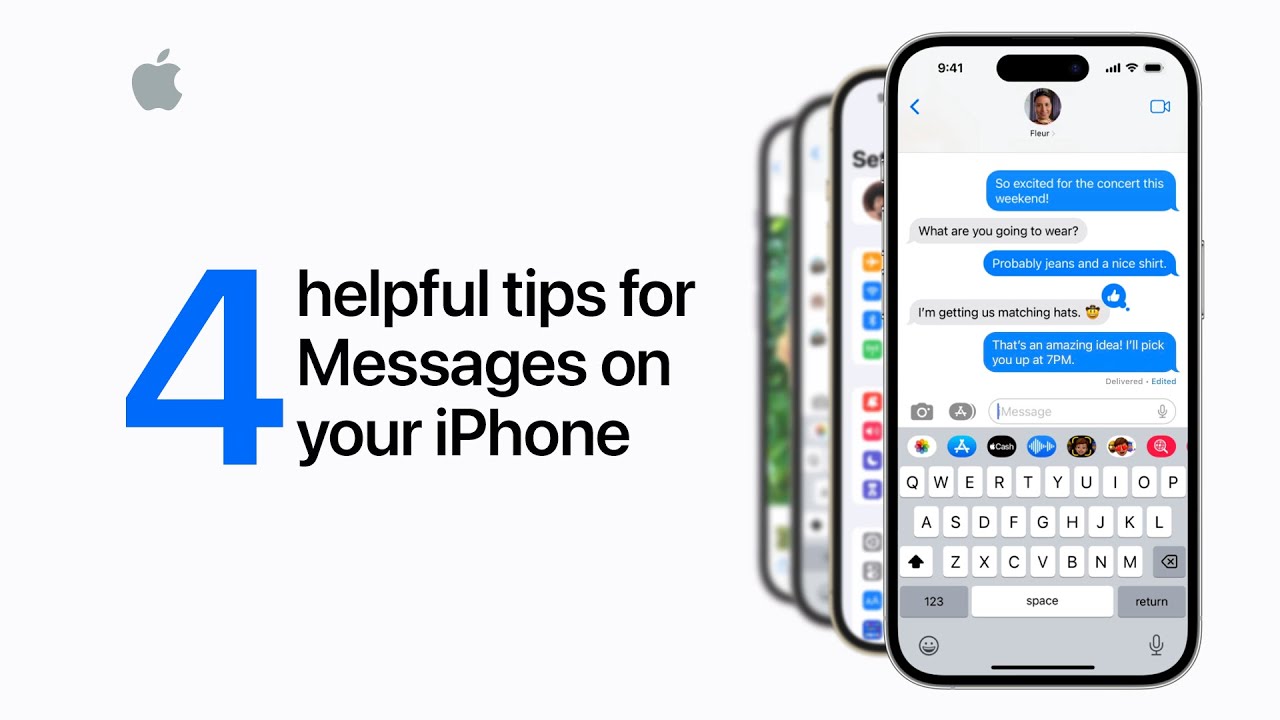
Four helpful tips for Messages on your iPhone | Apple Support

practhumb53.2

Want to impress your friends with Messages on your iPhone? Start by lifting the subject of a photo using the echo screen effect in Photos: touch and hold the subject to lift it, then copy and paste it into Messages. To add the echo effect, touch and hold the send button, tap Screen at the top, and choose Echo. You can also edit sent iMessages within 15 minutes by tapping and holding the message, then selecting Edit. Need to undo a message? Touch and hold it, then tap Undo Send within 2 minutes. Lastly, create text replacements in Settings > General > Keyboard > Text Replacement for faster typing.

Summary:

– Select multiple emails by dragging with two fingers.
– Long-press the compose button to access email drafts quickly.
– In iOS 16, schedule email reminders by swiping and tapping “Remind Me.”
– Choose default or specific reminder times.
– Enhance email management efficiency on your iPhone.

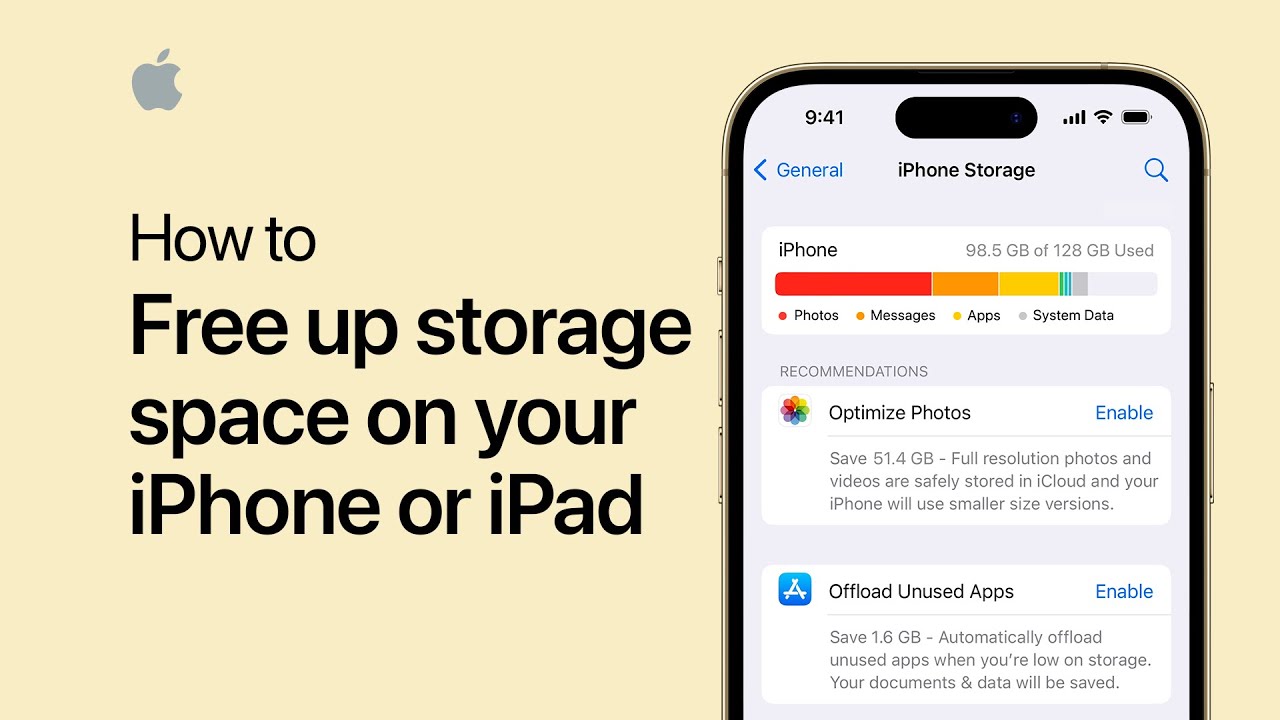
How to free up storage space on your iPhone or iPad | Apple Support

practhumb52.2

To free up space on an iPhone or iPad, users can utilize storage management recommendations or manually delete content. After backing up their device, users navigate to Settings, General, then iPhone Storage (or iPad Storage) to view storage usage. Built-in recommendations suggest actions based on space usage, such as offloading unused apps. Users can also manually manage storage by deleting large message attachments or offloading apps. Offloading apps removes them but retains data for potential reinstallation. Deleting apps removes them entirely. After these actions, users can regain ample space for updates, photos, and apps, improving device performance and storage efficiency.

Summary:

– To free up space on iPhone/iPad: use storage management or manual deletion.
– Backup device data before deleting anything.
– Navigate to Settings > General > iPhone/iPad Storage to view storage usage.
– Built-in recommendations suggest actions based on space usage.
– Options include offloading unused apps and deleting large message attachments.

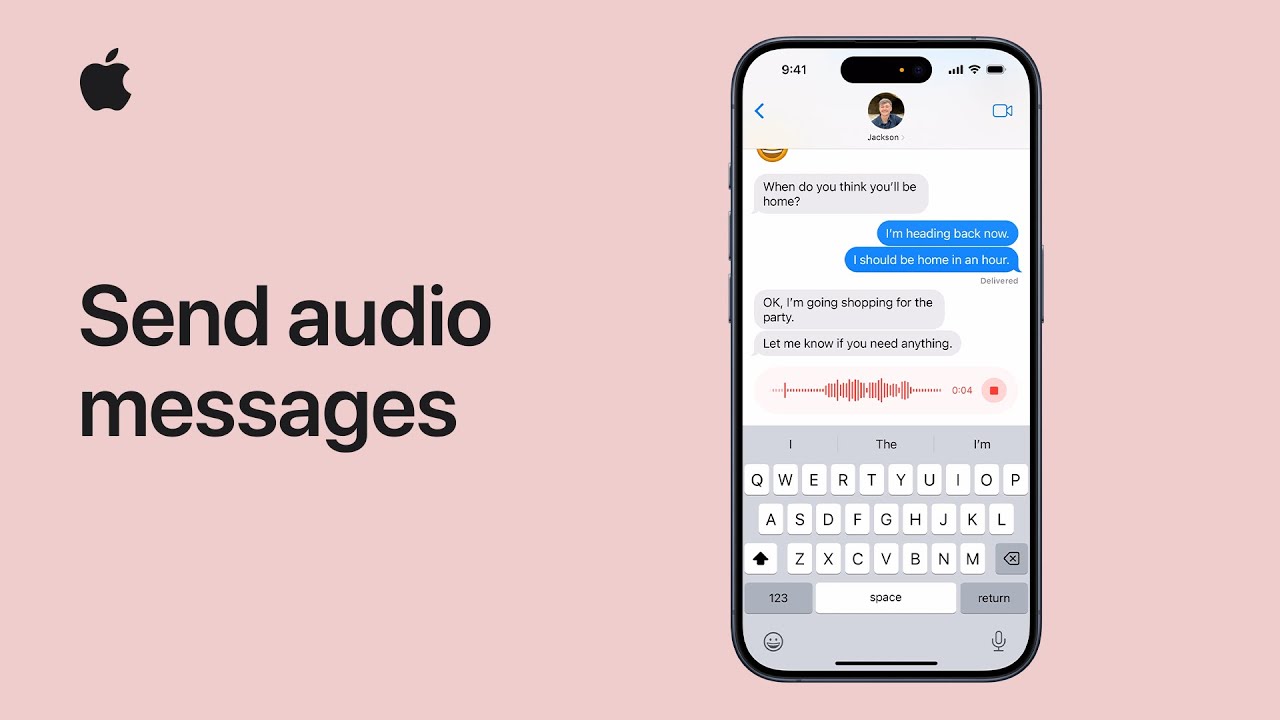
How to send audio messages on iPhone and iPad | Apple Support

practhumb51.2

In iOS 17, you can send audio messages in Messages conversations by tapping the plus button, selecting “audio,” and recording your message instantly. Once finished, tap “send” to share it. For consecutive messages, touch and hold the record audio button. This feature allows for convenient voice communication, such as requesting items or leaving quick messages, enhancing user experience in messaging. For more Apple device tips, subscribe to the Apple Support YouTube channel.

Summary:
– iOS 17 enables sending audio messages in Messages conversations.
– Users can tap the plus button, choose “audio,” and start recording their message immediately.
– Once the message is recorded, users can tap “send” to share it with the recipient.
– For consecutive audio messages, users can touch and hold the record audio button.
– This feature facilitates quick voice communication, enhancing messaging convenience on Apple devices.

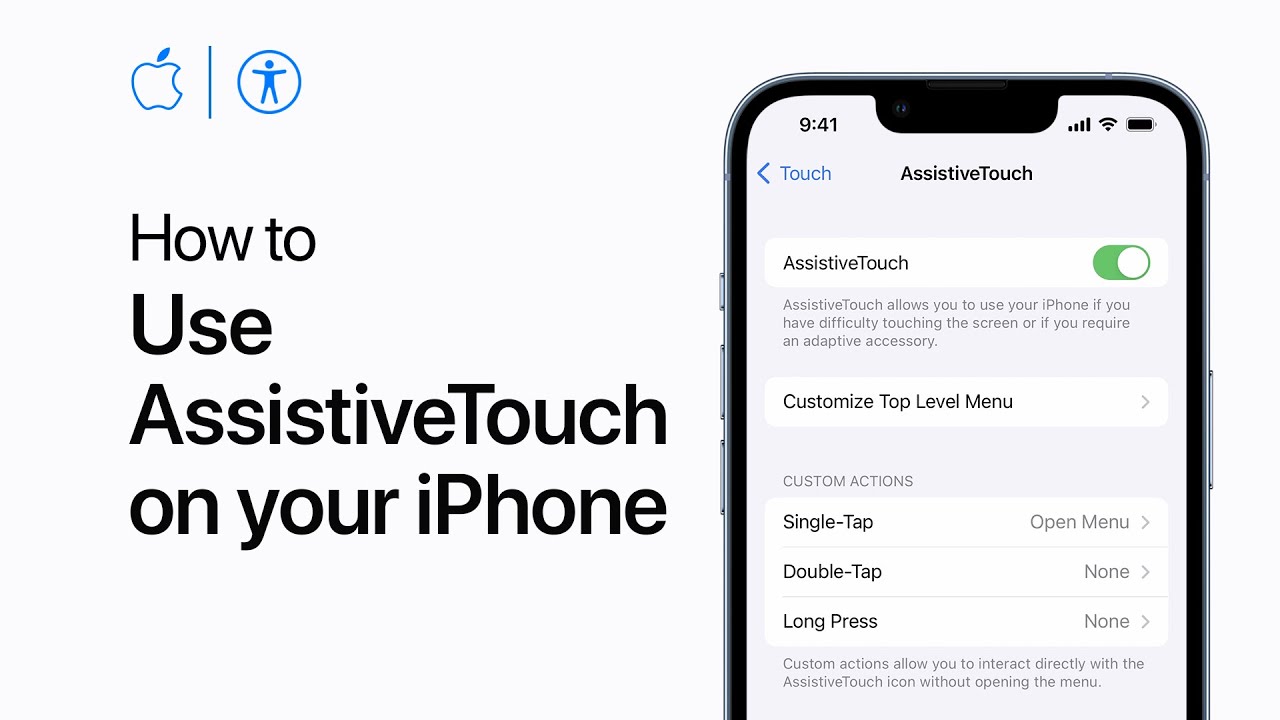
How to use AssistiveTouch on your iPhone or iPad — Apple Support

practhumb50.2

With AssistiveTouch, users can personalize iPhone or iPad navigation, substituting button presses with gestures and simplifying actions like returning home. To activate, users can access it through Accessibility settings or ask Siri. The menu button offers quick access to various functions like accessing Control Center or Siri. Users can customize its position and opacity. Functions can be assigned to single tap, double tap, or long press gestures. Custom gestures can also be recorded. The menu itself can be customized with new functions like taking a screenshot. AssistiveTouch enhances device interaction for accessibility and convenience, providing tailored navigation options for users.

Summary:

– AssistiveTouch enhances iPhone and iPad navigation.
– Activated through Accessibility settings or Siri.
– Offers quick access to various device functions.
– Customizable button position and opacity.
– Functions can be assigned to different gestures, including custom ones, improving accessibility and user convenience.

How Does Siri or Alexa Use AI?

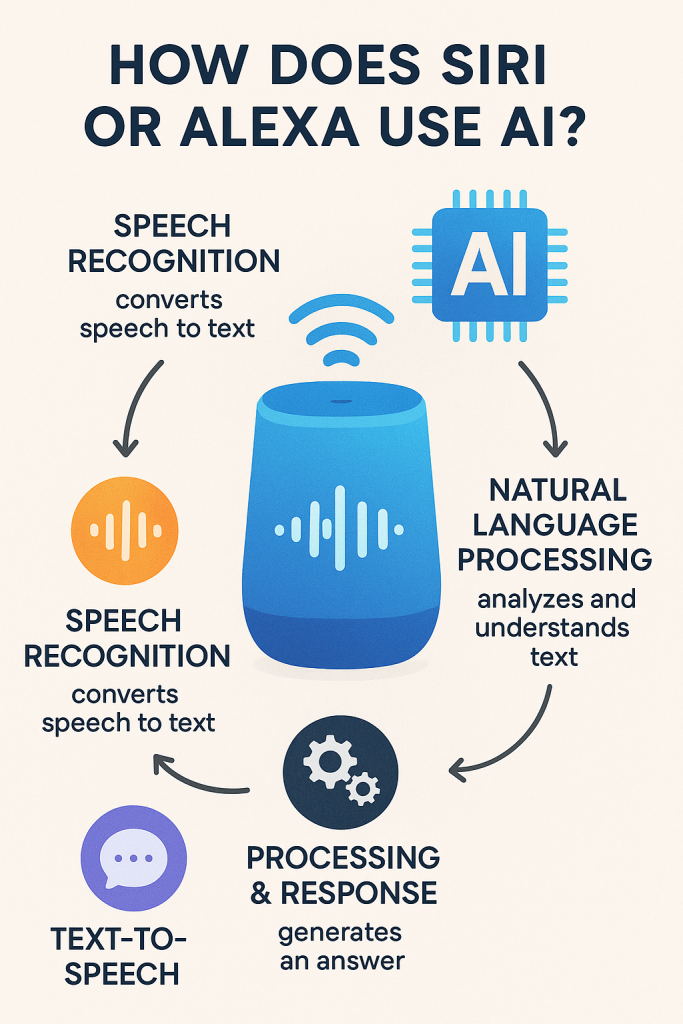
Have you ever asked Siri for the weather or told Alexa to play your favorite song? It may seem like magic—but it’s really smart technology working behind the scenes. This guide will walk you through how these voice assistants understand you, learn from you, and even get better the more you use them. Don’t worry—it’s all explained in plain, simple terms, no tech background needed.

Table of Contents

✅ Key Takeaways

  • Siri and Alexa use AI to understand and respond to your voice.
  • They learn your preferences to give you more personalized help.
  • The more you use them, the smarter they become.
  • You don’t need to be tech-savvy to benefit from these tools.

How Siri and Alexa Use AI

Let’s break it down into three main parts: voice recognition, personalization, and learning over time.

1. Voice Recognition: Understanding What You Say

When you say, “Hey Siri” or “Alexa,” the device wakes up and starts listening.

Here’s what happens:

  • Listening for a “wake word”: The assistant is always listening for its name, like “Siri” or “Alexa,” but it doesn’t record anything until it hears that word.
  • Turning speech into text: After the wake word, your voice is turned into text. For example, “What’s the weather today?” becomes words the device can read.
  • Figuring out what you mean: The assistant then uses AI to understand what you’re asking. Is it a question? A command? A reminder?

🗣️ Real-life example:
You say, “Set a timer for 10 minutes.” Siri understands the command and starts a countdown without you needing to press any buttons.

2. Personalization: Getting to Know You

Over time, voice assistants learn your preferences so they can respond in a way that suits you.

Here’s how it works:

  • Learning your routines: If you always ask for the weather at 7 AM, Alexa might suggest the forecast without being asked.
  • Recognizing different voices: These assistants can learn to recognize who’s speaking, which helps them give the right answers to the right person.
  • Adjusting to your habits: If you prefer jazz at dinner, Siri might start playing jazz when you say “Play dinner music.”

🎵 Real-life example:
You say, “Call my daughter.” Because Siri knows your voice and your contact list, it calls the right person every time.

3. Learning Over Time: Getting Smarter with Use

The more you use Siri or Alexa, the better they get at helping you.

  • Remembering your choices: They keep track of your past requests to suggest things you might like.
  • Improving accuracy: If you correct them (“No, I said ‘play Beatles’ not ‘beetles’”), they adjust and learn from it.
  • Updating automatically: These assistants get regular updates to improve how they understand and respond.

💡 Real-life example:
You once asked Alexa for a lemon cake recipe. Next time, she might suggest a similar recipe when you ask for dessert ideas.

Final Thoughts

Siri and Alexa are more than just fun gadgets—they’re smart helpers that use AI to make your day a little easier. They listen, learn, and adjust to your needs, all without you having to be a tech expert. As you keep using them, they’ll keep getting better at helping you. And remember—there’s no harm in exploring what else they can do. You might be surprised how useful they can be!

Categories AI

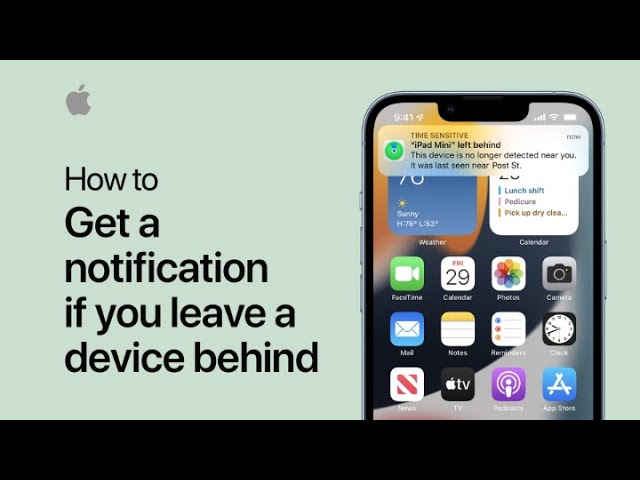
How to get a notification if you leave an item or device behind | Apple Support

practhumb48.2

In iOS 15, the “Notify When Left Behind” feature alerts users when they leave an Apple device, an item with an AirTag, or a Find My network accessory behind. Users can set up notifications in the Find My app, selecting devices or items they want to track and enabling the feature. Trusted locations can be set to avoid unnecessary alerts, with customizable geographic areas. Notifications include the device name, last known location, and directions back to it. This feature helps users keep track of their belongings and devices effortlessly, enhancing peace of mind. Users can find more helpful features like this on the Apple Support YouTube channel.

Summary:

– iOS 15 introduces “Notify When Left Behind” feature.
– Users receive notifications when leaving an Apple device or item with an AirTag.
– Set up notifications in the Find My app, selecting devices or items.
– Trusted locations can be set to avoid unnecessary alerts.
– Notifications include device name, last known location, and directions back.

How to customize notifications for Focus on your iPhone | Apple Support

practhumb47.2

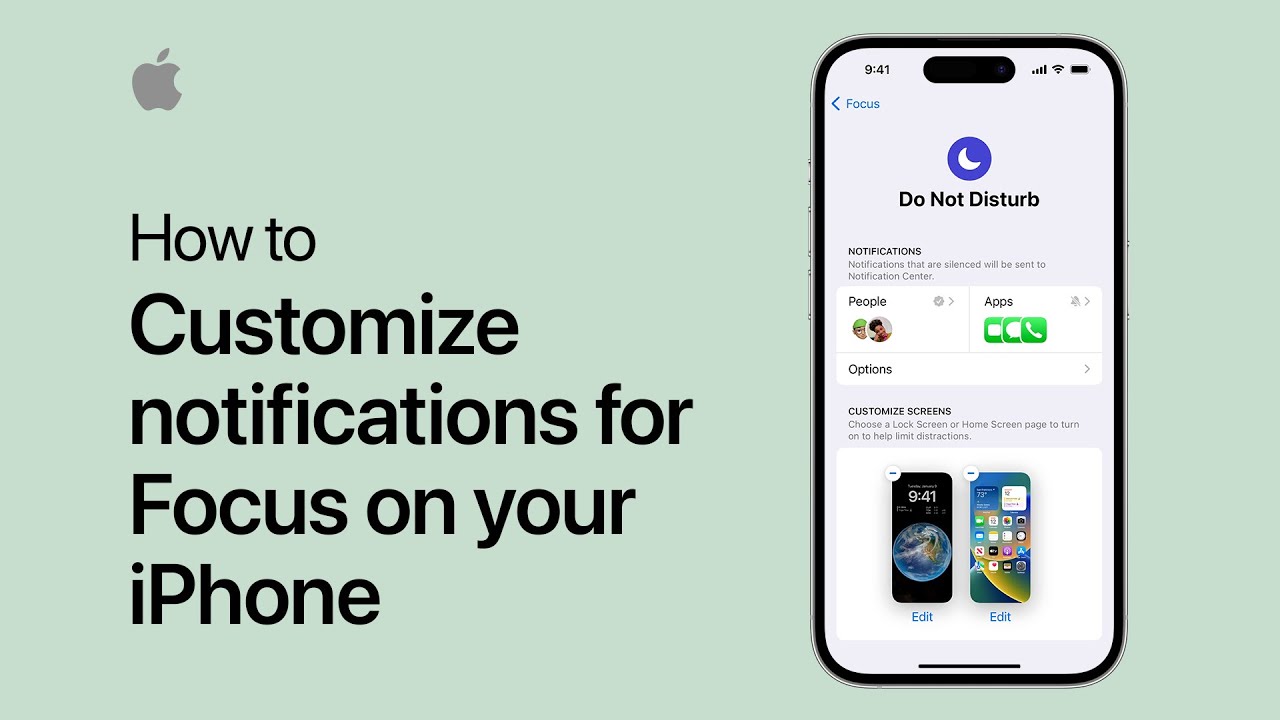
When using Focus on iPhone, you can customize notifications to receive alerts only from selected contacts and apps. In Settings, navigate to Focus and choose the specific Focus mode to customize. For contacts, select individuals whose notifications you want to receive immediately, while others are silenced. You can also allow repeated calls from important contacts. For apps, choose to allow or silence notifications, ensuring timely alerts from essential apps. Additional options include displaying notifications on the lock screen and adjusting screen brightness. These customization features aim to minimize distractions while ensuring you don’t miss important messages or calls.

Summary:
Focus on iPhone allows customization of notifications from selected contacts and apps.
– In Settings, users can navigate to Focus and choose specific Focus modes to customize.
– For contacts, individuals can be selected to receive notifications immediately, while others are silenced.
– Users can allow repeated calls from important contacts and adjust notification settings for specific apps.
– Additional options include displaying notifications on the lock screen and adjusting screen brightness for minimized distractions.

How Google Uses AI to Help You Search Smarter

Have you ever typed something into Google and it seemed to read your mind? Maybe you spelled a word wrong, but it still gave you the right results—or even finished your sentence for you. That’s no magic trick—it’s artificial intelligence (AI) helping you behind the scenes.

In this simple guide, we’ll explain how Google uses AI to make searching faster and easier. Don’t worry—this article is made just for beginners. No tech background needed!

Table of Contents

🔍 Key Takeaways

  • Search suggestions help you find what you’re looking for faster, even before you finish typing.
  • Spell correction catches small mistakes and shows you the right results anyway.
  • Featured snippets give you instant answers without needing to click a website.
  • Google’s AI works quietly in the background to make your searches smarter and simpler.

How AI Helps You Search Smarter

Let’s break it down into the three most helpful ways Google uses AI when you search.

1. Search Suggestions: Finding Words Before You Finish Typing

You may have noticed this when you start typing in the search bar: Google offers suggestions like it knows what you’re about to ask.

That’s AI at work. It looks at what millions of people have searched for before and gives you the most likely ideas to save you time.

Example:
If you type: how to bake
Google might suggest:

  • how to bake a cake
  • how to bake chicken
  • how to bake cookies

These suggestions help you pick the right words—even if you’re not sure how to phrase your question.

2. Spell Correction: Getting It Right Even If You Don’t

We all make typos or forget how to spell a word. AI helps Google understand what you meant to type, even if you got it a little wrong.

Example:
If you type: How to make bred
Google might say: “Showing results for how to make bread

It gently corrects the spelling so you still get useful results. This is especially helpful for long or tricky words.

Sometimes, you’ll see a little box at the top of your search results with a short answer pulled from a website. That’s a featured snippet.

Google’s AI looks through pages and pulls out a sentence or paragraph that best answers your question.

Example:
If you ask: What is the capital of Australia?
Google shows: Canberra – right at the top.

You get your answer fast—no need to open a bunch of websites.

Final Thoughts

AI might sound complicated, but Google uses it in simple ways to help you every day—like fixing small mistakes, giving helpful ideas, and showing quick answers.

Now that you know how it works, you can feel more confident using Google to find what you need. And if you’re curious, you can explore more ways technology makes life easier—one step at a time.

Categories AI

How to use Crash Detection on iPhone and Apple Watch | Apple Support

practhumb46.2

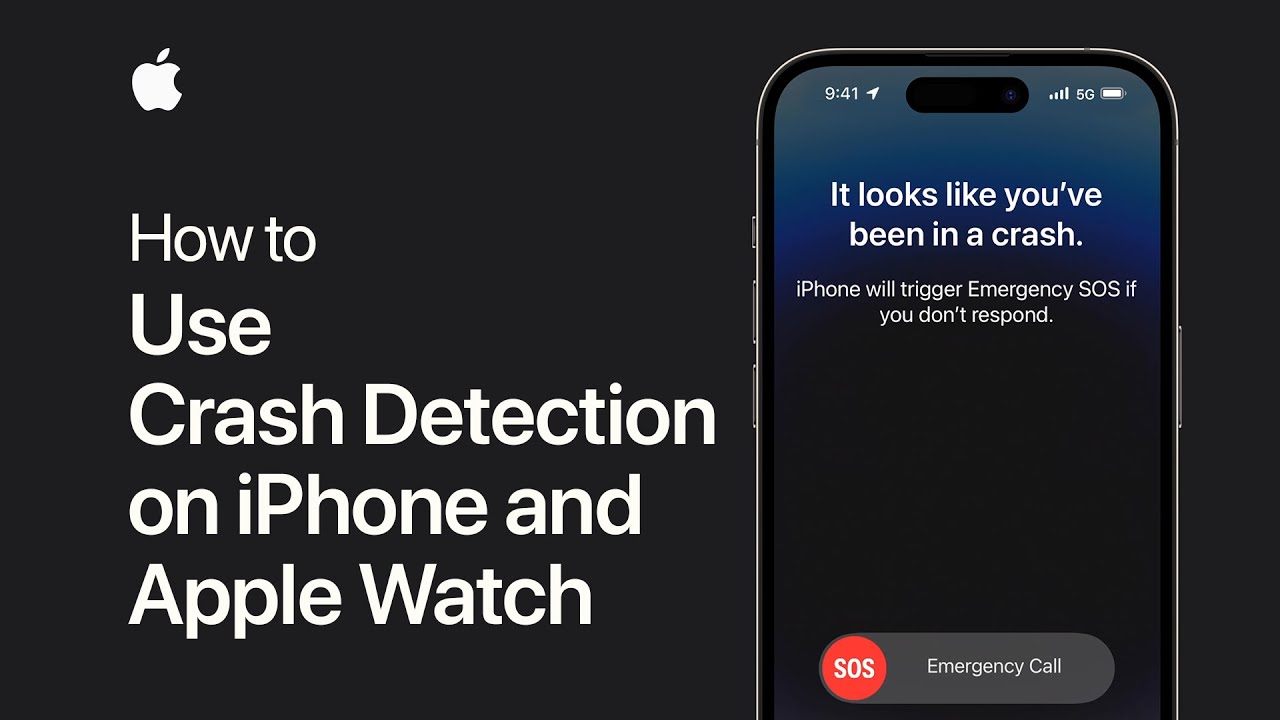
Crash detection on iPhone and Apple Watch automatically detects severe car crashes and contacts emergency services if the user is unresponsive. It’s available on iPhone 14, iPhone 14 Pro, Apple Watch Series 8, and Apple Watch Ultra without setup. Motion sensors, GPS, and advanced algorithms enable accurate crash detection, triggering alerts and location sharing. Users can interact with the device to call emergency services or dismiss the alert. After contact, emergency contacts are notified, and medical ID information can be accessed from the lock screen. Crash detection aims to swiftly respond to emergencies and aid users in critical situations.

– Crash detection on iPhone and Apple Watch automatically detects severe car crashes.
– Available on specific iPhone and Apple Watch models without setup.
– Utilizes motion sensors, GPS, and advanced algorithms for accurate crash detection.
– Alerts users and shares location with emergency services if unresponsive.
– Enables users to call emergency services or dismiss alerts, notifies emergency contacts, and provides quick access to medical ID information.