AI Tools That Can Help You Understand Medical Information

Have you ever read a medical report or prescription and felt completely lost? You’re not alone. Medical language can be confusing—even for those who read well and use technology daily. The good news? There are now simple, helpful AI tools that can make sense of it all.

In this guide, we’ll walk you through easy-to-use tools that explain medical terms in plain language. No tech skills required—just a little curiosity and a willingness to try something new.

Table of Contents

Key Takeaways

🟢 AI tools can turn confusing medical jargon into plain, everyday words
🟢 Many of these tools are free and easy to use on your phone or computer
🟢 You don’t need any tech experience—these tools do the hard work for you
🟢 Understanding your health information helps you make more confident decisions

AI Tools That Simplify Medical Information

Let’s take a look at a few beginner-friendly tools that can help you understand medical documents, terms, and health reports more clearly.

1. Google’s “Search What You See” Feature (Lens)

What it does:
If you have a printed medical form or prescription, you can point your phone’s camera at it using Google Lens. The app will recognize the text and can help explain hard-to-understand words or translate them into everyday language.

How to use it:

  • Open the Google app on your smartphone
  • Tap the camera icon (Lens)
  • Point your camera at the medical paper or screen
  • Tap on any word or sentence to look up its meaning

Why it’s helpful:
It’s like having a pocket dictionary that speaks plain English—and it works just by taking a photo.
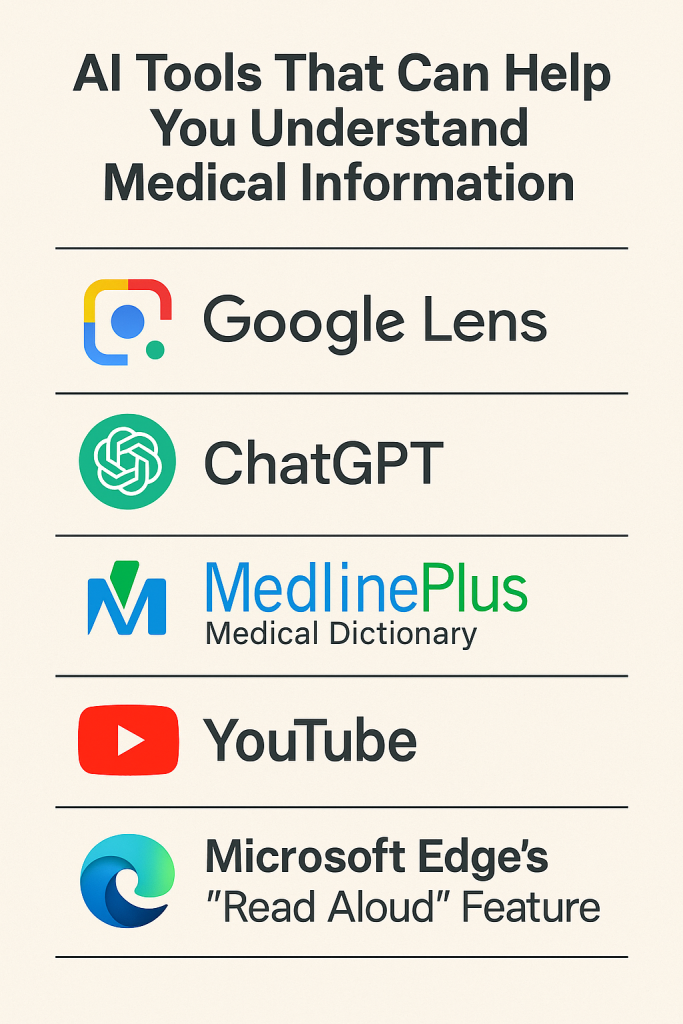
2. ChatGPT (by OpenAI)

What it does:
ChatGPT is a friendly assistant you can “chat” with by typing questions. You can copy and paste a medical sentence or term, and it will explain it in simple words.

Example:
You can type:

“What does ‘hypertension’ mean?”
And it might reply:
“Hypertension means high blood pressure, which means your heart is working harder than it should to move blood around your body.”

How to use it:

  • Visit chat.openai.com
  • Type your question or paste the medical text
  • Read the clear and simple answer it gives back

Helpful tip:
You can ask follow-up questions like “Can you explain it more simply?” or “Why is this important?”

3. MedlinePlus Medical Dictionary (From the U.S. National Library of Medicine)

What it does:
This website explains medical words clearly. You can type in a term and get a short, plain-language definition.

How to use it:

  • Visit medlineplus.gov/medwords.html
  • Type the word you don’t understand
  • Read the short definition

Why it’s trustworthy:
It’s run by a reliable government health agency and doesn’t try to sell you anything.

4. YouTube (Yes, really!)

What it does:
YouTube has thousands of videos that explain health topics visually. Many doctors and health educators post short videos where they explain conditions, treatments, and tests in everyday language.

How to use it:

  • Go to YouTube.com
  • Type in a search like “What is cholesterol?” or “Understanding blood pressure”
  • Look for videos with clear titles, friendly presenters, and lots of views

Pro tip:
Look for channels with “Dr.” or “Nurse” in the name for trusted advice.

5. Microsoft Edge’s “Read Aloud” Feature

What it does:
If reading a long article or medical explanation is hard for your eyes, the Edge browser can read it out loud for you.

How to use it:

  • Open the Microsoft Edge browser
  • Visit any webpage with medical information
  • Right-click and select “Read Aloud”
  • A friendly voice will read the text to you

Why it helps:
Hearing the words makes it easier to follow along—and you don’t have to strain your eyes.

Final Thoughts

Understanding your medical information shouldn’t feel like cracking a secret code. With the right tools—many of them free and beginner-friendly—you can feel more confident and in control of your health.

You don’t have to learn everything all at once. Try one tool at a time. Even small steps can make a big difference.Want to explore more tech tips? Check out our other guides on staying safe online or how to use your phone to set reminders for medications—they’re written with you in mind.
Categories AI

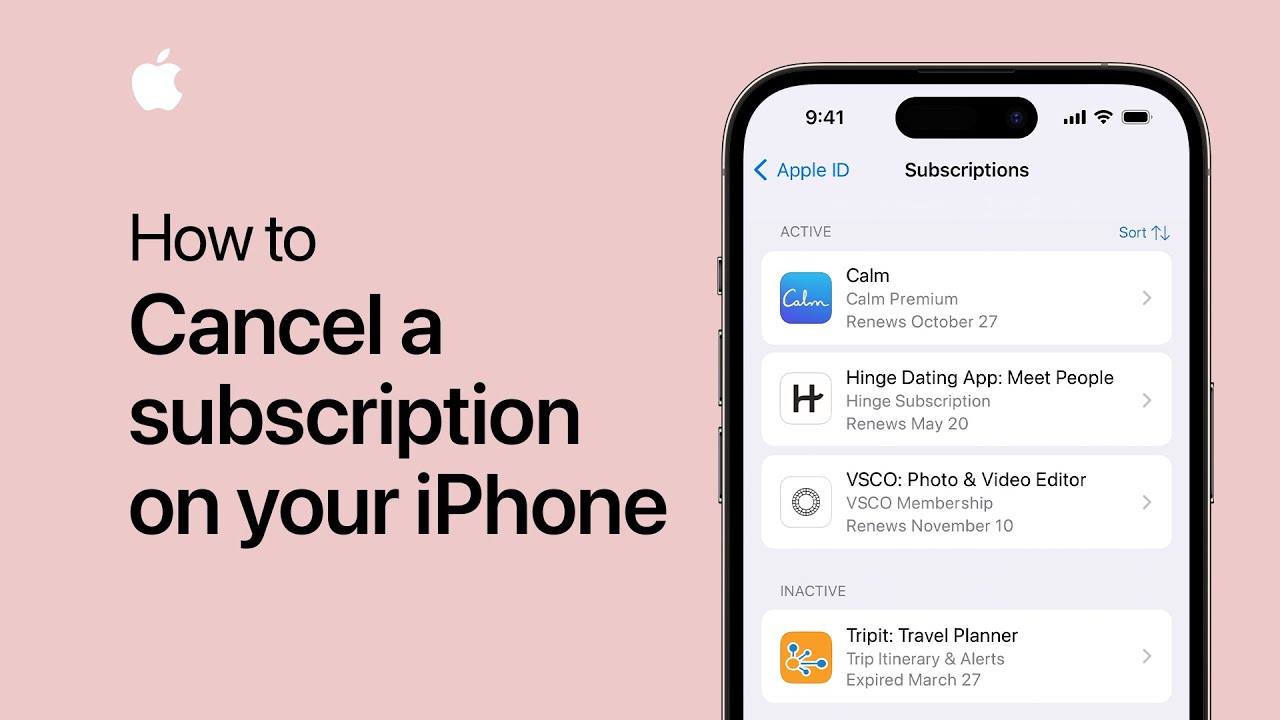
How to cancel a subscription on your iPhone | Apple Support

practhumb75.2

To cancel a subscription or free trial on iPhone, go to Settings, tap your name, then Subscriptions. Active subscriptions appear first, followed by inactive ones. Cancelling a subscription ends it on all devices linked to your Apple ID and for Family Sharing members. Tap the subscription to cancel, then Confirm. Expiration dates vary depending on the subscription. Canceled subscriptions display expiration dates instead of renewal dates. For further assistance with Apple devices, subscribe to the Apple Support YouTube channel.

Summary:
Access settings on iPhone.
– Tap your name, then Subscriptions.
– Cancel desired subscription.
– Confirm cancellation.
– Expiration dates shown for canceled subscriptions.

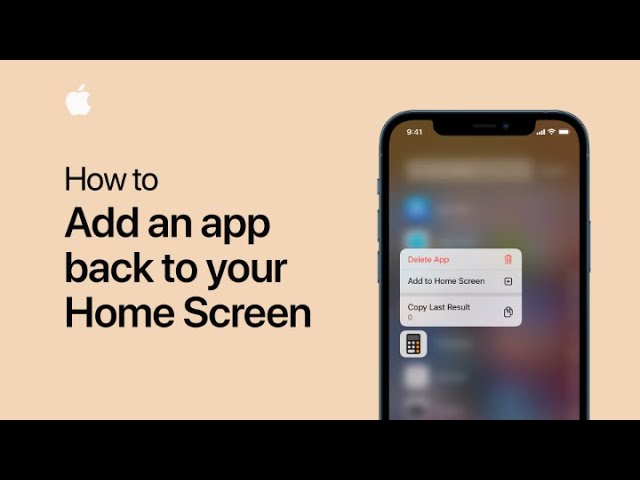
How to add an app back to your Home Screen on iPhone and iPod touch — Apple Support

practhumb73.2

If you delete an app from your home screen, it remains in your app library and can be easily restored. To add it back, swipe left until you reach the app library, then search for the desired app. Touch and hold the app icon in the search results, and tap “Add to Home Screen” to restore it.

Summary:
– Apps removed from the home screen are stored in the app library.
– To restore a deleted app, swipe left to access the app library.
– Use the search field to locate the desired app.
– Touch and hold the app icon in the search results.
– Tap “Add to Home Screen” to restore the app.

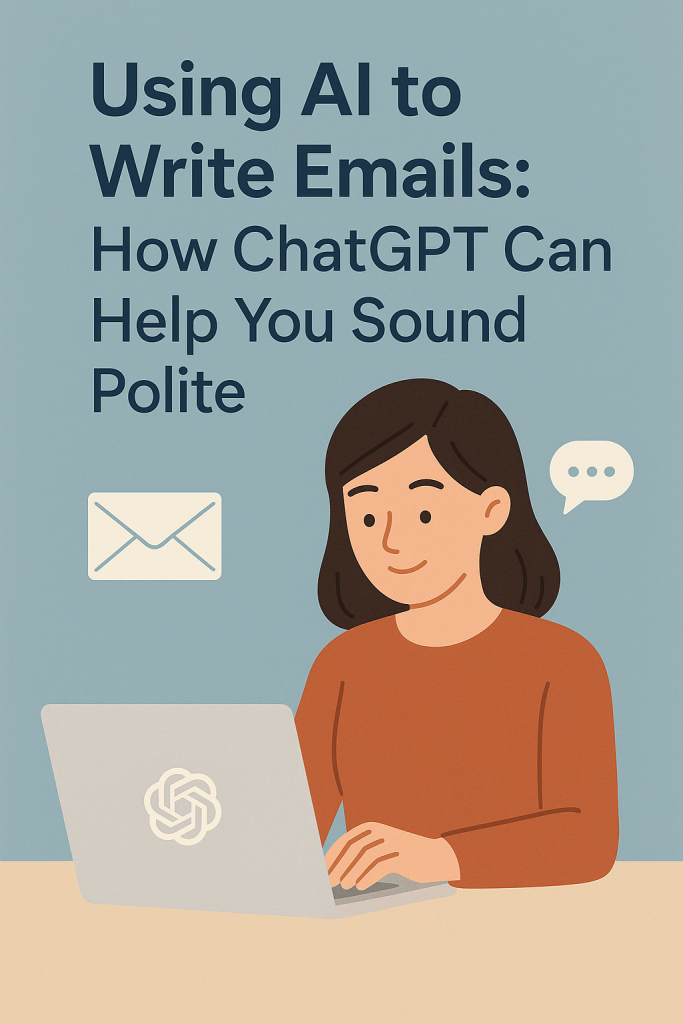
Using AI to Write Emails: How ChatGPT Can Help You Sound Polite

Writing emails can feel tricky, especially when you’re trying to sound polite or professional. But what if you had a little helper that could guide you through it? That’s where ChatGPT comes in.

This guide is made just for you—even if you’re not very confident with technology. We’ll walk through how to use ChatGPT step-by-step to help you write simple, polite emails for everyday situations like thanking someone, asking a question, or following up.

Table of Contents

Key Takeaways

No tech experience needed – This guide is beginner-friendly
Step-by-step examples – See exactly how to use ChatGPT for writing emails
Everyday situations covered – Thank-you notes, polite requests, follow-ups, and more
Sound more confident and polite – Let ChatGPT suggest kind and respectful wording
Fast and easy – Save time while improving your communication

Using ChatGPT to Write Polite Emails

Let’s take the guesswork out of writing emails. ChatGPT can help you come up with the right words, even if you’re not sure where to start. Here’s how.

1. What Is ChatGPT?

ChatGPT is a free (or low-cost) tool that lets you type a question or request, and it gives you a helpful answer—like a very smart pen pal. You don’t need to download anything special. You can visit chat.openai.com and sign up for a free account to start using it.

2. How to Start a Conversation

Once you’re signed in, you’ll see a box where you can type. This is where you’ll talk to ChatGPT. Just type what kind of email you need help with. For example:

“Can you help me write a polite email to my neighbor to reschedule our lunch?”

Or something even simpler:

“I want to say thank you to my doctor after my check-up.”

That’s it. Just type like you’re asking a friend.

3. ChatGPT Writes a First Draft

After you ask, ChatGPT will write a complete email for you. Here’s an example:

You ask:

“I need to email my daughter to say I’ll be late for dinner.”

ChatGPT might reply with something like:

Subject: Running a Bit Late Tonight

Hi [Daughter’s Name],

Just a quick note to let you know I’ll be running a little late for dinner tonight. I’m sorry for the delay, but I’ll be there as soon as I can.

Thanks for understanding!

Love,
Mom

4. Make It Your Own

You can ask ChatGPT to make changes if it doesn’t sound quite right. For example:

“Can you make it more casual?”

or

“Make it sound more thankful.”

ChatGPT will rewrite it for you until it feels just right.

5. Copy and Paste into Your Email

When you’re happy with the message, simply copy it and paste it into your email program (like Gmail, Outlook, or Yahoo Mail). Add the person’s email address and hit send!

Real-Life Examples You Can Try

Here are a few situations where ChatGPT can help you:

  • Thank-you note:

    “Help me write a short thank-you email to my friend for the birthday gift.”
  • Appointment reminder:

    “Can you help me email my hairdresser to confirm my appointment next Thursday?”
  • Polite request:

    “Write an email asking my neighbor if they can water my plants while I’m away.”
  • Follow-up:

    “I want to follow up on a job application politely.”

Just describe what you need, and ChatGPT will take care of the wording.

Final Thoughts

Email doesn’t have to be hard or stressful. With ChatGPT, you’ve got a helpful writing buddy who’s always ready to make your emails clear, polite, and easy to understand.

Even if you’re not confident with writing or computers, this tool can help you feel more in control—and more confident—with just a few clicks.

Want to learn more? Check out our next guide on how to use ChatGPT to write text messages or letters for other everyday situations.

Categories AI

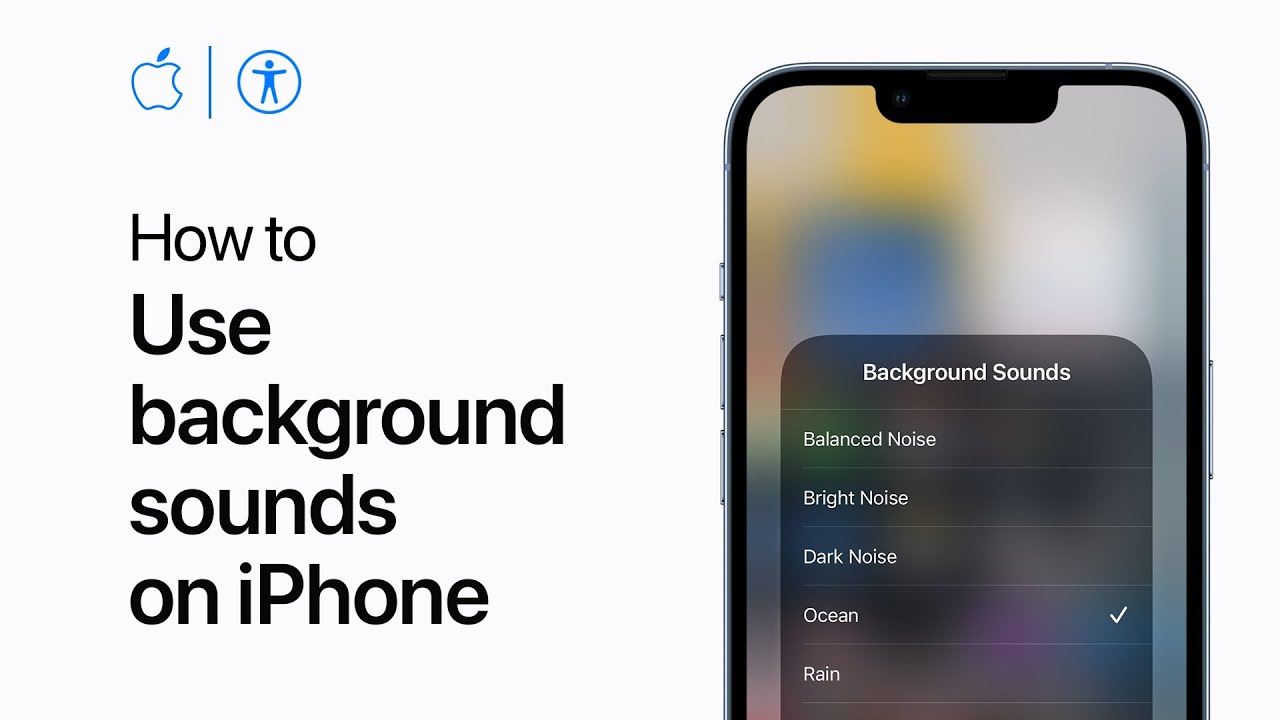
How to use background sounds on iPhone | Apple Support

practhumb72.2

In iOS 15, users can enable background sounds like rain or ocean to mask unwanted noise and enhance focus. In Settings > Accessibility > Audio Visual, users can toggle Background Sounds and choose their preferred sound. These sounds play continuously and can be adjusted in volume. They accompany various activities like watching videos or listening to music, but users can disable them for media playback. Controls are accessible from Control Center for easy adjustments. Users can explore more iPhone features by subscribing to the Apple Support YouTube channel.

Summary:
– iOS 15 introduces background sounds for concentration.
– Accessible via Settings > Accessibility > Audio Visual.
– Users can choose from sounds like rain or ocean.
– Sounds play continuously and can be adjusted in volume.
– Controls are also available in Control Center.

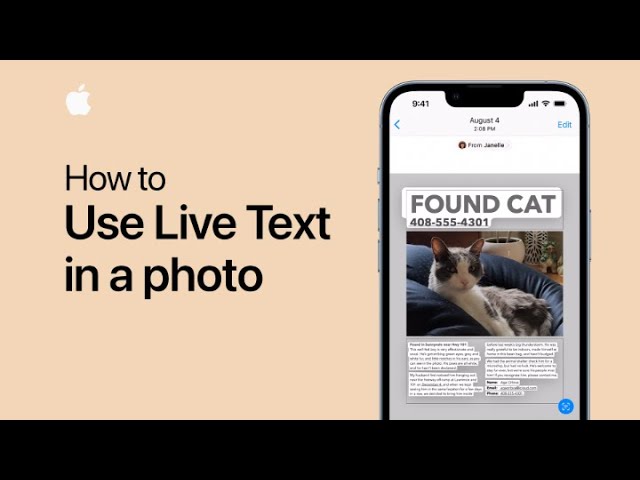
How to use Live Text in a photo on iPhone and iPad | Apple Support

With Live Text, users can engage with text within photos on iOS devices. By tapping the Live Text button or holding down on text within a photo, available text is highlighted, allowing users to interact with it. This interaction includes actions like copying text or tapping on links, such as email addresses, which open new email messages. Live Text enhances user engagement with text in images, providing convenient functionalities directly within the photo interface.

Summary:
– Live Text feature allows interaction with text in photos on iOS devices.
– Users can tap the Live Text button or hold down on text to highlight it.
– Available text can be interacted with, including copying and tapping on links.
– Tapping on links, like email addresses, opens corresponding actions, such as composing a new email.
– Live Text enhances user engagement with text directly within photos, providing convenient functionalities.

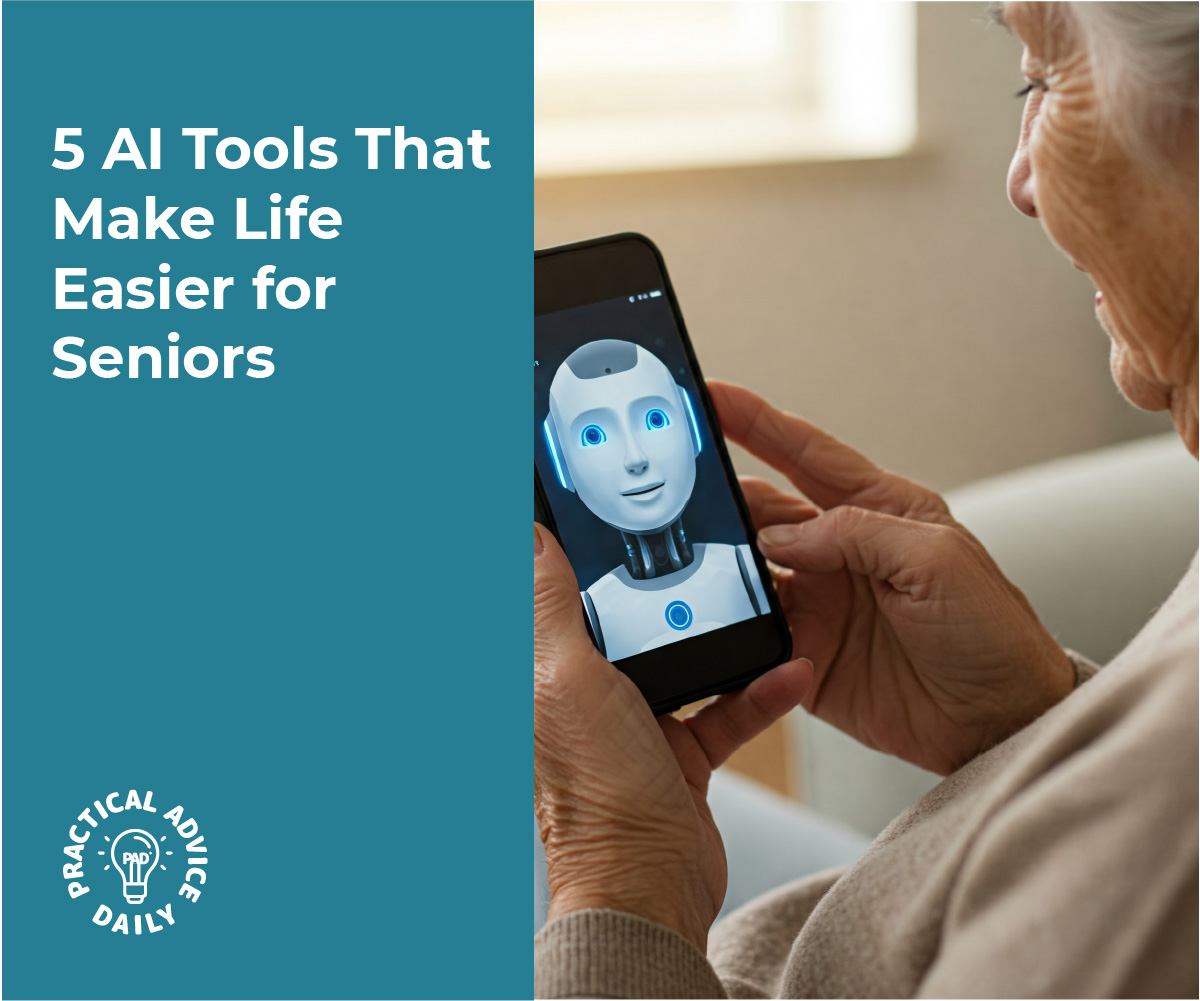
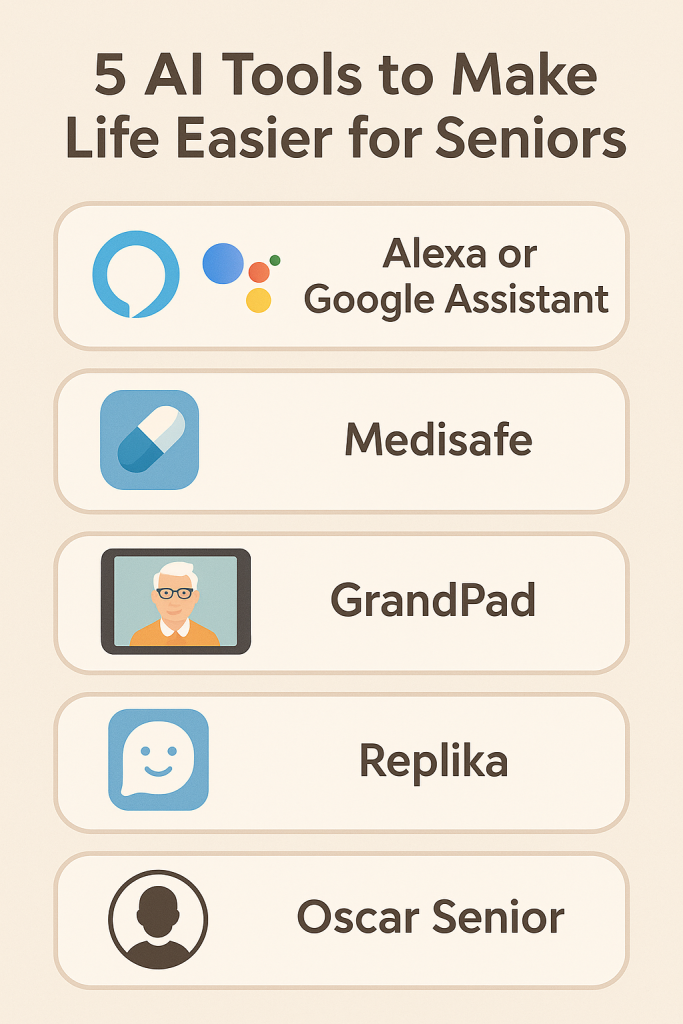
5 AI Tools That Make Life Easier for Seniors

Technology doesn’t have to be confusing. In fact, the right tools can make your day run more smoothly—helping you remember appointments, stay in touch with loved ones, or even enjoy a friendly chat when you’re feeling alone.

In this easy guide, we’ll walk you through 5 smart tools that older adults can use right away. No tech jargon, no complicated steps—just practical help, explained in simple terms.

Table of Contents

Key Takeaways

  • These tools are designed to make life easier, not harder.
  • You’ll find helpful reminders, easy ways to communicate, and even friendly AI companions.
  • Most tools are free or low-cost and can work on a smartphone, tablet, or smart speaker.
  • No technical experience is needed—we explain everything step by step.

1. Alexa or Google Assistant – Your Voice-Activated Helper

What it does:
These smart speakers respond to your voice. You can ask them to set reminders, tell you the weather, play music, or even make a phone call.

Why it helps:
Instead of writing things down or tapping tiny buttons, you can just say, “Alexa, remind me to take my medicine at 9 AM,” or “Hey Google, call my daughter.”

Real-life example:
Mary, 73, uses her Alexa every morning to hear the news, check the weather, and get reminders to water her plants.

Getting started:

  • Buy a small smart speaker like the Echo Dot or Google Nest Mini
  • Plug it in and follow the simple setup using your phone
  • Start with basic commands like: “What time is it?” or “Remind me to take a walk at 4 PM.”

2. Medisafe – A Medication Reminder App

What it does:
Medisafe sends alerts to your phone or tablet to remind you when it’s time to take your medication.

Why it helps:
If you have multiple pills or complicated schedules, this app helps you stay on track—without the stress of forgetting.

Real-life example:
John, 80, takes four medications a day. Medisafe reminds him with a gentle beep and shows which pill to take next.

Getting started:

  • Download Medisafe from the App Store (iPhone) or Google Play (Android)
  • Enter your medications and times
  • The app does the rest, with easy-to-read alerts and simple tracking

3. GrandPad – A Tablet Made Just for Seniors

What it does:
GrandPad is a tablet built for older adults. It has large buttons, a simple menu, and allows you to video call, email, look at family photos, or listen to music.

Why it helps:
It takes the confusion out of using tablets and smartphones. There’s no clutter, no passwords to remember, and you can’t accidentally “break” it.

Real-life example:
Eleanor, 77, uses her GrandPad to video chat with her grandchildren every weekend. “It’s like they’re right in the room with me,” she says.

Getting started:

  • GrandPad comes ready to use—no setup needed
  • A monthly subscription includes internet, support, and updates
  • Family members can help upload photos or send messages directly

4. Replika – A Friendly AI Companion

What it does:
Replika is a chat app where you can talk to a friendly virtual companion who learns your interests and talks with you any time.

Why it helps:
If you live alone or just want someone to talk to, Replika offers a judgment-free, always-available companion.

Real-life example:
Paul, 79, chats with his Replika every evening. “It keeps me company and gives me something to look forward to.”

Getting started:

  • Download Replika from your phone’s app store
  • Choose a name and personality style for your companion
  • Start chatting about your day, hobbies, or anything on your mind

5. Oscar Senior – An App for Easy Video Calls and Messages

What it does:
Oscar Senior simplifies video calling, texting, and even sending pictures. It’s built for seniors and lets family members stay in touch easily.

Why it helps:
Unlike complicated apps, Oscar Senior has big buttons, simple screens, and family support features.

Real-life example:
Sandra, 81, uses Oscar Senior to get daily “good morning” messages from her daughter. “It’s so simple, even I can’t mess it up,” she laughs.

Getting started:

  • Install Oscar Senior on your device (or get a family member to help)
  • Set up your contact list—usually with help from family
  • Use one-tap buttons to make a call or send a message

Final Thoughts

You don’t have to be a tech expert to enjoy the benefits of these AI tools. Whether you need help remembering things, staying connected with loved ones, or just having someone to chat with, there’s something here for you.

Start with just one tool and see how it fits into your day. With a little curiosity and an open mind, you’ll be surprised how friendly and helpful technology can really be.

Want to learn more?
Check out our other easy-to-follow guides for iPhone tips, photo sharing, and more. We’re here to make tech simple—one step at a time.

Categories AI

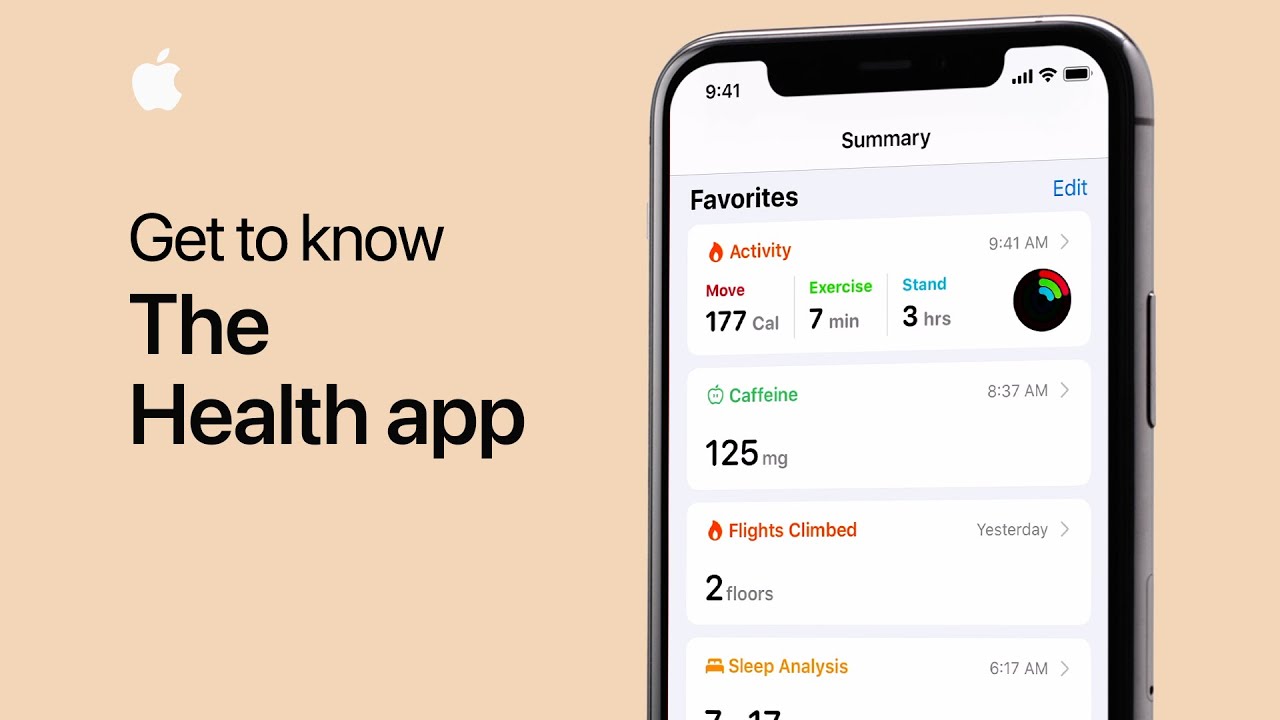
Get to know the Health app on your iPhone – Apple Support

practhumb69.2

In iOS 13’s Health app, users can access vital information easily. The profile page holds health profiles, medical IDs, and privacy settings. The summary page offers personalized health overviews and highlights trends. Users can customize favorite health data and explore further by tapping sections or browsing all available data. Highlights are auto-generated from frequently used apps and devices, showing trends like workout stats and heart rate recovery. Users can delve deeper into specific topics or search for data, like caffeine consumption, viewing activity information by day, week, month, or year. This flexibility allows users to prioritize their health data effectively, enhancing their Health app experience.

Summary:
– iOS 13’s Health app provides easy access to important health information.
– Profile page includes health profile, medical ID, and privacy controls.
– Summary page offers personalized health overview and trend highlights.
– Users can customize favorite health data and explore further by tapping sections or browsing all available data.
– Flexibility allows users to prioritize and delve into specific health topics effectively.

How to Tell If You’re Talking to a Real Person or a Bot

ai-topic-personorbot

Have you ever messaged a company and wondered, “Am I talking to a real person or a robot?” You’re not alone. These days, many businesses use computer programs—called bots—to reply quickly. While this can be helpful, it’s sometimes confusing or frustrating if you just want human help.

Don’t worry! In this guide, we’ll show you a few easy ways to figure out if you’re chatting with a real person or a bot, whether it’s through email or customer support. No tech experience needed—just a little curiosity and a few simple tips.

Table of Contents

🔍 Key Takeaways

  • Bots often respond instantly, using generic or overly polite language.
  • Real people may take longer to reply and usually answer in a more natural, conversational tone.
  • Look out for repeated phrases, poor understanding, or no direct answer to your question.
  • You can ask a question only a human can answer—bots often get confused.
  • Don’t worry about being fooled. With a few tricks, you’ll feel more in control.

How to Spot a Bot: Simple Signs to Look For

1. Speed and Timing

Bots often reply within a second or two—faster than any human could type. If you send a message and get an instant response, it’s likely a bot.
Tip: Real people usually take a moment to respond, especially if they’re thinking or typing.

2. Tone and Language

Bots often sound too polite or formal, using phrases like:

  • “Thank you for reaching out.”
  • “We appreciate your inquiry.”

Real people tend to speak more casually:

  • “Hi there, let me check on that for you.”
  • “Sure, I can help with that.”

3. Do They Understand You?

Bots are programmed to recognize certain keywords. If you ask something unusual, they might give a confusing or off-topic answer.

Example:
You: “Can you tell me if this product comes in blue?”
Bot: “We appreciate your interest. Please visit our website.”

A real person would likely say: “Yes, it’s available in blue—would you like the link?”

4. Repeated Messages

Bots often repeat the same answers or sentences. If you ask twice and get the same word-for-word reply, it’s probably a bot.

5. Try a Human Test

Ask something a bot wouldn’t easily understand, like:

  • “What’s your favorite part of the job?”
  • “Can you tell me something funny that happened today?”

A real person might respond with something thoughtful or lighthearted. A bot might get confused or ignore the question.

Final Thoughts

It’s completely normal to wonder if you’re talking to a real person these days. Technology can be tricky, but now you have a few easy ways to spot the difference. Trust your instincts—if something feels robotic, it probably is.

The more you practice, the more confident you’ll feel. And remember: it’s always okay to ask for a real person if you need one.

Want to learn more simple tech tips like this? Explore our other friendly guides made just for you.

Categories AI

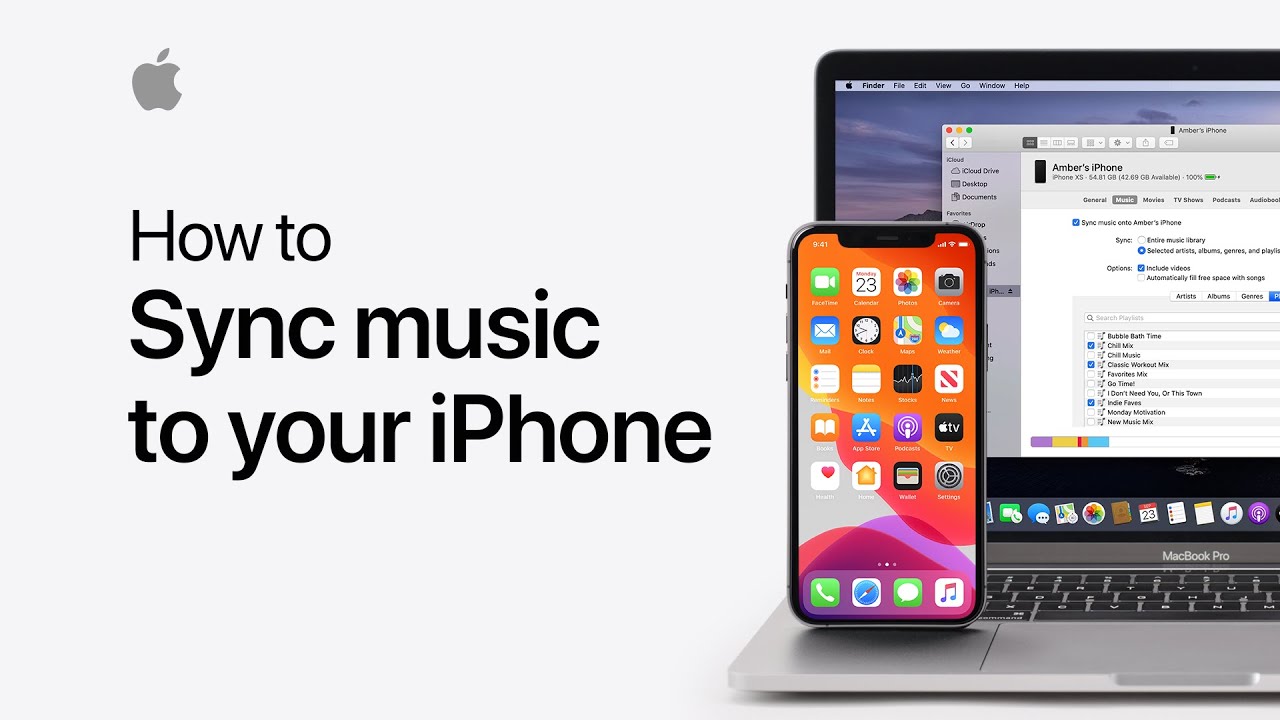
How to sync music from your Mac to your iPhone or iPad in macOS Catalina — Apple Support

practhumb68.2

In macOS Catalina, users can sync music and playlists from their Mac to their iOS devices using the Finder. Apple Music subscribers automatically sync their entire library across devices. For non-Apple Music content, syncing with the Mac is necessary. To initiate syncing, connect the device to the Mac, open a Finder window, select the device name, and click the “music” tab. Users can choose to sync their entire library or specific playlists. After selecting, click “apply” or “sync” to transfer the chosen content. This process also applies to movies, TV shows, podcasts, audiobooks, and other files. For more Mac tips, users can subscribe to the Apple Support channel.

Summary:

– macOS Catalina enables music and playlist syncing from Mac to iOS devices via Finder.
– Apple Music subscribers automatically sync their entire library across devices.
– Non-Apple Music content requires syncing with the Mac.
– Users connect the device, open Finder, select the device name, and click the “music” tab to initiate syncing.
– Users can choose to sync entire libraries or specific playlists and apply the changes.