How to create your own Memory in Photos on iPhone or iPad | Apple Support

practhumb67.2

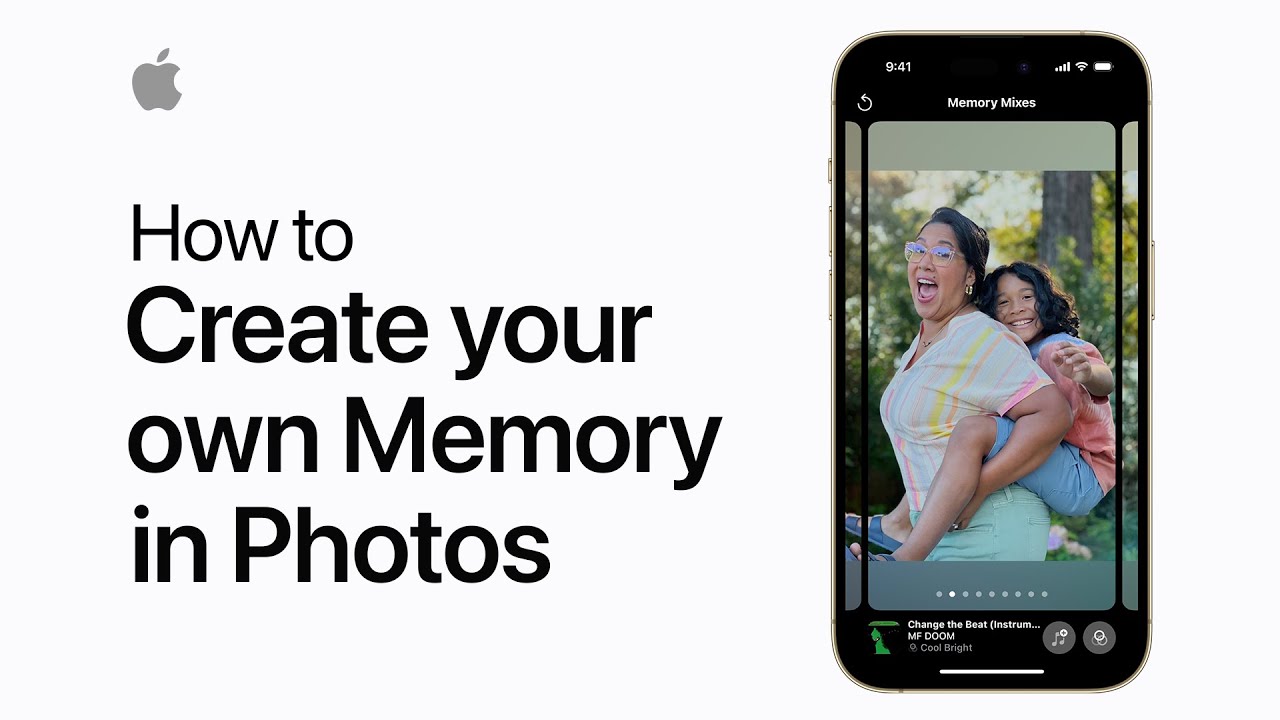
In Photos, you can customize your own memories with music and different looks. To create a memory, touch and hold an album, then tap Play memory video. While customizing, pause the memory and tap the pause button. Adjust the memory mix by swiping and change the music or look by tapping corresponding buttons. Further options include adding or removing photos, changing the title, or playing with AirPlay. After customization, tap the screen to return and add the memory to favorites if desired. Memories can be found in the For You tab for future viewing.

Summary:

In Photos, users can create personalized memories with music and different looks.
– To begin, touch and hold an album, then tap “Play memory video.”
– While customizing, pause the memory and tap the pause button.
– Adjust the memory mix and change music or look by tapping corresponding buttons.
– Further options include adding/removing photos, changing the title, or playing with AirPlay; memories can be saved as favorites.

Is AI Spying on Me? Understanding AI and Privacy

ai-topic-spying

Have you ever mentioned something out loud, only to see an ad about it later? It’s no wonder people ask, “Is my phone listening to me?” You’re not alone—and you’re not being paranoid. In this guide, we’ll explore how artificial intelligence (AI) and smart devices work, what’s really going on with data collection, and what you can do to stay in control. Don’t worry—it’s all explained in simple terms, no tech jargon here!

Table of Contents

🔍 Key Takeaways

  • AI doesn’t “spy” the way movies show—but your devices may collect data.
  • Smartphones and home assistants can hear you—but only when activated (usually).
  • Many apps and services track your activity to show you targeted ads.
  • You can control what’s shared—settings and permissions are key.
  • Understanding how data is used gives you more power, not less.

What Is AI, Really?

Think of AI as a very smart assistant built into your phone, tablet, or computer. It helps answer questions, suggest things you might like, or remind you about appointments.

But AI isn’t a person or a spy—it’s a tool. It learns by analyzing patterns, like what you search for online or which ads you click.

Why Does It Feel Like AI Is Always Listening?

Many people wonder why, after talking about a product, they suddenly see ads for it. Here’s why that happens:

  1. Your data is tracked in other ways.
    • Websites, apps, and social media platforms collect data on what you look at, like, and click.
    • They then show ads based on those patterns—not necessarily what you said aloud.
  2. Voice assistants are activated by “wake words.”
    • Devices like Alexa, Siri, or Google Assistant are always on standby, listening for their name.
    • Once they hear “Hey Siri” or “Alexa,” they start recording to answer your request.
    • These recordings may be stored or reviewed to improve the service, unless you turn that off.
  3. Some apps request microphone access unnecessarily.
    • That doesn’t always mean they’re recording—but it’s smart to check.

    How Do Devices Collect My Data?

    Here’s how data collection usually works:

    • Websites and apps use “cookies” to remember your behavior (e.g., what you searched for or bought).
    • Voice assistants record commands you give them after they hear their wake word.
    • Location data is collected by GPS-enabled apps, like maps or weather.
    • Social media tracks what posts you engage with.

    It may sound like a lot, but most of this is done to personalize your experience—not to spy. Still, it’s your right to know and control what’s being shared.

    What You Can Do to Protect Your Privacy

    Here are some simple steps you can take:

    Real-Life Example

    Jane’s Story:
    Jane, 68, noticed she kept seeing ads for gardening tools after chatting about her yard with a friend. She thought her phone must be eavesdropping. But after checking her browsing history, she realized she had searched for plants a few days earlier. The ad wasn’t from her voice—it was based on her online activity.

    Final Thoughts

    So—is AI spying on you? Not exactly. While your devices may collect information, it’s not about sneaky spying—it’s about learning from your behavior to offer suggestions or ads. That said, you do have the power to limit what’s collected and take control of your privacy.

    The key is knowing where to look and what to adjust. With a few settings changes, you can feel more confident and safer using your technology.

    Categories AI

    How to adjust text size on iPhone or iPad | Apple Support

    practhumb66.2

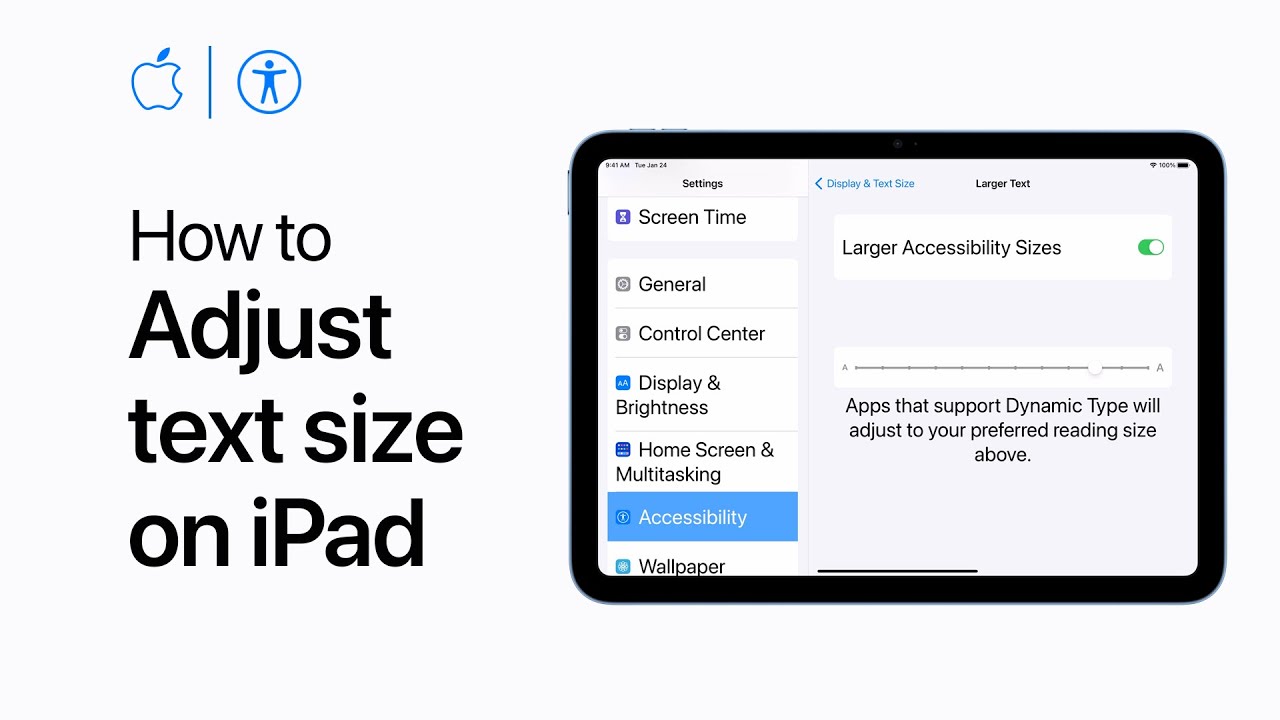
    You can easily adjust text size on your iPad for better readability. In Settings, go to Accessibility, then Display and Text Size, and tap Larger Text. Enable Larger Accessibility Sizes and use the slider to adjust the text size to your preference. Apps that support Dynamic Type will adapt to your chosen text size, ensuring a comfortable reading experience, whether you prefer larger, smaller, or standard text sizes.

    Summary:

    – Adjust text size on iPad easily for better readability.
    – Go to Settings, then Accessibility, and select Display and Text Size.
    – Tap Larger Text and enable Larger Accessibility Sizes.
    – Use the slider to adjust text size according to preference.
    – Apps supporting Dynamic Type will adapt to chosen text size.

    Tips for capturing spatial video on iPhone 15 Pro for Apple Vision Pro | Apple Support

    practhumb65.2

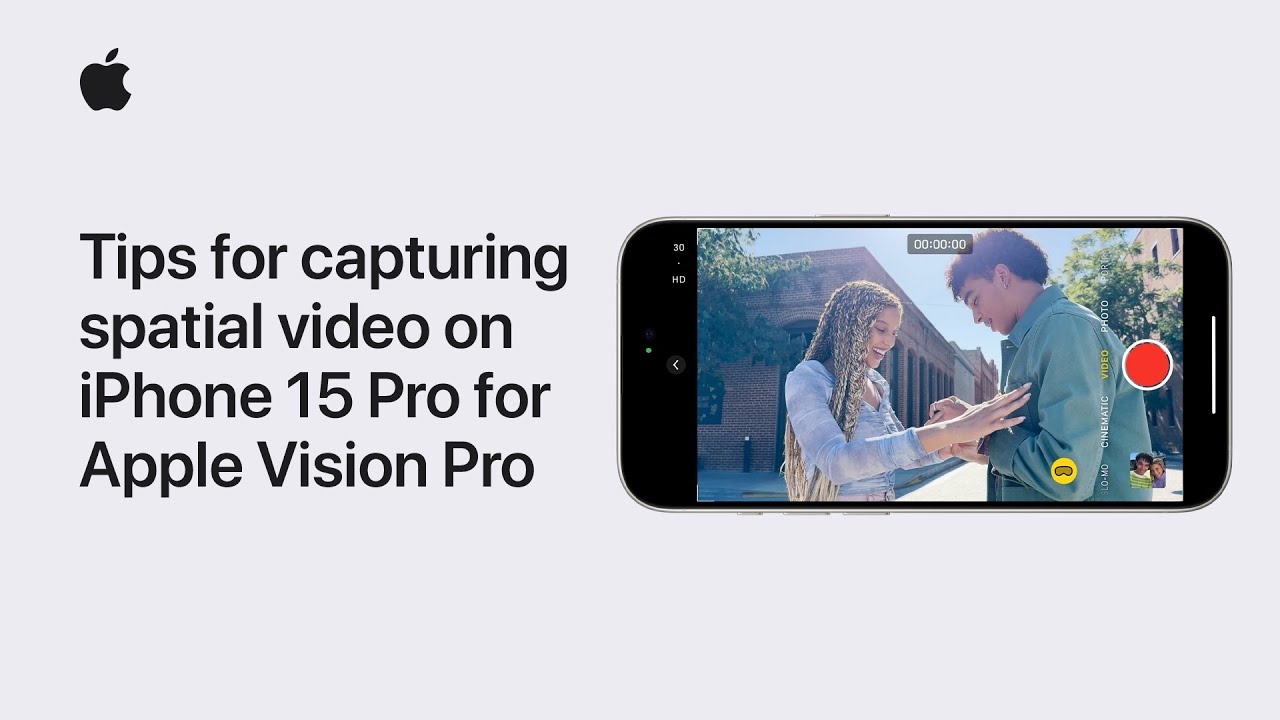
    On the iPhone 15 Pro, you can capture spatial videos for a unique viewing experience across Apple devices. Ensure depth by framing foreground, mid, and background details, maintaining a distance of 3-8 feet from subjects, and ensuring even lighting. Keep your device level and follow moving subjects smoothly. In the camera app’s video mode, tap the spatial video button, then record in landscape orientation. View in 2D on all devices or in 3D on Apple Vision Pro. Subscribe to Apple Support for more device insights.

    Summary:

    – iPhone 15 Pro allows capturing spatial videos for immersive viewing experiences.
    – Ensure depth by framing foreground, mid, and background details.
    – Maintain a distance of 3-8 feet from subjects and ensure even lighting for best results.
    – Keep the device level and follow moving subjects smoothly for optimal capture.
    View videos in 2D on all Apple devices or in 3D on Apple Vision Pro.

    Can AI Be Used to Scam Me? What to Watch Out For

    ai-topic-scam

    Technology moves fast—but so do scammers. And now, with the help of artificial intelligence (AI), some of their tricks are harder to spot than ever. But don’t worry—you don’t need to be a tech expert to understand what’s going on or how to protect yourself. In this article, we’ll walk you through three common AI-based scams: voice clones, deepfake videos, and fake customer service chats. By the end, you’ll feel more confident spotting the red flags and keeping your information safe.

    Table of Contents

    🔍 Key Takeaways

    • AI scams are real and getting more advanced—but with awareness, you can outsmart them.
    • Voice clones can sound just like a loved one—always double-check before acting.
    • Deepfake videos can make people appear to say things they never said.
    • Fake online chats may look like real customer service but are run by scammers.
    • Always pause and verify—if something feels off, it probably is.
    • You don’t need to understand the tech to protect yourself—just stay alert and ask questions.

    How AI Scams Work (and What You Can Do)

    1. Voice Cloning: “Grandma, I need help!”

    Imagine getting a phone call and hearing your grandson’s voice saying he’s in trouble. It sounds just like him—but it’s not.
    Scammers are now using AI to “clone” someone’s voice using a short audio clip (like from a YouTube video or social media). With that, they can make a fake message or phone call that sounds scarily real.

    How to protect yourself:

    • If you get a call asking for urgent help or money, hang up and call the person directly using a number you know is real.
    • Set up family code words—a phrase only your family uses in emergencies.
    • Trust your gut. If something feels rushed or strange, take a moment to double-check.

    2. Deepfakes: Videos You Can’t Trust

    A deepfake is a video where someone’s face and voice are digitally changed to make it look like they’re saying or doing something they never did. These videos can look very real—even experts sometimes struggle to tell.

    What scammers do with deepfakes:

    • Fake “news” videos that try to spread lies or influence opinions.
    • Videos of celebrities promoting scams or fake giveaways.
    • Messages from “company CEOs” asking employees to transfer money.

    How to protect yourself:

    • Be skeptical of any video asking for money, especially if it seems out of character.
    • Look for weird blinking, strange lighting, or lips not matching speech—these are often clues.
    • Cross-check the video with official websites or trusted news outlets.

    3. Fake Customer Service Chats: Not Who You Think

    Let’s say you’re having trouble with your bank or a delivery and you search for help online. You find a “customer service chat” that seems helpful. But it’s not from the real company—it’s run by scammers using AI bots to chat with you and collect your personal information.

    Common tricks:

    • Pretending to be support for Amazon, PayPal, banks, or delivery companies.
    • Asking you to “verify your account” by entering your password or card number.
    • Telling you to download a file or click a suspicious link.

    How to protect yourself:

    • Go directly to the company’s official website—don’t trust links from search engines or emails.
    • If a chat ever asks for your password, hang up or close the window. Real support won’t do that.
    • Use bookmarks for trusted websites so you don’t accidentally land on a fake one.

    Final Thoughts

    AI scams might sound high-tech, but protecting yourself comes down to something simple: pause and double-check. You don’t need to know how the technology works—you just need to know the signs to look for. Whether it’s a voice that sounds too familiar or a customer service chat that feels too pushy, trust your instincts. If something seems off, it’s okay to stop and ask for help.

    Categories AI

    How to use Personal Hotspot on your iPhone | Apple Support

    practhumb63.2

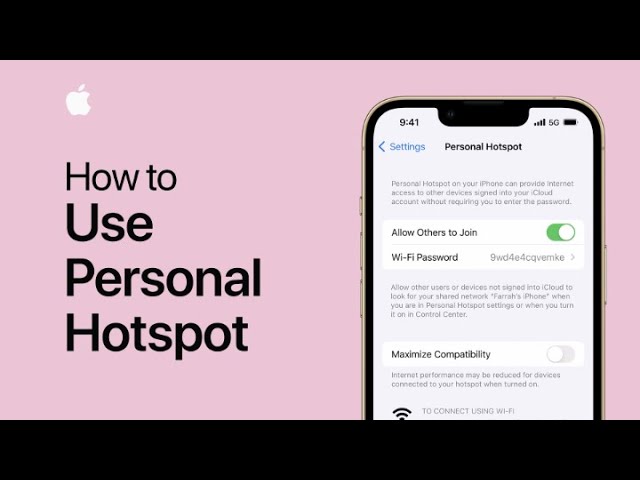
    You can utilize your iPhone’s Personal Hotspot feature to share its cellular data connection with other devices when Wi-Fi isn’t available. First, enable Personal Hotspot in Settings, then tap “Allow Others to Join” to make it shareable. Devices signed into your iCloud account will automatically detect your hotspot. To connect, navigate to Wi-Fi settings on the device and select your hotspot. If using a Mac, click the Wi-Fi icon and choose your hotspot. Enter the provided password if prompted. You can check connected devices in Control Center and disable Personal Hotspot when needed. For more tips, subscribe to the Apple Support YouTube channel.

    Summary:
    – Personal Hotspot on iPhone shares cellular data.
    – Enable it in Settings > Personal Hotspot.
    – Devices signed into iCloud can detect the hotspot automatically.
    – Connect to the hotspot via Wi-Fi settings.
    – Manage connected devices and disable hotspot in Control Center.

    How AI Helps You Take Better Pictures on Your Phone

    ai-topic-betterphoto

    Taking a great photo doesn’t have to be complicated. Thanks to AI—short for artificial intelligence—your iPhone or Android camera already does a lot of the hard work for you.

    Even if you don’t consider yourself “tech-savvy,” that’s perfectly okay. In this article, you’ll learn how your phone uses AI behind the scenes to improve your pictures—without you having to lift a finger or learn anything new. Think of it like having a smart helper built right into your camera.

    Table of Contents

    Key Takeaways

    • Your phone uses AI automatically—you don’t need to change any settings.
    • AI adjusts lighting, focus, and colors to make your photos look their best.
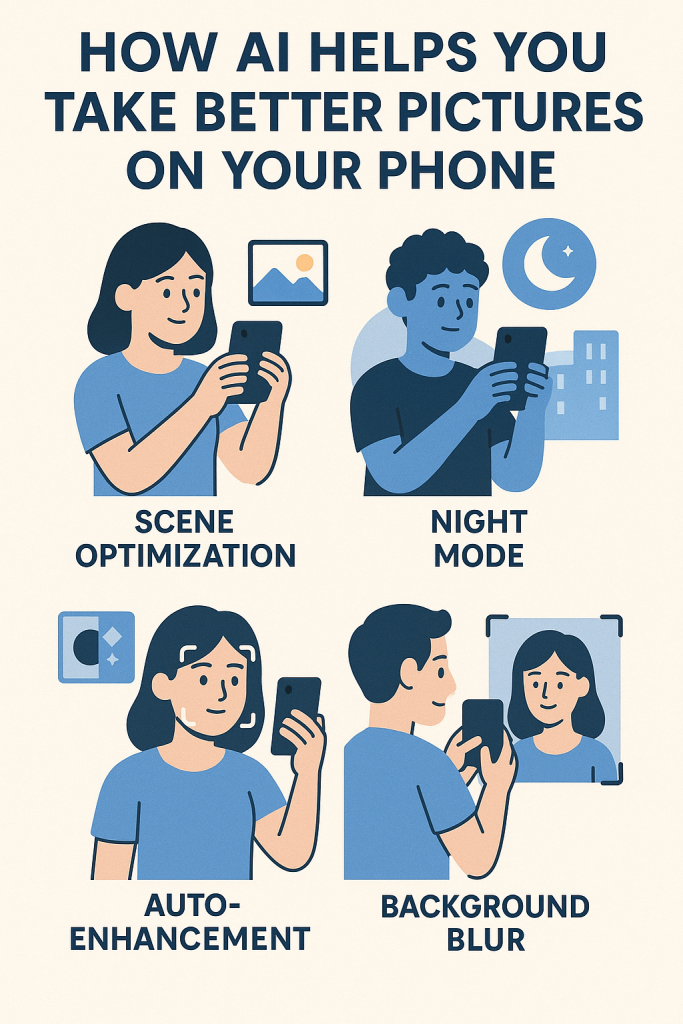
    • Features like Portrait Mode and Night Mode are powered by AI.
    • It’s like having a mini photo expert inside your phone, helping you every time you snap a picture.
    • No tech knowledge needed—it all works quietly in the background.

    How AI Works in Your Phone Camera (In Plain English)

    You might not see it, but every time you tap the shutter button on your phone, AI jumps into action. Here’s how it helps:

    1. Adjusts Lighting Automatically

    Have you ever taken a photo indoors that turned out too dark, or one outside that looked too bright? Your phone’s AI notices the lighting around you and adjusts the brightness so your picture looks balanced.

    Example:
    You take a photo at a family dinner in a dimly lit restaurant. AI brightens the faces and dims the glare from overhead lights—automatically.

    2. Sharpens the Focus

    Older phones often had trouble knowing what to focus on. AI now helps the camera recognize faces, pets, or even food and makes sure they’re nice and sharp.

    Example:
    You’re taking a picture of your grandchild playing in the yard. The AI helps the camera focus on their smiling face—even if they’re moving.

    3. Enhances Colors and Details

    AI boosts colors so that skies look blue, grass looks green, and your photos pop—without looking fake. It also sharpens details, so nothing looks blurry or dull.

    Example:
    A sunset photo looks warm and colorful, just like it did in person, thanks to AI fine-tuning the color and contrast.

    4. Improves Low-Light Photos (Night Mode)

    When it’s dark, AI combines several quick shots into one brighter, clearer photo.

    Example:
    You’re at an outdoor concert at night. AI helps your phone capture the moment—even in the dark—with less grainy or blurry results.

    5. Makes Portraits Look Professional

    Ever wonder how your phone blurs the background to make a person stand out? That’s AI simulating what fancy cameras do, often called Portrait Mode.

    Example:
    You take a photo of your partner in the garden. The flowers in the background blur gently while their face remains sharp and bright—no editing needed.

    6. Recognizes Scenes Automatically

    Your phone can tell if you’re taking a photo of a person, food, nature, or a document. Then it tweaks settings to match the scene.

    Example:
    Point your camera at a plate of food, and AI makes the colors richer and sharper—perfect for sharing with family or friends.

    Final Thoughts

    You don’t need to understand all the technical stuff to take great pictures. Your phone already uses AI to help you—quietly and automatically. From better lighting to sharper portraits, it’s like having a smart assistant in your pocket.

    So next time you snap a photo, know that you’re getting a little behind-the-scenes help from AI. And if you’re curious, feel free to explore our other easy guides on using your phone to its fullest.

    Categories AI

    How to find downloads on iPhone or iPad | Apple Support

    practhumb62.2

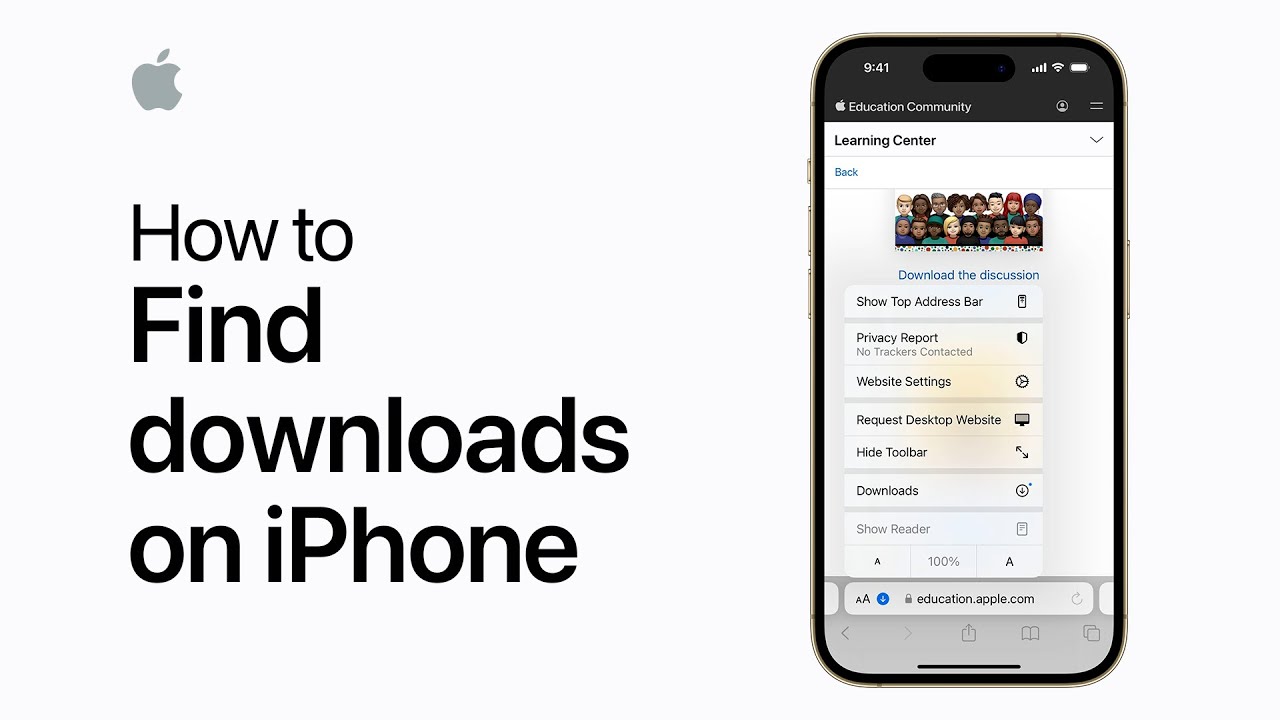
    In Safari, accessing downloaded files on your iPhone is straightforward. After downloading a file, tap the page settings button and then select “Downloads.” From there, tap “View download” next to the desired file to navigate to your downloads folder within the Files app. This allows for easy access to your downloaded files directly from Safari.

    Summary:
    – In Safari on iPhone, you can locate downloaded files easily.
    – Tap the page settings button.
    – Select “Downloads.”
    – Tap “View download” next to the desired file.
    – This navigates you to the downloads folder in the Files app.

    How to take a selfie with Voice Control on iPhone and iPad | Apple Support

    practhumb61.2

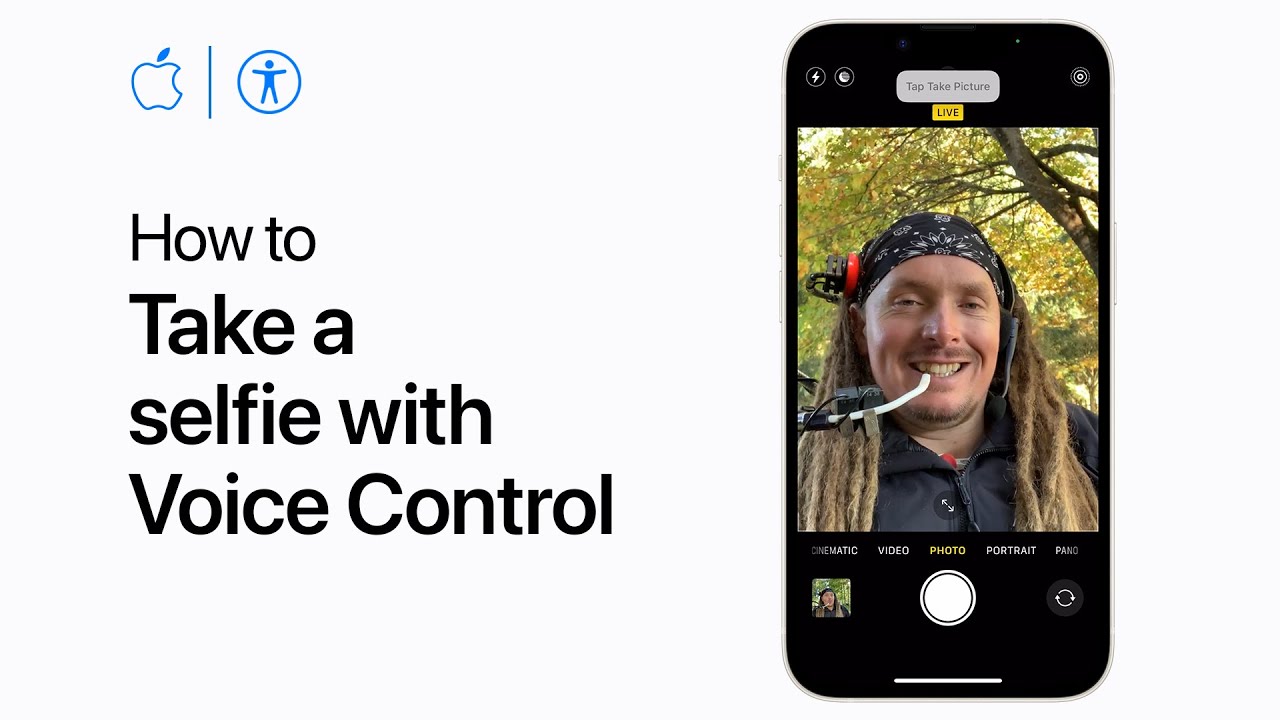
    To take a selfie using Voice Control, enable it in Accessibility settings. Say “open camera” to launch the camera app. To view button names, say “show names.” Use “tap camera chooser” to switch to the front camera, then “tap take picture” to capture the selfie. Lastly, say “cheese” to initiate the capture.

    Summary:
    – Activate Voice Control in Accessibility settings.
    – Utter “open camera” to access the camera.
    – Say “show names” to display button names.
    – Vocalize “tap camera chooser” to switch to the front camera.
    – Command “tap take picture” followed by “cheese” to capture a selfie.

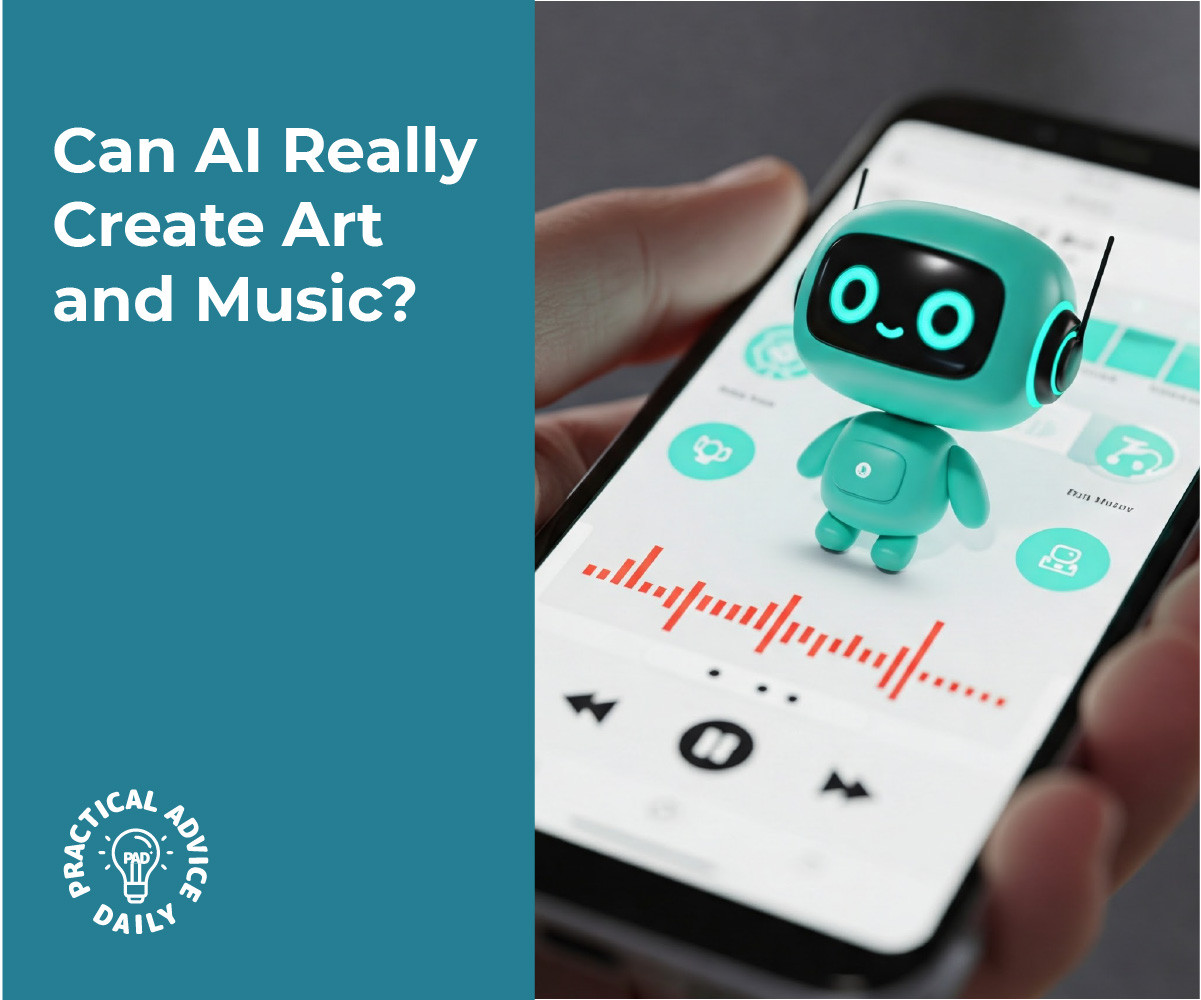
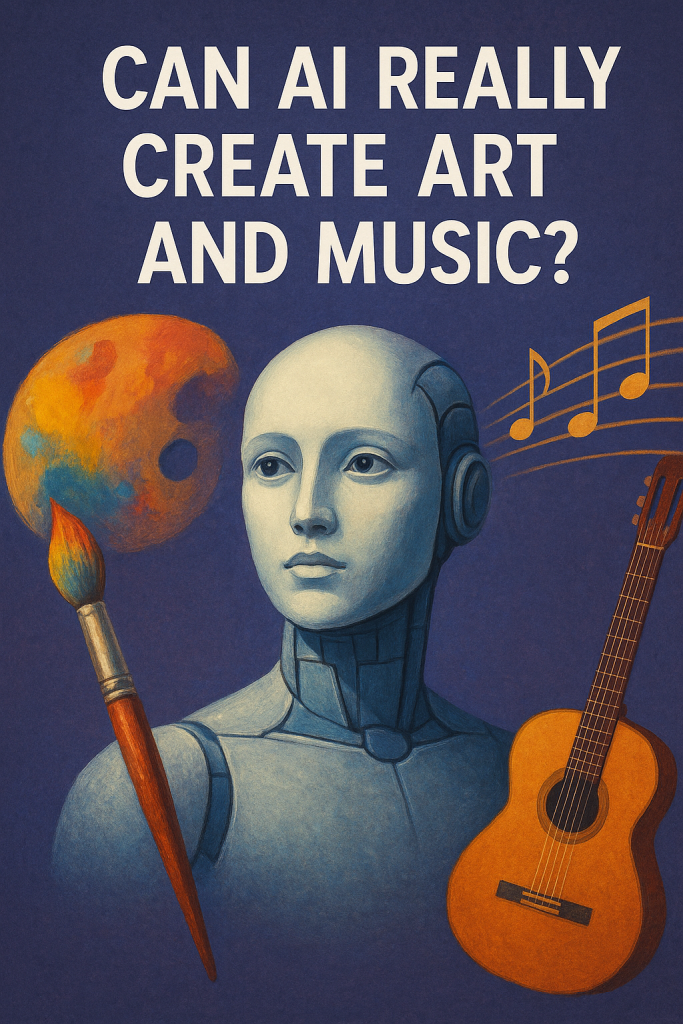
    Can AI Really Create Art and Music?

    Ever wonder if a computer can paint a picture or compose a song? It might sound like science fiction, but thanks to recent advances in artificial intelligence (AI), it’s happening right now. And the best part? You don’t need to be a tech expert to understand it. In this guide, we’ll explain how AI creates art and music in a way that’s simple, supportive, and easy to follow. Let’s explore together!

    Table of Contents

    Key Takeaways

    • AI can now make pictures and music using special programs called generators or bots.
    • These tools don’t think like humans—they follow patterns based on what they’ve learned.
    • You don’t need to be a tech expert to try them—many are simple and fun to use.
    • AI art and music aren’t replacing people—they’re just new tools for creativity.

    What Is AI—and What Does It Have to Do With Art or Music?

    AI, or artificial intelligence, is a way of teaching computers to “learn” from information. Instead of just following fixed instructions, AI can look at patterns—like how certain colors are used in paintings or how notes are arranged in songs—and use those patterns to create something new.

    Let’s break it down into two types of tools you might hear about:

    1. Image Generators: How AI Makes Pictures

    Image generators are computer programs that create pictures based on your words.

    How it works:

    • You type a phrase like “a cat sitting in a teacup” or “a sunset over the mountains.”
    • The AI looks at millions of images it has already studied.
    • It creates a brand-new picture based on the idea you gave it.

    Example:
    A popular tool called DALL·E lets people enter descriptions, and the AI draws it. Say “a panda riding a bicycle in the snow”—you’ll get a fun image that looks like a painting or cartoon.

    What’s it good for?
    People use these tools to:

    • Make greeting cards or digital art
    • Come up with design ideas
    • Just have fun seeing what the AI can do

    2. Music Bots: How AI Writes Songs

    Music bots are programs that make melodies or even full songs.

    How it works:

    • The bot has listened to thousands of songs.
    • It learns how chords, beats, and lyrics usually go together.
    • You give it a mood or theme—like “relaxing piano music”—and it builds a tune.

    Example:
    Apps like Soundraw or Amper Music let users pick the mood, length, and style. The bot then creates a song from scratch, no instruments needed.

    What’s it good for?

    • Background music for videos
    • Personal relaxation or meditation
    • Creating music without needing to play an instrument

    But Is It Really “Art”?

    That depends on how you define art. AI doesn’t feel emotions or have life experiences—it creates by recognizing patterns. So while it can make beautiful things, it doesn’t have a human touch.

    Still, many people see AI as a creative partner—like a paintbrush that works with you. Some artists even combine their ideas with AI to create something unique.

    Do I Need Special Skills to Try These Tools?

    Not at all! Many AI art and music tools are made for beginners. If you can type a sentence or choose from a few options, you can give it a try.

    Some are free or offer trial versions. Here’s how to start:

    1. Search for “free AI image generator” or “AI music maker.”
    2. Choose a tool with a simple interface.
    3. Type in your idea or select a style—and let the AI do the rest!

    Final Thoughts

    Yes, AI can create art and music—but not in the way people do. These tools follow patterns to generate creative results, and they’re getting better every day. The exciting part is that anyone—including you—can try them out without needing a tech background.

    Whether you’re curious, creative, or just want to play around, AI image and music tools are a fun way to explore what technology can do. And who knows—you might just create something amazing.

    Categories AI