How to add an alarm widget to the iPhone Lock Screen

practhumb82.2

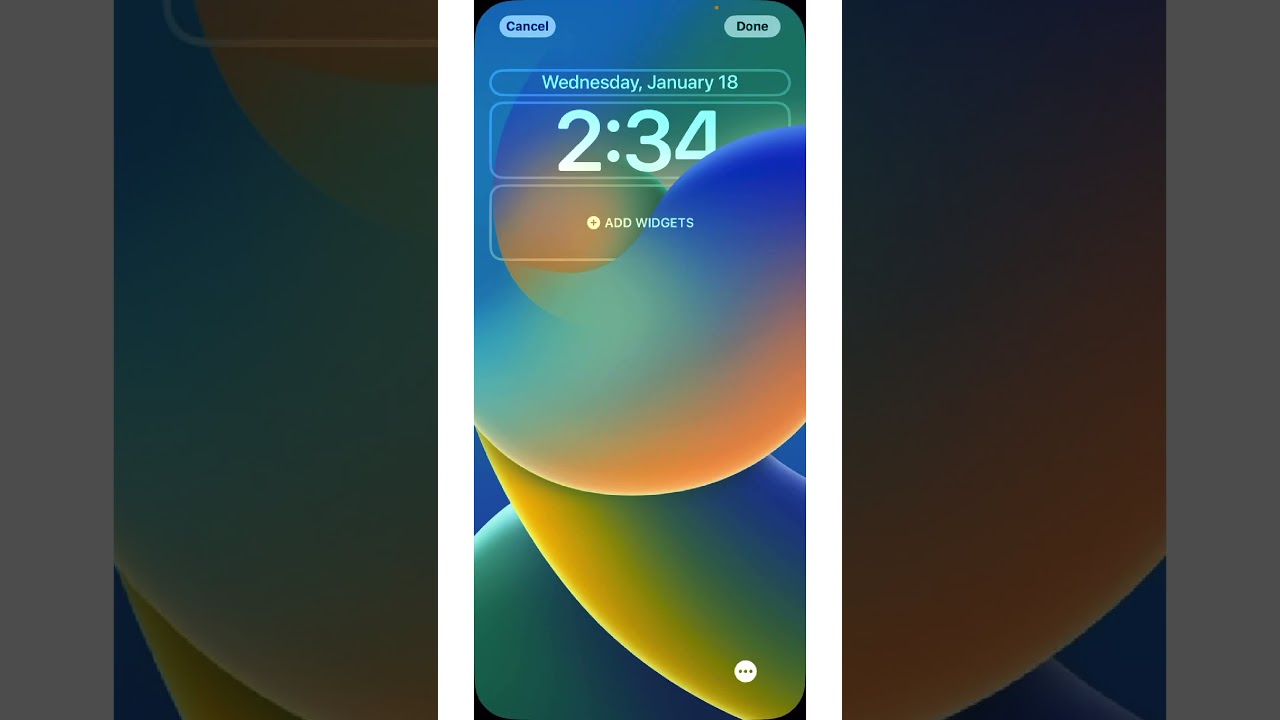
To add an alarm widget to the iPhone lock screen, tap and hold an empty space on the lock screen, then select “Customize.” Choose the lock screen option and tap “Add Widgets.” Scroll down to find the “Clock” option, swipe left to find the alarm widget, and tap to add it. Tap “Done” to confirm, and the alarm widget will be available on the lock screen for easy access and management of alarms.

Summary:
Tap and hold on the iPhone lock screen to add a widget.
– Select “Customize” and choose the “Lock Screen” option.
– Tap “Add Widgets” and scroll to find the “Clock” option.
– Swipe left to locate the alarm widget.
– Tap to add the alarm widget, then tap “Done” to confirm.

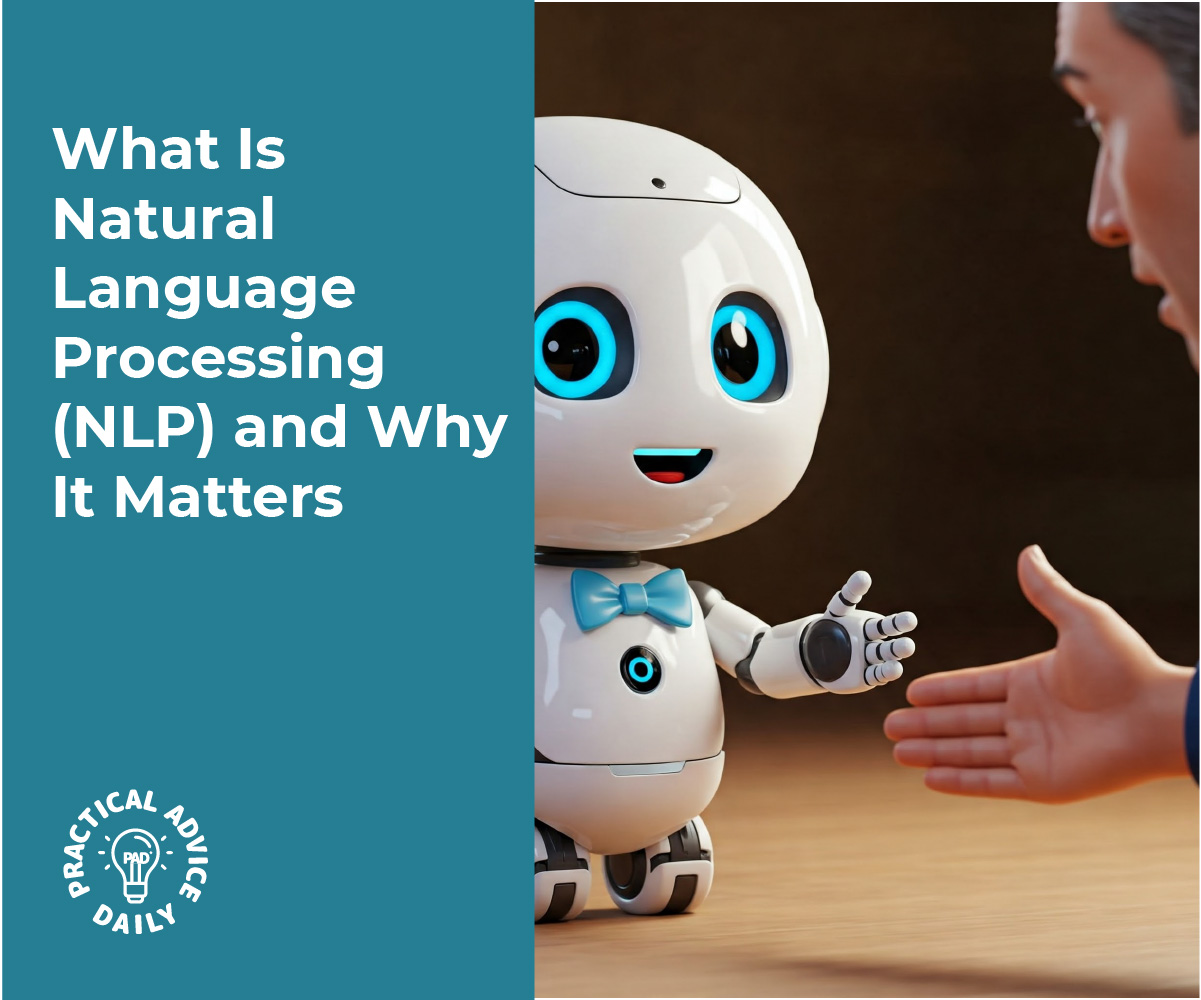
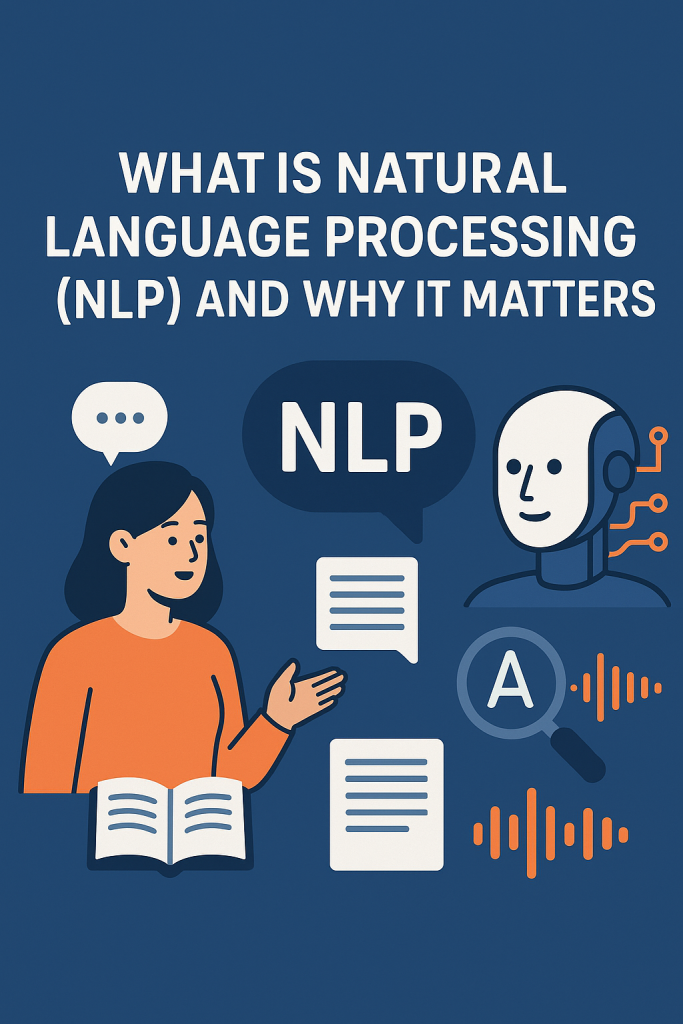
What Is Natural Language Processing (NLP) and Why It Matters

Have you ever asked Siri a question or typed something into Google and been amazed at how well it understood you? That’s thanks to something called Natural Language Processing, or NLP.

Don’t worry—this guide is made especially for beginners. No tech skills needed. By the end, you’ll have a clear understanding of how computers are learning to “talk” with us in our own words—and why that’s a big deal in today’s world.

Table of Contents

Key Takeaways

🟢 NLP is how computers understand and respond to human language.
🟢 It powers tools like voice assistants, chatbots, and translation apps.
🟢 NLP helps make everyday tech more useful and easier to use.
🟢 You don’t need to be tech-savvy to benefit from it—it’s already part of daily life.

What Is Natural Language Processing (NLP)?

Natural Language Processing is a way for computers to understand and work with human language—like English, Spanish, or even slang. It’s a mix of computer science and linguistics (the study of language).

Think of it this way:
👉 You speak or type.
👉 The computer “listens,” figures out what you mean, and gives a helpful response.

Why Is NLP Important?

Before NLP, computers needed exact commands—almost like talking in code. Now, with NLP, they can understand real conversation. This makes using technology much more natural and less frustrating.

Everyday Examples of NLP

You’ve probably already used NLP without realizing it. Here are some common ways it shows up in your life:

1. Voice Assistants (Like Siri or Alexa)

You say, “What’s the weather today?”
The assistant understands your words and answers. That’s NLP at work.

2. Text Suggestions on Your Phone

When you start typing and your phone guesses the next word, it’s using NLP to predict what you want to say.

3. Spam Filters in Email

Ever wonder how Gmail knows which emails are junk? NLP helps scan messages for suspicious language.

4. Translation Apps (Like Google Translate)

When you translate a sentence into another language, NLP helps the app understand meaning—not just individual words.

5. Customer Service Chatbots

Many websites now use chatbots to help answer questions. They use NLP to read your message and reply in a helpful way.

How Does NLP Actually Work?

Let’s keep this simple. When you talk to a computer, NLP helps it do three things:

✅ Understand

It reads or hears your words and tries to figure out what you’re saying.

Example:
You type “What time is the pharmacy open?”
The system understands you’re asking for store hours.

✅ Think

It processes what you said and searches for the best answer.

Example:
It checks the pharmacy’s listed hours or matches your question to a known answer.

✅ Respond

It gives you a reply that (hopefully) makes sense.

Example:
“The pharmacy is open until 6:00 PM today.”

Why NLP Matters to You

Even if you don’t consider yourself “techy,” NLP is helping you in ways you might not see.

  • It saves time by answering questions quickly.
  • It removes frustration by letting you talk or type naturally.
  • It makes technology more helpful—especially for people who don’t want to deal with complicated menus or buttons.

And as NLP keeps improving, your interactions with devices will feel even more like talking to a real person.

Final Thoughts

You don’t need to know how computers work to appreciate how far they’ve come. Thanks to Natural Language Processing, machines are getting better at understanding us—and making our lives just a bit easier.

So next time Siri answers a question or your phone suggests just the right word, give a little nod to NLP. It’s working behind the scenes to make technology feel a little more human.

Curious to learn more? Check out our guides on how voice assistants work or how to use translation tools on your phone.

Categories AI

Get to know Location Services options on iPhone, iPad, and iPod touch | Apple Support

practhumb81.2

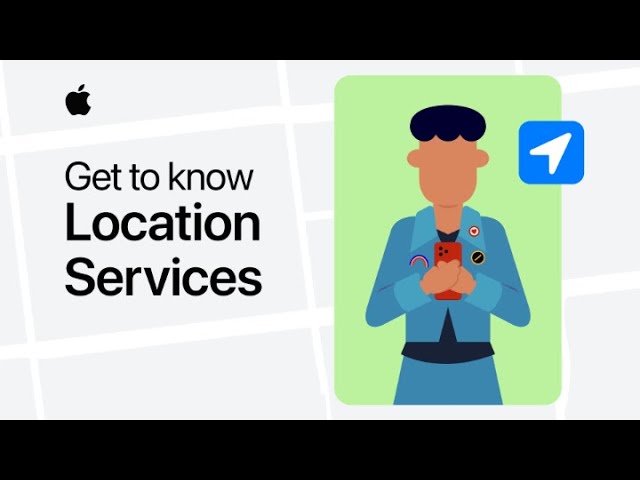
When configuring location services for an app, you can select various options. “Never” prohibits the app from accessing your device’s location. “Ask Next Time” prompts for permission upon the next app use. “While Using the App” allows access only during app use or widget display. “Always” permits background location access. “Precise Location” toggles device-specific or approximate location sharing. These settings offer control over app location permissions based on user preference and privacy considerations.

Summary:
– “Never” setting denies app access to device location.
– “Ask Next Time” prompts for location permission upon app usage.
– “While Using the App” allows location access only during app operation.
– “Always” permits continuous background location access for the app.
– “Precise Location” option toggles between sharing device-specific or approximate location.

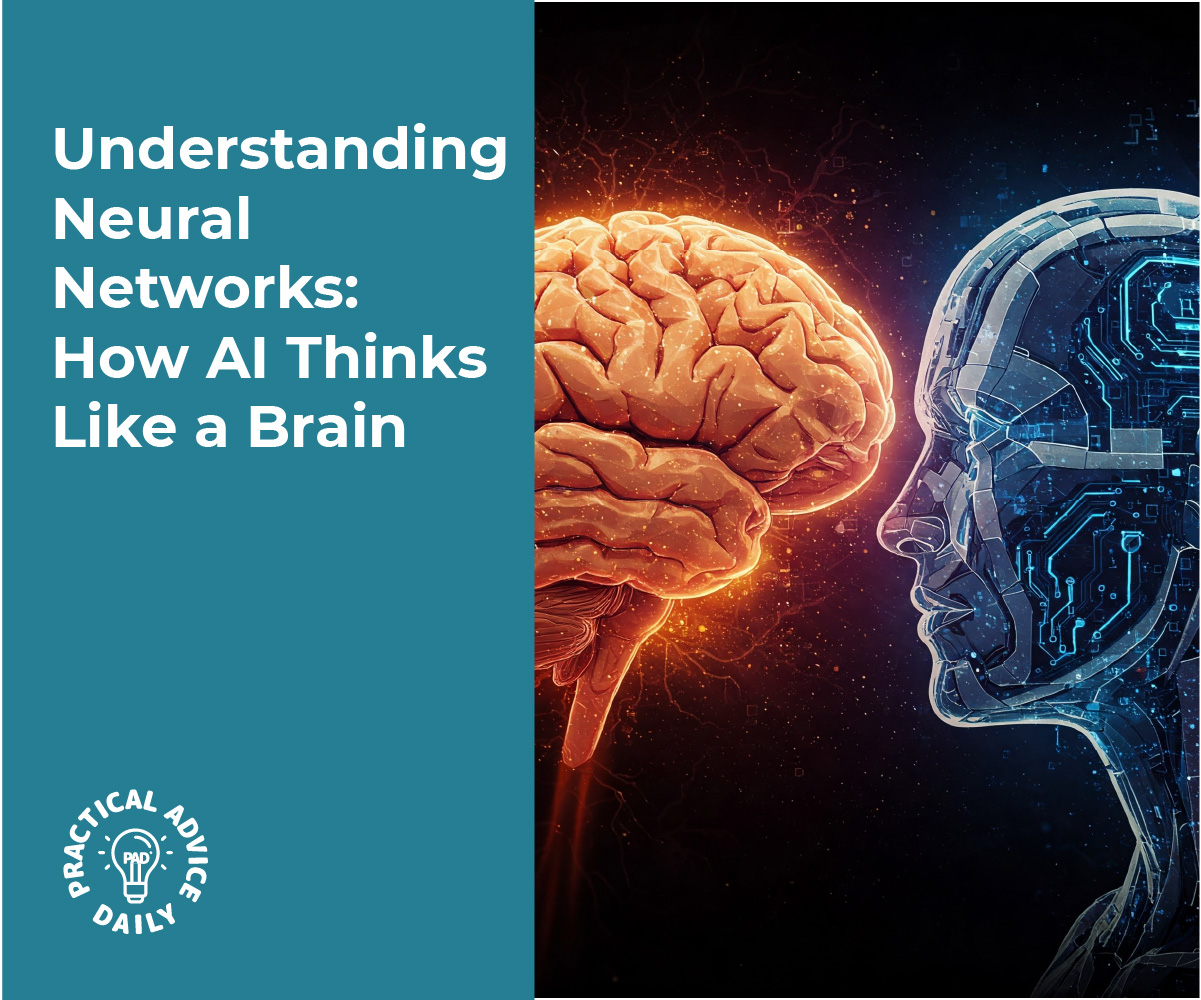
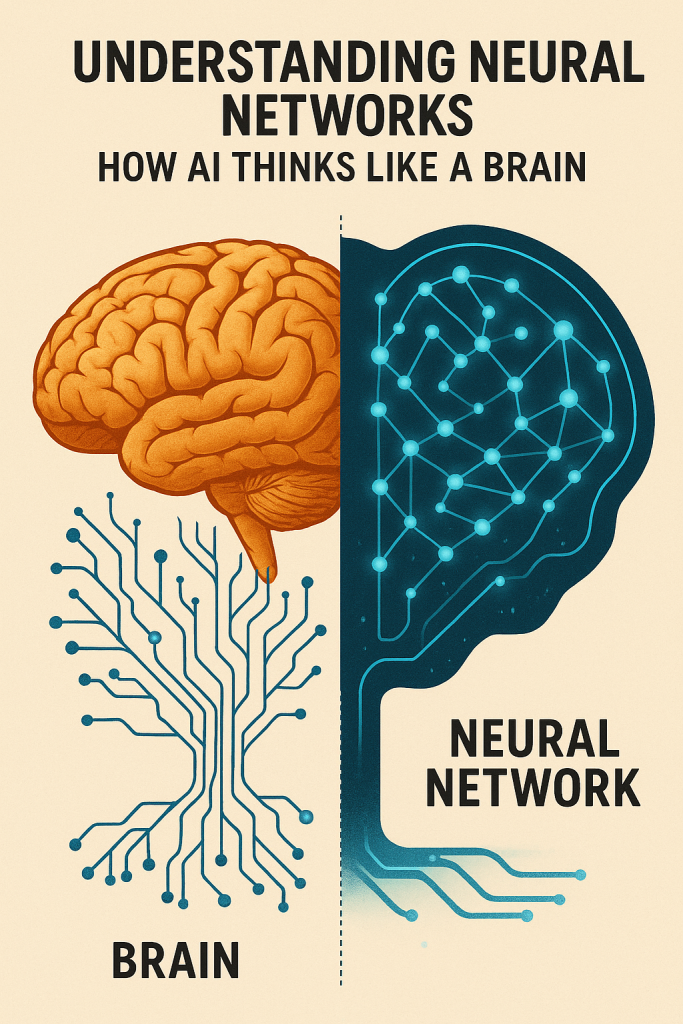
Understanding Neural Networks: How AI Thinks Like a Brain

If you’ve ever wondered how artificial intelligence (AI) can recognize your voice, suggest TV shows, or even chat with you online—neural networks are a big part of the answer.

We know the term can sound intimidating, but don’t worry—we’ll walk through it step-by-step using everyday examples. This guide is designed for anyone who’s curious but doesn’t want a tech headache. Let’s explore how AI “thinks” in a way that’s inspired by the human brain.

Table of Contents

🔍 Key Takeaways

  • Neural networks are a type of AI that mimic how the human brain works.
  • They learn by spotting patterns—just like we do.
  • You don’t need to be tech-savvy to understand the basics.
  • Think of it like a recipe: simple steps that add up to something smart.
  • Real-life examples (like recognizing faces or spam emails) make it easy to grasp.

What Is a Neural Network?

Let’s start with a simple idea:
A neural network is a computer system that tries to learn and make decisions like a human brain.

Imagine your brain is made up of tiny helpers (called neurons). Each one passes little messages to the next, helping you make sense of the world. For example, when you see a dog, your brain quickly puts together clues: the shape of the ears, the wagging tail, the bark. All those clues help you say, “That’s a dog!”

A neural network works in a similar way. It’s made up of “digital neurons” that work together to figure things out.

How It Works (In Everyday Terms)

Think of a neural network like a group of friends solving a mystery:

  1. One friend notices something odd — “This email looks strange.”
  2. Another friend checks the spelling — “Lots of typos here.”
  3. Someone else says — “It asks for a password right away. Suspicious!”

Together, they decide: This might be a scam.”

That’s how a neural network works—each part looks at one small clue, then they work together to reach a conclusion.

Real-Life Examples You’ll Recognize

Neural networks are already part of your everyday life—even if you didn’t realize it:

  • Voice assistants like Siri or Alexa understand your questions.
  • Email services spot spam and keep your inbox clean.
  • Streaming apps suggest movies you might enjoy.
  • Photo apps help you group pictures of the same person.

In each case, the neural network has “learned” from lots of examples. Just like a child learns that four-legged animals are often dogs, the AI learns by practice and pattern.

A Simple Analogy: Teaching a Child

Let’s say you’re teaching your grandchild how to tell an apple from a tomato.

At first, they get it wrong—they might say, “They’re both red and round!”

But over time, they start to notice:

  • Apples are sweeter
  • Tomatoes are softer
  • Apples are usually in lunchboxes, not salads

Little by little, they learn the difference. Neural networks do the same. They learn from examples and slowly get better at making decisions.

Final Thoughts

Neural networks may sound like high-tech wizardry, but at heart, they’re just clever systems that learn like we do—by seeing, practicing, and improving.

Now that you’ve peeked behind the curtain, you can feel more confident about the “brains” behind AI. And if you’re curious to dive deeper, there are many simple guides out there to help you explore more.

Want to learn how AI picks what you see on Facebook or Netflix? That could be the next step!

Categories AI

How to set custom vibrations on your iPhone | Apple Support

practhumb80.2

You can create custom vibrations for individual contacts on your iPhone. In Contacts, tap “Edit” for the contact and scroll down to “Text Tone” or “Ringtone.” For custom ringtone vibrations, tap “Vibration” and select a standard one or create a new pattern by tapping the screen. Save the custom vibration and name it. This vibration can be assigned to texts or calls for that contact. Repeat for other contacts as needed. Subscribers can find more iPhone tips on the Apple Support YouTube channel.

Summary:
-Create custom vibrations for contacts on iPhone.
Access contacts, tap “Edit,” and scroll to “Text Tone” or “Ringtone.”
-For custom vibrations, tap “Vibration” and select a standard or create a new pattern.
Save the custom vibration and assign it to texts or calls for the contact.
-Follow on-screen instructions to save and use the custom vibration.

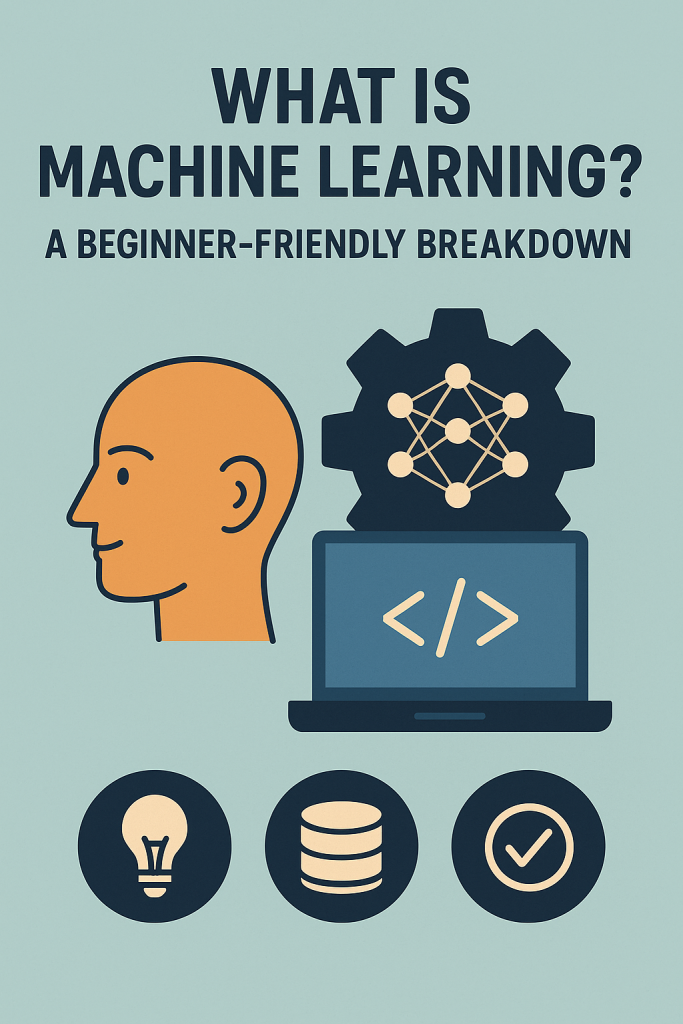
What Is Machine Learning? A Beginner-Friendly Breakdown

You’ve probably heard the term “machine learning” tossed around in the news, online, or even at the doctor’s office—but what does it actually mean? If you’re not a techie, don’t worry. This guide will walk you through the basics in plain English. No complicated lingo. Just simple explanations and everyday examples to help you understand how this technology works—and how it affects your daily life.

Table of Contents

🔍 Key Takeaways

  • Machine learning is when a computer learns from data, kind of like how we learn from experience.
  • It helps power tools you may already use, like Netflix suggestions or spam filters in email.
  • You don’t need to be a tech expert to understand how it works—just think of it as a way for machines to recognize patterns.
  • Real-life examples make it easier to understand and see how it affects your world.

What Is Machine Learning?

Let’s break it down.

Machine learning is a way for computers to learn things without being specifically told what to do each time. Instead of being programmed with step-by-step instructions, the computer looks at data (which could be anything from photos to movie choices) and figures things out by spotting patterns.

Think of It Like This…

Imagine you love watching mysteries on Netflix. After a while, Netflix notices this and starts recommending more mystery shows. You didn’t have to tell it—your choices gave it clues. That’s machine learning at work. It looked at your watching habits (the data), noticed a pattern (you like mysteries), and learned what to suggest next.

How Does Machine Learning Work?

Let’s take a simple, step-by-step look:

1. Collecting Data

The first step is gathering information.
Example: Netflix collects data on what shows you watch, what time you watch, and how often.

2. Finding Patterns

Next, the system looks at the data to find patterns.
Example: “This user watches a lot of crime dramas in the evening.”

3. Making Predictions

Now that the machine sees a pattern, it tries to guess what you might like next.
Example: “If you liked Murder Mystery, you might enjoy Sherlock Holmes.”

4. Learning and Improving

Over time, the system adjusts based on new data. If you skip the suggestions, it learns and changes course.
Example: “You didn’t watch the romantic comedies we suggested—maybe you prefer thrillers.”

More Everyday Examples of Machine Learning

Here are some ways you may already be using machine learning without even realizing it:

  • Email Spam Filters: Your email automatically sends suspicious messages to the spam folder based on past patterns.
  • Voice Assistants (like Siri or Alexa): They get better at understanding your voice and preferences the more you use them.
  • Online Shopping: Stores show you items “you might like” based on what others like you have bought.
  • Maps and Directions: Google Maps learns traffic patterns and suggests quicker routes in real time.

Final Thoughts

Machine learning might sound complicated, but at its heart, it’s just about using data to learn and make smart guesses—just like we do in everyday life. Whether you’re watching your favorite shows or getting directions to a friend’s house, chances are you’re already using machine learning tools without even realizing it.

Understanding how it works can help you feel more confident in today’s digital world. And if you’re curious, there’s always more to explore—one simple step at a time.

Categories AI

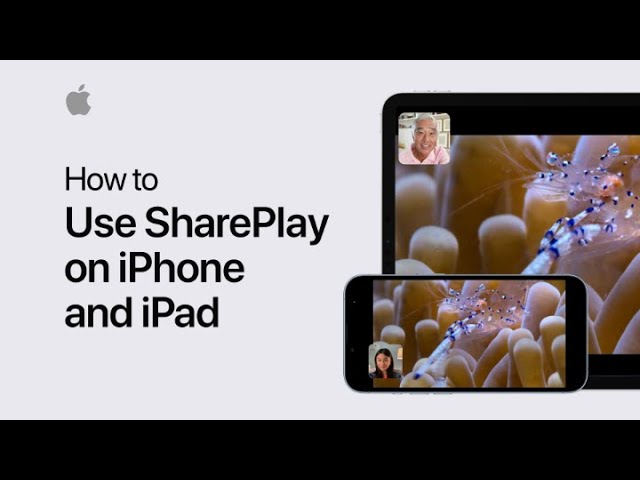
How to use SharePlay on iPhone or iPad | Apple Support

practhumb78.2

SharePlay in iOS 15.1 allows watching or listening together via FaceTime with supported apps. Ensure all participants have iOS 15.1 or iPadOS 15.1. Anyone can initiate SharePlay during a FaceTime call. In the Apple TV app, tap play, confirm, then control playback and resize the video. FaceTime switches to picture-in-picture mode when videos are made full screen. Participants can control playback and interact while multitasking. To end SharePlay, tap the close button, stopping playback for all or just oneself. SharePlay facilitates synchronized viewing experiences across devices, enhancing group interactions during media consumption via FaceTime.

Summary:
– SharePlay enables simultaneous media consumption during FaceTime calls.
– Participants need iOS 15.1 or later.
– Start SharePlay by swiping up during a FaceTime call and selecting a supported app.
– Control playback and resize videos within the app.
– End SharePlay by tapping the close button.

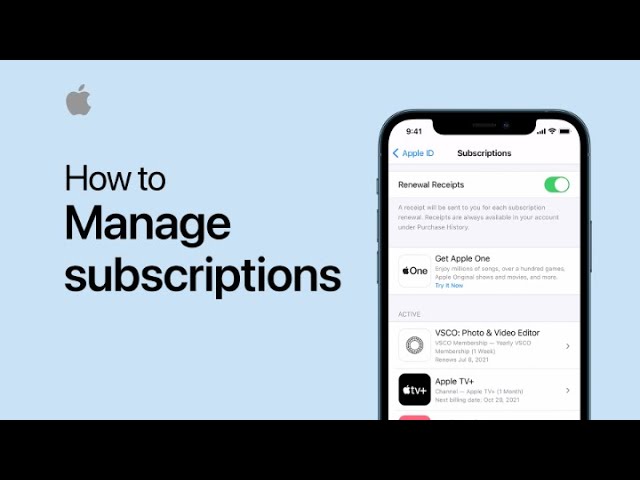
How to manage subscriptions on your iPhone, iPad, or iPod touch | Apple Support

practhumb77.2

You can conveniently handle subscriptions on your iPhone and iPad by navigating to Settings, tapping your name, and selecting “Subscriptions.” Within this section, you can review your active subscriptions and make any necessary adjustments or cancellations. This centralized management feature streamlines subscription management across your Apple devices, providing easy access and control over your subscriptions.

Summary:
– Access subscription management in Settings.
– Tap your name and then select “Subscriptions.”
– View and manage active subscriptions.
– Make adjustments or cancellations as needed.
– Simplifies subscription management across devices.

Best AI Apps for Beginners (No Tech Experience Needed)

You’ve probably heard a lot about “AI” lately—but what does it actually do, and can someone with little or no tech experience use it? Good news: yes, you can! In fact, many AI apps today are built to be incredibly easy to use, even if you’ve never used anything like them before.

In this guide, we’ll walk you through the best beginner-friendly AI apps. We’ll explain what each one does, how it can help you, and how easy it is to get started. No confusing tech talk—just simple tools to make life a little easier.

Table of Contents

Key Takeaways

  • AI isn’t just for tech experts—some apps are designed for everyday users with zero experience.
  • These apps can help with writing, organizing, chatting, and even turning photos into art.
  • You don’t need any special devices or skills—just a smartphone or computer and a little curiosity.
  • We’ll explain each app in plain language with real-life examples.

1. Grammarly – Help With Writing and Emails

What it does:
Grammarly is like a friendly writing assistant. It checks your spelling, grammar, and even helps you sound more polite or clear when writing emails or messages.

Why it’s great for beginners:

  • It works automatically in your browser or email app
  • Suggestions are easy to understand
  • Great for writing emails, social media posts, or even notes to friends

Example:
Let’s say you’re writing an email to your grandchild. Grammarly might suggest, “Consider saying ‘Would you like to visit?’ instead of ‘You wanna come over?’” It helps you sound just how you want—with no guesswork.

2. Speechify – Turn Text Into Spoken Words

What it does:
Speechify reads text out loud—whether it’s a webpage, email, or digital book.

Why it’s great for beginners:

  • Easy to install on a phone or tablet
  • Tap to hear articles, emails, or documents
  • Great for people with tired eyes or reading difficulties

Example:
If reading a long news article feels tiring, you can let Speechify read it to you while you relax with a cup of tea.

3. ChatGPT – Ask Questions and Get Helpful Answers

What it does:
ChatGPT is a smart assistant you can talk to. You ask questions, and it answers—kind of like texting a helpful friend who knows a lot.

Why it’s great for beginners:

  • You type or speak your question, and it responds clearly
  • It can help you write a letter, look up a recipe, or explain how to do something
  • No tech knowledge required

Example:
Want to know how to bake banana bread? Just ask: “What’s an easy banana bread recipe?” and it gives you one step-by-step.

4. Remini – Restore and Enhance Old Photos

What it does:
Remini uses AI to fix blurry or faded photos. It sharpens images and adds details, making old pictures look like new.

Why it’s great for beginners:

  • Just upload a photo and tap “Enhance”
  • No editing skills needed
  • Fun for restoring family photos or old memories

Example:
If you have an old photo from the 1970s that’s a bit faded, Remini can bring out the faces and colors with just one tap.

5. YouCam Makeup – Try On Looks Virtually

What it does:
This playful app uses AI to let you try on makeup or different hairstyles using your phone’s camera.

Why it’s great for beginners:

  • It’s simple, fun, and safe to explore new looks
  • You don’t need to apply anything in real life—just use your camera
  • Great for experimenting or just having fun with friends

Example:
Thinking of trying a new hairstyle? You can see what it looks like on your face before heading to the salon.

6. Otter.ai – Transcribe Conversations or Notes

What it does:
Otter.ai listens to a conversation or meeting and turns it into written notes.

Why it’s great for beginners:

  • Just tap to start recording
  • Perfect for saving phone calls, doctor visits, or family stories
  • The app does all the writing for you

Example:
Record your doctor’s instructions and let Otter turn it into text you can read later. No need to take notes during the appointment.

Final Thoughts

You don’t need to be “tech-savvy” to take advantage of today’s smartest tools. These AI apps are made for real people—people like you—who just want something that works and makes life a little easier.

Start with one that interests you the most. Play around, explore, and don’t be afraid to try something new. Technology doesn’t have to be scary—it can be helpful, fun, and even a little magical.

Categories AI

How to share an iCloud calendar on iPhone, iPad, and iPod touch | Apple Support

To share an iCloud calendar, open the Calendar app and tap “Calendars.” Ensure iCloud settings are enabled. Select the desired calendar and tap the info button, then choose “Add Person.” Specify recipients and confirm. Note that invitees must use iCloud for calendars. When recipients receive the invite, they can access it from their inbox and join the shared calendar.

Summary:
– Open Calendar app and tap “Calendars.”
Ensure iCloud settings are enabled.
– Select desired calendar, tap info button, choose “Add Person.”
– Specify recipients and confirm.
– Invitees must use iCloud for calendars; join via inbox upon receiving invite.