Beginner’s Guide to ChatGPT and AI Writing Tools

Writing is part of everyday life. Whether you are sending emails, creating a speech, writing a story, or just making a shopping list, words matter. But many people find writing stressful or time-consuming. Maybe you worry about spelling, grammar, or how to make your message sound polite.

That is where AI writing tools come in. Programs like ChatGPT, Grammarly, and others are designed to make writing simpler and less intimidating. You do not need to be a computer expert to use them. Think of them as friendly helpers you can call on anytime.

In this guide, we will show you how these tools work, give step-by-step instructions, and share real examples you can relate to.

Table of Contents

Key Takeaways

  • ChatGPT is great for drafting text, brainstorming ideas, and explaining topics in simple terms.
  • Grammarly checks your writing for mistakes and helps you sound clearer and more professional.
  • Other tools, like QuillBot or Hemingway, can polish your writing further.
  • AI tools save time, reduce stress, and make writing tasks more enjoyable.
  • You stay in control—AI suggests, but you decide what to use.

How ChatGPT Can Help You

ChatGPT is like a helpful writing assistant you can talk to in plain language. You type in a request, and it responds in seconds.

Everyday Ways to Use ChatGPT

  • Email writing: Unsure how to ask your boss for a day off? ChatGPT can draft a polite email.
  • Speeches and notes: Need to write a toast for a family event? ChatGPT can give you a starting point.
  • Learning: Want to understand something like “how solar panels work” in simple words? Just ask.
  • Brainstorming: Planning a birthday party? ChatGPT can suggest themes, games, or menu ideas.

Step-by-Step: Writing an Email with ChatGPT

  1. Open ChatGPT on your computer or phone.
  2. Type your request, for example: Write a polite email to my neighbor asking if they could trim a tree that hangs over my yard.”
  3. Read the reply carefully.
  4. Adjust the wording so it sounds like you. You might add your neighbor’s name or remove phrases you would not normally use.
  5. Copy the final version into your email program and send it.

Example: ChatGPT might suggest, “I hope this message finds you well. I was wondering if you could kindly trim the branches of your tree that extend into my yard.” You can then edit it to be warmer or shorter depending on your relationship with your neighbor.
How Grammarly Can Support Your Writing

Grammarly is more like a proofreader that checks your work after you write it. It works automatically in many places, such as email, Word documents, or social media.

Everyday Ways to Use Grammarly

  • Fix errors: Corrects spelling, punctuation, and grammar.
  • Clarity: Suggests shorter, clearer sentences.
  • Tone: Lets you know if your message sounds too formal, casual, or even a bit harsh.
  • Confidence: Helps you avoid small mistakes that might make you worry about being misunderstood.

Step-by-Step: Using Grammarly for an Email

  1. Install Grammarly’s free browser extension (works with Chrome, Edge, and others).
  2. Open your email program (like Gmail or Outlook).
  3. Type your email as usual.
  4. Watch for underlined words or phrases—these are Grammarly’s suggestions.
  5. Click on a suggestion to accept it, or ignore it if you prefer your original wording.

Example: If you write, “I send report tomorrow,” Grammarly might suggest, “I will send the report tomorrow.” Small changes like this make your writing smoother and more professional.

Other Helpful AI Writing Tools

Beyond ChatGPT and Grammarly, there are many other AI helpers:

  • QuillBot: Rewrites sentences in different ways, useful if you want to avoid repeating the same words.
  • Hemingway Editor: Highlights long sentences and suggests simpler alternatives. Great if you want your writing to be clear and easy to read.
  • Notion AI: Helps with organizing notes, making to-do lists, and summarizing long text.

Most of these tools offer free versions, so you can try them without spending money.

Real-Life Examples of AI Writing Tools in Action

  • Planning a Family Event: Imagine you are writing invitations for your grandson’s birthday party. ChatGPT can help you create a cheerful message, Grammarly checks for mistakes, and Hemingway makes sure the text is simple and clear.
  • Job Applications: Writing a cover letter can be stressful. ChatGPT can create a draft, Grammarly polishes it, and QuillBot rephrases sections so you sound unique.
  • Daily Communication: From text messages to Facebook posts, Grammarly can quickly catch little mistakes that save you from embarrassment.

Tips for Getting Started with AI Writing Tools

If you are new to these tools, here are some practical steps:

  1. Start with one tool: Pick ChatGPT or Grammarly first, rather than trying many at once.
  2. Practice short tasks: Write a thank-you note or ask ChatGPT to explain something simple.
  3. Review carefully: Always read the final version before sending or posting. AI can make mistakes too.
  4. Keep your voice: Adjust the suggestions so they still sound like you. The goal is to help, not replace you.
  5. Explore slowly: Once you are comfortable, try adding another tool like QuillBot or Hemingway for extra support.

Common Concerns (and Simple Answers)

  • “Will people know I used AI?”
    Not unless you copy the text word for word without checking it. If you edit and personalize it, it will sound like you.
  • What if the AI makes a mistake?
    That is why you should always read the final draft. Think of AI as a helper, not the final judge.
  • “Do I need to pay?”
    Most tools have free versions that are more than enough for everyday use. Paid versions add extra features, but they are optional.

Final Thoughts

AI writing tools are here to make life easier, not harder. They can save you time, reduce stress, and give you the confidence to share your words without worry. Tools like ChatGPT and Grammarly are designed for everyday people—students, parents, workers, retirees—anyone who writes.

Think of them as friendly helpers sitting beside you. They do not replace your ideas or personality; they simply give you a boost. With a little practice, you will discover how much more enjoyable writing can be.

So why not try one today? Start small, explore at your own pace, and enjoy the confidence of knowing you have a helpful partner whenever you need it.
Categories AI

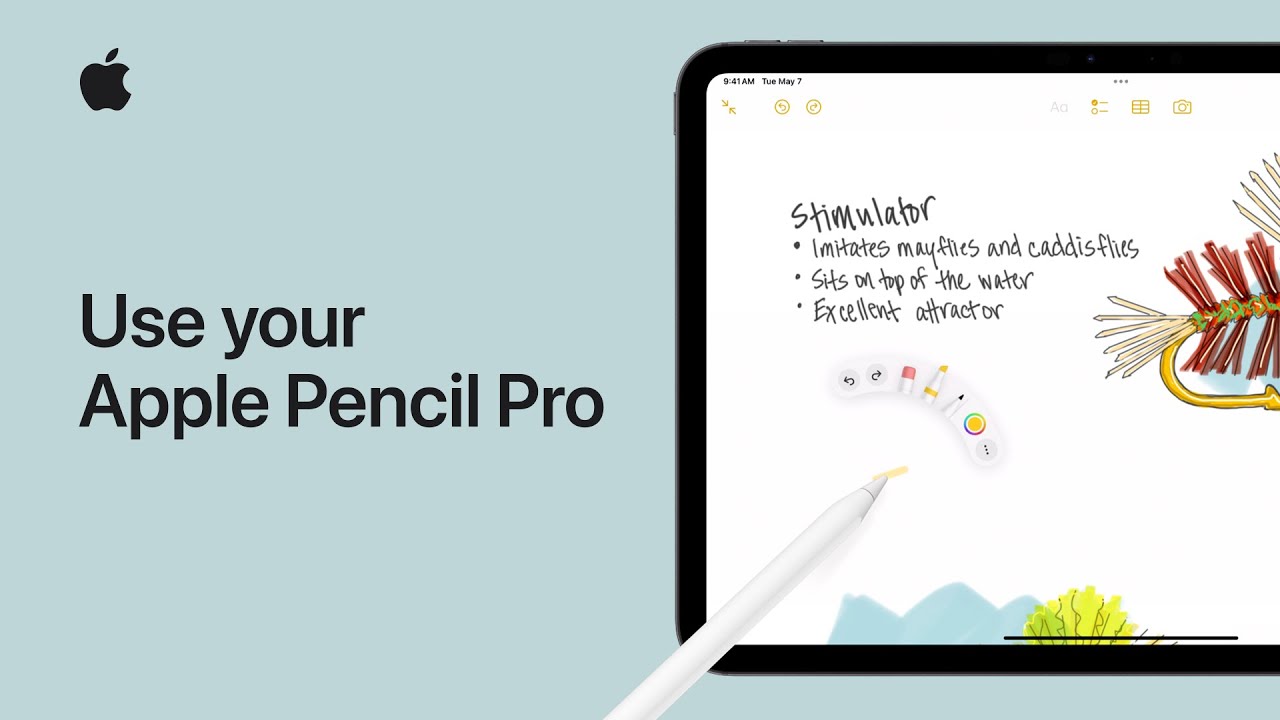
How to use your Apple Pencil Pro | Apple Support

With the Apple Pencil Pro, users can utilize unique gestures and a convenient tool palette for enhanced productivity. Compatible with specific iPad models, the Pencil Pro offers actions like squeezing the barrel to access the tool palette, rolling it to adjust writing tool angles, and double-tapping to switch between tools and the eraser. Within compatible apps like Notes, users can customize settings and access features such as barrel roll previews and additional markup options. Settings customization includes adjusting pressure sensitivity and defining actions for gestures like squeezing and double-tapping, providing a tailored experience for users’ preferences and needs.

Summary:
– The Apple Pencil Pro offers unique gestures and a tool palette for enhanced productivity.
– Actions include squeezing the barrel to access the tool palette and double-tapping to switch between tools and the eraser.
– Users can roll the pencil to adjust writing tool angles and customize settings like pressure sensitivity and gesture actions.
– Compatible with specific iPad models, the Pencil Pro enhances drawing and writing experiences.
– Within compatible apps like Notes, users can access additional markup options and customize settings for a tailored experience.

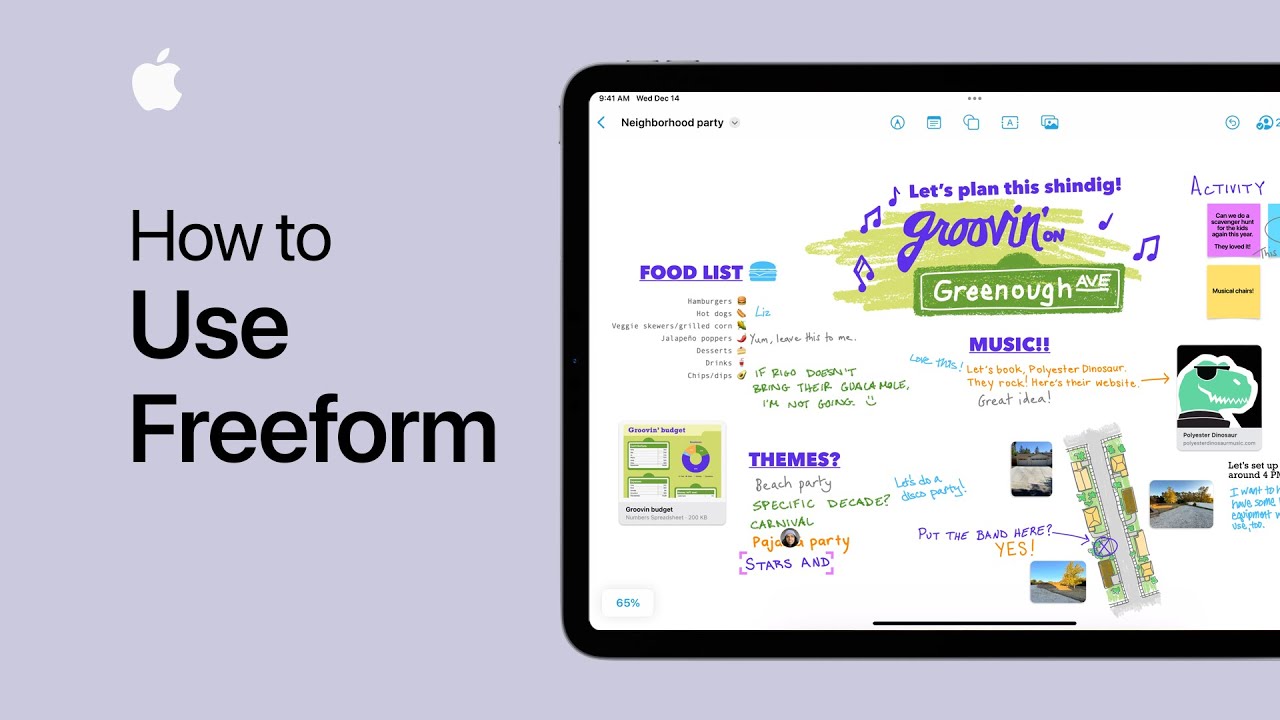
How to use Freeform | Apple Support

With Freeform, available on iPhone, iPad, and Mac, users can collaborate on whiteboards by incorporating drawings, text, links, photos, and more. Ensure all collaborators have updated to the latest software. To begin on iPad, open the Freeform app and start a new board or access existing ones from the sidebar. Add collaborators via the share button, then customize the board using drawing tools, sticky notes, shapes, and media like photos. Objects can be moved, resized, or deleted with touch and hold options. Further customizations include cropping photos and formatting text. Finally, review the board, export as a PDF, or hide grid lines as needed. Collaborators can join in, enhancing creativity and organization within Freeform.

Summary:
– Freeform enables collaborative whiteboarding with drawings, text, links, and photos.
– Accessible on iPhone, iPad, and Mac; ensure all users have the latest software updates.
– Begin by opening the Freeform app on iPad and starting a new board or accessing existing ones.
– Add collaborators via the share button and customize the board using various tools like drawing, shapes, and media.
– Objects can be easily moved, resized, or deleted, with additional options for cropping photos and formatting text.

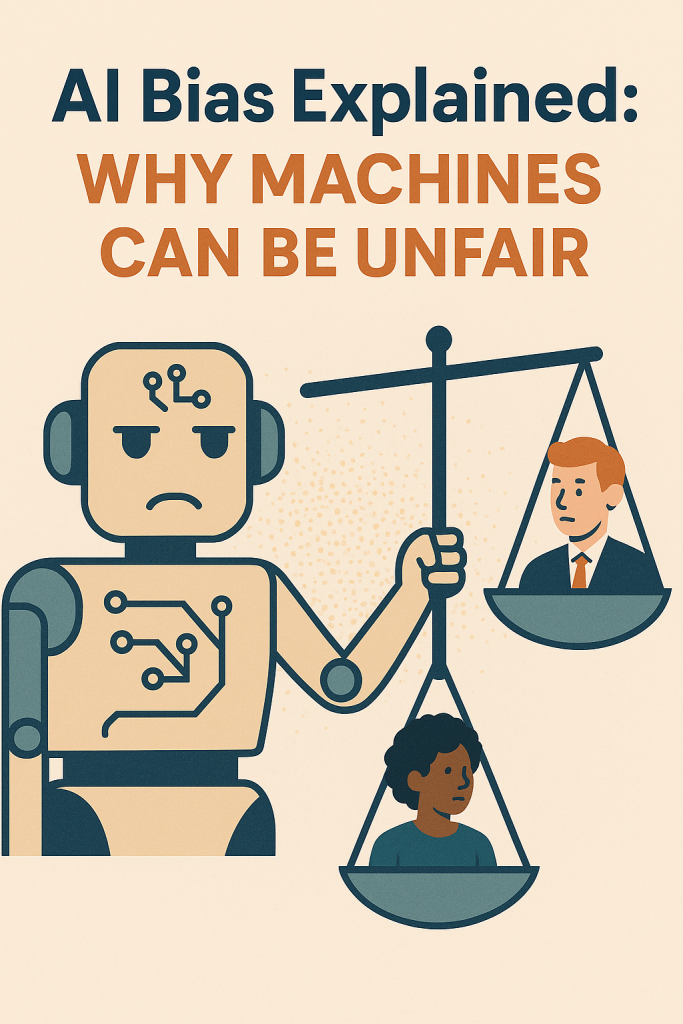
AI Bias Explained: Why Machines Can Be Unfair

Artificial intelligence, often called AI, is part of our daily lives in ways we might not even realize. It can suggest movies to watch, screen job applications, or help doctors spot illnesses. These tools are powerful, but they are not perfect. In fact, sometimes they make unfair or biased decisions.

You may have seen news stories about facial recognition struggling with certain faces, or hiring tools that favor men over women. These are examples of AI bias, and they can have serious effects on people’s lives. The good news is, you do not need to be a computer expert to understand why this happens.

In this article, we’ll explore what bias in AI means, how it happens, and why it matters to all of us.

Table of Contents

Key Takeaways

  • AI learns from data created by humans, which can include our flaws and prejudices.
  • If the data is biased or incomplete, the AI can repeat unfair patterns.
  • Examples include hiring tools, credit scoring, and facial recognition mistakes.
  • Understanding AI bias helps us spot problems and ask for fairer technology.

How AI Learns: The Basics

Think of AI as a student. Instead of learning from teachers and books, it studies huge amounts of data. This data might include résumés from past job applicants, thousands of photos of people’s faces, or financial histories.

By looking for patterns, the AI tries to “learn” what a good job candidate looks like, or how to tell one person apart from another.

For example:

  • A hiring AI might look at thousands of past job applications and notice which applicants were chosen.
  • A medical AI might review millions of X-rays to learn how to spot signs of disease.

Here’s the important part: AI does not think for itself. It only knows what it has been shown. If the data it studies is unfair or incomplete, the AI’s decisions will also be unfair.

Where Does Bias Come From?

AI bias does not come out of thin air. It usually comes from three main sources:

  1. Biased Data
    If the information used to train an AI reflects unfair patterns, the AI will copy them. For example, if a company mostly hired men for technical roles in the past, an AI trained on those records might learn to favor men’s résumés, even if women are equally qualified.
  2. Missing Data
    Sometimes certain groups are not represented well in the data. For example, many facial recognition systems were trained mostly on lighter-skinned faces. As a result, they made more mistakes when identifying people with darker skin tones.
  3. Design Choices
    The people who build AI decide which data to include, which features to focus on, and how the system should behave. Even without meaning to, those choices can create bias.

Everyday Examples of AI Bias

  1. Facial Recognition Problems
    Research has shown that facial recognition software can be very accurate for some groups of people but far less accurate for others. For example, it has performed best on white male faces but struggled with women and people of color. This can be dangerous if the technology is used in policing, since a wrong match could lead to someone being accused unfairly.
  2. Unfair Hiring Tools
    Some companies use AI to sort through résumés or even to judge video interviews. In one case, an AI tool learned from a company’s past hiring decisions that favored men. As a result, it gave higher scores to male candidates and lower scores to women, even when their qualifications were the same.
  3. Credit and Lending Decisions
    Financial institutions sometimes use AI to help decide who gets approved for loans or credit cards. But if the AI relies on biased historical data—like credit records tied to certain neighborhoods—it may unfairly deny people who are financially responsible, simply because they live in the “wrong” area.

Why AI Bias Matters

At first, these examples might sound like small glitches. But the truth is, they can have very real consequences.

  • Imagine being turned down for a job because a machine favored applicants who looked like the company’s past hires.
  • Imagine being denied a loan not because of your income or credit score, but because of a biased pattern hidden in the system.
  • Imagine being wrongly identified by facial recognition, leading to a false police report.

These issues are about more than technology. They affect people’s rights, opportunities, and everyday lives. That’s why it is so important to recognize and fix AI bias.

Can AI Be Made Fairer?

The good news is that people around the world are working hard to make AI more fair and transparent. Some of the steps include:

  • Better Data Collection
    Making sure the information used to train AI represents many groups of people fairly, instead of only a small portion.
  • Regular Testing
    Running checks to see if an AI treats different groups equally. For example, does it give the same accuracy for women as it does for men?
  • Transparency and Accountability
    Asking companies to explain how their AI systems work, what data they use, and how decisions are made.
  • Human Oversight
    Making sure important decisions, such as hiring or lending, are not made by AI alone. A human should always have the final say.

While no system can ever be completely free of bias, these steps can greatly reduce the risk. The more aware we are, the more we can push for fair practices.

What You Can Do as a User

Even if you are not building AI systems yourself, there are ways to stay informed and protect yourself:

  • Be Curious: If you hear about a company using AI in hiring or lending, ask how it works and whether it has been tested for fairness.
  • Read the News: Keep an eye out for stories about AI bias. These can help you understand where problems are showing up.
  • Support Transparency: When companies are open about their AI, it builds trust. Look for organizations that value fairness and accountability.

Final Thoughts

AI is powerful, but it is not perfect. It learns from us, and sometimes it learns our flaws too. When we see unfair results in technology, it is often because the system was copying patterns from the past.

By understanding AI bias, you can make sense of why machines sometimes seem unfair and why it matters to challenge those systems. The more we talk about these issues, the more likely it is that AI will be built in ways that are fair and useful for everyone.

Technology should help people, not hold them back—and with awareness, we can all play a part in making that happen.

Categories AI

How to use Stage Manager on iPad | Apple Support

With Stage Manager on your iPad, you can create your ideal workspace by grouping and resizing app windows for enhanced productivity. Available on iPad Air 5th generation, iPad Pro 12.9-inch 3rd generation and later, and iPad Pro 11-inch with the latest iPadOS, Stage Manager lets you switch between groups and move apps easily. To start, enable Stage Manager in Control Center, open an app, then open another from the dock or app library. Resize windows by dragging the corner, and group apps by dragging them to the center. Switch between groups or move apps by using the multitasking button.

Summary:
– Enable Stage Manager in Control Center on supported iPads.
– Open and group apps by dragging them to the center of the screen.
– Resize windows by dragging the curved corner.
– Switch between app groups using the recent apps list.
– Move apps between groups using the multitasking button.

How to multitask with Split View on iPad | Apple Support

With Split View in iPadOS, you can work on two apps side by side for increased productivity. To use Split View, tap the multitasking button while in an app like Procreate, then select Split View to move it to one side. Open another app, like Photos, from the home screen or app library on the other side. Adjust the space each app occupies by dragging the divider. You can also open multiple windows of the same app, such as Notes, by dragging the app from the dock. To exit Split View, tap the multitasking button and select full screen, or use the app switcher to manage open apps.

Summary:
– Use Split View to work on two apps side by side in iPadOS.
– Tap the multitasking button and select Split View to position an app on one side.
– Open a second app from the home screen or app library on the other side.
– Adjust the space between apps by dragging the divider.
– To exit Split View, tap the multitasking button and select full screen or use the app switcher.

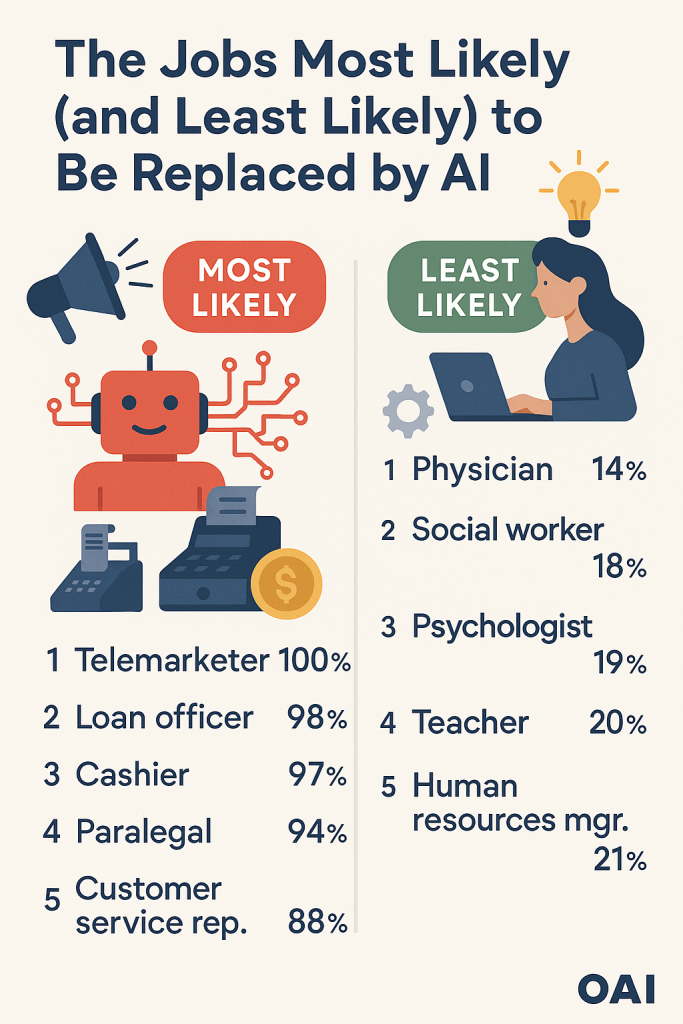
The Jobs Most Likely (and Least Likely) to Be Replaced by AI

Artificial intelligence (AI) is no longer just science fiction. From chatbots that answer customer questions to robots in factories, AI is changing the way people work. But this doesn’t mean every job is in danger. Some careers are more likely to be replaced by AI, while others will continue to rely on human skills that machines simply cannot copy.

In this article, we’ll look at which industries are most at risk, which jobs are safer, and how workers can prepare for the future. Don’t worry if you are not “tech-savvy.” We’ll keep it simple and easy to follow.

Table of Contents

Key Takeaways

  • Jobs with repetitive tasks, like data entry or assembly line work, are at higher risk of being replaced by AI.
  • Jobs that need creativity, personal interaction, or complex problem-solving are safer.
  • AI will also create new opportunities in areas like healthcare, education, and technology support.
  • Workers can prepare by learning new skills and focusing on tasks that require the “human touch.”

Jobs Most Likely to Be Replaced by AI

AI works best when tasks are predictable and repetitive. These are the jobs most at risk:

  1. Data Entry Clerks
    • Entering numbers and text into systems is something AI can do quickly and accurately.
    • Example: Many companies already use software that scans receipts or forms and fills in data automatically.
  2. Telemarketers
    • Automated calling systems and AI chatbots can make sales pitches or answer basic questions.
    • Example: You may have received an automated call offering a product or service.
  3. Factory and Warehouse Workers
    • Robots can handle packing, sorting, and assembly line tasks around the clock.
    • Example: Large companies like Amazon use robots to move products in their warehouses.
  4. Cashiers
    • Self-checkout machines and AI payment systems reduce the need for human cashiers.
    • Example: Many grocery stores now have more self-checkout lanes than staffed registers.
  5. Basic Customer Support Agents
    • Chatbots can answer simple questions like “What’s my order status?” or “How do I reset my password?”
    • Example: When you contact customer support online, the first response is often automated.
  6. Bank Tellers
    • Online banking apps and ATMs already do much of the work once handled by tellers.
    • Example: Depositing checks and transferring money can now be done entirely from your phone.
  7. Travel Agents (for simple bookings)
    • AI-driven websites can compare prices, suggest hotels, and book flights instantly.
    • Example: Many people now plan trips through online platforms without speaking to a person.

Jobs Less Likely to Be Replaced by AI

Some jobs depend on creativity, empathy, or complex decision-making, which AI cannot fully replicate. These are safer from automation:

  1. Healthcare Professionals
    • Doctors, nurses, and caregivers need compassion, communication, and hands-on care.
    • Example: AI can help with reading scans, but only a doctor can explain results with empathy.
  2. Teachers and Educators
    • Teaching involves personal encouragement and adapting to each student’s needs.
    • Example: A tutoring app may give practice questions, but a teacher motivates and supports students.
  3. Creative Professionals
    • Writers, artists, musicians, and designers rely on imagination and original thought.
    • Example: AI can suggest ideas, but only a human can tell a heartfelt story or create unique art.
  4. Skilled Trades
    • Jobs like electricians, plumbers, carpenters, and mechanics require problem-solving in unpredictable situations.
    • Example: Fixing a leaky pipe in an old house is not the same every time, making it hard for AI.
  5. Jobs Needing Human Relationships
    • Roles like therapists, social workers, coaches, and managers rely on trust and personal connection.
    • Example: People seek comfort and motivation from another human, not a computer program.
  6. Leaders and Decision-Makers
    • Executives, community leaders, and politicians make complex choices that require ethics, vision, and understanding of people.
    • Example: AI can give data, but only a person can decide how it affects a community or company.

How AI Can Support (Not Replace) Workers

It’s important to remember that AI is not only about replacing jobs. In many cases, it helps people work better:

  • Healthcare: AI tools can scan test results faster, helping doctors treat patients more quickly.
  • Education: Teachers use AI to track student progress and personalize lessons.
  • Everyday Work: Office workers use AI tools like spellcheck, scheduling assistants, or fraud detection to make tasks easier.
  • Transportation: GPS apps use AI to predict traffic and give drivers better routes.
  • Customer Service: Chatbots can handle simple requests, while human agents focus on solving harder problems.

Instead of taking over, AI often becomes a helpful partner.

Preparing for the Future of Work

The good news is that people can take steps to protect their careers and even benefit from AI. Here are a few practical tips:

  1. Focus on Human Skills
    • Improve communication, creativity, leadership, and empathy. These are skills AI cannot match.
  2. Learn to Work With Technology
    • You don’t have to be a computer expert. Even simple knowledge, like using AI-based apps, can make you more valuable at work.
  3. Stay Flexible
    • Be open to learning new roles or combining skills. For example, a nurse who also learns to use AI health tools will be in high demand.
  4. Look for Growing Industries
    • Healthcare, renewable energy, education, and technology support are expected to grow alongside AI.
  5. Lifelong Learning
    • Online courses, community classes, or workplace training can help you stay updated. It’s never too late to learn.

Final Thoughts

AI is reshaping the workplace, but it does not mean every job will disappear. Jobs with repetitive tasks are at higher risk, while roles that require creativity, empathy, and human judgment remain strong.

The best way to prepare is to focus on what makes us human: our ability to connect, adapt, and think creatively. By staying open to learning new skills, we can work alongside AI instead of fearing it.

AI may change the way we work, but it also gives us a chance to grow and discover new opportunities.

Categories AI

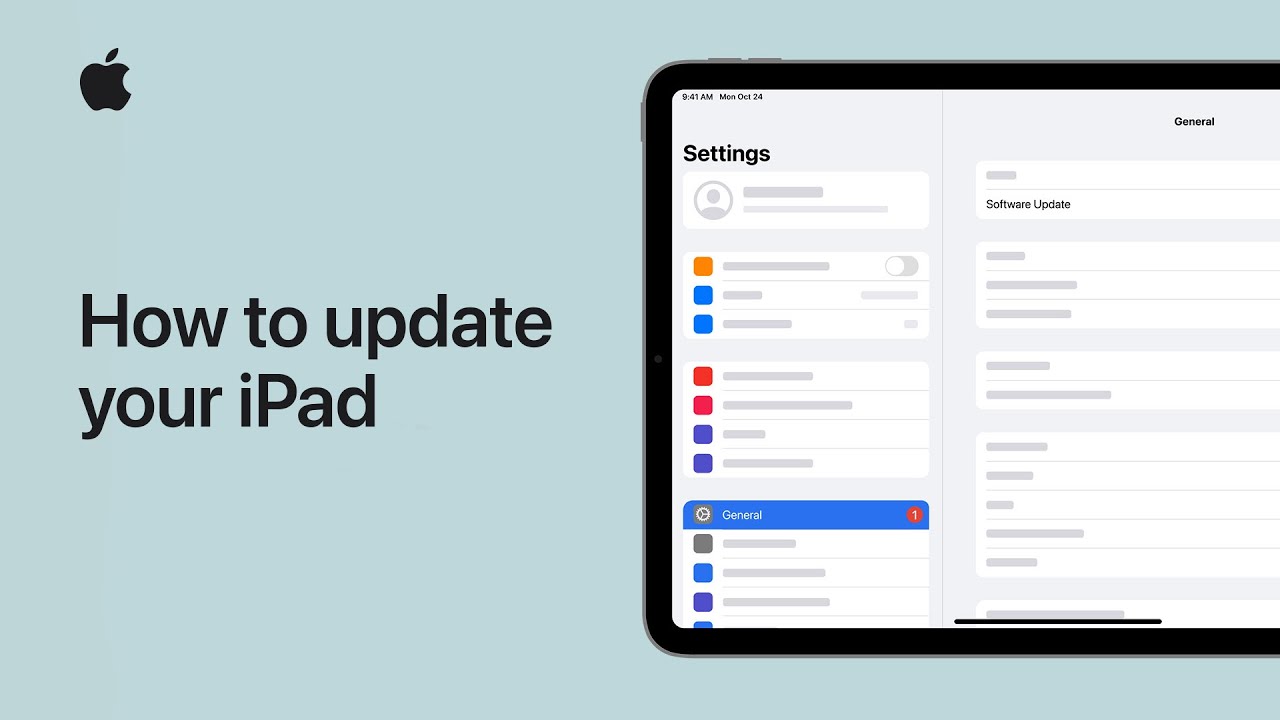
How to update your iPad | Apple Support

To keep your iPad up to date with the latest features and security enhancements, start by backing up your device. To update wirelessly, plug your iPad into power, connect to Wi-Fi, and check for updates in Settings under General and Software Update. You can either update immediately or schedule it for overnight. To update using a computer, connect your iPad to a Mac or Windows computer with internet access. On a Mac with macOS Catalina or later, use Finder; on macOS Mojave or earlier or a Windows PC, use iTunes. Follow the prompts, accept terms and conditions, and your iPad will restart once the update is complete.

Summary:
– Back up your iPad before updating.
– To update wirelessly, connect to power and Wi-Fi, then check for updates in Settings > General > Software Update.
– Choose to update immediately or schedule for overnight.
– To update using a computer, connect your iPad to a Mac or Windows PC with internet access and open Finder (macOS Catalina or later) or iTunes (macOS Mojave or earlier/Windows).
– Follow the prompts and accept terms and conditions; your iPad will restart when the update is complete.

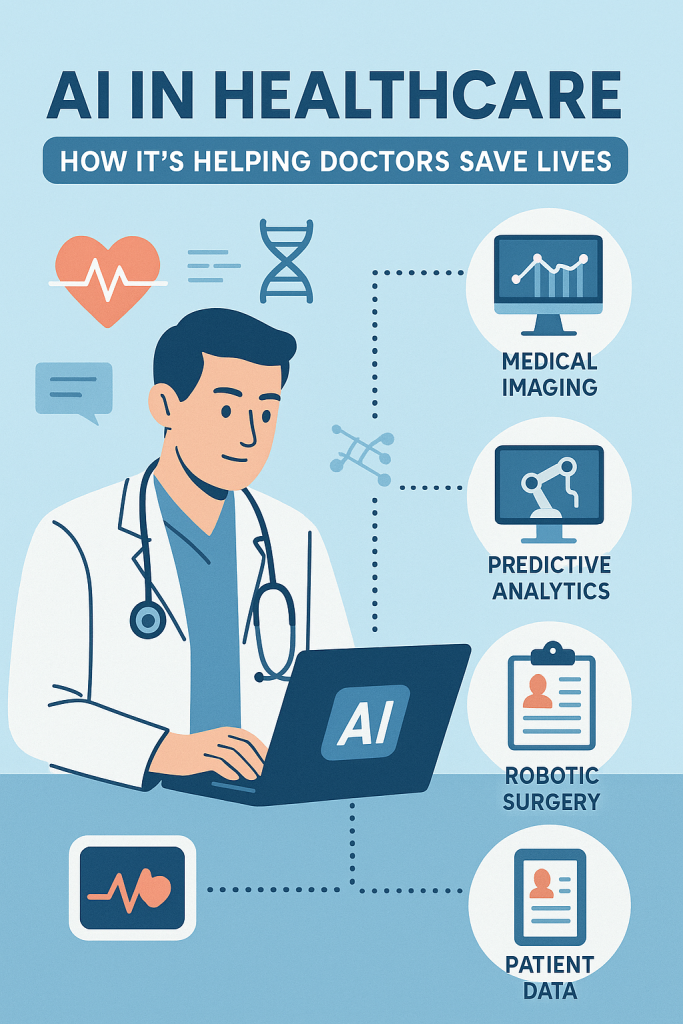
AI in Healthcare: How It’s Helping Doctors Save Lives

Healthcare is something that touches us all, whether through regular checkups, managing chronic conditions, or caring for loved ones. In recent years, artificial intelligence (AI) has begun playing a bigger role in how doctors treat patients and even how new medicines are created. If you are picturing robots in white coats, don’t worry—AI in healthcare is more about smart computer systems that help doctors make better decisions, faster.

In this article, we’ll explore how AI is being used right now in hospitals and research labs. You’ll see how it helps in diagnosing diseases, interpreting medical images like X-rays, and even speeding up the discovery of new drugs. Everything is explained in simple terms, so you can understand how these advances may impact healthcare for you and your family.

Table of Contents

Key Takeaways

  • AI helps doctors diagnose diseases more accurately and quickly.
  • Medical imaging programs powered by AI can spot tiny details on X-rays or scans that humans might miss.
  • AI speeds up drug discovery, helping create new medicines in less time.
  • These tools don’t replace doctors—they support and strengthen medical care.

How AI Helps Diagnose Diseases

One of the most powerful uses of AI in healthcare is diagnosing illnesses. Traditionally, doctors rely on their experience, test results, and medical history to figure out what might be wrong. While this works well, some diseases are tricky to detect early, such as cancer or rare conditions.

AI can step in by quickly analyzing massive amounts of medical data. For example:

  • Diabetes detection: AI systems can look at eye scans to detect early signs of diabetic retinopathy, which can lead to blindness if untreated.
  • Cancer screening: AI programs have been trained to spot unusual patterns in lab tests or scans that suggest cancer, sometimes even before symptoms appear.

Think of AI as a second pair of eyes for the doctor. It can pick up on small clues in the data, helping the doctor confirm a diagnosis or catch something early. This means patients can start treatment sooner, which can save lives.

AI in Medical Imaging

Medical imaging includes X-rays, MRIs, CT scans, and ultrasounds. These pictures give doctors an inside look at the body. The challenge is that images are often complex and small details can be overlooked, especially when a doctor is reviewing hundreds of scans a day.

AI programs are being trained to “read” these images with incredible accuracy. For example:

  • Breast cancer detection: AI systems can highlight suspicious spots on mammograms, helping radiologists decide whether further testing is needed.
  • Lung scans: AI can check chest X-rays for signs of pneumonia or lung cancer, which can look very subtle in the early stages.

A good way to imagine this is like using the “zoom” function on a camera, but much more advanced. AI can zoom in on details too small for the human eye and point them out to the doctor for closer review. Doctors still make the final call, but AI helps ensure nothing important is missed.

AI in Drug Discovery

Developing new medicines has always been a long and costly process. It often takes years of research and testing before a drug is ready for patients. AI is helping speed up this process by analyzing chemical structures and predicting how they might work in the body.

Here are a few examples:

  • Finding COVID-19 treatments: During the pandemic, AI helped scientists quickly test existing drugs to see if they could fight the virus.
  • New antibiotics: Researchers are using AI to identify new types of antibiotics, which are badly needed as some infections are becoming resistant to current drugs.

With AI, what used to take years of trial and error can sometimes be done in months. This means new treatments may reach patients faster, especially in urgent situations.

Final Thoughts

AI is not here to replace doctors. Instead, it acts like a smart assistant, giving doctors extra tools to do their jobs better. Whether it’s catching diseases earlier, spotting hidden details in scans, or helping create life-saving drugs, AI is already making a real difference in healthcare today.

For patients, this means a future where diagnoses are more accurate, treatments arrive faster, and outcomes improve. As technology continues to grow, AI will likely become a familiar and trusted part of medical care—quietly working in the background to help save lives.

Categories AI

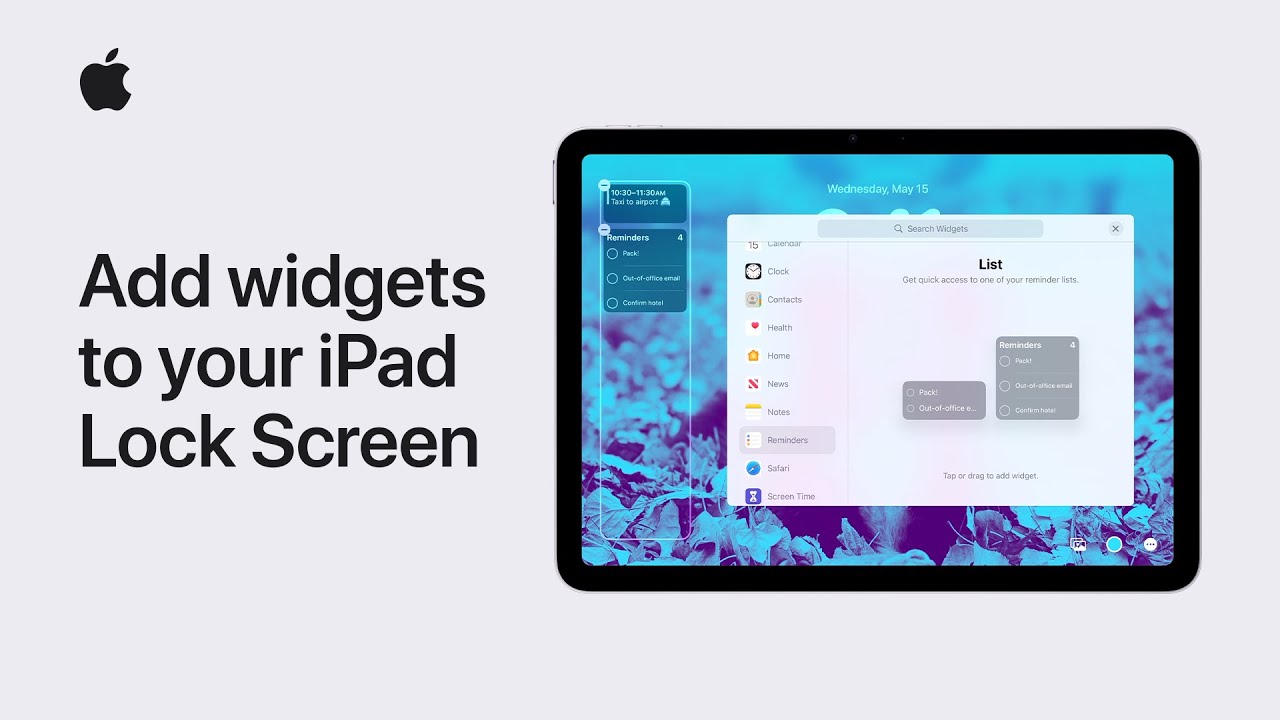
How to add widgets to your iPad Lock Screen | Apple Support

Keep current information at your fingertips with widgets on your iPad lock screen. To add them during lock screen customization, tap “Add Widgets.” You can choose from suggested widgets or select widgets from a specific app. For example, tap to add the calendar widget from the suggestions, then tap to add a reminders list widget. Once done, tap the close button to return to the lock screen you’re customizing. Personalize your lock screen to your preferences and for more tips, subscribe to the Apple support YouTube channel or watch more videos.

Summary:
– Add widgets to your iPad lock screen for quick access to information.
– During lock screen customization, tap “Add Widgets.”
– Choose from suggested widgets or select from specific apps.
– Add desired widgets, such as calendar and reminders, and tap close.
– Customize your lock screen and learn more by subscribing to the Apple support YouTube channel.