Smart Homes of the Future: Everyday Life with AI

Imagine waking up to the smell of fresh coffee, lights gently turning on, and a friendly voice reminding you of today’s appointments—all without you lifting a finger. This is no longer a futuristic dream. With the help of AI-powered smart devices like Alexa, Google Home, smart refrigerators, and advanced security systems, many households are already enjoying a new level of comfort and safety.

If technology sometimes feels overwhelming, don’t worry. This guide is written in simple terms to help you understand what a “smart home” really means and how these tools can fit into your everyday routine. We’ll also give you practical, step-by-step tips you can try at home.

Table of Contents

Key Takeaways

  • AI voice assistants like Alexa and Google Home act as central hubs to control lights, music, reminders, and more.
  • Smart appliances make daily chores easier, from ovens that preheat themselves to fridges that suggest recipes.
  • Security systems powered by AI can detect unusual activity, notify you instantly, and keep your family safe.
  • Smart homes are not just about gadgets—they are about saving time, reducing stress, and increasing peace of mind.
  • You can start small with one device and gradually build up a system that suits your needs.

How AI Fits Into Daily Home Life

1. Voice Assistants: Your Personal Helper

Devices like Amazon Alexa and Google Home respond to simple voice commands. You can ask them to:

  • Play your favorite music
  • Read out the news or weather
  • Remind you to take medication
  • Turn off the lights without leaving the couch

They also connect to other smart devices, so with one request, you can set the thermostat, lock the doors, or even start the coffee maker.

Try It Yourself:

  1. Buy a basic voice assistant (Amazon Echo Dot or Google Nest Mini are affordable starters).
  2. Plug it in and connect it to your Wi-Fi using the free app on your phone.
  3. Try saying, “What’s the weather today?” or “Set a timer for 10 minutes.”
  4. Explore skills like playing music, creating shopping lists, or controlling smart plugs.

Real-life example: Imagine your hands are full while cooking. Instead of reaching for your phone, you simply say, “Alexa, set a timer for 20 minutes,” and it’s done.

2. Smart Appliances: Everyday Chores Made Easier

Appliances are becoming smarter and more interactive.

Examples include:

These tools not only save time but can also reduce waste and help you stay organized.

Try It Yourself:

  1. Start with something simple like a robotic vacuum. Many affordable models connect to Wi-Fi.
  2. Download the companion app and schedule it to clean while you’re out.
  3. For cooking, some smart ovens let you scan food packaging with your phone to set the right temperature automatically.

Real-life example: Your fridge notices you’re low on milk and sends a reminder to your phone while you’re at the store.

3. Smart Security: Peace of Mind at Home and Away

One of the most valuable uses of AI in homes is security. Smart systems can:

  • Send alerts when motion is detected
  • Recognize familiar faces and ignore them, while alerting you about strangers
  • Allow you to check live video from your phone anytime
  • Lock doors automatically if you forget

Try It Yourself:

  1. Install a video doorbell such as Ring or Google Nest Hello.
  2. Connect it to your phone and test the live video feature.
  3. Enable motion alerts so you get a notification if someone approaches your door.
  4. If you feel comfortable, connect it with a smart lock to unlock doors remotely.

Real-life example: You’re on vacation, and your door camera notifies you of a package delivery. You can unlock the door for the courier and lock it again once they leave—all from your phone.

4. Safety and Accessibility for Older Adults

AI smart homes are especially helpful for older adults or anyone who may need extra support.

Some examples:

  • Voice assistants can remind you to take medicine or attend an appointment.
  • Smart lighting can automatically turn on at night to prevent falls.
  • Emergency alerts can notify family members if something unusual happens.

Try It Yourself:

  1. Set a daily voice reminder: “Hey Google, remind me to take my medication at 8 a.m.”
  2. Add motion-sensor night lights in hallways or bathrooms.
  3. If you use a smart watch, connect it to your home system for fall detection alerts.

These features give both independence and peace of mind.

5. The Bigger Picture: Saving Energy and Money

AI-powered homes often come with energy-saving features:

  • Smart thermostats learn your routines and adjust temperatures.
  • Smart lights turn off when no one is in the room.
  • Appliances can run during off-peak hours to lower bills.

Try It Yourself:

  1. Install a smart thermostat (like Nest or Ecobee).
  2. Use the app to set your preferred temperature schedule.
  3. After a week, the thermostat will begin adjusting automatically based on your habits.
  4. Track your energy usage in the app to see savings over time.

Real-life example: In summer, the thermostat lowers cooling while you’re at work and cools down the house just before you get home.

How to Start Building Your Own Smart Home

If the idea of connecting all these devices feels overwhelming, remember you don’t need to do everything at once.

Step 1: Pick a Hub
Choose either Alexa or Google Home as your main assistant. Both work with most devices, so you can expand later.

Step 2: Add One Device at a Time
Start small. A smart speaker, a light bulb, or a plug you can control with your voice is a great way to begin.

Step 3: Explore Routines
In the app, you can create routines like:

  • “Good Morning” → turns on lights, tells you the weather, and plays the news.
  • “Good Night” → locks the doors, lowers the thermostat, and plays calming music.

Step 4: Expand as Needed
Once you feel comfortable, add smart locks, cameras, or appliances. Each step makes your home more connected.

Beginner’s Smart Home Setup Checklist

Here’s a simple checklist you can follow or even print out:

✅ Choose your main hub (Alexa or Google Home)
✅ Set up your first smart speaker or display
✅ Connect to Wi-Fi and practice with simple voice commands
✅ Add one smart device (light bulb, plug, or switch)
✅ Try creating a routine (morning or bedtime)
✅ Add a security device (video doorbell or camera)
✅ Explore energy-saving tools like smart thermostats
✅ Gradually expand with appliances or additional devices
✅ Test everything and make sure family members know how to use it

Final Thoughts

Smart homes of the future are not about having flashy gadgets. They are about making everyday life simpler, safer, and more enjoyable. From voice assistants that answer your questions to security systems that keep an eye on your home, AI-powered devices can provide real peace of mind.

If you’re new to this technology, start small—maybe with a voice assistant or a smart light bulb—and see how it fits into your routine. Step by step, you can build a home that feels more supportive and connected.

Your home should be a place of comfort. With AI, that comfort is becoming smarter every day.

Categories AI

How to view photo collections in Messages on iPhone, iPad, and iPod touch | Apple Support

In Messages, when you receive multiple photos and messages, you can view them as a collection and swipe through each one seamlessly. Simply tap on the grid view button to see all the photos at once, or swipe through a stack of photos individually. You can tap on a photo to view it in full size and then swipe to see the others. To save, share, reply, or send a tap back, use the buttons along the bottom. To return to grid view, tap the button in the top right corner. Additionally, you can touch and hold a photo to send a tap back. Enjoy exploring photos from your friends!

Summary:
– In Messages, view multiple photos and messages as a collection.
– Swipe through a stack of photos or tap grid view to see them all at once.
– Tap a photo to view it full size and swipe to see others.
– Use buttons along the bottom to save, share, reply, or send a tap back.
– Touch and hold a photo to send a tap back or return to grid view by tapping the button in the top right corner.

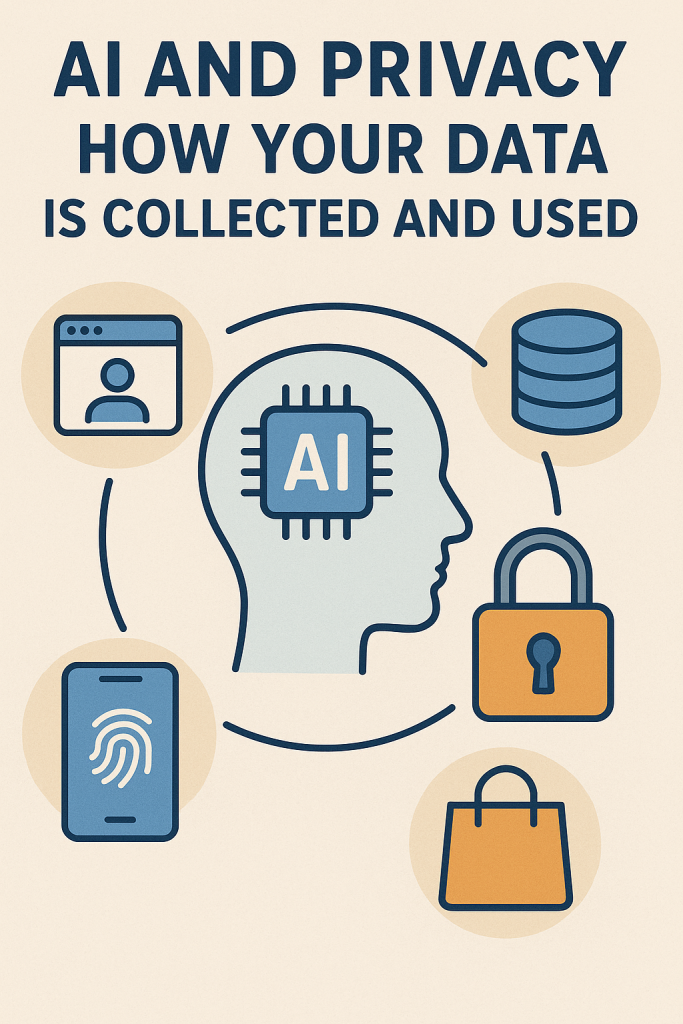
AI and Privacy: How Your Data Is Collected and Used

Every time you go online, you leave little footprints of information. Maybe you ask Siri about the weather, search for recipes, or watch videos on social media. Behind the scenes, artificial intelligence (AI) helps collect, organize, and learn from those actions.

For many people, this can feel overwhelming. Is my phone listening to me? What happens to all that data? The good news is that you do not need to be a tech expert to understand what is happening or to take steps to protect yourself.

This guide will explain how AI collects your information, why it matters, and the risks to be aware of. Most importantly, it includes a simple, step-by-step “privacy checkup” you can do today to feel more in control.

Table of Contents

Key Takeaways

  • AI collects data from searches, voice commands, apps, and devices you use.
  • Companies use this information to improve services, personalize content, and target ads.
  • Risks include loss of privacy, unwanted ads, and possible data leaks.
  • A privacy checkup on your phone, browser, and social media can greatly reduce these risks.

How AI Collects Your Data

AI systems need information to function, and that information often comes from you. Here are the most common ways:

  1. Search Engines – When you type in a question, AI records what you search and how you respond to results.
  2. Voice Assistants – Siri, Alexa, and Google Assistant store short samples of your voice to learn your speech patterns.
  3. Social Media – Likes, comments, and what you watch are all tracked to personalize your feed.
  4. Apps and Devices – A fitness tracker might save your daily steps, while a shopping app records your buying habits.
  5. Photos and Videos – AI can recognize faces, places, and even emotions in images you upload.

Why Companies Collect Data

It may feel like companies just want to spy on you, but there are clear business reasons:

  • Improving Tools: Data teaches AI how to give better answers and predictions.
  • Personalization: You see music, movies, or news that match your interests.
  • Advertising: Targeted ads keep many apps and websites free.
  • Innovation: The more data AI has, the more advanced it becomes—for example, helping doctors diagnose diseases.

The Risks of Data Collection

The benefits are real, but there are also risks:

  • Loss of Privacy – Companies may know more about your habits than you expect.
  • Targeted Ads That Feel Uncanny – Ads can sometimes feel like they are reading your mind.
  • Data Breaches – Hackers may steal personal information from company databases.
  • Unintended Uses – Information given for one purpose, like fitness tracking, might later be used for marketing.

Step-by-Step Privacy Checkup

Now for the practical part. Here is a beginner-friendly privacy checkup you can do today. It is broken down into three areas: your phone, your browser, and your social media accounts.

1. On Your Phone

  • Update Your Software
    • Go to Settings > Software Update and make sure your phone has the latest version. Updates fix security holes.
  • Review App Permissions
    • On iPhone: Settings > Privacy & Security > App Permissions
    • On Android: Settings > Apps > Permissions Manager
    • Look for apps that have access to your location, microphone, or camera. Turn off any that seem unnecessary.
  • Check Location Settings
    • Only allow apps to use your location “while using the app,” not “always.”
  • Use a Strong Lock Screen
    • Choose a PIN, password, or fingerprint instead of “swipe to unlock.”

2. In Your Web Browser

  • Clear Cookies and History
  • Turn On Private Browsing
    • In Chrome, it is called “Incognito Mode.” In Safari, it is “Private Browsing.” This prevents your searches from being saved.
  • Install Privacy Extensions
    • Tools like uBlock Origin or Privacy Badger can block trackers.
  • Consider a Privacy-Friendly Search Engine
    • DuckDuckGo and Startpage do not track your searches.

3. On Social Media

  • Adjust Privacy Settings
    • Facebook: Go to Settings > Privacy Checkup to control who sees your posts.
    • Instagram: Switch to a private account if you want more control.
    • TikTok: Limit who can comment, duet, or message you.
  • Be Mindful of What You Share
    • Ask yourself: “Would I be comfortable if this was public forever?”
  • Turn Off Ad Personalization
    • Many platforms let you opt out of targeted ads in their ad settings.

Extra Tips for Everyday Safety

  • Use Different Passwords for different accounts. A password manager can remember them for you.
  • Enable Two-Factor Authentication (2FA) where available. This usually means entering a code sent to your phone in addition to your password.
  • Think Twice Before Clicking Links in emails or messages. Some are phishing scams designed to steal your data.

Real-Life Example

Imagine you download a free game. During setup, it asks for permission to access your camera, microphone, and contacts. A simple privacy checkup habit would tell you this is unnecessary. By denying those permissions, you keep extra data safe.

Final Thoughts

AI is part of daily life, from search engines to smart speakers. It works best when it has data, but that does not mean you have to give away more than you are comfortable with.

By following the privacy checkup steps, you can enjoy the benefits of AI—like personalized recommendations and useful apps—while keeping control of your personal information. Small habits, like checking settings and being mindful about sharing, go a long way toward protecting your privacy.

Remember, privacy is not about avoiding technology. It is about using it wisely and staying in charge of your data.

Categories AI

How to restore an iPhone or iPad from an iCloud backup | Apple Support

To restore your iPhone from an iCloud backup, start by turning on the device and following the setup until you reach the Quick Start screen. Choose “Setup Manually” and connect to Wi-Fi. Set up Face ID if needed and create a device passcode. On the “Apps & Data” screen, select “Restore from iCloud Backup” and sign in with your iCloud credentials. Choose the relevant backup from the list and proceed, agreeing to terms and conditions. Continue setup for features like Apple Pay and Siri settings. Ensure a stable Wi-Fi connection throughout the process, and once the progress bar completes, your device will be ready with apps, photos, and other data restored.

Summary:
– Turn on your iPhone and proceed to the Quick Start screen.
– Choose “Setup Manually” and connect to Wi-Fi.
– Select “Restore from iCloud Backup” on the “Apps & Data” screen.
– Sign in with your iCloud credentials and choose the relevant backup.
– Continue setup, ensuring a stable Wi-Fi connection until the progress bar completes, restoring your device with apps and data.

How to back up your iPhone, iPad, or iPod touch to your Mac — Apple Support

To back up your iPhone, iPad, or iPod Touch to your Mac running macOS Catalina or later, start by plugging your iOS device into your Mac. Open a Finder window and select your device name in the sidebar. If it’s your first time connecting, click “Trust” and confirm on your device. Then, to initiate a backup, click “Backup Now.” For sensitive data, like passwords, select “Encrypt local backup,” set a password, and confirm. Enter your passcode on the device to start the backup. Once complete, check the “Last Backup” section for details. Your backup is now stored locally on your Mac.

Summary:
– To back up iOS devices to a Mac running macOS Catalina or later, connect the device to the Mac via USB.
– Open Finder on the Mac and select the connected device from the sidebar.
– Click “Trust” if it’s the first connection, and enter the device passcode if prompted.
– Initiate the backup process by clicking “Backup Now” in Finder.
– For sensitive data, enable encryption by selecting “Encrypt local backup,” setting a password, and confirming it on the device.

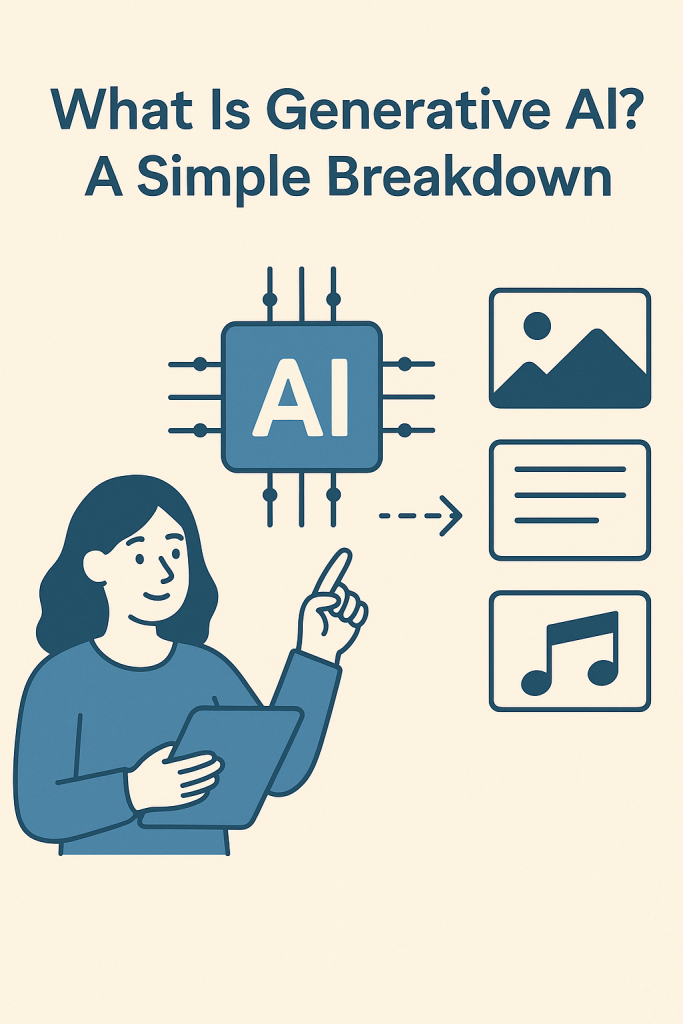
What Is Generative AI? A Simple Breakdown

You have probably heard the term generative AI on the news or from family. Maybe you have seen a funny AI-made picture or used a chatbot to get an answer. It can feel mysterious, but it does not have to be.

This guide explains what generative AI is in simple terms. You will see how it can create text, images, audio, and even short video clips. Most importantly, you will get easy, step-by-step ideas you can try yourself. No technical background needed.

Table of Contents

Key Takeaways

  • Generative AI creates. It makes new text, pictures, music, and video based on patterns it has learned.
  • It learns from examples. The AI studies many samples, then uses that knowledge to produce something new.
  • You may already use it. Chatbots, image makers, and voice tools are common and beginner friendly.
  • Great for fun and for tasks. It can help write letters, brainstorm ideas, or create art for a card or gift.
  • Start small. Short prompts, simple goals, and a little curiosity go a long way.

What Does “Generative” Mean?

Generative means “able to generate,” or create. Older computer programs mostly followed strict rules. Generative AI can produce new content. Think of it like a very fast helper that has read and seen a lot. You give it a short instruction, called a prompt, then it uses what it has learned to make something new.

How It Works in Plain Language

Imagine a person who has read many books and looked at many pictures. Over time, they learn patterns. If you ask for a short poem or a sketch of a sunflower, they can create one because they have seen many examples. Generative AI works similarly. It does not copy a single book or picture. It blends patterns it has learned to produce fresh results.

Try It Yourself: Text (Chatbots and Writing Helpers)

Text tools can write emails, summaries, poems, stories, and explanations. They can also change tone, for example more friendly or more formal.

What you need

  • A chatbot or writing tool on your computer or phone.
  • A simple prompt that clearly states what you want.

Steps to start

  1. Open a chatbot.
  2. Type a short, clear prompt. For example:
    • “Write a friendly email to my neighbor thanking them for watering my plants while I was away.”
    • “Explain Wi-Fi in simple terms for beginners. Keep it under 150 words.”
  3. Read the result. If it is not quite right, type a follow up. For example:
    • “Make it shorter.”
    • “Add a warm closing line.”
    • “Use simpler words.”
  4. When you like the result, copy it into your email or document.

Helpful tip
Give the tool a role. For example: “Act as a helpful assistant. Draft a two paragraph letter to dispute a phone bill politely.” This often improves the first draft.

Try It Yourself: Images (AI Art and Photo Ideas)

Image tools can turn a short description into a brand new picture. This is fun for greeting cards, party ideas, or home decor mockups.

What you need

  • An image generation app or website.
  • A short description of what you want to see.

Steps to start

  1. Open an AI image tool.
  2. Type a prompt that includes a subject, a setting, and a style. Examples:
    • “A golden retriever wearing a raincoat, standing under a bright red umbrella, cartoon style.”
    • “A cozy reading corner with a lamp and plants, watercolor style.”
  3. Generate the image. Most tools show several options.
  4. Refine your prompt if needed. Add details like lighting, color, or mood. For example:
    • “Make the room brighter with morning light.”
    • “Add a blue armchair and a small cat on the windowsill.”
  5. Save the image you like. You can use it for a card, a phone background, or a social post.

Helpful tip
If the first try looks odd, do not worry. Small changes in wording often fix it. Try different styles, such as watercolor, oil painting, pencil sketch, or photorealistic.

Try It Yourself: Audio (Voices and Music)

Audio tools can create short tunes or read text aloud in a natural voice. This can help with greeting messages, simple narrations, or practicing a speech.

What you need

  • A voice or music tool that can generate audio from text or a style prompt.
  • A short script or idea.

Steps to start

  1. Write a short script or message. For example:
    • “Welcome to our family slideshow. We hope you enjoy these memories from the past year.”
  2. Paste the text into a text-to-speech tool and pick a voice.
  3. Listen to the preview. Adjust speed or pauses if available.
  4. Save the audio file and play it with your slideshow or share it by text or email.

Music idea
If the tool supports music, try a prompt like “a gentle piano melody for 30 seconds.” Use it under a family video or a birthday message.

Try It Yourself: Video (Short Clips and Animations)

Video generation is newer, but basic tools can create short clips from simple prompts. It is useful for small greetings or background visuals.

What you need

  • A beginner friendly video tool.
  • A short idea that describes motion.

Steps to start

  1. Write a simple prompt, such as:
    • “A peaceful ocean sunset with gentle waves for 10 seconds.”
  2. Generate a clip.
  3. If you can, tweak details like length, color tone, or camera angle.
  4. Save and use it in a slideshow or as a looping background during a gathering.

Helpful tip
Keep expectations modest. Short, simple scenes usually look best right now.

Getting Better Results: Simple Prompt Formula

You can use this structure for any tool:
[What you want] + [Details] + [Style or tone] + [Length or size]

Examples:

  • Text: “Write a three sentence thank you note to my doctor, warm and sincere, plain language.”
  • Image: “A sunflower in a mason jar on a kitchen table, morning light, watercolor style.”
  • Audio: “Narrate this 100 word welcome message in a calm adult voice, natural pace.”
  • Video: “Ten second clip of autumn leaves falling in a quiet park, soft focus.”

Everyday Uses You Might Enjoy

  • Letters and emails. Start with a draft, then add your personal touch.
  • Recipes and meal plans. Ask for a simple 3 day plan for two people with easy cleanup.
  • Party planning. Generate invitation wording and a matching image for the card.
  • Learning support. Ask for short explanations of topics in plain language.
  • Memory projects. Create captions for family photos or short audio introductions for slideshows.

Smart and Safe Use

  • Double check facts. AI can be wrong. Verify medical, legal, or financial details with trusted sources.
  • Protect privacy. Avoid sharing sensitive personal or financial information.
  • Mind copyright. If you plan to publish or sell something, read the tool’s terms.
  • Keep your voice. Let AI draft, then edit in your own words so it sounds like you.

Final Thoughts

Generative AI is simply a creative helper. It learns from many examples, then uses that knowledge to produce new text, images, audio, or video. You do not need special skills to try it. Begin with a small prompt and a clear goal. If the first result is not perfect, guide it with a few short corrections.

With a little practice, you can save time, have fun, and bring ideas to life. When you are ready, explore more prompts and try new styles. You might be surprised by what you can create.

Categories AI

How to share your screen in FaceTime on iPhone and iPad | Apple Support

To share your screen during a FaceTime call, start or join a call, then tap the screen to show controls. Select the “Share Screen” button and confirm. After a countdown, your screen will be shared, allowing others to see your entire screen while notifications are muted. Navigate to the app you want to share, and when finished, tap the “Share Screen” button again to end sharing. Subscribe to the Apple Support channel for more iPhone and iPad tips or click another video to continue learning.

Summary:
– To share your screen on a FaceTime call, join or initiate a call.
– Tap the screen to access controls and select the “Share Screen” button.
– Confirm your choice, and after a countdown, your screen will be shared.
– Navigate to the desired app or content to share with others.
– To end screen sharing, access controls again and tap the “Share Screen” button once more.

How to use Slide Over on your iPad | Apple Support

To use Slide Over on iPad, open the desired app and tap the multitasking button, then select the Slide Over option. Add additional apps to Slide Over by tapping on them in the multitasking view. Swipe left from the right edge of the screen to open Slide Over and cycle through apps by dragging sideways along the bottom bar. View all open Slide Over apps by swiping up from the bottom of the window. To switch a Slide Over app to full screen, tap the multitasking button and then the full-screen option. Access all Slide Over apps in the app switcher by swiping up from the bottom of the screen and then left.

Summary:
– Open desired app on iPad and tap multitasking button.
– Select Slide Over option to add app to Slide Over.
– Swipe left from right edge to open Slide Over.
– Cycle through apps by dragging sideways.
– Access all Slide Over apps in app switcher by swiping up and left.

How to use Markup in Photos on iPhone, iPad, and iPod touch — Apple Support

With markup in Photos, you can add playful drawings to your images effortlessly. Start by choosing a photo in your Photos app, then tap Edit and select the “More” button. Next, tap Markup and choose a drawing tool. Begin marking up your photo using either your finger or an Apple Pencil. Once you’re satisfied with your edits, tap Done to finish. It’s as simple as that to add a creative touch to your pictures using markup in Photos.

Summary:
Access a photo in the Photos app.
– Tap “Edit” and then the “More” button.
– Select “Markup” and choose a drawing tool.
– Add drawings using an Apple Pencil or your finger.
– Tap “Done” to finish editing.

How AI Is Changing the Music and Film Industry

The world of music and film has always embraced new technology, from microphones and sound mixers to digital cameras and editing software. Today, a new tool is making its mark: artificial intelligence (AI). AI can now write songs, suggest scripts, and even edit videos with surprising skill.

For many people, this sounds exciting, while for others it feels a little unsettling. Will computers replace human creativity, or will they simply give artists new ways to express themselves? In this guide, we’ll explore how AI is being used in music and film, the opportunities it brings, and the controversies it raises. Don’t worry if you’re not tech-savvy—everything will be explained in simple, everyday language.

Table of Contents

Key Takeaways

  • AI can generate music, write scripts, and edit videos, saving time and inspiring new ideas.
  • Musicians and filmmakers are using AI as a partner, not a replacement, for creativity.
  • AI raises concerns about copyright, originality, and the future of human jobs in the arts.
  • Like past inventions, AI is reshaping the industry but still relies on people to guide it.

How AI Creates Music

Imagine typing a few words like “soft piano music for relaxation” into a computer and getting a full song in minutes. That’s exactly what AI tools like Amper Music and AIVA can do.

How it works in simple terms:

  • AI studies thousands of existing songs.
  • It learns patterns, such as what chords usually follow each other or how different instruments sound together.
  • When asked, it combines these patterns to create brand-new music.

Opportunities:

  • Independent artists can quickly create background music for YouTube videos or podcasts.
  • Songwriters can use AI to overcome “writer’s block” by generating melodies to spark ideas.
  • Small businesses can get affordable custom music instead of paying for expensive licensing.

Controversies:

  • Some worry AI music could flood the market, making it harder for human musicians to earn a living.
  • There are copyright concerns. If AI learned from existing songs, who owns the rights to the new piece?
  • Listeners may wonder: is a song as meaningful if no human emotion went into writing it?

AI in Scriptwriting

AI can also write scripts. Tools like ChatGPT or Sudowrite can create story outlines, suggest dialogue, or even draft entire scenes.

How it works:

  • AI reads countless scripts, books, and stories.
  • It learns how stories are structured: beginning, conflict, climax, and resolution.
  • It then creates new text based on prompts like “a romantic comedy set in New York.”

Opportunities:

  • Screenwriters can use AI to brainstorm faster and test different story ideas.
  • Beginners can practice writing by collaborating with AI suggestions.
  • Studios can save time by letting AI create rough drafts before humans polish them.

Controversies:

  • Writers fear being replaced, especially in a cost-cutting industry.
  • AI sometimes reuses clichés or patterns it has seen before, raising questions about originality.
  • If an AI script resembles an existing work too closely, who is responsible for plagiarism?

During the 2023 Hollywood writers’ strike, one of the key debates was how much studios should be allowed to use AI in scriptwriting. This shows how deeply the issue affects real people’s livelihoods.

AI in Video Editing

Editing video has always been a time-consuming process. AI now makes it faster by automatically cutting clips, adjusting lighting, and even generating special effects.

Examples in real life:

  • AI can spot when someone is speaking in a video and cut directly to that clip.
  • It can add subtitles instantly by recognizing speech.
  • Some tools can even remove background noise or change the sky in a scene from cloudy to sunny.

Opportunities:

  • Small creators can produce professional-looking videos without expensive equipment.
  • Filmmakers can spend more time on creative choices instead of tedious edits.
  • Newsrooms and social media teams can quickly prepare content for fast-moving events.

Controversies:

  • Editors worry about losing jobs if AI handles the bulk of routine tasks.
  • Some argue that too much automation could make films feel less personal.
  • There are ethical debates about “deepfake” technology, which uses AI to alter faces or voices in videos.

Looking Back to Look Forward

It helps to remember that every new technology has sparked worry. When photography was invented, painters feared no one would value portraits anymore. When synthesizers came along, musicians worried they would replace real instruments. Instead, these tools became part of the creative toolbox.

AI may be following the same path. It is not replacing creativity but changing how it looks. Musicians, writers, and filmmakers who use AI as a partner often find they can create more, faster, and sometimes even better.

Final Thoughts

AI in music and film is opening new doors while raising important questions. It can help beginners explore creativity, give professionals new tools, and make art more accessible to everyone. But it also challenges us to think about what makes art meaningful and how to protect the work of human creators.

For now, one thing is clear: AI may change the industry, but it cannot replace the heart, imagination, and passion that humans bring to art. If you are curious, try exploring these tools yourself—you might be surprised at how they can spark your creativity.

Categories AI