iPhone Tips for Seniors: 7 Handy iPhone Tips!

Like you, I watch YouTube a lot and often come across handy iPhone tips that I forget. To help remember them, I made this video. Whether you already know these tips or they’re new to you, stick around to learn seven useful iPhone tips. First, Safari’s Reader View removes ads for easy reading. Second, in Notes, double-tap a word or triple-tap a paragraph to quickly select text. Third, hold the space bar to move the cursor precisely. Fourth, mark up photos by drawing circles and arrows. Fifth, use Siri to toggle the flashlight. Sixth, quickly scroll to the top or bottom of your photo library. Lastly, explore hidden features in the Weather app. For a bonus, close multiple apps simultaneously with multi-finger swipes. I hope this video helps you remember these tips!

Summary:
– **Safari Reader View:** Removes ads for easier reading.
– **Notes App:** Double-tap to select a word, triple-tap for a paragraph.
– **Cursor Control:** Hold the space bar to move the cursor precisely.
– **Photo Markup:** Draw circles and arrows on photos using the edit feature.
– **Weather App:** Access hidden features like precipitation, temperature, air quality, and wind maps.

Top 50 actually useful Siri commands in 5 minutes

Everyone knows Siri and some cool things she can do, but daily usage often falls short, with many of us only asking Siri for jokes when we’re bored.

Here are some actually useful Siri commands: “Hey Siri, show photos of my motorcycle,” “Call Max on speaker,” “How far away is Seattle,” “Play my last voicemail,” “What’s the Apple stock at,” “Show me the latest Apple Insider podcast,” “Play ‘Alone’ by Alan Walker,” “Set a timer for 20 minutes,” “Navigate to the Space Needle,” “Text mom saying we’re on our way,” “When’s the next football game,” “Turn off Bluetooth,” and “Add this song to my favorites.” Siri can also help with measurements, alarms, navigation, weather, movie times, and reminders, making her a handy assistant for daily tasks.

Summary:
– Siri can help with daily tasks like calling contacts, checking stock prices, playing music, setting timers, and providing directions.
– You can use Siri to perform quick conversions, calculate tips, and check measurements.
– Siri can assist with managing messages, emails, meetings, and reminders.
– Siri can answer questions about the weather, definitions, sports schedules, and local businesses.
– Siri offers entertainment options by playing podcasts, music, and showing movie times.

AI in Finance: How It Detects Fraud and Saves You Money

Banking today looks very different from just a few years ago. If you have ever gotten a fraud alert on your credit card, used a mobile banking app, or even read about stock market predictions, you may have already experienced the power of artificial intelligence (AI).

The good news is you don’t need to be a tech expert to understand it. AI is simply a set of smart computer programs that can spot patterns, learn from past behavior, and make helpful suggestions. In this guide, we will look at three everyday ways AI is used in finance: detecting fraud, helping with stock market insights, and making banking apps easier and safer to use.

Table of Contents

Key Takeaways

  • AI watches for unusual activity on your accounts and can alert you to fraud quickly.
  • Stock analysis tools powered by AI help investors spot patterns, though risks still remain.
  • Banking apps use AI to provide budgeting tips, reminders, and personalized advice.
  • You don’t need to be a tech expert to benefit—AI is already working quietly to protect and assist you.

AI in Fraud Detection: Your Digital Watchdog

One of the most important jobs of AI in finance is spotting fraud. Years ago, banks relied mostly on people to notice and stop suspicious transactions. That process was slow and sometimes missed problems.

Today, AI systems monitor millions of transactions in real time. They look for unusual patterns, such as:

  • Purchases in locations far from your home
  • Large or repeated withdrawals that don’t match your history
  • Online orders from unfamiliar websites

If something looks suspicious, the system quickly alerts the bank. That’s why you may have received a text or phone call asking, “Did you make this purchase?”

Example: Imagine you normally shop for groceries in your hometown. Suddenly, your card is used to buy expensive jewelry overseas. AI instantly spots the difference and blocks the charge until you confirm it.

This quick action saves customers millions of dollars every year. For most people, it’s reassuring to know an invisible “watchdog” is always on duty.

AI in Stock Analysis: Helping Investors Make Sense of the Market

The stock market can feel overwhelming, even for experienced investors. Prices go up and down quickly, and it’s hard to keep track of everything. This is where AI comes in.

AI-powered tools scan huge amounts of financial data—news articles, company reports, and even social media chatter. They look for patterns that might affect stock prices. For example:

  • Predicting when a company might perform well based on sales data
  • Spotting risks when a company’s costs suddenly rise
  • Suggesting investment trends, like renewable energy or healthcare

Important Note: While AI can provide useful insights, it cannot guarantee profits. The stock market always carries risks. Many everyday investors use AI tools more as a guide, not a crystal ball.

Example: Some apps now give users “investment health checks,” showing how balanced or risky their portfolio is. The AI makes it easier to understand complex data in plain language.

AI in Banking Apps: Your Pocket Financial Assistant

If you use a banking app, you may already benefit from AI without realizing it. These apps are becoming like personal financial assistants, offering tools such as:

  • Spending summaries that show where your money goes each month
  • Budget reminders when you are close to overspending
  • Savings tips based on your habits, like suggesting an automatic transfer to a savings account
  • Chatbots that answer simple banking questions 24/7

Example: Let’s say you usually spend $200 a month on dining out. If your spending suddenly jumps to $400, the app might send a friendly reminder. This small nudge helps you stay on track and avoid end-of-month surprises.

These features make banking more personalized and less stressful, especially for people who want simple, clear information.

Everyday Benefits of AI in Finance

To put it all together, here’s how AI makes a difference for everyday users:

  1. Peace of mind: Fraud detection keeps your money safe.
  2. Clarity: Stock analysis tools explain complicated data in easy-to-read ways.
  3. Control: Banking apps give you simple budgeting and saving tips.

Most of this happens automatically. You don’t need to set anything up—AI is already built into the services banks and apps provide.

Final Thoughts

AI in finance may sound high-tech, but at its heart, it’s about making banking safer and easier for people like you. Whether it’s catching fraud before it happens, helping investors understand the stock market, or offering helpful nudges through apps, AI is working behind the scenes every day.

The next time you get a fraud alert, see a spending summary in your app, or read about market predictions, you’ll know that AI played a role. And the best part? You don’t need to be a tech expert to benefit from it.

Your money is being watched over, guided, and protected in ways that were never possible before.

Categories AI

Beginner’s Guide to Siri Shortcuts!

Siri Shortcuts on iPhone are underrated, especially for smart home control. This beginner’s guide explains how to get started with Siri Shortcuts, including using the Shortcuts app to create and organize them. Shortcuts automate frequent tasks without opening apps, like controlling smart home devices, playing music, and adding reminders. The app syncs across iCloud, allowing shortcuts to be used on multiple devices. You can run shortcuts manually, automatically through automations, or via Siri, widgets, and the lock screen. The guide covers basic steps to create and customize shortcuts, offering ideas and resources for further exploration, ensuring users can efficiently manage their smart home with ease.

Summary:
– Siri Shortcuts automate frequent tasks on iPhone, such as controlling smart home devices, playing music, and adding reminders.
– The Shortcuts app allows users to create, organize, and customize shortcuts, which sync across multiple iOS devices via iCloud.
– Shortcuts can be run manually, automatically through personal and home automations, or via Siri, widgets, and the lock screen.
– The guide provides step-by-step instructions for creating shortcuts, including adding actions and organizing them into folders.
– Users are introduced to various shortcut ideas and resources for further exploration to enhance their smart home management.

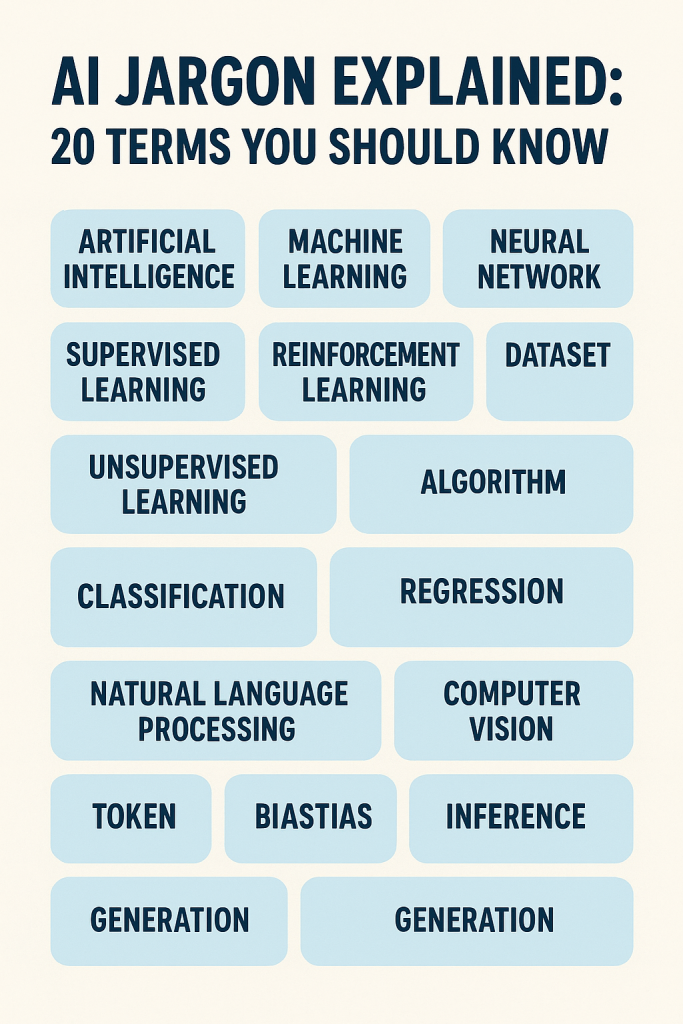
AI Jargon Explained: 20 Terms You Should Know

If you have ever read about artificial intelligence and felt lost in the jargon, you are not alone. Words like “deep learning” or “GPT” can sound complicated, but the basic ideas are often easier to understand than they seem. This guide will walk you through 20 of the most common AI terms in plain English. You do not need any technical background. By the end, you will be able to follow AI conversations with more confidence.

Table of Contents

Key Takeaways

  • AI jargon can be confusing, but most terms have simple meanings.
  • Many AI concepts relate to how computers learn, process information, and make decisions.
  • Understanding these 20 terms will help you feel more comfortable with news and discussions about AI.

20 AI Terms Explained in Simple Language

Here are 20 common AI terms, explained as simply as possible:

  1. Artificial Intelligence (AI): When computers are designed to do tasks that usually require human thinking, such as recognizing voices or making decisions.
  2. Machine Learning (ML): A way for computers to “learn” from data and improve over time without needing step-by-step instructions.
  3. Algorithm: A set of rules or instructions that a computer follows to solve a problem or complete a task.
  4. Neural Network: A computer system inspired by the human brain, made up of layers that process information and help with tasks like image recognition.
  5. Deep Learning: A type of machine learning that uses very large neural networks to solve complex problems, like recognizing faces in photos.
  6. Natural Language Processing (NLP): The ability of computers to understand and work with human language, like chatbots or translation apps.
  7. Chatbot: A program that talks with users in a human-like way, often used for customer service or virtual assistants.
  8. Generative AI: AI that creates new content, such as text, images, music, or video, instead of just analyzing existing information.
  9. GPT (Generative Pre-trained Transformer): A popular type of generative AI that can write text, answer questions, and have conversations.
  10. Training Data: The information used to teach an AI system, similar to how students learn from textbooks.
  11. Bias: When an AI system gives unfair results because the data it learned from was incomplete or unbalanced.
  12. Overfitting: When an AI learns too much from its training data and struggles to work well with new, unseen information.
  13. Model: The finished AI system after training, which can then make predictions or create content.
  14. Prompt: The text or question you give an AI system to get a response. For example, typing “Write me a recipe for chicken soup.”
  15. Token: A small chunk of text (like a word or part of a word) that AI systems break language into for processing.
  16. Computer Vision: The ability of AI to “see” and understand images or videos. Examples include facial recognition or self-driving cars.
  17. Voice Recognition: AI that understands spoken words, such as Siri, Alexa, or Google Assistant.
  18. Reinforcement Learning: A way AI learns by trial and error, receiving rewards or penalties for its choices, like training a pet.
  19. Data Set: A collection of information used for training or testing AI systems.
  20. Automation: Using technology to perform tasks with little or no human involvement, such as sorting emails or powering self-checkout machines.

Real-Life Examples to Make It Clearer

  • When Netflix suggests a movie you might like, that is machine learning in action.
  • When you ask your phone, “What’s the weather today?” and it answers, that is natural language processing.
  • When an AI creates a picture of a cat wearing sunglasses, that is generative AI.

Final Thoughts

Artificial intelligence may sound complicated, but once you break down the jargon, it becomes much easier to understand. Knowing these 20 terms gives you a solid foundation to follow the latest news, try out AI tools, or simply feel more confident in conversations about technology. If you would like to keep learning, you can explore guides on how AI is used in healthcare, education, or even in your daily smart devices.

Categories AI

How to organize apps with the VoiceOver rotor on your iPhone and iPad — Apple Support

To create a folder using VoiceOver on your iPhone or iPad, first, rotate two fingers on the screen to access the rotor and select “Actions.” Enter edit mode by double-tapping when you hear “Started Editing.” Then, flick down until you hear “Drag Photos” and double-tap to confirm. Next, select the apps you want to include in the folder, such as Photos, FaceTime, and Camera. Once selected, flick down to “Create New Folder” and confirm by double-tapping. The folder is created with the chosen apps inside. Exit edit mode by double-tapping “Stop Editing Apps.”

Summary:
– Access rotor in VoiceOver settings.
– Enter edit mode and select “Drag Photos.”
– Choose apps like Photos, FaceTime, and Camera.
– Create a new folder and confirm.
– Exit edit mode to complete the process.

How to share your screen in FaceTime on iPhone and iPad | Apple Support

To share your screen during a FaceTime call, start or join the call and tap the screen to reveal the controls. Then, tap the “Share Screen” button and confirm by selecting “Share My Screen.” After a brief countdown, screen sharing begins, allowing others to view your entire screen while notifications are muted. Navigate to the desired app to share its content. To end screen sharing, access the FaceTime controls again and tap the “Share Screen” button. For further assistance and tips on iPhone and iPad usage, subscribe to the Apple Support channel or explore additional videos.

Summary:
– To share your screen during a FaceTime call, tap the screen to reveal controls.
– Select “Share Screen” and confirm by choosing “Share My Screen.”
– Screen sharing starts after a brief countdown, muting notifications.
– Navigate to the desired app or content to share.
End screen sharing by accessing FaceTime controls and tapping “Share Screen” again.

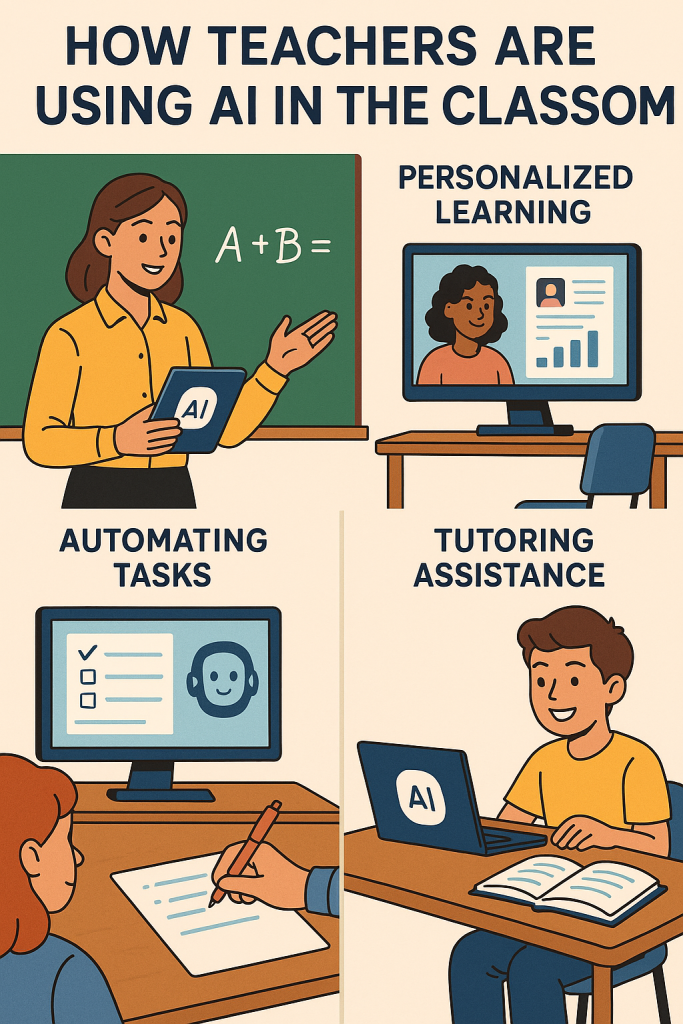
How Teachers Are Using AI in the Classroom

Artificial intelligence, or AI, is no longer just a futuristic idea. It has quietly made its way into classrooms around the world. Teachers are discovering new ways to use AI tools for tutoring, grading, and lesson planning. These tools can save time, make learning more personal, and even help struggling students keep up.

But with these opportunities come concerns. How can teachers make sure students don’t misuse AI for cheating? And how can schools keep education fair and personal when technology is doing more of the work? This article will walk you through the benefits, the risks, and real examples of how AI is being used in classrooms today.

Table of Contents

Key Takeaways

  • AI can support teachers with grading assignments, saving hours of work.
  • Tools like chatbots and apps provide tutoring help outside the classroom.
  • AI helps teachers plan lessons tailored to student needs.
  • Risks include plagiarism, over-reliance, and privacy concerns.
  • Teachers still play the most important role: guiding, encouraging, and teaching critical thinking.

How Teachers Use AI in the Classroom

1. AI for Tutoring

Think of AI tutoring as a digital assistant for students. Tools like chatbots or learning apps can answer homework questions, explain concepts in simple terms, and even quiz students.

  • For example, a student struggling with algebra can ask an AI app to explain step by step how to solve an equation.
  • Language learners use AI-powered tools to practice conversations and get instant corrections.
  • Some schools provide access to AI tutors so students can review lessons after class at their own pace.

This doesn’t replace teachers. Instead, it gives students extra support when a teacher isn’t available, like at home in the evening.

2. AI for Grading

Grading can take up hours of a teacher’s week. AI programs can help by quickly checking:

  • Multiple-choice tests
  • Short written answers
  • Even longer essays, by flagging grammar, spelling, and clarity issues

This means teachers spend less time on routine checking and more time giving personal feedback. For example, AI might highlight that many students struggled with the same question. The teacher can then review that topic in class.

Of course, teachers don’t simply accept whatever the AI suggests. They double-check results to make sure the grading is fair and accurate.

3. AI for Lesson Planning

Planning lessons for a classroom of students with different needs is tough. AI tools can help teachers design lesson plans by:

  • Suggesting activities based on the subject and grade level
  • Creating quizzes or practice questions in minutes
  • Recommending resources like videos or articles that match the curriculum

For example, a history teacher might ask an AI tool to create a set of discussion questions about World War II. The tool can provide options, which the teacher then adjusts to fit the class.

This doesn’t mean teachers are being replaced. Instead, it reduces repetitive work so they can spend more time actually teaching.

The Risks of Using AI in Education

While AI has many benefits, it also brings challenges. Teachers are careful about how and when to use it. Some of the main risks include:

  1. Plagiarism and Cheating
    Students may use AI tools to write essays or complete assignments without doing the work themselves. Teachers now use plagiarism checkers that can spot AI-generated writing.
  2. Over-Reliance on Technology
    If students always turn to AI for answers, they may not develop problem-solving or critical thinking skills. Teachers encourage balance: use AI for practice, but still learn the process.
  3. Privacy Concerns
    Many AI apps collect data on students’ performance. Schools need to make sure this information stays private and secure.
  4. Bias in AI Tools
    Sometimes AI programs give incorrect or biased answers. Teachers review and guide students to think critically about the information they receive.

Real-Life Examples

  • In some U.S. classrooms, teachers use AI programs to track student progress. If a student struggles with fractions, the program alerts the teacher so they can provide extra help.
  • Language classes often use AI-powered tools for speech practice. Students can speak into the app, and it gives feedback on pronunciation.
  • Teachers in busy schools report saving several hours each week by using AI to generate practice quizzes and review questions.

Beginner’s Classroom AI Toolkit

Here is a simple step-by-step starting guide for teachers who want to explore AI safely and effectively:

  1. Start Small
    Pick one task where you need extra help, like quiz creation or grading short answers. Try a single AI tool for that task before adding more.
  2. Safe Tutoring Apps
  3. Grading Helpers
    • Gradescope (helps grade multiple-choice and written responses)
    • Turnitin Draft Coach (checks writing and flags possible plagiarism)
  4. Lesson Planning Tools
    • ChatGPT or similar AI assistants (generate ideas, quizzes, and lesson outlines)
    • Curipod (creates interactive presentations and class activities)
  5. Keep Human Oversight
    Always review AI suggestions before using them with students. Think of AI as a teaching assistant, not a replacement.
  6. Discuss AI with Students
    Explain how these tools work and set clear rules. Encourage them to use AI as a helper, not as a shortcut for doing assignments.
  7. Stay Updated
    AI in education is growing fast. Check with your school or district for approved tools and best practices.

Final Thoughts

AI is not here to replace teachers. It is a tool, much like calculators or computers once were. Used wisely, AI can make classrooms more efficient, give students extra support, and free up teachers to focus on what matters most: guiding young minds.

The key is balance. By understanding both the benefits and risks, schools can use AI in a way that improves learning while still keeping education personal and fair.

Categories AI

How to find and replace text on iPad | Apple Support

With iPadOS 16, finding and replacing text on your iPad has become faster. In a document or note, simply double-tap the word you want to replace, then tap “Find Selection.” Next, tap the magnifying glass above the keyboard and select “Find and Replace.” In the replace field, type the word you want to replace with, then tap “Replace” to execute the change. Repeat this process for any additional replacements needed. Once done, tap “Done” to finish. This feature streamlines the process of replacing words efficiently.

Summary:
– With iPadOS 16, text finding and replacing is expedited on iPads.
– Double-tap the word to be replaced in a document or note.
– Select “Find Selection” and tap the magnifying glass.
– Choose “Find and Replace” and input the replacement word.
– Tap “Replace” to execute and “Done” when finished, enhancing efficiency in text editing.

How to add photos or videos in Freeform on iPhone or iPad | Apple Support

To enhance a board in Freeform with photos and videos, tap the media button within the board. Then, select either photos or videos and choose the desired media to add by tapping on it. Once added, adjust the size by dragging the handles, move it around the board by dragging, or rotate it using two fingers. With these simple steps, you can transform your board into a vibrant space for brainstorming and collaboration.

Summary:
– In Freeform, tap the media button within the board.
– Choose between photos or videos.
– Select the desired media and tap “Add” to include it in the board.
Adjust size, position, and rotation using drag handles and gestures.
– Transform the board into a lively space for brainstorming and collaboration.