How to use Point and Speak on iPhone or iPad | Apple Support

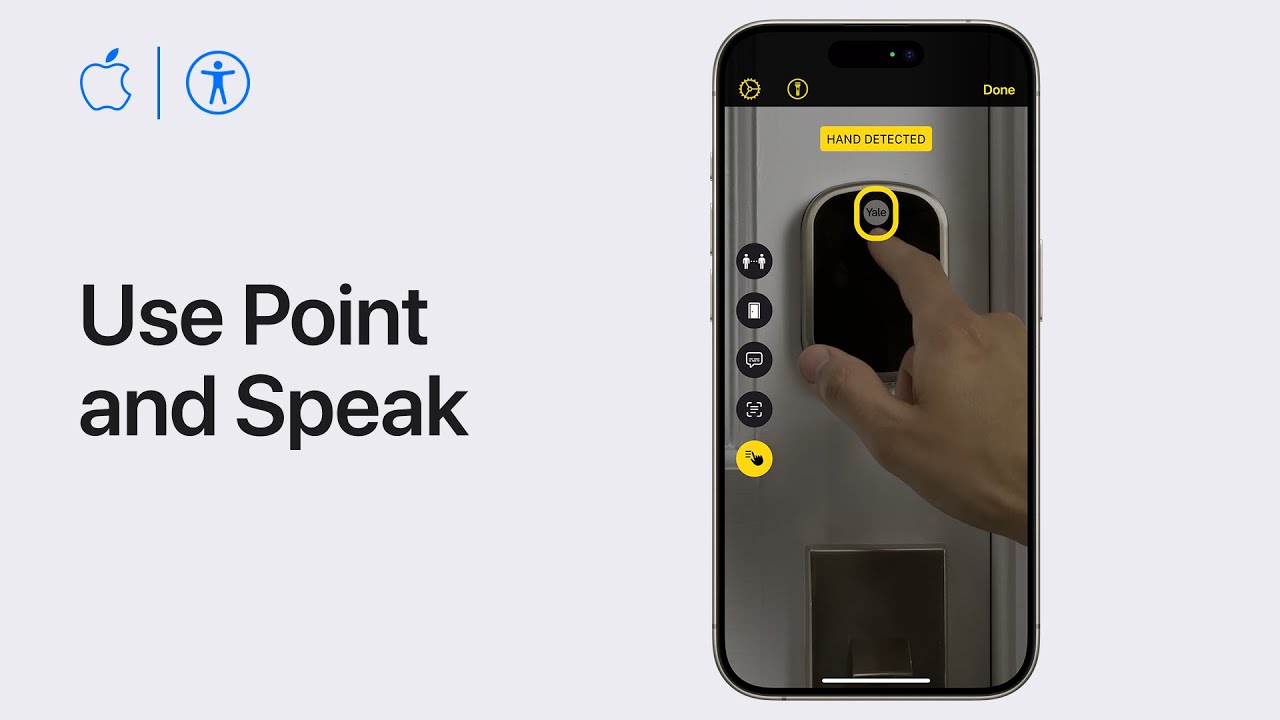
If you are blind or have low vision, you can use Point and Speak on your iPhone or iPad with LiDAR to have text read aloud. In Magnifier, tap the Detection Mode button or enable it by triple-tapping with four fingers if using VoiceOver. Tap the Point and Speak button, then point your camera at the text you want to hear. Point your finger at the text to have it read aloud. When finished, tap Done. This feature requires an iPhone or iPad with LiDAR and the latest iOS or iPadOS, and it’s not available in all regions.

Summary:
– Use Point and Speak on iPhone/iPad with LiDAR to have text read aloud.
– Enable Detection Mode in Magnifier or via VoiceOver triple-tap.
– Tap Point and Speak, then point camera at text and your finger at the text to hear it.
– Tap Done when finished.
– Requires latest iOS/iPadOS and LiDAR; not available in all regions.

How to share an AirTag in Find My on iPhone, iPad, or Mac | Apple Support

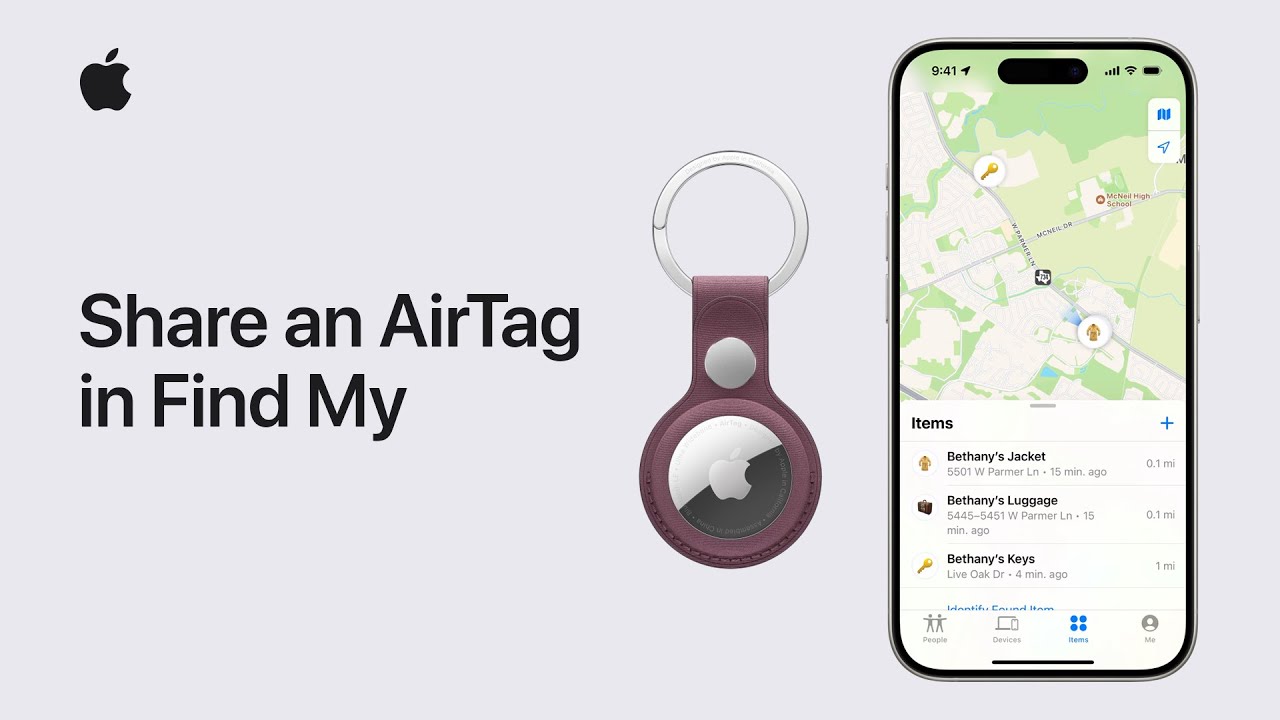
To share an AirTag with friends or family using the Find My app, ensure two-factor authentication is turned on for your Apple ID, and everyone is signed into iCloud with iCloud Keychain enabled. To share, tap the Items tab, select the AirTag, drag up and tap “Add Person.” Choose a contact and tap “Share.” The recipient must accept the invitation in the Items tab to track the AirTag. To stop sharing, tap the shared AirTag, drag up, select the contact, and tap “Remove.” Confirm by tapping “Stop Sharing.” This process helps everyone track shared items seamlessly.

Summary:
– Ensure two-factor authentication and iCloud Keychain are enabled.
– In the Find My app, tap Items, select the AirTag, drag up, and tap “Add Person.”
– Choose a contact and tap “Share.”
– The recipient must accept the invitation in the Items tab.
– To stop sharing, select the shared AirTag, drag up, choose the contact, and tap “Remove.”

How AI Helps Small Businesses Compete

Running a small business can feel like a constant uphill climb. Big companies have more money, staff, and resources. But here’s some good news: artificial intelligence (AI) is no longer out of reach. Today, affordable AI tools can help you do things faster, smarter, and often better than before.

In this article, we will look at easy-to-use AI options for marketing, bookkeeping, and customer service. Even if you don’t think of yourself as “tech-savvy,” you’ll see that these tools are designed to be beginner-friendly and budget-conscious.

Table of Contents

Key Takeaways

  • AI tools are now affordable and designed for small businesses.
  • Marketing AI can help attract and keep more customers.
  • AI bookkeeping tools save time and reduce errors.
  • Chatbots and virtual assistants improve customer service around the clock.
  • You don’t need technical skills to start using most of these tools.

AI in Marketing: Attracting More Customers

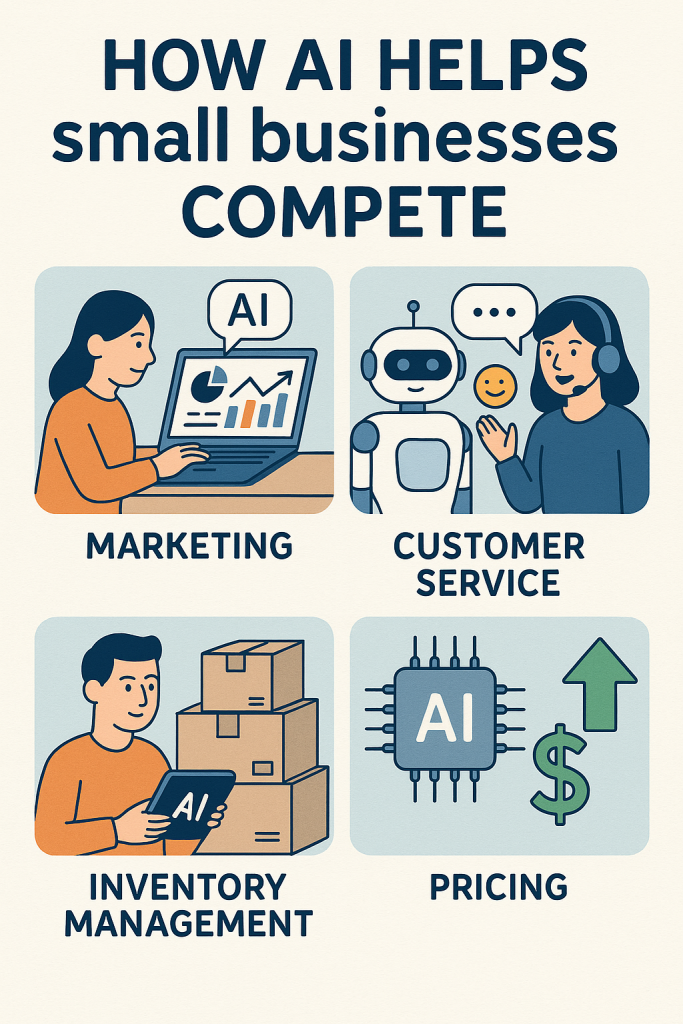
Marketing is often the hardest part of running a small business. You want to reach new customers but don’t have the budget for big advertising campaigns. AI tools can make marketing more effective without costing a fortune.

Examples of Affordable Tools

  • Canva with AI features: Helps you design eye-catching social media posts, flyers, or ads in minutes.
  • Mailchimp: Uses AI to suggest the best times to send emails so more people read them.
  • Lumen5: Turns blog posts into short videos automatically, great for social media promotion.

Real-Life Example

Imagine you own a small bakery. Instead of spending hours designing a Facebook post, you could use Canva to generate ready-made templates. Then, Mailchimp can help you send out a weekly newsletter with promotions at the time your customers are most likely to check their inbox.

AI for Bookkeeping and Finances

Keeping track of money is one of the least enjoyable tasks for most small business owners. AI-powered bookkeeping tools can help you stay on top of expenses, invoices, and even taxes.

Examples of Affordable Tools

  • QuickBooks: Automatically categorizes your expenses and generates reports.
  • FreshBooks: Helps with invoicing and tracks time for service-based businesses.
  • Wave: A free tool for simple accounting and receipt scanning.

Real-Life Example

Let’s say you run a small landscaping service. Instead of juggling paper receipts, you can snap photos with Wave’s mobile app. The AI system will read and organize them, saving you hours of work at tax time.

AI in Customer Service: Being Available 24/7

Customers today expect quick answers, even outside business hours. Hiring full-time staff to cover every question isn’t realistic for small businesses. This is where AI-powered chatbots shine.

Examples of Affordable Tools

  • Tidio: Adds a chatbot to your website that can answer common questions.
  • ManyChat: Connects with Facebook Messenger to handle customer inquiries.
  • Zendesk with AI: Helps manage email and chat requests in one place.

Real-Life Example

Picture a local gift shop with an online store. A customer visits the website at 10 p.m. and asks, “Do you ship to other states?” Instead of waiting until morning, a chatbot like Tidio can give an instant answer, keeping that sale from slipping away.

How to Get Started with AI (Step-by-Step)

If you’re curious but not sure where to begin, here’s a simple roadmap:

  1. Pick one area to improve first: Marketing, bookkeeping, or customer service.
  2. Try a free version: Many AI tools offer free plans or trial periods.
  3. Test with one task: For example, use Canva to create your next flyer or try Wave for your next expense report.
  4. Measure results: Did it save you time? Did you reach more customers?
  5. Decide to upgrade: If it works, consider moving to a paid plan for extra features.

Final Thoughts

AI isn’t just for big corporations anymore. Small businesses can use these tools to save time, reduce stress, and reach more customers without breaking the bank. The best part is you don’t need a tech background to get started.

Think of AI as an extra pair of hands that never gets tired. By starting small, you can gradually bring in more AI support and stay competitive, even against larger companies.

Categories AI

How to use Screen Curtain with VoiceOver on iPhone, iPad, or iPod touch — Apple Support

practhumb177

To enhance privacy while using VoiceOver, connect your headphones and activate the screen curtain feature. To turn on the screen curtain, triple-tap the screen with three fingers. If you’re also using Zoom with VoiceOver, you’ll need to triple-tap the screen with three fingers four times. Repeat the same gesture to turn off the screen curtain. This way, you can keep your screen hidden and maintain privacy.

Summary:
– Connect headphones for privacy while using VoiceOver.
– Activate the screen curtain by triple-tapping the screen with three fingers.
– If using Zoom with VoiceOver, triple-tap the screen with three fingers four times.
– Repeat the same gesture to turn off the screen curtain.
– This helps keep your screen hidden and maintains privacy.

AI in Gaming: Smarter NPCs and Endless Worlds

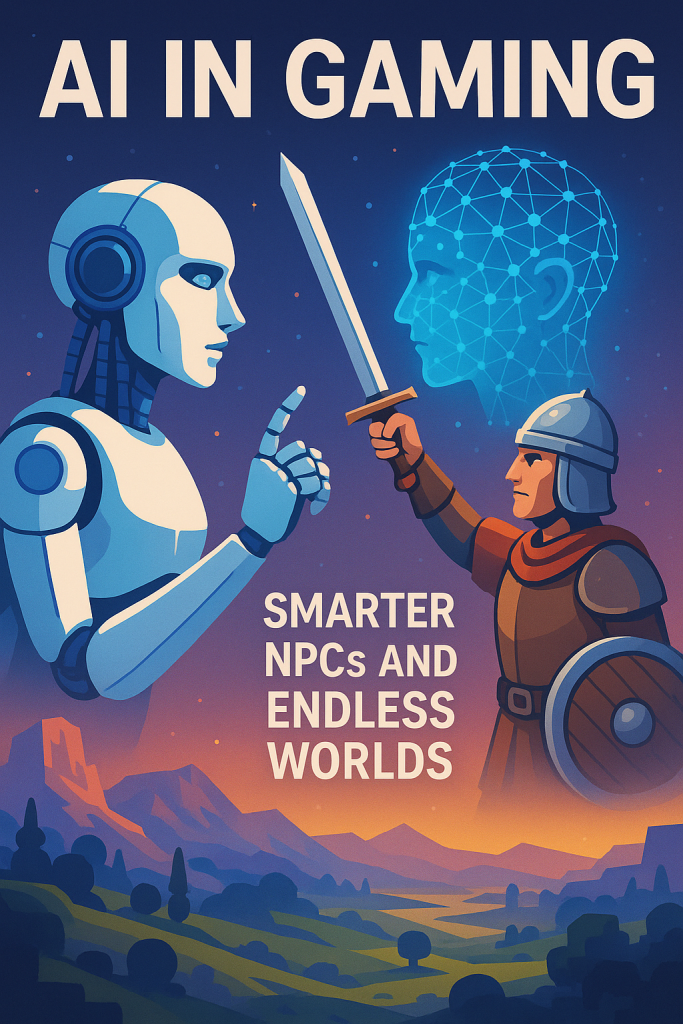
If you have ever played a video game, you know the fun comes not only from winning, but from the story, the characters, and the world around you. Today, artificial intelligence (AI) is making games feel more alive than ever before. Characters act smarter, the worlds keep expanding, and the experience can even change based on how you play.

This article explains how AI is shaping modern games in plain, beginner-friendly terms. You will also find step-by-step examples you can try at home, even if you are not a tech expert.

Table of Contents

Key Takeaways

  • Smarter NPCs (non-player characters): Characters now respond in natural and surprising ways.
  • Endless worlds: AI builds new landscapes as you explore, so no two adventures are the same.
  • Personalized play: Games adjust to your skill level and choices.
  • Try it yourself: Simple steps let you explore AI-powered games at home today.
  • The future: Expect games that feel like living worlds that respond to you.

Smarter NPCs: Characters That Think for Themselves

In older games, NPCs (non-player characters) followed scripts. They might repeat the same line every time you spoke to them. This could make the world feel flat and predictable.

With AI, NPCs can now react to the world around them:

  • Villagers may gossip about things you did earlier in the story.
  • Enemies might work together, surrounding you instead of charging head-on.
  • A shopkeeper might give you discounts if you help their family, or charge more if you act rudely.

This makes the game feel like the characters have real memories and personalities.

Example in real games: In Skyrim, townsfolk comment on your past adventures. In newer projects, game studios are even experimenting with chatbot-style NPCs, so you can hold full conversations instead of just choosing from a menu of dialogue options.

Try It Yourself: Talk to Smarter NPCs

  1. Choose a game with advanced NPCs. Try Skyrim or Red Dead Redemption 2 for lifelike character reactions.
  2. Experiment with actions. Be helpful in one playthrough, and troublesome in another. Notice how characters respond differently.
  3. Look for mods. If you play on PC, search for “AI NPC mods” for games like Skyrim. Some allow deeper conversations powered by AI chat systems.

This simple experiment shows how AI makes characters feel more alive.

Endless Worlds: AI Builds as You Play

In the past, game designers had to manually create every forest, mountain, and village. That took years of work. Now, AI can generate these features automatically as you play.

This process is called procedural generation. It uses rules and algorithms to create unique landscapes, so each player’s world is slightly different.

Famous examples:

  • Minecraft creates never-ending terrain, from snowy mountains to deep caves.
  • No Man’s Sky generates entire planets with unique animals, plants, and weather.

The magic is that even the game’s creators may not know exactly what you will discover.

Try It Yourself: Explore Endless AI Worlds

  1. Download Minecraft. The basic version is available on PC, consoles, and even mobile.
  2. Create a new world. Notice how every new game gives you a fresh landscape.
  3. Explore. Dig underground, climb mountains, or sail across oceans. The world keeps building itself as you go.
  4. Optional advanced step: Try No Man’s Sky for a full universe of AI-created planets.

You do not need technical knowledge to experience AI world-building. Just step into these games and start exploring.

Personalizing the Game for You

AI can also adapt games to your personal style. Instead of picking “easy” or “hard” at the start, the game learns how you play and adjusts in real time.

  • If you are struggling, enemies may become a little less aggressive.
  • If you are breezing through, puzzles may become harder.
  • Storylines may branch in different directions based on your choices.

Example: In racing games like Forza Horizon, computer-controlled drivers (called “Drivatars”) learn from the way you drive. They make mistakes like humans and adjust to keep the race competitive.

Try It Yourself: Play a Personalized Game

  1. Pick a racing or adventure game. Forza Horizon (Xbox/PC) or The Last of Us Part II are good examples.
  2. Play a few rounds. Notice how the game reacts to your style—if you drive aggressively, AI drivers may do the same.
  3. Replay differently. Try playing cautiously or making opposite story choices. Watch how the AI shifts the experience.

This hands-on test shows how AI makes each game unique to you.

AI Behind the Scenes: Helping Developers

Players mostly see the fun side of AI, but game creators rely on it too. AI helps them:

  • Test games: AI “bots” play through levels thousands of times to find bugs.
  • Design worlds: AI suggests new outfits, weapons, or maps.
  • Create voices: Instead of hiring dozens of voice actors, AI can generate realistic dialogue for background characters.

This means developers can build bigger and more detailed games in less time.

The Future of AI in Gaming

We are only at the beginning. In the next few years, expect games where:

  • You can speak to NPCs as naturally as you talk to a friend.
  • Every forest, village, or planet is unique to your playthrough.
  • The game “remembers” your past choices and weaves them into future adventures.

In short, the line between a game and a living world will get thinner and thinner.

Final Thoughts

AI is quietly transforming video games. Characters are more lifelike, worlds are bigger and fresher, and stories can adapt to your personal choices. You do not need to understand the complex technology to enjoy it—just think of it as games getting “smarter” and more fun.

By trying games like Minecraft, No Man’s Sky, Skyrim, or Forza Horizon, you can experience these AI features yourself. Each time you play, you step into a new adventure shaped by intelligence working in the background.

So next time you pick up a controller, remember: that chatty villager, vast forest, or tricky puzzle might not just be pre-programmed—it could be powered by AI, making your journey one of a kind.

Categories AI

How to reduce screen motion on iPhone, iPad, and iPod touch — Apple Support

You can reduce the motion of on-screen elements on your iPhone, iPad, and iPod touch. To do this, go to your accessibility settings and tap Motion. Turn on Reduce Motion, then enable Prefer Cross-Fade Transitions when it appears. This change will cause apps to fade in when opened, rather than scaling up. Similarly, switching apps will result in a fade transition, and returning to the home screen will make apps fade out instead of scaling down. Reducing motion on your device can make it easier to use for those sensitive to movement.

Summary:
– Go to Accessibility settings and tap Motion.
– Turn on Reduce Motion.
– Enable Prefer Cross-Fade Transitions.
– Apps will fade in and out instead of scaling.
– Switching apps will also use fade transitions.

The Future of AI in the Next 5 Years

Artificial intelligence, or AI, is no longer just a science fiction idea. Many of us already use it without thinking: when Netflix suggests a show, when a smartphone helps type faster, or when a voice assistant gives directions.

But what about the near future? In the next five years, experts predict AI will expand in ways that touch nearly every part of life—our jobs, our hobbies, and even how we shop or stay healthy.

This article breaks it down in simple terms, with everyday examples and easy steps to help you try AI for yourself. No technical background required.

Table of Contents

Key Takeaways

  • AI is becoming more of a “co-worker” than a job replacement.
  • Creative tools powered by AI will help anyone make art, music, or stories.
  • Everyday routines—from health to shopping—will be smoother with AI in the background.
  • Privacy, fairness, and trust will remain important challenges.
  • You can already try small, safe AI tools at home to get comfortable.

AI in the Workplace

In five years, AI will likely be a bigger part of office jobs, healthcare, and customer service. But instead of replacing people, it will often act like a smart assistant.

Real-life examples

  • Office tasks: Imagine writing a long report. AI could summarize it into a one-page brief for your boss in seconds. Tools like Microsoft Copilot and Google’s AI assistants are already moving in this direction.
  • Healthcare: Doctors may use AI to review X-rays or blood tests more quickly, helping them catch problems earlier. For patients, this means faster answers and fewer delays.
  • Customer service: Chatbots will get better at handling common questions. If you forgot your online password or need to track an order, AI could solve it without waiting on hold.

Try it yourself

  • Use Grammarly or Wordtune to polish your emails and documents.
  • Try ChatGPT or Google’s Gemini to draft letters, summaries, or meeting notes.
  • If you’re in healthcare, apps like Ada Health or Mayo Clinic’s symptom checker use AI to give possible explanations before you visit a doctor.

AI in Creativity

The next few years may feel like a creative boom. AI tools will make it easier for anyone—no matter their background—to bring ideas to life.

Real-life examples

  • Writing and storytelling: AI can already help draft stories or articles. In five years, you might tell an AI, “Write me a short story about my grandchildren at the beach,” and get a warm, illustrated tale in minutes.
  • Art and music: Someone with no painting skills could create a digital picture for a birthday card by describing it in words. Musicians may hum a tune and have AI build it into a full song.
  • Collaboration: Professional artists may use AI as a brainstorming partner. For example, an author might use AI to generate ten possible titles for a new book.

Try it yourself

  • Create artwork with free tools like Canva (now offering AI design help) or Bing Image Creator.
  • Use Suno AI or Boomy to make a simple song from scratch—even if you’ve never played an instrument.
  • Ask ChatGPT to help brainstorm ideas for a family history, a poem, or a recipe collection.

AI in Everyday Life

AI won’t just stay in offices and studios. It’s set to quietly make daily routines smoother and more personal.

Real-life examples

  • Health and wellness: Smart watches are already tracking steps and heart rates. Soon, they could alert you if your sleep patterns suggest early health issues.
  • Shopping: Online stores may become smarter. Instead of random suggestions, you might see clothes in your size, in colors you like, and matched with items you already own.
  • Home technology: Smart homes may get better at predicting your habits. Imagine your house turning on the kettle when your morning alarm rings, or adjusting the lights when you sit down to read.

Try it yourself

  • Use MyFitnessPal or Fitbit apps to track nutrition and activity.
  • Try a smart speaker like Amazon Echo or Google Nest to control lights, music, or reminders.
  • Explore personalized shopping with Stitch Fix (AI-powered clothing suggestions) or even Amazon’s recommendations.

Challenges and Questions

Of course, not all changes are simple. As AI becomes more powerful, three challenges will stay in the spotlight:

  1. Privacy: AI often needs personal data to work well. How much are you comfortable sharing?
  2. Fairness: If AI helps decide who gets a loan or a job interview, we need to be sure it doesn’t favor some people unfairly.
  3. Trust: AI is not perfect. It can make mistakes, and people may struggle to know when to trust its advice.

Try it yourself

  • Review the privacy settings on your apps and devices. Most have an option to limit data sharing.
  • Ask questions: if a company uses AI, see if they explain how it works and what data it collects.
  • Stay updated with trusted news sources about new AI policies and protections

What the Next 5 Years May Feel Like

Instead of giant, shocking changes, the next five years of AI will probably feel like many small improvements adding up.

  • At work, AI will help you move through tasks faster.
  • At home, AI will quietly personalize your environment.
  • In creativity, AI will act like a fun partner, helping turn ideas into reality.

Think of it less like a robot takeover and more like getting new “power tools” for everyday life.

Final Thoughts

The future of AI in the next five years looks practical, supportive, and sometimes even fun. It won’t solve everything, but it will likely make life easier in small, steady ways.

For most people, the key is not to fear AI, but to try it little by little. Write a draft with AI, create a song for fun, or let your smart speaker set reminders. The more you explore, the more confident you’ll feel when bigger changes arrive.

If you stay curious and open to experimenting, AI may surprise you with how much it can simplify your work, inspire your creativity, and brighten your daily routines.

Categories AI

How to use Live Captions in FaceTime on iPhone and iPad | Apple Support

You can turn on live captions in FaceTime to follow along more easily. During a FaceTime call, tap the info button in the controls, then select to turn on live captions and tap done to return to your call. Live captions will appear in real time during the call. Note that live captions may vary and should not be relied upon in high-risk or emergency situations. This is how you can follow along with live captions in FaceTime.

Summary:
– Turn on live captions during a FaceTime call by tapping the info button in the controls.
– Select to enable live captions and tap done to return to your call.
Live captions will appear in real time during the call.
– Note that live captions may vary and shouldn’t be relied upon in high-risk or emergency situations.
– This feature helps you follow along with conversations more easily.

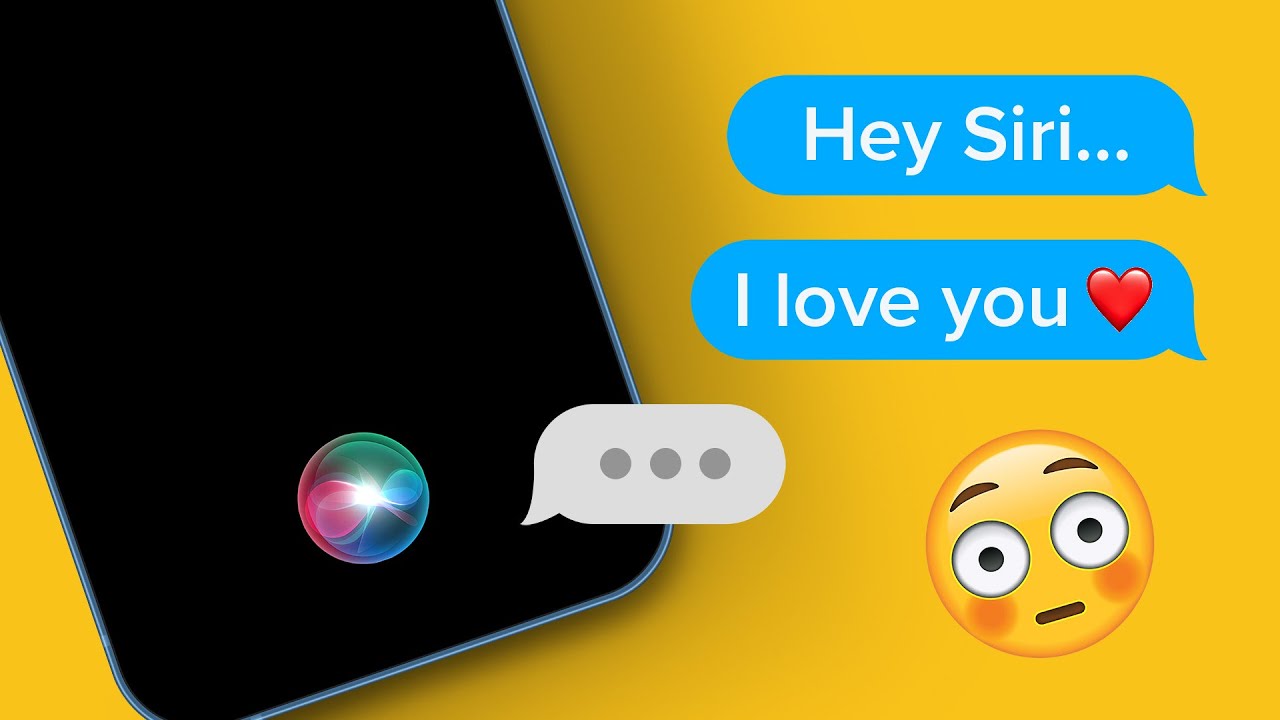
5 ACTUALLY USEFUL Siri Commands I Use Daily

Today, I’ll share some tips and commands to enhance your Siri experience. First, set up “Hey Siri” in your settings to enable hands-free use, and adjust accessibility settings for better performance. Key commands include adding items to specific lists, turning on the flashlight, finding your phone, making speakerphone calls, searching for images, and locating your parked car. These commands streamline everyday tasks, making Siri a powerful assistant. If you found this helpful, please like, subscribe, and share any useful Siri commands in the comments. Thanks for watching!

Summary:
– Set up “Hey Siri” for hands-free activation and adjust accessibility settings.
– Use Siri to add items to specific lists, like groceries, in the Reminders app.
– Ask Siri to turn on the flashlight or locate your phone.
– Make speakerphone calls and search for images without interrupting your activities.
– Find your parked car with Siri’s assistance.

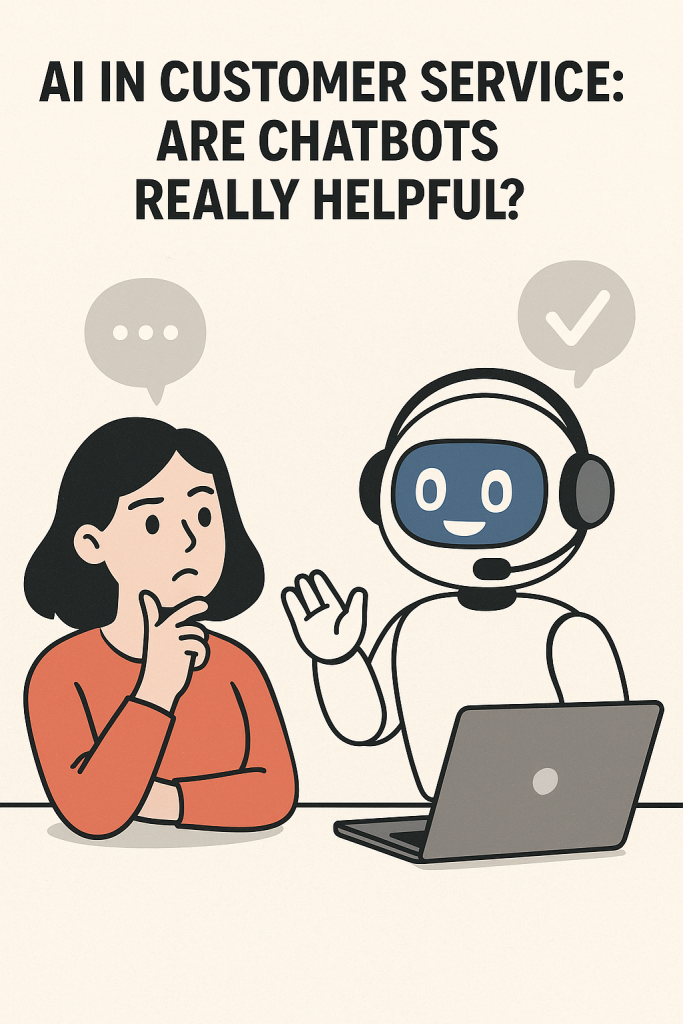
AI in Customer Service: Are Chatbots Really Helpful?

Have you ever reached out to a company for help and been greeted by a chatbot instead of a person? It can feel quick and convenient—or sometimes downright frustrating. Businesses are turning to AI chatbots more than ever, hoping they can answer questions, save time, and cut costs. But the big question is: are these bots actually helpful?

In this guide, we’ll explore how chatbots are used in customer service, the good and the not-so-good sides, and when a real person may still be the better option. Don’t worry if you’re not tech-savvy—everything here is explained in simple terms.

Table of Contents

Key Takeaways

  • Chatbots can give instant answers at any time of day.
  • They’re great for simple, common questions like order tracking.
  • Many people find them frustrating for complex or emotional issues.
  • Businesses save money with chatbots, but sometimes at the cost of customer satisfaction.
  • Knowing when to use a chatbot and when to ask for a human makes the experience easier.

How Businesses Use AI Chatbots

Companies across industries—from banks to online shops—are using chatbots to handle customer requests. These bots can:

  • Answer frequently asked questions (like store hours or return policies)
  • Track deliveries and update order status
  • Help reset passwords or unlock accounts
  • Direct customers to the right department

A big reason companies use them is availability. Unlike human agents, a chatbot never sleeps. That means you can get an answer at 2 a.m. without waiting until the morning.

The Benefits of Chatbots

For simple situations, chatbots can be very handy. Here’s why:

  1. Speed – A chatbot can instantly provide answers without keeping you on hold.
  2. Availability – They work 24/7, even on weekends and holidays.
  3. Efficiency – They can handle many customers at once, so you don’t have to wait in a long line.
  4. Cost Savings – Companies save money by using chatbots, which sometimes means lower costs for customers too.

Imagine you just want to check the balance of a gift card. Instead of waiting for a person, the chatbot can tell you right away.

The Downsides of Chatbots

But not all experiences with chatbots are smooth. Many people feel frustrated for these reasons:

  • Limited Understanding – Chatbots often fail to understand questions that aren’t worded in a simple way.
  • No Empathy – If you’re upset about a billing mistake, a bot won’t show the care or understanding a human would.
  • Repetition – Sometimes you have to type the same information over and over, only to be transferred to a human agent anyway.
  • Complex Problems – Chatbots struggle with tricky issues like disputes or special requests.

For example, if your internet goes out, a chatbot might just repeat basic troubleshooting steps instead of recognizing you’ve already tried them.

Real-Life Examples

  • When Chatbots Shine: You want to know the status of your online order. The chatbot checks the system and tells you it’s arriving tomorrow. Quick and painless.
  • When Chatbots Fail: You’re double-charged on your credit card. The chatbot doesn’t understand the issue and keeps sending you irrelevant answers. You end up waiting for a person anyway.

These examples show that chatbots can be helpful in simple situations but can quickly become a barrier when the problem is more complicated.

Tips for Handling Chatbots as a Customer

Here are a few ways to make your chatbot experiences less frustrating:

  1. Keep it simple – Use short, clear phrases like “track order” or “reset password.”
  2. Ask for a human early – If the chatbot isn’t helping, type “speak to an agent.”
  3. Use them for quick tasks – Save bots for easy things, like checking balances or confirming appointments.
  4. Stay patient – Remember, the chatbot is just a tool. Sometimes it takes persistence to reach a person.

Why Businesses Still Need Humans

Even with all the advances in AI, customer service still needs a human touch. People bring empathy, problem-solving, and creativity that machines can’t match. Many companies now use a mix: chatbots for simple tasks and human agents for complex ones.

This balance often gives customers the best of both worlds—fast service for easy questions and real understanding when things get tricky.

Final Thoughts

Chatbots are here to stay, and for quick and simple questions, they can be very helpful. But they are far from perfect. When it comes to emotional or complicated problems, nothing replaces the reassurance of a real person.

The next time you run into a chatbot, think of it as a helpful assistant for small tasks—but don’t hesitate to ask for a human when you need one. That way, you’ll get the best possible customer service experience.

Categories AI