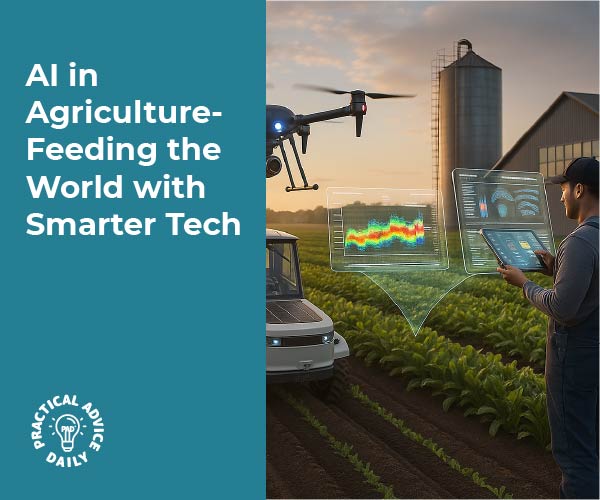
AI in Agriculture: Feeding the World with Smarter Tech

Farming has always been about balance—getting the most out of the land while using resources wisely. Today, farmers face big challenges, from climate change to feeding a growing population. The good news is that new technology, especially artificial intelligence (AI), is helping. With AI, farmers can watch over crops more closely, use water and fertilizer more carefully, and even predict problems before they happen.

In this article, we’ll explore how AI is being used in agriculture and why it matters to all of us. We’ll also share simple ways you can try similar technology at home in your garden.

Table of Contents


Key Takeaways

  • AI helps farmers monitor crops with drones and smart sensors.
  • Technology reduces waste by using water, fertilizer, and pesticides only where needed.
  • AI can predict plant diseases and weather patterns to prevent crop loss.
  • Smarter farming means more food for a growing world population.
  • Everyday gardeners can also try AI tools for healthier plants and less waste.

How AI Is Changing Farming

1. Smarter Crop Monitoring

In the past, farmers had to walk through fields to check crops. This was time-consuming and sometimes problems went unnoticed. Today, AI-powered drones can fly over large areas in minutes. Equipped with cameras and sensors, they collect images of plants. AI software then studies these pictures to spot early signs of disease, dryness, or pests.

Real-life example: A farmer in India uses drones to scan his rice fields. The AI system highlights patches that are too dry. Instead of watering the entire field, he can target just those areas. This saves water and reduces costs.

2. Predicting Plant Health

AI doesn’t just see what is happening now—it can also predict the future. By looking at patterns in weather, soil quality, and plant growth, AI tools can warn farmers of possible issues.

Example: A grape farmer in California uses AI to predict when vines are at risk of a fungal disease. Early warnings allow the farmer to treat only the areas at risk, rather than spraying the entire vineyard.

3. Reducing Waste with Precision Farming

One of the biggest breakthroughs is “precision farming.” This means using the exact amount of water, fertilizer, and pesticides a crop needs—no more, no less. AI gathers data from soil sensors and weather forecasts to guide farmers.

Step-by-step look:

  1. Sensors in the soil measure moisture and nutrients.
  2. Data is sent to an AI program.
  3. The program advises how much water or fertilizer to use.
  4. Automated machines or irrigation systems carry out the instructions.

This careful approach reduces waste and lowers costs while protecting the environment.
4. Smarter Machinery

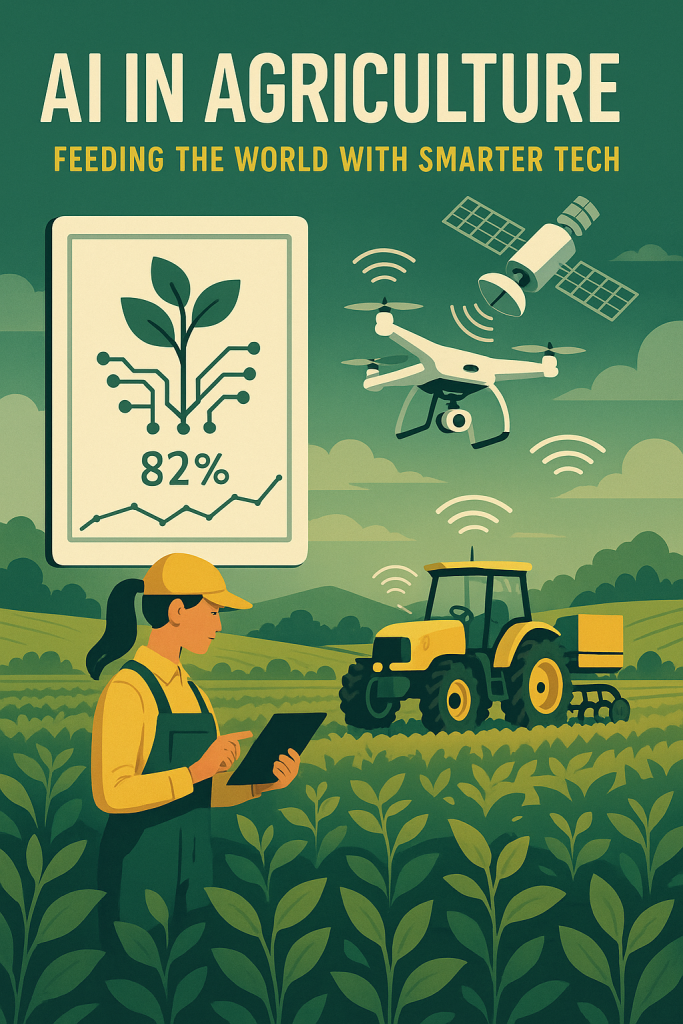
Tractors and harvesters are also getting an AI upgrade. Self-driving tractors can plant seeds in straight lines with incredible accuracy. AI-guided machines can sort harvested crops, separating good produce from damaged ones.

Example: Some farms use AI-powered cameras on sorting lines. These machines quickly identify which tomatoes are ripe, saving workers hours of labor and ensuring only the best produce reaches stores.

5. Better Planning with Data

AI also helps with big-picture planning. By analyzing years of weather records and crop yields, AI systems can recommend the best times to plant and harvest. They can also help decide which crops are most likely to succeed in a given year.

Example: A farmer in Kenya uses an AI app that suggests which crops will handle upcoming dry conditions. By switching to drought-resistant maize, the farmer avoids major losses.

How This Affects All of Us

Even if you don’t live on a farm, AI in agriculture still matters. Smarter farming leads to:

  • Lower food prices because waste is reduced.
  • Fresher produce because farmers can plan harvests better.
  • A healthier planet because fewer chemicals and less water are wasted.

Try It Yourself: Everyday Tech for Gardening

You don’t need a large farm to experience AI in action. Home gardeners can also use smart tools that bring AI-powered farming ideas to your backyard or even a balcony garden.

Here are some practical examples:

  • Soil sensors for pots or gardens
    Small devices you stick into the soil measure moisture, light, and temperature. They connect to an app on your phone, which tells you when to water or move your plants.
  • Plant care apps
    Snap a photo of your plant, and AI can identify its type and spot common diseases. Some apps even recommend care routines based on the season.
  • Smart sprinklers
    These devices link to weather apps. If rain is expected tomorrow, the sprinkler will skip watering today, saving water and preventing overwatering.
  • AI-based garden planners
    Simple online tools let you design your garden layout. They suggest the best placement for vegetables based on sunlight and climate in your area.

Beginner’s Smart Gardening Checklist

If you’d like to bring some of these ideas into your daily life, here’s a simple step-by-step checklist to get started:

  1. Pick one plant to experiment with.
    Start small—maybe a tomato plant, herb pot, or a flower you enjoy.
  2. Download a plant care app.
    Choose one that lets you take photos for identification and gives watering reminders.
  3. Try a budget soil sensor.
    Place it in your pot or garden bed. Check the app to learn when the soil is dry or too wet.
  4. Set up a smart watering schedule.
    If you have outdoor space, consider a smart sprinkler or drip system that adjusts based on weather.
  5. Keep track of results.
    Note whether your plant looks healthier, grows faster, or uses less water.
  6. Expand slowly.
    Once you’re comfortable, add sensors or apps for more plants, or try AI garden planners to design a vegetable patch.

This checklist gives you a taste of what farmers are doing on a much larger scale, right in your own home.

Final Thoughts

AI in agriculture may sound futuristic, but it’s already here and growing fast. Farmers are using it to protect crops, save resources, and feed more people. For everyday people, it means safer food, lower costs, and a greener future.

And you don’t need acres of farmland to try it yourself. With simple apps and tools, you can bring smarter gardening to your backyard or even a single potted plant on your windowsill. The next time you enjoy a fresh salad or piece of fruit, remember that AI might have played a role in bringing it to your table—and maybe even into your garden.
Categories AI

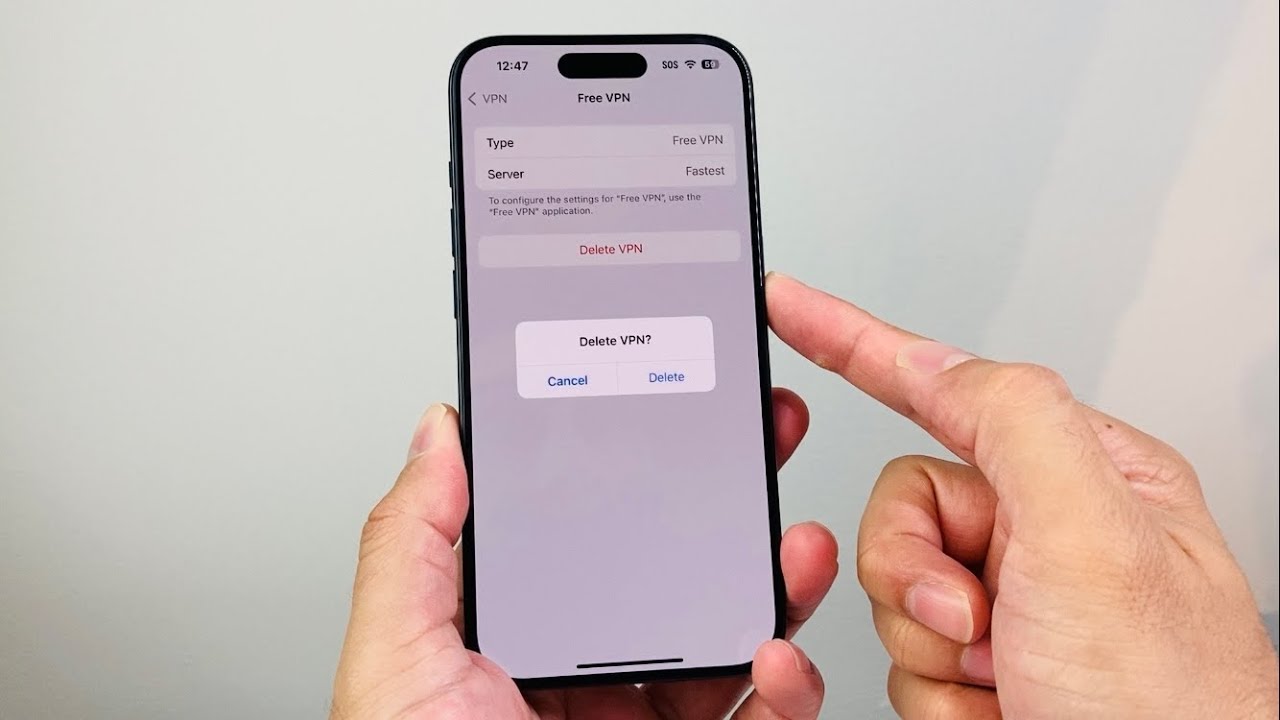
How to Delete VPN on iPhone

To delete or remove a VPN configuration on your iPhone, first go to the Settings app. Tap on “General,” then scroll down to “VPN & Device Management.” Select the VPN you want to remove; if the VPN is currently connected, it will be shown as active. To delete it, tap the “i” icon next to the VPN name and then choose “Delete VPN.” Confirm the deletion, and the VPN profile will be removed. If you have multiple VPNs, repeat this process for each one. Once deleted, you should see no VPN profiles remaining on your device.

Summary:
– Open the Settings app on your iPhone.
– Go to “General” and then “VPN & Device Management.”
– Select the VPN you want to remove.
– Tap the “i” icon next to the VPN, then choose “Delete VPN” and confirm.
Repeat for each VPN profile if necessary; the VPN profile will be removed once deleted.

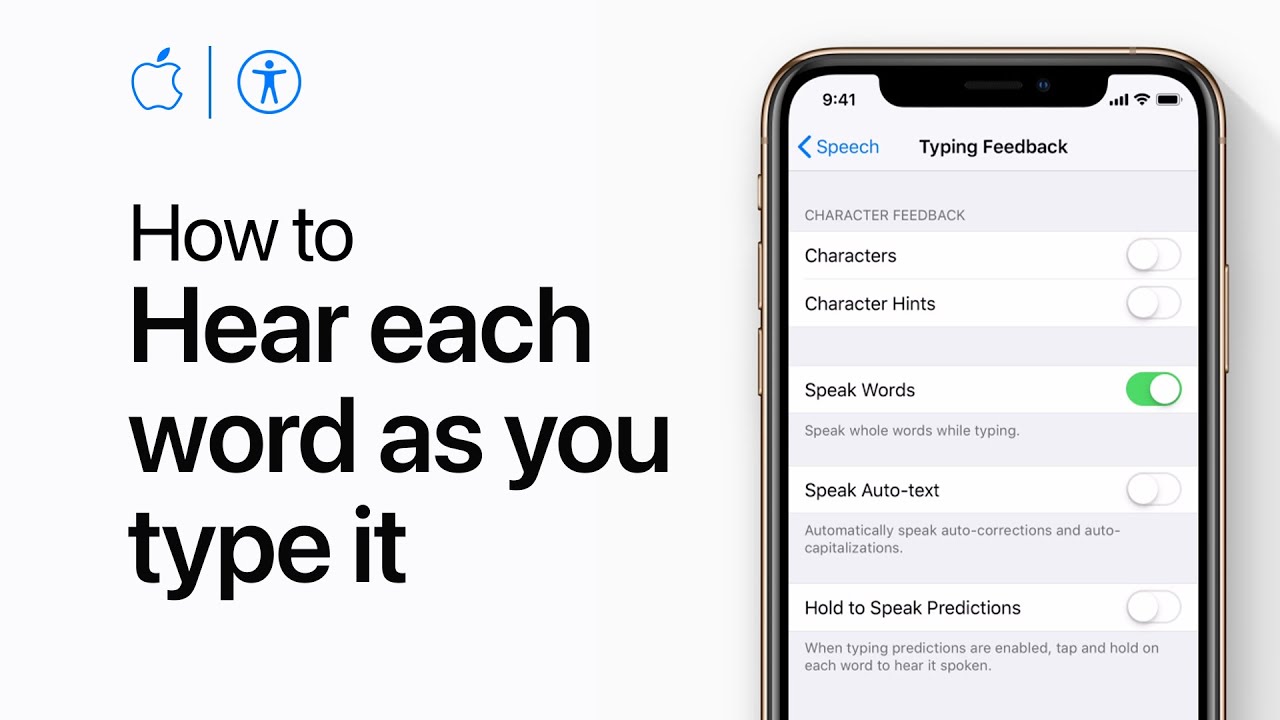
How to have your iPhone and iPad speak each word as you type — Apple Support

To have your device read back each word as you type, start by opening the Settings app. Go to General, then Accessibility, and select Speech. Tap Typing Feedback and switch on the “Speak Words” option. Now, when you enter text, your device will read each word aloud, ensuring your message is accurately conveyed.

This feature can be especially helpful for users who are visually impaired or those who want to improve their spelling accuracy. It also provides real-time feedback, making typing more interactive and accessible.

Additionally, it can help users catch typing mistakes instantly, reducing the need for later corrections. Over time, this can improve typing confidence and overall communication efficiency.

Summary:
– Open the Settings app on your device.
– Navigate to General > Accessibility > Speech.
– Tap Typing Feedback.
– Switch on the “Speak Words” option.
– Your device will now read each word aloud as you type.

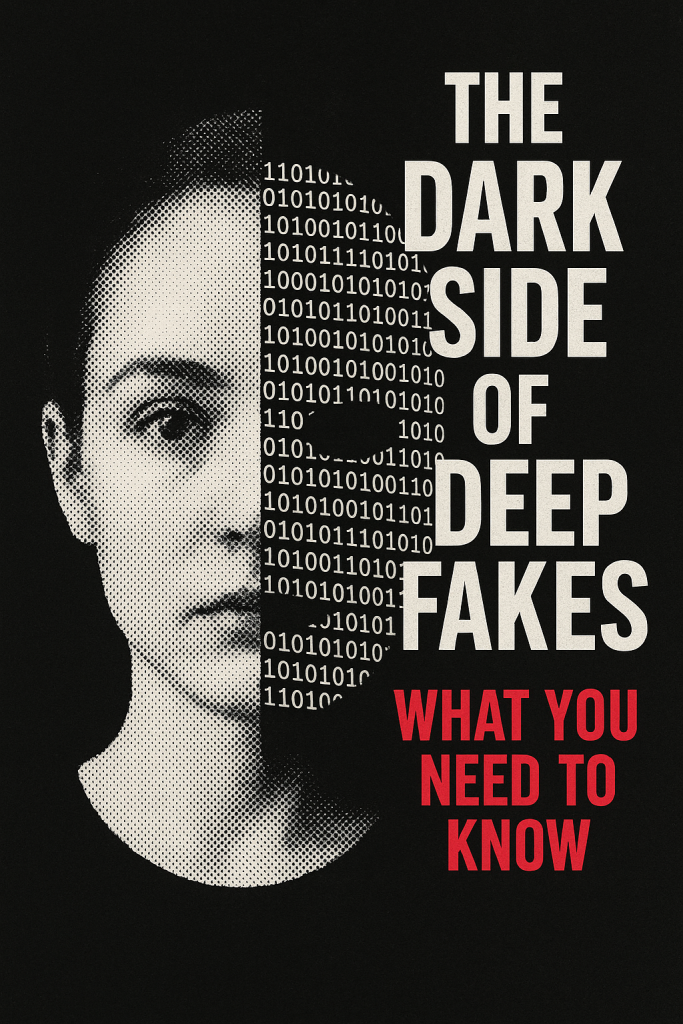
The Dark Side of Deepfakes: What You Need to Know

Imagine seeing a video of a famous person saying something shocking—only to discover later it was never real. That’s the power of deepfakes, a type of computer-made video or audio that looks and sounds real, but isn’t.

While deepfake technology can be entertaining in movies or funny online clips, it also has a darker side. It can be used to spread lies, trick people out of money, or harm reputations.

In this article, we’ll break down what deepfakes are, how they work in simple terms, and why they matter. You don’t need any technical background—just curiosity and a willingness to learn.

Table of Contents

Key Takeaways

  • Deepfakes use AI to create fake but realistic-looking videos, images, or voices.
  • They can be fun in entertainment, but dangerous in politics, scams, or fake news.
  • Common risks include fraud, reputation damage, and public confusion.
  • You can protect yourself by learning to question suspicious videos and news.

What Are Deepfakes?

A deepfake is a video, audio clip, or picture made using artificial intelligence. The AI is trained to copy how someone looks, moves, or speaks, and then puts that information into a new scene.

For example:

  • A video might show a celebrity appearing to promote a product they’ve never heard of.
  • A phone scam might use a fake voice recording of a family member asking for money.
  • A politician could be shown making false statements they never said.

At first glance, these fakes can look very real—sometimes too real. That’s what makes them powerful and risky.

How Do Deepfakes Work? (Simple Version)

The word “deepfake” comes from deep learning, a type of AI that learns patterns.

Here’s a simplified breakdown:

  1. The AI studies lots of photos, videos, or audio recordings of a person.
  2. It learns the person’s face, expressions, and voice patterns.
  3. The computer then creates new content—like a video of them speaking words they never actually said.

Think of it like a digital puppet. The AI can move the puppet’s mouth, voice, and expressions so smoothly that it looks real.

The Risks of Deepfakes

While deepfakes can be used in fun ways (like special effects in movies), they also bring real dangers. Let’s look at the main risks:

1. Politics and Fake News

  • A deepfake could show a leader saying something false right before an election.
  • This could confuse voters and spread misinformation quickly.
  • Even after the fake is proven wrong, some people may still believe it.

2. Scams and Fraud

  • Criminals use deepfake voices to trick people.
  • Example: A scammer calls pretending to be your grandchild, asking for money. The voice sounds real, making it easier to fall for.

3. Reputation Damage

  • Fake videos can be made to embarrass or harm someone’s reputation.
  • This is especially dangerous for celebrities, leaders, or anyone with an online presence.

4. Entertainment and Confusion

  • Some people share deepfakes as jokes. While harmless at first, they can still cause confusion when others don’t realize it’s fake.

Real-Life Examples

  • In 2019, criminals used a deepfake voice to trick a company CEO into transferring money—costing the company hundreds of thousands of dollars.
  • Fake celebrity videos often circulate online, showing stars in ads or clips they never took part in.
  • Political deepfakes have been spotted in different countries, stirring up public confusion.

How to Protect Yourself from Deepfakes

You don’t need technical skills to be cautious. Here are some practical tips:

  1. Be skeptical of shocking videos
    If something looks or sounds unusual, don’t take it at face value.
  2. Check reliable news sources
    See if trusted outlets are reporting the same story.
  3. Look for signs of fakery
    • Blurry or mismatched facial features
    • Strange blinking or lip movement
    • Background details that don’t fit
  4. Pause before sharing
    Ask yourself: Could this be fake? Sharing without checking spreads harm.
  5. Protect your own images and voice
    Limit what you post online. The less material available, the harder it is for someone to copy you.

The Future of Deepfakes

Deepfakes will likely become even more realistic and harder to detect. At the same time, researchers are creating tools to spot them. Social media platforms are also working to label or remove deepfake content.

For everyday people, awareness is the best defense. By learning what deepfakes are and how they’re used, you’re less likely to be fooled.

Final Thoughts

Deepfakes can be fascinating, but they also carry risks that affect politics, safety, and trust online. By staying alert and cautious, you can protect yourself from falling victim to scams or misinformation.

Remember, not everything you see or hear on the internet is real. The more you practice spotting the signs, the more confident you’ll feel.

Categories AI

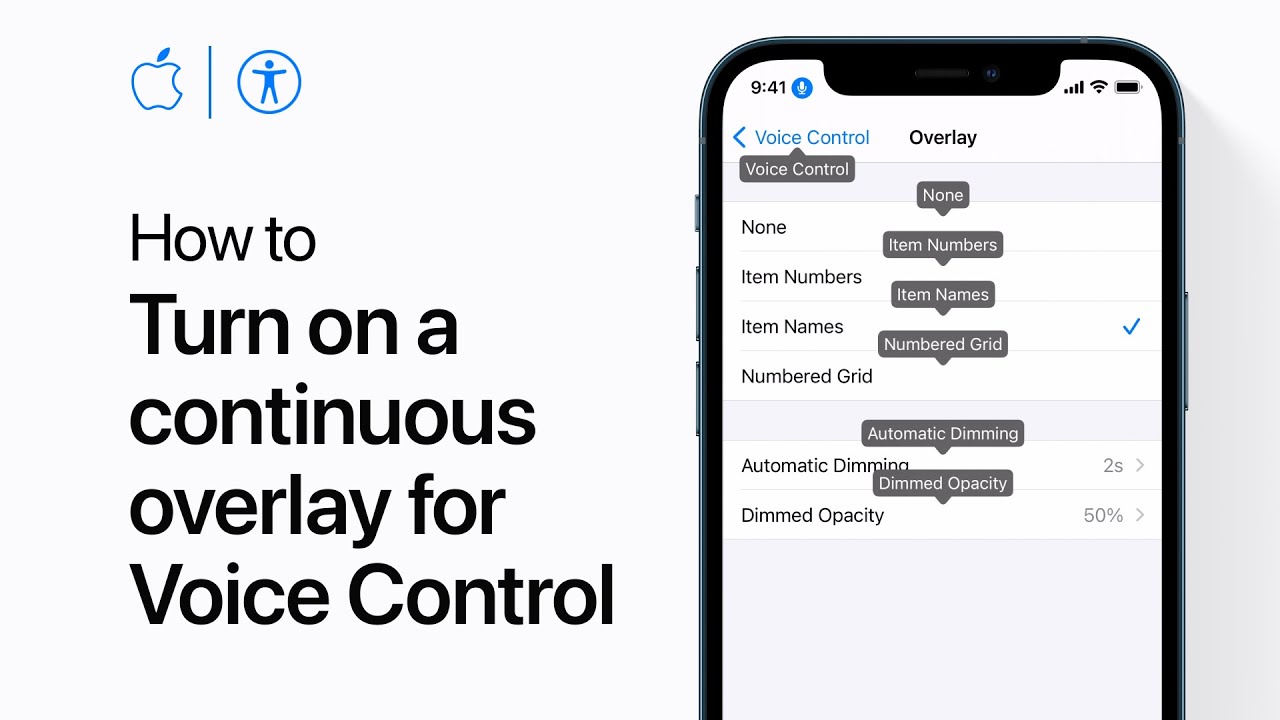
How to show a continuous overlay for Voice Control on iPhone, iPad, and iPod touch — Apple Support

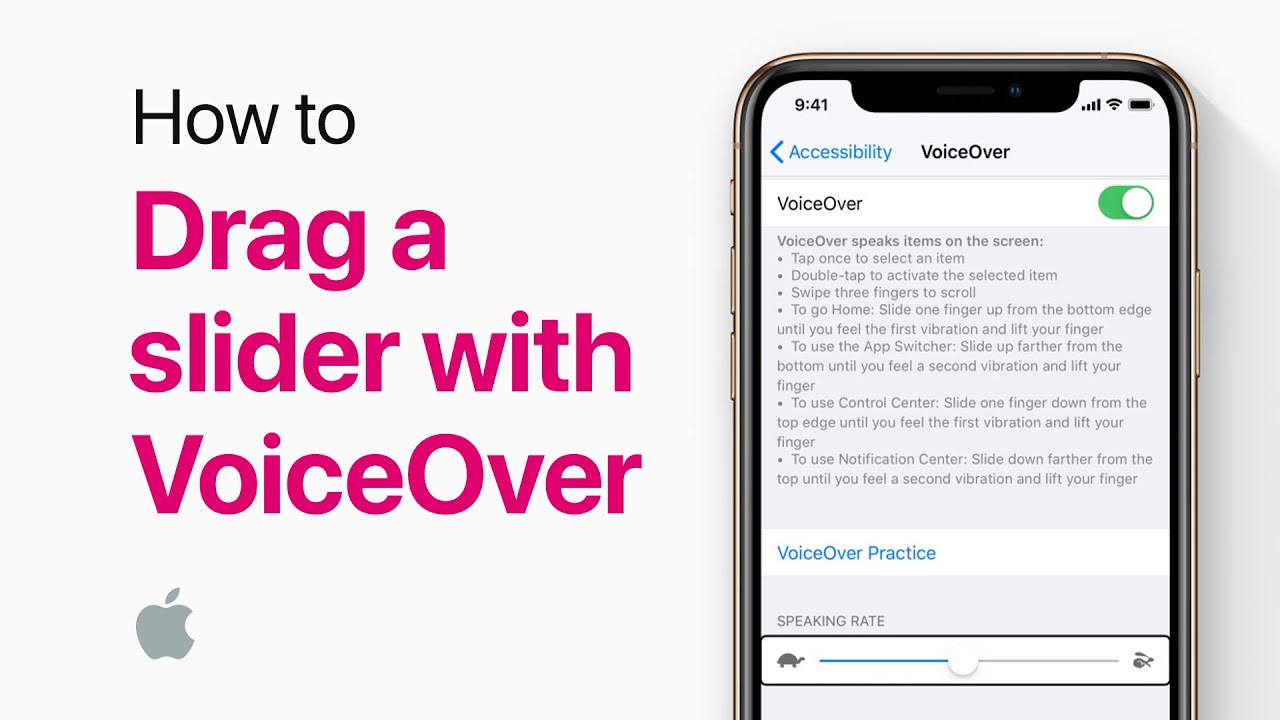
To precisely adjust a slider with VoiceOver on your iPhone, start by going to Settings, then General, and selecting Accessibility. From there, tap VoiceOver to activate it. Once VoiceOver is on, flick right until you reach the speaking rate slider. Double-tap and hold your finger on the screen until you hear three rising tones. Slide your finger right or left to adjust the speaking rate slider to your desired setting, such as 50%, 52%, or 66%. This method gives you total control over the slider adjustments.

Summary:
– Go to Settings, then General, and select Accessibility.
Tap VoiceOver to activate it.
– Flick right to reach the speaking rate slider.
– Double-tap and hold until you hear three rising tones.
– Slide your finger right or left to adjust the speaking rate to your desired level.

How to fine-tune a slider using VoiceOver on your iPhone and iPad – Apple Support

VoiceOver changes how you navigate your iPhone, including how you drag sliders precisely. To fine-tune the speaking rate slider in VoiceOver settings, go to Settings, tap General, then Accessibility, and select VoiceOver. Turn on VoiceOver, flick right on the screen to select the speaking rate slider, and double-tap and hold your finger on the screen. When you hear three rising tones, slide your finger right or left to adjust the slider to your desired rate. This method gives you total control over the slider adjustment.

Summary:
– VoiceOver alters iPhone navigation gestures.
– Access VoiceOver settings through Settings > General > Accessibility.
– Turn on VoiceOver and select the speaking rate slider.
Double-tap and hold, then slide your finger to adjust the slider.
– This method allows precise control over slider adjustments.

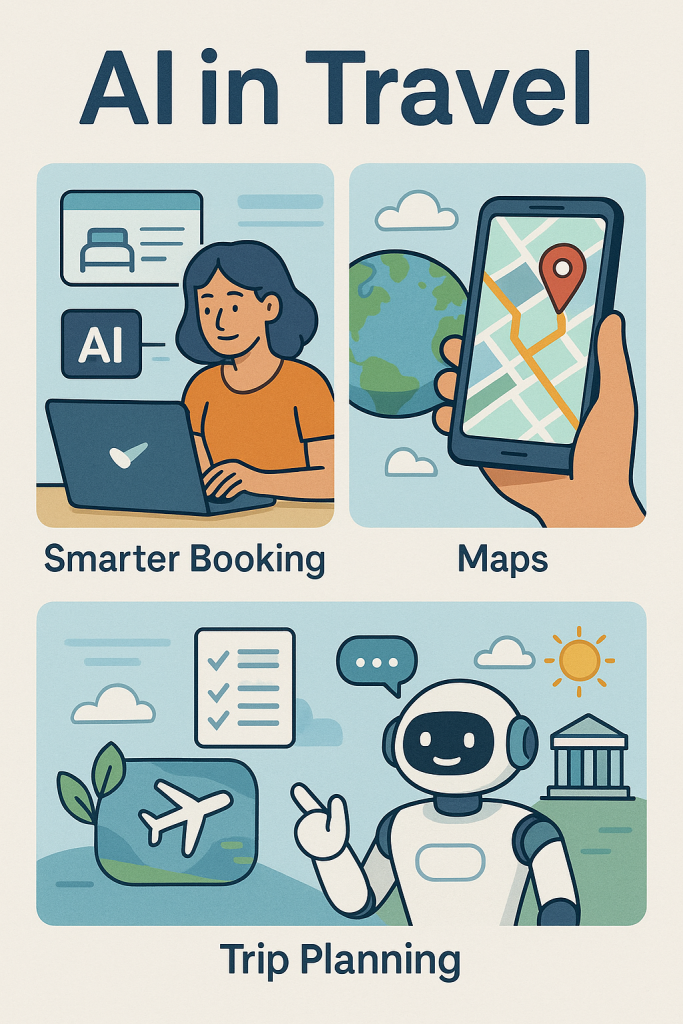
AI in Travel: Smarter Booking, Maps, and Trip Planning

Travel has always been exciting, but it can also be stressful. From finding affordable flights to figuring out how to get around a new city, planning can feel overwhelming. The good news is that artificial intelligence (AI) is making travel easier than ever. Whether you are booking a flight, using Google Maps, or planning a full vacation, AI can help simplify decisions and personalize your journey.

This guide will walk you through how AI is shaping travel today, in simple terms. You will learn how to take advantage of these tools yourself, even if you are not very tech-savvy.

Table of Contents

Key Takeaways

  • AI helps find cheaper and smarter flight options by comparing millions of choices quickly.
  • Google Maps uses AI to provide real-time traffic, walking routes, and even public transport updates.
  • Personalized trip planning tools suggest activities, hotels, and itineraries based on your preferences.
  • You can try many of these tools for free on your phone or computer.
  • Using AI in travel can save time, reduce stress, and make your trips more enjoyable.

Smarter Flight Booking with AI

One of the biggest challenges in travel is finding the right flight. Prices can change quickly, and it is easy to feel unsure about when to book. AI-powered flight search engines, like Google Flights, Skyscanner, or Hopper, make this easier.

How it works:

  • AI scans thousands of flight options in seconds.
  • It predicts price changes, telling you whether to book now or wait.
  • Some apps send notifications when prices drop.

Example:
Imagine you want to visit Paris. You search on Google Flights, and it shows not only the cheapest tickets but also predictions like “Prices are unlikely to drop in the next week.” This helps you book with confidence instead of guessing.

Try it yourself:

  1. Go to Google Flights.
  2. Type in your departure city and destination.
  3. Look at the calendar view to see the cheapest dates to fly.
  4. Set up a price alert to get an email if the price changes.

Smarter Maps with AI

Getting around in a new place can be stressful, but AI-powered maps take away much of the guesswork. Google Maps, Apple Maps, and Waze all use AI to provide real-time navigation.

What AI adds to maps:

  • Traffic predictions so you know the fastest route.
  • Walking and biking directions that adapt to your speed.
  • Public transit schedules with live updates on delays.
  • Indoor maps for airports, malls, and big train stations.

Example:
Let’s say you are in Rome. You open Google Maps to get from your hotel to the Colosseum. AI checks the traffic and shows whether a bus, subway, or walking will be fastest right now. It even tells you how crowded the bus might be.

Try it yourself:

  1. Open Google Maps on your phone.
  2. Search for a nearby destination.
  3. Tap on “Directions” and compare driving, walking, and public transit options.
  4. Check the “Live” features to see real-time conditions.

Personalized Trip Planning with AI

Planning a trip involves more than flights and maps. Where should you stay? What should you see? This is where AI-powered planning apps can help.

Websites and apps like TripIt, Roam Around, and GuideGeek use AI to create personalized itineraries.

How they help:

  • AI looks at your interests, such as museums, nature, or food.
  • It creates daily schedules, suggesting attractions and restaurants.
  • Some tools even book activities for you.

Example:
If you tell an AI travel planner that you enjoy art and food, it might suggest a morning at the Louvre, lunch at a nearby café, and a walking tour through Paris’s Latin Quarter.

Try it yourself:

  1. Visit a site like TripIt or Roam Around.
  2. Enter your destination and travel dates.
  3. Add details about your interests.
  4. Explore the personalized itinerary it generates.

Real-Life Benefits of AI in Travel

Here are some simple ways AI makes trips smoother:

Final Thoughts

Traveling should be fun, not stressful. With AI tools, you can book smarter flights, navigate with ease, and enjoy trips planned around your own interests. The best part is that many of these tools are free and easy to use on your phone or computer.

Next time you plan a vacation, try using one or two of these AI-powered services. You may be surprised at how much simpler and more enjoyable travel can become.

Categories AI

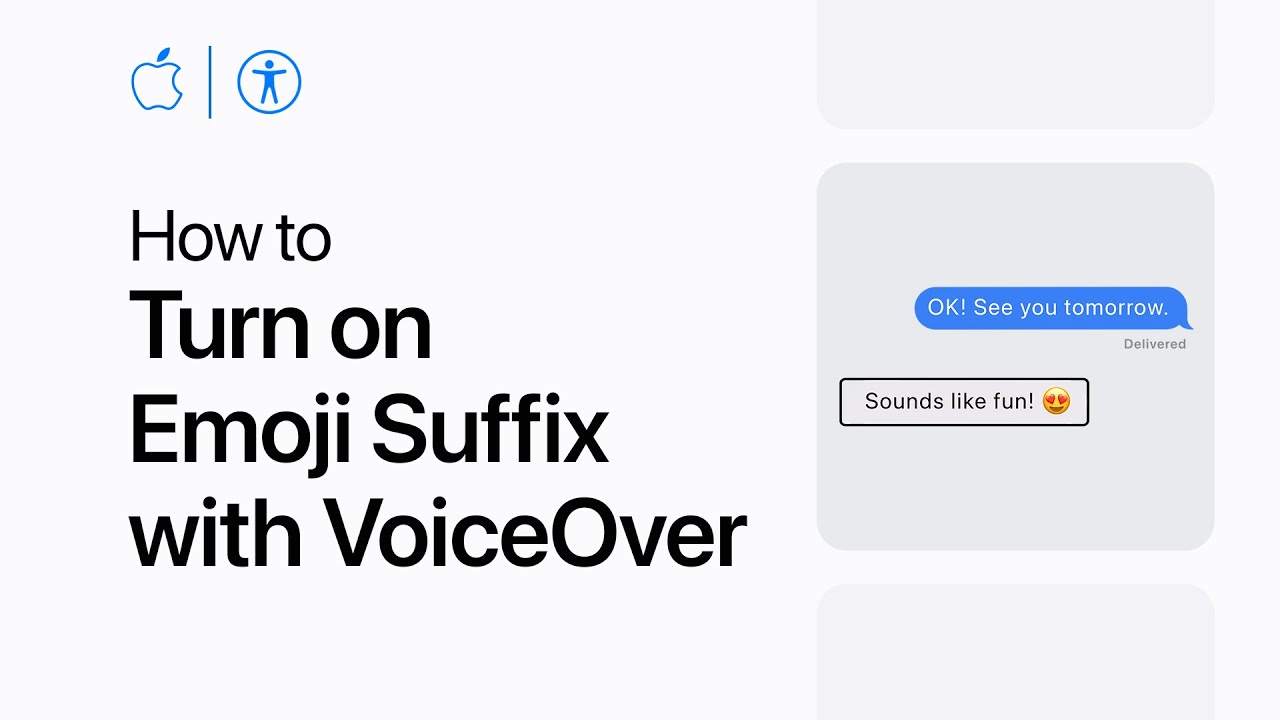
How to turn on Emoji Suffix with VoiceOver on iPhone, iPad, and iPod touch | Apple Support

To have VoiceOver clearly identify emojis, you can turn on Emoji Suffix. First, go to your accessibility settings and select VoiceOver. Then, double-tap to open VoiceOver settings and select Verbosity. Swipe until you find Emoji Suffix and double-tap to turn it on. Now, when VoiceOver reads an emoji, it will include the word “emoji” at the end, making it clearer. For example, instead of just saying “face with heart-shaped eyes,” it will say “face with heart-shaped eyes emoji.” This feature helps to better identify emojis with VoiceOver.

Summary:
– Go to accessibility settings and select VoiceOver.
– Open VoiceOver settings and select Verbosity.
– Swipe to find Emoji Suffix.
– Double-tap to turn Emoji Suffix on.
– VoiceOver will now clearly identify emojis by adding “emoji” at the end.

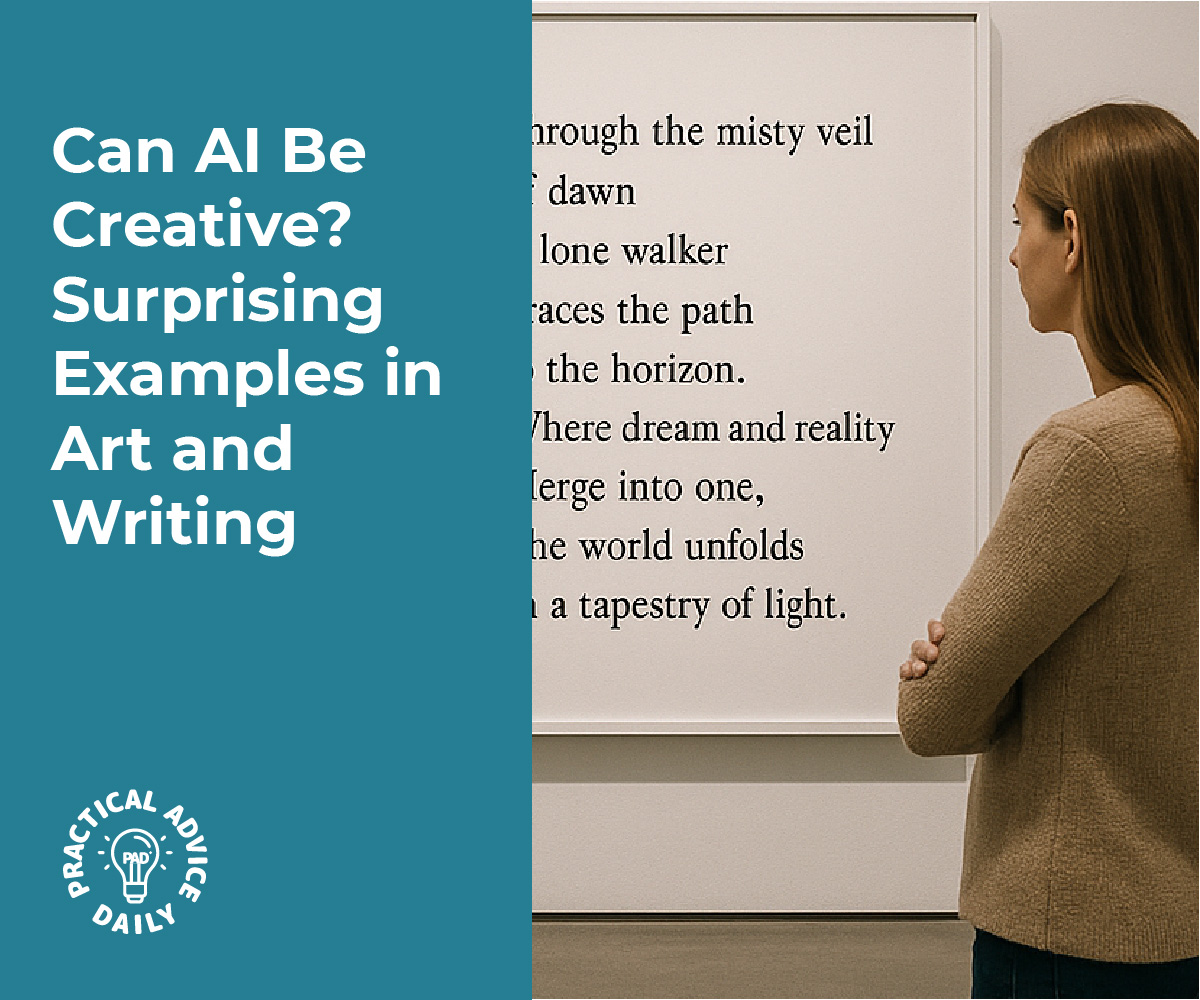
Can AI Be Creative? Surprising Examples in Art and Writing

When we think about creativity, we often imagine artists painting on canvas, writers filling notebooks, or musicians composing melodies. But today, machines can also make art, write poems, and even generate music. Artificial intelligence (AI) is stepping into creative spaces once thought to belong only to humans.

Some of its results are surprisingly beautiful, while others feel a bit mechanical. In this article, we’ll explore real examples of AI creativity, show you how to try it yourself, and help you understand how human imagination is still unique.

Table of Contents

Key Takeaways

  • AI can generate art, poetry, music, and stories that sometimes look and sound human-made.
  • These creations are based on patterns and data, not personal feelings or lived experiences.
  • Anyone can try AI creativity at home with free or simple online tools.
  • Human imagination is still special because it carries meaning, emotion, and individuality.

The Rise of AI Art

AI-generated art has become incredibly popular in recent years. Tools like DALL·E, Stable Diffusion, and MidJourney can turn written prompts into images that look like professional artwork.

Imagine typing:

“A watercolor painting of a cozy cabin in the snow, with smoke rising from the chimney.”

In seconds, the program creates multiple images of that scene, each slightly different.

Real-World Example

In 2018, an AI-created portrait called Edmond de Belamy was auctioned at Christie’s for over $400,000. The sale shocked the art world and sparked debates about whether AI-generated art should be considered “real” art.

Try It Yourself

  1. Visit a free tool like Craiyon.com.
  2. Type in a prompt, such as “a futuristic city floating in the clouds.”
  3. Compare the images to what you imagined. Do they surprise you?
  4. Now try creating the same scene yourself with pencil and paper, and notice the difference in personal touch.

This side-by-side comparison shows how AI can generate ideas instantly, but your own version carries your personality and perspective.

AI and Poetry

Poetry is known for its emotion and rhythm. Yet AI can now produce short poems that mimic human writing.

For example, if you ask an AI:

“Write a short poem about the sea at night.”

It might produce lines about waves, moonlight, and reflection.

What’s Missing?

While the words may sound poetic, they don’t come from lived memories. A human poet might recall the salty smell of the ocean, a walk along the shore, or the comfort of hearing waves as a child. That personal connection is what makes human poems deeply moving.

Try It Yourself

  1. Use a free AI like ChatGPT or Verse by Verse (from Google).
  2. Ask it to write a poem about a favorite memory, such as a holiday or a birthday.
  3. Then, write your own version of the same poem.
  4. Compare: Which feels more emotional? Which one captures a memory only you could have written?

AI and Storytelling

AI can also spin stories, from short tales to full-length novels. Writing assistants like Sudowrite or ChatGPT can continue your story, suggest plot twists, or develop dialogue.

Real Example

In Japan, an AI-written short story once made it past the first round of a national writing contest. The judges were impressed by its structure and flow but later realized something was missing: deep character emotions.

Try It Yourself

  1. Start with a sentence:
    “On a rainy afternoon, I discovered a locked box under my bed.”
  2. Ask an AI writing tool to continue the story.
  3. Read what it creates. Does it surprise you?
  4. Now add your own twist. Maybe the box holds old family letters or a forgotten childhood toy.

This activity shows how AI can create interesting setups but still needs your imagination to bring warmth and depth to the story.

AI in Music

AI doesn’t stop with words and images. It can also create music. Programs like AIVA, Soundraw, and Boomy let anyone compose songs, even without knowing how to play an instrument.

Real Example

AIVA, an AI music composer, has created classical-style pieces that sound like they could have been written centuries ago. Some musicians even use AI to help brainstorm melodies before finishing the piece themselves.

Try It Yourself

  1. Visit Boomy.com (it’s free to start).
  2. Choose a style, like “lo-fi chill” or “pop upbeat.”
  3. Click “Create Song” and let the AI generate music for you.
  4. Listen to your song, then think: does it sound catchy? Does it feel personal?

Now, compare it to a favorite song you love. Notice how the human-made one often carries emotion or storytelling in the lyrics, something AI music usually lacks.

Collaborative Creativity: Humans + AI

One of the most exciting uses of AI is not replacing creativity but enhancing it. Many artists and writers use AI as a partner, not a competitor.

For example:

  • A painter might use AI to quickly sketch ideas before choosing one to paint.
  • A writer might use AI to brainstorm titles or dialogue.
  • A musician could use AI to generate background beats, then add their own lyrics.

Try It Yourself

  1. Pick a creative project you enjoy—drawing, writing, or music.
  2. Use an AI tool to generate a starting point (an image, a story idea, or a melody).
  3. Add your personal touch to make it your own.

This way, you’ll see how AI can be a helper, but the most meaningful parts still come from you.

Creativity: Human vs. Machine

So, is AI truly creative? It depends on how we define creativity.

  • AI creativity comes from patterns and data. It copies and recombines what it has learned.
  • Human creativity comes from emotion, memory, and lived experience.

Think of it this way: AI can paint a sunset, but only you can paint the sunset you saw on your honeymoon, with the feelings you had in that moment. That personal story cannot be copied.

Why This Matters

AI creativity is fascinating, but it also reminds us of what makes humans unique. AI can inspire, speed up, or expand our creative process, but it cannot replace the depth of human stories and emotions. For older adults or beginners, experimenting with these tools can be a fun way to explore technology without needing special skills.

Final Thoughts

AI can now paint, write, and compose music. Some of its creations are impressive enough to win contests or sell at auctions. But the difference is clear: AI rearranges patterns, while humans create from personal experience and emotion.

If you’re curious, try one of the step-by-step activities shared in this article. You may discover that AI can be a fun creative partner. Just remember, the heart of creativity still belongs to you.

Categories AI

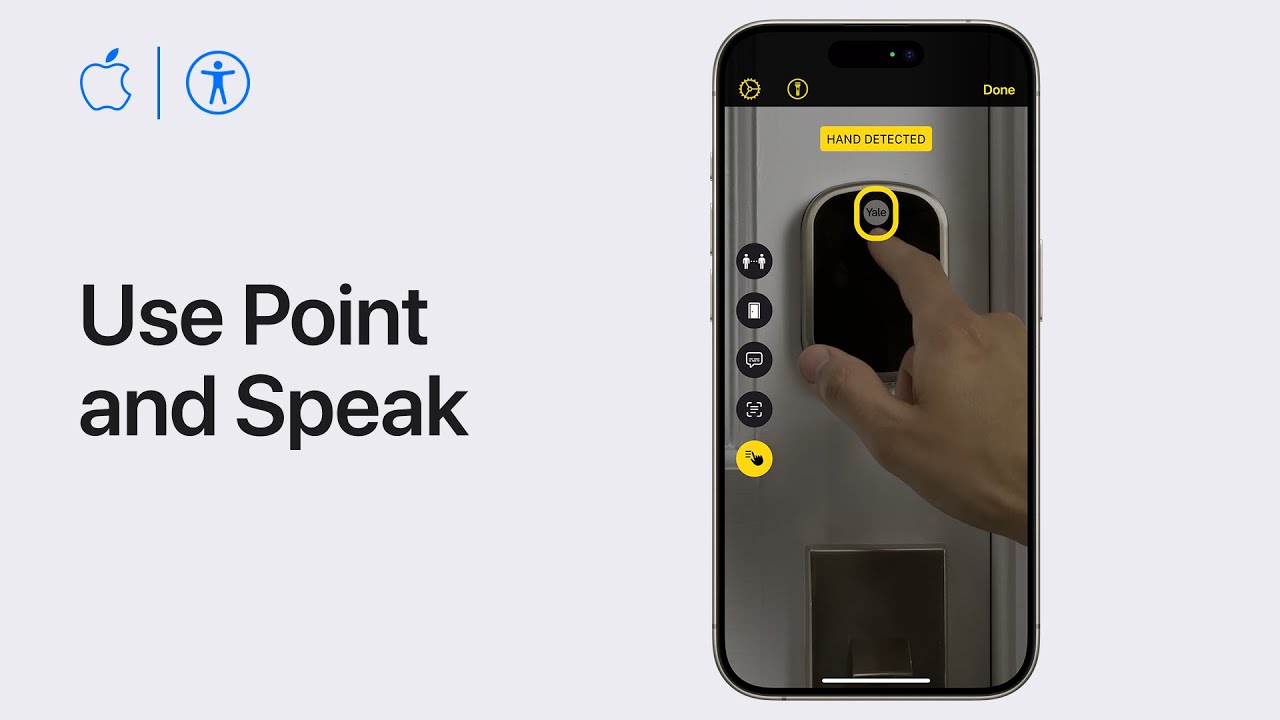
How to use Point and Speak on iPhone or iPad | Apple Support

If you are blind or have low vision, you can use Point and Speak on your iPhone or iPad with LiDAR to have text read aloud. In Magnifier, tap the Detection Mode button or enable it by triple-tapping with four fingers if using VoiceOver. Tap the Point and Speak button, then point your camera at the text you want to hear. Point your finger at the text to have it read aloud. When finished, tap Done. This feature requires an iPhone or iPad with LiDAR and the latest iOS or iPadOS, and it’s not available in all regions.

Summary:
– Use Point and Speak on iPhone/iPad with LiDAR to have text read aloud.
– Enable Detection Mode in Magnifier or via VoiceOver triple-tap.
– Tap Point and Speak, then point camera at text and your finger at the text to hear it.
– Tap Done when finished.
– Requires latest iOS/iPadOS and LiDAR; not available in all regions.