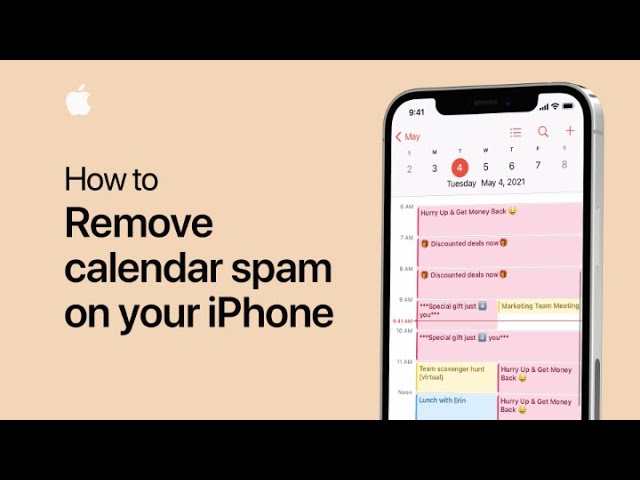
How to remove calendar spam on your iPhone — Apple Support

If you’re receiving unwanted event invitations on your iPhone, you might have subscribed to a spam calendar by mistake. To fix this, open the Calendar app and tap on a spam event. Select “Unsubscribe from this Calendar” and then confirm by tapping “Unsubscribe.” This will remove your subscription and delete all events from that spam calendar. For additional tips, you can subscribe to the Apple Support YouTube channel or watch more helpful videos.

Summary:
– If you’re getting unwanted event invitations, you might have subscribed to a spam calendar.
– Open the Calendar app and tap on a spam event.
– Select “Unsubscribe from this Calendar” and confirm by tapping “Unsubscribe.”
– This action will remove the spam calendar and delete all its events.
– For more tips, check out the Apple Support YouTube channel.

You Don’t Have to Be a Tech Expert to Use AI — Here’s Where to Start

If you’ve ever thought “AI sounds too complicated for me,” you’re not alone. Many iPhone users think artificial intelligence is something only tech experts can handle. The truth is, you’re probably already using AI without realizing it—every time Siri helps you set a reminder, or your Photos app finds pictures of your friends automatically.

This guide will gently walk you through simple ways to use AI on your iPhone, no setup or special knowledge needed. By the end, you’ll see that AI isn’t about robots or code—it’s about making everyday life a little easier.

Table of Contents

Key Takeaways

  • You’re already using AI whenever you ask Siri a question or search Photos by a person’s name.
  • iPhone’s built-in AI helps you organize, remember, and communicate more easily.
  • No apps to download or settings to tweak—just everyday features you can start using now.
  • AI learns your habits to make your iPhone feel more personal, not more complicated.

Getting Comfortable with AI on Your iPhone

Let’s look at three simple areas where AI is quietly helping you every day: Siri, Photos, and Messages.

These tools are built right in and designed to be friendly, forgiving, and even fun to explore. You can try them out at your own pace, and they’ll quickly start to feel natural.

1. Start with Siri: Your Voice-Activated Helper

Think of Siri as your personal assistant that never gets tired of helping. You can say things like:

You don’t have to use special commands. Just talk naturally. Siri uses AI to understand your words, even if you say them differently each time. Over time, it gets better at recognizing your voice and preferences.

Try this:
Ask Siri to “text my daughter I’m on my way.” You’ll see how it fills in names and suggests responses automatically. That’s AI doing the thinking for you.

Tip: If you’re unsure what to say, hold down the Side button to bring up Siri, and ask, “What can you do?” Siri will show a list of examples.

2. Explore AI in Photos: Finding Memories Instantly

Remember when finding a photo meant scrolling for ages? Not anymore. The Photos app uses AI to recognize faces, places, pets, and even objects.

You can type “dog,” “birthday,” or “beach” in the search bar, and the app instantly shows matching pictures. It can also create “Memories”—mini slideshows that group your best photos automatically.

Try this:
Open Photos and search for “flowers” or “friends.” You might be surprised by how accurately your iPhone finds what you’re looking for.

If you tap on “People,” you’ll see familiar faces grouped together. You can name them once, and your iPhone will remember them for future searches. That’s AI learning what matters most to you.

3. Smarter Messages: Quick Replies and Helpful Suggestions

Ever notice your iPhone suggesting words or emojis before you finish typing? That’s AI-powered predictive text at work. It studies your writing style and offers suggestions that sound like you.

For example, if you often say “See you soon!” after making plans, your phone might start offering that automatically as you type.

AI in Messages also helps detect links, phone numbers, or addresses, making them easy to tap without copying or pasting. And when you get a code to confirm a login, your iPhone will recognize it and offer to fill it in automatically—no need to switch apps.

Try this:
Type a message to a friend and watch how your iPhone finishes your sentences or recommends emojis. You can accept or ignore the suggestions—it’s completely up to you.

4. Small Ways AI Makes Life Easier Every Day

AI on your iPhone isn’t about big changes—it’s about small conveniences that add up. Here are a few more examples you might already be using:

  • Calendar: Automatically suggests meeting times based on your messages.
  • Mail: Sorts important messages and filters out spam.
  • Maps: Remembers your usual routes and suggests faster ones.
  • Notes: Can scan documents and even recognize handwriting.

Each of these features quietly uses AI to save you time and effort. You don’t need to “turn on” anything—just keep using your iPhone as usual.

5. Overcoming the Fear of “Messing It Up”

Many people hesitate to try new tech features because they worry about pressing the wrong button. Here’s the good news: you can’t break anything by exploring.

If Siri misunderstands you, just try again in your own words. If Photos shows the wrong person, you can correct it easily. The more you use these features, the better they become.

Think of AI as a friendly helper that learns from you—not a test you have to pass.

Final Thoughts

AI might sound like something from the future, but on your iPhone, it’s simply a quiet partner making things smoother and more personal. Whether it’s finding a memory, sending a quick message, or getting directions, these small touches can make your day a little easier.

You don’t need to be a “tech person” to use AI—you just need a bit of curiosity. Start with Siri, try searching Photos, or notice how Messages predicts your next word. Every small step builds confidence.

Once you see how natural it feels, you might even start to enjoy how smart your iPhone really is.

Categories AI

How to find a workout in Apple Fitness+ on iPhone, iPad, and iPod touch — Apple Support

To find the perfect workout with an Apple Fitness+ subscription, start by opening the Fitness app and tapping the Fitness+ tab to browse various workouts and programs. Scroll through the list at the top to select a workout type, such as Dance. To narrow your search, tap Filter and choose options like trainer, workout duration, or music style, such as 20 minutes and Hip-Hop/R&B. Tap Done to view the filtered results, then select a workout and tap Preview for a sneak peek. When you’re ready, tap Let’s Go, and then play the workout on your iPhone or Apple Watch to start exercising.

Summary:
Open the Fitness app and go to the Fitness+ tab.
– Browse or filter workouts by type, trainer, duration, or music style.
– Tap a workout and select Preview for a sneak peek.
– Tap Let’s Go to prepare for the workout.
– Start the workout by tapping play on your iPhone or Apple Watch.

AI Made Simple: How to Let Your iPhone Do the Hard Work for You

Have you ever noticed your iPhone reminding you to leave for an appointment, finishing your sentences, or finding that photo you took months ago? That’s not magic—it’s artificial intelligence (AI) working quietly behind the scenes. You don’t need to be a tech expert to benefit from it. In fact, if you own an iPhone, you’re already using AI every single day.

In this guide, we’ll explore how your iPhone’s smart features use AI to make life easier, faster, and a little less stressful. You’ll learn what’s really going on when your phone “just knows” what you need—and how to take advantage of it.

Table of Contents

Key Takeaways

  • AI is built into your iPhone: It helps with reminders, photos, messages, directions, and more.
  • You don’t need to set it up: Most AI features work automatically in the background.
  • It saves time and reduces stress: Your phone learns your habits to help you stay organized and connected.
  • Your privacy matters: Apple designs its AI to process most data on your device, not in the cloud.

Smarter Reminders and Calendar Alerts

Have you noticed your iPhone reminding you to leave for a meeting or suggesting a time to call someone back? That’s AI at work.

  • Location-based reminders: When you tell Siri to “remind me to pick up milk when I leave work,” AI tracks your location and triggers the alert at just the right moment.
  • Time suggestions: If you often schedule doctor visits on Tuesday mornings, your iPhone will start suggesting that time when you add new appointments.
    These small touches mean you don’t have to remember everything—your phone does it for you.

Smarter Directions with Maps

Apple Maps has become a quiet genius thanks to AI. It studies traffic patterns, road closures, and your usual routes to make travel smoother.

  • It might suggest leaving earlier because it “knows” there’s morning traffic on your route.
  • When you park, it automatically remembers where your car is, so you don’t have to.
    AI in Maps learns from your habits over time, offering quicker, more personalized navigation.

Typing Help That Feels Like It Knows You

Have you noticed how your iPhone sometimes finishes your sentences or fixes typos before you realize them? That’s predictive text and autocorrect, powered by AI.

  • As you type, it suggests words based on your writing style and past messages.
  • It can even suggest entire phrases, like “On my way!” or “Sounds good.”
    This makes texting and emailing faster and less frustrating, especially for those who type on small screens.

Smarter Photos and Memories

Scrolling through thousands of photos can be overwhelming, but your iPhone’s Photos app uses AI to make it easy.

  • It recognizes faces, pets, and even places. Try typing “beach” or “birthday” in the search bar—AI finds what you’re looking for instantly.
  • It creates “Memories” collections automatically, grouping photos from special events or trips.
    These features save time and bring forgotten moments back into view with no effort from you.

Siri: Your Everyday AI Assistant

Siri is often the most visible face of AI on the iPhone. You can ask it to send messages, play music, or check the weather—but it also learns from you.

  • Siri can suggest shortcuts based on your habits, like texting a family member at a certain time.
  • You can create your own shortcuts with the Shortcuts app, allowing Siri to handle multi-step tasks like “text my spouse I’m leaving and start driving directions home.”
    Over time, Siri gets better at predicting what you need, so you spend less time tapping and more time doing.

Helpful AI in Everyday Apps

AI doesn’t just live in Siri—it’s also built into many apps you already use.

  • Mail: Automatically sorts newsletters, promotions, and personal emails.
  • Notes: Can recognize handwriting and turn it into searchable text.
  • Safari: Suggests articles based on what you read or saves passwords securely with Face ID.
    All these tiny AI touches come together to make your iPhone feel personal, almost like it’s learning alongside you.

Privacy First: How Apple Keeps AI Safe

One of the biggest concerns about AI is privacy—but Apple takes a different approach.

  • Most AI processing happens on your iPhone, not on distant servers.
  • This means your personal data—like messages, photos, and habits—stays private.
  • When Apple does use the cloud, it uses techniques like differential privacy to hide your identity.

So you get all the smart features without having to worry that someone’s watching.

Final Thoughts

You don’t have to understand all the tech behind AI to enjoy what it does for you. Whether it’s reminding you of appointments, helping you type faster, or finding old photos, your iPhone is already doing the hard work quietly in the background.

By learning just a little about how these features work, you can let your iPhone take care of more small tasks—so you can focus on what really matters. The next time your phone offers help, give it a try. You might be surprised how much easier your day can become.

Categories AI

How to customize your Activity goals on Apple Watch — Apple Support

To customize your daily Activity goals on your Apple Watch, start by opening the Activity app and scrolling to the bottom where you’ll find the “Change Goals” option. Tap it to select the goal you want to adjust. First, customize your Move Goal by setting your desired daily active calorie burn and tap Next. Then, adjust your Exercise Goal by setting the minutes of brisk activity you aim to complete daily, and tap Next. Finally, modify your Stand Goal by choosing how many hours each day you want to stand and move for at least one minute, using the Plus or Minus buttons. Tap OK to save your changes and close your rings.

Summary:
– Open the Activity app on your Apple Watch and scroll to the bottom.
– Tap “Change Goals” and select the goal you want to adjust.
– Customize the Move Goal by setting your daily active calorie burn, then tap Next.
– Adjust the Exercise Goal by setting your desired minutes of brisk activity, then tap Next.
– Modify the Stand Goal by choosing the number of hours to stand each day, use the Plus or Minus buttons, and tap OK to save.

How to track your activity with your Apple Watch — Apple Support

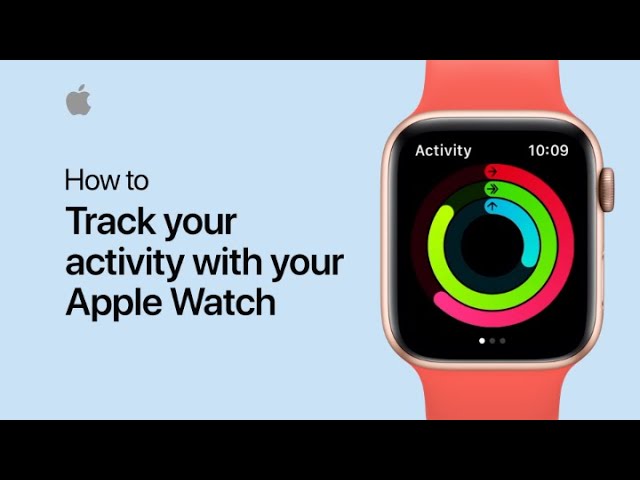
To track your activity and close your rings each day, start by opening the Activity app on your Apple Watch, which displays three rings: red for active calories burned, green for minutes of exercise, and blue for standing frequency. As you move, exercise, or stand, these rings will track your progress. Scroll down to view details such as total steps, distance, flights of stairs climbed, and workouts completed. You can also review your weekly progress and adjust your goals. For more detailed tracking, sync your watch with the Fitness app on your iPhone, where you can view your daily activity summary, trends, and awards. You can also see friends’ activity and share your own progress through the app.

Summary:
– Open the Activity app on your Apple Watch to view your daily activity rings: Move, Exercise, and Stand.
– Track your progress by checking details like steps, distance, flights of stairs, and workouts.
– Customize your goals based on your activity levels and check weekly progress.
– Sync with the Fitness app on your iPhone for a detailed activity summary, trends, and awards.
– Use the Fitness app to review friends’ activity, share your progress, and adjust your goals.

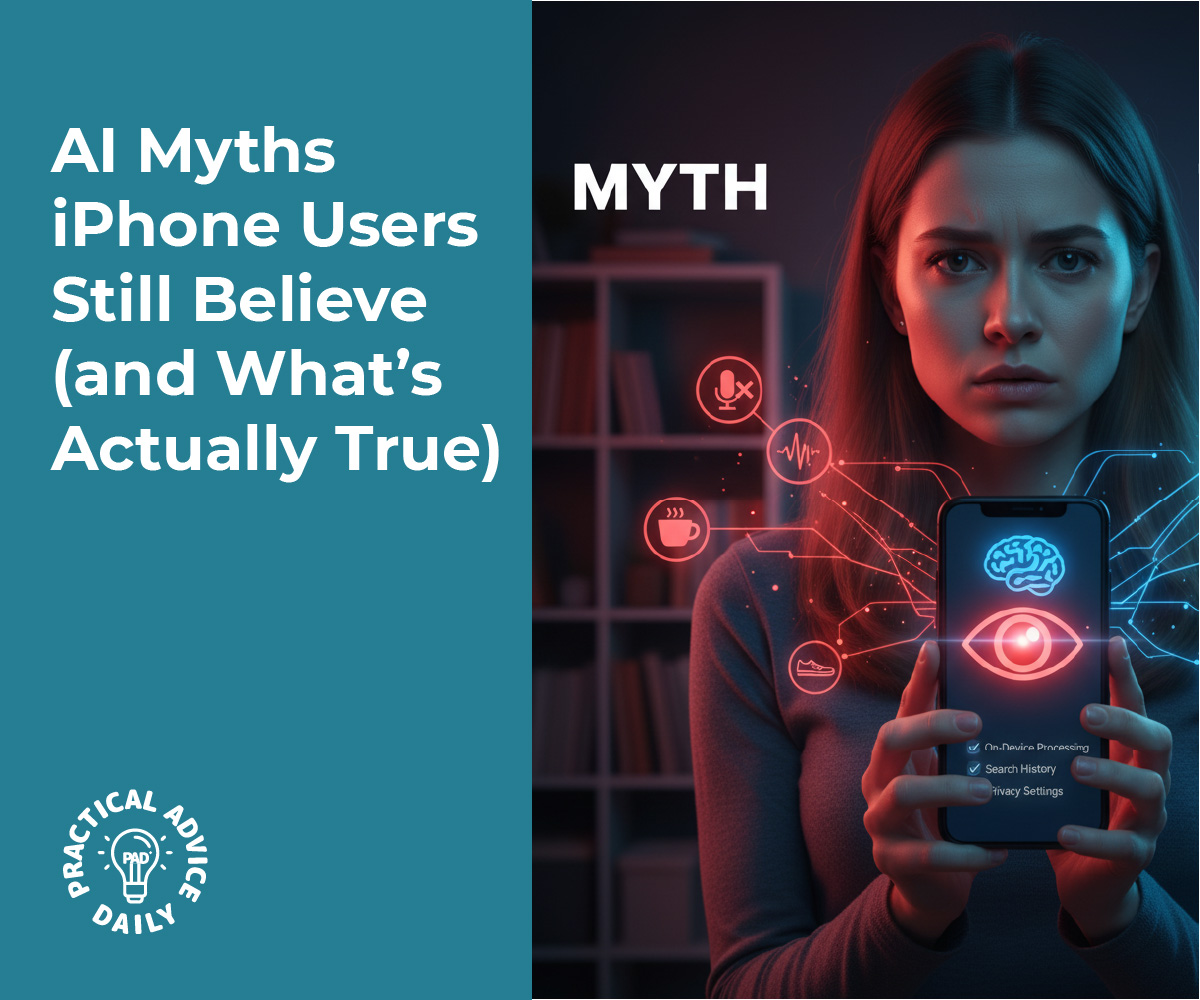
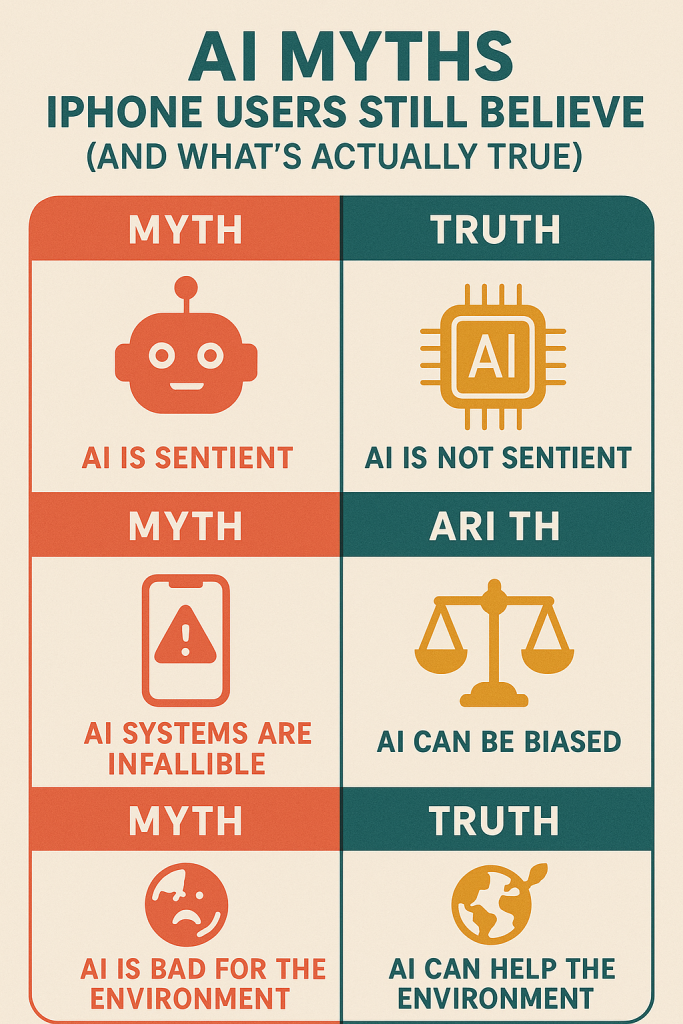
AI Myths iPhone Users Still Believe (and What’s Actually True)

Artificial intelligence, or AI, might sound complicated or even a little scary. You’ve probably heard rumors that it listens to you, spies on your habits, or takes control of your iPhone without permission. The truth is much simpler—and much safer.

In this article, we’ll bust the most common myths about AI on the iPhone. You’ll learn what’s real, what’s exaggerated, and how AI quietly helps make your phone easier, faster, and more personal—without putting your privacy at risk.

Table of Contents

Key Takeaways

  • AI on your iPhone is designed to help, not to spy.
  • Most AI features run on your device, not in the cloud.
  • You can control what data is shared or stored at any time.
  • Everyday tools like Siri, Photos, and Messages use AI to make life easier.
  • Understanding how AI works builds confidence and peace of mind.

Myth 1: “AI listens to everything I say.”

Many people think their iPhone constantly listens in, but that’s not true. Siri and other voice tools only start listening when you say “Hey Siri” or press the button to activate it.

Apple designed this process to protect your privacy. The short sound clip that detects “Hey Siri” is processed entirely on your iPhone, not sent to Apple’s servers. Only when you give an actual command—like “Set a timer” or “Call my daughter”—does Siri process your request.

You can even turn off “Listen for ‘Hey Siri’” in Settings > Siri & Search if you prefer.

Myth 2: “AI steals my personal data.”

This one causes a lot of worry, but Apple’s AI works differently from many others. The company uses something called on-device processing. That means your data—such as photos, messages, or typing habits—stays stored locally on your iPhone, not in the cloud.

For example, when Photos recognizes your friends or groups pictures by event, that’s AI at work—but the analysis happens on your phone. No images are uploaded or shared without your permission.

You’re always in control of your data, and Apple gives clear options under Settings > Privacy & Security to review what’s being used.

Myth 3: “AI replaces human thinking.”

It might seem like AI “does everything for you,” but it’s really more of a smart assistant. Think of it like a helpful tool that saves time by noticing patterns.

For example, when your iPhone suggests leaving early for an appointment because of traffic, it’s not “deciding” for you—it’s just using maps and your calendar together to offer a heads-up.

AI simplifies everyday tasks, but it doesn’t think, feel, or make choices like a person. You’re always in charge.

Myth 4: “AI is only for tech experts.”

Many people avoid AI features because they think it’s too complicated. In reality, most iPhone AI tools work automatically in the background.

You don’t have to set anything up for:

  • Photos to organize your pictures by faces or places
  • Messages to suggest quick replies
  • Mail to sort junk and highlight important messages
  • Keyboard typing to predict your next word

These features are designed for everyone, not just tech-savvy users. They quietly make your iPhone easier to use every day.

Myth 5: “AI is watching or tracking me.”

Your iPhone doesn’t secretly track or record you. AI tools use limited data only when needed—and you can see or adjust these permissions at any time.

If you’re worried, go to Settings > Privacy & Security > App Privacy Report. You’ll see exactly which apps accessed your camera, microphone, or location and when. This gives you full transparency and peace of mind.

Apple’s “Privacy Labels” also make it clear what information each app collects before you even download it from the App Store.

Myth 6: “AI will make my phone slower.”

Actually, it’s the opposite. AI helps your iPhone run more efficiently. It learns your usage habits—like when you charge your phone or open certain apps—and uses that information to save battery life and speed up performance.

For instance, Optimized Battery Charging uses AI to reduce wear on your battery by learning your daily routine. It’s a quiet improvement you may never notice, but it keeps your phone healthier over time.

Myth 7: “AI can’t make a real difference for me.”

Even small things add up. AI helps your iPhone recognize spam calls, detect fraud in messages, translate text, improve photos, and even transcribe voicemail.

If you’ve ever smiled at a “Memories” slideshow in Photos or gotten a smart suggestion from Siri right when you needed it—that’s AI making your phone more personal and convenient.

Final Thoughts

It’s easy to see why people feel unsure about AI. It’s new, it’s invisible, and sometimes it’s misunderstood. But on the iPhone, AI isn’t about control—it’s about comfort and confidence.

Apple’s AI is built to protect your privacy, save time, and quietly make your digital life smoother. Once you understand how it really works, those old myths lose their power.

Take a few minutes to explore your iPhone’s settings or try a new feature. You might be surprised by how much AI already helps you every day—without ever crossing your boundaries.

Categories AI

Get to know AirTag sounds | Apple Support

Here’s a quick guide to the sounds your AirTag can make. When you first set up your AirTag or connect a new battery, you’ll hear the “Connected Chime.” Once the AirTag is set up and ready to use, it will play the “Setup Chime.” If you’re locating your AirTag through the Find My app, you’ll hear the “Find My Chime.” If an unknown AirTag has been moving with you over time, it will play the “Moving With You Chime” autonomously. If you’re trying to locate an unknown AirTag moving with you in the Find My app, you’ll hear the “Find My Chime” again.

Summary:
– The “Connected Chime” plays when setting up an AirTag or connecting a new battery.
– The “Setup Chime” signals that the AirTag is ready to use.
– The “Find My Chime” helps locate your AirTag in the Find My app.
– The “Moving With You Chime” alerts you if an unknown AirTag has been traveling with you.
– The “Find My Chime” also plays when locating an unknown AirTag moving with you in the Find My app.

Five helpful AirPods tips | Apple Support

To enhance your AirPods experience, start by sharing audio with a friend by opening Control Center on your iPhone, selecting your AirPods, and tapping “Share Audio.” If your friend’s AirPods are nearby or in their case, you can connect them by following on-screen instructions and holding their case’s Setup button. Adjust volume through the headphones or Control Center.

To rename your AirPods, go to Settings, tap your AirPods, change their name, and save. Use Live Listen to amplify sound through your iPhone’s microphone by adding Hearing to Control Center, tapping the Hearing button, and enabling Live Listen. For added background sounds, activate them from the Hearing controls, select a sound, and adjust volume. Lastly, enable Siri to announce notifications while using your AirPods by going to Settings, Notifications, and turning on “Announce Notifications.”

Summary:
– Share audio with a friend by selecting “Share Audio” in Control Center and following on-screen instructions.
– Rename your AirPods in Settings by tapping their current name and entering a new one.
– Use Live Listen by adding Hearing to Control Center, tapping the Hearing button, and turning on Live Listen.
– Listen to Background Sounds by enabling them from Hearing controls and choosing a sound.
– Have Siri announce incoming notifications by turning on “Announce Notifications” in Settings.

How AI Protects Your iPhone From Scams and Spam

We’ve all seen those annoying spam texts or mystery calls that seem to come out of nowhere. Some even pretend to be from your bank or delivery service. The good news is, your iPhone has some clever built-in protection powered by artificial intelligence (AI). Apple uses AI to quietly watch for warning signs and help stop scams before they reach you.

In this guide, we’ll look at how AI helps filter messages, block unwanted calls, and spot phishing attempts—all without you needing to download anything extra. It’s designed to help you stay safe online, even if you’re not very tech-savvy.

Table of Contents

Key Takeaways

  • Apple’s AI automatically detects and filters spam texts and calls.
  • Fraud alerts warn you if a message or website looks suspicious.
  • Siri and Mail use AI to flag phishing links or fake senders.
  • You can adjust settings to block unknown callers and report spam easily.
  • These features work quietly in the background—no setup required.

How AI Filters Spam Messages

When a text message arrives, your iPhone’s AI checks several clues to decide whether it’s legitimate. It looks at who sent it, how often similar messages have been flagged, and whether the text includes known scam phrases or strange links.

Messages that seem suspicious are automatically moved into a separate folder called “Junk” or “Unknown Senders.” This makes it less likely that you’ll accidentally tap a harmful link.

If you use iMessage, Apple’s AI also works with spam reports from other users. So, when enough people mark a sender as spam, the system learns to recognize similar messages in the future. This means your phone gets smarter about spotting scams over time.

Smarter Call Detection

Have you ever gotten a call that shows a number similar to yours, or one that starts with your area code but isn’t familiar? Many scammers do this to trick people into answering. Apple’s AI helps protect you by comparing incoming numbers to known spam databases and patterns.

With Silence Unknown Callers turned on, your iPhone automatically sends calls from numbers not in your contacts straight to voicemail. You’ll still see the call in your recent list, but it won’t ring or interrupt you.

Newer iPhones also use AI-powered fraud detection for messages and FaceTime calls. If something seems suspicious—like a request for money or a strange link—the system may display a warning before you respond.

Fraud and Phishing Alerts

Apple’s built-in Mail app includes AI features that can recognize fake emails. It checks for things like mismatched addresses, unusual requests, and copied company logos. If something doesn’t seem right, it may display a “Potential Fraud” or “Suspicious Sender” warning.

Safari, Apple’s web browser, works in a similar way. If you tap a link that leads to a known phishing site, AI quickly blocks the page and shows a “Deceptive Website Warning.” This helps prevent you from accidentally entering passwords or personal details on fake sites.

Protecting Apple Pay and Messages

AI also helps keep your financial information safe. When you use Apple Pay, it checks transaction patterns for anything unusual. If it spots activity that doesn’t match your habits, you may receive an alert to confirm it’s really you.

In Messages, Apple’s Sensitive Content Warning uses on-device AI to detect potentially harmful images or scam content before you open them. The best part? The detection happens privately on your iPhone, not on Apple’s servers, so your messages remain secure.

Simple Steps You Can Take

AI does a lot automatically, but you can boost your iPhone’s protection even more with these simple settings:

  1. Turn on Silence Unknown Callers
    Go to Settings → Phone → Silence Unknown Callers.
    This keeps spam calls from bothering you.
  2. Filter Unknown Senders in Messages
    Go to Settings → Messages → Filter Unknown Senders.
    Texts from people not in your contacts will go to a separate list.
  3. Report Junk Messages
    When you see a “Report Junk” option in iMessage, tap it. This helps Apple improve its spam detection.
  4. Enable Fraud Warnings in Safari
    Go to Settings → Safari → Fraudulent Website Warning.
    This protects you from visiting known scam sites.
  5. Keep iOS Updated
    Apple regularly improves its AI systems through software updates. Always install the latest version to stay protected.

Real-Life Example

Imagine you receive a text that says, “Your package couldn’t be delivered. Click here to reschedule.” It looks real, but the link isn’t from a company you know. Your iPhone’s AI spots that the web address doesn’t match any official delivery service and automatically moves it to Junk.

Or perhaps you get a phone call claiming to be from “Apple Support” asking for your password. With Silence Unknown Callers turned on, that call never interrupts your day—and you can check later without any risk.

Final Thoughts

You don’t need to be a tech expert to stay safe from scams. Apple’s AI quietly does the heavy lifting, blocking most threats before you even notice them. By turning on a few extra settings and staying cautious about unknown messages or links, you’re giving yourself the best defense possible.

Remember, AI isn’t replacing your judgment—it’s simply watching your back. With your iPhone’s smart protection, you can enjoy your day knowing that scams and spam are much less likely to get through.

Categories AI