How to delete an app on Mac | Apple Support

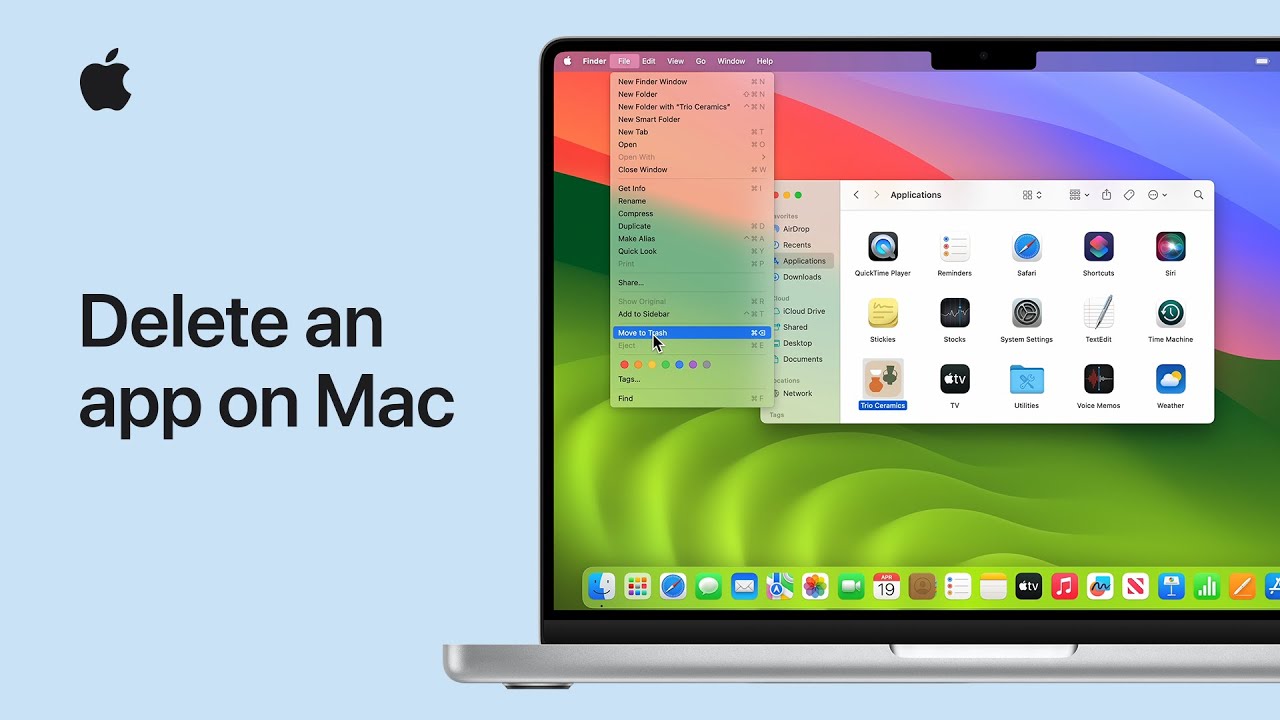
To free up space on your Mac by deleting apps, start by opening the Finder and navigating to the Applications folder. Find the app you want to remove, click on it, then go to the File menu and select “Move to Trash.” If prompted, authenticate with Touch ID or your administrator password. After the app is in the Trash, you need to empty the Trash to permanently delete the app. Click the Finder menu, choose “Empty Trash,” and confirm by clicking “Empty Trash.” This process will help you free up space on your Mac. For more tips, subscribe to the Apple Support YouTube channel.

Summary:
– Open Finder and go to the Applications folder.
– Select the app you want to delete and choose “Move to Trash” from the File menu.
– Authenticate with Touch ID or your admin password if prompted.
– Empty the Trash by clicking the Finder menu and selecting “Empty Trash,” then confirm.
– This will permanently delete the app and free up space on your Mac.

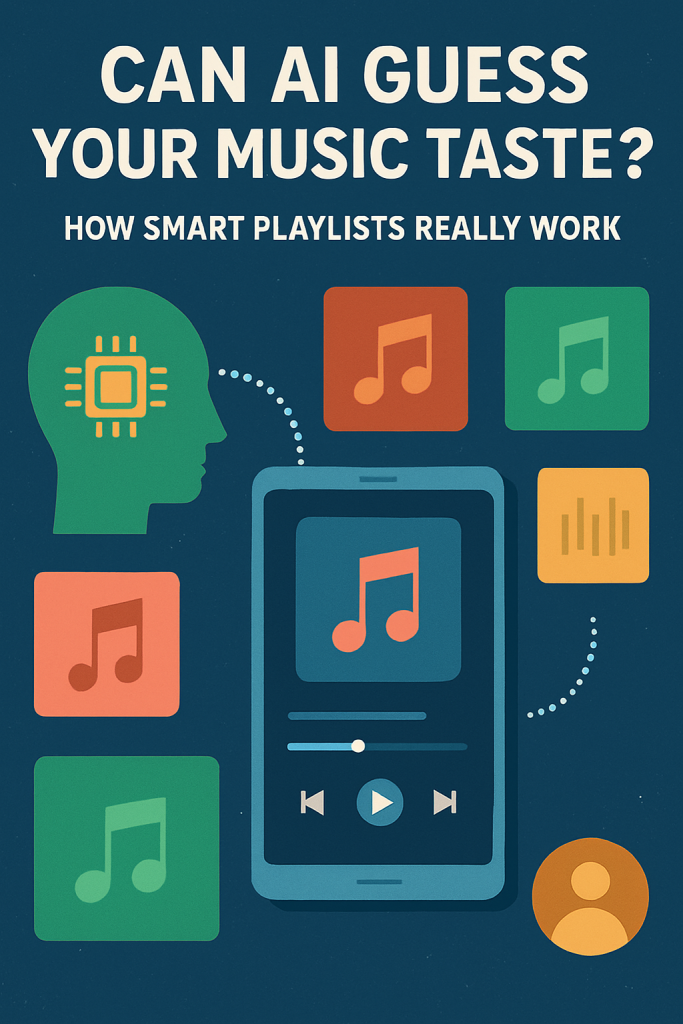
Can AI Guess Your Music Taste? How Smart Playlists Really Work

Have you ever opened Spotify or Apple Music and thought, “How did they know I’d love that song?” You’re not imagining things — these apps really do learn your music preferences. Thanks to artificial intelligence (AI), your playlists can feel almost psychic, suggesting songs and artists that match your mood or taste.

In this article, we’ll explore how these “smart playlists” actually work in simple terms. You don’t need to know anything about technology — just a love for music and a little curiosity.

Table of Contents

Key Takeaways

  • AI learns your music taste by tracking what you listen to, skip, or save.
  • Smart playlists, like Spotify’s “Discover Weekly,” are powered by algorithms that find patterns in your choices.
  • The more you listen, the better your recommendations get.
  • Apple Music and Spotify use slightly different AI systems to guess your next favorite song.
  • You can improve suggestions by liking or disliking tracks regularly.

How AI Learns What You Like

Every time you play, pause, or skip a song, the app quietly takes notes. AI doesn’t “listen” to your music like a person would. Instead, it looks for patterns — the kind of artists, genres, or tempos you enjoy.

For example, if you play a lot of calm acoustic songs in the evening, the app might suggest relaxing playlists around that time. If you love energetic pop hits on Monday mornings, you’ll start seeing upbeat mixes then too.

AI uses something called machine learning, which means it improves the more it observes your behavior. It’s like having a friend who gets better at guessing what you’ll enjoy the more they hang out with you.

Spotify’s Secret: Data and Discovery

Spotify is famous for its weekly “Discover Weekly” playlist — a mix of songs chosen just for you. But how does it decide what to include?

  1. Collaborative filtering: Spotify looks at what people with similar tastes are listening to. If someone enjoys the same artists as you and discovers a new track, that song might appear in your feed too.
  2. Audio analysis: Spotify’s AI also studies the sound of each song — its rhythm, energy, and mood — not just the title or genre. This helps it suggest new music that sounds similar to what you already enjoy.
  3. Behavioral data: Every “like,” skip, or replay sends a signal. Skipping a song after 10 seconds tells the app it missed the mark, while repeating one track five times in a day is a big “yes.”

It’s like combining millions of personal music diaries into one giant system that can predict what you’ll want to hear next.

Apple Music’s Approach: Personal but Private

Apple Music uses AI too, but in a slightly more private way. While Spotify’s recommendations are built from community data, Apple focuses more on on-device learning — meaning it studies your habits without sending all your data to the cloud.

Apple’s system looks at:

  • Your most-played artists and albums
  • Songs you’ve added to playlists or libraries
  • The genres you spend the most time listening to

Then it matches that information to similar tracks in Apple’s catalog. The result is playlists like “Personal Mixes” or “New Music Mix,” designed to fit your style without sharing your listening data widely.

If you’ve ever noticed your “Favorites Mix” update each week, that’s AI quietly adjusting to your changing tastes — maybe a little more jazz one month, a bit of classic rock the next.

How You Can Improve Your AI Playlists

You don’t need to be a tech expert to help your AI music assistant get better at its job. Here are a few easy tips:

  1. Hit the “like” or “heart” button on songs you enjoy. It’s one of the clearest ways to train the algorithm.
  2. Skip what you don’t like. It’s just as helpful — skipping quickly tells AI to avoid similar songs.
  3. Listen often. The more you play, the more data the app has to work with.
  4. Try new playlists. Even if a mix doesn’t seem like your style, AI uses your feedback to fine-tune future suggestions.
  5. Review your “liked songs” list. Removing tracks you’ve grown tired of helps keep your recommendations fresh.

Think of it as curating your own personal DJ — one that learns your rhythm over time.

The Magic Behind Mood Playlists

You may have seen playlists labeled “Chill,” “Workout,” or “Focus.” These aren’t just handpicked by people — AI plays a major role here too. It analyzes the audio features of songs to group them by mood or activity.

For instance, songs with fast beats and high energy are perfect for workouts, while slower tempos fit relaxation or studying. Over time, your listening habits during certain activities help refine these playlists even more.

If you often play calm jazz late at night, AI might start suggesting similar “Evening Relax” playlists automatically.

Is AI Replacing Human DJs?

Not at all. In fact, AI often works alongside real music editors. Spotify and Apple both have human curators who build themed playlists — like “Acoustic Sunday” or “Throwback Pop” — while AI decides which ones you’re most likely to enjoy.

This teamwork between people and technology helps ensure the playlists feel more personal and less robotic. It’s why you’ll still find surprises that match your unique taste, even when they come from an algorithm.

Final Thoughts

AI in music is all about making your listening experience more enjoyable, not replacing your personal touch. Whether you’re using Apple Music or Spotify, these smart tools learn from you over time to deliver songs that fit your style, mood, and moments.

So next time your app seems to read your mind, remember — it’s not magic. It’s AI doing what it does best: learning from your habits and turning them into soundtracks for your life.

If you’d like to make your playlists even more “you,” take a few minutes to like your favorite songs and explore new mixes. You might be surprised at how quickly your AI music companion tunes in to your beat.

Categories AI

How to select multiple images to add to another app on your iPhone or iPad | Apple Support

To grab and move multiple images on your iPhone, first, touch and hold one photo until you feel a tap, then drag it away while continuing to hold it. With another finger, tap additional photos to add them to your selection. Once you’ve selected all the photos you want, switch to the app where you want to share them while still holding the stack. Drag the stack to the desired location in the app and lift your finger to drop the photos. This gesture also works for moving multiple apps or emails.

Summary:
– Touch and hold a photo until you feel a tap, then drag it away.
– While holding the first photo, use another finger to tap additional photos to add them to the stack.
– Switch to the app where you want to share the photos while holding the stack.
– Drag the stack to the desired location in the app and lift your finger to drop them.
– This gesture also works for moving multiple apps or emails.

How to look up a word and play audio in Translate on iPhone or iPad | Apple Support

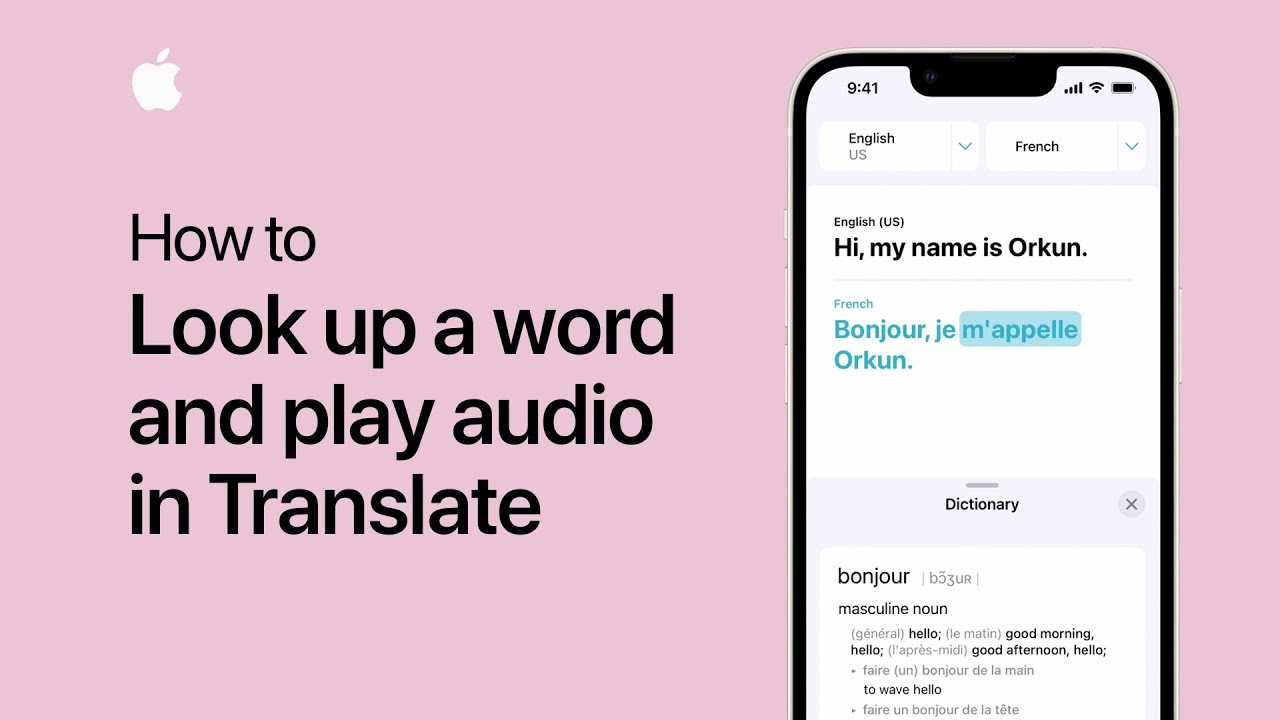
In the Translate app, you can look up definitions and play audio of a translated word or phrase. To see a word’s definition, tap the word in the translated phrase, noting that the dictionary may need to download first, which can take some time. To close the dictionary, simply tap the close button. To hear the translated phrase spoken aloud, tap the play button, and for playback speed adjustments, touch and hold the play button. This way, you can both learn new words and hear them pronounced accurately.

Summary:
In the Translate app, tap a word in a translated phrase to view its definition.
– The dictionary may need to download first, which can vary in time.
– To close the dictionary, tap the close button.
– Tap the play button to hear the translated phrase, and hold it to adjust playback speed.
– This allows you to look up word definitions and hear pronunciations.

AI Video Tools That Turn Your Memories Into Mini Movies

Have you ever wished you could turn your vacation photos or birthday clips into a little movie, but felt overwhelmed by video editing? Good news — you don’t need fancy software or experience anymore. AI-powered video tools can now handle most of the work for you. With just a few taps, these apps pick the best moments, add music, and even sync everything to a beat.

In this guide, we’ll explore easy, beginner-friendly AI video tools that turn your everyday memories into shareable mini movies. Whether it’s a family gathering, a pet video, or a grandchild’s recital, you’ll learn how to bring your moments to life — effortlessly.

Table of Contents

Key Takeaways

  • AI video tools do the editing for you. Just upload your photos or clips, and the app builds a movie automatically.
  • No technical skills needed. Most tools are designed for beginners with simple steps and clear instructions.
  • Perfect for special occasions. Great for birthdays, trips, anniversaries, or just keeping memories organized.
  • Built-in music and effects. Many apps offer free background songs, filters, and transitions.
  • Share easily. Export your movie to share on social media or send to family and friends.

1. What Are AI Video Tools?

AI video tools are apps or programs that automatically edit photos and video clips into short movies. They use artificial intelligence to identify key moments — like smiles, motion, or faces — and arrange them into a smooth, professional-looking video.

Instead of manually cutting, trimming, or syncing, you just upload your photos or videos and let the app do the magic. These tools can add transitions, effects, and background music automatically.

2. Why They’re Perfect for Beginners

For many people, traditional video editing software feels complicated. You might have to learn about “timelines,” “transitions,” or “aspect ratios.” AI video tools skip all that.

They’re built to be simple and intuitive:

  • Choose your photos and videos.
  • Select a style or theme (like “travel,” “family,” or “celebration”).
  • Let the AI edit automatically.

Within minutes, you’ll have a mini movie ready to preview or share.

Here are a few trusted apps that make movie-making easy for anyone — even if it’s your first time editing:

Apple Photos (Memories feature)
If you use an iPhone or iPad, you already have a built-in AI video maker. The Memories feature automatically groups related photos and clips — like a family trip or holiday — and turns them into short movies complete with transitions and music. You can customize the title, song, and style.

• Google Photos (Movie creation)
Android and iPhone users alike can use Google Photos’ movie option. Choose people, pets, or themes, and it will generate a complete movie. You can swap songs, trim scenes, or let the app do everything automatically.

• CapCut
CapCut is a free, beginner-friendly video editor with strong AI features. It can automatically match clips to a song’s rhythm, add captions, or remove background noise. There’s even a “Smart Edit” mode that builds a polished video from your clips in seconds.

• Magisto
Designed for simplicity, Magisto analyzes your footage, picks the best moments, and adds smooth transitions and effects. It’s ideal for creating emotional, story-like videos without needing any editing skills.

• Animoto
If you want slideshow-style videos, Animoto’s drag-and-drop builder and AI templates make it a great choice. You can add your favorite song, captions, and a logo if you like.

4. How to Get Started Step-by-Step

Creating your first AI movie is easy. Here’s a simple guide you can follow no matter which app you choose:

  1. Gather your clips or photos.
    Pick a set of moments — for example, “Grandkids’ visit” or “Trip to Japan.”
  2. Open your chosen app.
    Look for a “Create Movie,” “Memories,” or “Auto Edit” option.
  3. Choose a theme or mood.
    Many tools offer music-based themes like “Happy,” “Calm,” or “Adventure.”
  4. Let the AI work.
    The app will automatically pick the best shots and sync them to the music.
  5. Preview and adjust.
    You can replace photos, trim scenes, or try different songs until it feels right.
  6. Save or share.
    Export your finished video to share with friends or keep as a personal keepsake.

5. Tips for Better Results

  • Use bright, clear photos. AI tools work best when faces and colors are easy to recognize.
  • Limit the number of clips. Around 10–20 photos or short videos usually gives a smooth flow.
  • Add captions or dates. It helps tell your story, especially for travel or family albums.
  • Try different styles. Don’t be afraid to test out themes or music — it can completely change the mood.
  • Back up your creations. Save your final video to cloud storage or an external drive.

Final Thoughts

AI video tools make it easier than ever to turn your memories into beautiful mini movies. You don’t have to learn complicated editing or spend hours on your computer. With just a few taps, your everyday photos and clips can become something truly special — a story you can share and enjoy for years to come.

So the next time you have a folder full of pictures from a holiday, family gathering, or even a quiet weekend at home, give one of these AI video apps a try. You might be surprised how quickly technology can turn your moments into something magical.

Categories AI

How to show battery percentage on your iPhone | Apple Support

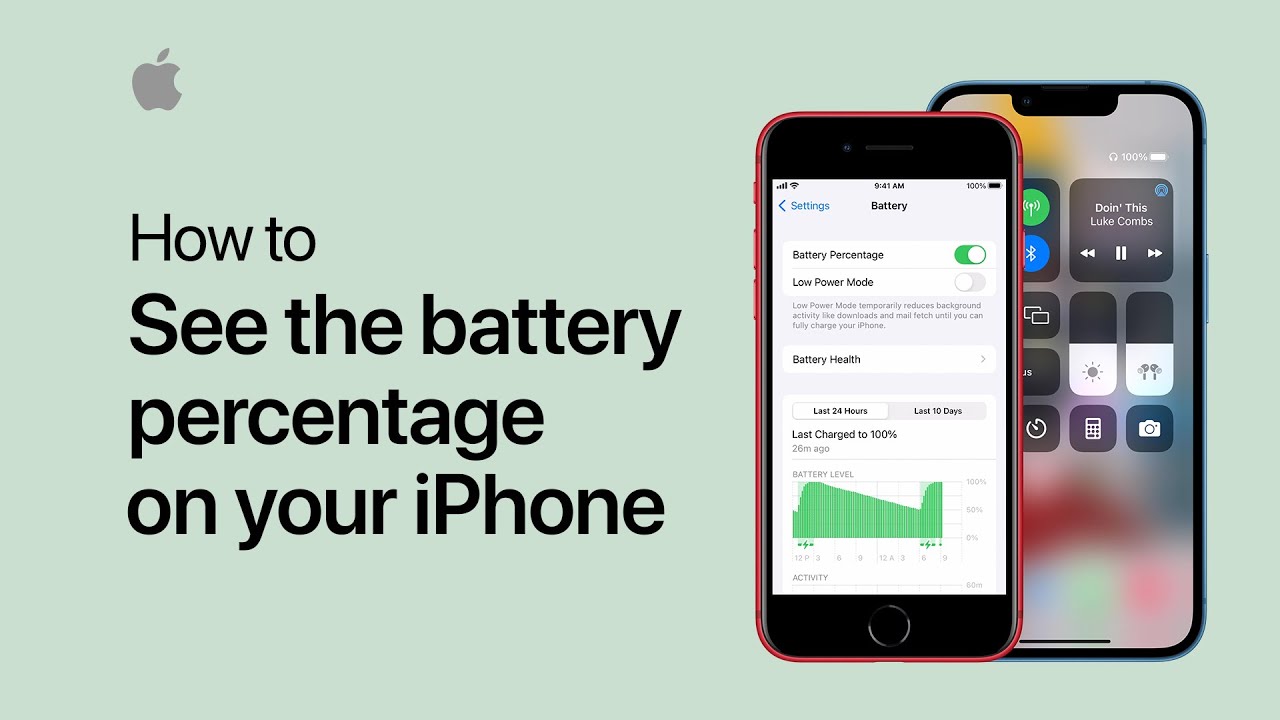
To check your iPhone’s remaining battery percentage, swipe down from the top-right corner of the screen on iPhone models with Face ID to open Control Center, where you’ll see the battery percentage in the top-right corner. For iPhones with a Home button, the battery percentage is displayed in the status bar. If it’s not visible, go to Settings, tap Battery, and then enable Battery Percentage to see it. This ensures you can easily monitor your battery level at any time.

Additionally, you can check your battery health by going to Settings, selecting Battery, and tapping on Battery Health to view the maximum capacity and peak performance capability. Keeping track of your battery status helps you manage your device usage more effectively and ensures you’re never caught off guard by a low battery.

Regular monitoring allows you to plan charging times and optimize your iPhone’s performance throughout the day for a better user experience overall.

Summary:
– Swipe down from the top-right corner to open Control Center on iPhones with Face ID and view the battery percentage.
– On iPhones with a Home button, the battery percentage is shown in the status bar.
– If the percentage isn’t visible, go to Settings and tap Battery.
– Enable Battery Percentage in the Battery settings.
– This allows you to easily check your battery level at any time.

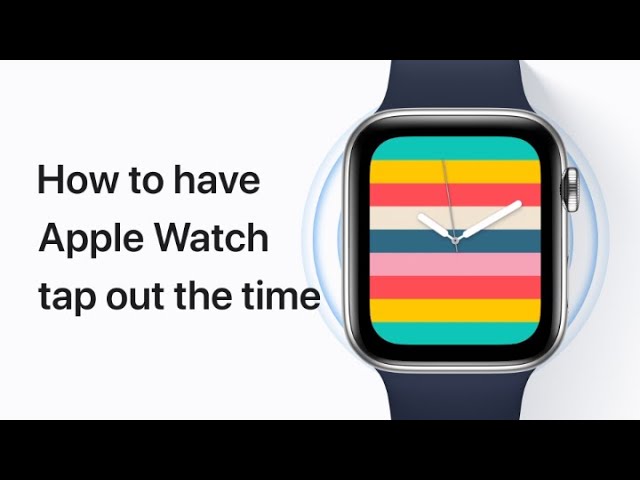
How to have your Apple Watch tap out the time

Your Apple Watch can discreetly tap out the time on your wrist using Taptic Time. To set it up, go to Settings and tap on Clock, then scroll down and tap Taptic Time. Turn on Taptic Time and choose from three settings: Digits, which gives long taps for every ten hours and short taps for remaining hours, followed by long taps for every ten minutes and short taps for remaining minutes; Terse, which provides long taps for every five hours, short taps for remaining hours, and long taps for each quarter hour; and Morse Code, which uses taps to represent each digit of the time in Morse code. To feel the time taps, simply touch and hold the watch face with two fingers.

Summary:
– Set up Taptic Time on your Apple Watch by going to Settings, tapping Clock, and then selecting Taptic Time.
– Turn on Taptic Time and choose a preferred setting: Digits, Terse, or Morse Code.
– Digits provides long taps for every 10 hours and short taps for remaining hours, followed by long taps for every 10 minutes and short taps for remaining minutes.
– Terse offers long taps for every 5 hours, short taps for remaining hours, and long taps for each quarter hour.
– Morse Code uses taps to indicate each digit of the time in Morse code. To feel the taps, touch and hold the watch face with two fingers.

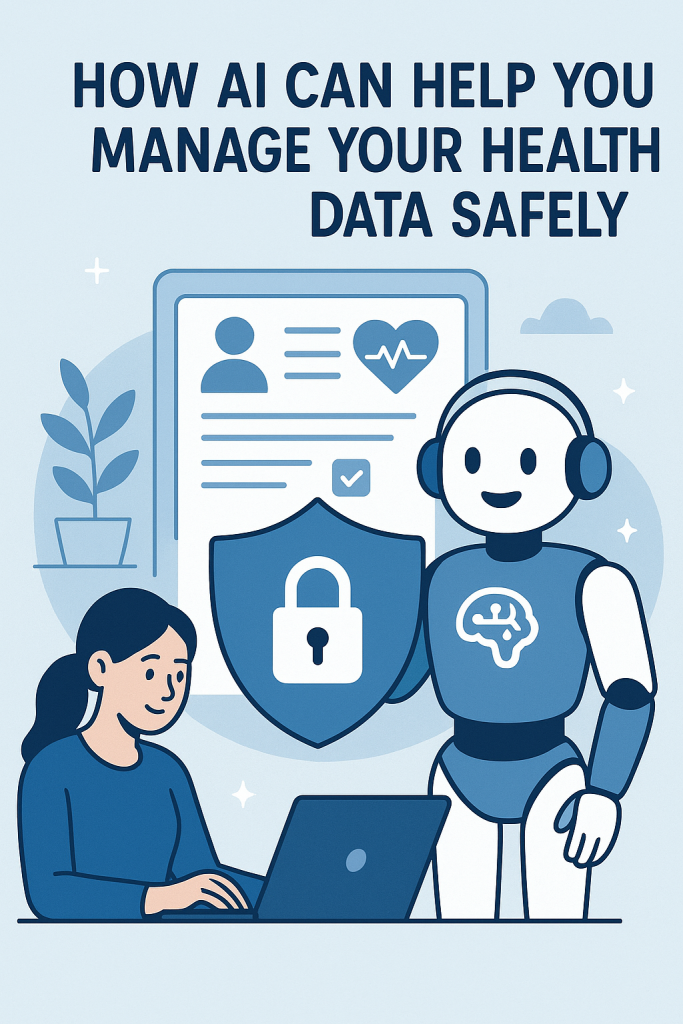
How AI Can Help You Manage Your Health Data Safely

Keeping track of your health can feel overwhelming, especially with so many apps, devices, and numbers to sort through. The good news is that Apple’s Health app now uses artificial intelligence (AI) to make it simpler and safer. Whether you’re monitoring your heart rate, remembering your medications, or checking your daily activity, AI quietly works in the background to help you understand your health data—without exposing your privacy.

In this guide, we’ll walk through how AI supports your health tracking, how it protects your information, and a few easy ways to make the most of these tools. You don’t need to be tech-savvy—just curious and ready to make your iPhone work a little smarter for your wellbeing.

Table of Contents

Key Takeaways

  • AI in Apple Health helps organize and understand your health data automatically.
  • You can track exercise, heart rate, sleep, and medication all in one place.
  • Your health data stays private and secure, stored on your device.
  • AI gives friendly insights and reminders to help you stay consistent.
  • You control what data is shared—and with whom.

How AI Helps You Track and Understand Your Health

1. Keeping All Your Health Information in One Place

Apple’s Health app gathers data from your iPhone, Apple Watch, and other connected apps or devices. For example:

  • Your steps and activity come from your iPhone or Apple Watch.
  • Your heart rate and sleep come from wearable sensors.
  • Your medications can be added manually or through reminders.

AI then organizes this information into easy-to-read summaries. You don’t need to open several apps—everything you need appears in one secure dashboard.

2. Smart Insights Without Confusing Charts

AI can spot patterns that might go unnoticed. For example:

  • It can show when your heart rate is higher than usual after certain meals or workouts.
  • It can remind you if you’ve missed a dose of medication or skipped your daily walk.
  • It can suggest gentle improvements, like getting more sleep or adding short stretches during the day.

These insights are presented in plain language, so you don’t need to be a doctor or data expert to understand them.

3. Helping You Stay on Track with Medication and Activity

If you use the Medications feature, AI can remind you when to take your pills and log them automatically. It even notices if you often forget doses and gently nudges you to stay consistent.

Similarly, AI tracks your exercise trends—not just steps or calories, but overall patterns. For instance, it may notice you’re more active on weekends and encourage weekday movement to balance things out.

These small reminders can make a big difference, especially if you’re managing ongoing health goals or conditions.

4. Protecting Your Privacy and Security

One of Apple’s biggest advantages is its commitment to privacy. Here’s how your data stays safe:

  • On-device processing: Most AI features work directly on your iPhone, not in the cloud. This means your health information never leaves your device unless you choose to share it.
  • Encryption: Your health records and history are locked with your passcode, Face ID, or Touch ID.
  • Full control: You can decide which apps or doctors can access your data—and change those settings anytime.

So, when Apple’s AI analyzes your heart rate or sleep patterns, it’s doing so privately, on your phone, with no one else watching.

5. Easy Ways to Get Started

If you haven’t explored the Health app’s AI features yet, here’s how to begin:

  1. Open the Health app on your iPhone.
  2. Tap the Summary tab to see your most important information.
  3. Choose Favorites for things you want to monitor daily, like steps or heart rate.
  4. Tap Medications to add your prescriptions and set up reminders.
  5. Review the Trends section—this is where AI highlights changes or progress over time.

Even if you start with one simple goal, such as tracking your walking or sleep, AI will quietly help you build better habits and awareness.

Why AI Matters for Everyday Health

For many people, tracking health used to mean notebooks, guesswork, or complicated apps. AI changes that by translating raw numbers into something meaningful. You might see that your heart rate improves as you exercise more or that certain habits improve your sleep.

Over time, this kind of feedback helps you understand your body better. It’s not about replacing medical advice—it’s about giving you clearer information to share with your doctor or to use for small, daily improvements.

AI doesn’t have to be intimidating. In Apple’s Health app, it’s like having a gentle assistant who remembers, reminds, and organizes so you can focus on feeling your best.

Final Thoughts

Managing your health data doesn’t need to be complicated. With Apple’s built-in AI tools, you can keep your information organized, secure, and useful—all from your iPhone.

Start small: track your steps, log your medication, or check your heart rate once a day. Over time, AI will help you spot patterns and celebrate progress, making health tracking feel less like a chore and more like a personal wellness companion.

You’re in control, and AI is there to make the journey a little easier and safer.

Categories AI

How to remove and replace the battery in your AirTag — Apple Support

To remove and replace the battery in your AirTag, start by holding the AirTag with the polished stainless steel battery cover facing you. Press down on the cover and rotate it counterclockwise until it stops, then release your fingers to allow the cover to pop up. Remove the old battery and insert a new one, ensuring the positive side faces you. Note that batteries with a bitter coating may not work with AirTag, and keep batteries away from children. To reattach the cover, align the three tabs with the slots on the AirTag, press down, and rotate clockwise until it stops. Your AirTag will chime to indicate the battery is connected.

Summary:
– Hold the AirTag with the polished stainless steel cover facing you.
– Press down and rotate the battery cover counterclockwise to open it.
– Remove the old battery and insert a new one with the positive side facing you, keeping batteries away from children.
– To reattach, align the cover tabs with the slots on the AirTag, press down, and rotate clockwise until secure.
– A chime will sound to confirm the battery is properly connected.

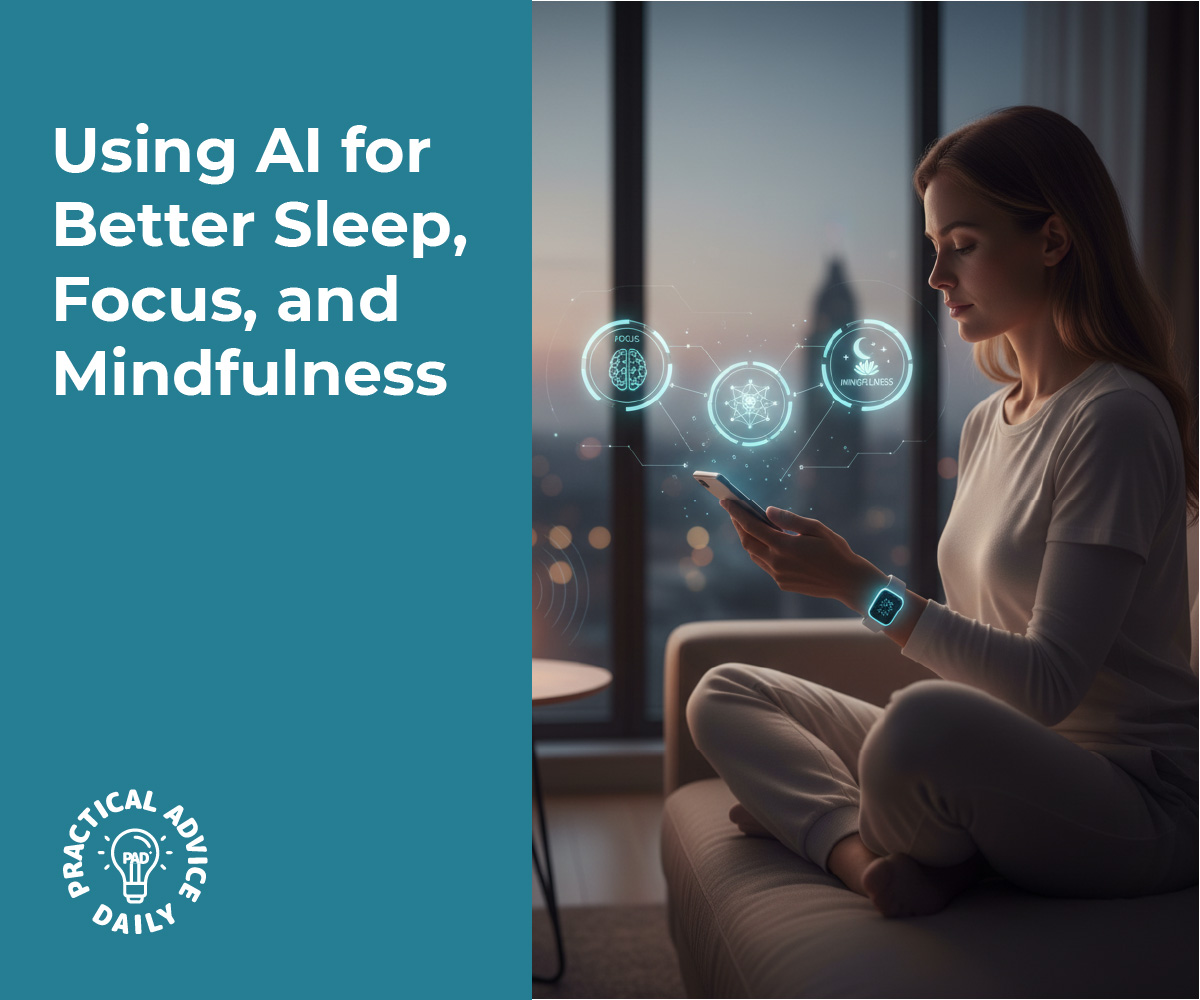
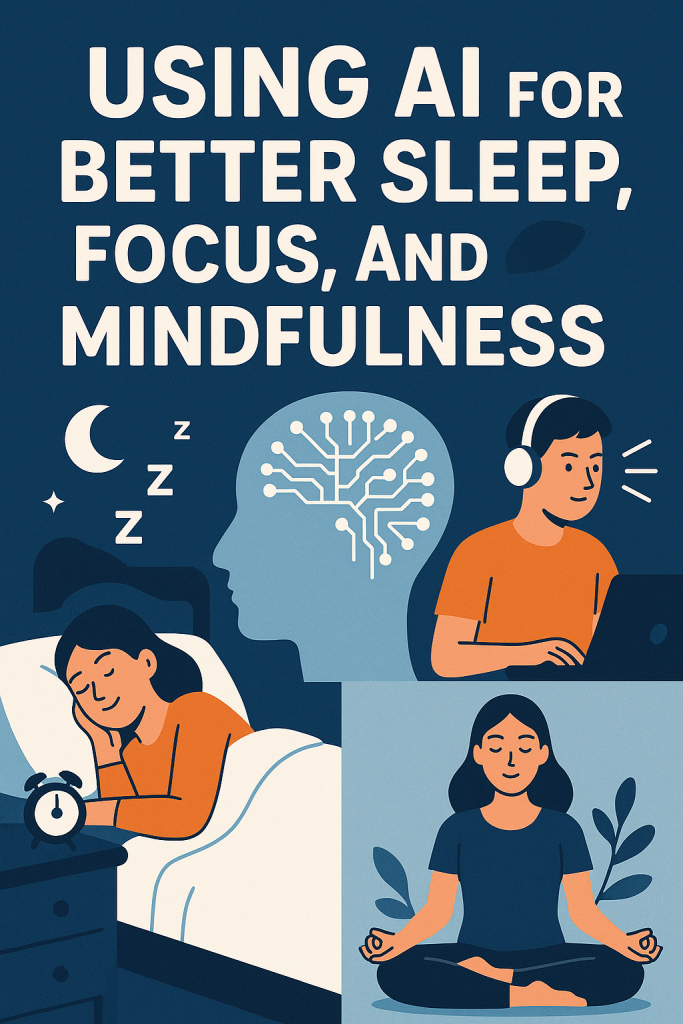
Using AI for Better Sleep, Focus, and Mindfulness

Many of us struggle with sleep, distractions, and stress—especially with busy schedules or changing routines. But what if your phone or smartwatch could gently guide you toward better rest and focus? Thanks to artificial intelligence (AI), wellness apps are becoming smart companions that understand your habits and offer personalized suggestions.

This guide will walk you through how AI-powered apps can help you sleep more soundly, concentrate more easily, and bring calm moments back into your day. You don’t need to be tech-savvy—these tools do the thinking for you.

Table of Contents

Key Takeaways

How AI Helps You Sleep Better

Good sleep is the foundation of a healthy mind and body. Yet, many people find it hard to fall asleep or stay asleep. AI wellness apps can help by learning your patterns and offering simple, realistic advice.

1. Smart Sleep Tracking
Apps like Apple Health, Sleep Cycle, and Calm use AI to track how long and how deeply you sleep. By analyzing your movement and breathing through your phone or smartwatch, they can:

  • Identify when you fall asleep and wake up
  • Notice patterns, such as restless nights or short sleep cycles
  • Suggest small changes, like adjusting your bedtime or avoiding screens before sleep

2. Personalized Bedtime Routines
AI can also recommend calming bedtime habits. For example:

  • Gentle breathing exercises before bed
  • Soothing sounds that match your sleep style
  • A reminder to dim the lights or lower the room temperature

Over time, the app learns what helps you rest best and fine-tunes its advice

Staying Focused with AI Support

Distractions are everywhere—notifications, noise, or wandering thoughts. AI tools can help you reclaim your attention without feeling pressured.

1. Smart Focus Timers
Apps like Forest or Opal use AI to learn when you’re most distracted. They can:

  • Automatically block apps that pull your attention
  • Suggest focused “work sessions” at your best times of day
  • Track how often you get interrupted and celebrate your improvements

2. Soundscapes That Match Your Mindset
AI music tools like Endel or Brain.fm use sound patterns scientifically designed to help your brain focus. The music adapts in real-time—soft and steady when you need calm, or more rhythmic when you need energy.

These small adjustments can make focusing feel natural instead of forced.

Mindfulness Made Easy with AI

Mindfulness doesn’t have to mean sitting in silence for hours. AI-powered apps make it easy to build moments of calm into everyday life.

1. Personalized Meditation Guidance
Apps such as Calm or Headspace use AI to recommend short meditations based on your stress levels, sleep history, or even the time of day.

  • If you wake up anxious, it might suggest a 5-minute grounding exercise.
  • After work, it may offer a guided relaxation to help you unwind.

2. Emotion Tracking
Some wellness apps use AI to gently ask how you feel each day. Over time, they recognize patterns—such as when stress peaks or when you’re most relaxed—and offer supportive tips.

3. Mindful Reminders
AI can also send soft reminders throughout the day, like “Take a deep breath” or “Pause for one minute.” These small nudges help you stay present, especially during busy times.

Real-Life Example

Imagine this simple routine:

  • You wake up after your AI sleep tracker gently wakes you during your lightest sleep stage.
  • A focus app reminds you to silence notifications while you enjoy your morning coffee.
  • During a midday break, your mindfulness app suggests a short breathing exercise.
  • Before bed, your AI wellness app plays calming sounds based on your stress level that day.

Without realizing it, you’ve used AI all day to feel more balanced, calm, and in control.

Getting Started

You don’t need to buy new equipment or pay for pricey subscriptions. Many AI wellness features are free or built right into your phone:

  • Apple Health or Google Fit: Track your sleep and daily movement.
  • Calm, Headspace, or Insight Timer: Try beginner-friendly mindfulness tools.
  • Forest or Opal: Block distractions and stay focused.
  • Endel or Brain.fm: Listen to AI-generated soundscapes for work or rest.

Start small—choose one area (sleep, focus, or mindfulness) and try a single app for a week. Notice how it feels before adding more.

Final Thoughts

AI isn’t just about robots or complex tech—it can be a gentle helper that supports your well-being. By learning your habits and rhythms, these apps make it easier to rest, focus, and stay calm.

Think of AI wellness tools as a personal coach in your pocket—quietly guiding you toward a healthier, more peaceful life, one small step at a time.

Categories AI