Let Siri Help You: How Voice Commands Make Your iPhone Easier to Use

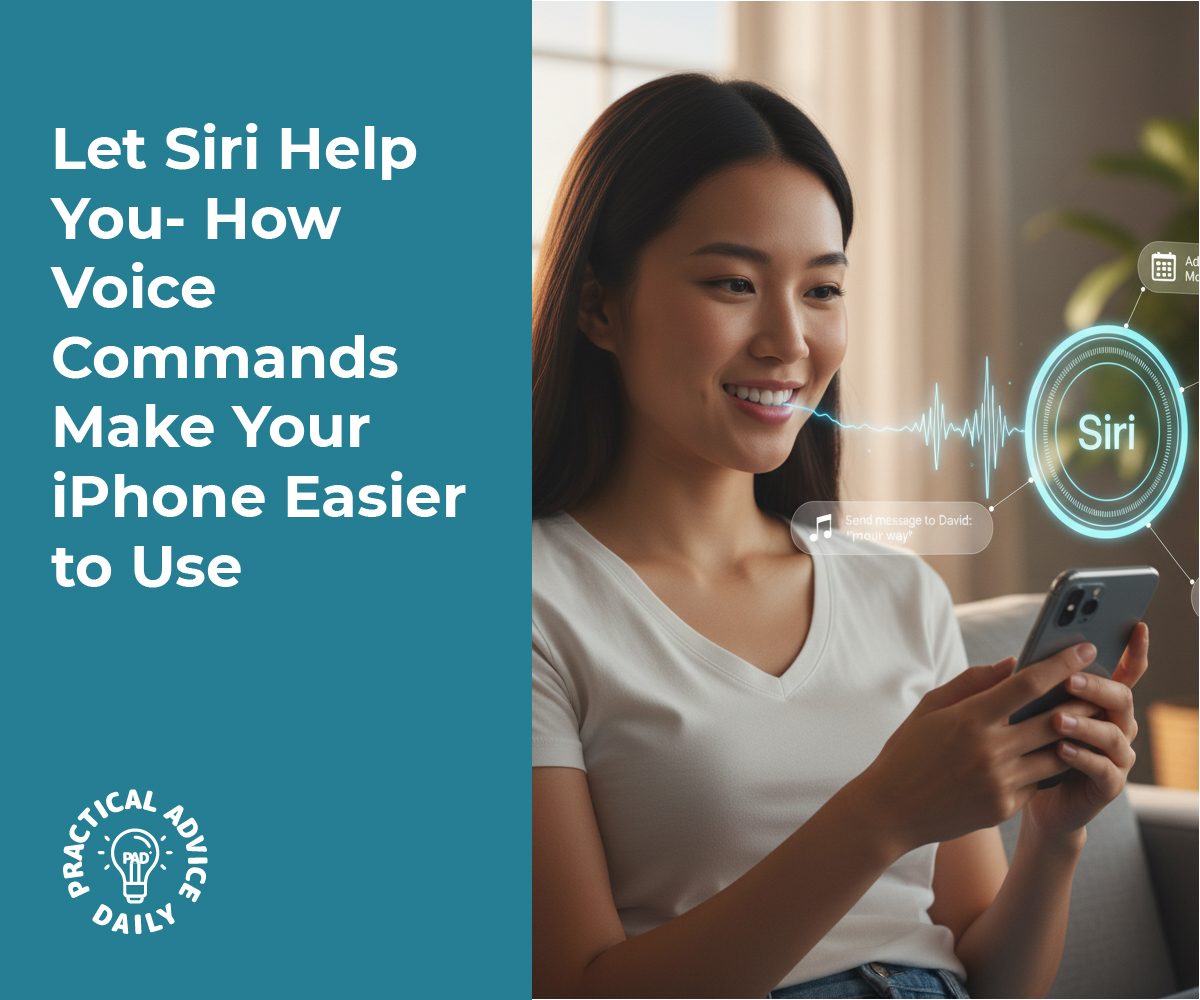
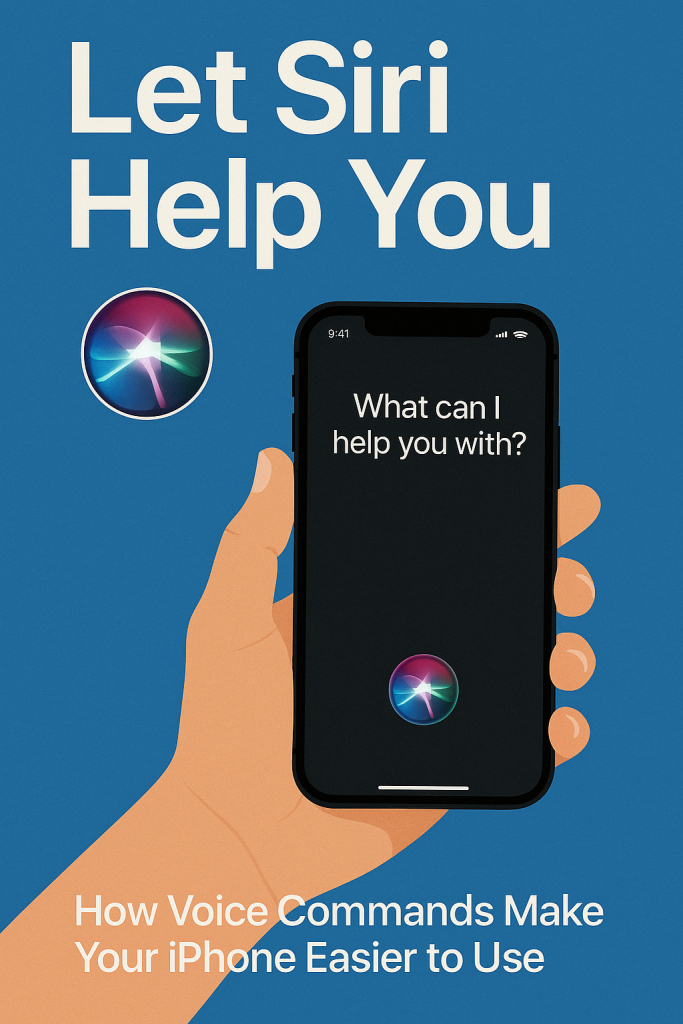
If you’ve ever wished your iPhone could do what you want without all the tapping and typing, Siri is your friendly helper. With just your voice, you can send a message, make a call, or get directions — all without lifting a finger. This guide will show you how to use Siri step by step, even if you’ve never tried it before.

By the end, you’ll see how simple and helpful voice commands can be — especially when your hands are full or you just prefer talking over typing.

Table of Contents

Key Takeaways

  • Siri lets you control your iPhone using only your voice.
  • You can use it to make calls, send texts, set reminders, and more.
  • Just say “Hey Siri” (or press a button) to get started.
  • Great for hands-free use, accessibility, or when you’re on the go.
  • Siri can answer questions, tell you the weather, or look things up online.

How to Start Using Siri

Before you begin, make sure Siri is turned on:

  1. Open Settings.
  2. Tap Siri & Search.
  3. Turn on Listen for “Hey Siri” and Press Side Button for Siri.

Once that’s done, you can either say “Hey Siri” or hold down the side button (on newer iPhones) or the Home button (on older models).

Try saying something simple like:

  • “Hey Siri, what’s the time?”
  • “Hey Siri, what’s the weather today?”

Siri will respond out loud and show the answer on your screen.

Making Phone Calls with Siri

You can make calls without touching your screen. Just say:

  • “Hey Siri, call John.”
  • “Hey Siri, call Mom on speaker.”

If you have more than one number for someone, Siri will ask which one to use — mobile, home, or work.

You can also say:

  • “Hey Siri, redial my last call.”
  • “Hey Siri, call my voicemail.”

This feature is especially helpful if you’re driving, cooking, or simply can’t hold your phone.
Sending Messages by Voice

Typing isn’t always easy, but with Siri, you can dictate messages hands-free. Try saying:

  • “Hey Siri, send a message to Anna saying I’ll be there in ten minutes.”

Siri will read the message back and ask if you’d like to send it. You can say “Send” or “Change it” if you want to fix something.

You can even ask:

  • “Hey Siri, read my new messages.”
  • “Hey Siri, reply to that message and say thank you.”

This makes staying in touch easy, even if you’re not near your phone’s keyboard.

Getting Information and Help

Siri can do more than make calls or send texts. You can use it as your personal assistant for quick answers:

  • “Hey Siri, what’s on my calendar today?”
  • “Hey Siri, set a reminder to water the plants at 6 p.m.”
  • “Hey Siri, where’s the nearest pharmacy?”
  • “Hey Siri, how do you spell ‘accommodate’?”

You can even ask follow-up questions. For example:

  • “Hey Siri, what’s the weather in New York?”
    Then follow with, “How about tomorrow?” — and Siri will understand you’re still talking about New York’s weather.

Using Siri for Everyday Convenience

Here are a few other handy things Siri can do:

  • Timers and Alarms: “Hey Siri, set a timer for 10 minutes” or “Wake me up at 7 a.m.”
  • Directions: “Hey Siri, give me directions to the nearest gas station.”
  • Music and Podcasts: “Hey Siri, play some relaxing music.”
  • Notes and Lists: “Hey Siri, add eggs to my grocery list.”
  • Translations: “Hey Siri, how do you say ‘thank you’ in French?”

You don’t have to remember every phrase. Siri understands natural speech, so just talk the way you normally would.

Tips for Better Results

  • Speak clearly and at a normal pace.
  • Keep your iPhone nearby so Siri can hear you.
  • If Siri doesn’t respond, check your internet connection or microphone.
  • You can say “Hey Siri, what can you do?” to see a list of suggestions.

Over time, Siri learns how you speak and what you often ask, making it even more helpful and accurate.

Final Thoughts

Siri is like having a personal helper right in your pocket. It can save you time, reduce typing, and make your iPhone easier to use — especially if you prefer speaking over tapping. Once you get comfortable, you might find yourself using voice commands for almost everything.

Start small with simple requests, and before long, you’ll wonder how you ever managed without Siri’s help.
Categories AI

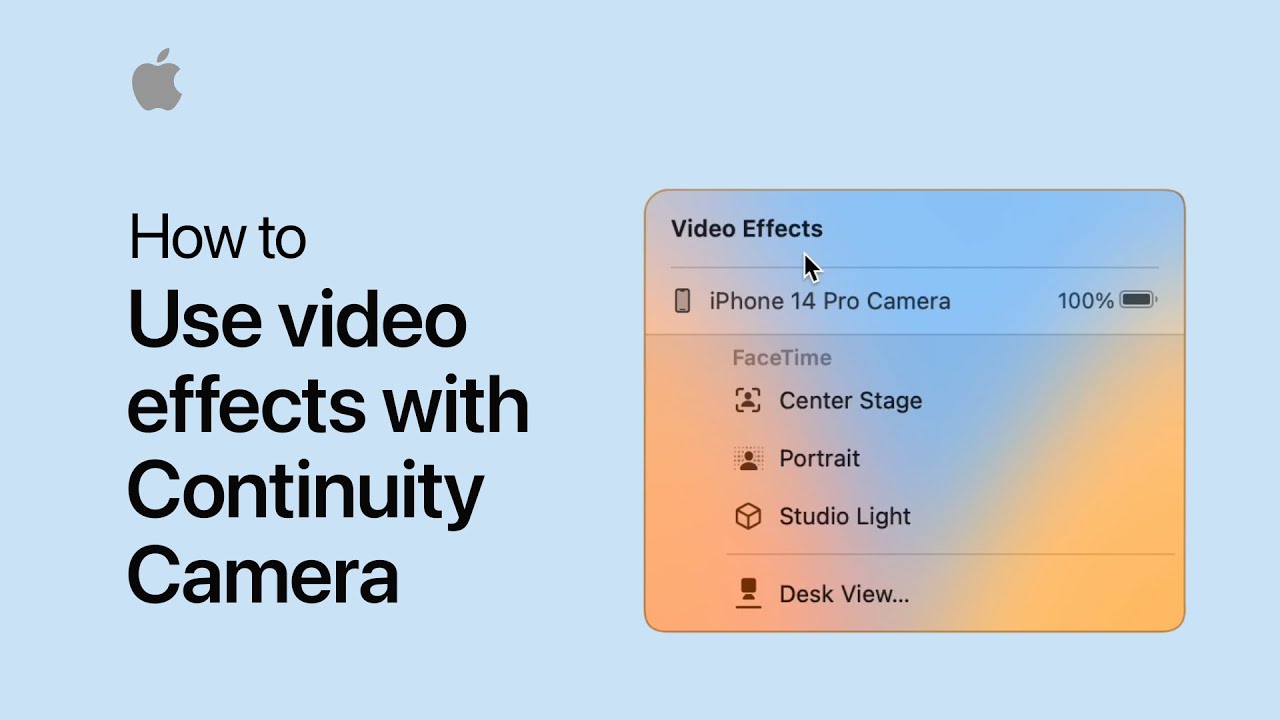
How to use video effects with Continuity Camera with iPhone on Mac | Apple Support

To add video effects while using Continuity Camera for FaceTime on a Mac, start a FaceTime call and use your iPhone as a webcam. Open Control Center and click “Video Effects” to choose from options like Center Stage, which keeps you centered in the frame, Portrait mode to blur the background, and Studio Light to illuminate your face. You can apply one effect or combine multiple effects simultaneously for a polished look during your call.

Summary:
– Start a FaceTime call using Continuity Camera with your iPhone as a webcam.
– Open Control Center and select “Video Effects.”
– Choose Center Stage to keep you centered in the frame.
– Apply Portrait mode to blur the background or Studio Light to illuminate your face.
– Combine effects or use them individually for enhanced video during your call.

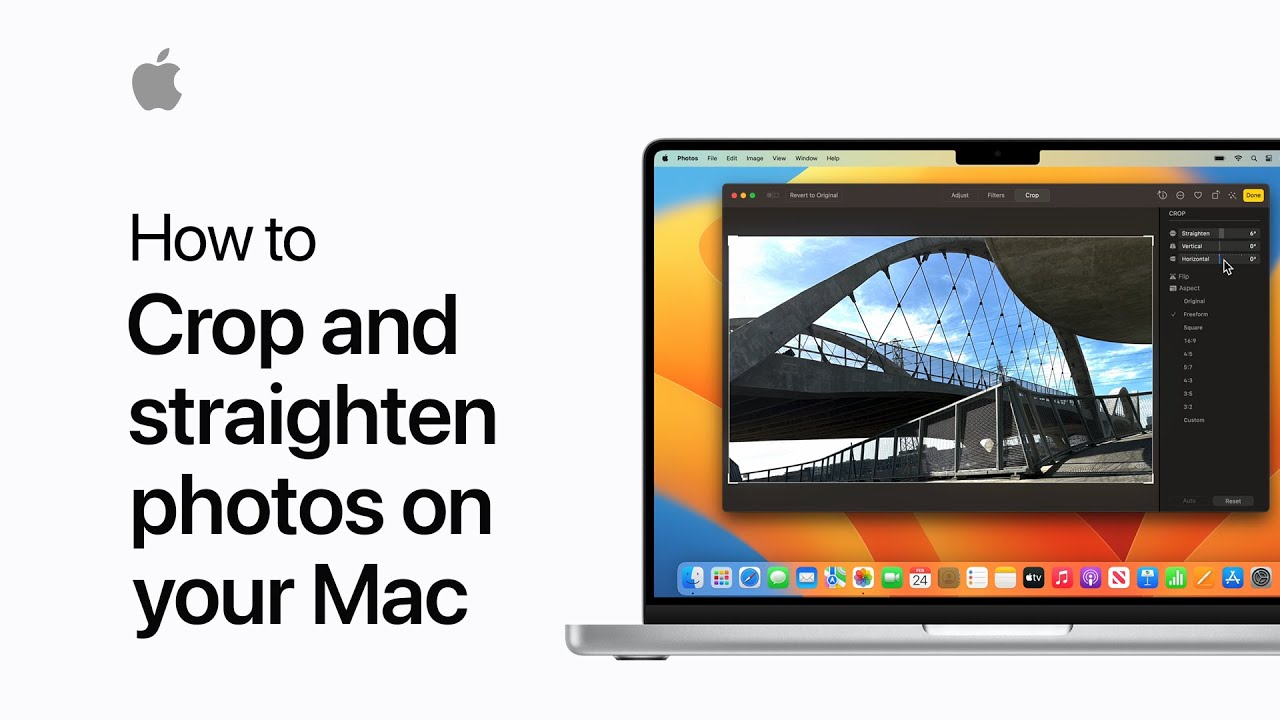
How to crop and straighten photos on your Mac | Apple Support

To edit a photo taken at an odd angle or skewed perspective on your Mac, open the Photos app and double-click the photo you want to edit. Click “Edit” in the top-right corner, then select “Crop.” You can adjust the crop by dragging the corners of the photo. Use the Straighten slider to modify the photo’s angle. For further adjustments, drag the Vertical or Horizontal sliders to correct the perspective. Once you’re satisfied with the edits, click “Done.” This process allows you to easily give your photos a new perspective and correct any skewed angles.

Summary:
Open the Photos app on your Mac and double-click the photo you want to edit.
– Click “Edit” in the top-right corner and select “Crop.”
– Adjust the crop by dragging the corners and use the Straighten slider to change the photo’s angle.
– Use the Vertical or Horizontal sliders to modify the photo’s perspective.
– Click “Done” to save your edits.

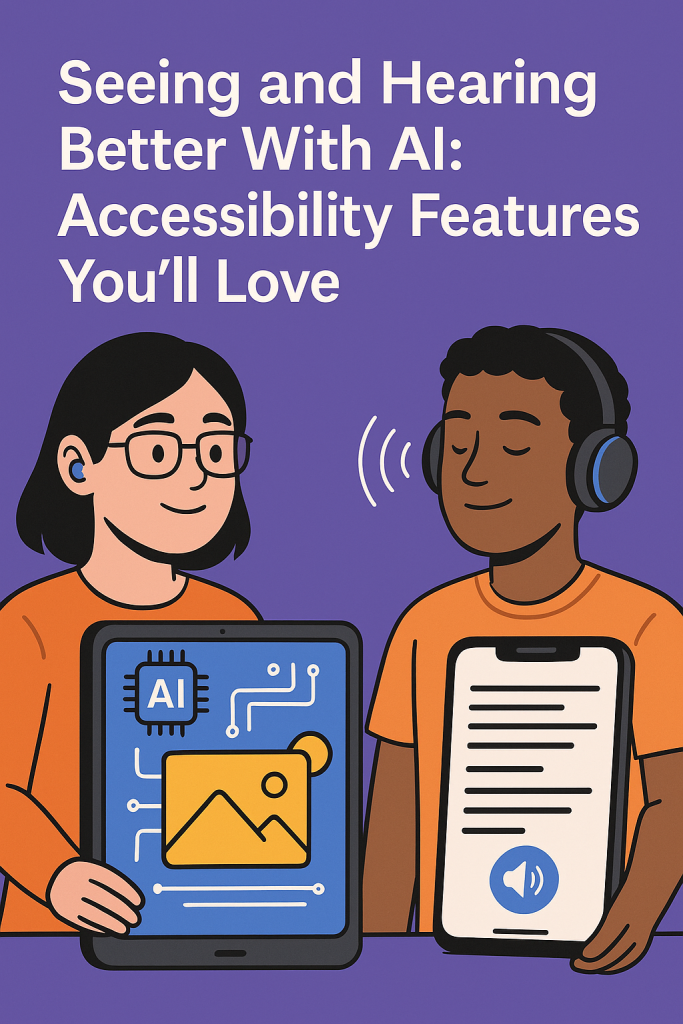
Seeing and Hearing Better With AI: Accessibility Features You’ll Love

Technology can do amazing things, especially when it’s designed to make life easier for everyone. If you sometimes struggle to read small text, hear sounds clearly, or type on your phone, Apple’s AI-powered accessibility tools can lend a hand. These features quietly work in the background, helping you see, hear, and communicate more confidently — no tech expertise required.

In this article, we’ll explore simple yet powerful ways AI can support better vision and hearing on your iPhone.

Table of Contents

Key Takeaways

  • AI helps you read text in the real world. Use Live Text to copy or hear printed words instantly.
  • Voice Control lets you navigate and type using only your voice.
  • Sound Recognition alerts you to important noises like a doorbell or baby crying.
  • Siri and dictation tools make communication easier for those with limited mobility or hearing.
  • You don’t need special apps — most of these features are already built into your iPhone.

Seeing Better With AI

1. Live Text: Turn the Real World Into Readable Text

Imagine pointing your iPhone’s camera at a restaurant menu or medicine label — and the words become clear, readable text you can copy, zoom in on, or have read aloud. That’s Live Text, an AI feature built right into your Camera and Photos apps.

Here’s how to use it:

  1. Open your Camera and point it at printed text.
  2. When yellow brackets appear, tap the Live Text icon.
  3. You can then copy, translate, or speak the words.

This is especially helpful if you have trouble reading small print or foreign languages. For example, you can translate a French menu while traveling or listen to a food label being read aloud at home.

2. Magnifier: Your Digital Hand Lens

AI also enhances the Magnifier app, which uses your camera to enlarge small text or objects. It can even automatically detect people and objects, adjusting lighting and contrast for clearer viewing.

Tip: Add Magnifier to your Control Center for quick access — just go to Settings > Control Center > Magnifier.

Hearing Better With AI

1. Sound Recognition: AI That Listens for You

If you don’t always hear alerts, your iPhone can help. The Sound Recognition feature uses AI to detect specific noises like a smoke alarm, doorbell, or running water.

When one of these sounds is recognized, you’ll get a vibration or visual alert on your screen. It’s like having an extra set of ears keeping watch.

To turn it on:

  • Go to Settings > Accessibility > Sound Recognition
  • Choose the sounds you want your phone to monitor

You can even train your iPhone to recognize custom sounds, like a particular appliance or alarm tone.

2. Live Listen: Turn Your iPhone Into a Hearing Helper

If you use AirPods or certain hearing aids, Live Listen turns your iPhone into a mini microphone. Place it near the person speaking, and their voice is sent directly to your ears through your AirPods or hearing device.

It’s great for conversations in noisy places or when someone’s speaking softly.

To try it:

  1. Connect your AirPods or hearing aids.
  2. Go to Control Center > Hearing icon (ear symbol).
  3. Tap Live Listen to begin.

Hands-Free Help With Voice AI

1. Voice Control

Typing or swiping can be tough at times. Voice Control lets you do almost anything on your iPhone with spoken commands. You can open apps, scroll, dictate messages, and even edit text — all with your voice.

For example, you can say:

  • “Open Messages”
  • “Tap Send”
  • “Replace ‘hello’ with ‘hi’”

To enable it, go to Settings > Accessibility > Voice Control, and follow the on-screen setup.

2. Siri and Dictation

Siri is Apple’s friendly voice assistant, and it’s powered by AI to understand natural speech. Whether you need to send a quick text, set a reminder, or check the weather, Siri can handle it hands-free.

Try saying:

  • “Hey Siri, read my last message.”
  • “Hey Siri, what’s on my calendar today?”

If you prefer typing less but don’t want full Voice Control, Dictation lets you speak instead of type in any text field — perfect for notes or emails.

Combining Features for Everyday Ease

The best part? These features work beautifully together. For example:

  • Use Live Text to read a handwritten recipe, then ask Siri to set a timer while you cook.
  • Turn on Sound Recognition while using Live Listen, so you won’t miss a doorbell or phone ring.
  • Use Voice Control with Magnifier for a totally hands-free experience when your hands are busy or vision is limited.

AI is quietly doing the heavy lifting — you just enjoy the results.

Final Thoughts

AI isn’t just about fancy robots or futuristic tech. It’s about real, practical help for everyday life. Whether you want to read a sign more easily, hear a friend clearly, or control your phone with your voice, these accessibility features make your iPhone more personal and empowering.

So take a few minutes to explore them in your settings. You might be surprised at how much easier — and more enjoyable — your phone becomes when it truly adapts to you.

Categories AI

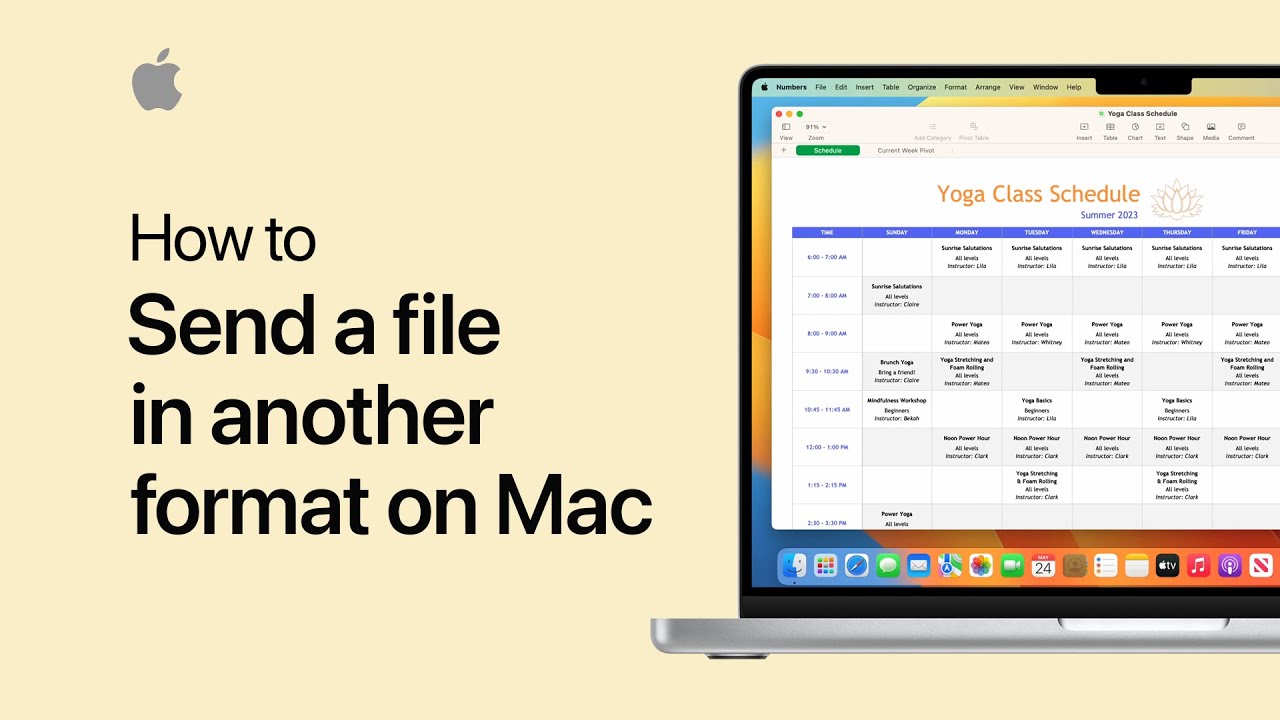
How to send a file in another format in Numbers, Pages, and Keynote on Mac | Apple Support

To export your Numbers, Pages, and Keynote files in different formats for easy sharing, first open the file on your Mac. Click “Share” in the toolbar and select “Export and Send.” You’ll be able to choose a file format, such as PDF, by clicking on an option. After selecting the format, click “Send a Copy” to decide how you want to send the file. You can choose from various options, such as Mail. Once you’ve made your selection, your document will be ready to send. This process allows you to easily share your work with others in the desired format.

Summary:
– To export Numbers, Pages, and Keynote files in various formats, open the file on your Mac.
– Click “Share” in the toolbar, then choose “Export and Send.”
– Select your preferred file format, such as PDF.
– Click “Send a Copy” and choose how you want to send it, such as via Mail.
– Your document will be ready to send in the selected format.

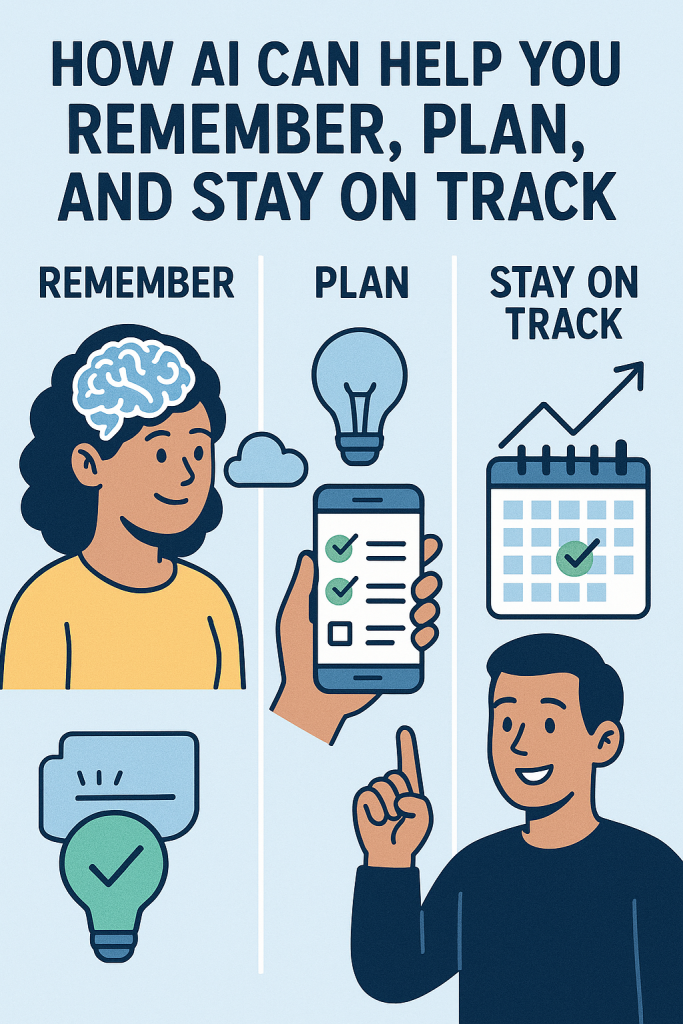
How AI Can Help You Remember, Plan, and Stay on Track

If you’ve ever forgotten to take your medicine, missed an appointment, or struggled to keep track of daily tasks, you’re not alone. The good news is that your iPhone already has built-in tools that can quietly help you stay organized. Artificial intelligence, or AI, can now understand your habits, remind you of what matters, and even help plan your day—all without being complicated.

This guide will show you how to use these helpful features step by step. No technical knowledge needed—just your phone and a willingness to let it lend a hand.

Table of Contents

Key Takeaways

  • AI reminders can help you remember tasks, appointments, and medication times.
  • Smart scheduling suggests times for events based on your routine.
  • AI-powered alerts adjust automatically if you’re running late or plans change.
  • Simple voice commands let you add reminders or appointments without typing.
  • Health and medication apps can use AI to track your progress and send gentle notifications.

Smarter Ways to Remember

Let’s start with reminders—the simplest and most useful feature for daily life. The Reminders app on your iPhone uses AI to suggest what you might want to remember. For example, if you often add “take blood pressure pill” around breakfast time, your phone might learn to remind you automatically in the morning.

You can ask Siri by saying something like, “Remind me to water the plants every Tuesday,” or “Remind me to take my medicine at 8 a.m.” You don’t have to set it up every time—the AI remembers your patterns and keeps things on track.

Tip: If you have multiple reminders, you can group them by topic—like “Health,” “Shopping,” or “Family.” AI can help sort and display the most urgent items first, so you see what’s important right away.

Planning Without the Stress

AI also works quietly behind the scenes in your Calendar app. When you add an appointment, your iPhone might suggest the best time or location based on where you usually go and what your day looks like.

If you tell Siri, “Add lunch with Sarah next week,” it may check your calendar and offer a free slot. You can accept the suggestion or pick another time. It’s a small example of how AI takes the guesswork out of planning.

Another useful trick: If you receive a message or email mentioning a date or event, your phone can recognize it and offer to create a calendar entry for you. You don’t have to copy and paste anything—the AI does it automatically.

Medication and Health Reminders

Apple’s Health app now includes a feature called Medications, which uses AI to make managing prescriptions easier. You can log the names, doses, and times you take your medicine. Then, the app sends notifications at the right times, even reminding you if you miss a dose.

It can also notice patterns, like if you often skip an evening pill, and gently suggest ways to adjust. Everything stays private—your health data is stored securely on your device and shared only if you choose.

If you wear an Apple Watch, these reminders appear right on your wrist, making it even easier to stay consistent.

Staying on Track Throughout the Day

AI can help more than just reminders—it can keep your whole day running smoothly. For instance, Siri Suggestions might notice you usually call your daughter after dinner and prompt you with a shortcut. Or if you always check the weather before a morning walk, it may show the forecast automatically when you wake up.

These small touches make your routine easier without any setup. You can always turn off suggestions you don’t want, but many people find them surprisingly helpful once they get used to them.

Example: You might see a gentle suggestion on your lock screen like, “Leave now for your doctor’s appointment—traffic is light.” That’s AI working quietly to save you time and stress.

Easy Voice Control for Busy Moments

Typing isn’t always convenient, especially if you’re cooking, driving, or just want a hands-free option. Siri makes it simple to add reminders or check your schedule with your voice.

Try saying:

  • “Hey Siri, what’s on my schedule today?”
  • “Remind me to pay the bills on Friday.”
  • “Add dentist appointment for next Monday at 10 a.m.”

Your iPhone will confirm out loud and save it instantly. You don’t need to press buttons or open apps—the AI understands natural language, not just specific commands.

Building Helpful Habits

Once you start using these tools regularly, your iPhone becomes more like a personal assistant that learns how to help you best. AI doesn’t just respond—it adapts. It learns when you prefer reminders, how long your appointments last, and even what tasks you tend to forget.

Think of it as setting up a friendly helper who never gets tired of keeping track. Over time, it can reduce mental clutter and free you to focus on things you actually enjoy.

Final Thoughts

Staying organized doesn’t have to mean writing endless lists or worrying about what you might forget. With today’s AI-powered reminders, calendars, and health apps, your iPhone can take care of the details while you focus on living your life.

Start small—maybe with one reminder or a single medication alert—and let the technology grow with you. Before long, you’ll find your phone quietly keeping you on track, like a dependable friend who’s always one step ahead.

Categories AI

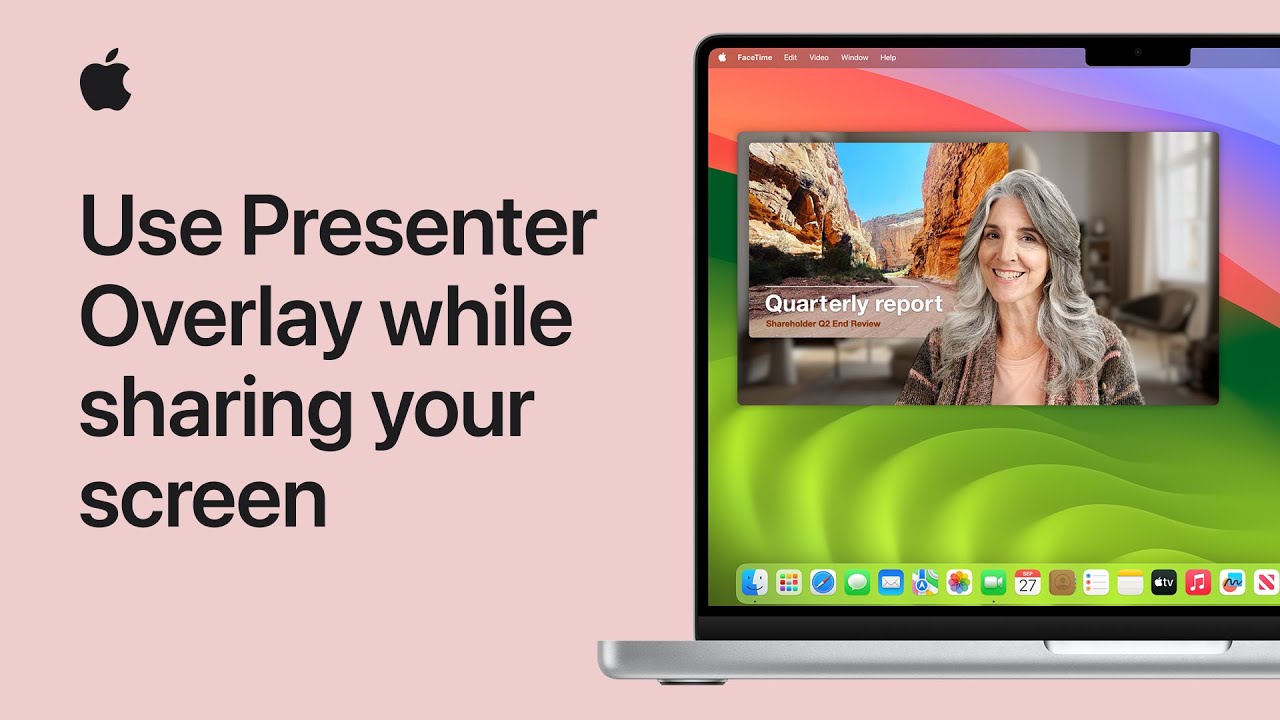
How to use Presenter Overlay while sharing your screen on Mac | Apple Support

To use Presenter Overlay during video calls on a Mac with Apple silicon running macOS Sonoma, start by choosing between two styles: large or small overlay. In the large overlay, your content appears next to you, making you the focus. To activate it, click the Screen Sharing menu during a video call, select “Large,” and your presentation will share the screen with you. For the small overlay, which places you in a movable bubble, click “Small” in the Screen Sharing menu. This option allows your content to remain the focus while you guide viewers’ attention. Use these features for engaging, personalized presentations.

Summary:
– Presenter Overlay on a Mac allows you to be part of your video call presentation, with two styles available: large and small overlay.
– The large overlay places you beside your content, making you the focus during presentations.
– The small overlay places you in a movable bubble, allowing your content to remain the main focus.
– To activate Presenter Overlay, click the Screen Sharing menu during a video call and choose either “Large” or “Small” to display your preferred overlay style.
– This feature is compatible with most video call apps that support screen sharing, providing a more personalized and engaging presentation experience.

How to use your Mac with Apple Vision Pro | Apple Support

With Mac Virtual Display, you can use Apple Vision Pro as a large, private display for your Mac. First, ensure your Mac is up to date with macOS Sonoma or later, and that both your Mac and Apple Vision Pro are signed in with the same Apple ID, have two-factor authentication on, and have Wi-Fi, Bluetooth, and iCloud Keychain enabled. To connect, open and activate your Mac, then look at it through Vision Pro and tap the Connect button when it appears. You can also enable Mac Virtual Display through Control Center and adjust the display size and position as needed. To disconnect, tap the Close button at the bottom of the window.

Summary:
Mac Virtual Display allows you to use Apple Vision Pro as a large, private display for your Mac.
– Ensure your Mac is running macOS Sonoma or later, and both devices are signed in with the same Apple ID, with Wi-Fi, Bluetooth, and iCloud Keychain enabled.
– Connect by looking at your Mac through Vision Pro and tapping the Connect button, or enable it through Control Center.
– You can adjust the display size and position within Vision Pro.
– Disconnect by tapping the Close button at the bottom of the window.

What Is Apple Intelligence? A Simple Guide for Seniors

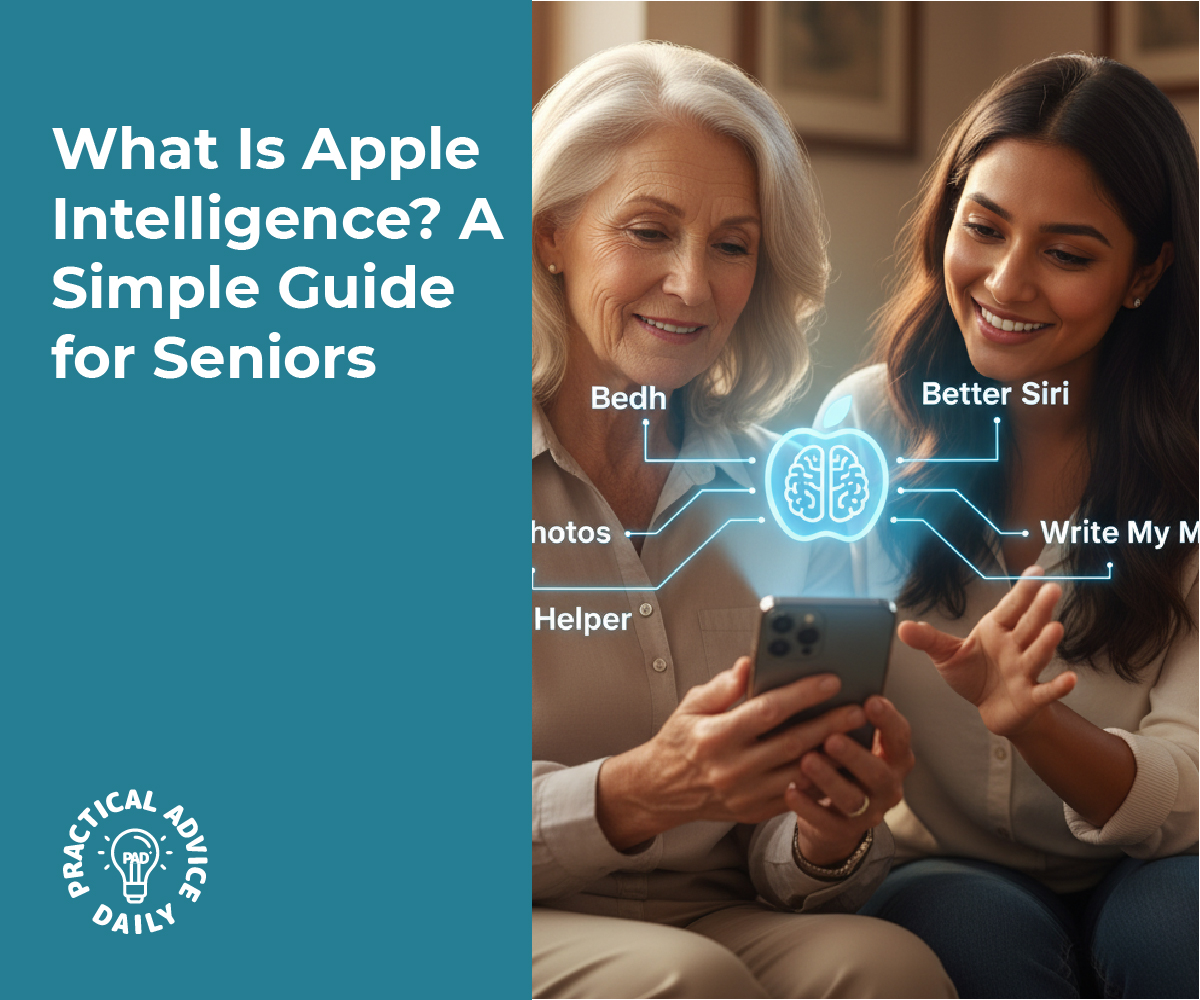
If you’ve heard about “Apple Intelligence” and wondered what it actually means, you’re not alone. Apple’s latest update brings new AI features designed to make your iPhone, iPad, and Mac feel more personal and helpful — without being complicated.

In this guide, we’ll explain what Apple Intelligence is, what it can do for you, and how Apple keeps your data private. You don’t need to be tech-savvy to understand it. By the end, you’ll know exactly what all the buzz is about — in plain, everyday language.

Table of Contents

Key Takeaways

  • Apple Intelligence is Apple’s version of artificial intelligence (AI) built right into your iPhone, iPad, and Mac.
  • It helps with writing, organizing, searching, and even suggesting helpful actions.
  • Privacy is a top priority — most tasks happen directly on your device, not on the internet.
  • Siri will become smarter, understanding you better and handling more complex requests.
  • It’s designed to make everyday tasks faster and easier, not to overwhelm you.

What Is Apple Intelligence?

Apple Intelligence, often shortened to “AI,” is Apple’s new system that uses artificial intelligence to make your devices more helpful. It’s not a single app you have to open — it’s built right into the system you already use every day.

Think of it as a quiet helper working in the background, learning your habits and offering small, useful touches — like completing sentences, finding old photos, or summarizing long messages.

For example:

  • If you start typing an email, your iPhone might suggest a clearer or more polite way to finish your sentence.
  • When you search your photos, it can recognize things like “birthday cake” or “dog at the park.”
  • If you ask Siri a question, it can understand the context better and give more accurate answers.

These are small things, but they add up to make your device feel friendlier and more intuitive.

What Makes Apple Intelligence Different

Apple’s approach to AI focuses on privacy and control. Unlike some other companies that send your data to the cloud for processing, Apple Intelligence does most of its work on your device. That means your personal information — your messages, emails, and photos — stays private.

When a task is too complex to handle on your phone, Apple uses something called Private Cloud Compute. It’s a secure system that processes the request without storing or sharing your data. Even Apple itself can’t see your information.

This design makes Apple Intelligence especially appealing to people who value privacy but still want the convenience of modern technology.

What You Can Do With Apple Intelligence

Here are a few of the ways Apple Intelligence will make your daily tasks easier:

  1. Smarter Writing Help
  2. Better Siri Conversations
    • Siri can now understand more natural requests. For example, you can say, “Show me the photos from our trip last summer,” or “Remind me to call John after lunch,” and Siri will handle it smoothly.
    • You can also type to Siri if you prefer not to speak aloud.
  3. Photo and Memory Features
    • Searching photos is easier because your iPhone can recognize people, objects, and places automatically.
    • You can even ask it to “find the picture of the dog wearing the red sweater,” and it will know what to do.
  4. Smart Notifications
    • Apple Intelligence can highlight important alerts — like a message from a family member or a reminder about a doctor’s appointment — while hiding less important ones.
  5. Help Across Apps
    • It can understand what you’re doing and offer help without you needing to switch between apps. For instance, if you’re writing a message and mention a meeting, it might suggest adding it to your calendar.

Is It Safe to Use?

Yes. Apple has built Apple Intelligence with privacy at its core. Unlike some AI tools that rely on sending your data to big servers, Apple keeps your personal information on your device as much as possible.

You also have control over what data is used. You can manage your privacy settings anytime in the Settings app, and Apple is transparent about what happens behind the scenes.

This focus on safety means you can enjoy the benefits of AI without worrying about your personal information being shared or sold.

Who Can Use Apple Intelligence?

Apple Intelligence will be available on newer devices that have enough processing power to handle AI tasks directly. This includes:

  • iPhone 15 Pro and newer models
  • iPads and Macs with Apple’s M-series chips

If your device isn’t compatible, don’t worry — many traditional Siri and iCloud features will still work as usual.

Why It Matters

For many older adults, technology can sometimes feel like it’s racing ahead too quickly. Apple Intelligence aims to do the opposite — it slows things down and helps your device work with you, not against you.

Instead of learning new apps or commands, you’ll find your iPhone gently doing more on its own. It’s about saving time, reducing frustration, and helping you get things done more naturally.

Final Thoughts

Apple Intelligence is Apple’s way of making your devices smarter, safer, and easier to use — without adding complexity.

You don’t have to understand all the technical details to benefit from it. Think of it as a helpful assistant built right into your iPhone that respects your privacy while making everyday tasks simpler.

As these new features roll out, you can look forward to a more personal, helpful, and friendly experience — all powered by Apple’s thoughtful approach to AI.

Categories AI

How to schedule a repair at an Apple Store or Apple Authorized Service Provider – Apple Support

If you need a repair, visit Apple for assistance in finding and scheduling service at an Apple Store or with an Apple Authorized Service Provider. There are many convenient locations, with options for same-day appointments and walk-in repairs. At these locations, you’ll receive genuine Apple parts and service from Apple-trained technicians, with all repairs backed by Apple. Whether you schedule ahead or come in on the spot, Apple is here to help with any repair needs.

Summary:
– Visit Apple or an Apple Authorized Service Provider for repairs.
– Schedule appointments or walk in at convenient locations.
– Receive genuine Apple parts and service from Apple-trained technicians.
– Repairs are backed by Apple.
– Options include same-day service and various appointment scheduling.