
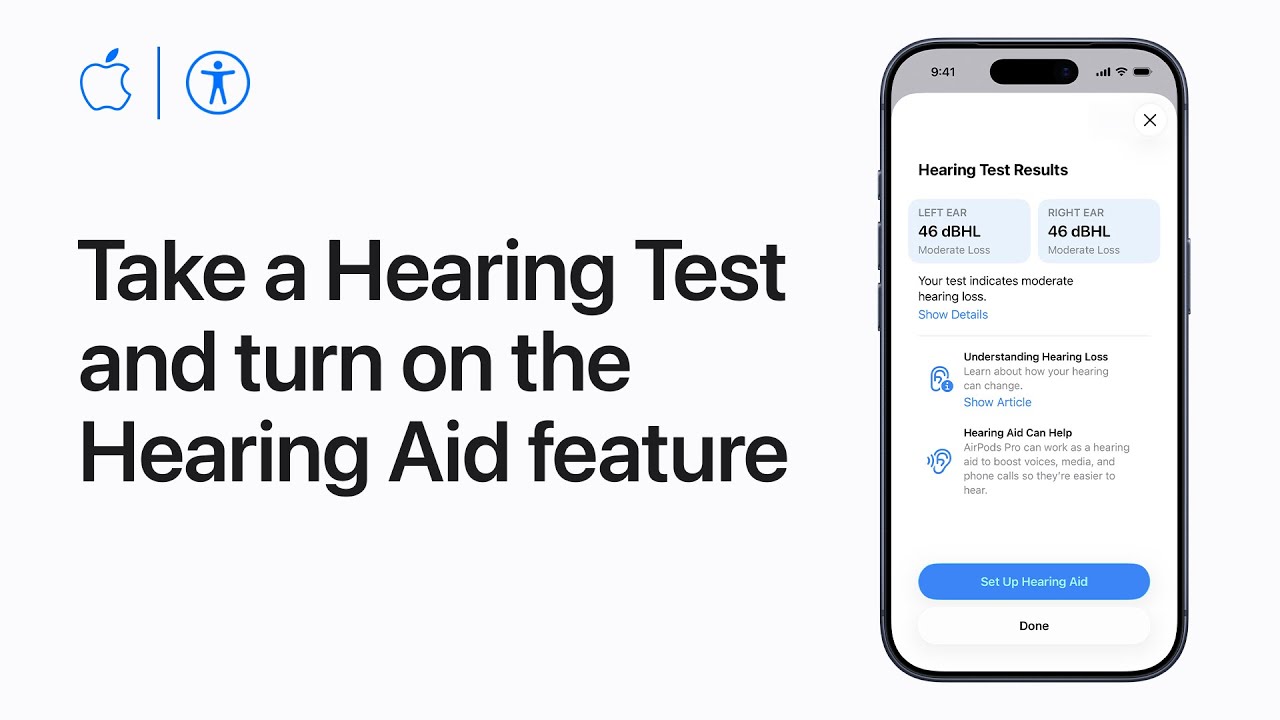
I’ll show you how to take a Hearing Test and set up the Hearing Aid feature using AirPods Pro 2+ with your iPhone.
First, update iOS and AirPods firmware and wear your AirPods. In Settings tap your AirPods, choose Take a Hearing Test, then Get Started.
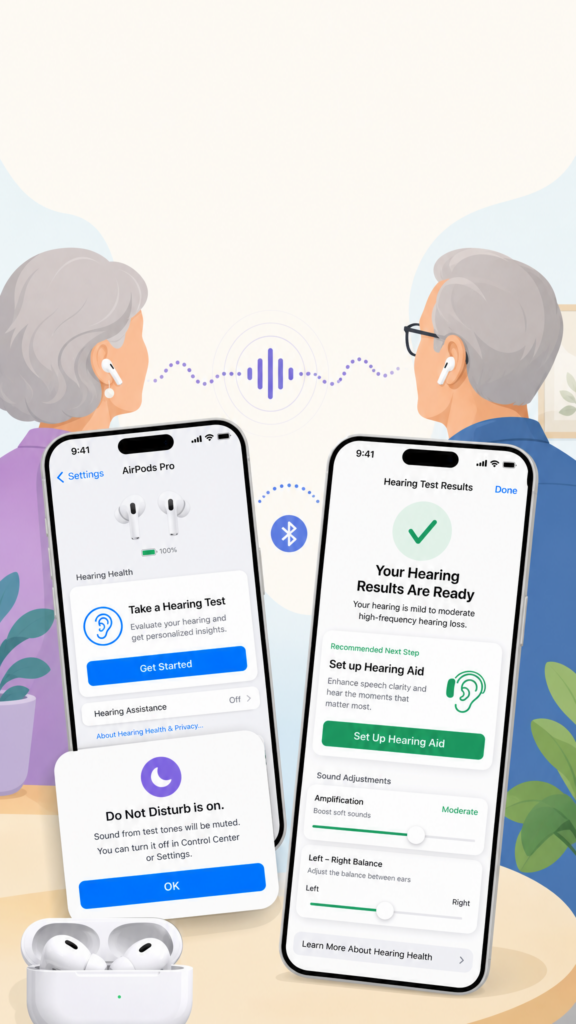
Follow prompts: answer questions, confirm you’re in a quiet location, and check fit; Do Not Disturb turns on automatically.
The test plays tones left then right—tap once when you hear each. After reviewing results, tap Set up Hearing Aid if recommended, follow the setup prompts, turn it on, then customize amplification settings, left‑right balance, and tone.
- Update iOS and AirPods firmware, wear your AirPods.
- In Settings → AirPods → Take a Hearing Test → Get Started and follow prompts (quiet location, fit).
- Tap once when you hear each test tone; test runs left then right; Do Not Disturb turns on.
- Review results and, if recommended, choose Set up Hearing Aid to begin setup.
- Turn on Hearing Aid and fine‑tune amplification, left‑right balance, tone, and other adjustments.