Will AI Take Over Jobs? What You Should Know

You’ve probably heard people say, “AI is coming for our jobs.” That can sound scary—but what does it really mean? This article breaks it down in a simple, friendly way. Whether you’re working, retired, or just curious about the future, we’ll walk through what AI might change (and what it won’t), and how it could even lead to new kinds of work.

You don’t need to be a tech expert to follow along—this guide is for everyone.

Table of Contents

Key Takeaways

  • AI and robots are good at doing repetitive tasks, but not everything.
  • Some jobs may disappear, but new types of work are also being created.
  • Many roles still need human creativity, care, and problem-solving.
  • Learning basic tech skills can help you or your loved ones adapt over time.

What Does “AI Taking Jobs” Really Mean?

When people say AI is taking jobs, they usually mean automation—when a computer or machine does a task instead of a person.

Examples:

  • A supermarket uses a self-checkout machine instead of a cashier.
  • A factory uses robots to assemble parts.
  • An office uses software to sort emails or schedule meetings.

AI is especially good at things that are routine and repetitive.

Jobs Most Likely to Be Automated

Some jobs are easier to automate than others. These are jobs where the tasks follow a predictable pattern.

Examples:

  • Data entry
  • Simple customer service chat
  • Manufacturing or warehouse jobs
  • Basic bookkeeping

If a task can be written like a recipe, AI can probably do it.

Jobs Less Likely to Be Replaced

AI struggles with tasks that require empathy, creativity, or judgment—things humans are naturally good at.

Examples:

  • Teachers and caregivers
  • Nurses and doctors
  • Artists and designers
  • Social workers
  • Skilled trades like electricians or plumbers

Even when AI helps with parts of these jobs, humans are still needed to make real decisions and connect with others.

Will There Be New Jobs?

Yes! Just like past inventions created new jobs, AI is opening doors to new opportunities.

Some examples of new roles:

  • AI tool testers or trainers (people who teach AI what’s right or wrong)
  • Tech support for smart machines
  • Jobs in digital marketing, app development, and online education
  • Jobs combining tech with human service—like a remote health assistant

Some of these jobs need technical skills, but others simply require being open to learning something new.

What Can You Do to Stay Ahead?

Even if you’re not looking for a new job yourself, these tips can help you or someone you know:

  1. Stay Curious: Read or watch short videos about tech changes.
  2. Try New Tools: Voice assistants like Alexa or Siri are a fun start.
  3. Take a Class: Many community centers offer basic tech skills or job training.
  4. Support Young Learners: Encourage grandchildren or younger relatives to explore safe tech tools.

You don’t have to learn everything at once. A little knowledge can go a long way.

Final Thoughts

AI is changing how the world works, but it’s not here to “take over” everything. While some jobs will change or disappear, others will grow—and people are still the heart of every workplace.

By staying informed, trying new things, and being open to change, you can face the future with more confidence. And remember, it’s okay to ask questions—understanding AI is a journey we’re all taking together.

Want to learn more? Explore our beginner-friendly articles on how AI helps at home or how to safely try new tech tools.
Categories AI

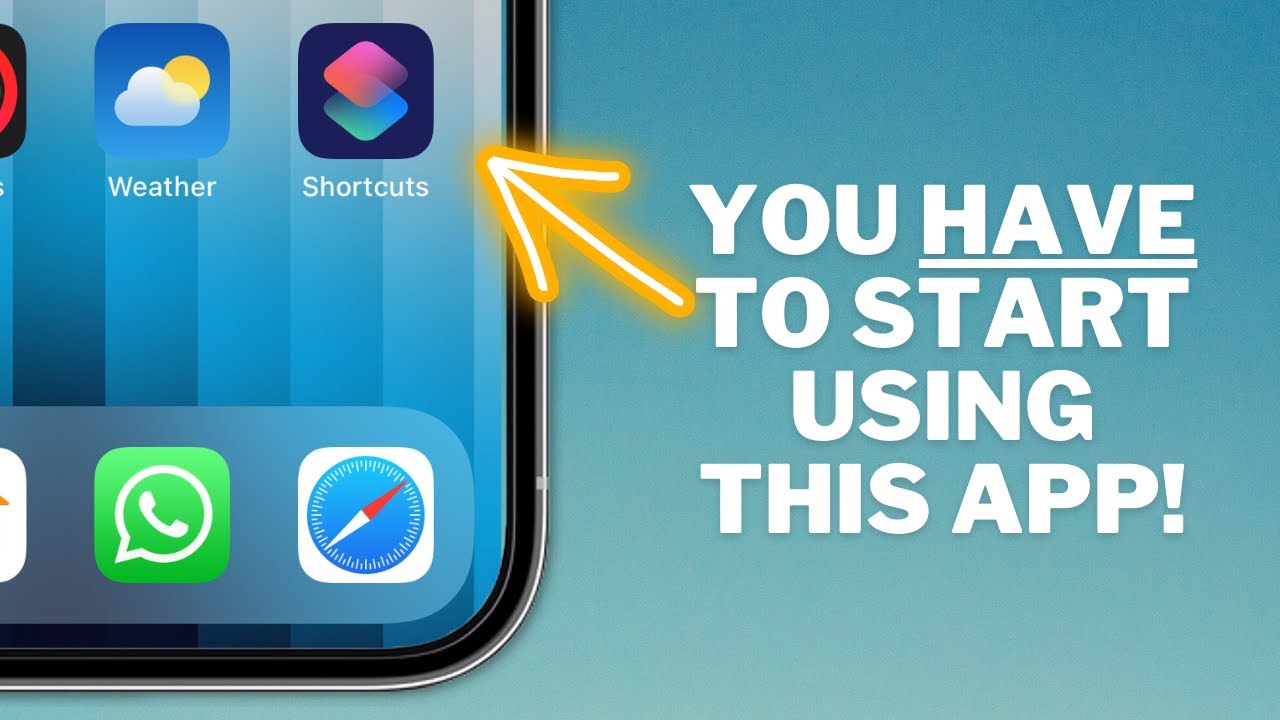
The iPhone Shortcuts App Explained – iOS Siri Shortcuts for Beginners

practhumb99.2

Shortcuts is super powerful yet often misunderstood. Essentially, it lets you automate tasks on your iPhone. Think of it like setting up macros in Excel, where you pre-program a sequence of actions.

With Shortcuts, you can do things like opening apps, sending messages, or even getting driving directions, all with a single tap or voice command. And the best part? You don’t need to be a coding expert to create your own shortcuts. You can start by exploring pre-made shortcuts in the app’s gallery or downloading them from the web. But if you’re feeling adventurous, you can also create your own from scratch. It’s a game-changer for streamlining your phone experience. So, stick around as I walk you through the basics and share some simple shortcuts to get you started.

Summary:

– Shortcuts app for iPhone is powerful yet often misunderstood.
– It automates tasks on your iPhone, like macros in Excel.
– You can create shortcuts for opening apps, sending messages, and more.
– You don’t need coding expertise to create shortcuts.
– You can explore pre-made shortcuts or create your own from scratch.

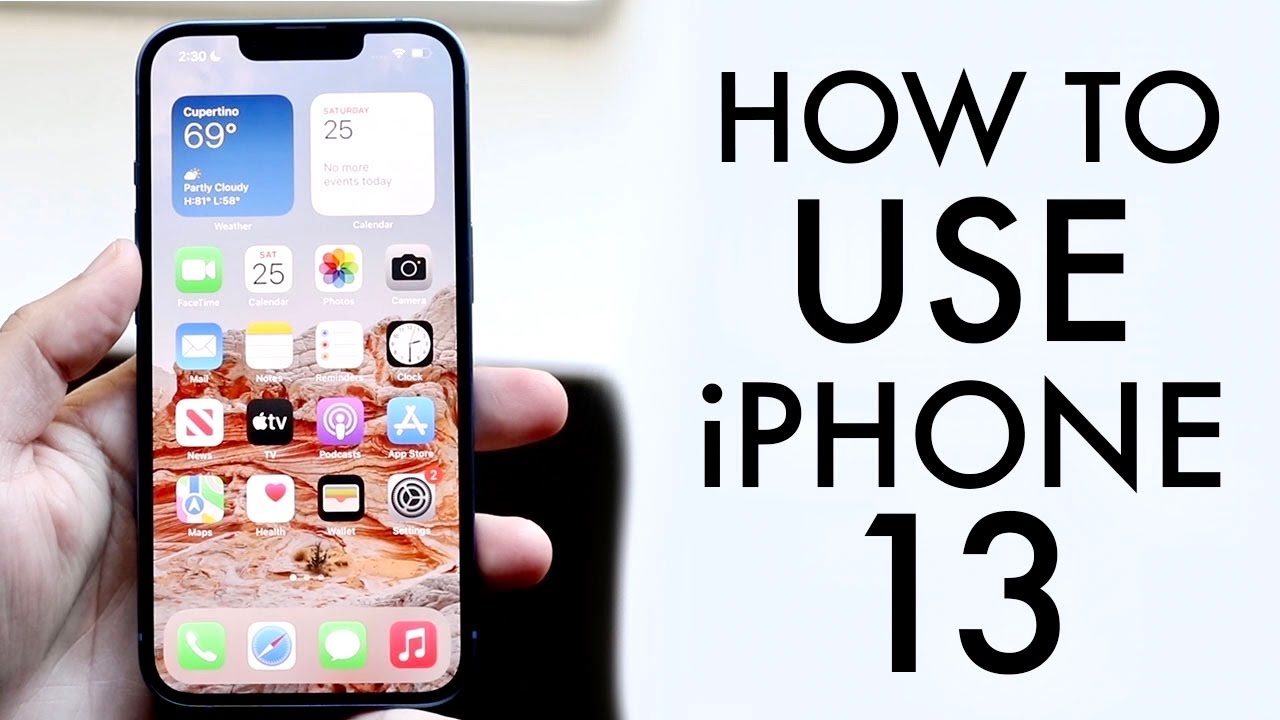
How To Use Your iPhone 13 / iPhone 13 Mini! (Complete Beginners Guide)

practhumb98.2

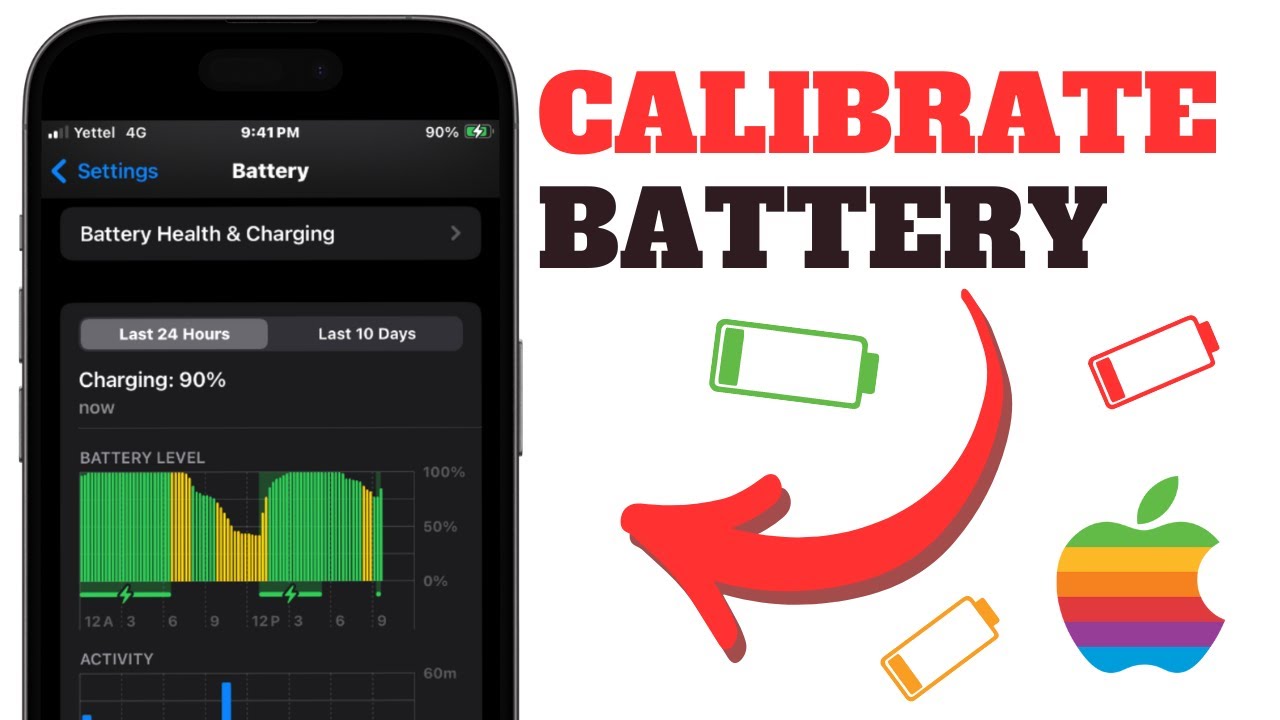
Hey everyone, welcome back! Today, I’m going to give you a quick tutorial on how to use your new iPhone 13 or iPhone 13 Mini. Firstly, let’s familiarize ourselves with the exterior features. You’ve got your 6.1-inch or 5.4-inch display, volume buttons, ringer switch, and charging port at the bottom. To calibrate your battery, drain it completely, then charge it to 100%.

Check for updates and download the Apple Support app to monitor battery health. Now, onto navigating the phone. Tap the screen to wake it, swipe to access the camera, and swipe down for the Control Center. In settings, you can customize various options and check for software updates. Don’t forget about handy features like screenshotting and screen recording. For a deeper dive into the iPhone 13 Pro, check out the separate tutorial linked in the description. Remember to like, subscribe, and hit the bell for more content. Thanks for watching, and see you in the next one!

Summary:

– **Exterior Features**: iPhone 13 or 13 Mini has a 6.1-inch or 5.4-inch display, volume buttons, ringer switch, and charging port.
– **Battery Calibration**: Drain the battery, then charge it to 100% for calibration.
– **Software Updates**: Check for updates and download the Apple Support app to monitor battery health.
– **Navigation Tips**: Tap to wake, swipe for camera, and access Control Center by swiping down.
– **Handy Features**: Use screenshot and screen recording functions for convenience.

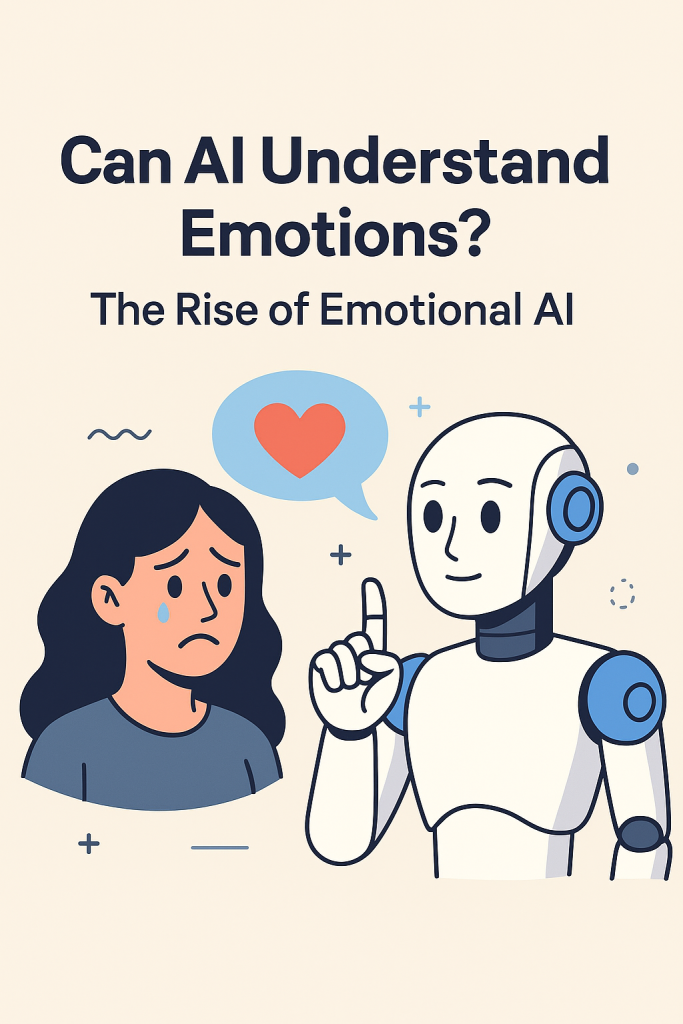
Can AI Understand Emotions? The Rise of Emotional AI

Can a computer tell when you’re sad, happy, or frustrated? It might sound like science fiction, but Emotional AI is making this a reality. In this easy-to-follow guide, you’ll learn how some AI systems are starting to understand human emotions by analyzing tone of voice, facial expressions, and the words we use. Don’t worry—no tech skills needed. We’ll explain it all step by step, in everyday language.

Table of Contents

Key Takeaways

  • Emotional AI tries to “read” how you feel by analyzing tone, expressions, and language.
  • It’s used in areas like customer service, healthcare, and education.
  • The goal is to help computers respond more naturally and supportively.
  • Emotional AI doesn’t “feel” emotions—it only recognizes patterns.
  • Privacy is important: always know how and when this tech is used.

What Is Emotional AI?

Emotional AI, sometimes called affective computing, is a type of technology that tries to understand how a person is feeling. While AI doesn’t have feelings itself, it can be trained to pick up on clues—like a furrowed brow or a nervous tone of voice—and make guesses about our emotions.

How Does AI Try to Understand Emotions?

AI uses sensors, cameras, and microphones to gather information. Then it looks for familiar signs, much like how people read body language or tone. Here are the most common methods:

1. Tone of Voice

AI listens to how you say something—not just the words.

  • A cheerful tone might suggest happiness.
  • A flat or slow voice could signal sadness or tiredness.
  • Raised voices may be flagged as frustration or anger.

Example: Some phone support systems now use this to alert a human agent if a caller sounds upset.

2. Facial Expressions

With the help of a camera, AI can spot simple facial cues:

  • Smiles = happiness
  • Frowns = confusion or sadness
  • Raised eyebrows = surprise

Example: In online learning, AI can monitor students’ faces to see who might be confused and alert the teacher.

3. Words and Sentiment

AI can also read written or spoken words and guess the emotion behind them.

  • “I’m so excited!” = positive
  • “This is frustrating” = negative
  • “I feel okay, I guess” = neutral or uncertain

Example: Some email programs can suggest rewriting a message if it seems too harsh.

Where Is Emotional AI Being Used?

You may already be interacting with Emotional AI without knowing it:

  • Customer Service: AI chats that respond gently if you seem frustrated.
  • Healthcare: Helping doctors understand patient mood or mental health.
  • Education: Teachers using tools that track student engagement.
  • Cars: Some smart cars monitor if you look sleepy or distracted.

Important Note: AI Can’t Truly Feel

It’s important to understand that AI doesn’t have emotions. It’s simply guessing based on patterns it’s seen before. Sometimes it gets it wrong—just like people do.

Should I Be Concerned About Privacy?

Yes, it’s always good to ask:

Most tools will let you opt out or limit what’s shared. If in doubt, ask a trusted family member to help check the settings.

Final Thoughts

Emotional AI is still learning, but it’s already helping people in small ways—like getting better customer support or helping teachers understand students. While the idea of a computer reading your feelings might seem strange, it’s really about making tech more helpful and human-like. Start by just being aware of where this tech shows up in your life. The more you understand, the more confidently you can use it.

Categories AI

How To Calibrate an iPhone Battery (Step By Step)

practhumb97.2

Hey everyone, the iPhone 15 Pro is finally here, and it’s a fantastic device! Let’s dive into how to make the most of it. First things first, protect your investment with a screen protector or case. Now, onto the device itself. It boasts a stunning 6.1-inch super retina XDR OLED display with a dynamic island at the top, housing the front camera. Made of titanium, it’s sturdy but may show some discoloration over time. The new action button replaces the mute switch and can be customized for various functions. The USB-C port at the bottom allows for versatile charging and accessory connectivity. On the software side, iOS 17 brings enhancements to the lock screen, home screen, and control center. Familiarize yourself with gestures, multitasking, and accessing settings for a seamless experience. Don’t forget regular software updates and explore the settings for customization options. With these basics covered, you’re ready to make the most of your iPhone 15 Pro! If you have any questions, drop them in the comments below. Don’t forget to subscribe for more tips and tricks. Thanks for watching!

Summary:

– iPhone 15 Pro overview: highlights the device’s features and build quality, emphasizing durability and new functionalities like the action button and USB-C port.
– Protection first: Recommends applying a screen protector or case to safeguard the device.
– iOS 17 enhancements: Describes improvements to the lock screen, home screen, and control center for a better user experience.
– Software navigation: Explains gestures, multitasking, and accessing settings for customization.
– Importance of updates: Emphasizes the need to keep the device up-to-date with regular software updates for optimal performance and security.

Turn Off These iPhone SYSTEM SERVICES Now! [Ultimate Guide]

practhumb96.2

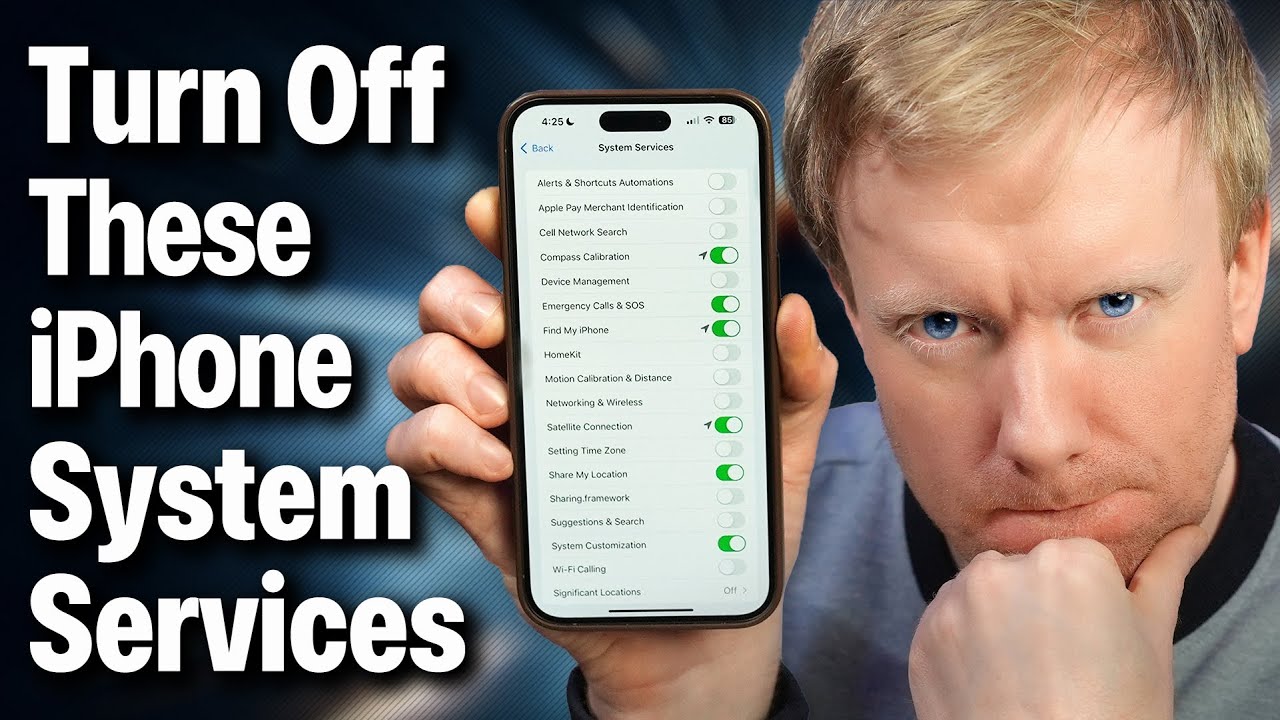
In this comprehensive guide, we explore various iPhone system services, shedding light on their functionalities and implications. Starting with location services, we navigate through settings like alerts and shortcuts automations, Apple Pay merchant identification, and cell network search, discussing their impact on privacy and battery life. We delve into features like compass calibration and emergency SOS, emphasizing their significance and potential trade-offs. Further, we tackle settings such as significant locations, iPhone analytics, and routing and traffic, weighing their benefits against battery drain concerns. Throughout, we offer insights and recommendations for optimizing settings to enhance user experience and privacy.

Summary:
– The guide explores iPhone system services comprehensively, covering functionalities and implications.
– It discusses settings such as location services, alerts, and shortcuts automations, and Apple Pay merchant identification.
– Features like compass calibration and emergency SOS are highlighted for their significance and potential trade-offs.
– Recommendations are provided for optimizing settings to enhance user experience and privacy.
– Insights are offered on various settings’ impact on battery life and privacy concerns.

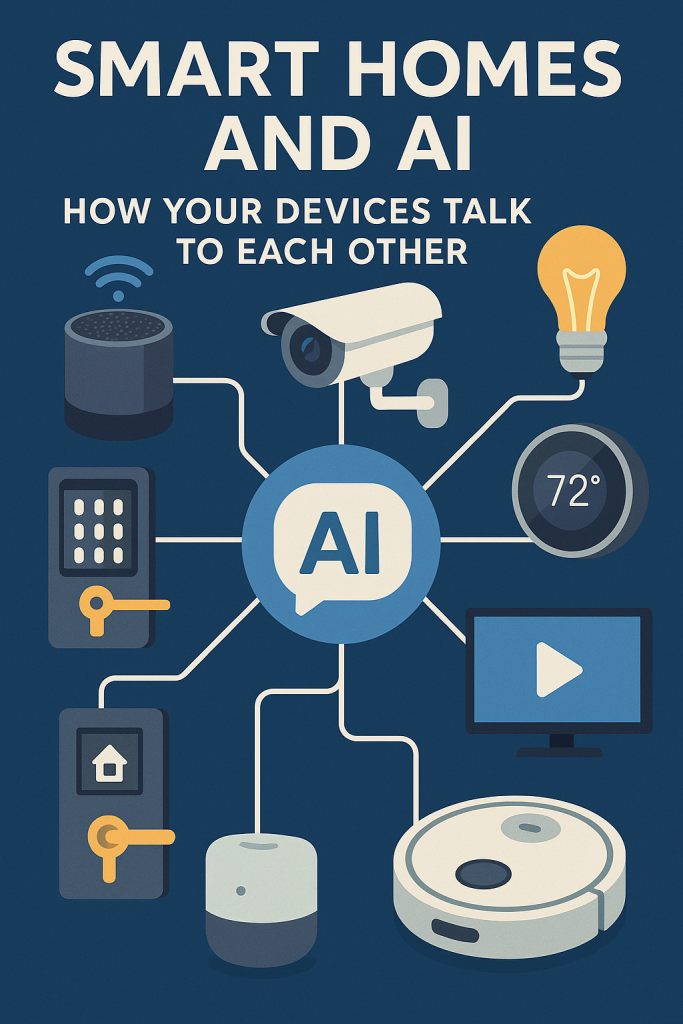
Smart Homes and AI: How Your Devices Talk to Each Other

Smart homes may sound like something from a sci-fi movie, but they’re actually becoming part of everyday life. You don’t need to be tech-savvy to understand how they work—or how they can make your life easier. In this article, we’ll explain how common smart devices like thermostats, lights, and security systems connect and “talk” to each other using simple AI (artificial intelligence) tools. It’s easier than you think, and we’re here to walk you through it, step by step.

Table of Contents

 Key Takeaways

  • Smart devices like thermostats, lights, and cameras can work together using AI.
  • These systems learn your routines to help save energy and improve safety.
  • You can control many smart home features using your voice or a phone app.
  • No complex setup is required—many devices are “plug and play.”

How It All Works: A Simple Explanation

 What is AI in a Smart Home?

Think of AI (short for artificial intelligence) as a little helper inside your devices. It learns what you like and helps things run smoothly. For example, it might notice you turn off the lights at 10 PM every night—and then start doing it for you.

Thermostats That Think for You

A smart thermostat like the Nest or Ecobee doesn’t just control temperature—it learns your schedule.

Example:

  • Leave the house at 8 AM? It’ll lower the heat to save energy.
  • Come home at 6 PM? It’ll start warming things up before you walk in.

Over time, it learns when you’re usually home or away, and adjusts automatically.

Smarter Lights That Fit Your Routine

Smart lights, such as Philips Hue or LIFX, can do more than just turn on or off. You can:

  • Set them to dim in the evening for a relaxing mood.
  • Have them turn on when you enter a room (with motion sensors).
  • Use voice commands: Just say “Turn off the bedroom light” using a smart speaker like Alexa or Siri.

Bonus: You can schedule lights when you’re away, making it look like someone’s home.

Smarter Security for Peace of Mind

Smart security systems include cameras, motion sensors, and doorbells (like Ring or Arlo). But it’s how they talk to each other that makes them powerful.

Example:

  • If your security camera sees movement at night, it can tell your porch light to turn on.
  • If your smart doorbell is pressed, your phone gets an alert—with a live video feed.
  • You can even unlock your front door remotely if someone you trust needs to come in.

How These Devices “Talk” to Each Other

This happens through a home hub or app. Think of it as a translator that helps devices work together.

Popular options include:

You don’t have to control everything manually. The AI learns from your habits and connects the dots to help your home run itself.

Everyday Benefits You’ll Notice

  • Convenience: No need to adjust things constantly.
  • Safety: Get alerts and control your home even while traveling.
  • Savings: Lower energy bills by not heating or lighting empty rooms.
  • Comfort: Lights and temperature just how you like them—automatically.

Final Thoughts

You don’t need to be a tech expert to enjoy a smart home. With just a few devices and a simple app, you can make daily life easier, safer, and more comfortable. Start small—maybe a smart light or thermostat—and see how helpful it can be. Want to learn more? Check out our beginner’s guides to smart speakers, voice assistants, or choosing the best devices for your home.

Categories AI

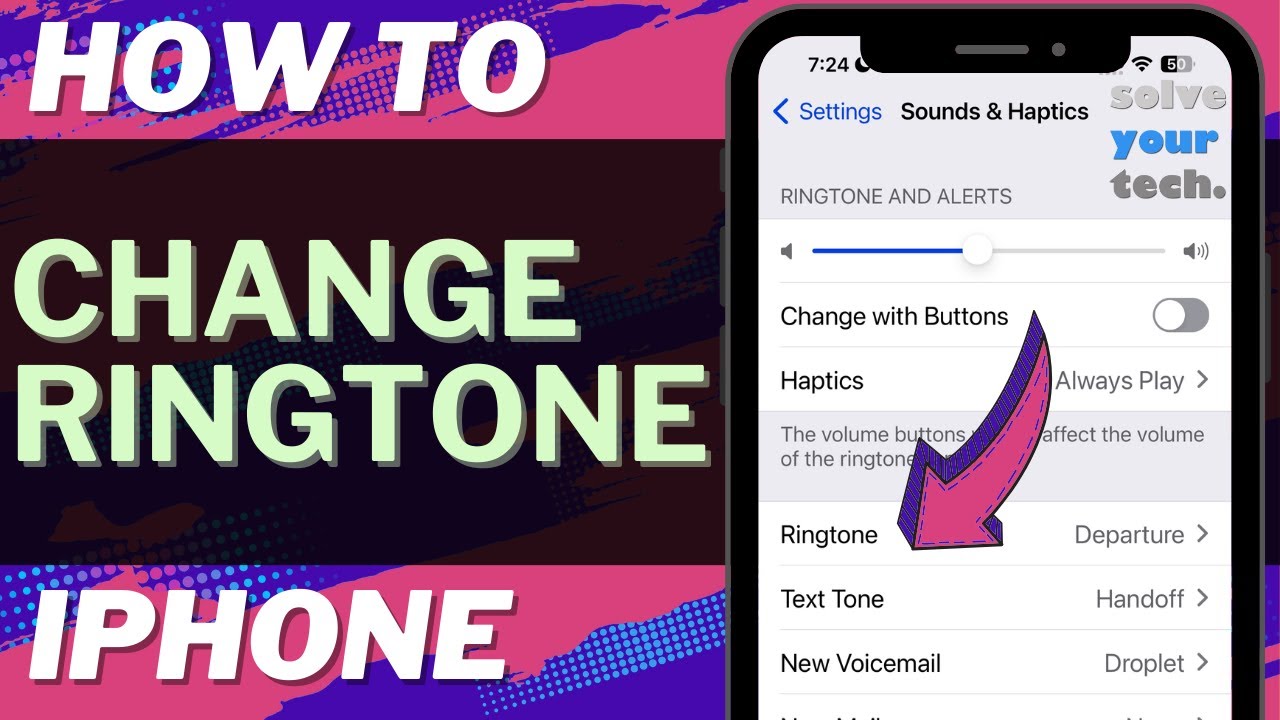
iOS 17: How to Change Ringtone on iPhone

practhumb95.2

Hey everyone, welcome to our tutorial on changing the ringtone on an iPhone in iOS 17. If you’re tired of the default ringtone, here’s how to switch it up. First, open the Settings app and select “Sounds and Haptics.” From there, find the “Ringtone” option. You can scroll through the default tones or head to the iTunes store for more options. Once you’ve found the tone you like, select it, and it’ll play a sample. Confirm your choice, and that’s it! Next time someone calls, you’ll hear your new ringtone.

Summary:
– Tutorial on changing iPhone ringtone in iOS 17.
– Open Settings, select “Sounds and Haptics.”
– Find “Ringtone” option, scroll through defaults or visit iTunes store.
– Select desired tone, listen to sample, confirm choice.
– New ringtone will play for incoming calls.

How AI Detects Fraud in Banks and Online Stores

You’ve probably heard about fraud—when someone tries to steal money or personal information. It can feel scary, but don’t worry. Banks and online stores use clever technology to catch fraud before it harms you. In this article, I’ll explain how this technology works in simple terms, so you feel confident and informed. No complicated words, just friendly help.

Table of Contents

Key Takeaways

  • Banks and stores watch for unusual activities to spot possible fraud.
  • AI (smart computer programs) helps find problems quickly and accurately.
  • AI learns what is normal for your account and notices when something feels off.
  • Using AI helps protect your money and personal information.
  • You don’t have to understand the technology—just know it’s working hard for you!

How Does AI Help Detect Fraud?

Think of AI as a very smart assistant that watches your bank or store account all day and night. Here’s how it works step-by-step:

1. Learning What’s Normal for You

Before AI can spot trouble, it needs to understand your usual habits. For example:

  • What times you usually shop or make payments
  • The locations where you normally use your card
  • The typical amounts you spend

By learning these patterns, AI creates a profile of your regular activity.

2. Spotting Unusual Behavior

When something unusual happens—like a sudden large purchase or a payment from a faraway city—AI notices this quickly. It’s like having a watchful guard that asks, “Is this normal for you?”

3. Sending Alerts

If the AI thinks something might be suspicious, it alerts the bank or store. Sometimes, they might ask you to confirm if you made the purchase. This helps stop fraud before any damage happens.

4. Blocking Fraud Automatically

In some cases, the system can temporarily block a transaction to protect you. Then, the bank contacts you to check what happened.

Real-Life Examples

  • Example 1: You usually buy groceries at your local store, but suddenly there’s a charge for an expensive laptop in another state. AI spots this unusual activity and alerts your bank. The bank calls you to confirm if it’s really you. If not, they stop the payment and protect your account.
  • Example 2: You shop online once a week, spending about $50 each time. One day, there’s a charge for $500. The AI flags this and the store asks you to verify before sending the item.

Why This Matters for You

AI helps keep your money and personal details safe without you having to do much. It works quietly in the background, making sure your accounts are protected while you go about your day.

Final Thoughts

Fraud can feel overwhelming, but thanks to smart technology like AI, banks and online stores are better at stopping fraud early. You don’t need to be a tech expert to benefit from these protections—just know they are there, working hard to keep your money safe. If you want to learn more about keeping your online life secure, there are plenty of simple guides available to help. You’re doing great by staying informed!

Categories AI

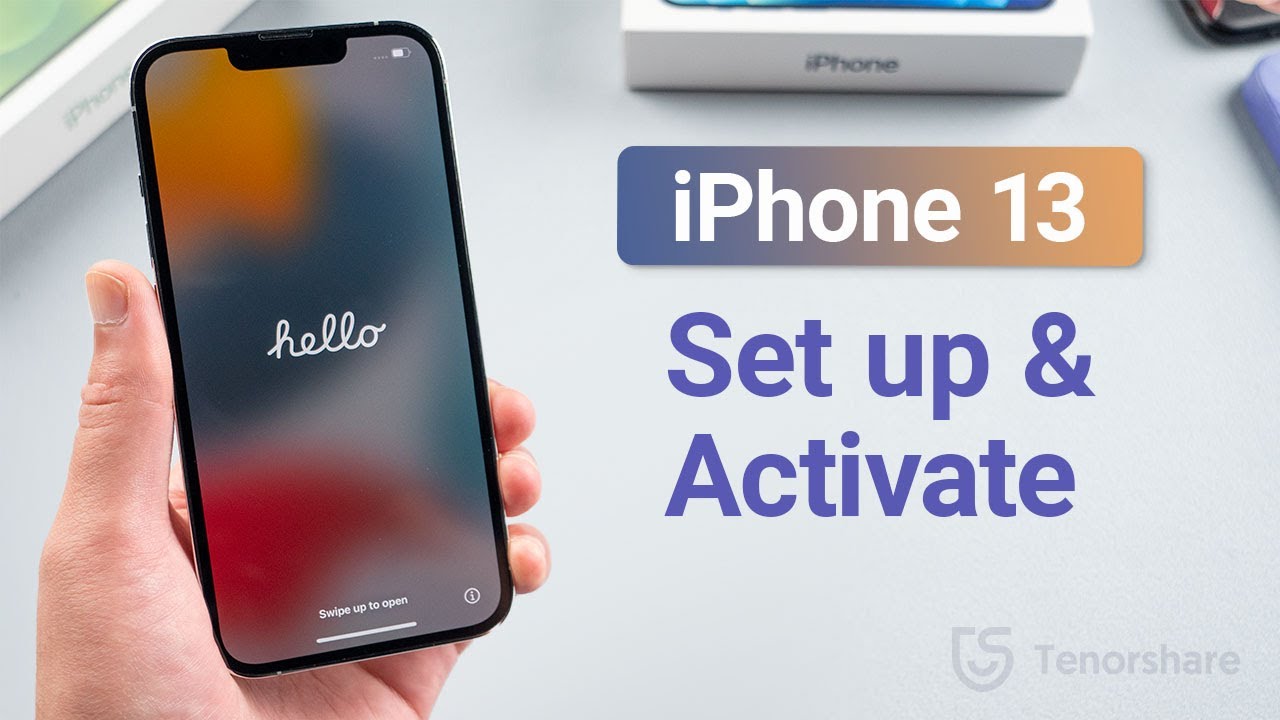
How to Set Up and Activate iPhone 13/iPhone 13 Pro/iPhone 13 Mini

practhumb94.2

Today, we’re diving into setting up the iPhone 13 Pro in the stunning Starlight color. Let’s begin by turning it on, holding the side button until the Apple logo appears. Then, select your language and country. If you’re transferring data from your old iPhone, use Quick Start by placing both devices nearby, turning the screen off and on, and following the prompts. Otherwise, set up manually, connect to Wi-Fi or insert a SIM card for cellular data. Activate Face ID, create a passcode, and customize settings like Siri and Screen Time. Finally, enter your Apple ID, set up payment methods, and voila, your data transfer begins! Enjoy your new iPhone 13 Pro!

Summary:

– Tutorial on setting up iPhone 13 Pro and transferring data from an old device.
– Turn on iPhone 13, select language, and choose setup options manually or use Quick Start for data transfer.
– Activate the device with Wi-Fi or cellular data, set up Face ID, passcode, and customize settings.
– If transferring data, initiate Quick Start by placing the old device near the new one and follow prompts.
– Complete setup, including Apple ID login and customization, then enjoy the new iPhone with transferred data and settings.