
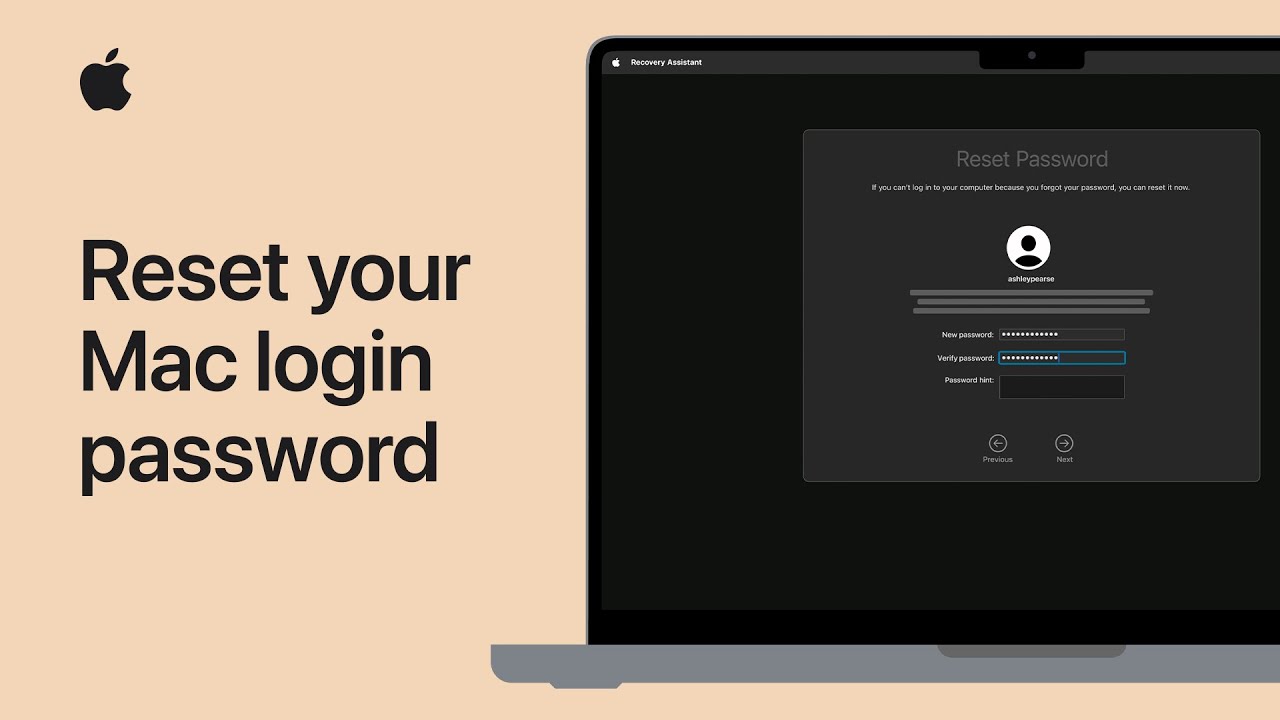
I’ll walk you now through resetting your Mac login password. First, restart your Mac and try signing in again, checking Caps Lock and any on-screen lockout message.
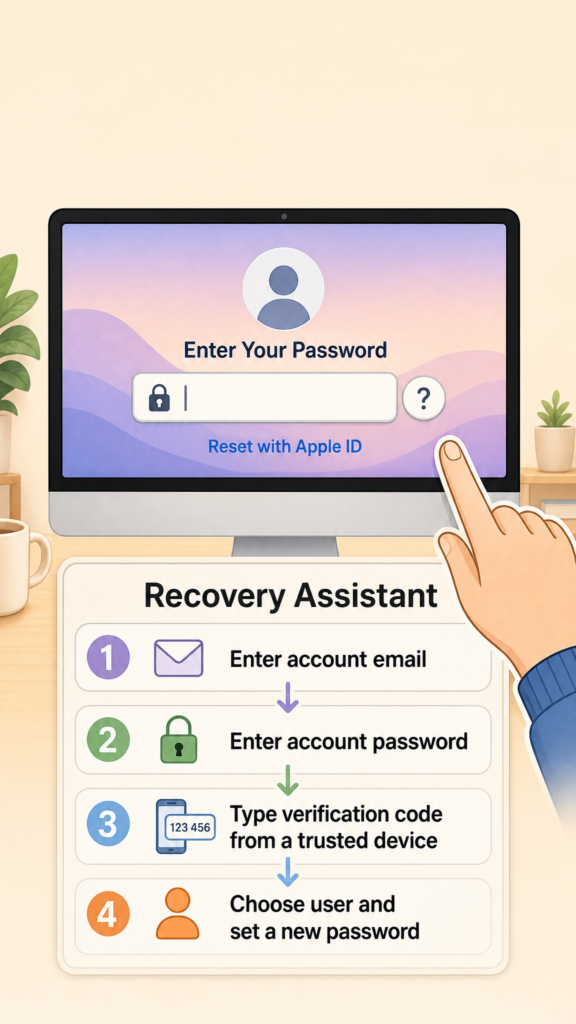
If FileVault is enabled and you still can’t sign in, click the question mark beside the password field and choose the reset message to launch Recovery Assistant.
Enter your Apple ID email and password, then type the verification code sent to a trusted device.
Select the user account to reset, create a new password (remember case sensitivity), re-enter it to confirm, and follow the prompts to restart and sign in with your new password.
- Restart your Mac, check Caps Lock, and watch for any temporary lockout message.
- If needed, click the question mark and the reset message to start Recovery Assistant.
- In Recovery Assistant, enter your Apple ID email and password.
- Type the verification code sent to a trusted device and select the user account to reset.
- Create and confirm a new case-sensitive password, then restart and sign in.