
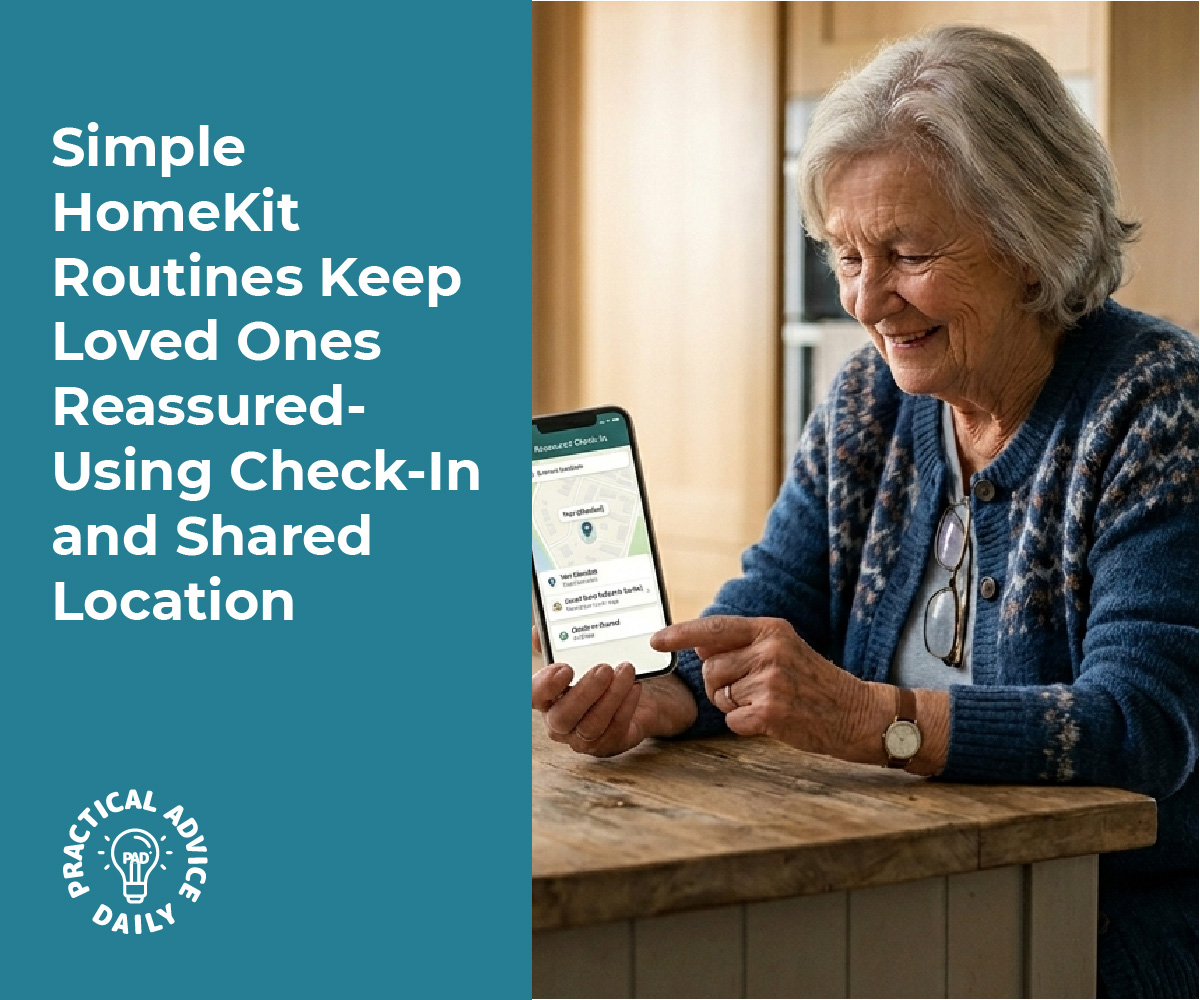
Getting home safely is a common concern for families and friends, especially during late-night commutes or unfamiliar travel routes. The Check In feature built into iPhone’s Messages app automatically notifies selected contacts when a user arrives at their destination, eliminating the need to remember to send a confirmation text. This safety feature debuted in iOS 17 and provides peace of mind for both travelers and their loved ones.

Check In works by monitoring a user’s progress toward a destination and sending an automatic notification upon arrival. If the journey is delayed or interrupted, the feature can share real-time location data, battery level, and cellular signal strength with designated contacts. This location sharing operates within the Messages app and requires minimal setup, making it accessible for users of all technical skill levels.
The feature addresses a practical need without requiring constant manual updates. Rather than relying on memory or interrupting activities to send safety confirmations, Check In handles notifications automatically while maintaining user privacy through controlled data sharing. Understanding how to configure and use this tool effectively ensures families stay connected during travel without unnecessary worry.
Table of Contents
Key Takeaways
- Check In automatically notifies chosen contacts when users reach their destination safely through the Messages app
- The feature shares location data, battery status, and signal strength with emergency contacts if arrival is delayed
- Configuration requires iOS 17 or later and works within existing conversations without additional apps
Getting Started With the Check In Feature

The iPhone Check In feature requires specific system settings and software versions to function properly. Users need iOS 17 installed on their device along with properly configured location services to enable this safety-focused messaging capability.
Requirements and Compatibility
The iPhone Check In feature operates exclusively on devices running iOS 17 or later. This safety feature integrates directly into the Messages app and does not require any third-party applications or additional downloads.
Compatible devices include iPhone XS and newer models that support the iOS 17 update. Both the sender and recipient must use iPhones with the Messages app to initiate and receive Check In notifications. The feature does not work with standard SMS messaging or when communicating with Android devices.
Users should verify their device can support iOS 17 before attempting to use Check In. The feature also relies on an active internet connection through cellular data or Wi-Fi to transmit location updates and notifications.
Setting Up and Enabling Location Services
Location Services must be enabled for the Messages app to allow Check In functionality. Users can configure this by navigating to Settings > Privacy & Security > Location Services and ensuring the main toggle is turned on.
Within Location Services, users need to scroll down to Messages and select either While Using the App or Always for location access. The Check In feature also integrates with Find My and Apple Maps to provide accurate location tracking and route monitoring.
Users should also confirm that Share My Location is enabled in their Apple ID settings. This setting appears under Settings > [User Name] > Find My > Share My Location. Without this activated, the iPhone Check In feature cannot share location data with designated contacts during an active Check In session.
Ensuring iOS 17 and Messages App Readiness
Users can verify their iOS version by opening Settings > General > About and checking the software version number. If the device runs an earlier version, they need to update through Settings > General > Software Update to access the iPhone Check In feature.
The Messages app requires no separate update since it updates automatically with iOS 17. Users should open Messages and confirm the app launches without errors before attempting to use Check In notification features.
Once iOS 17 is confirmed and location services are properly configured, the Check In option becomes available within the Messages app interface. Users can test the setup by opening a conversation thread and looking for the Check In option in the message composition tools.
How to Use Check In for Travel Safety

Check In works by monitoring travel progress and automatically notifying chosen contacts when arrival occurs, or alerting them with location data if delays happen without response. Users can select transportation methods, adjust timing, and respond to prompts to keep contacts informed throughout their journey.
Sending a Check In and Adding Destination
To send a Check In, users open the Messages app and start a conversation with their chosen contact. They tap the plus icon, select Check In from the menu, and the feature activates with default settings.
The system uses the destination from active navigation in Maps if available. When no navigation is running, users can manually select “When I Arrive” and choose a specific destination from their contacts, recent locations, or by entering an address.
Check In supports both individual contacts and group conversations. Once configured, the contact receives a message indicating the Check In has started and will be notified upon safe arrival.
Selecting Travel Methods and Estimated Arrival Time
The feature detects the transportation mode automatically based on movement patterns and active navigation. Available options include driving, transit, and walking, each affecting the estimated travel time calculation differently.
Users can manually adjust the transportation method by tapping Edit before sending the Check In. The system calculates an expected arrival time based on the selected method and current location relative to the destination.
For situations without a specific destination, users can select “After a timer” instead. This option allows setting a specific duration of 1, 2, 4, or 8 hours rather than relying on location-based arrival detection.
Adjusting ETA and Adding Extra Time
When delays occur during travel, Check In allows users to add extra time before the notification triggers. The system prompts users when approaching the expected arrival time, offering options to add 15, 30, or 60 minutes.
Contacts receive updates when time extensions are added, showing the new expected arrival. Users can also manually cancel Check In at any point if plans change or they arrive through an alternate route.
The route traveled and network signal strength don’t affect the core timing mechanism, but poor connectivity may delay status updates to contacts.
Responding to Prompts, Delays, or Emergencies
As the expected arrival time approaches, Check In sends prompts to the Lock Screen asking users to confirm their status. Unlocking the device and responding indicates everything is proceeding normally, which extends the monitoring period.
If users don’t respond within 15 minutes after the estimated travel time expires, Check In automatically shares location data with the designated contact. This includes current location, battery percentage, network signal status, and the route traveled during the Check In period.
In genuine emergencies, users should initiate an Emergency SOS call rather than waiting for Check In to alert contacts. The Emergency SOS feature provides immediate connection to emergency services and can notify emergency contacts simultaneously with precise location information.
Data Sharing, Privacy, and Notifications
Check In offers two data-sharing levels and uses end-to-end encryption to protect user information. Users control what contacts receive during normal check-ins versus emergency situations when arrival is delayed or device conditions change unexpectedly.
Choosing Limited or Full Data Access
When initiating Check In for the first time, users select between Limited and Full data-sharing options. Limited data shares only the user’s current location and battery level when the check-in completes or if something appears wrong. Full data provides more comprehensive information including real-time location, the route being traveled, cellular signal strength, and the last time the iPhone screen was unlocked.
Users can modify this preference later through Messages settings rather than staying locked into their initial choice. The Limited option works well for routine trips where contacts simply need arrival confirmation. Full data becomes more appropriate for travel through unfamiliar areas, late-night journeys, or situations where contacts may need to locate the user quickly if issues arise.
End-to-End Encryption and Notification Settings
All check in data remains end-to-end encrypted during transmission and storage. This means only the sender and designated contact can access the shared information, not Apple or any third parties.
The Check In notification appears on the contact’s lock screen when the user arrives safely. If the user fails to reach their destination within the expected timeframe, contacts receive an alert with access to the selected data level. The system also triggers notifications if the iPhone detects concerning changes such as significant delays, Apple Watch removal, loss of cellular signal for extended periods, or the device powering off unexpectedly before arrival.
What Contacts See and Emergency Triggers
With Limited data, contacts see a simple arrival confirmation or receive the user’s last known location and battery percentage if the check-in fails. Full data grants access to the complete route traveled, current location updates, network connectivity status, and device information that helps contacts understand the situation.
Emergency triggers activate when the iPhone determines something prevented normal arrival. These include the user stopping movement for an unusual duration, the device losing power, removal of a connected Apple Watch during travel, or the expected arrival time passing without check-in completion. Contacts then receive the check in notification with whatever data level the user previously authorized.
Additional Features and Best Practices
Check In works across Apple devices and integrates with location services to provide reliable safety notifications. Users can extend functionality through Apple Watch, manage broader location sharing settings, and optimize performance through proper configuration.
Using Check In With Apple Watch
Check In operates on Apple Watch when paired with an iPhone running iOS 17 or later. Users can initiate Check In sessions directly from the Messages app on their watch, which sends notifications to designated contacts when they reach their destination.
The watch monitors movement and location data independently, providing redundancy if the iPhone battery dies or loses signal. When a Check In is active, the Apple Watch continues tracking progress even if the iPhone becomes unavailable.
For apple watch removal, the system detects when users take off their watch during an active Check In session. This triggers an alert to verify the user’s safety status. Users receive a notification asking them to confirm they’re okay, preventing false alarms to emergency contacts.
The watch displays Check In progress through complications and notifications, allowing quick status checks without accessing the phone. Battery level on both devices affects Check In reliability, so maintaining adequate charge on the Apple Watch ensures continuous monitoring.
Managing Location Sharing With Find My and Apple Maps
Find My provides persistent location sharing separate from Check In’s temporary safety notifications. Users access this through Settings > Privacy & Security > Location Services > Share My Location to enable location sharing with family members indefinitely.
Check In complements Find My by offering time-limited, purpose-specific sharing. While Find My shows continuous location access, Check In focuses on arrival confirmation for specific trips. Both systems use the same location permissions but serve different functions.
Messages settings control Check In data sharing levels—Limited or Full. Limited shares only arrival status, while Full provides location, battery percentage, and cellular signal when delays occur. These settings don’t affect separate Find My sharing preferences.
Apple Maps integration enhances Check In accuracy by providing route information and estimated arrival times. The system calculates expected arrival based on current location and destination, adjusting notifications if travel takes longer than anticipated.
Troubleshooting and Tips for Reliable Location Updates
Location Services must remain enabled for Check In to function. Users verify this in Settings > Privacy & Security > Location Services, ensuring Messages has “While Using the App” or “Always” permission selected.
Cellular connectivity or Wi-Fi affects Check In updates. Poor signal areas may delay notifications, but the system queues updates and sends them when connection restores. Users should inform contacts about potential delays in remote locations.
Battery optimization impacts Check In reliability. Low Power Mode restricts background location updates, potentially affecting Check In performance. Maintaining above 20% battery ensures the feature works as intended during travel.
Location sharing failures often stem from disabled services or expired permissions. Users should periodically check that Location Services remain active and that contacts still have valid sharing permissions. Restarting the device resolves most temporary tracking issues.
Final Thoughts
Check In and shared location tools turn a simple iPhone into a practical safety companion for everyday travel. Once set up, they reduce the need for manual “I’m here” messages by automatically keeping trusted contacts informed if you arrive late, lose signal, or need help. The feature works best when Location Services, Messages permissions, and iOS updates are all properly enabled. For families, older adults, and anyone commuting alone, using Check In can add reassurance without adding stress. A few minutes of setup can make trips feel safer, smoother, and far more connected for everyone involved.