
Your iPhone can listen for specific sounds in your environment and alert you when it detects them, even if you can’t hear these sounds yourself. Sound Recognition uses on-device intelligence to identify important noises like doorbells, alarms, crying babies, and sirens, then sends notifications through vibrations or visual alerts. This accessibility feature runs continuously in the background without requiring an internet connection.
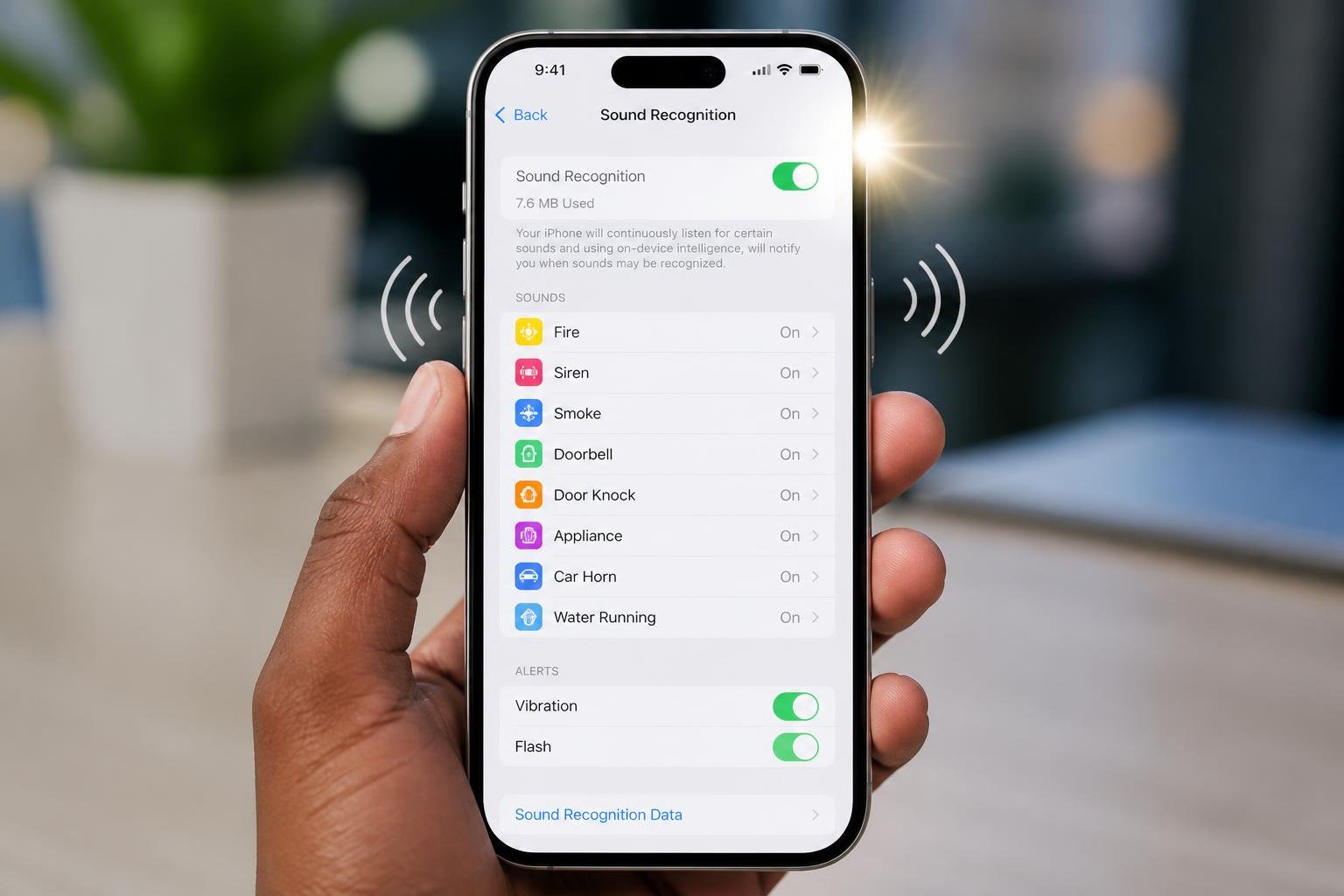
The technology works by analyzing audio patterns to match against a library of recognizable sounds. Users can select which sounds they want their iPhone to monitor and customize how they receive alerts. The feature also supports custom sound recording, allowing individuals to train their device to recognize personalized audio cues beyond the pre-programmed options.
Sound Recognition serves both practical and safety purposes for anyone who might miss critical auditory information. Whether someone has hearing impairments or simply needs to stay aware of their surroundings in noisy environments, this tool provides an extra layer of awareness through their iPhone.
Table of Contents
Key Takeaways
- Sound Recognition is an iPhone accessibility feature that detects specific sounds and sends notifications through vibrations or visual alerts
- The feature works on-device to continuously monitor for important sounds like alarms, doorbells, and emergency sirens without internet connection
- Users can customize which sounds to monitor and even record personalized sounds for recognition beyond the default options
How Sound Recognition Works on iPhone
Sound Recognition uses machine learning to continuously monitor environmental audio and identify specific sounds, then delivers alerts through notifications, vibrations, or visual indicators. The feature operates entirely on the device to maintain user privacy while providing accessibility support for those who are deaf or hard of hearing.
Overview of the Technology
Sound Recognition employs machine learning algorithms that run directly on the iPhone to analyze incoming audio in real-time. The system compares detected sounds against trained models to identify matches with predetermined audio patterns.
When the iPhone recognizes a relevant sound, it immediately triggers an alert. Users receive notifications through multiple channels including haptic feedback, LED flash alerts, and on-screen messages. This multi-modal approach ensures users can perceive alerts regardless of their circumstances.
The technology operates continuously in the background once enabled, requiring no manual activation. The iPhone processes audio streams without storing recordings, analyzing only the acoustic characteristics needed for sound identification.
Supported Sounds and Environments
Sound Recognition can identify 15 standard categories including:
- Alarms: Fire alarms, smoke detectors, sirens
- Home sounds: Doorbells, door knocks, appliances
- Personal alerts: Crying babies, shouting, coughing
- Animals: Cat meows, dog barks
The feature also supports custom sounds through a training process. Users can teach their iPhone to recognize specific alarms, appliances, or doorbells unique to their environment by providing multiple audio samples.
Sound Recognition functions best in relatively quiet environments where target sounds are distinct. Background noise, overlapping sounds, or audio from media playback can reduce detection accuracy. The system explicitly warns users not to rely on it for emergency situations or critical safety applications.
On-Device Processing and Privacy
All sound analysis occurs locally on the iPhone without transmitting audio to external servers. The device stores no audio recordings during the recognition process.
The machine learning models consume minimal system resources while maintaining continuous monitoring. Processing happens in real-time using specialized hardware designed for efficient AI operations.
This accessibility feature requires iOS 14 or later and operates independently of internet connectivity. The on-device approach ensures sound detection works in all locations while protecting user privacy through complete data isolation.
Setting Up and Customizing Sound Recognition
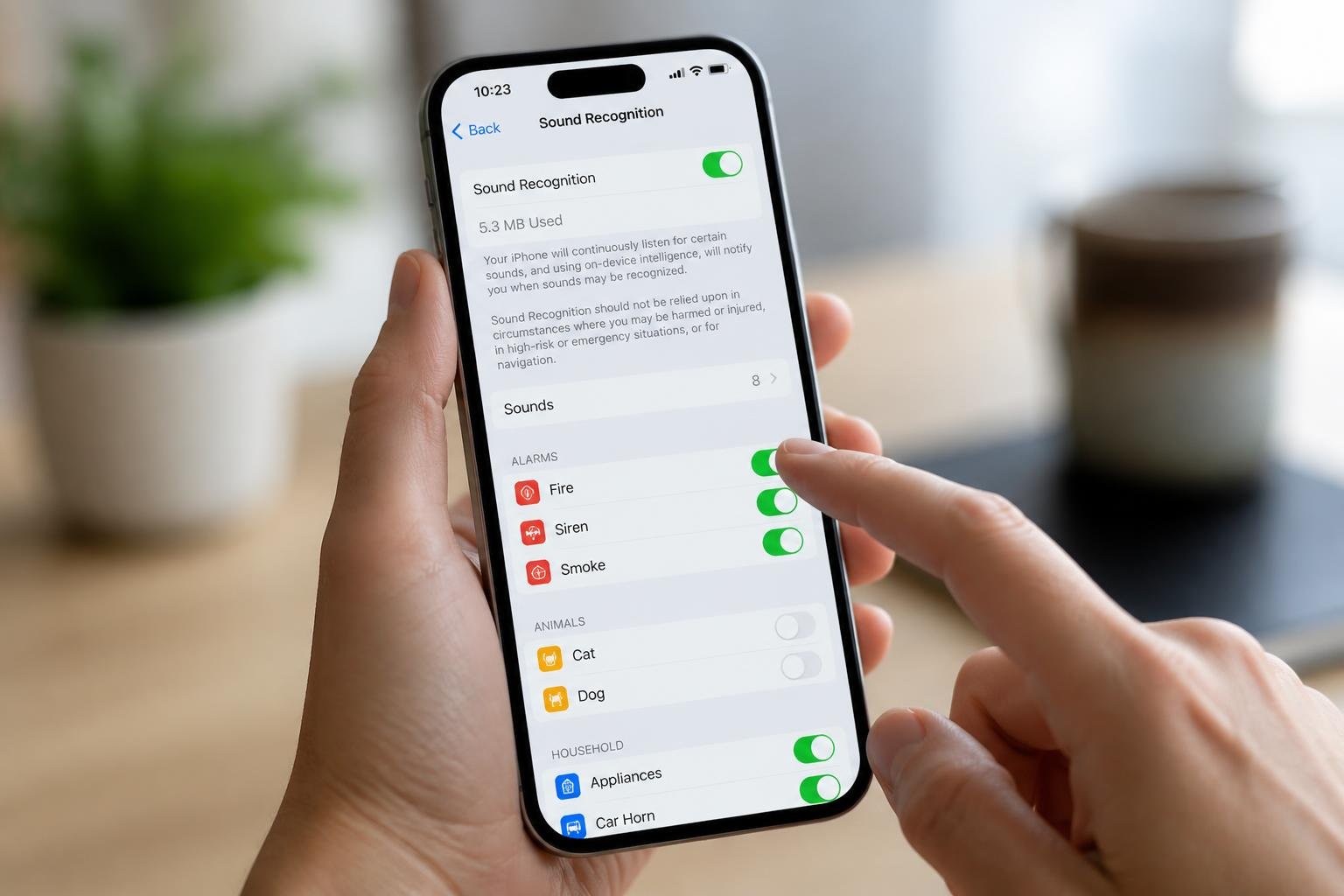
Sound Recognition requires activation through the iPhone’s Accessibility settings, where users can select from pre-programmed sounds or train their device to recognize custom alerts. The feature supports both Apple’s built-in sound library and personalized audio recordings for specific alarms and appliances.
Enable and Configure in Accessibility Settings
Sound Recognition lives within the iPhone’s Accessibility menu under Settings. Users navigate to Settings > Accessibility > Sound Recognition and toggle the feature on to begin setup.
Once activated, the iPhone starts listening continuously for selected sounds in the background. A notification appears to confirm that Sound Recognition is active and monitoring the environment. The system processes all audio on-device, ensuring privacy while analyzing ambient sounds.
Users should note that Sound Recognition cannot run simultaneously with certain features like Voice Control. The iPhone will disable conflicting accessibility features when Sound Recognition is enabled. It’s important to understand that this feature is designed for convenience and assistance, not for situations requiring absolute reliability or safety-critical applications.
Selecting and Managing Recognized Sounds
The Sounds menu displays categories including Alarms, Animals, Household, and People. Each category contains specific sound types that the iPhone can identify.
Pre-programmed options include:
- Alarms: Fire, smoke, siren
- Household: Doorbell, door knock, water running, appliances
- Animals: Cat, dog
- People: Baby crying, coughing, shouting
Users tap individual sounds to enable recognition for each one. Multiple sounds can be activated simultaneously across different categories. Each enabled sound appears with a checkmark and begins monitoring immediately.
The system sends notifications when recognized sounds are detected. Users receive alerts through vibration, banner notifications, or flashes depending on their notification settings.
Adding Custom Alarms and Appliances
Custom sounds extend Sound Recognition beyond Apple’s default library. Users select “Custom Alarm” or “Custom Appliance” from the Sounds menu to begin training.
The setup process requires the sound to play five times while the iPhone listens and learns its characteristics. Users tap “Start Listening” and then activate their alarm or appliance. The device captures each instance, building a sound profile.
After recording all five samples, users tap “Save Sound” and assign a name to the custom recognition. The iPhone then monitors for this specific audio pattern. This functionality works well for unique doorbells, specific kitchen timers, or workplace alerts that don’t match standard sounds.
Control Center Shortcuts
Sound Recognition includes a Control Center toggle for quick access. Users add this shortcut through Settings > Control Center, then tap the plus icon next to Sound Recognition.
The Control Center button allows instant activation or deactivation without navigating through Accessibility menus. This proves useful when users need to temporarily disable monitoring in specific environments or situations. A single tap toggles the entire feature on or off, though individual sound selections remain saved for the next activation.
Receiving Alerts and Notifications
When Sound Recognition detects a specified sound, the iPhone delivers immediate alerts through multiple channels including visual notifications, vibrations, and audible tones. Users can customize how these alerts appear and behave to ensure they never miss critical sounds in their environment.
On-Screen and Vibration Notifications
The iPhone displays an on-screen notification when Sound Recognition identifies a sound. This notification appears as a banner at the top of the screen, clearly stating which sound was detected, such as “Doorbell” or “Siren.”
The device simultaneously triggers a vibration pattern to alert the user through haptic feedback. This vibration occurs even when the iPhone is in silent mode, making it particularly useful for users who may not be looking at their screen.
The notification also appears in the Lock Screen if the device is locked, allowing users to see which sound was detected without unlocking their iPhone. These visual alerts remain accessible in the Notification Center for later review.
Customizing Alert Tones and Haptics
Users cannot customize the specific alert tone for individual Sound Recognition detections. The feature uses the iPhone’s standard notification sound based on system settings.
However, users can adjust the overall notification sound through Settings > Sounds & Haptics. This changes the alert tone for all notifications, including Sound Recognition alerts.
The haptic feedback intensity can be modified in the system settings, though this affects all haptic responses across the device. Users who rely heavily on vibration alerts should ensure haptics are enabled in Settings > Sounds & Haptics > System Haptics.
Managing Notifications and Snoozing
Sound Recognition notifications follow standard iOS notification behavior. Users can swipe them away to dismiss or tap to view more details about the detected sound.
The feature does not include a built-in snooze function. Notifications continue to appear each time the specified sound is detected, regardless of how recently a previous alert was delivered.
Users can temporarily disable Sound Recognition alerts by turning off the feature in Settings > Accessibility > Sound Recognition or through Control Center if the shortcut has been added. This prevents notification overload during periods when alerts are not needed, such as when actively using appliances that trigger frequent detections.
Accessibility Advantages and Best Practices
Sound Recognition transforms how users interact with their environment by converting critical audio cues into visual and tactile alerts. This accessibility feature addresses real-world challenges for individuals with hearing impairments while offering practical benefits to anyone who needs reliable sound monitoring.
Benefits for Hearing-Impaired Users
Sound Recognition serves as a digital hearing assistant that monitors the environment continuously. The feature detects specific sounds like doorbells, alarms, running water, and smoke detectors, then delivers alerts through on-screen notifications, vibrations, or LED flashes.
Users with partial or complete hearing loss gain independence in daily activities. They receive immediate alerts when a baby cries, a kettle boils, or someone knocks at the door. The system operates silently in the background without requiring manual activation.
The iPhone keeps microphones active to scan for programmed sounds. When detected, the device sends instant notifications that appear on the lock screen and accompany haptic feedback. This dual-alert system ensures users don’t miss important events even when their phone sits across the room.
Practical Tips and Limitations
Users should enable only the specific sounds they need to monitor. Adding too many sound types increases false positives and drains battery life faster.
The feature works best in relatively quiet environments. Background noise can interfere with detection accuracy, particularly for similar-sounding alerts. Users cannot rely on Sound Recognition in emergency situations or environments where perfect accuracy is critical.
Key setup considerations:
- Position the iPhone in central locations for optimal sound detection
- Test each sound type in the actual environment where it will be used
- Disable sounds that trigger false alerts frequently
- Keep the device charged, as continuous microphone monitoring uses additional power
The system cannot distinguish between identical sound types from different sources. For example, it recognizes a smoke alarm but won’t identify which specific alarm in a building activated.
Safety and Real-World Scenarios
Sound Recognition functions as a supplementary tool rather than a replacement for professional safety equipment. Users should not depend solely on this accessibility feature for life-threatening situations like fire alarms or carbon monoxide detectors.
The technology excels in home environments where users need awareness of routine sounds. Parents monitoring sleeping children receive alerts when crying starts. People working in home offices get notified when delivery drivers ring the doorbell.
Privacy remains protected since the iPhone processes all sound recognition locally. Audio data never leaves the device or gets stored for analysis. The system only listens for specific sound patterns rather than recording conversations or environmental audio.
Users should inform household members about active Sound Recognition to avoid confusion about the iPhone’s microphone usage. The feature integrates with other accessibility tools like VoiceOver and Live Captions for comprehensive support.
Final Thoughts
The Sound Recognition feature is a perfect example of how your iPhone can act as a vigilant set of ears, helping you feel more safe and connected in your own home. By turning environmental sounds into visual and tactile alerts, this AI-powered tool ensures you never miss a knock at the door, a kitchen timer, or—most importantly—a safety alarm. While it is a helpful assistant rather than a replacement for professional safety devices, it provides an incredible layer of independence and peace of mind for seniors and those with hearing sensitivities. Taking a few minutes to set up these sounds today can make your daily life much more manageable and secure.