
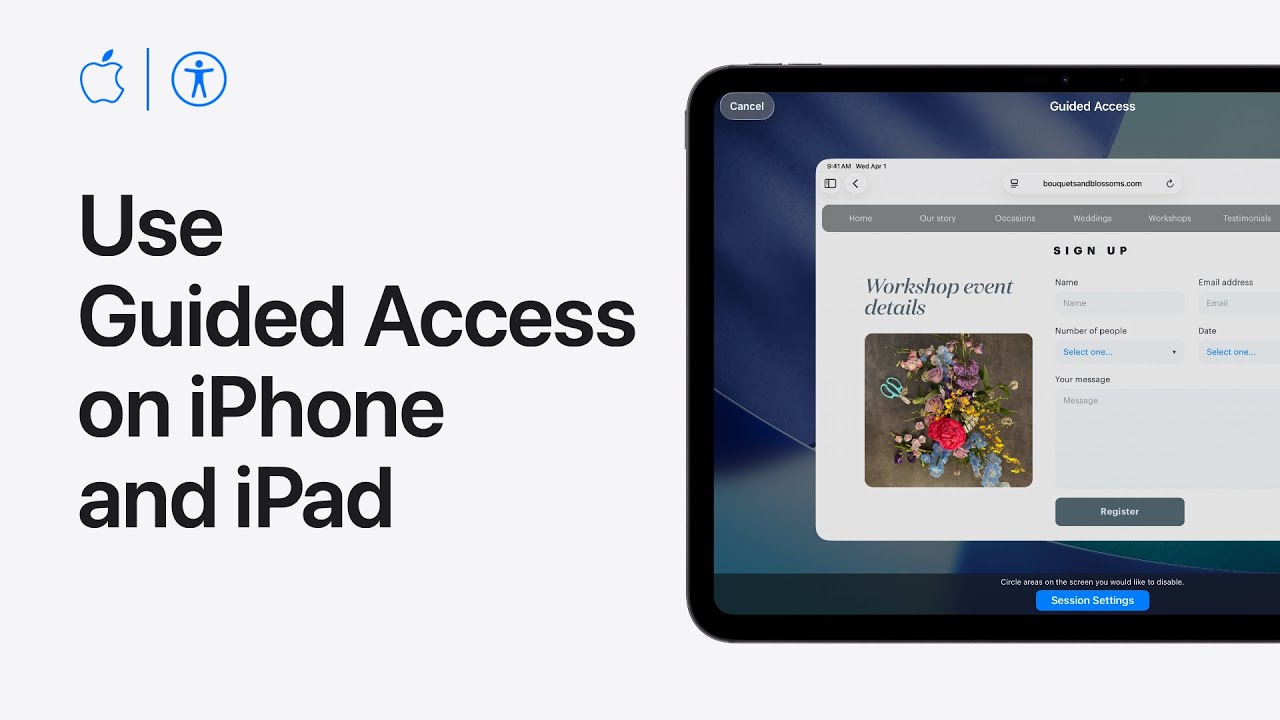
I’ll show you how to set up Guided Access on your iPhone or iPad so you can keep the device locked to one app.
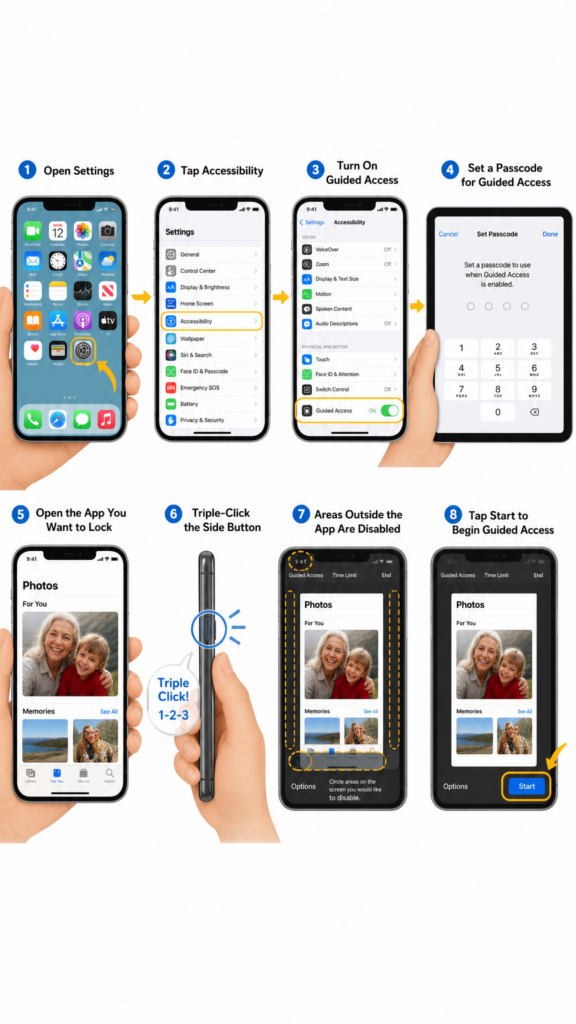
First, open Settings, tap Accessibility, choose Guided Access, turn it on, and create a passcode or enable Face ID.
Next, review options like Time Limits, Accessibility Shortcut, and Display Auto-Lock. Then open the app you want to share, triple-click the side, top, or Home button, and choose Guided Access.
Circle areas to disable, adjust session settings for buttons, keyboard, or touch, then tap Start.
To finish later, triple-click again, enter your passcode, and tap End there.
- Open
Settings > Accessibility > Guided Access, then turn it on. - Set a Guided Access passcode and optionally allow Face ID.
- Adjust options like Time Limits, Accessibility Shortcut, and Display Auto-Lock.
- Open an app, triple-click the device button, choose Guided Access, and disable any screen areas or controls you want.
- Tap Start to begin, then triple-click again and enter your passcode to end the session.