
100-word first-person summary (step-by-step, no timestamps)
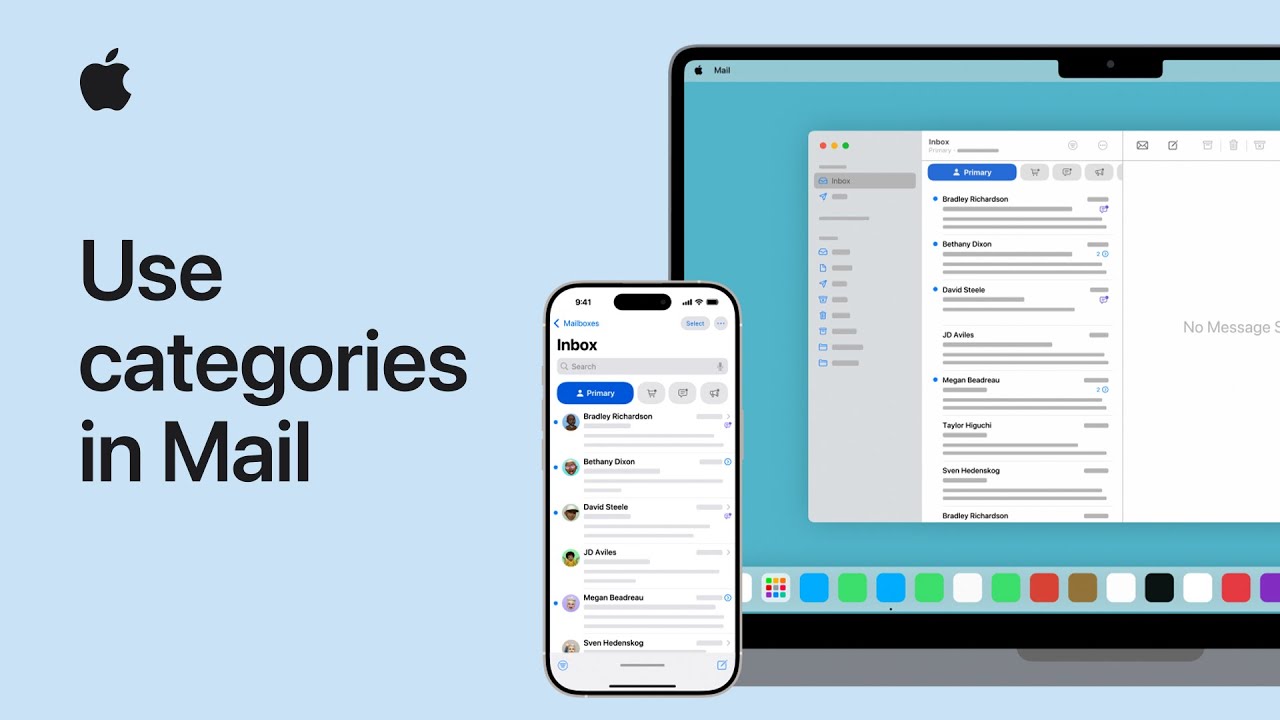
I’ll walk you through Mail categories so you can find important email faster. First, open Mail on your iPhone, iPad, or Mac.
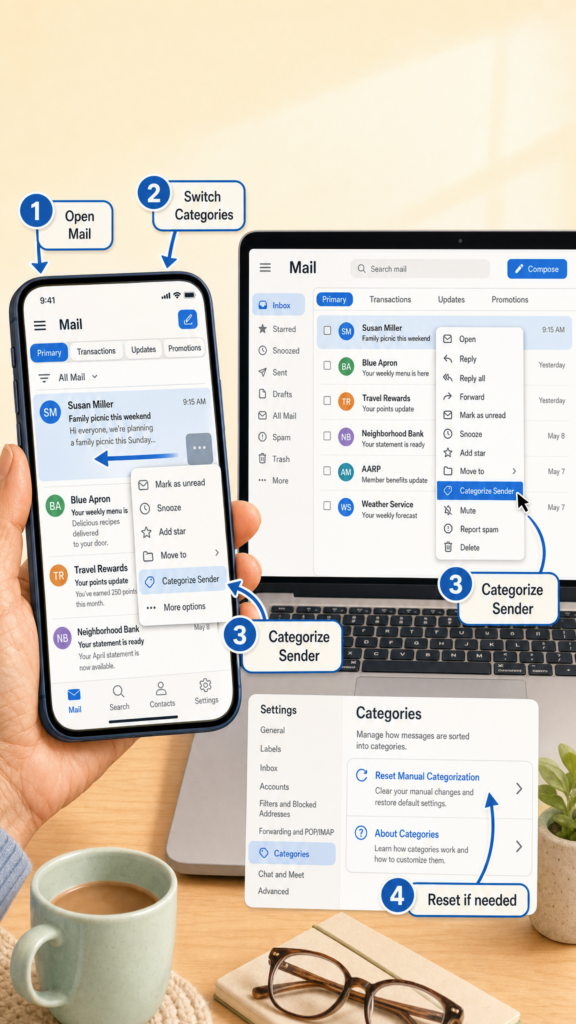
Tap or click Primary, Transactions, Updates, or Promotions to switch views, or open All Mail to see every message.
To move a sender, swipe (or control‑click) a message, choose More → Categorize Sender, pick a category for that sender, and confirm.
To change behavior, open More → About Categories to learn how Mail sorts messages, or turn off Show Mail Categories to use List View.
To undo changes, scroll to Reset Manual Categorization at the bottom and confirm.
- Open Mail on iPhone, iPad, or Mac and view category tabs.
- Tap Primary, Transactions, Updates, or Promotions (or open All Mail).
- To recategorize a sender, swipe/control‑click → More → Categorize Sender → choose category.
- Use More → About Categories for details or turn off Show Mail Categories to use List View.
- Undo changes with Reset Manual Categorization at the bottom.