How to share your name and photo in Messages on your iPhone, iPad, or iPod touch – Apple Support

practhumb20.2

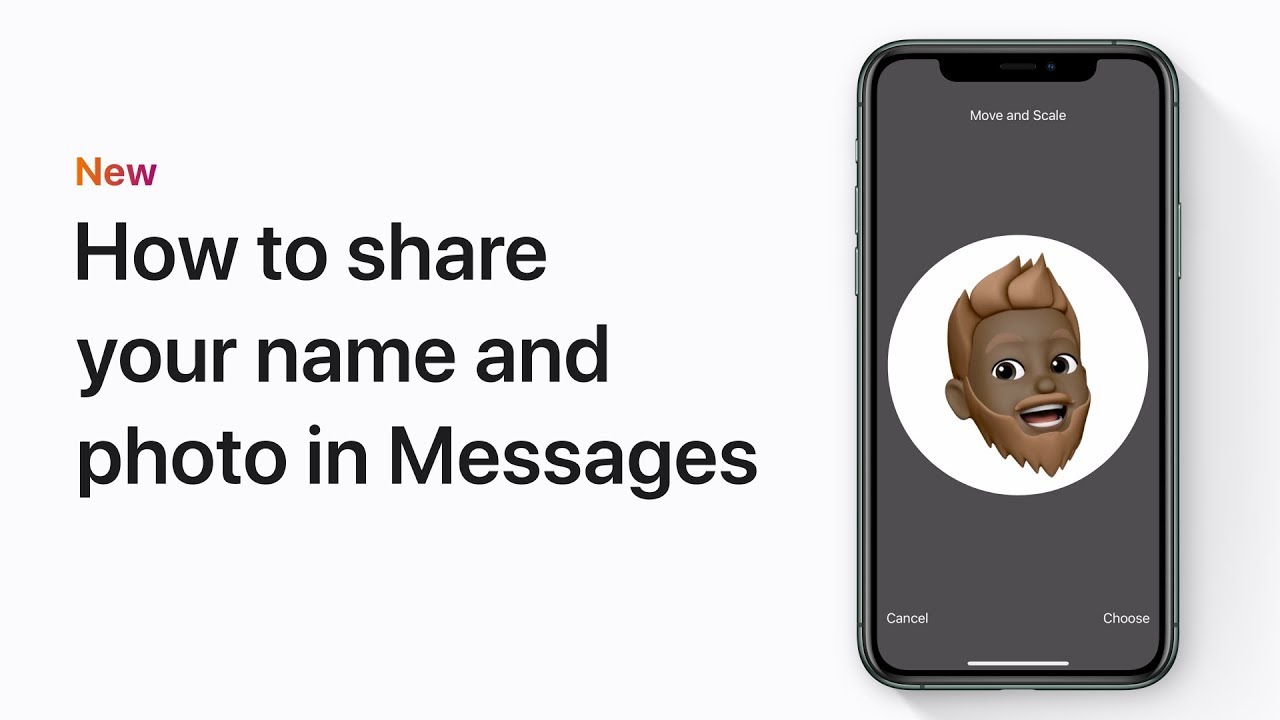
You can personalize your identity in Messages by sharing your name and photo with contacts. Simply tap “Edit name and photo,” select or take a photo, adjust it to fit the circle, choose a background color, and confirm. You can opt to share updates automatically or be prompted before each update. This customization adds a personal touch to your messages, enhancing communication with friends and family.

Summary:
– Personalize your identity in Messages by sharing your name and photo with contacts.
– Tap “Edit name and photo,” choose a photo or create a Memoji, adjust and select a background color.
– Decide whether to automatically share updates or be prompted before each update.
– This customization enhances communication by adding a personal touch to messages.
– Keep your contacts informed and your messages personalized with these simple steps.

How to Use Siri Shortcuts to Automate Everyday Tasks

Automation is making life easier, and with Siri Shortcuts, you can simplify common tasks on your iPhone. Whether you want to send a text, set a reminder, or control smart home devices, Siri Shortcuts can help. This guide will show you, step by step, how to create and use Siri Shortcuts to save time and effort.

Table of Contents


What Are Siri Shortcuts?

Siri Shortcuts are custom commands that allow you to automate tasks on your iPhone. With a simple voice command, you can perform multiple actions at once.

For example: You can create a shortcut that sends a “Good morning” message to your family and plays your favorite news podcast—all with one Siri command.

How to Set Up Siri Shortcuts

Follow these steps to create and use Siri Shortcuts on your iPhone:

Step 1: Open the Shortcuts App

  • Unlock your iPhone.
  • Find and open the Shortcuts app (it comes pre-installed on iPhones).

Step 2: Create a New Shortcut

  • Tap the + button in the top right corner.
  • Select Add Action to choose what you want Siri to do.

Step 3: Choose an Action

You can select from various actions, such as:

  • Sending a message (e.g., “I’m on my way!”)
  • Setting a reminder (e.g., “Remind me to take my medicine at 8 AM”)
  • Adjusting smart home devices (e.g., “Turn off the lights”)

Step 4: Add a Voice Command

  • Tap the Settings icon (a small slider button in the top right corner).
  • Tap Add to Siri and record a phrase like “Morning Routine” or “Send Update.”
  • Tap Done to save.

Step 5: Test Your Shortcut

  • Activate Siri by saying “Hey Siri” or holding the side button.
  • Speak your shortcut phrase and see if it works as expected.

Useful Siri Shortcuts for Everyday Life

Here are some useful shortcuts to make your life easier:

  • “Good Night” Shortcut: Turns off lights, sets an alarm, and enables Do Not Disturb mode.
  • “Running Late” Shortcut: Sends a preset text and shares your location.
  • “Reminder Check” Shortcut: Reads out your reminders for the day.

Editing or Deleting a Shortcut

If you need to make changes:

  • Open the Shortcuts app.
  • Tap on the shortcut you want to edit.
  • Make your changes or tap Delete Shortcut if you no longer need it.

Final Tips

  • Start with simple shortcuts before trying more complex ones.
  • Experiment with different actions to find what works best for you.
  • Use Siri regularly to make automation a habit.

By following this guide, you can use Siri Shortcuts to simplify daily tasks and save time. Have fun automating your iPhone experience!

How to get your iPhone ready for a repair – Apple Support

practhumb18.2

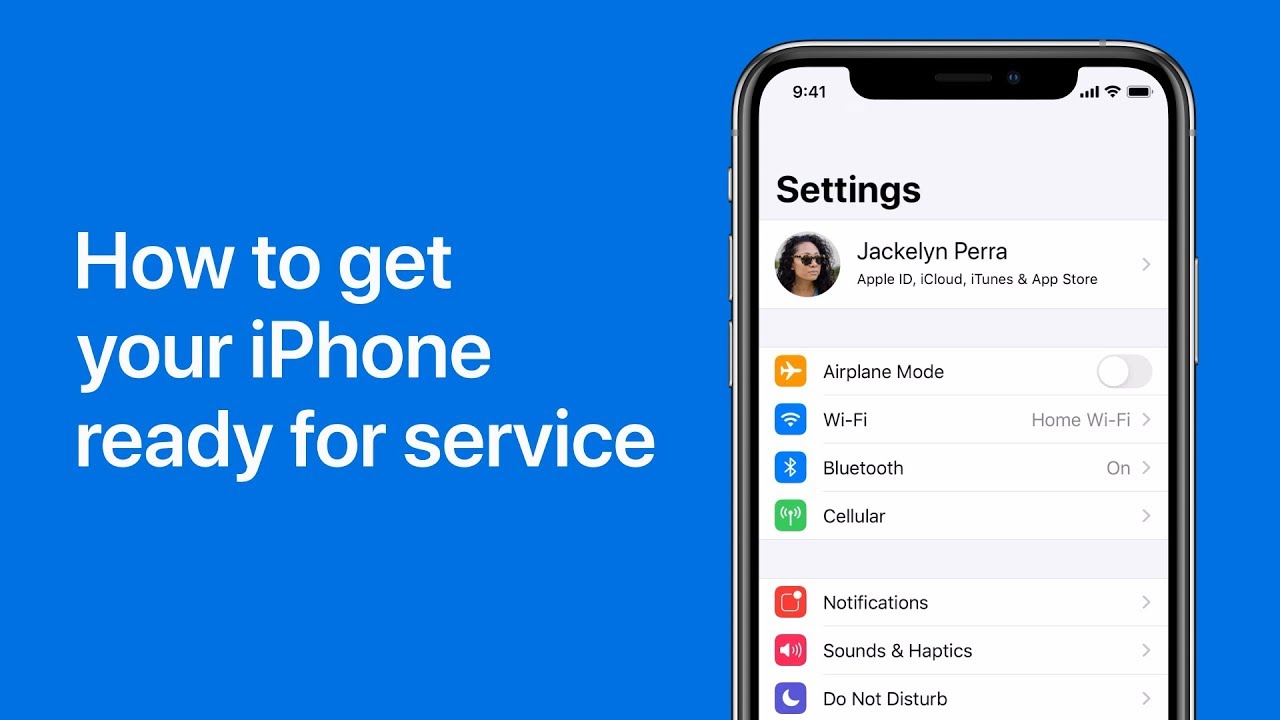
Before getting your device repaired, ensure you have your Apple ID and password ready, disable Find My iPhone in settings, back up your device using iCloud, and update to the latest iOS version. Turn off Find My iPhone by entering your Apple ID password in settings. Backup your device by accessing iCloud settings and selecting “Backup Now.” Update iOS by navigating to Settings > General > Software Update. Following these steps prepares your device for repair at an Apple Store or Authorized Service Provider.

Summary:
Prepare Apple ID and password.
– Disable Find My iPhone in settings.
– Back up device using iCloud.
– Update iOS to the latest version.
– Device will be ready for repair at Apple Store or Authorized Service Provider.

How to use Back Tap on iPhone | Apple Support

practhumb16.2

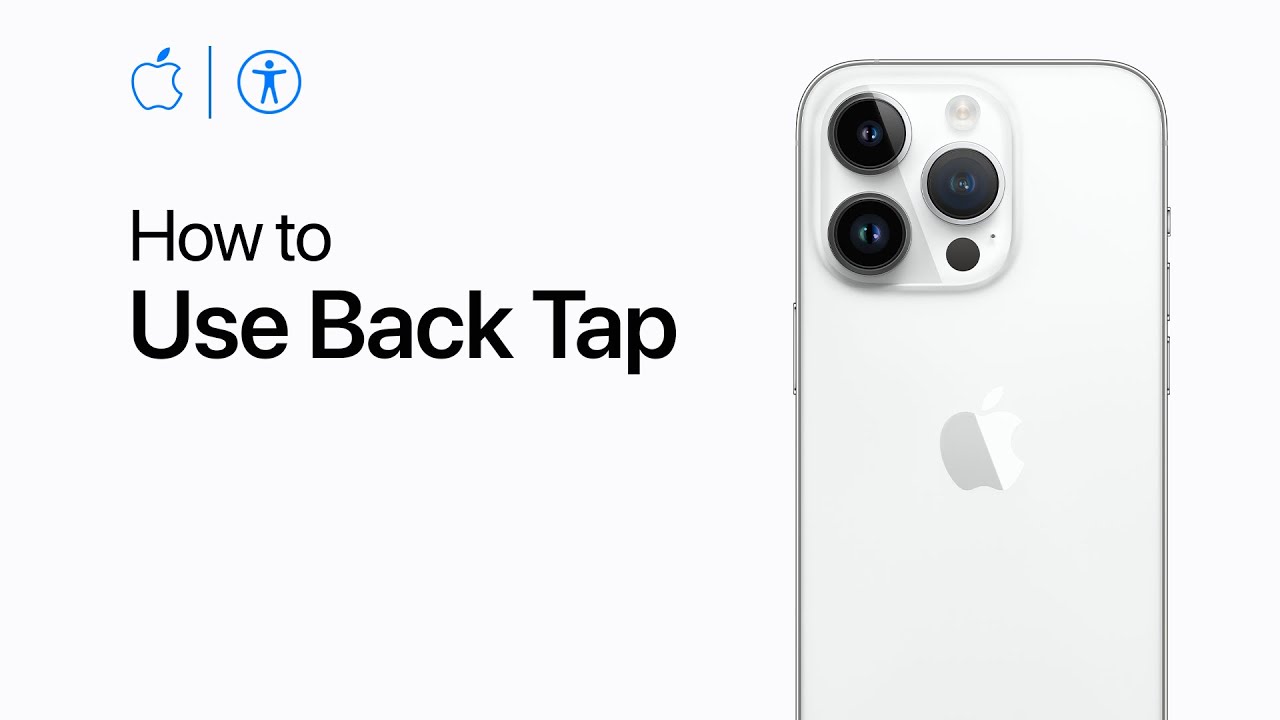
You can enable Back Tap on your iPhone by navigating to Settings, then Accessibility, and selecting Touch. Within the Touch settings, choose Back Tap, where you can assign actions to double or triple taps on the back of your device. Actions include going back, opening the App Switcher, and more. Once configured, you can double or triple tap firmly on the back of your iPhone to execute the chosen action efficiently. Finally, tap “Done” to save your settings.

Summary:
– Enable Back Tap on iPhone for actions.
– Access settings through Accessibility and Touch.
– Choose actions for double or triple taps on the back.
– Actions include going back or opening the App Switcher.
– Confirm settings and execute actions with double or triple taps.

How to Use the Back Tap Feature on iPhone for Quick Actions

Did you know you can perform tasks on your iPhone just by tapping the back of your device? The Back Tap feature is a hidden but powerful tool that lets you quickly take screenshots, open apps, and trigger shortcuts—perfect for making your iPhone easier to use.

This guide will walk you through enabling and customizing Back Tap so you can use it for quick actions. Whether you’re new to iPhones or just looking for an easier way to navigate your device, this step-by-step guide will help!

Table of Contents

What is Back Tap?

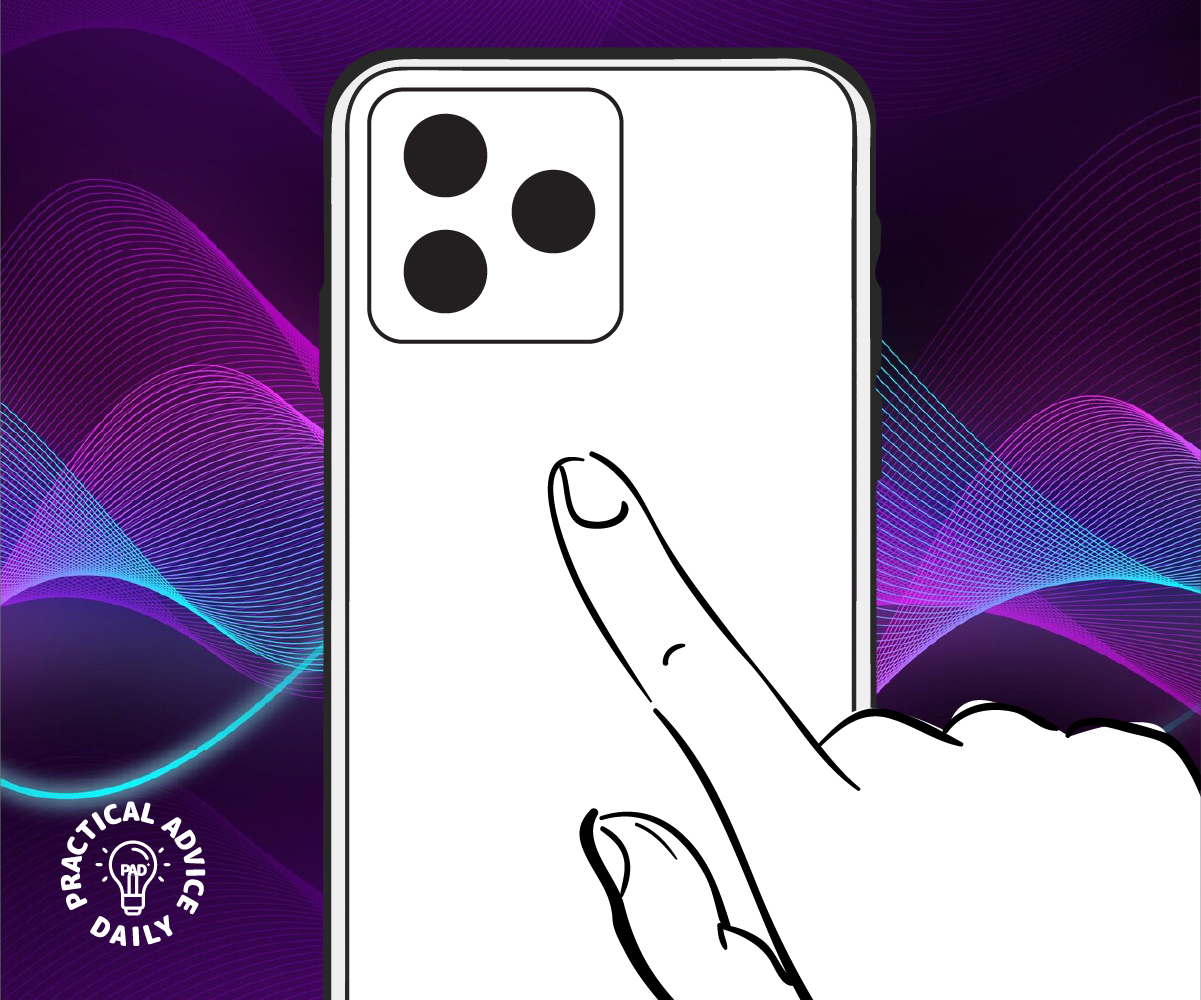
Back Tap is an accessibility feature on iPhones running iOS 14 or later. It allows you to double-tap or triple-tap the back of your iPhone to perform certain actions, like:

  • Taking a screenshot
  • Opening the camera
  • Turning on the flashlight
  • Accessing Control Center
  • Launching an app
  • Running a shortcut

This feature works even if your iPhone has a case, as long as the taps are firm enough.

How to Enable Back Tap

Setting up Back Tap is easy! Just follow these steps:

  1. Open the Settings app on your iPhone.
  2. Scroll down and tap Accessibility.
  3. Under Touch, select Back Tap.
  4. Choose Double Tap or Triple Tap.
  5. Select the action you want to assign to each tap.

Once enabled, you can start using Back Tap immediately!

Best Uses for Back Tap

Back Tap is highly customizable, making it a great tool for simplifying daily tasks. Here are some useful ways to use it:

  • Take a screenshot – No need to press buttons; just tap the back of your phone.
  • Launch the Camera – Capture moments instantly with a quick tap.
  • Turn on the Flashlight – Perfect for when you need light in the dark.
  • Open an App – Set it to launch your favorite app instantly.
  • Run a Shortcut – Automate tasks like sending a message, playing music, or checking the weather.

Troubleshooting Back Tap Issues

If Back Tap isn’t working, try these solutions:

Final Thoughts

Back Tap is a hidden gem that makes using your iPhone easier and more efficient. Whether you want to take screenshots quickly, turn on your flashlight, or access your favorite apps, this feature is a game-changer.

Try it out and see how much more convenient your iPhone can be! If you found this guide helpful, share it with friends and family so they can enjoy this handy trick too.

How to use Journal on your iPhone | Apple Support

practhumb15.2

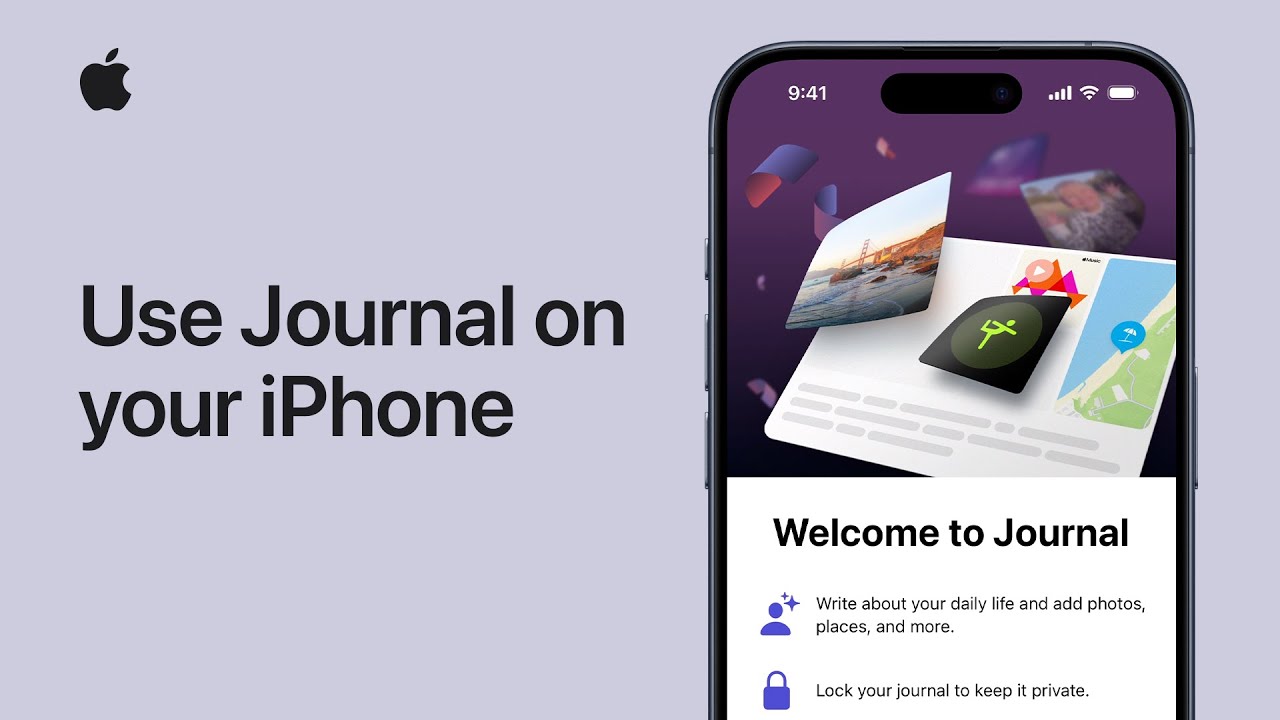
To use Journal on your iPhone, ensure it’s updated to iOS 17.2+. Open the Journal app, tap “Continue” to set up. Compose entries with suggestions like recent photos or music. Start a new entry or use a recommendation. Customize with text, photos, audio, location. Lock your journal for privacy using Face ID/Touch ID. Review and edit entries, access suggestions, and prompts. Explore personalized suggestions for ongoing journaling. Subscribe to Apple Support for more insights.

Summary:
Ensure iPhone is updated to iOS 17.2+.
– Open Journal app, tap “Continue” to set up.
– Compose entries with personalized suggestions.
– Customize entries with text, photos, audio, location.
– Lock journal for privacy using Face ID/Touch ID.

iPhone Spam Call Protection: What Works and What Doesn’t?

Unwanted spam calls can be annoying and sometimes even dangerous. Fortunately, iPhones offer several features to help block spam calls, but not all methods work the same way. In this guide, we’ll compare different spam call protection options, including Silence Unknown Callers, carrier-based filters, and third-party apps, to help you decide which is best for you.

Table of Contents

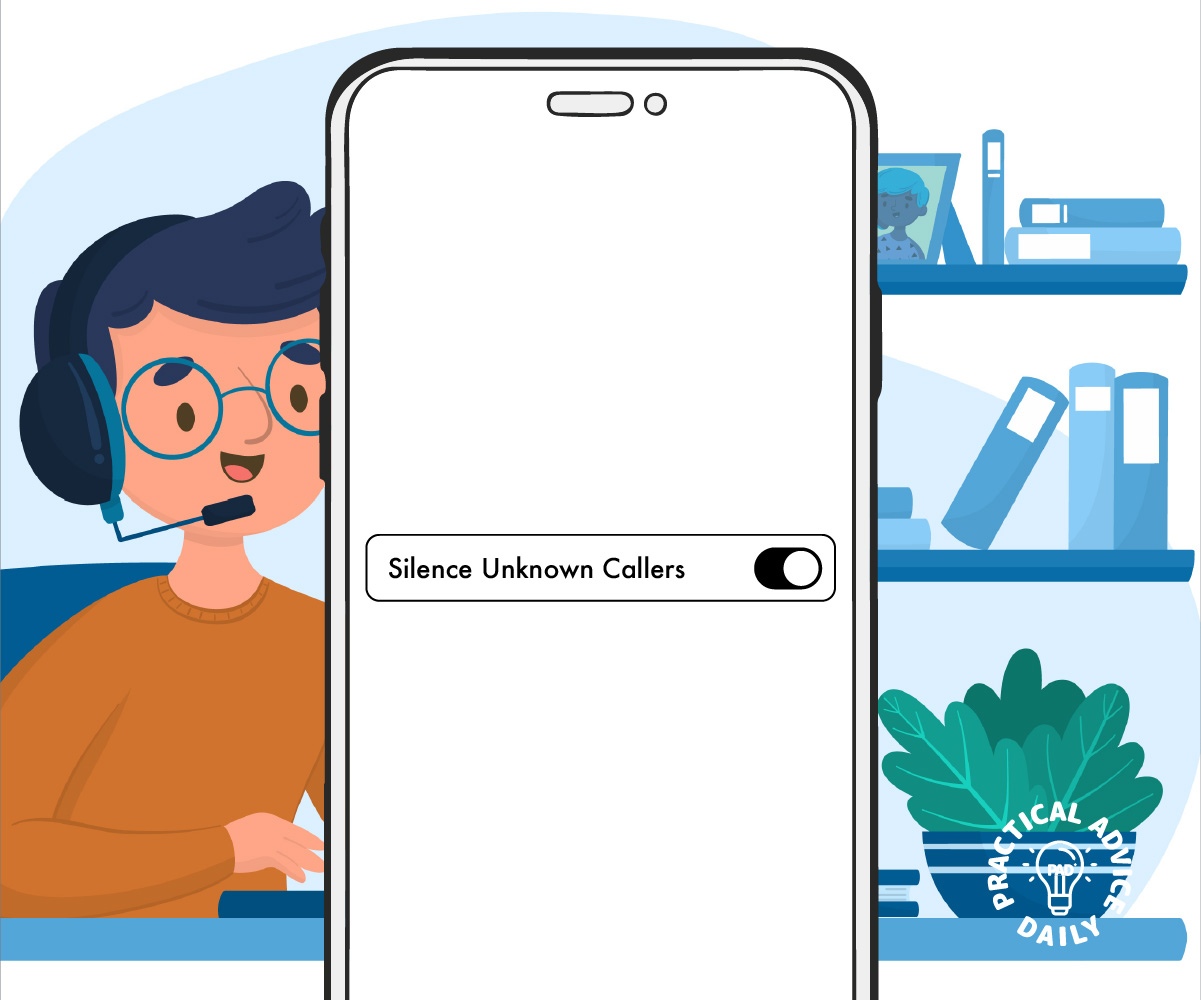
Silence Unknown Callers


How It Works:

  • Blocks calls from numbers not in your contacts, messages, or recent outgoing calls.
  • Sends unknown calls directly to voicemail.
  • You can check missed calls in your Recent Calls list.

Pros: ✔ Simple to enable and use. ✔ No extra cost. ✔ Effective against robocalls and telemarketers.

Cons: ✖ Can block important calls from doctors, banks, or deliveries. ✖ Doesn’t filter out spam calls that mimic real numbers.

How to Turn It On:

  1. Open the Settings app.
  2. Tap Phone.
  3. Select Silence Unknown Callers.
  4. Toggle the switch to on.

Carrier-Based Spam Call Filters

Most phone carriers offer spam call protection with special features. Here’s what they provide:

AT&T Call Protect

  • Auto-blocks fraudulent calls.
  • Identifies suspected spam calls.
  • Free basic version; paid upgrade available for extra protection.

Verizon Call Filter

  • Detects and labels spam calls.
  • Allows you to block specific numbers.
  • Free and paid versions available.

T-Mobile Scam Shield

  • Auto-blocks known scam calls.
  • Gives you a second number for online sign-ups.
  • Free for T-Mobile customers.

Pros: ✔ Works before the call reaches your phone. ✔ Filters out high-risk spam calls. ✔ No need to change phone settings frequently.

Cons: ✖ Some features require a paid plan. ✖ Spam detection isn’t always perfect.

How to Enable:

  • Check your carrier’s website or app for activation steps.
  • Some features may require downloading a separate app.

Third-Party Spam Call Blocking Apps

If you need stronger protection, apps like Hiya, RoboKiller, and Truecaller can help.

Hiya

  • Identifies spam calls and blocks them.
  • Provides caller ID details.
  • Free and premium versions available.

RoboKiller

  • Blocks spam calls and uses “answer bots” to waste scammers’ time.
  • Customizable call filtering.
  • Monthly subscription required.

Truecaller

  • Identifies unknown numbers.
  • Community-driven spam reporting.
  • Free and premium versions available.

Pros: ✔ More powerful filtering than built-in options. ✔ Identifies numbers with crowd-sourced data. ✔ Customizable settings for better control.

Cons: ✖ Some require a paid subscription. ✖ May need access to your contacts. ✖ Can drain battery faster due to background processing.

How to Install and Use:

  1. Download the app from the App Store.
  2. Follow the on-screen setup instructions.
  3. Allow necessary permissions for full functionality.
  4. Adjust settings to customize spam call protection.

Which One Should You Use?

  • For a simple, free optionSilence Unknown Callers
  • For carrier-level filteringCarrier-based spam filters
  • For advanced features and customizationThird-party apps

Using a combination of these features can provide the best protection against spam calls. Try different methods and see what works best for you!

How to download maps to use offline on iPhone and iPad | Apple Support

practhumb14.2

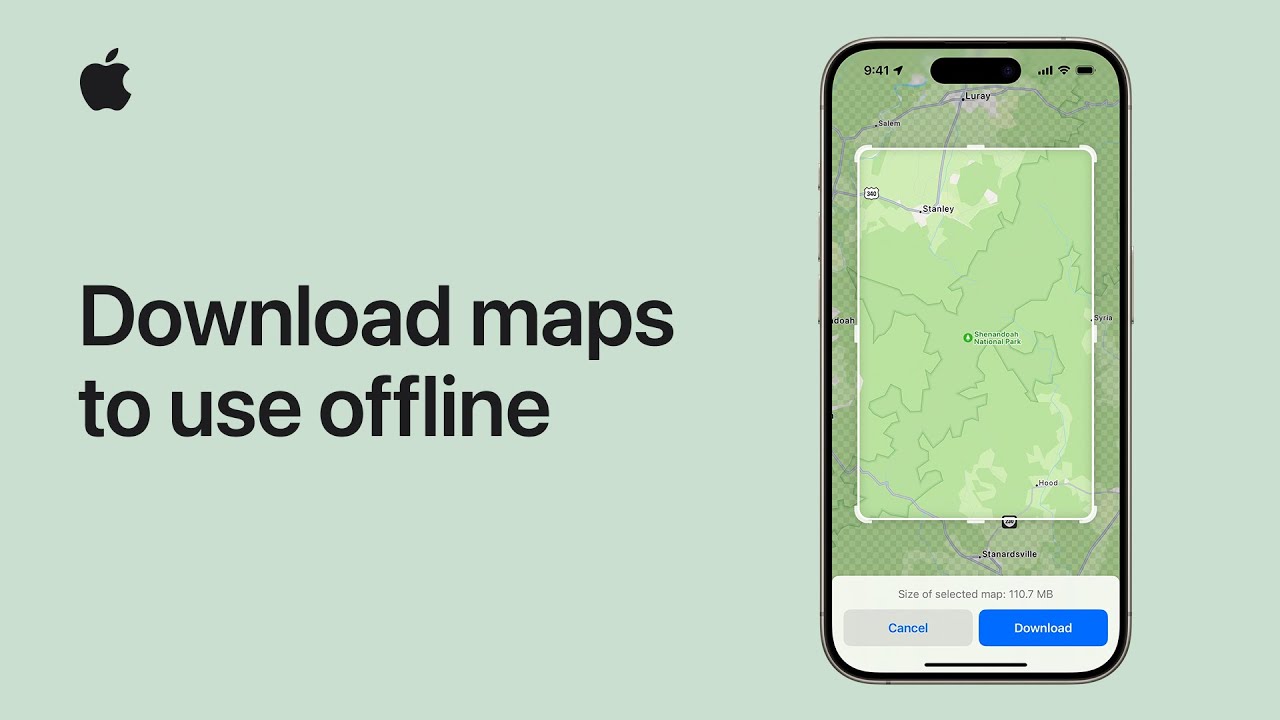
In iOS 17, offline maps in the Maps app allow users to access directions and information without internet. Users download maps via Wi-Fi or Cellular, selecting areas and adjusting coverage. Notifications signal when maps are ready, which users can rename or delete. Suggestions based on contact info are provided, with customizable settings for offline use. Maps function seamlessly offline, offering details like directions and business information. Offline maps ensure navigation even without an internet connection, aiding users in reaching destinations. Availability varies by region.

Summary:
-iOS 17 introduces offline maps in the Maps app.
-Maps are downloaded via Wi-Fi or Cellular and offer directions without internet.
-Users select areas and adjust coverage, receiving notifications when maps are ready.
-Offline maps can be renamed, deleted, and function seamlessly offline with detailed information.
-Availability varies by region, enhancing navigation for users without internet access.

How to customize accessibility settings app by app on iPhone, iPad, and iPod touch | Apple Support

practhumb12.2

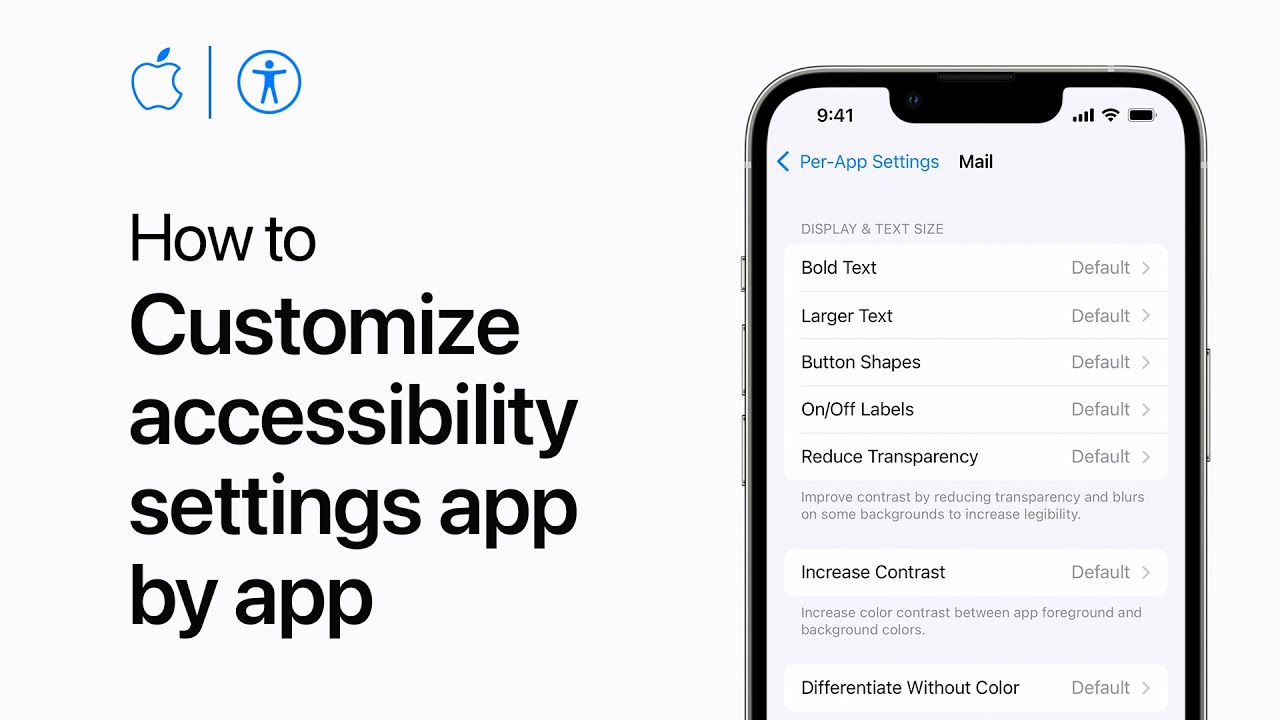
You can personalize accessibility settings for individual apps to suit your needs effectively. In Accessibility settings, select “Per App Settings,” then add the desired app. Customize settings such as text size, motion reduction, contrast, and others for optimal usability. Changes made will apply the next time you open the app, allowing for tailored accessibility adjustments app by app.

Summary:
– Accessibility settings can be customized on a per-app basis.
– Access “Per App Settings” in Accessibility settings.
– Add desired apps and customize settings such as text size and motion reduction.
– Changes apply to the specific app and enhance usability.
– Offers tailored accessibility adjustments for individual apps.

How to Schedule Text Messages on iPhone (And Why You Should)

Scheduling text messages on your iPhone can be incredibly useful. Whether you want to send a birthday message in advance, remind a friend about an appointment, or simply ensure you don’t forget to check in with someone, scheduling texts can save time and keep you organized.

Unfortunately, the iPhone’s built-in Messages app doesn’t have a scheduling feature. However, you can schedule texts using the Shortcuts app or third-party apps. Here’s how.

Table of Contents

How to Schedule Text Messages Using the Shortcuts App

Apple’s Shortcuts app allows you to automate tasks on your iPhone, including scheduling text messages. Follow these simple steps:

  1. Open the Shortcuts app on your iPhone. (If you don’t have it, download it from the App Store.)
  2. Tap the Automation tab at the bottom.
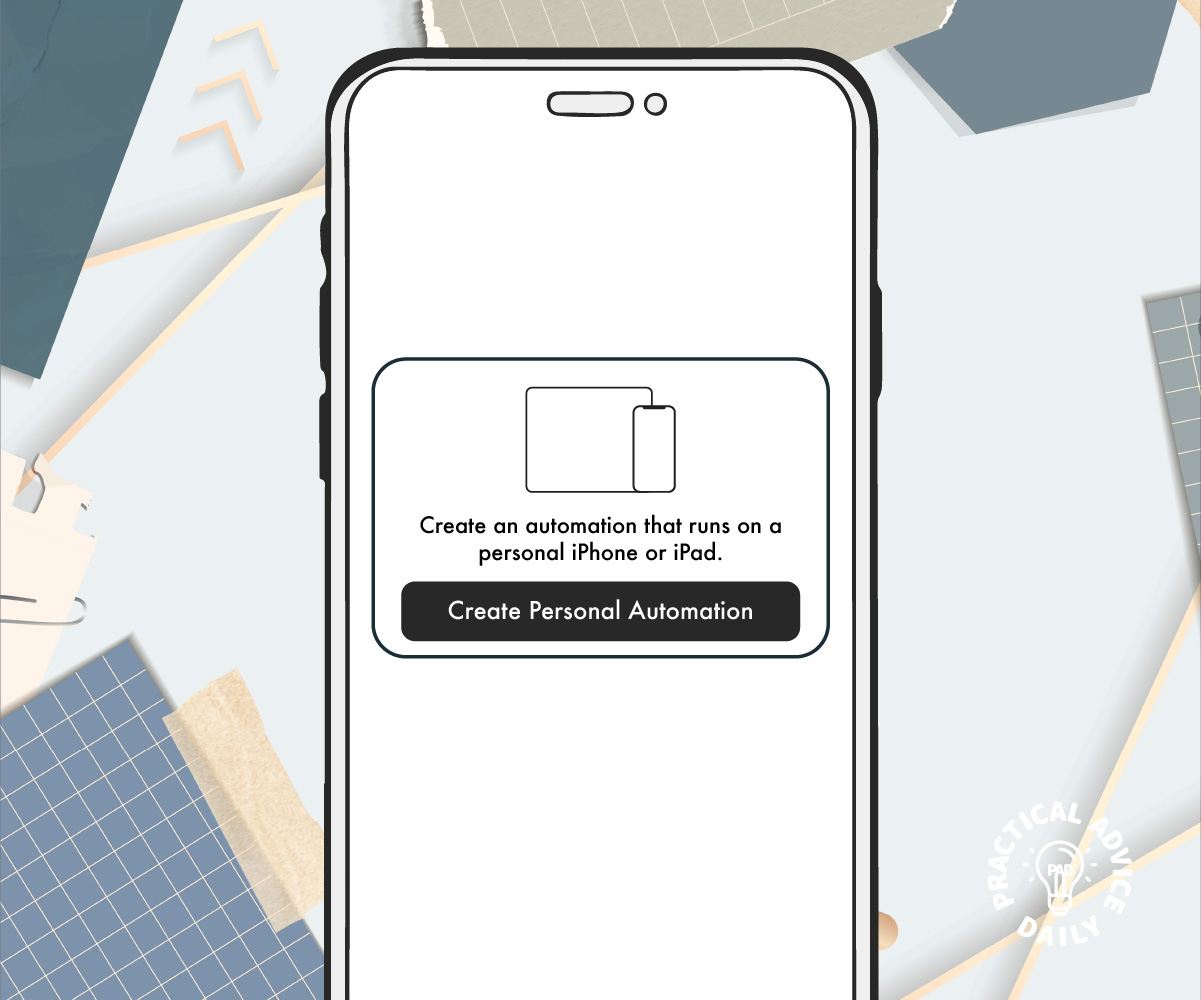
  3. Tap Create Personal Automation (or + if you already have automations set up).
  4. Select Time of Day and choose when you want to send the message.
  5. Tap Next, then tap Add Action.
  6. In the search bar, type Send Message and select it.
  7. Tap Message, type in your text, and select the recipient.
  8. Tap Next, review your automation, and toggle off Ask Before Running for automatic sending.
  9. Tap Done to save.

Your message will now be sent automatically at the scheduled time.

Using Third-Party Apps to Schedule Text Messages

If you need more flexibility, third-party apps like Scheduled, SMS Scheduler, or ReminderBase can help. Here’s how to use Scheduled:

  1. Download the Scheduled app from the App Store.
  2. Open the app and create an account if needed.
  3. Tap Create Message and enter your text.
  4. Select the recipient from your contacts.
  5. Choose the date and time to send the message.
  6. Tap Schedule Message.
  7. (Optional) Some apps require you to manually confirm sending due to Apple’s restrictions.

Why You Should Schedule Text Messages


Scheduling texts can help in many ways, including:

  • Never Forget Important Messages – Schedule birthday wishes or holiday greetings in advance.
  • Stay Organized – Remind yourself or others about appointments and deadlines.
  • Help with Work and BusinessSchedule reminders for clients or colleagues.
  • Keep in Touch EasilyRegularly check in with loved ones without worrying about forgetting.

By using the Shortcuts app or a third-party app, you can make sure your messages are sent exactly when you need them to be.

Final Thoughts

While the iPhone doesn’t have a built-in text scheduling feature, using the Shortcuts app or third-party apps makes it easy to plan and send messages in advance. Give it a try and take the stress out of remembering to send important texts!