How to use AssistiveTouch on Apple Watch | Apple Support

With Assistive Touch on Apple Watch, you can use hand gestures instead of the touchscreen to navigate and perform actions. To enable it, go to Accessibility settings on your Apple Watch or the Apple Watch app on your iPhone, then turn on Assistive Touch. Customize gestures like pinching your thumb and pointer finger to move forward, double pinching to go back, clenching your fist to select, and double clenching to open the action menu for tasks like scrolling. When Assistive Touch is active, a blue ring appears around the screen, allowing you to navigate notifications and perform quick actions with ease.

Summary:
– Enable Assistive Touch on your Apple Watch or through the Apple Watch app on your iPhone by accessing the Accessibility settings.
– Customize hand gestures: pinch to move forward, double pinch to go back, clench to select an item, and double clench to open the action menu.
– The action menu allows complex actions like scrolling or pressing the digital crown.
– A blue ring indicates that Assistive Touch is active, allowing gesture navigation and quick actions.
– Use gestures to navigate notifications and perform actions like answering calls or stopping timers with double pinches.

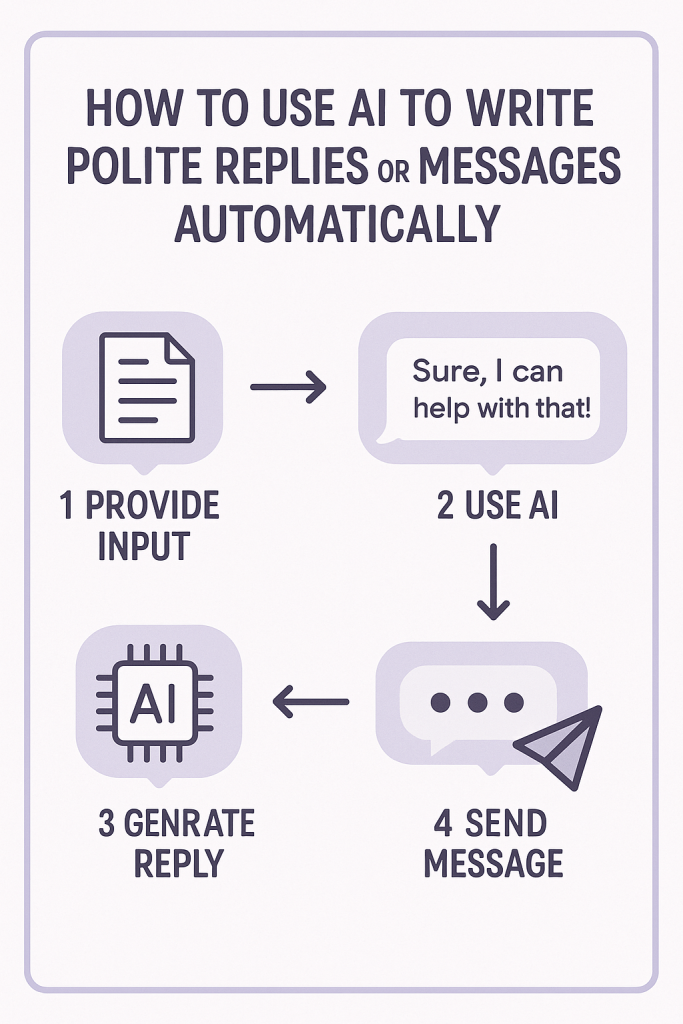
How to Use AI to Write Polite Replies or Messages Automatically

We’ve all been there—wanting to send a polite reply but not quite sure how to word it. Whether it’s answering an email, replying to a text, or jotting a quick note, finding the right tone can take time. The good news is, your phone or computer can help.

In this guide, you’ll learn how to use AI tools to write polite, friendly messages automatically. You don’t need any special skills—just your everyday apps like Messages, Mail, and Notes.

Table of Contents

Key Takeaways

  • AI can help you write polite, natural-sounding replies quickly.
  • Tools like Apple’s Smart Reply, Gmail’s Smart Compose, and Notes with AI suggestions make writing easier.
  • You can personalize the AI’s tone to sound more like you.
  • It’s still important to review messages before sending.

Understanding AI-Powered Replies

AI (Artificial Intelligence) can “read” your message or email and suggest a thoughtful reply based on the context. For example:

  • If a friend texts, “Want to meet for coffee later?” your phone might suggest “Sure, what time works for you?”
  • In email, AI might suggest polite responses like “Thank you for reaching out” or “I appreciate your help.”

These suggestions save time while helping you sound professional or kind—especially if writing doesn’t come naturally or you’re in a rush.

How to Use AI for Polite Replies

Let’s look at how you can use AI in your everyday apps.

1. In Messages (iPhone or Android)

For iPhone users:

  • Open Messages and start a conversation.
  • When someone texts, look above your keyboard. You might see suggestions such as “Sure!”, “Sounds great,” or “Thank you!”
  • Tap a suggestion to send it instantly, or edit it slightly to add your personal touch.

Example:
Your friend says: “I’ll pick you up at 6.”
Suggested reply: “Thanks! See you then.”

Tip:
If you use Apple’s Predictive Text or Siri Suggestions, it learns from your past conversations to offer polite phrases that sound more like you.

For Android users:

  • Open your Messages app.
  • When you get a message, look for Smart Reply suggestions like “Thanks,” “Got it,” or “Talk soon.”
  • Tap the one that fits.

You can also use Google Assistant to write longer messages. Try saying, “Hey Google, reply politely to this message.”

2. In Mail (Apple Mail, Gmail, or Outlook)

Apple Mail (on iPhone or Mac):

  • Open an email and tap Reply.
  • If you’re using iOS 18 or macOS Sequoia, you may see an AI Reply button (a sparkle icon ✨).
  • Tap it to see suggested replies like “Thank you for your message” or “That sounds good to me.”
  • You can edit or ask it to make the tone “more polite,” “more casual,” or “shorter.”

Gmail:

  • When replying to an email, you’ll often see Smart Reply buttons at the bottom (for example: “Sounds good,” “Thanks for letting me know,” or “I’ll get back to you soon.”).
  • You can also turn on Smart Compose in Settings, which helps you finish sentences politely as you type.

Example:
You type: “Thank you for your…”
Smart Compose may suggest “time and consideration.”

Outlook:

  • Microsoft’s Copilot or built-in AI reply can summarize emails and suggest polite responses like “Thanks for the update” or “I’ll review and follow up.”

Tip:
Even if the AI suggests the words, you remain in control. Always read the message before sending to be sure it feels right for your situation.

3. In Notes (Apple Notes or Google Keep)

AI can also help you draft messages before you send them. This is great if you want to sound polite but need to think through what to say.

Apple Notes with AI (iOS 18 and later):

  • Open a new note.
  • Tap the sparkle icon (✨) to open the AI writing helper.
  • Type something like: “Write a polite thank-you message for a neighbor who helped me with groceries.”
  • The AI will suggest a short message. You can tap Refine to make it more friendly, shorter, or more formal.

Example Result:

“Thank you so much for helping me with my groceries yesterday. I really appreciate your kindness!”

You can copy that into a text or email and send it off.

Google Keep users:
While Keep doesn’t yet have built-in AI writing, you can use Google’s Gemini (previously Bard) to draft polite notes or messages and paste them into your Keep app for later.

Helpful Tips for Using AI Replies

  • Add a human touch. Even if AI writes most of your message, adding a personal line (like a name or a short note) makes it warmer.
  • Review before sending. AI isn’t perfect—it might sound too formal or too casual. Adjust as needed.
  • Practice makes perfect. The more you use predictive or smart replies, the better your device gets at matching your tone.
  • Stay polite, but be yourself. It’s okay to change the words until they feel like your own voice.

Real-Life Example

Imagine you’re tired after a long day, and someone emails asking for a quick favor. Instead of ignoring it, you can use AI to help craft a gentle response.

Prompt to AI (in Notes or Mail):

“Write a polite reply to someone asking for help, but I’m busy this week.”

AI suggestion:

“Thank you for reaching out! I’d love to help, but I’m tied up this week. Let’s reconnect next week if that works for you.”

That saves you time and keeps your communication kind and professional.

Final Thoughts

Using AI to write polite messages isn’t about replacing your words—it’s about helping you express them more easily. Whether it’s a simple “thank you” or a professional email, AI can give you a thoughtful starting point.

With a few taps, you can sound kind, confident, and clear without overthinking every reply. Try exploring the built-in AI features in your Messages, Mail, and Notes apps—you might be surprised at how helpful and natural they feel.

Categories AI

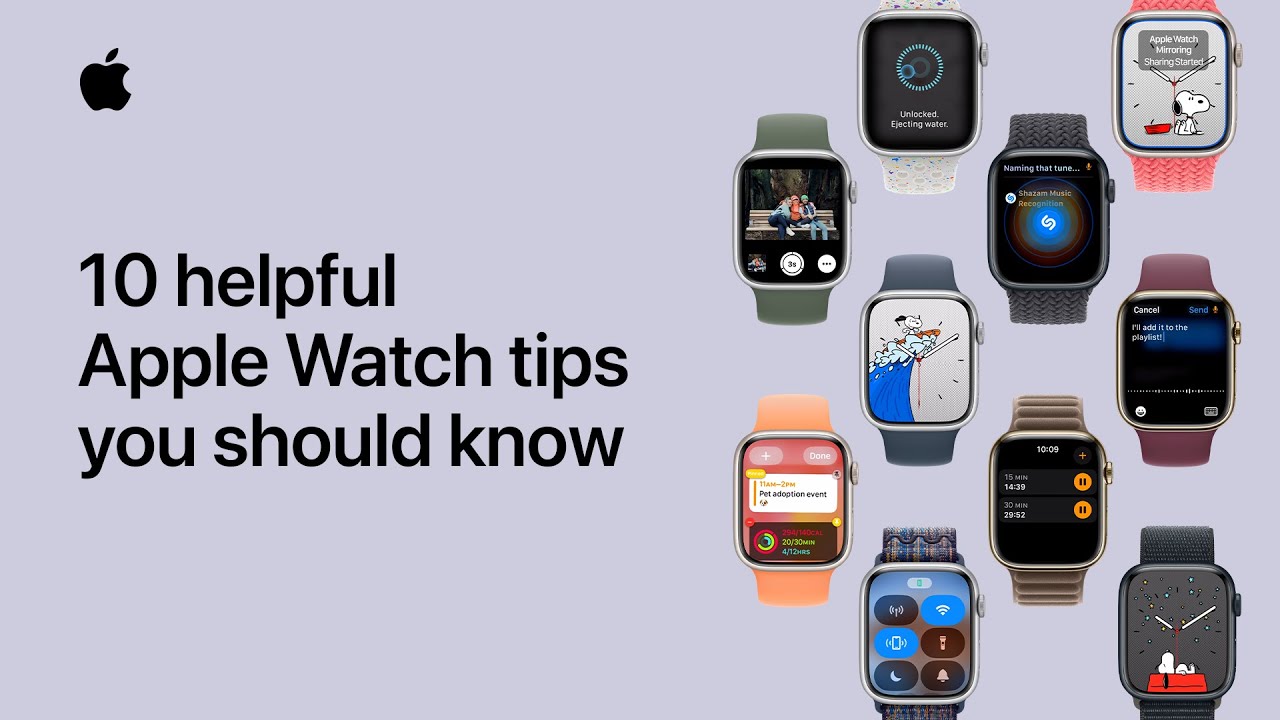
10 helpful Apple Watch tips you should know | Apple Support

To make the most of your Apple Watch, here are some key tips to get you started. In watchOS 10, access the flashlight by pressing the side button in Control Center, allowing you to choose between steady or flashing lights. Pin widgets to your Smart Stack by scrolling with the digital crown and holding your preferred widget. Locate your iPhone by tapping the Ping button in Control Center, or use the Camera Remote app to take photos with your iPhone. Enable Apple Watch mirroring via iPhone settings for on-screen navigation. Additionally, manage multiple timers in the Timer app, take screenshots, and use voice dictation for text replies.

Summary:
– Access the flashlight in watchOS 10 by pressing the side button in Control Center, with options for steady or flashing lights.
– Pin widgets to your Smart Stack by scrolling with the digital crown, holding the widget, and selecting the pin option.
Locate your iPhone by tapping the Ping button in Control Center, or use the Camera Remote app to take photos remotely with your iPhone.
– Enable Apple Watch mirroring via iPhone settings under Accessibility for on-screen navigation of your watch.
– Manage multiple timers in the Timer app, take screenshots, and use voice dictation for text replies directly from your Apple Watch.

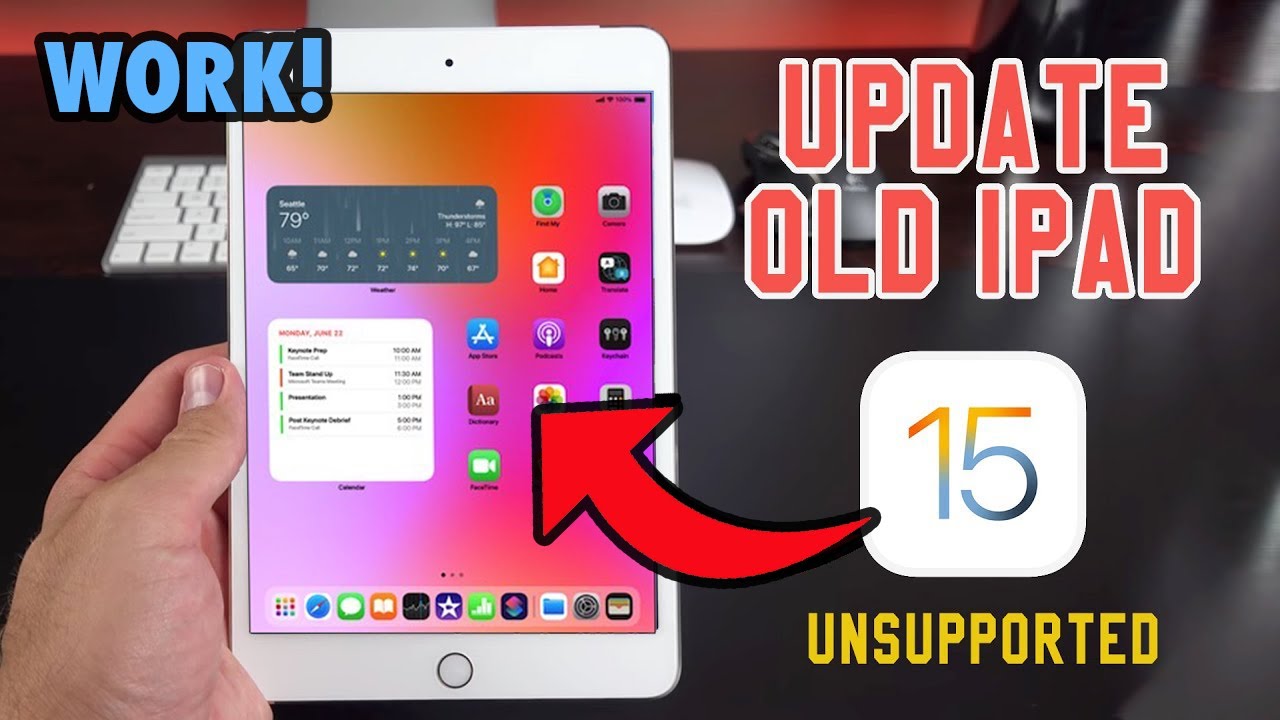
How to Update Old iPad to iPadOS 15 | Install iOS 15 Unsupported iPad

To update your iPad to iPadOS 15, start by checking for updates in the Settings app under “Software Update.” If your iPad isn’t compatible with the latest updates, you’ll need to use the Apple Beta Software Program. Open your browser, search for “Apple Beta Software Program,” and sign in with your Apple ID or create a new one if needed. Once signed in, enroll your device and download the profile for iPadOS 15. Install the profile from Settings, then restart your iPad. After rebooting, go back to Settings and check for updates again. You should see iPadOS 15 available for installation.

Summary:
Check for Updates: Go to Settings > Software Update to see if iPadOS 15 is available for your device.
Apple Beta Program: If not available, visit the Apple Beta Software Program website and sign in or create an Apple ID.
Download Profile: Enroll your device and download the iPadOS 15 profile.
Install Profile: Install the downloaded profile from Settings, then restart your iPad.
Final Update: After reboot, check Settings > Software Update again to install iPadOS 15.

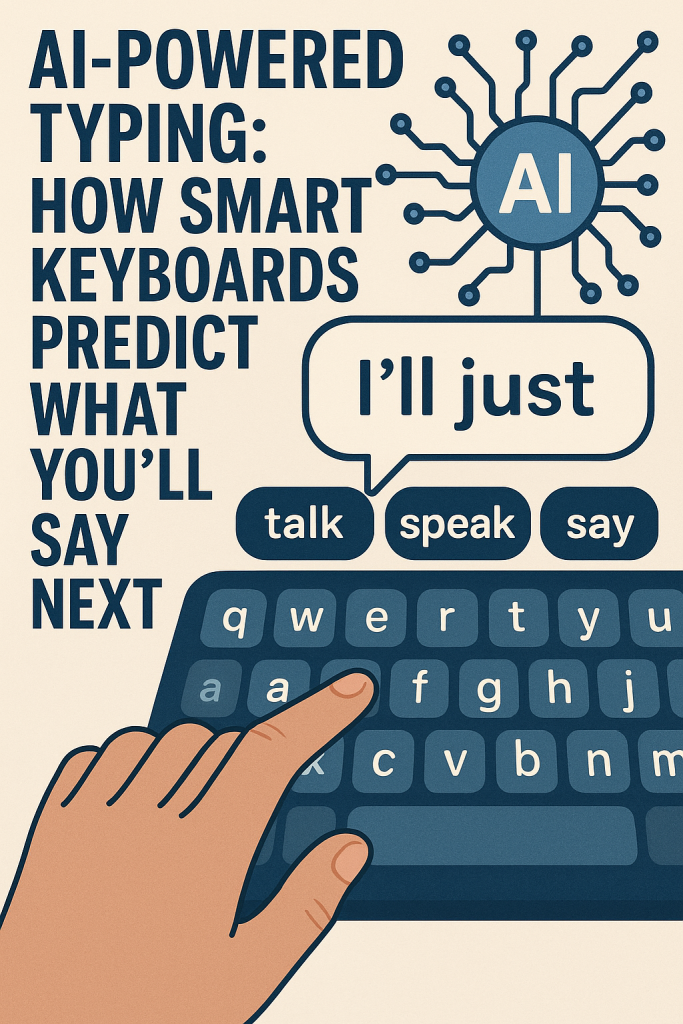
AI-Powered Typing: How Smart Keyboards Predict What You’ll Say Next

Have you ever noticed your phone finishing your sentences before you do? That’s not magic—it’s artificial intelligence, or AI, quietly working behind the scenes. Modern keyboards are “smart” because they use predictive text technology to guess what you might type next. This feature can make texting, emailing, and searching much faster and easier.

In this guide, you’ll learn how predictive typing works, why it’s helpful, and what you should know about your privacy when using AI-powered keyboards. Don’t worry—you don’t need to be a tech expert to understand it.

Table of Contents

Key Takeaways

  • AI keyboards learn your habits to predict words and phrases you use most often.
  • Predictive text saves time by reducing the number of keystrokes needed.
  • Personal data may be used to improve suggestions, so privacy settings matter.
  • You can control or turn off data sharing and personalization features anytime.

How Predictive Text Works

When you start typing a message, your keyboard begins to predict your next word. It does this using AI algorithms that analyze patterns in your past typing.

Here’s what happens behind the scenes:

  1. Learning from your words:
    Each time you type, your keyboard takes note of your common phrases, slang, and even your tone. For example, if you often text “See you soon,” the next time you type “See,” it might automatically suggest “you soon.”
  2. Using language models:
    The AI also studies general language patterns—how words are used in the wider world. This helps it make smarter guesses, even with words you haven’t typed before.
  3. Context awareness:
    Some keyboards, like Gboard or SwiftKey, can sense the context of your message. If you’re typing an address, they’ll suggest city names. If you’re writing “Happy,” you might see “Birthday” next.

All these steps happen in a fraction of a second, so it feels instant. The goal is to save you effort and help you express yourself more smoothly.

Everyday Benefits of Smart Typing

Predictive text can make a big difference in your daily communication.

  • Faster messages: You can type whole sentences in half the time by tapping suggested words.
  • Fewer mistakes: The keyboard can fix common spelling or grammar errors automatically.
  • Personalized responses: Over time, your phone “learns” your style—so your messages sound more like you.
  • Accessibility help: For people with limited mobility or slower typing speeds, predictive text can make devices easier to use.

Imagine this: you’re sending a text saying “Running late, be there soon.” By the time you type “Running,” your phone already fills in “late, be there soon.” That’s AI lending you a hand.

What About Privacy?

Because smart keyboards learn from your typing, it’s natural to wonder where that information goes. The good news is that most major keyboard apps handle your data carefully—but it’s still smart to check your settings.

Here’s what to know:

  • Local vs. cloud learning:
    Some keyboards, like Apple’s built-in keyboard, process your typing on the device itself. That means your data stays on your phone and doesn’t get sent to the cloud.
  • Cloud-based prediction:
    Other apps, like Google’s Gboard or Microsoft’s SwiftKey, may use cloud processing to improve accuracy. This can mean that anonymous data—like which words are used most often—is shared with the company to make predictions better for everyone.
  • Private information:
    Reputable keyboard apps are designed to ignore sensitive fields, like passwords or credit card forms. They won’t “learn” from what you type in those areas.

How to Manage Your Data

You can take simple steps to stay in control of your information:

  1. Check your settings:
    In your phone’s keyboard settings, you’ll find options like “Personalized suggestions” or “Improve voice and typing recognition.” You can turn these off anytime.
  2. Clear your typing data:
    Many keyboards let you delete learned words or reset your language model if you prefer a fresh start.
  3. Use trusted apps only:
    Stick with official keyboards from major companies or those downloaded through your phone’s app store. Avoid unknown or third-party versions that might not protect your data.
  4. Review permissions:
    When installing a keyboard app, look at what access it requests. If it asks for unnecessary permissions—like location or contacts—it might be best to skip it.

Smart Keyboards and the Future of Typing

AI typing tools are becoming more advanced every year. Some can already finish whole sentences or rewrite them to sound more polite or professional. In the future, keyboards may even adjust to your mood or writing style, helping you express yourself more naturally.

While these tools are convenient, they also remind us how closely technology can connect to our personal habits. Understanding how they work helps you use them confidently and safely.

Final Thoughts

AI-powered keyboards are like little helpers that make typing smoother and quicker. They learn from how you write to suggest what you might want to say next. Once you understand how they work and how to manage your privacy settings, you can enjoy all the benefits without worry.

So the next time your phone seems to “read your mind,” you’ll know it’s just a smart bit of technology doing its job—saving you time, one word at a time.

Categories AI

How to Download Apps on Old iPad (iPad Mini / iPad 1, 2, 3, 4 / iPad Air)

To download popular apps like YouTube on older iPads, start by signing into your iTunes account on your iPad through the Settings app. Go to the App Store, search for the app you want, and you might see a message indicating it’s not compatible. To bypass this, use a newer Apple device with the latest iOS and sign into the same iTunes account. Download the desired app on the newer device, then go to the Purchases section on the older iPad to find and download the last compatible version of the app. You can also ask someone with a newer device to help if needed.

Summary:
– Sign into your iTunes account on the older iPad through Settings.
– Search for the app you want in the App Store; if it’s not compatible, use a newer device.
– On the newer device, sign into the same iTunes account and download the app.
– On the older iPad, go to the Purchases section in the App Store to find and download the last compatible version.
– Alternatively, ask someone with a newer device to download the app for you and then use your account on the older iPad.

How to use double tap on Apple Watch | Apple Support

With watchOS 10.1, you can use the double tap gesture on Apple Watch Series 9 or Apple Watch Ultra 2 to perform actions with one hand. To customize the double tap function, open the Watch app on your iPhone, scroll down to Gestures, and select Double Tap. Here, you can choose specific actions like skipping music or advancing widgets in the Smart Stack. To use the gesture, simply double tap your thumb and index finger; for example, you can answer an incoming call by double tapping, and end the call with the same gesture. This feature offers a range of convenient actions on your Apple Watch.

Summary:
– **Double tap gesture**: Available on Apple Watch Series 9 and Apple Watch Ultra 2 with watchOS 10.1.
– **Customization**: Open the Watch app on your iPhone, go to Gestures, and select Double Tap to choose specific actions.
– **Actions**: Options include skipping music, advancing widgets in the Smart Stack, and more.
– **Using double tap**: Tap your thumb and index finger together twice to perform actions like answering or ending phone calls.
– **Explore features**: Customize what double tap does to streamline interactions on your Apple Watch.

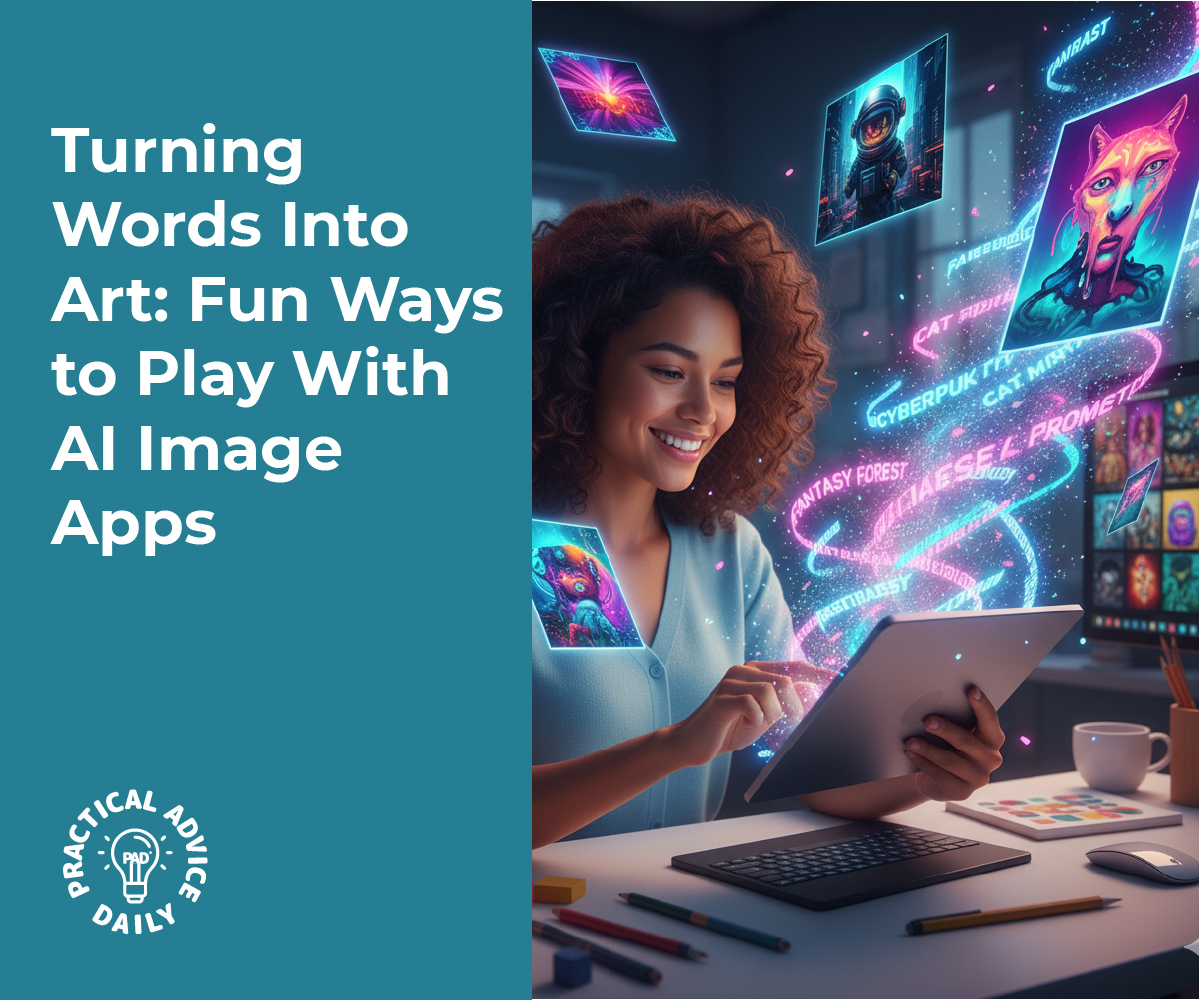
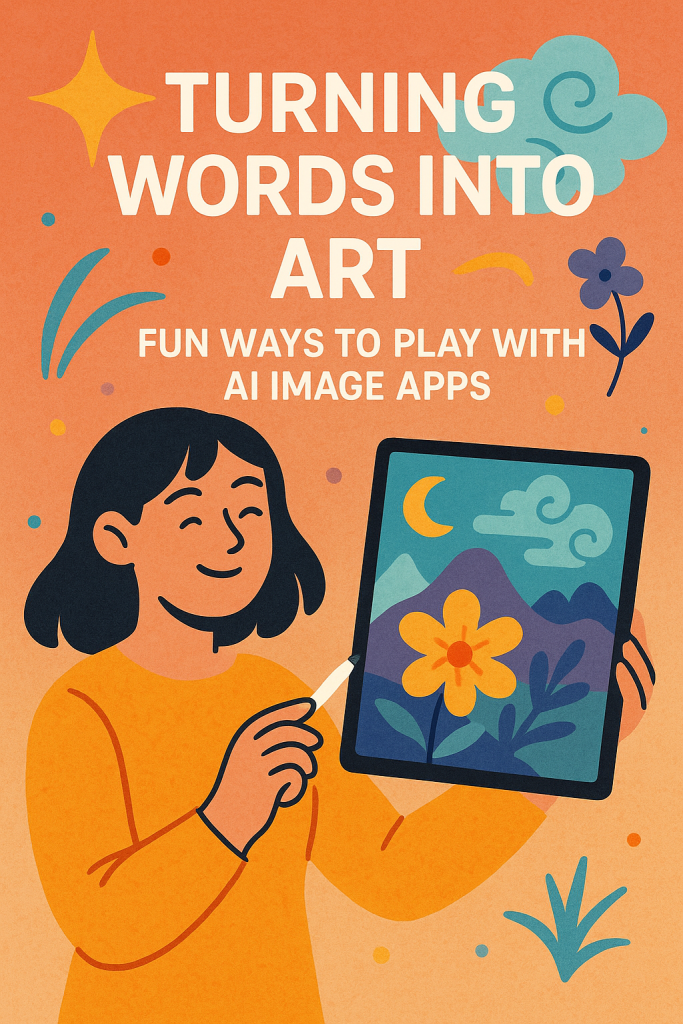
Turning Words Into Art: Fun Ways to Play With AI Image Apps

Have you ever wished you could paint or draw but didn’t know where to start? Thanks to AI image apps, you don’t need fancy art skills or expensive software to bring your imagination to life. These tools can turn a few words—like “sunset over the ocean” or “a puppy in a flower crown”—into beautiful, detailed pictures in seconds.

In this guide, we’ll explore some fun and safe ways to use AI image apps. You’ll learn what they do, how to use them, and a few tips to make your artwork look its best. Even if you’ve never tried anything like this before, don’t worry—it’s simple and enjoyable!

Table of Contents

Key Takeaways

  • AI image apps can create art from your written descriptions.
  • You don’t need drawing skills—just your imagination and a few words.
  • Many apps are free or have beginner-friendly versions.
  • Always use trusted apps that respect your privacy.
  • Have fun experimenting with styles, colors, and ideas!

What Are AI Image Apps?

AI image apps use smart technology to turn text into pictures. You type in a short description, and the app uses artificial intelligence to “imagine” and draw what you describe.

For example, if you write “a cat wearing sunglasses in space”, the app will create an image that matches your idea. Each time you use it, the picture can look a little different—just like a new painting every time.

These tools are designed to make creativity easy for everyone. Whether you want to make art for fun, decorate your phone, or share a unique image online, AI can help you do it.

How to Get Started

You can begin creating AI art right from your phone, tablet, or computer. Here’s a simple step-by-step guide:

  1. Choose a trusted app.
    Popular beginner-friendly options include Bing Image Creator, Canva’s AI Image Generator, and Adobe Firefly. These are easy to use and have strong privacy protections.
  2. Type your idea.
    This is called a “prompt.” Try being clear but simple, such as:
    • “A cozy cabin in the snow at night”
    • “A vase of bright sunflowers on a wooden table”
    • “A playful dog jumping through autumn leaves”
  3. Pick a style (optional).
    Some apps let you choose an art style, like watercolor, cartoon, or realistic photo. Play around and see what you like best.
  4. Generate your image.
    Tap “Create” or “Generate,” and wait a few seconds. The app will show you the picture it made from your words.
  5. Save or share your art.
    You can download your image to keep, print, or share with friends. It’s a great way to surprise someone with a personalized digital card or wallpaper.

Tips for Better AI Art

Creating good results with AI art is part of the fun! Here are a few simple tips:

  • Be specific. The more details you include, the better the image will match your vision. Try “a small orange kitten sleeping in a wicker basket” instead of just “a cat.”
  • Use gentle lighting words. Adding “soft lighting” or “sunset glow” can make your images look warmer and more natural.
  • Try different versions. Most apps let you make several images at once. You can pick your favorite or mix ideas for the next one.
  • Stay safe online. Only upload your own photos if you trust the app. Avoid sharing private images or personal details.

Fun Ways to Use AI Art

AI-generated images can brighten your everyday life in surprising ways. Here are some creative ideas:

  • Make personalized greeting cards. Type something like “a birthday cake made of stars” for a magical birthday image.
  • Decorate your phone or computer. Create wallpapers that reflect your favorite colors or moods.
  • Bring stories to life. Make pictures to go with a poem, memory, or short story you’ve written.
  • Create social media posts. Share something beautiful and original that no one else has.
  • Design home prints. Print your favorite AI art on canvas or photo paper for an affordable piece of custom wall art.

The best part? There’s no wrong way to do it. You can keep exploring and discovering new styles every time you try.

Staying Safe and Respectful

While AI art is fun and creative, it’s also important to use these tools responsibly:

  • Choose apps with clear privacy settings. Avoid ones that ask for unnecessary personal information.
  • Don’t use someone else’s artwork or photo without permission. AI can imitate many styles, but respect for real artists matters.
  • Avoid making images of real people without their consent. This helps keep the online art world positive and fair for everyone.

By being thoughtful, you can enjoy AI art safely and help create a respectful creative space online.

Final Thoughts

AI image apps make art more accessible than ever. With just a few words, you can create something colorful, personal, and one-of-a-kind. You don’t need to be an artist—just curious and willing to explore.

Start small, have fun, and let your imagination lead the way. Whether it’s a funny pet portrait, a dreamy landscape, or a colorful abstract design, AI tools can help you express yourself in ways you never thought possible.

Your next masterpiece might just be a few words away!

Categories AI

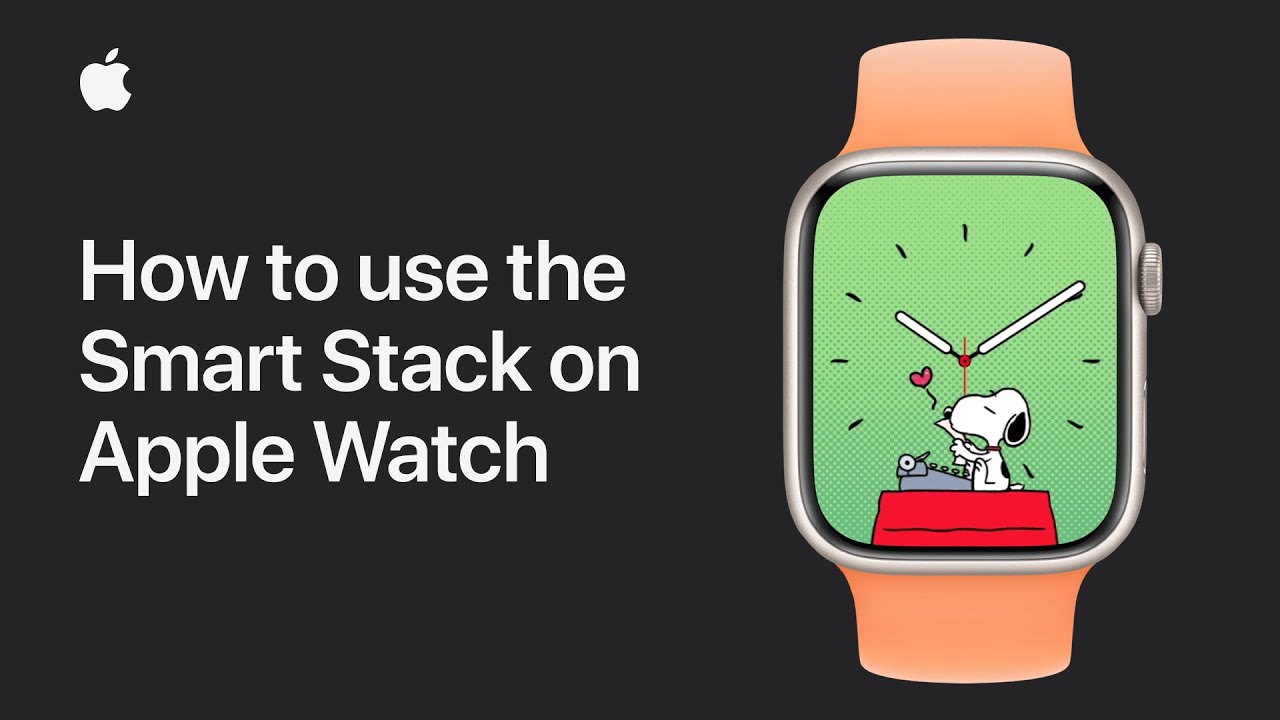
How to use the Smart Stack on Apple Watch | Apple Support

In watchOS 10, you can access a Smart Stack of widgets from any Apple Watch face. To open the Smart Stack, simply turn the Digital Crown, allowing you to scroll through your widgets. If you have music playing or an active timer or workout, they appear automatically in the stack. To customize the Smart Stack, touch and hold the screen to enter edit mode, where you can add or remove widgets and pin them to the top of the list. To add widgets from your favorite apps, tap the add button, select an app, and choose the desired widget. Once finished, tap done. Widgets in the stack will change order throughout the day, but pinned widgets will always remain at the top.

Summary:
– In watchOS 10, you can access the Smart Stack of widgets from any Apple Watch face by turning the Digital Crown.
– Scroll through widgets, with music, timers, or workouts appearing automatically in the stack.
– Enter edit mode by touching and holding the screen to add, remove, or pin widgets at the top.
– Add widgets from favorite apps by tapping the add button, selecting an app, and choosing a widget.
– Widgets change order throughout the day, but pinned widgets remain at the top.

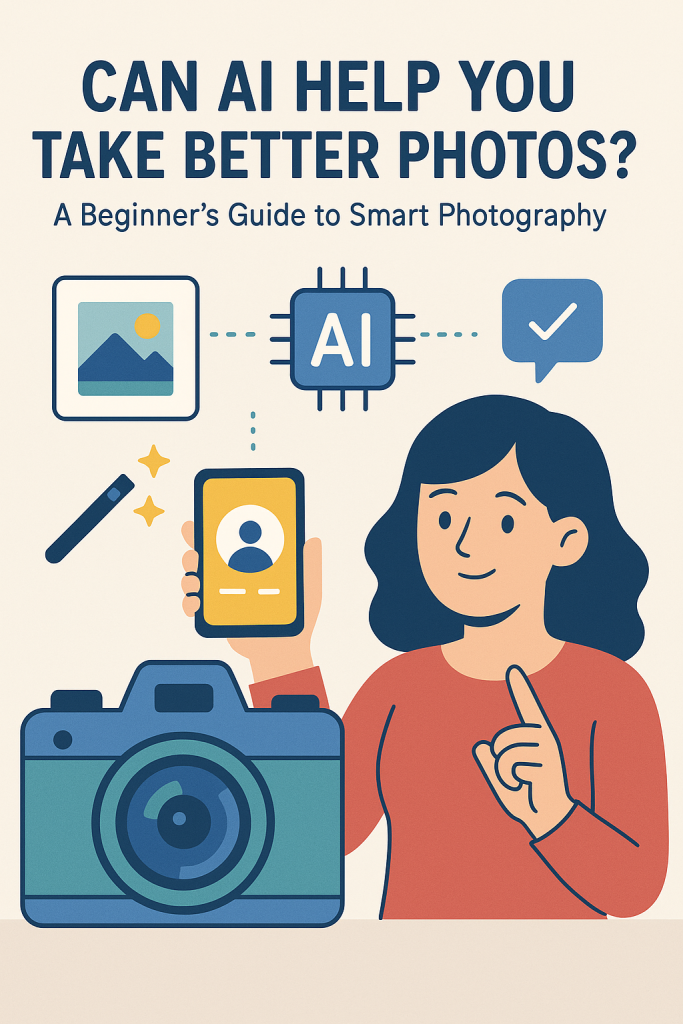
Can AI Help You Take Better Photos? A Beginner’s Guide to Smart Photography

Have you ever wondered how some people always seem to take perfect photos, even without fancy cameras? The secret often lies in artificial intelligence (AI). Today’s smartphones and digital cameras use AI to help you focus, adjust lighting, and even edit your pictures automatically. You don’t need to be a tech expert or professional photographer—AI tools can do most of the hard work for you.

In this beginner-friendly guide, you’ll learn how AI can help you take better photos, from capturing the perfect portrait to enhancing your shots with smart editing tools.

Table of Contents

Key Takeaways

  • AI can automatically adjust camera settings like brightness, focus, and color to match the scene.
  • Portrait AI helps you look your best, enhancing lighting and smoothing backgrounds naturally.
  • AI editing tools can fix common issues like poor lighting or blurry shots in just a few taps.
  • You don’t need expensive gear—most of these features are built right into modern smartphones.

Understanding AI in Photography

AI in photography simply means that your camera or phone uses smart software to recognize what’s in your photo and adjust settings for the best result.

For example, if you’re taking a picture of a sunset, the AI might automatically boost the warm colors and adjust the exposure so the sky looks rich and glowing. If you’re snapping a portrait, it can focus on the person’s face and blur the background to make them stand out.

You don’t have to fiddle with controls or know photography terms. AI acts like an invisible assistant, quietly helping you take better pictures.

How AI Makes Camera Settings Smarter

In the past, photographers had to manually adjust settings like ISO, shutter speed, and white balance. Today, AI can do that for you.

Here’s how it helps:

  1. Scene Detection: The camera identifies what you’re photographing—like food, pets, landscapes, or people—and chooses the right settings automatically.
  2. Auto Focus: AI quickly locks focus on faces or moving subjects so they stay sharp.
  3. Light Adjustment: It balances exposure so photos aren’t too dark or too bright.
  4. Color Correction: AI enhances natural colors, keeping skin tones and scenery true-to-life.

For example, when you take a photo of your dog running in the park, your phone might automatically increase the shutter speed to freeze the motion and keep your pet clear, not blurry.

AI-Powered Portraits: Look Your Best

Many smartphones now include portrait mode, which uses AI to separate you from the background and apply a gentle blur—similar to what professional photographers do with special lenses.

AI can also:

  • Smooth your skin slightly (without looking fake)
  • Adjust shadows and highlights on your face
  • Brighten eyes and enhance hair detail

This doesn’t mean changing how you look. It’s more like having perfect lighting every time you take a selfie.

Try experimenting with your phone’s portrait settings. Most devices let you adjust the background blur or lighting style, so you can control the final look.

Smart Editing Made Simple

Even after you take a photo, AI can help you make it look better instantly.

Most phones and apps now include auto-enhance or AI edit options. These tools can:

  • Fix poor lighting or color balance
  • Remove unwanted objects or reflections
  • Sharpen details or smooth out grainy areas
  • Suggest the best crop or framing

For example, Google Photos, Apple Photos, and Adobe Lightroom all use AI to make editing faster and more intuitive. You can tap a single button to transform a dull picture into something bright and polished—no technical skill needed.

Real-Life Example: From Ordinary to Outstanding

Imagine you’re taking a photo at your granddaughter’s birthday party. The room is a little dark, and people are moving around. Your phone’s AI detects faces, brightens them slightly, and reduces motion blur so everyone looks clear. Later, you can open the photo in your gallery, tap Auto Enhance, and watch as it fixes the lighting and color in seconds.

What used to take a professional and a computer hours can now be done in moments—all with tools you already have.

Tips to Get the Most from AI Photography

  • Clean your lens first. Even the best AI can’t fix a smudged lens.
  • Try different angles. AI can improve lighting, but composition is still up to you.
  • Use portrait mode for people. It’s designed to make faces stand out beautifully.
  • Explore your camera settings. Look for “AI mode,” “scene detection,” or “auto-enhance.”
  • Review before sharing. AI can sometimes make colors too bright; a quick check ensures your photo still looks natural.

Final Thoughts

AI has made photography easier and more enjoyable for everyone. You no longer need to study complicated settings or buy expensive equipment to capture stunning photos. With just your smartphone and a little curiosity, you can take professional-looking pictures that truly capture the moment.

So, the next time you snap a photo—whether it’s a family portrait, your garden, or a vacation view—let the AI do its magic. You might be surprised at just how good your photos can look.

Categories AI