
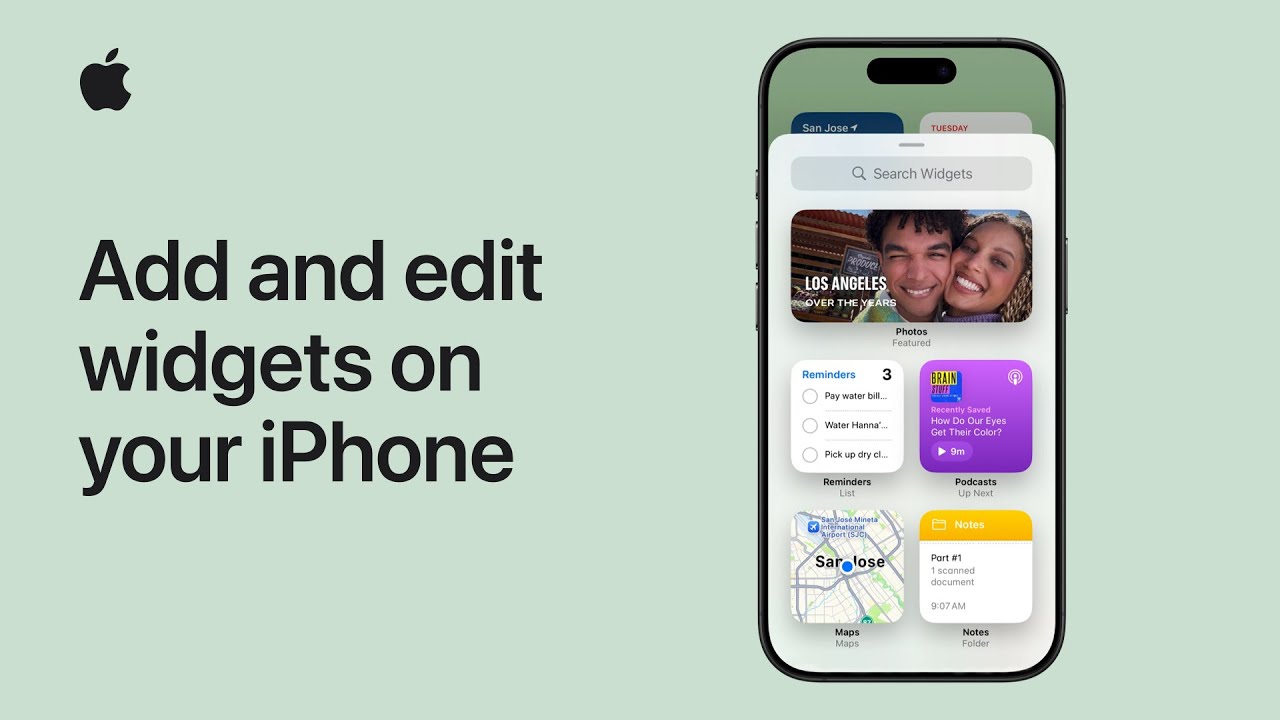
I’ll show you how to personalize your iPhone with widgets. First, touch and hold the Home Screen until apps jiggle, tap Edit, choose Add Widget, select a widget, pick a size, and add it.
Next, resize supported widgets by dragging a corner and move them wherever you like, then tap Done.
To add widgets to the Lock Screen, touch and hold the Lock Screen, tap Customize, choose Add Widgets, select your favorites, and save changes.
Finally, open Today View by swiping right, add or edit widgets the same way, resize or rearrange them, and finish in just a few steps.
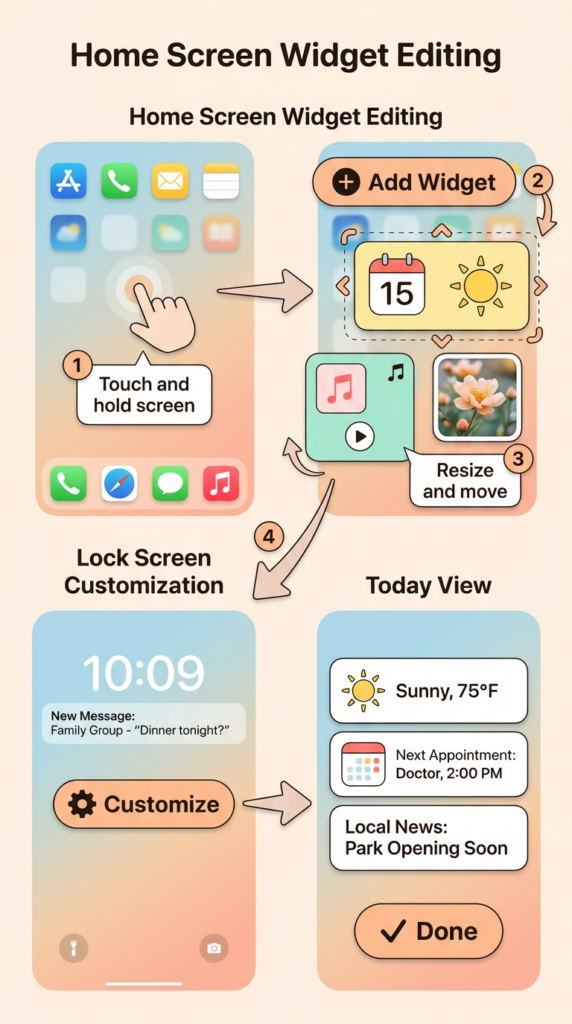
- Touch and hold the Home Screen, tap Edit, then Add Widget.
- Choose a widget, select a size, and place it on the Home Screen.
- Resize or move widgets while in edit mode.
- Customize the Lock Screen by adding or removing widgets.
- Swipe right to Today View to add, resize, and rearrange widgets there.