
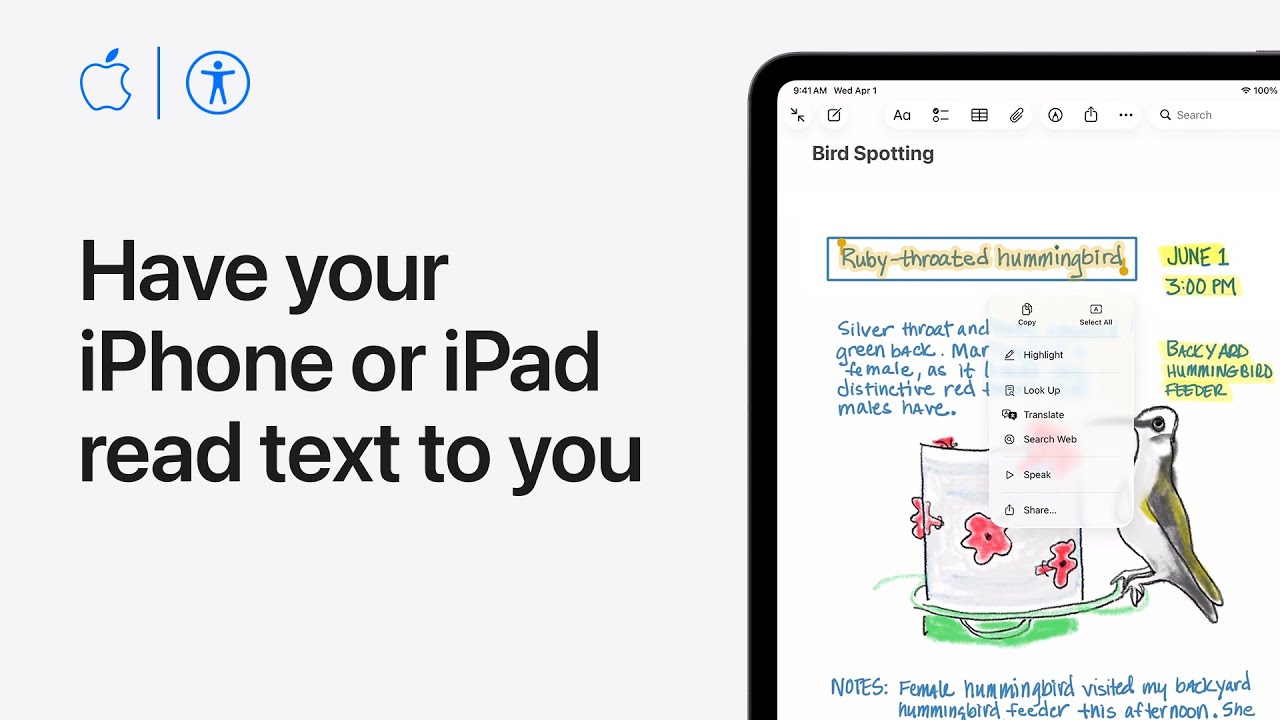
I’ll show you how to set up and use Read & Speak on your iPhone or iPad:
First, open Settings, tap Accessibility, then Read & Speak and enable Speak Selection.
Next choose Highlighting to set the style and color for spoken text, then return to download different Voices or change the Default Language while leaving Detect Languages on for automatic detection.
Tap Pronunciations to correct tricky words and adjust the Speaking Rate slider to slow or speed the voice.
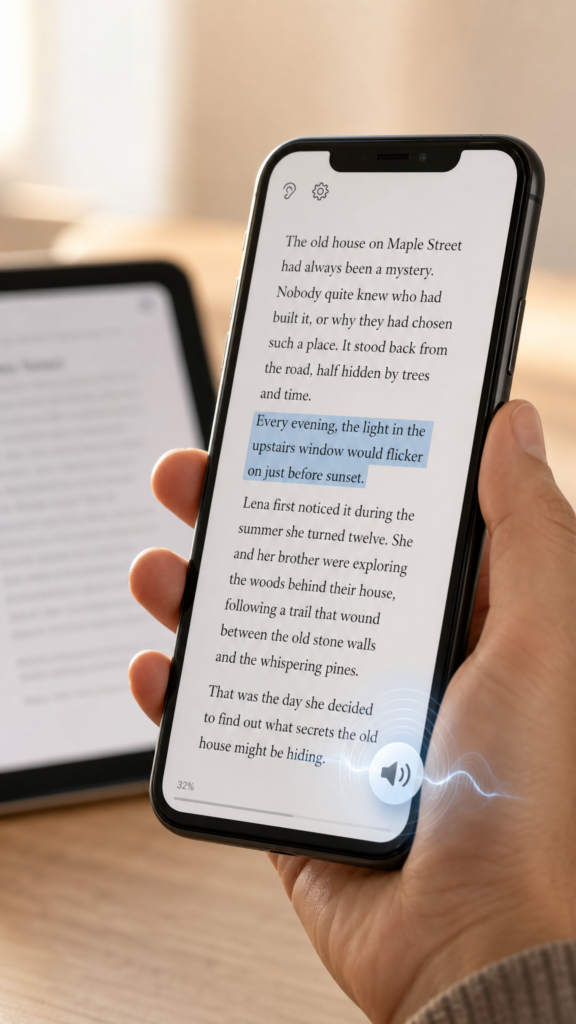
To use it, select text in compatible apps, tap the arrow until Speak appears, then tap Speak to hear the text aloud for clearer comprehension quickly.
- Enable Speak Selection in Settings > Accessibility > Read & Speak.
- Customize Highlighting, Voices, Default Language, and leave Detect Languages on.
- Add custom Pronunciations and set Speaking Rate with the slider.
- Select text in apps, tap the arrow until Speak appears, then tap Speak to listen.