

We’ve all been there—opening a drawer or closet only to find a tangle of mysterious cables, old chargers, and gadgets we can’t quite identify anymore. Is that cable for an old phone, a camera, or something that’s long been recycled? With iOS 18 and Apple Intelligence, iPhone users can now point their camera at these forgotten items and use Visual Intelligence to identify them instantly, making decluttering decisions much easier. This AI-driven feature transforms the iPhone camera into a practical tool for sorting through tech clutter without the guesswork.
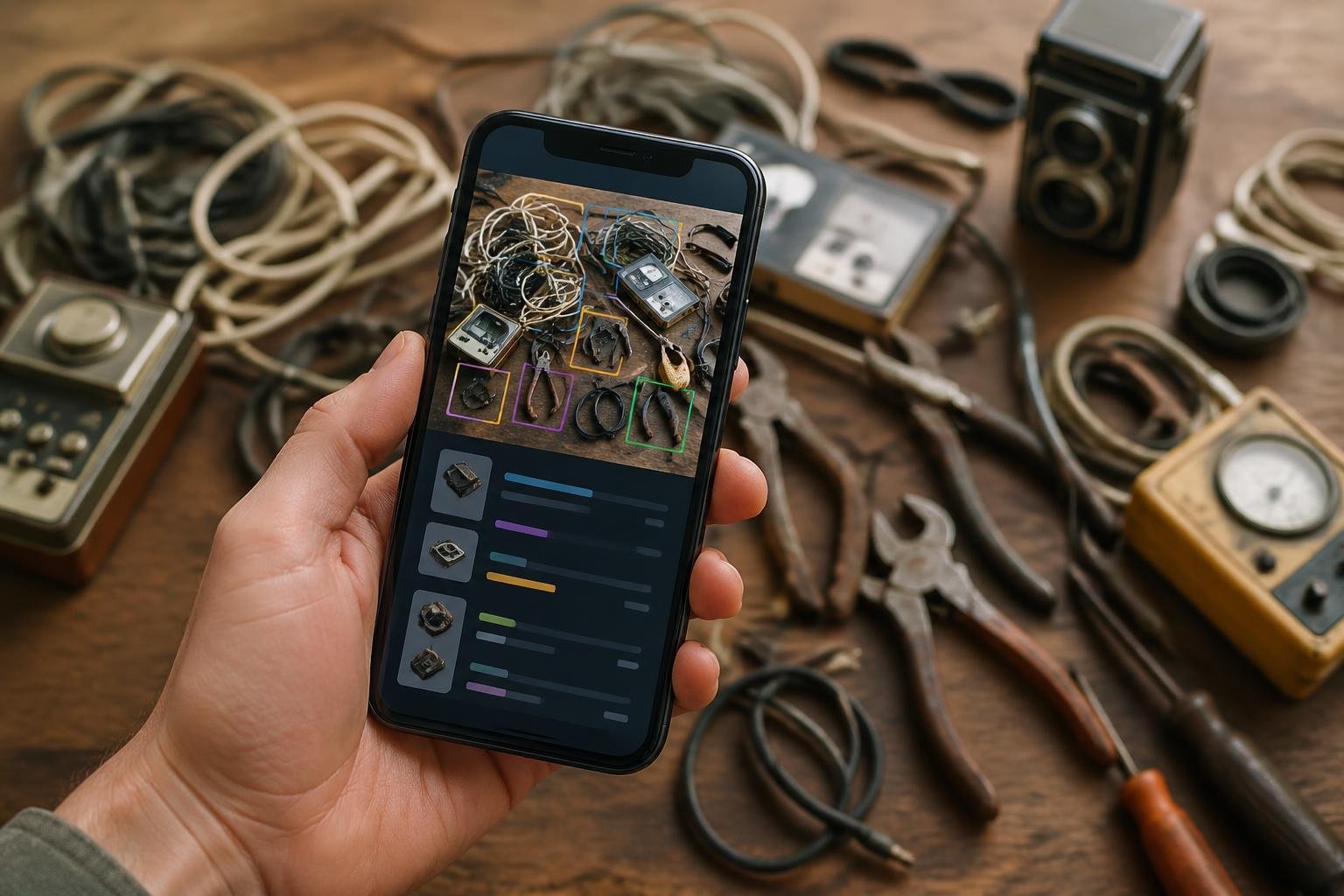
Visual Intelligence works by analyzing objects through the camera and providing information about what they are, what they connect to, or how they’re used. Instead of keeping mystery cables “just in case,” users can quickly determine if an item is still needed or safe to discard. The feature is available on compatible iPhone models and integrates seamlessly with the device’s existing camera interface.
This capability goes beyond simple curiosity. It helps people make informed decisions about what to keep, donate, or throw away, reducing unnecessary clutter while avoiding the risk of accidentally discarding something important. Understanding how to use this feature effectively can streamline the decluttering process and bring clarity to those messy tech drawers.
Table of Contents
Key Takeaways
- Visual Intelligence on iPhone uses AI to identify unknown cables, tools, and gadgets through the camera
- The feature helps users make confident decluttering decisions by providing instant information about forgotten items
- Setting up and using Visual Intelligence is straightforward on compatible iPhones running iOS 18 with Apple Intelligence enabled
Setting Up AI-Driven Camera Features on iPhone
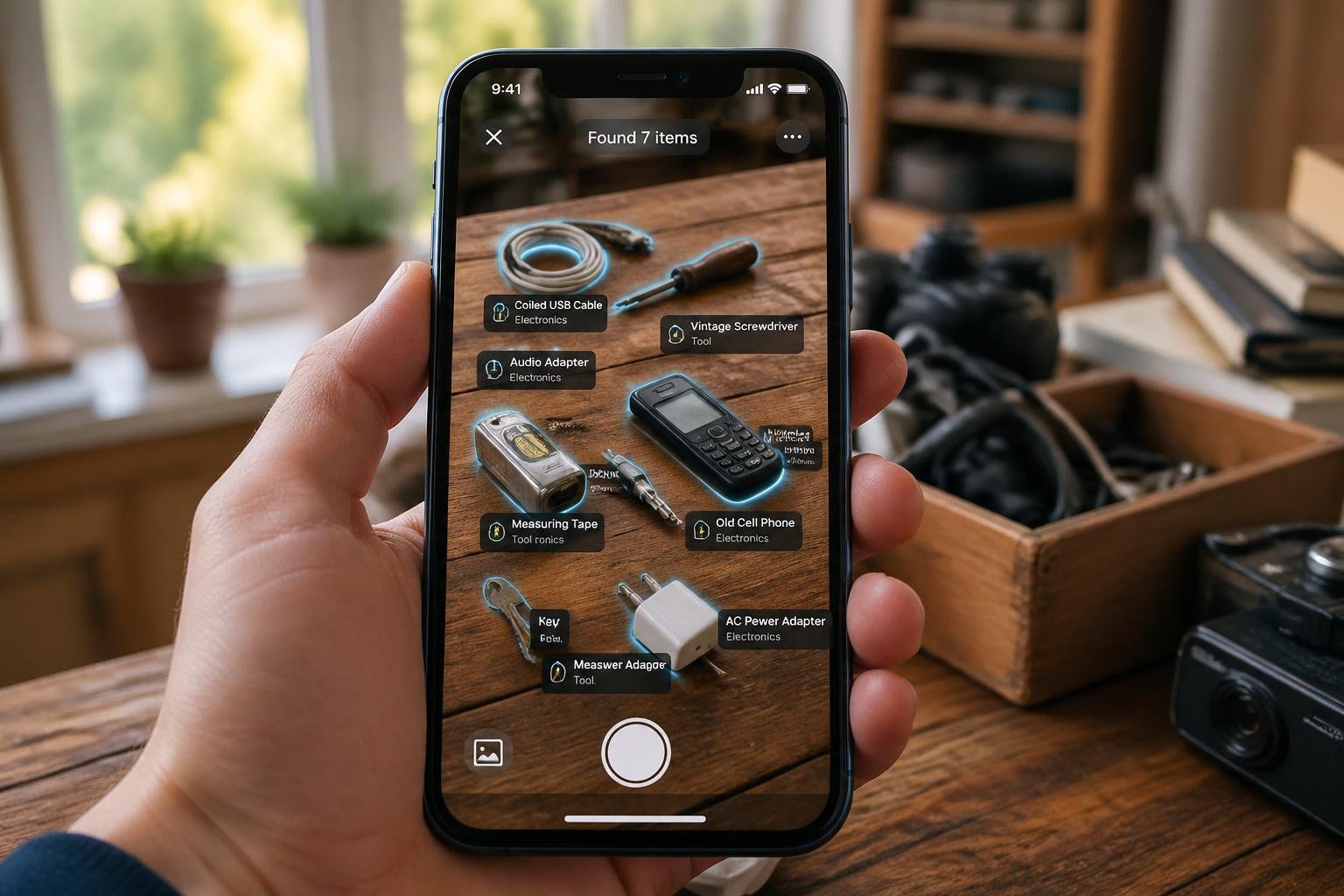
Before using Visual Intelligence to identify forgotten cables and gadgets, users need an iPhone 16, iPhone 16 Plus, iPhone 16 Pro, iPhone 16 Pro Max, iPhone 16e, iPhone 15 Pro, or iPhone 15 Pro Max running iOS 18.2 or later. The setup process requires enabling Apple Intelligence and configuring Visual Intelligence access through Camera Control or alternative methods.
Compatible iPhone Models and iOS Versions
Visual Intelligence works exclusively on specific recent iPhone models. The iPhone 16, iPhone 16 Plus, iPhone 16 Pro, and iPhone 16 Pro Max all support this feature. The iPhone 16e also includes compatibility, as do the iPhone 15 Pro and iPhone 15 Pro Max.
Users must have iOS 18.2 or higher installed on their device. Earlier versions like iOS 18.1 do not include Visual Intelligence capabilities. Apple Intelligence features began rolling out with iOS 18.1, but Visual Intelligence arrived specifically in iOS 18.2. Later updates including iOS 18.3 and iOS 18.4 continue to support and refine these features.
Older iPhone models, including standard iPhone 15 variants and earlier generations, cannot access Visual Intelligence regardless of software version. The hardware requirements limit this feature to Pro models from the iPhone 15 generation and all variants of the iPhone 16 lineup.
Updating and Enabling Apple Intelligence
Users should navigate to Settings > General > Software Update to check their current iOS version. The screen displays either confirmation that the OS is up to date or prompts installation of the latest update. Installing the update requires adequate battery life and storage space.
Apple Intelligence enables automatically as of iOS 18.3 for compatible devices. Users who previously disabled it need to open Settings > Apple Intelligence & Siri and toggle on the switch next to Apple Intelligence. Without this enabled, Visual Intelligence remains inaccessible even on compatible hardware.
The Apple Intelligence framework powers Visual Intelligence alongside other AI features. This system integrates with Siri and various camera functions to provide object recognition, text analysis, and search capabilities.
Activating Visual Intelligence and Camera Control
On iPhone 16, iPhone 16 Plus, iPhone 16 Pro, and iPhone 16 Pro Max models, users activate Visual Intelligence by pressing the Camera Control button. This dedicated button provides the quickest access method for identifying unknown items.
Users need to verify Visual Intelligence is enabled under Settings > Camera > Camera Control. Scrolling to the Launch Visual Intelligence section reveals a Press and Hold toggle that must be enabled.
The iPhone 16e, iPhone 15 Pro, and iPhone 15 Pro Max lack Camera Control buttons. Users with these models can customize the Action button to start Visual Intelligence instead. Alternative options include adding Visual Intelligence to the Lock screen or placing it in Control Center using the Add a Control option.
Using Visual Intelligence to Identify Forgotten Items
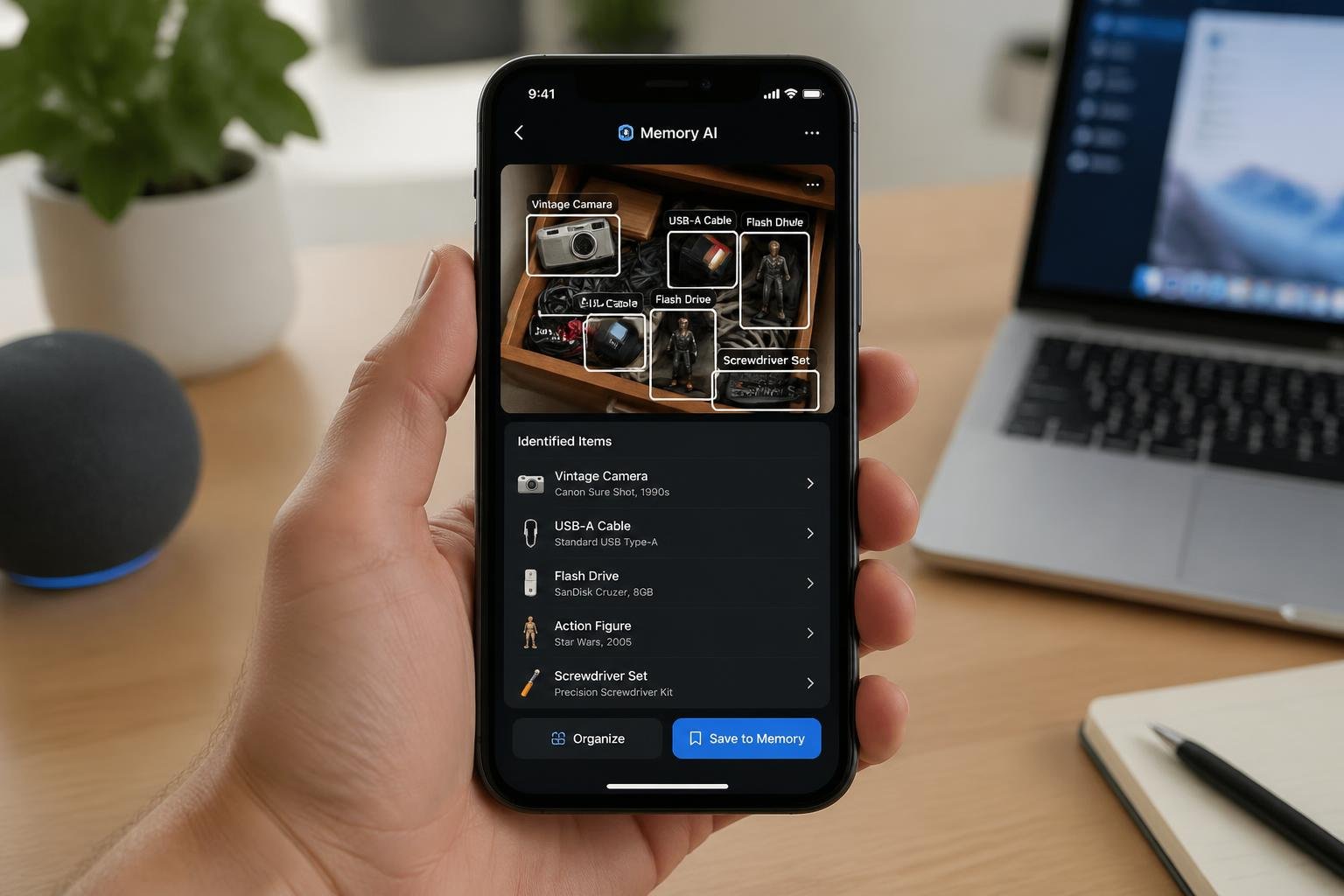
Visual Intelligence on iPhone 16 and later models transforms the camera into a powerful identification tool through the Camera Control button. This AI-powered feature connects to ChatGPT and Google Search to help users identify mysterious cables, dusty tools, and forgotten gadgets found during decluttering sessions.
How to Scan Old Cables, Tools, and Gadgets
To activate Visual Intelligence, users press and hold the Camera Control button on their iPhone 16. The camera viewfinder opens in a special mode designed for object recognition. Once activated, users simply point the camera at the unknown item without taking a photo.
The system works in real time, analyzing what the camera sees. For best results, users should ensure good lighting and position the entire object within the frame. The AI examines shapes, connectors, labels, and distinctive features to determine what the item is.
Visual Intelligence excels at identifying common household items like proprietary charging cables, specialized screwdriver bits, and vintage electronics accessories. The feature also works well with partial labels or manufacturer logos visible on old gadgets. Users can hold the camera steady for a few seconds to allow the system to gather sufficient visual information for accurate identification.
Leveraging ChatGPT and Google Search for Object Identification
When users activate Visual Intelligence on an unidentified item, the interface presents multiple search options. Google Search provides product matches, similar images, and shopping results that help identify common cables and tools. ChatGPT offers conversational analysis, explaining what an item might be based on its physical characteristics.
For obscure items, ChatGPT can answer follow-up questions about potential uses or compatibility. Users might ask “What devices use this type of connector?” or “Is this cable still useful?” The AI draws from its knowledge base to provide context about older technology standards and adapters.
Google Search proves particularly effective for items with visible brand names or model numbers. It returns product listings, user manuals, and technical specifications. Users can tap search results to open findings in Safari for detailed research. This combination of visual recognition and web search eliminates guesswork when sorting through boxes of accumulated tech accessories.
Utilizing Summarize, Translate, and Read Aloud Features
Visual Intelligence includes text recognition capabilities useful for items with foreign-language labels or technical specifications. The translate text function converts manufacturer information, warning labels, or instruction text into English instantly. Users point the camera at printed text on packaging or product surfaces to access translation.
The summarize feature condenses lengthy technical descriptions into key points. When Visual Intelligence identifies an item and pulls up detailed specifications, users can request a summary to quickly understand the essential information. This helps determine whether to keep or discard specialized tools and cables.
The read aloud function supports users who prefer auditory information. After identifying an object, the system can vocalize product details, compatibility information, or usage instructions. This feature works similarly to how it handles text from documents, making the decluttering process more accessible while users sort through physical items hands-free.
Beyond Identification: Decluttering and Taking Action
Once Visual Intelligence identifies forgotten gadgets and cables, users can leverage additional iPhone features to research products, schedule disposal tasks, and order replacements. The camera-based AI system connects directly to practical actions like checking store hours, creating reminders, and contacting services.
Creating Calendar Events from Gadget-Related Flyers
When users point their iPhone camera at product manuals, warranty cards, or gadget-related flyers during decluttering, Visual Intelligence can extract dates and event information. The system recognizes text on physical documents and offers to create calendar events for warranty expiration dates, service appointments, or recycling events.
Users can create calendar events directly from detected text without manual typing. For electronics recycling events or special collection days advertised on flyers, the camera captures the date and location details. The iPhone then prompts users to create an event with pre-filled information.
This feature proves particularly useful when sorting through old tech accessories with limited-time trade-in offers or scheduled electronics disposal days. Users maintain organization while decluttering by immediately scheduling follow-up actions rather than setting items aside with vague intentions to deal with them later.
Accessing Product Info and Making Decisions
Visual Intelligence connects to product databases and reviews when users photograph unidentified gadgets or cables. The camera analyzes the item and retrieves contact information, reviews, and hours of operation for retailers or manufacturers.
When examining an old device, users access specifications, original pricing, and current resale values. This information helps determine whether an item merits keeping, selling, or recycling. The system can pull up manufacturer details and support documentation for obscure accessories.
Users also check compatibility information for cables and adapters they’ve rediscovered. Apple Maps integration provides directions to nearby electronics recyclers or retailers that accept trade-ins, along with their hours of operation. Reviews help users select reputable recycling services or second-hand marketplaces.
Making Reservations, Orders, or Deliveries When Relevant
After identifying missing or outdated cables and accessories, users can make reservations at Apple Store Genius Bars or order replacement items. Visual Intelligence recognizes products and links to purchasing options or service booking.
The camera-based system allows users to order items directly when they identify a needed cable or adapter. For products requiring professional assessment, users can make reservations at service centers through integrated booking features.
When decluttering reveals items for donation or specialized disposal, users can request deliveries from pickup services or schedule appointments. The iPhone streamlines the entire process from identification through final action, eliminating the paralysis that often stalls decluttering projects.
Tips, Limitations, and Privacy Considerations
Visual Intelligence performs best under specific conditions and requires awareness of how Apple handles image data. Users should also understand how it compares to established alternatives like Google Lens.
Improving Accuracy for Object Recognition
Clear lighting and steady positioning significantly impact recognition accuracy when identifying forgotten cables or gadgets. Users should hold the iPhone steady and ensure objects are well-lit, avoiding shadows or glare that might obscure identifying features like connector types or brand logos.
Close-up shots work better than distant ones for small items like USB adapters or proprietary charging cables. The Camera Control button should be pressed and held until Visual Intelligence activates, allowing the system to capture enough detail for accurate identification.
Complex or heavily worn items may require multiple attempts from different angles. If Visual Intelligence struggles to identify a specific cable type, users can try photographing any visible text, part numbers, or distinctive physical features separately. The tool works more reliably with common consumer electronics than with specialized industrial tools or obscure vintage components.
Understanding Data Privacy and On-Device Processing
Apple processes some Visual Intelligence requests directly on the device, while others require server communication. Image analysis happens locally when possible, but searches through Google or queries to ChatGPT send data externally.
Users concerned about privacy should note that Apple does not store images sent for processing, according to their documentation. However, third-party services like Google and ChatGPT follow their own privacy policies when Visual Intelligence routes requests to them.
No explicit opt-out exists for Visual Intelligence data processing beyond disabling the feature entirely. The Camera Control button won’t activate Visual Intelligence unless deliberately pressed and held, preventing accidental data transmission.
Comparing Apple Visual Intelligence with Google Lens
Google Lens has existed longer and generally recognizes a broader range of objects, including obscure cables and vintage electronics. Visual Intelligence integrates more seamlessly within the iPhone ecosystem but offers fewer identification options for specialized hardware.
Both tools can identify common cables like Lightning, USB-C, and HDMI connectors. Google Lens typically provides more detailed product information and shopping links, while Visual Intelligence focuses on quick factual identification and integration with ChatGPT for explanations.
iPhone 16 models require iOS 18.2 or later, accessible through Settings > General > Software Update. Users with older iPhones must rely on Google Lens as a standalone app, which works across both iOS and Android devices.
Final Thoughts
Sorting through a “junk drawer” full of mystery cables and forgotten gadgets no longer has to be a guessing game. By using the AI-powered Visual Intelligence on your iPhone, you can transform your camera into a smart assistant that identifies exactly what those items are and whether you still need them. This technology takes the stress out of decluttering, helping you clear out digital and physical “noise” while ensuring you don’t accidentally toss something important.
As you begin your next cleanup, think of your iPhone not just as a phone, but as a high-tech magnifying glass. With a quick press of a button, you can move from confusion to confidence, making informed decisions that lead to a more organized and stress-free home. Decluttering is as much about mental clarity as it is about physical space—so let AI do the heavy lifting and enjoy the peace of mind that comes with knowing exactly what’s in your drawers.