
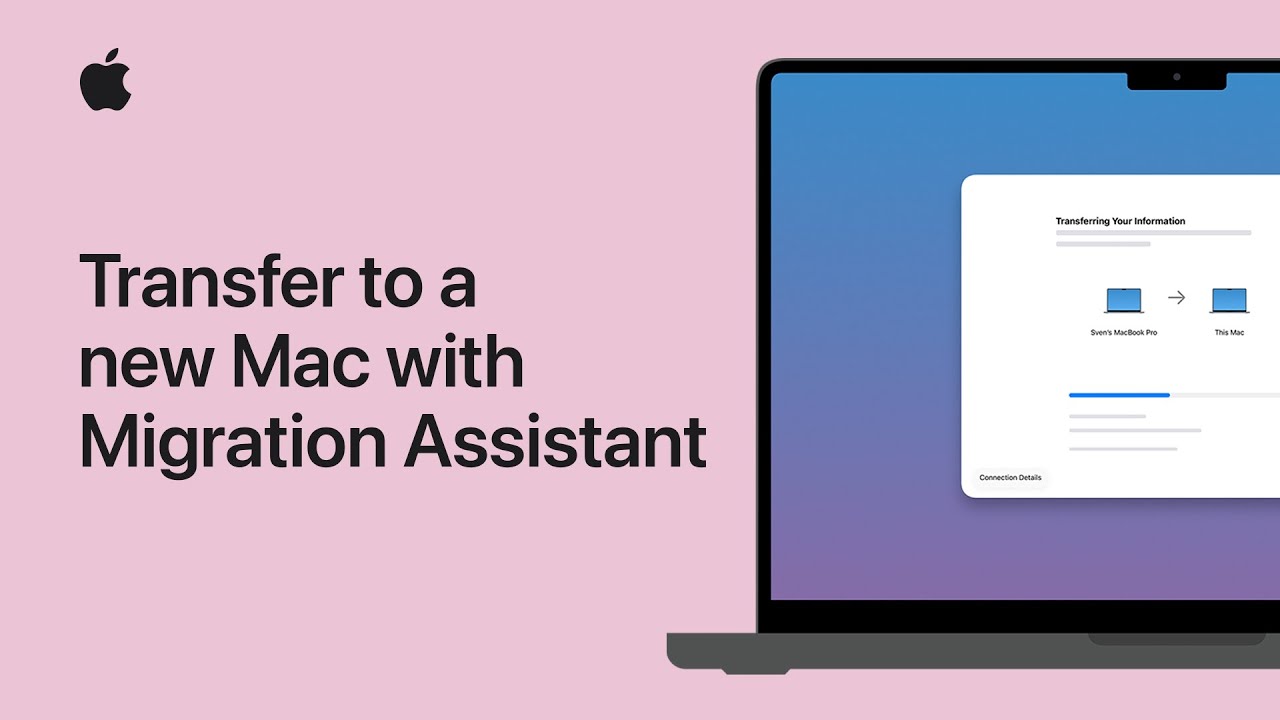
To transfer your data with Migration Assistant, start by connecting both Macs to power and the same Wi-Fi network while disabling any VPNs or firewalls. On your new Mac, begin the setup process and select the option to transfer from another Mac.
Meanwhile, open Migration Assistant on your old device via Spotlight and select the option to transfer information to another Mac.
Enter your administrator password when prompted, then select your old Mac’s icon on the new screen. Ensure the six-digit codes match, choose the files you wish to move, and set your new password to begin the transition safely.
- Ensure both Macs are plugged into power, positioned near each other, and connected to the same Wi-Fi network while temporarily disabling any antivirus or VPN software.
- Open Migration Assistant on the new Mac during its initial setup and choose the option to transfer data from another Mac, Time Machine, or startup disk.
- Launch Migration Assistant on your old Mac using Spotlight or the Utilities folder, enter your administrator password, and select the option to transfer data to another Mac.
- Verify that the six-digit codes match on both screens, select the specific files and settings you want to move, and set a login password to complete the process.