
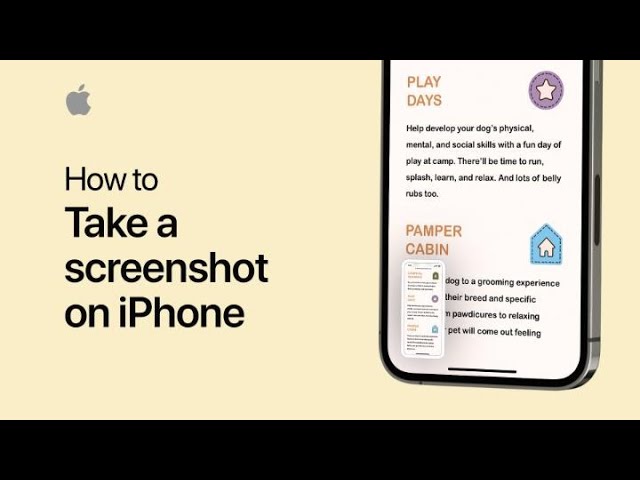
To capture what’s on your iPhone screen, follow these steps based on your model. For iPhones with Face ID, press the side button and the Volume Up button simultaneously.
For iPhones with a Home button, press the side or top button (depending on your model) and the Home button at the same time. After taking the screenshot, it will appear in the lower-left corner of your device.
You can tap on it to share, edit, or use Markup to add drawings and text. Alternatively, swipe left to dismiss it, and you can later find the screenshot in your Photos app.

Summary:
– Press the side and Volume Up buttons simultaneously for iPhones with Face ID.
– Press the side or top button and the Home button simultaneously for iPhones with a Home button.
– The screenshot will appear in the lower-left corner of your device.
– Tap it to share, edit, or use Markup, or swipe left to dismiss it.
– Find the screenshot later in the Photos app.