
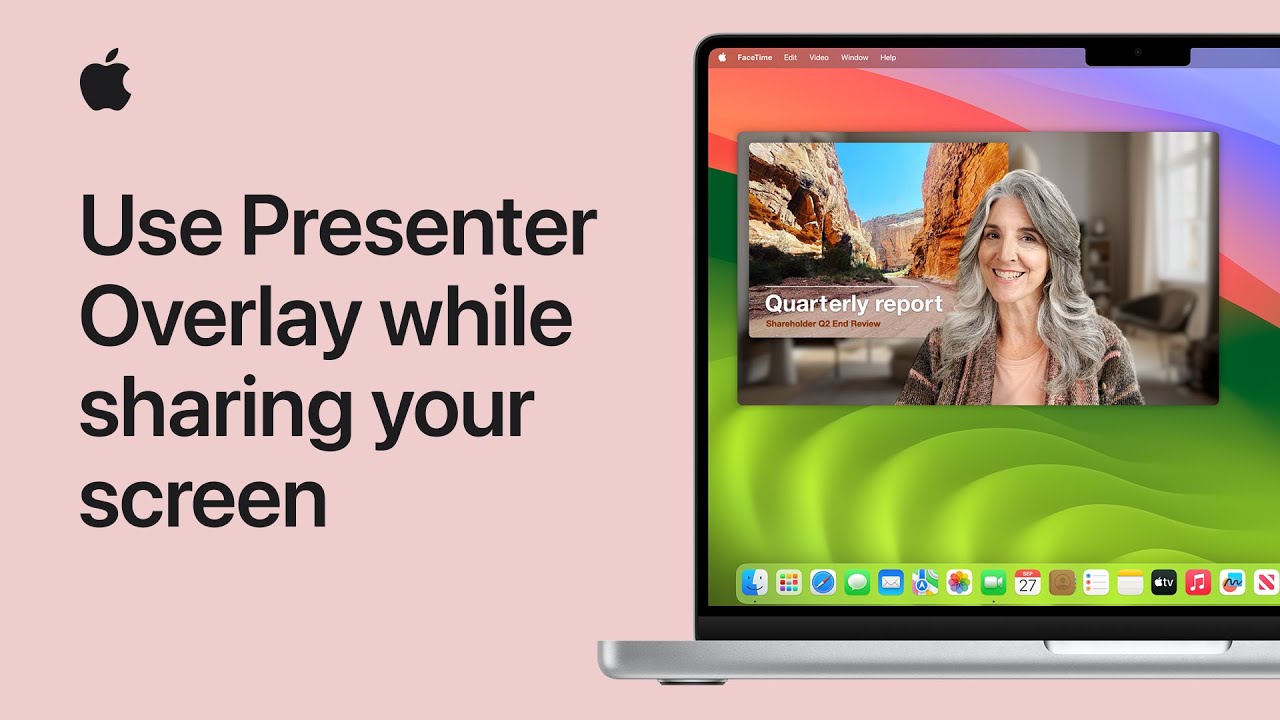
To use Presenter Overlay during video calls on a Mac with Apple silicon running macOS Sonoma, start by choosing between two styles: large or small overlay. In the large overlay, your content appears next to you, making you the focus. To activate it, click the Screen Sharing menu during a video call, select “Large,” and your presentation will share the screen with you. For the small overlay, which places you in a movable bubble, click “Small” in the Screen Sharing menu. This option allows your content to remain the focus while you guide viewers’ attention. Use these features for engaging, personalized presentations.
Summary:
– Presenter Overlay on a Mac allows you to be part of your video call presentation, with two styles available: large and small overlay.
– The large overlay places you beside your content, making you the focus during presentations.
– The small overlay places you in a movable bubble, allowing your content to remain the main focus.
– To activate Presenter Overlay, click the Screen Sharing menu during a video call and choose either “Large” or “Small” to display your preferred overlay style.
– This feature is compatible with most video call apps that support screen sharing, providing a more personalized and engaging presentation experience.