
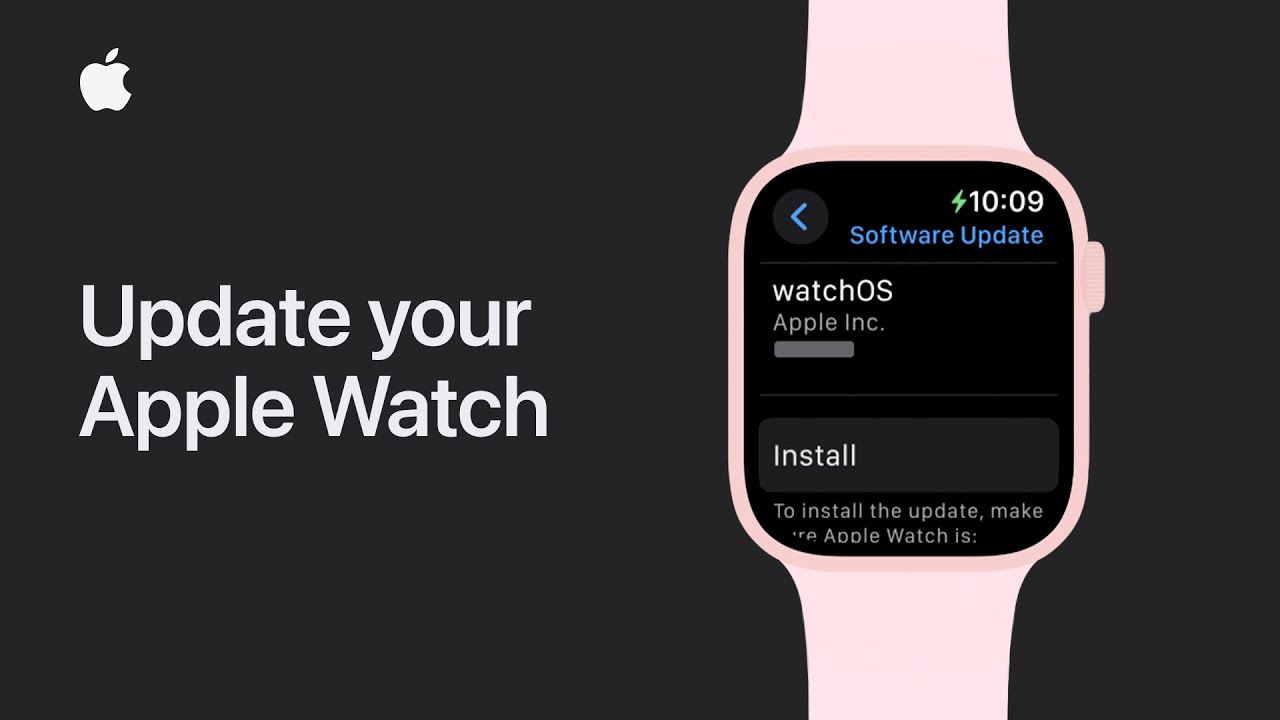
To update your Apple Watch, first ensure your iPhone is running the latest iOS and that both devices are connected to Wi-Fi. Make sure your watch is charged to at least 50% and remains on its charger throughout the process. To update directly on the watch, go to the Home Screen, open Settings, tap General, and then Software Update. Tap Install or Download and Install if needed, and follow the onscreen instructions. For updating via your iPhone, open the Apple Watch app, go to the My Watch tab, tap General, and then Software Update. Agree to terms if prompted, tap Install or Download and Install, and enter your passcode if needed. Keep both devices near each other and on their chargers until the update is complete.
Summary:
– Ensure your iPhone is updated to the latest iOS, and both devices are connected to Wi-Fi.
– Charge your Apple Watch to at least 50% and keep it on the charger during the update.
– To update directly on the watch, go to Settings > General > Software Update, then tap Install or Download and Install.
– To update using your iPhone, open the Apple Watch app, go to My Watch > General > Software Update, then tap Install or Download and Install.
– Keep both devices near each other and on their chargers until the update finishes.