
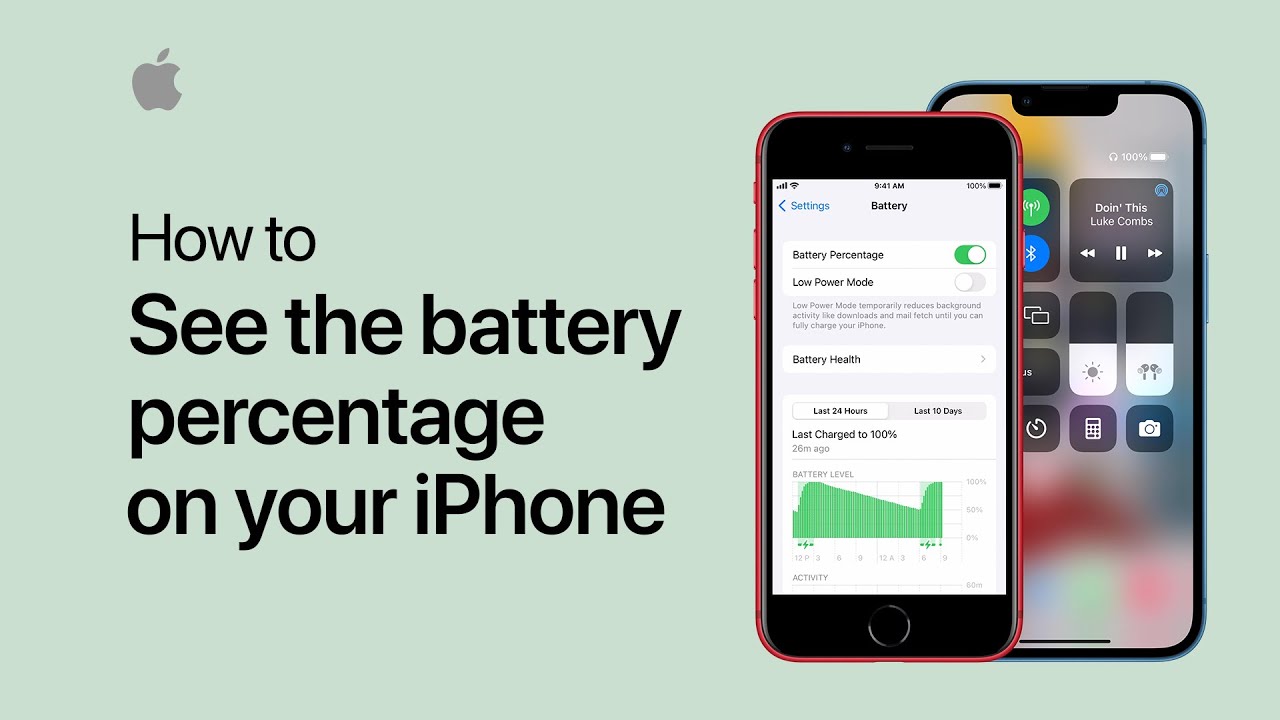
To check your iPhone’s remaining battery percentage, swipe down from the top-right corner of the screen on iPhone models with Face ID to open Control Center, where you’ll see the battery percentage in the top-right corner. For iPhones with a Home button, the battery percentage is displayed in the status bar. If it’s not visible, go to Settings, tap Battery, and then enable Battery Percentage to see it. This ensures you can easily monitor your battery level at any time.
Additionally, you can check your battery health by going to Settings, selecting Battery, and tapping on Battery Health to view the maximum capacity and peak performance capability. Keeping track of your battery status helps you manage your device usage more effectively and ensures you’re never caught off guard by a low battery.
Regular monitoring allows you to plan charging times and optimize your iPhone’s performance throughout the day for a better user experience overall.
Summary:
– Swipe down from the top-right corner to open Control Center on iPhones with Face ID and view the battery percentage.
– On iPhones with a Home button, the battery percentage is shown in the status bar.
– If the percentage isn’t visible, go to Settings and tap Battery.
– Enable Battery Percentage in the Battery settings.
– This allows you to easily check your battery level at any time.