
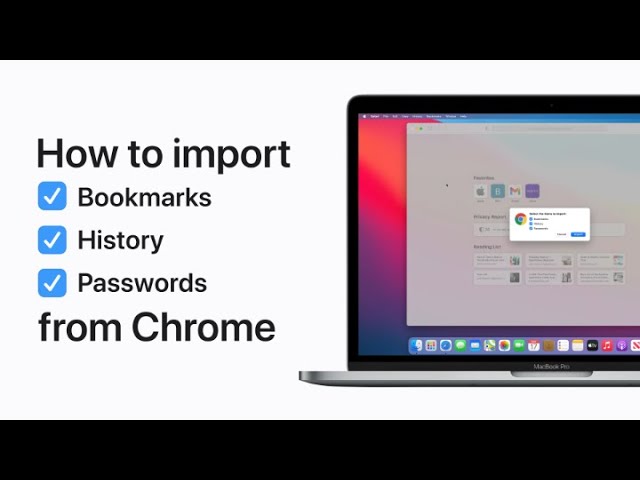
To import your bookmarks, history, and passwords from Chrome to Safari, start by opening Safari and clicking “File” in the menu bar. Then, choose “Import From” and select “Chrome.” Ensure that Chrome is installed on your Mac to complete the process. Next, select the items you wish to import and click “Import.” Once the import is complete, click “OK” to finish. This process helps you quickly set up Safari with your existing data from Chrome.
Summary:
– Open Safari and click “File” in the menu bar.
– Choose “Import From” and select “Chrome.”
– Ensure Chrome is installed on your Mac for the import to work.
– Select the items (bookmarks, history, passwords) you want to import and click “Import.”
– Click “OK” once the import is complete to finish the process.