
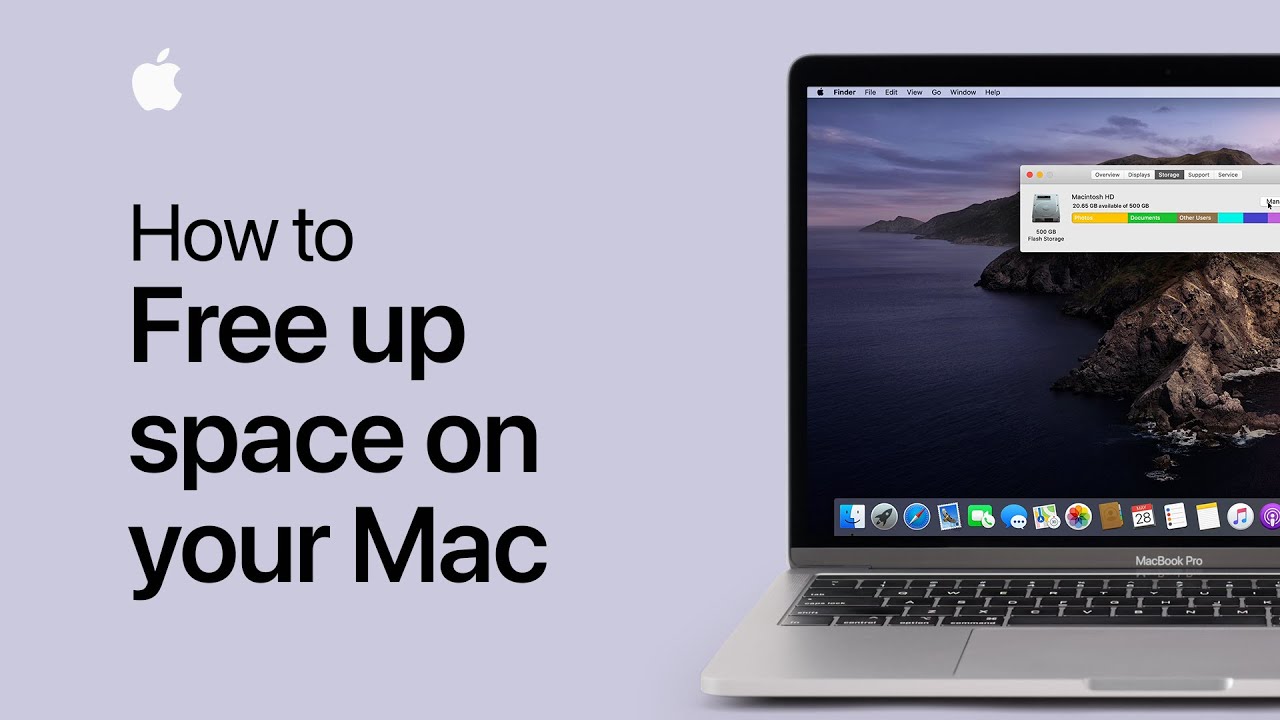
To free up space on your Mac, start by making a Time Machine backup to avoid losing any important files. Check your storage usage by going to the Apple menu, selecting “About This Mac,” and clicking the Storage tab. Click “Manage” to see recommendations such as storing files in iCloud, optimizing storage by removing watched TV shows and movies, enabling automatic trash emptying, and reducing clutter by identifying large files and unused apps. For manual space management, sort applications and files by size or last accessed date in the Manage Storage section, delete unnecessary items, or move large files to an external drive.
Summary:
– Backup your files using Time Machine before starting.
– Check storage usage by going to Apple menu > About This Mac > Storage tab.
– Use “Manage” for recommendations like storing files in iCloud, optimizing storage, and emptying Trash automatically.
– Manually delete large files and unused apps from the Manage Storage section or Finder.
– Consider moving large files to an external drive for additional space.