
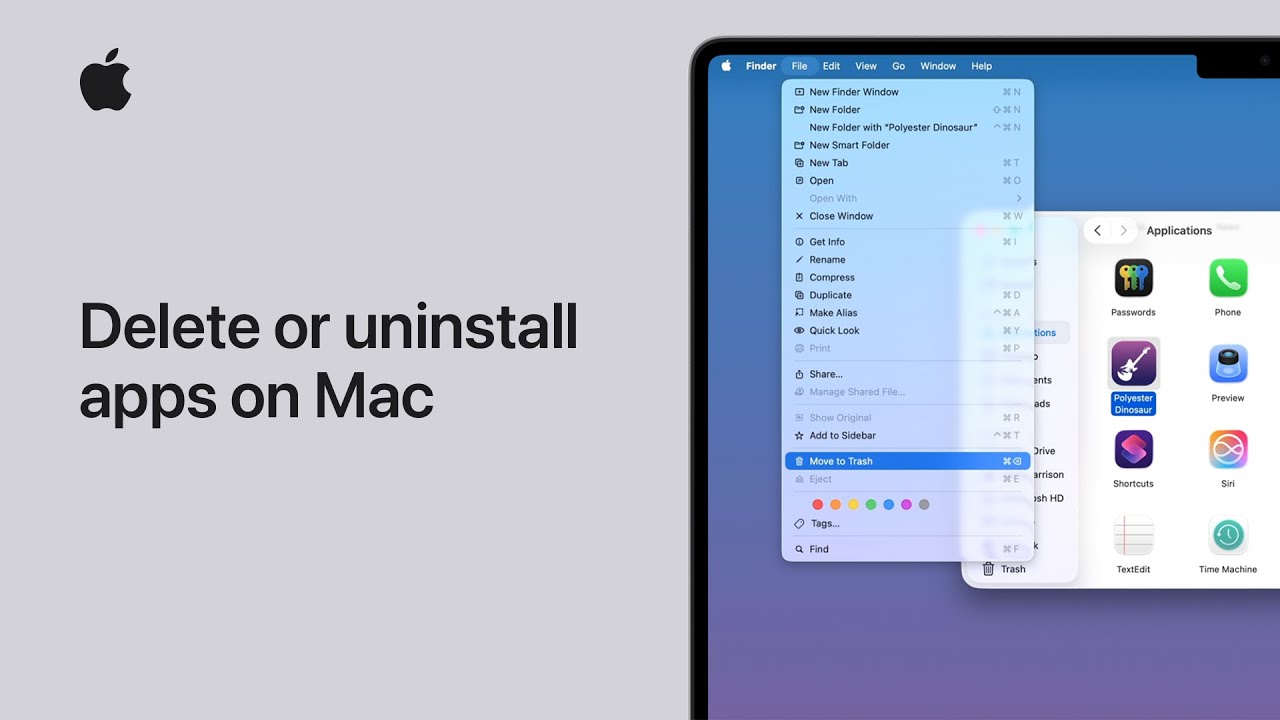
To free up space on your Mac by deleting apps you no longer use, first open the Finder and click on the Applications folder in the sidebar.
Next, locate the specific app you want to remove and ensure it is completely closed before you proceed. You can then either drag the app icon directly to the Trash in your Dock or select it and choose Move to Trash from the File menu.
If prompted, simply authenticate using your Touch ID or enter your administrator password to authorize the change.
Finally, to permanently delete the app and reclaim your storage, click the Finder menu and select Empty Trash to confirm the process.

- Open the Finder and navigate to the Applications folder to see a full list of the software currently installed on your Mac.
- Select the app you wish to delete, making sure to quit the program first if it is currently running or open.
- Move the app to the Trash by dragging its icon or using the File menu, and provide your administrator password if the system asks for it.
- Complete the removal process by clicking the Finder menu and choosing Empty Trash to permanently clear the app from your computer’s storage.