
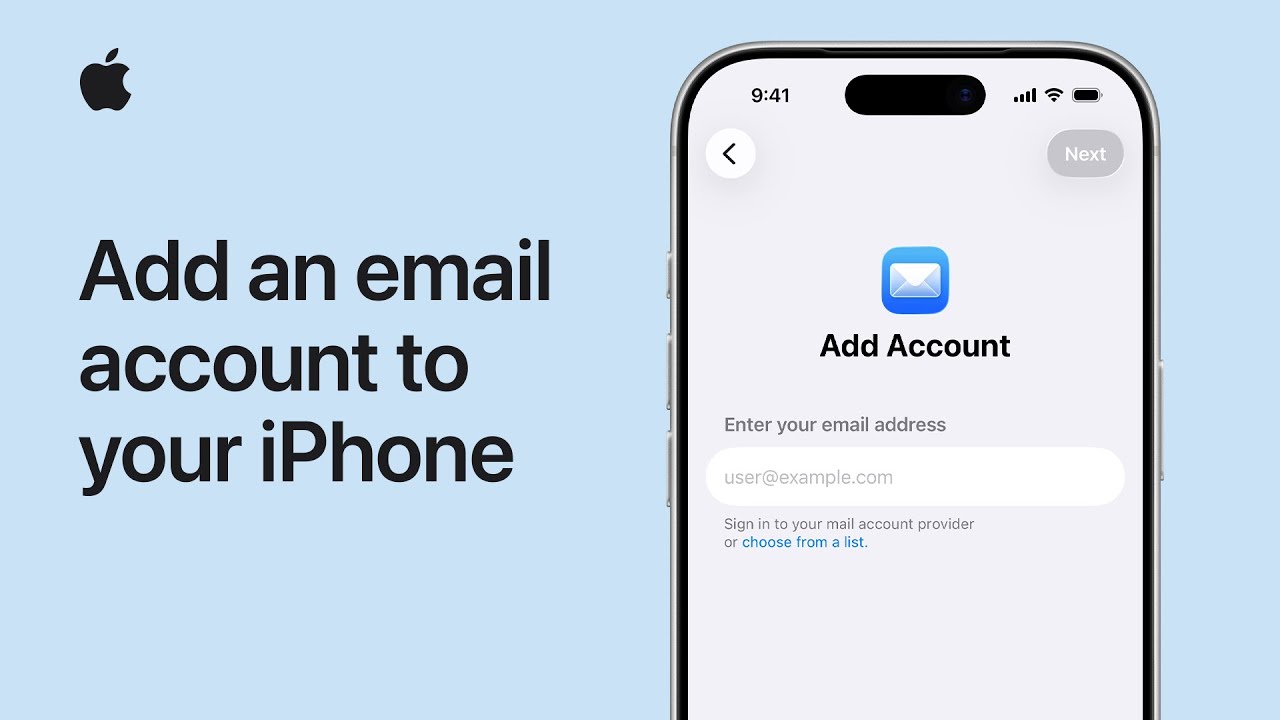
To add an email account to the Mail app on my iPhone, I start by opening Settings, scrolling down, and tapping Apps. I either find Mail manually or use the Search field to type Mail and select it.
Next, I tap Mail Accounts, then Add Account, and choose my email provider, such as Google. I enter my email address, tap Next, and open the browser when prompted to sign in.
If needed, I complete extra steps like two-step verification. After signing in, I choose which apps to sync with the account, tap Save, and then access my email in Mail.
- Open Settings, tap Apps, then find or search for Mail.
- Tap Mail Accounts, then select Add Account.
- Choose your email provider, such as Google.
- Enter your email, sign in through the browser, and complete any extra verification steps.
- Select what you want to sync, tap Save, and start using email in the Mail app.